Blocksi - Creating Student Groups
Sometimes you have a classroom that demands a little… separation. Johny can’t be on the same side of the room as Danny, or one of them will get a black eye, Suzie and Jimmy can’t be next to each other without secret attempts at handholding… You know… Kids are kids.
So here is the thing: if kids sometimes need separation in the physical world, sometimes they will need it in the digital world.
Enter Blocksi Groups. Within the Blocksi classroom, you can put students in groups that can be used for the assessment feature, the share/enforce feature, the message feature, and the heads up feature. You can even set different policies for different groups. In short, you can have almost as much control for each group of students as you do for the classroom as a whole. Plus, they are easy to make!
Some examples of why this could be useful:
- Having a group of students that you want to further limit access for
- Project groups to allow you to share different pages with each group
-
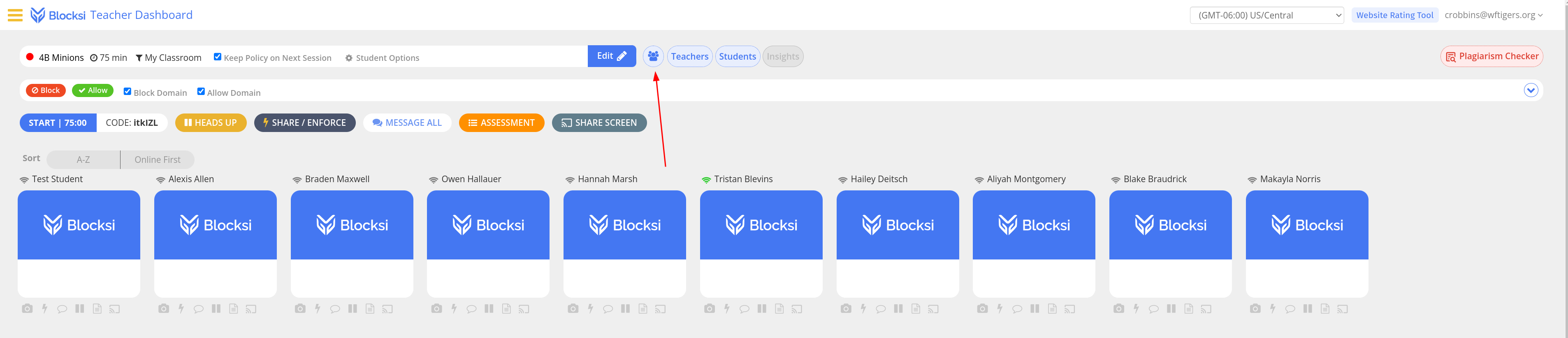
From within a class, click on the little group of three people button next to “Teachers” and “Students.”

-
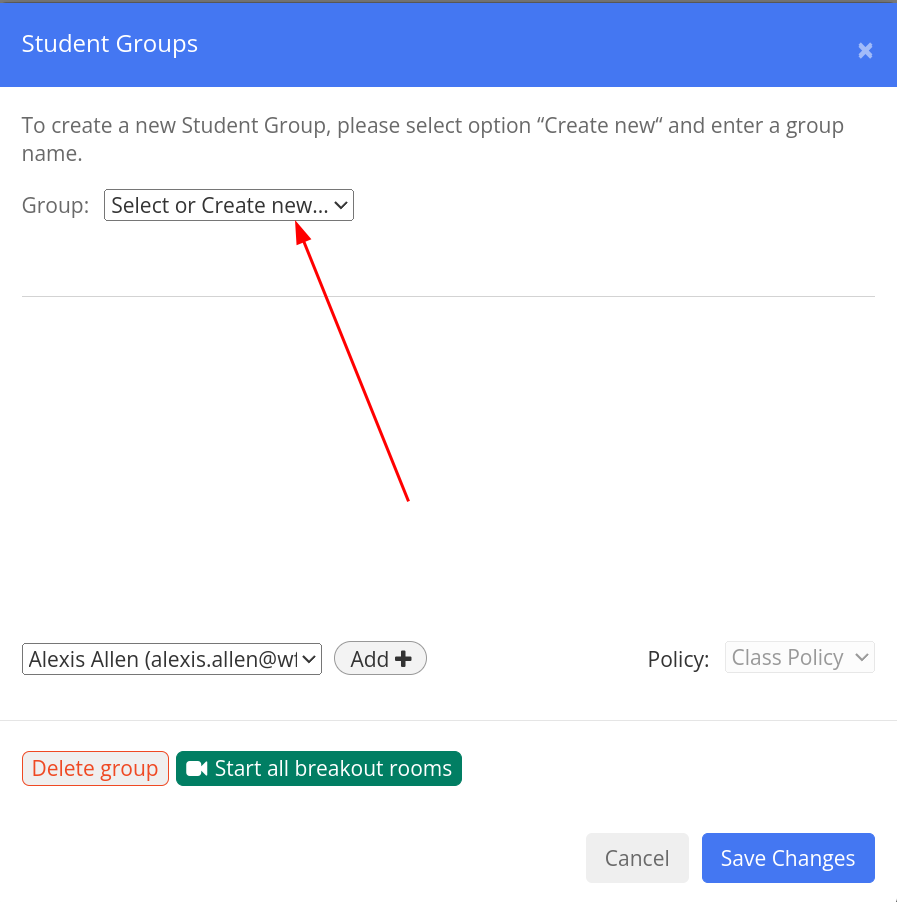
Click on the “Group” dropdown menu item, and select “Create New.”

-
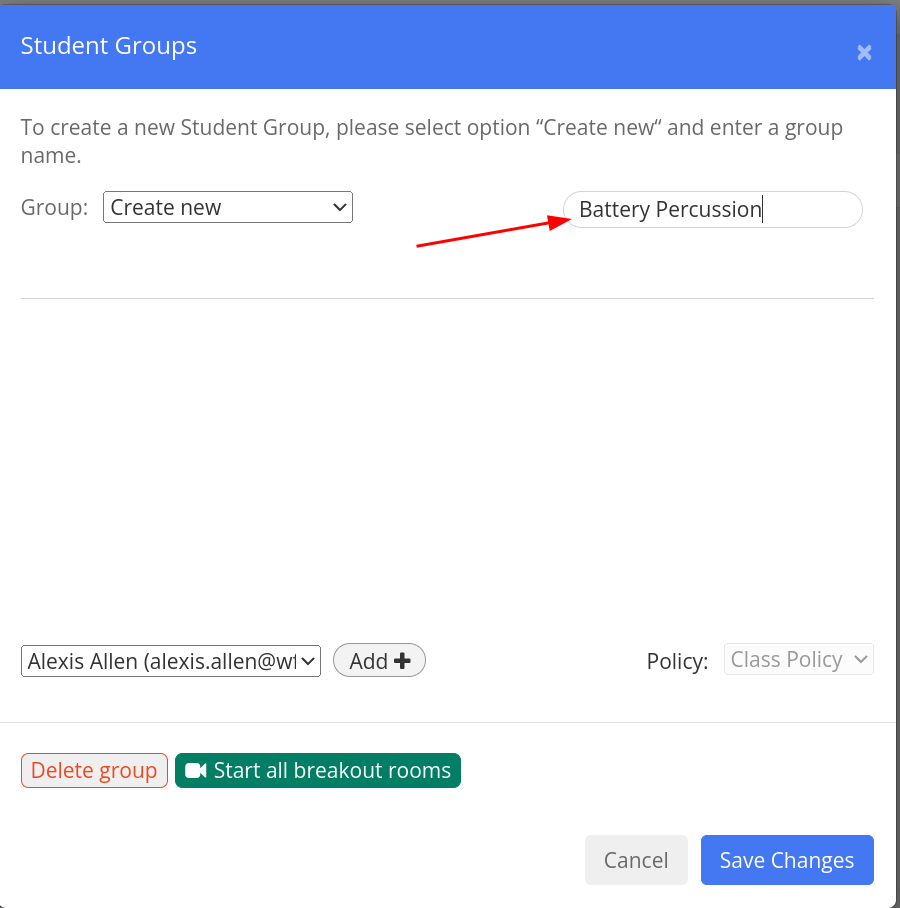
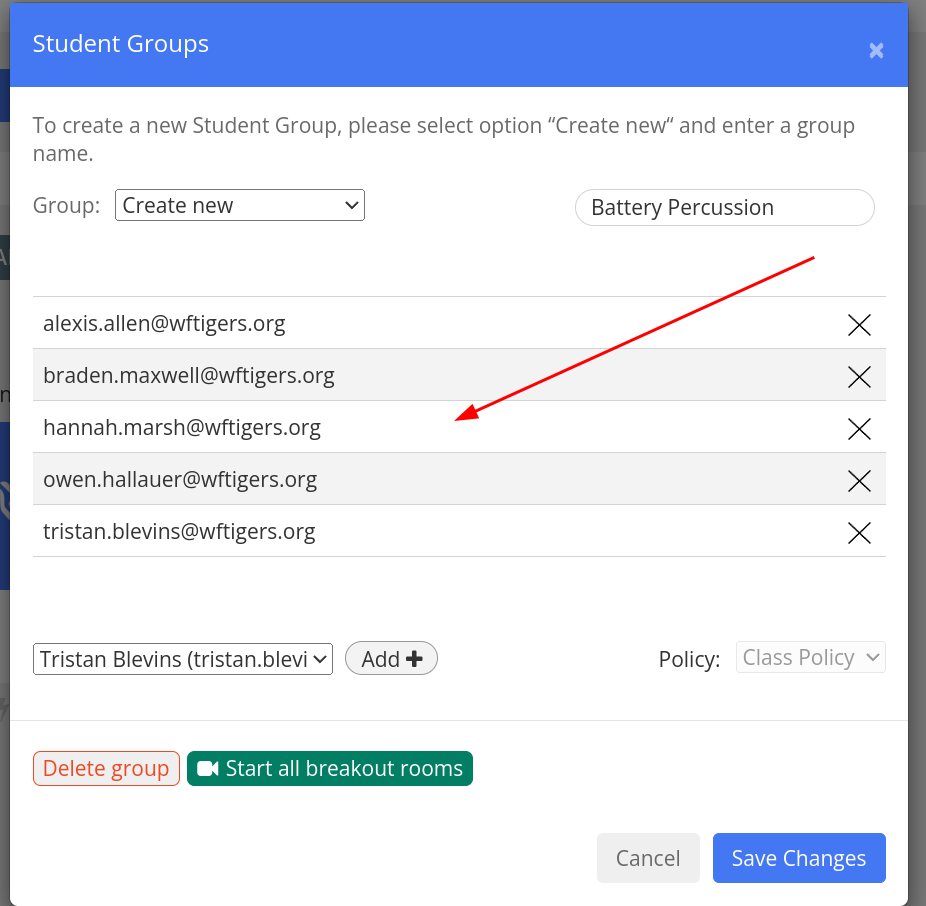
Choose “Create New,” then put in the name you want to give the group.

-
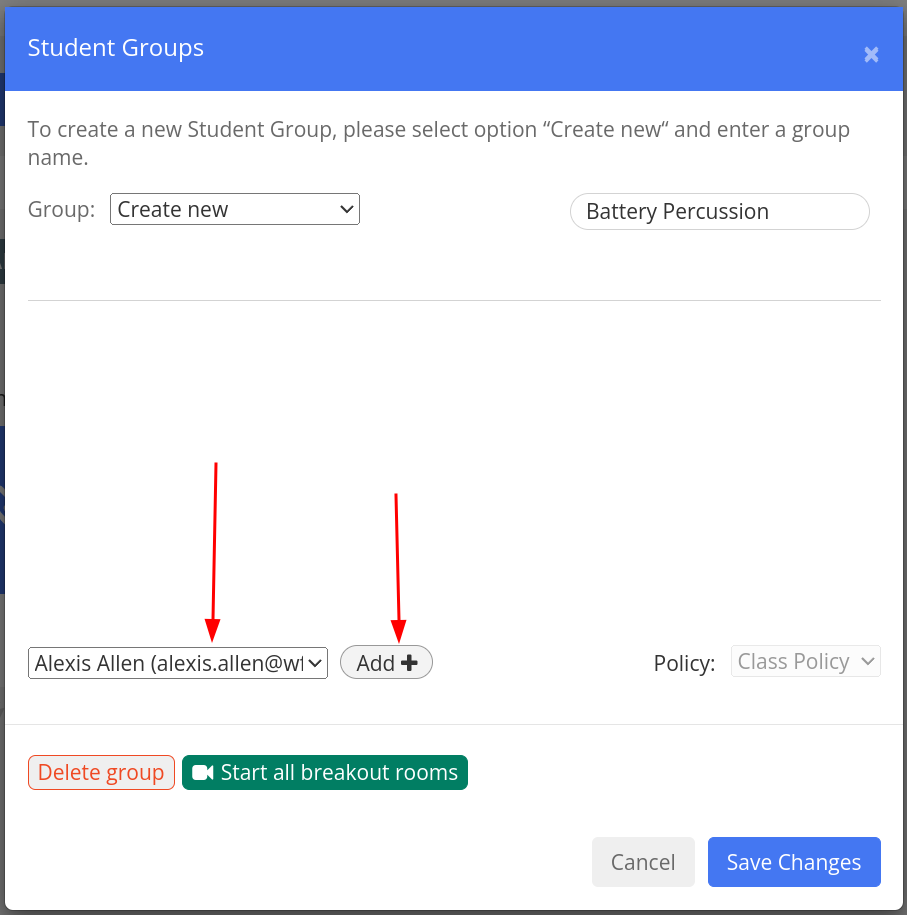
In the dropdown box at the bottom, select the first student you wish to add to the group, then click on the “Add” button.

-
Repeat until you see a list of all the students that should be in this group.

-
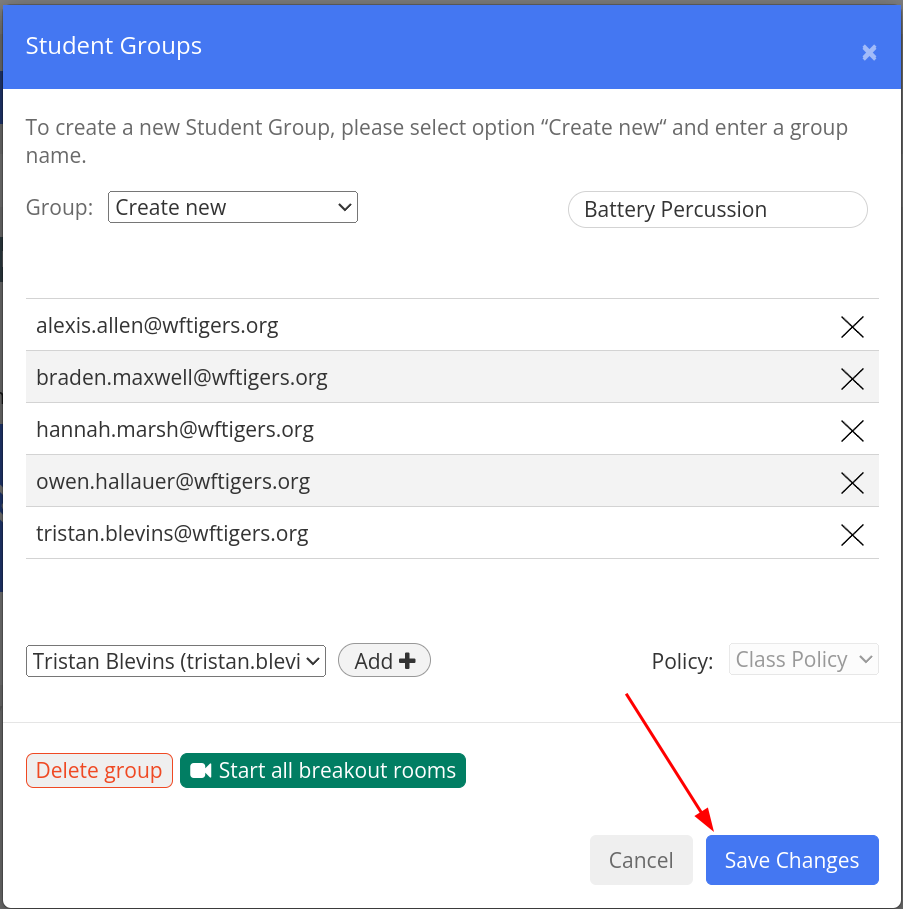
Click on the “Save Changes” button.

You can repeat these steps to add multiple groups.
Originally posted by Cory Robbins on the West Fork Technology Hub (2023-10-04).