Classroom Tech
Airtame displays and classroom phones.
Airtame
Airtame Troubleshooting
Computer will not connect to Airtame
This occasionally happens when the airtame has been saved as a favorite and the IP address of the airtame has changed. If your computer will not connect to a saved favorite, try manually typing in the IP address shown at the bottom left of the projector screen. It will look something like this: 10.62.92.246.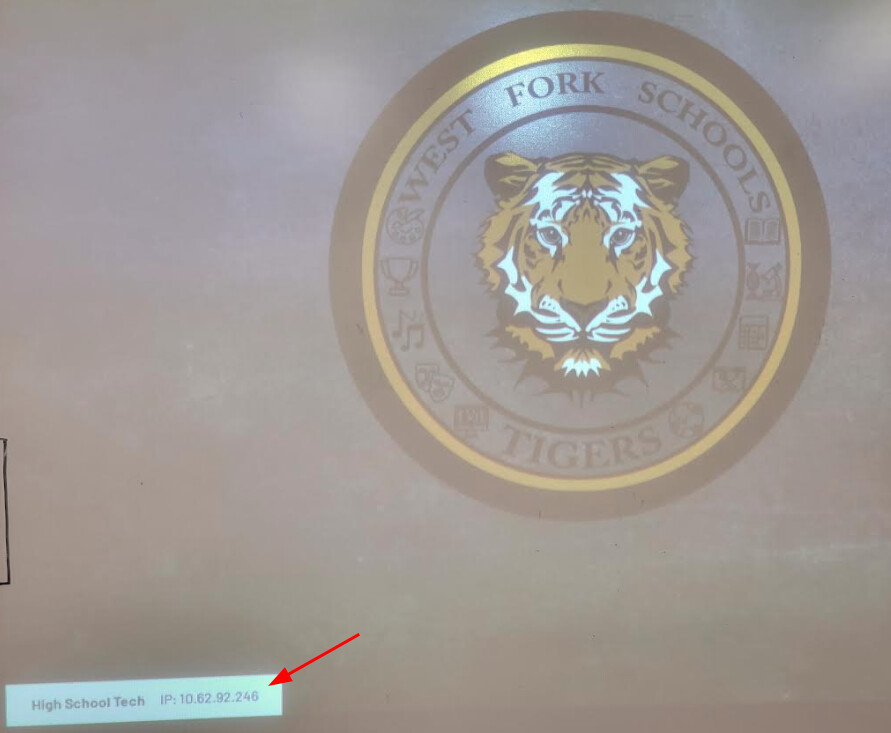
Airtame screen is not displaying on the projector
There are a couple of common possibilities.
Solution One: Make sure the projector input is set to HDMI.
Solution Two: If you can safely reach the airtame device; unplug the power cable, plug it back in, and allow the airtame to reboot.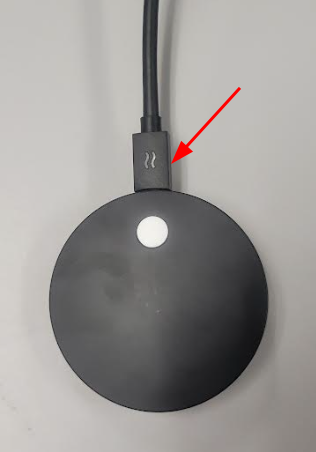
Originally posted by Carl Clements on the West Fork Technology Hub (2022-12-20).
Airtame - Share A Single Window
Sometimes it is useful to present content using Airtame while using your computer screen for other tasks (entering grades, viewing notes, etc).
I’ll quote Airtame on this feature to sum it up…
“This feature allows you to share a selected window or application while simultaneously working/viewing presentation notes and other content on your computer.”
Up until now most of the teacher laptops had an outdated version of Airtame that only allowed sharing of the entire screen. You should be able to notice an additional button now for [Share window],
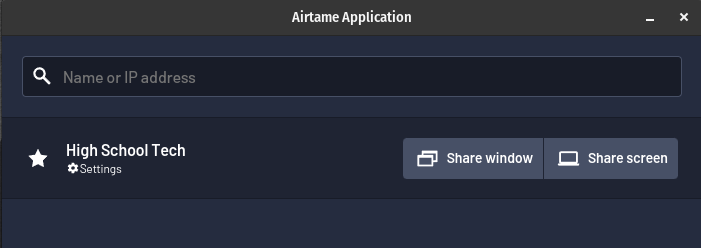
If you see this option, simply select the [Share window] button and select what you would like to have on the projector. If you aren’t sure how to open a separate window then you can visit this support article for instructions. To repeat the same instructions here, you will press [Ctrl] + [N] or click and drag a tab off of the current Google Chrome window.
Originally posted by Stephen Hale on the West Fork Technology Hub (2024-01-30).
Phones
Configure VoiceMail on Grandstream Phones
Since voicemails conveniently show up in our email inboxes we rarely give voicemail a second thought. However, it has been pointed out that many of our voicemails were set up years ago by teachers who are in a different room, building, or even district! An unexpected name and voice can be quite confusing for parents and coworkers. Fortunately, reconfiguring your voicemail is very straightforward.
The first step is to press the Messages button on your phone:
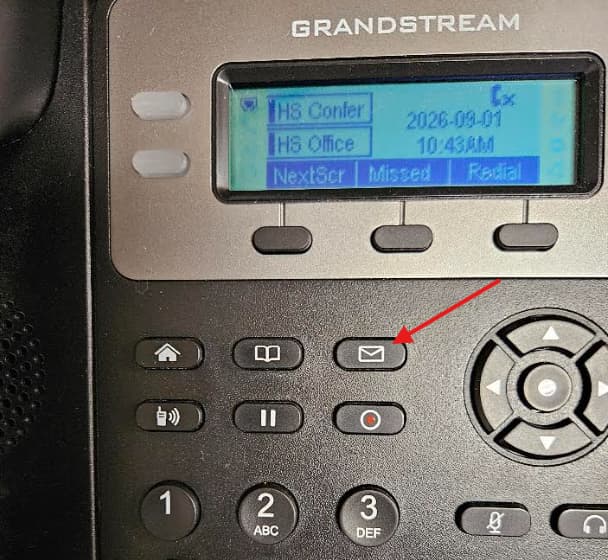
If at any point you are prompted to enter a password try the default password of 1234321. If it has been changed, please open a tech ticket by emailing support@wftigers.org and we will reset it.
Once the automated voice begins speaking, press zero to access the Mailbox Options.
The two options of importance are 1 and 3.
- Press 1 to record your unavailable message.
- Press 3 to record your name.
Follow the prompts each time to complete the process.
Originally posted by Carl Clements on the West Fork Technology Hub (2023-10-10).
Grandstream phones tutorial video 1600 series
this link is a video that shows you how to use your new phone. I will be looking for more in-depth tutorials as well.
Originally posted by Dustin Faust on the West Fork Technology Hub (2024-08-01).