# Google Chat - Spaces

<div class="lightbox-wrapper" id="bkmrk-image1080%C3%97720-33.7-k">[![image](https://hub.wftigers.org/uploads/default/original/2X/5/5e7c29475b0a5946cae59c3d9586fd2f033b371c.jpeg)<div class="meta"><svg aria-hidden="true" class="fa d-icon d-icon-far-image svg-icon"></svg><span class="filename">image</span><span class="informations">1080×720 33.7 KB</span><svg aria-hidden="true" class="fa d-icon d-icon-discourse-expand svg-icon"></svg></div>](https://hub.wftigers.org/uploads/default/original/2X/5/5e7c29475b0a5946cae59c3d9586fd2f033b371c.jpeg "image")</div>If you haven’t discovered Google Chat, you are missing out. The tech department uses this all the time to communicate with each other and other people on campus. It is like texting, but it is easily accessible within your email. Plus, it works well on mobile.

Anyway, we are going to discuss a specific part of Google Chat in this tip. Spaces.

Spaces is designed for group collaboration. It allows you to organize conversations into threads, collect shared documents into a common space, collect and assign tasks, and install additional apps for things like polls.

**Setting Up a Space**

<details id="bkmrk-create-a-new-space-v"><summary>Create a new space</summary>

1. Visit [mail.google.com](http://mail.google.com/)
2. Click on the “Chat” button in the left menu  
    ![image](https://hub.wftigers.org/uploads/default/original/2X/d/d3c1a4348ba14ff683c501a21e73456804e3d4b5.png)
3. Click “New chat.”  
    ![image](https://hub.wftigers.org/uploads/default/original/2X/e/e5fc4dc40c625e6bab15401f6abb2396ee15218a.png)
4. Click on “Create a space”  
    ![image](https://hub.wftigers.org/uploads/default/original/2X/4/453079d193207745cf1cfcf749dceba96c8462e4.png)
5. Enter a name, and choose to add an emoji if you want to.  
    <div class="lightbox-wrapper">[![image](https://hub.wftigers.org/uploads/default/optimized/2X/0/0b86dd7914982a3b3c19bf2b564132f36c6bdd49_2_470x500.png)<div class="meta"><svg aria-hidden="true" class="fa d-icon d-icon-far-image svg-icon"></svg><span class="filename">image</span><span class="informations">603×641 42.7 KB</span><svg aria-hidden="true" class="fa d-icon d-icon-discourse-expand svg-icon"></svg></div>](https://hub.wftigers.org/uploads/default/original/2X/0/0b86dd7914982a3b3c19bf2b564132f36c6bdd49.png "image")</div>
6. Make sure to choose “Collaboration.” Announcements has a purpose as well, but it isn’t what we are currently looking for.  
    <div class="lightbox-wrapper">[![image](https://hub.wftigers.org/uploads/default/optimized/2X/6/6eaee246e9f30f8d50b081ae3a33d755a0797c08_2_476x500.png)<div class="meta"><svg aria-hidden="true" class="fa d-icon d-icon-far-image svg-icon"></svg><span class="filename">image</span><span class="informations">580×609 40 KB</span><svg aria-hidden="true" class="fa d-icon d-icon-discourse-expand svg-icon"></svg></div>](https://hub.wftigers.org/uploads/default/original/2X/6/6eaee246e9f30f8d50b081ae3a33d755a0797c08.png "image")</div>
7. The access settings section should USUALLY be left as it is. Again, there are exceptions, but make sure you think about changing these carefully.
8. Click create.  
    <div class="lightbox-wrapper">[![image](https://hub.wftigers.org/uploads/default/optimized/2X/7/74c82a6a99de364e7f9f2d9a0f413b6b5b8b9ff8_2_458x500.png)<div class="meta"><svg aria-hidden="true" class="fa d-icon d-icon-far-image svg-icon"></svg><span class="filename">image</span><span class="informations">555×605 38.7 KB</span></div>](https://hub.wftigers.org/uploads/default/original/2X/7/74c82a6a99de364e7f9f2d9a0f413b6b5b8b9ff8.png "image")</div>

</details><details id="bkmrk-accessing-a-space-vi"><summary>Accessing a Space</summary>

1. Visit [mail.google.com](http://mail.google.com/)
2. Click on the “Chat” button in the left menu  
    ![image](https://hub.wftigers.org/uploads/default/original/2X/d/d3c1a4348ba14ff683c501a21e73456804e3d4b5.png)
3. On the left, click the name of the space you are looking to participate in.  
    <div class="lightbox-wrapper">[![image](https://hub.wftigers.org/uploads/default/optimized/2X/4/4a5f78288926c8e78aa6e833c19e4336f953c070_2_117x499.png)<div class="meta"><svg aria-hidden="true" class="fa d-icon d-icon-far-image svg-icon"></svg><span class="informations">311×1322 45.3 KB</span></div>](https://hub.wftigers.org/uploads/default/original/2X/4/4a5f78288926c8e78aa6e833c19e4336f953c070.png "image")</div>

</details><details id="bkmrk-add-people-to-a-spac"><summary>Add People to a Space</summary>

1. Inside a space, click the name of the space.  
    <div class="lightbox-wrapper">[![image](https://hub.wftigers.org/uploads/default/optimized/2X/2/25a384a5560a45007e898049b790c479c1d36d08_2_690x244.png)<div class="meta"><svg aria-hidden="true" class="fa d-icon d-icon-far-image svg-icon"></svg><span class="filename">image</span><span class="informations">775×275 22.1 KB</span><svg aria-hidden="true" class="fa d-icon d-icon-discourse-expand svg-icon"></svg></div>](https://hub.wftigers.org/uploads/default/original/2X/2/25a384a5560a45007e898049b790c479c1d36d08.png "image")</div>
2. Click on “Manage members”  
    <div class="lightbox-wrapper">[![image](https://hub.wftigers.org/uploads/default/optimized/2X/f/f0f08ee8e7a0ddd93620e8fe7d165ac697e7d86b_2_245x500.png)<div class="meta"><svg aria-hidden="true" class="fa d-icon d-icon-far-image svg-icon"></svg><span class="filename">image</span><span class="informations">364×742 31.9 KB</span><svg aria-hidden="true" class="fa d-icon d-icon-discourse-expand svg-icon"></svg></div>](https://hub.wftigers.org/uploads/default/original/2X/f/f0f08ee8e7a0ddd93620e8fe7d165ac697e7d86b.png "image")</div>
3. Click on the “+Add” button  
    <div class="lightbox-wrapper">[![image](https://hub.wftigers.org/uploads/default/optimized/2X/4/43e3dd21062c5c764f9a9a6c1cb1cdfb0188c48d_2_690x162.png)<div class="meta"><svg aria-hidden="true" class="fa d-icon d-icon-far-image svg-icon"></svg><span class="filename">image</span><span class="informations">1251×294 30.3 KB</span><svg aria-hidden="true" class="fa d-icon d-icon-discourse-expand svg-icon"></svg></div>](https://hub.wftigers.org/uploads/default/original/2X/4/43e3dd21062c5c764f9a9a6c1cb1cdfb0188c48d.png "image")</div>
4. Type in the names of the people or groups you want to add to the space.  
    <div class="lightbox-wrapper">[![image](https://hub.wftigers.org/uploads/default/optimized/2X/b/b4a6641130869bb72d4a8445b871bff215d37a94_2_651x500.png)<div class="meta"><svg aria-hidden="true" class="fa d-icon d-icon-far-image svg-icon"></svg><span class="filename">image</span><span class="informations">698×536 37.5 KB</span><svg aria-hidden="true" class="fa d-icon d-icon-discourse-expand svg-icon"></svg></div>](https://hub.wftigers.org/uploads/default/original/2X/b/b4a6641130869bb72d4a8445b871bff215d37a94.png "image")</div>
5. When you have everyone added, click on the “Add” button  
    <div class="lightbox-wrapper">[![image](https://hub.wftigers.org/uploads/default/optimized/2X/d/dd7d134cf9ed8a439402479f990009e055be0dfd_2_668x500.png)<div class="meta"><svg aria-hidden="true" class="fa d-icon d-icon-far-image svg-icon"></svg><span class="filename">image</span><span class="informations">699×523 38.1 KB</span></div>](https://hub.wftigers.org/uploads/default/original/2X/d/dd7d134cf9ed8a439402479f990009e055be0dfd.png "image")</div>

</details><details id="bkmrk-add-an-app-to-the-sp"><summary>Add an App to the Space (using polls)</summary>

a

1. Inside a space, click the name of the space.  
    <div class="lightbox-wrapper">[![image](https://hub.wftigers.org/uploads/default/optimized/2X/2/25a384a5560a45007e898049b790c479c1d36d08_2_690x244.png)<div class="meta"><svg aria-hidden="true" class="fa d-icon d-icon-far-image svg-icon"></svg><span class="filename">image</span><span class="informations">775×275 22.1 KB</span><svg aria-hidden="true" class="fa d-icon d-icon-discourse-expand svg-icon"></svg></div>](https://hub.wftigers.org/uploads/default/original/2X/2/25a384a5560a45007e898049b790c479c1d36d08.png "image")</div>
2. Click “Apps &amp; Integrations.”  
    <div class="lightbox-wrapper">[![image](https://hub.wftigers.org/uploads/default/optimized/2X/7/7b79965ca78771bbcfceab1e8fbd2770bf10976a_2_274x500.png)<div class="meta"><svg aria-hidden="true" class="fa d-icon d-icon-far-image svg-icon"></svg><span class="filename">image</span><span class="informations">380×692 30.5 KB</span><svg aria-hidden="true" class="fa d-icon d-icon-discourse-expand svg-icon"></svg></div>](https://hub.wftigers.org/uploads/default/original/2X/7/7b79965ca78771bbcfceab1e8fbd2770bf10976a.png "image")</div>
3. Click on “Add apps.”  
    <div class="lightbox-wrapper">[![image](https://hub.wftigers.org/uploads/default/optimized/2X/b/bdf69e0bd6f27d40a56d17d6f798db4c2e3cfdd8_2_690x287.png)<div class="meta"><svg aria-hidden="true" class="fa d-icon d-icon-far-image svg-icon"></svg><span class="filename">image</span><span class="informations">1241×517 32.7 KB</span><svg aria-hidden="true" class="fa d-icon d-icon-discourse-expand svg-icon"></svg></div>](https://hub.wftigers.org/uploads/default/original/2X/b/bdf69e0bd6f27d40a56d17d6f798db4c2e3cfdd8.png "image")</div>
4. Select the app of your choice from the list. I’m going to select “Absolute Poll” to allow voting on questions in the Space.  
    <div class="lightbox-wrapper">[![image](https://hub.wftigers.org/uploads/default/optimized/2X/9/9ed8f693d7e3cad8ea057fd0a294a31d0a509213_2_647x500.png)<div class="meta"><svg aria-hidden="true" class="fa d-icon d-icon-far-image svg-icon"></svg><span class="filename">image</span><span class="informations">697×538 31.5 KB</span><svg aria-hidden="true" class="fa d-icon d-icon-discourse-expand svg-icon"></svg></div>](https://hub.wftigers.org/uploads/default/original/2X/9/9ed8f693d7e3cad8ea057fd0a294a31d0a509213.png "image")</div>
5. Click the “Add” button.  
    <div class="lightbox-wrapper">[![image](https://hub.wftigers.org/uploads/default/optimized/2X/1/1548e3792fc5fa1f449d900feb76073a0cedaaa8_2_649x500.png)<div class="meta"><svg aria-hidden="true" class="fa d-icon d-icon-far-image svg-icon"></svg><span class="filename">image</span><span class="informations">705×543 32.8 KB</span><svg aria-hidden="true" class="fa d-icon d-icon-discourse-expand svg-icon"></svg></div>](https://hub.wftigers.org/uploads/default/original/2X/1/1548e3792fc5fa1f449d900feb76073a0cedaaa8.png "image")</div>
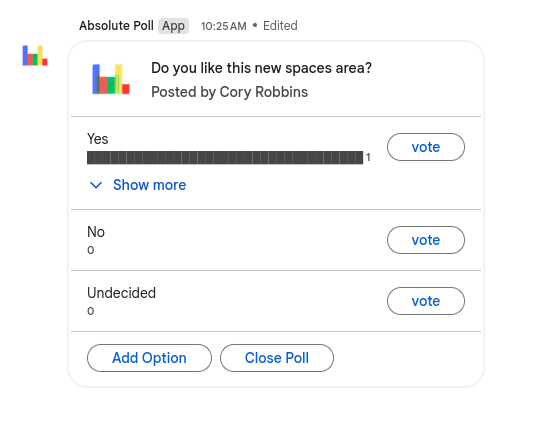
6. Once added, you will often get a message from the app that provides instructions on how to use it. For example, since I added the poll app, I can type: `/poll` and then hit enter, I’ll get a form. I can provide the requested information (I don’t have to put 4 options, and scrolling provides more settings), and when I “Submit,” I’ll get a poll for the users.  
    <div class="lightbox-wrapper">[![image](https://hub.wftigers.org/uploads/default/optimized/2X/a/ae2a2fcf7f21520f08624d8bf387d8c631c3519f_2_639x500.png)](https://hub.wftigers.org/uploads/default/original/2X/a/ae2a2fcf7f21520f08624d8bf387d8c631c3519f.png "image")</div>[![image.png](https://info.wftigers.org/uploads/images/gallery/2025-07/scaled-1680-/9xR6B4QRWu1Xu4io-image.png)](https://info.wftigers.org/uploads/images/gallery/2025-07/9xR6B4QRWu1Xu4io-image.png)

</details>**Using a Space**

<details id="bkmrk-threaded-communicati"><summary>Threaded communication</summary>

When a message is posted in a space, replies become “threads.” This concept is just organizing a conversation. Think about threads as topics of discussion.

To start a thread, it is as easy as sending a message. The magic happens on the replies.

<div class="lightbox-wrapper">[![image](https://hub.wftigers.org/uploads/default/optimized/2X/f/f19b22422c5ad03879712d8666388b17477967a7_2_690x147.png)<div class="meta"><svg aria-hidden="true" class="fa d-icon d-icon-far-image svg-icon"></svg><span class="filename">image</span><span class="informations">868×185 12 KB</span><svg aria-hidden="true" class="fa d-icon d-icon-discourse-expand svg-icon"></svg></div>](https://hub.wftigers.org/uploads/default/original/2X/f/f19b22422c5ad03879712d8666388b17477967a7.png "image")</div>1. To reply, I’ll hover my mouse over the message I want to reply to.
2. I’ll then click on the little word bubble icon  
    <div class="lightbox-wrapper">[![image](https://hub.wftigers.org/uploads/default/original/2X/c/c065b5b5a18b8ac525d70ecb0c7c9d400fb5edaa.png)<div class="meta"><svg aria-hidden="true" class="fa d-icon d-icon-far-image svg-icon"></svg><span class="filename">image</span><span class="informations">718×119 14 KB</span><svg aria-hidden="true" class="fa d-icon d-icon-discourse-expand svg-icon"></svg></div>](https://hub.wftigers.org/uploads/default/original/2X/c/c065b5b5a18b8ac525d70ecb0c7c9d400fb5edaa.png "image")</div>
3. You will now see a split screen with the main space on the left, and the thread on the right.  
    <div class="lightbox-wrapper">[![image](https://hub.wftigers.org/uploads/default/optimized/2X/5/5583d0cc418a158c5c049a7be1c64c80963f3d79_2_690x379.png)<div class="meta"><svg aria-hidden="true" class="fa d-icon d-icon-far-image svg-icon"></svg><span class="filename">image</span><span class="informations">1569×862 79.4 KB</span><svg aria-hidden="true" class="fa d-icon d-icon-discourse-expand svg-icon"></svg></div>](https://hub.wftigers.org/uploads/default/original/2X/5/5583d0cc418a158c5c049a7be1c64c80963f3d79.png "image")</div>
4. I’ll then type my reply in the RIGHT side reply box.  
    <div class="lightbox-wrapper">[![image](https://hub.wftigers.org/uploads/default/optimized/2X/d/d79cb3ae63e9d108ade039976a738d291eaf29bb_2_690x228.png)<div class="meta"><svg aria-hidden="true" class="fa d-icon d-icon-far-image svg-icon"></svg><span class="filename">image</span><span class="informations">792×262 19 KB</span><svg aria-hidden="true" class="fa d-icon d-icon-discourse-expand svg-icon"></svg></div>](https://hub.wftigers.org/uploads/default/original/2X/d/d79cb3ae63e9d108ade039976a738d291eaf29bb.png "image")</div>
5. when I’m finished typing, I’ll hit enter, or I’ll click the airplane icon.  
    <div class="lightbox-wrapper">[![image](https://hub.wftigers.org/uploads/default/optimized/2X/9/936505cceebf1ff8c4cb84b65c8c4b00ed21e0f4_2_690x270.png)<div class="meta"><svg aria-hidden="true" class="fa d-icon d-icon-far-image svg-icon"></svg><span class="filename">image</span><span class="informations">788×309 20.4 KB</span><svg aria-hidden="true" class="fa d-icon d-icon-discourse-expand svg-icon"></svg></div>](https://hub.wftigers.org/uploads/default/original/2X/9/936505cceebf1ff8c4cb84b65c8c4b00ed21e0f4.png "image")</div>
6. This does two things. First, it adds a reply indicator to the original message. Clicking on that will open up the thread. Second, it adds the response under the original message to the right side of the screen.  
    <div class="lightbox-wrapper">[![image](https://hub.wftigers.org/uploads/default/original/2X/1/10ef46c1272ef36403dd2762af5f664c8662f0bf.png)<div class="meta"><svg aria-hidden="true" class="fa d-icon d-icon-far-image svg-icon"></svg><span class="filename">image</span><span class="informations">729×225 16.7 KB</span><svg aria-hidden="true" class="fa d-icon d-icon-discourse-expand svg-icon"></svg></div>](https://hub.wftigers.org/uploads/default/original/2X/1/10ef46c1272ef36403dd2762af5f664c8662f0bf.png "image")</div>  
    <div class="lightbox-wrapper">[![image](https://hub.wftigers.org/uploads/default/optimized/2X/9/9ddc7ec4ba1f50fe89c59662cae070e43f5b399d_2_690x400.png)<div class="meta"><svg aria-hidden="true" class="fa d-icon d-icon-far-image svg-icon"></svg><span class="filename">image</span><span class="informations">1580×917 93.1 KB</span></div>](https://hub.wftigers.org/uploads/default/original/2X/9/9ddc7ec4ba1f50fe89c59662cae070e43f5b399d.png "image")</div>

</details><details id="bkmrk-viewing-all-space-th"><summary>Viewing All Space Threads</summary>

To view all of the treads that are in a space, click on “Threads” in the top right corner of the space.

<div class="lightbox-wrapper">[![image](https://hub.wftigers.org/uploads/default/optimized/2X/a/ad904bed75f1e1a8175b98e30e4686b1faaa53d1_2_690x68.png)<div class="meta"><svg aria-hidden="true" class="fa d-icon d-icon-far-image svg-icon"></svg><span class="filename">image</span><span class="informations">1521×152 17.7 KB</span><svg aria-hidden="true" class="fa d-icon d-icon-discourse-expand svg-icon"></svg></div>](https://hub.wftigers.org/uploads/default/original/2X/a/ad904bed75f1e1a8175b98e30e4686b1faaa53d1.png "image")</div>This will open your screen in a split view, and you will be able to see all of the threads for the space on the right side of the split.

</details><details id="bkmrk-quoting-conversation"><summary>Quoting Conversations</summary>

Sometimes it is helpful to quote a message.  
**Please note that this will NOT create a thread.**

1. To quote, I’ll hover my mouse over the message I want to interact with.  
    <div class="lightbox-wrapper">[![image](https://hub.wftigers.org/uploads/default/optimized/2X/1/1c30e9613853842c88d28a595f09348ec1f03c86_2_690x148.png)<div class="meta"><svg aria-hidden="true" class="fa d-icon d-icon-far-image svg-icon"></svg><span class="filename">image</span><span class="informations">887×191 17 KB</span><svg aria-hidden="true" class="fa d-icon d-icon-discourse-expand svg-icon"></svg></div>](https://hub.wftigers.org/uploads/default/original/2X/1/1c30e9613853842c88d28a595f09348ec1f03c86.png "image")</div>
2. You will see the quoted message and a reply box.  
    <div class="lightbox-wrapper">[![image](https://hub.wftigers.org/uploads/default/optimized/2X/8/8ec0a9019afe63b1fc58986ab484f3145d39ebb6_2_690x123.png)<div class="meta"><svg aria-hidden="true" class="fa d-icon d-icon-far-image svg-icon"></svg><span class="filename">image</span><span class="informations">895×160 10.9 KB</span><svg aria-hidden="true" class="fa d-icon d-icon-discourse-expand svg-icon"></svg></div>](https://hub.wftigers.org/uploads/default/original/2X/8/8ec0a9019afe63b1fc58986ab484f3145d39ebb6.png "image")</div>
3. Press enter or hit the airplane button.  
    This will result in a message with the quoted text above what you sent.  
    ![image](https://hub.wftigers.org/uploads/default/original/2X/b/b2bb5c4700fce9a09944cec9a7ccf3dd837fe9f8.png)

</details><details id="bkmrk-knowing-when-there-i"><summary>Knowing When There is a Message</summary>

There are two primary indicators to let you know you have a new message in a space.

First, like your email, the chat icon will show the number of unread messages you have waiting for you.  
![image](https://hub.wftigers.org/uploads/default/original/2X/2/2bbff7ceef0d219e750c2bd79748278cb7fd717b.png)

Second, in the bottom left corner of your email inbox, there will be a stack with the icons of the spaces you have unread messages in.  
![image](https://hub.wftigers.org/uploads/default/original/2X/6/621ef3db7b1ccc727c38dbf2881cd2670aec6332.png)

</details><details id="bkmrk-adding-drive-files-t"><summary>Adding Drive Files to a Space</summary>

Of course, you can share a file like normal, but it is often helpful to have files in a collective area along with communication.

1. Inside the space, click the circled plus button next to the message box.  
    <div class="lightbox-wrapper">[![image](https://hub.wftigers.org/uploads/default/optimized/2X/3/3765730874d4b807fffba5c7279e43c3a1925eb4_2_690x62.png)<div class="meta"><svg aria-hidden="true" class="fa d-icon d-icon-far-image svg-icon"></svg><span class="filename">image</span><span class="informations">869×79 3.85 KB</span><svg aria-hidden="true" class="fa d-icon d-icon-discourse-expand svg-icon"></svg></div>](https://hub.wftigers.org/uploads/default/original/2X/3/3765730874d4b807fffba5c7279e43c3a1925eb4.png "image")</div>
2. Click the “Google Drive” option.  
    ![image](https://hub.wftigers.org/uploads/default/original/2X/a/a4e5ee3d8b68134c92c5afac1d3809b0988d7b6d.png)
3. If the file already exists in your drive, click on “Attach a Drive file.” If you want to create a new file and automatically share it with the members of the space, choose one of the other options.  
    ![image](https://hub.wftigers.org/uploads/default/original/2X/d/d1946e22dacc49477a3b4b4aaccae7f8d363cdc7.png)

You will then be prompted to pick the file you want to share or to add a name for the new file you are about to create.  
![image](https://hub.wftigers.org/uploads/default/original/2X/9/945f9c68c324b6a76b9f5f3b7cbcbdb672903bdd.png)

If you created a new document, that will open in a split view, but whether the document is new or attached, you will get an icon, and in the lower right corner of the icon, it will allow you to open it in split view.  
![image](https://hub.wftigers.org/uploads/default/original/2X/b/b60903b848289db1ef5e42e650d97ff989d5152d.png)

<div class="lightbox-wrapper">[![image](https://hub.wftigers.org/uploads/default/optimized/2X/c/cc5451f0c9d4ad8b32fa108dabc07b095f757f4d_2_421x500.png)<div class="meta"><svg aria-hidden="true" class="fa d-icon d-icon-far-image svg-icon"></svg><span class="filename">image</span><span class="informations">1536×1822 168 KB</span></div>](https://hub.wftigers.org/uploads/default/original/2X/c/cc5451f0c9d4ad8b32fa108dabc07b095f757f4d.png "image")</div></details>There is plenty more you can do inside of Spaces. Hopefully, this is enough to get your collaboration efforts started though!