eSchool, TAC & EAC
eSchool, Teacher Access Center and Employee Access Center how-tos, including off-campus access.
- Changing Password for TAC, eSchool, etc
- Entering Semester Grades in TAC
- Emailing Students and/or Parents from TAC
- View Student information in TAC
- Employee Access Center - Setting Contact Numbers for Messaging
- Off-Campus Access for eSchool, TAC, and eFinance
Changing Password for TAC, eSchool, etc
Two times each year the state (ADE/DESE) asks all users to change their SSO password. This is the account that begins with 7208. This includes logins for TAC, eSchool, and several other state portals.
Below is a sample message you will soon receive if you have not already. Watch your email for a message from “ADE District Security” with the subject “State Active Directory Account Confirmation”.
Be sure to confirm your account by changing your password before the deadline. This is either the end of February or the end of August. Failure to change your password by the deadline will result in the state removing your account.
State Active Directory Account Confirmation
(used for State applications such as Child Nutrition, SIS, eFinance, eSchool, etc)
7208XXXXXXXX
Hello
Action Needed:
Please confirm that you are still actively using this account. (see below)
Confirmation Window:
January 1, 2023 through February 28, 2023
At your convenience, anytime during the Confirmation Window, please confirm that you are still actively using this account.
To confirm, set a new password for State Active Directory Account " 7208XXXXXXXX" at your convenience (before close of business February 28, 2023).
Once a new password is set during the confirmation window, you will not need a change again until notification in July 2023.
Simplified steps:
· If you remember your current password
Visit https://adam.ade.arkansas.gov/
Enter your current username and password
· Set a new password
· If you do not remember your current password
Visit https://adam.ade.arkansas.gov/
Enter your current username and select “Forgot your password” and follow the steps
*If needed, here are steps with screenshots
· https://adedata.arkansas.gov/security
Passwords
User Password Change
Thank You.
ADE Security
Originally posted by Carl Clements on the West Fork Technology Hub (2023-01-10).
Entering Semester Grades in TAC
To enter semester grades in TAC:
-
Enter all assignments and all grades into the gradebook for the quarter. (Remember to check for blank marks that may not be calculating correctly! If a grade should be a zero enter a zero.)
-
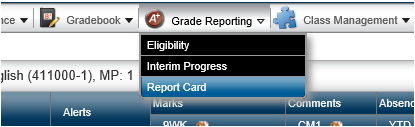
Go to the Grade Reporting Menu and select Report Card.
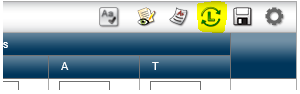
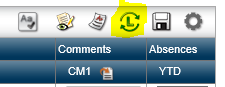
- To the upper right of the screen click the L with arrows to “Load from Gradebook.”
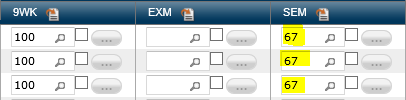
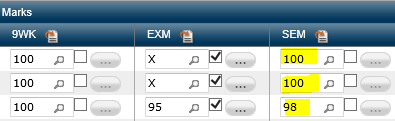
- NOTE: The semester average is not being calculated correctly since there is no exam grade entered.
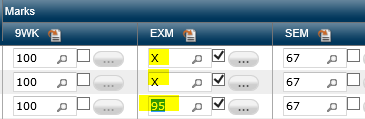
- Enter the exam grades in the EXM column. If you do not give a semester exam or a student is not required to take the exam, enter an X.
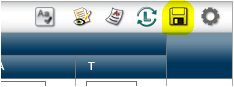
- Click the save icon.
- Once again click the Load from Gradebook icon.

- NOTE: The semester grades will recalculate and should now be correct.
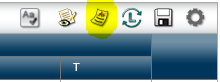
- Optional Click the Report Card Summary button to view a report view of the entire class.
- Repeat for each course section.
Originally posted by Carl Clements on the West Fork Technology Hub (2022-12-13).
Emailing Students and/or Parents from TAC
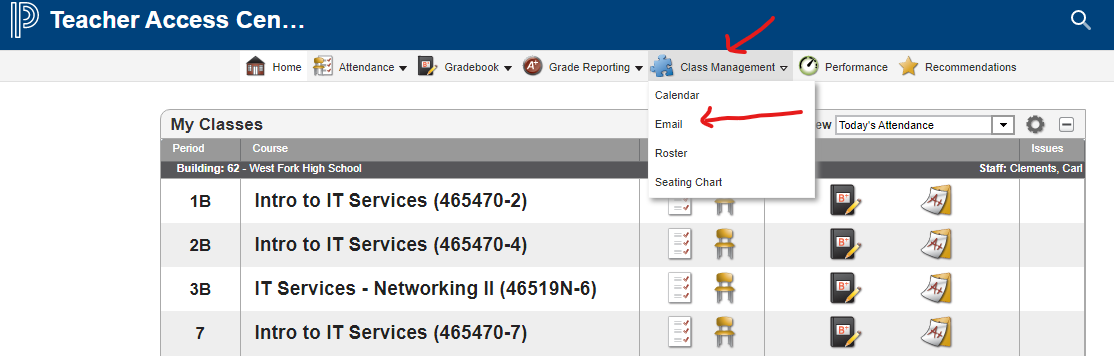
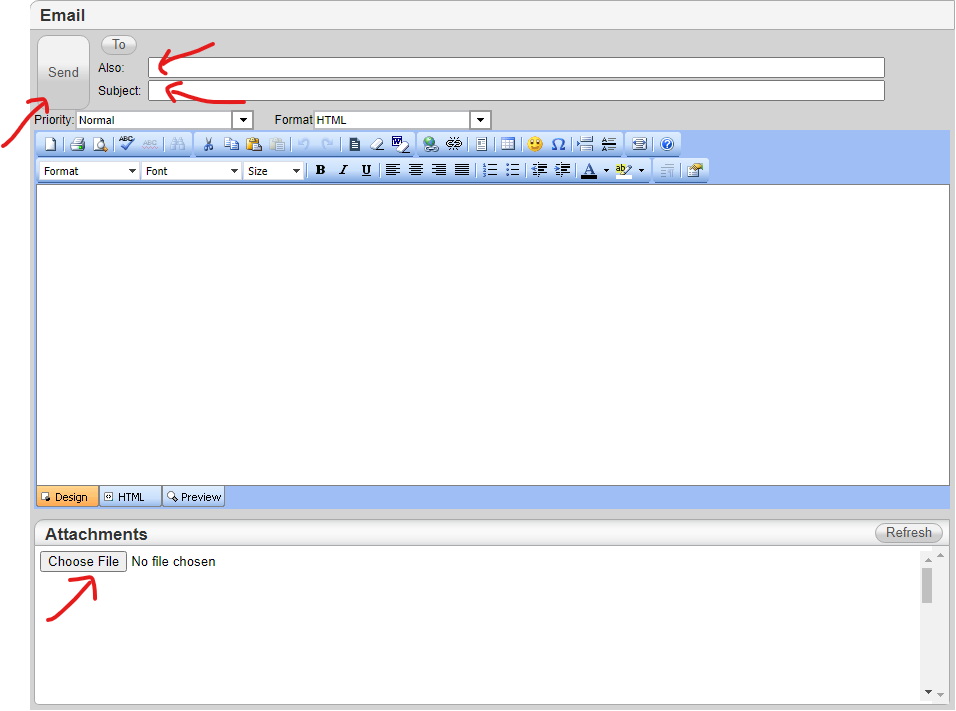
There is a handy email tool built into TAC that allows teachers to email students and/or guardians by class. To use it, log in to TAC and select Email from the Class Management Menu.
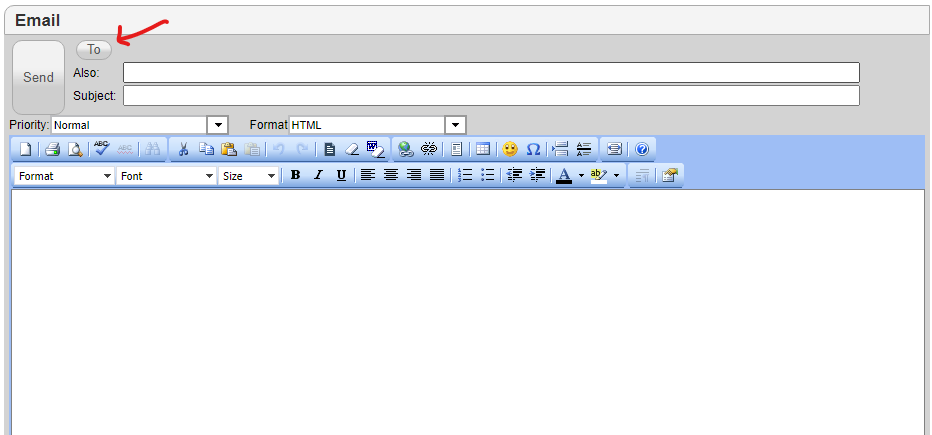
The email window will open. Click the To button to select your recipients.
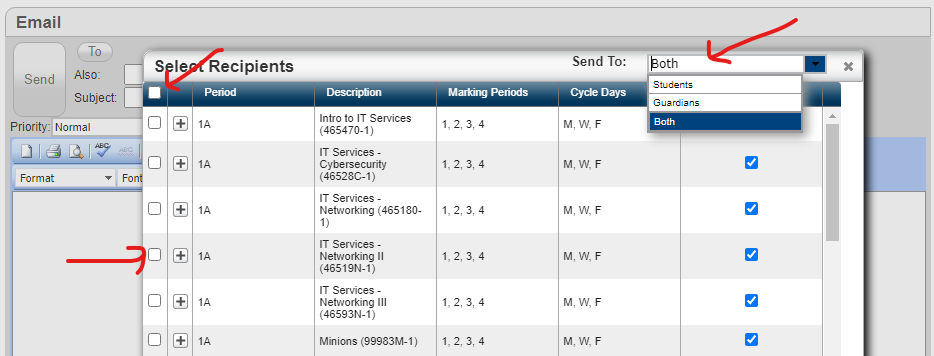
By default, both parents and students will be selected. To email students only or guardians only click “Both” and change the selection.
Choose a class or multiple classes by selecting the tick box to the left of the period name. To choose all classes, select the tick box in the upper left.
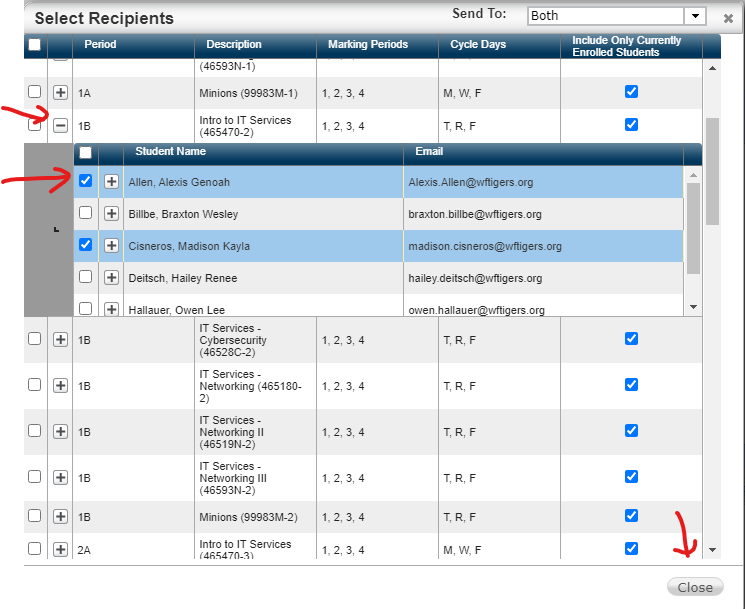
To select certain students from a class (for example those who are missing a particular assignment), click the plus sign to expand the roster. Click the tick box next to any student you would like to email. When your selections are complete, click Close.
If you like carbon-copy (cc) yourself be aware TAC email uses the term “Also” instead of cc. In addition, a subject is required. Other than that it is pretty self-explanatory. It has a rich text editor and links and attachments can be included. Once the email is composed click the send button.
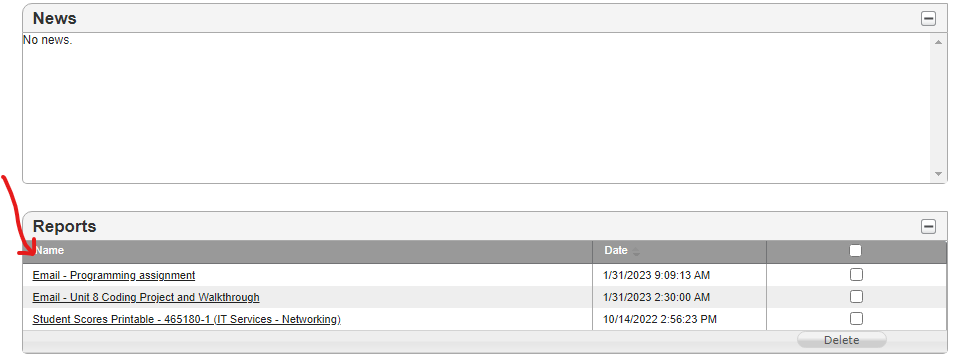
Finally, a record of sent emails is available on the TAC Home screen under Reports.
Originally posted by Carl Clements on the West Fork Technology Hub (2023-01-31).
View Student information in TAC
This article will show how to view student information in TAC, including demographics, parent contacts, schedule, report cards, transcripts, missing assignments, and current classwork. This works for students rostered in your class but can also be used for any student in your building. This is useful for club sponsors and coaches.
The pictures are rather limited due to personally identifiable information (PII) of students. A few minutes of clicking through the tabs will fill in the blanks not pictured.
Once logged in to TAC, if the student is in your class, click on the student name to pull up the student information viewer. If they are not in your class, click on the magnifying glass in the upper right-hand corner.

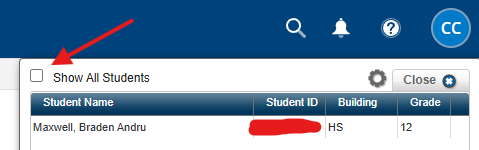
Type in the desired last name. Be sure to click “Show All Students” if they are not on your class roster.
After clicking on the student name, the Quick View tab is displayed.

The redacted section displays contact information. The full schedule and missing assignments are also displayed.
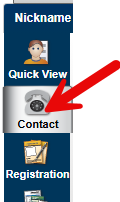
Click on the Contact button to see student, guardian, and emergency contact information.
The Registration tab is rather limited, so we will skip over that.
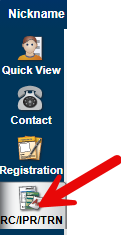
The RC/IPR/TRN tab shows report card, progress report, and transcript information.
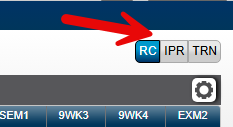
Click on the buttons in the upper right to switch between the three views.
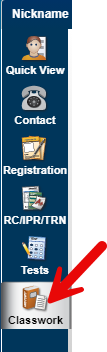
The Tests tab is not used; however, the Classwork tab shows all the current published assignments as well as the student’s grade in each class.
Originally posted by Carl Clements on the West Fork Technology Hub (2025-03-04).
Employee Access Center - Setting Contact Numbers for Messaging
We use a mass notification system to send important staff information. Examples include: winter weather closings, event notifications, and reminders of important happenings.
Your information is populated from your HR file, so it is critical that you verify that this information is correct.
-
Access the Employee Access Center
- Click on the “WF Bookmarks” option inside of Chrome
- Click on “Employee Access Center”
- For the “District” and the “Profile” dropdowns, make sure that “West Fork School District” is the selected option.
- Sign in using your school email address and the password your originally set for this site. If you do not know your password, you can use the “Forgot your Password?” link below the Sign In button. If you STILL can’t get in, contact Patty Burnett for a password reset.
-
Verify & Update Information
- Your information is listed on the page directly after you sign in. Use the key below to make sure you have the correct numbers in the correct areas.
- If you need to make a change, click on the “update” button at the top center of the page.
- Make any changes required, then click on the save button.
Important Values and Their Uses
You MUST verify that the following information is correct:
-
Personal Cell Phone: This will be the number where district/school text messages are sent. This number is critical.
-
Phone Number: This will be where voice calls are sent. It CAN be the same number you entered into the Personal Cell Phone number or it CAN be different. This number is critical.
-
Emergency Phone: Again, this is a backup call device. You can enter anyone else you would like to receive staff calls here
-
Emergency Cell Phone: This is a backup text-compatible phone. You don’t have to provide this, but if you want to enter a spouse’s/significant other’s cell number as a backup/additional message device, you should add it here
-
Work Phone: This will be the number that appears in the “Blackboard Directory” It can be a school number, home number, or a cell number, but it MUST be 10 digits (meaning no extensions and that you must have an area code). If you are someone who is given access to send calls, this will also be the number that shows on the caller ID.
If this information isn’t correct, you will not receive the information that you need.
Originally posted by Cory Robbins on the West Fork Technology Hub (2024-08-14).
Off-Campus Access for eSchool, TAC, and eFinance
The proxy is only active when you attempt to access eSchool, TAC, or eFinance outside of the school network.
The first time you access one of these sites from off-campus, you will be prompted with the box below:
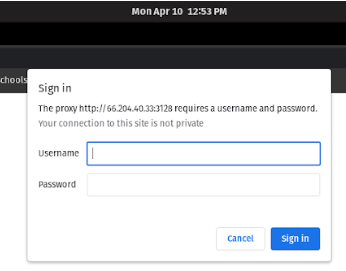
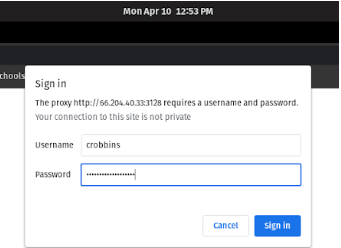
In the “Username” box, type the first part of your email, the part before @wftigers.org. In the “Password” box, type in your email password, and then click on “Sign In.”
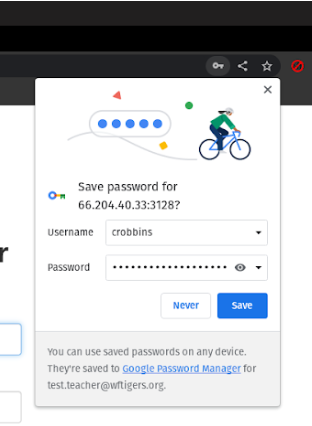
Once you successfully authenticate, you will be prompted to save your password. Doing this will mean that you no longer see the previous prompt. You don’t HAVE to save your password, but you can!
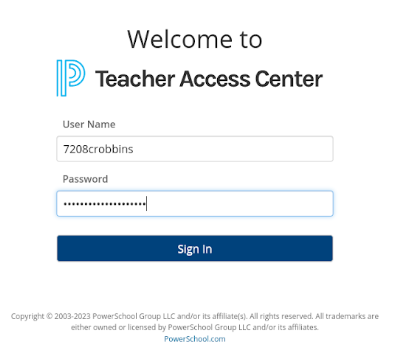
At this point, you may log in to eSchool, TAC, or eFinance using your 7208 username and password.
Things to note:
- You must have sync active within Edge or Chrome
- The proxy only work off-campus
- The proxy blocks ALL traffic to websites that don’t end in either k.12.ar.us or powerschool.com; this means that it is impossible for any personal information to be sent through it.
Earlier instructions: Connecting to the WFPS VPN For Off-Campus eSchool, TAC, and eFinance Access (2023-01-11)
It is unlikely that the previous method of accessing the state sites from home will work again, here are the working VPN instructions that will allow you to continue connecting from home…
PLEASE remember that this sends ALL of your internet activity through the school’s servers for as long as you are connected. You must remember to connect only when you need access to the state resources and disconnect when you have finished doing what you need to do on those sites.
Because this contains passwords, you will be required to be logged in with your faculty account to view this document.
If the embed isn’t working for you, here is a direct link to the document:
Access Google Docs with a personal Google account or Google Workspace account (for business use).
Originally posted by Carl Clements on the West Fork Technology Hub (2023-04-11).