General Tech Tips
- Connect to the West Fork Schools Network - For Students and Staff
- End of the School Year -Tech FAQ
- Microsoft Office
- Operations Hero - Maintenance Request
Connect to the West Fork Schools Network - For Students and Staff
West Fork Schools offers two options for connecting to Wi-Fi.
- For students and staff, this is the West Fork Schools Wi-Fi network.
- For guests to the district, it is the WFPS Guests network.
PLEASE NOTE: If you have already connected to the West Fork Schools network, you do NOT need to follow the steps below unless you wish to connect another device.
Guests
To get it out of the way quickly, the WFPS Guests network does not require a password, but it DOES require a one-time-use voucher code that guests must pick up from one of the offices. It is not for students or staff, and the access is HEAVILY restricted.
Students and Staff
Again, there are two options here.
- School-Owned Devices - Devices assigned to you by the district
- BYOD (Bring Your Own Device) for Personal Devices like phones, tablets, and laptops
School-Owned Devices
Click here for how to connect school-owned devices
This is a ONE TIME setup. After you have connected your device, you will be good to go in the future.
Connecting School-Owned Macs and Windows Machines
If you have a school-owned Mac or Windows machine that connects with Wi-Fi, please follow the instructions for the BYOD devices. If you run into problems with permissions, please open a ticket.
Connecting School-Owned Chromebooks
School chromebooks should automatically connect ONCE THEY HAVE GAINED A WI-FI CONNECTION for long enough to download the new profile. For now, we recommend temporarily connecting to “Student.”
Connecting School-Owned Linux Devices
To start, make sure you are on some sort of wi-fi on campus. If you CAN NOT connect to any Wi-Fi, there is a backup option listed at the bottom of this page. You will know that you HAVE to use the backup method if you don’t have the ability to complete step 2 below.
Please Note: If you are NOT on campus, this will not work. Please wait until you can be on campus.
- Press your Windows key.


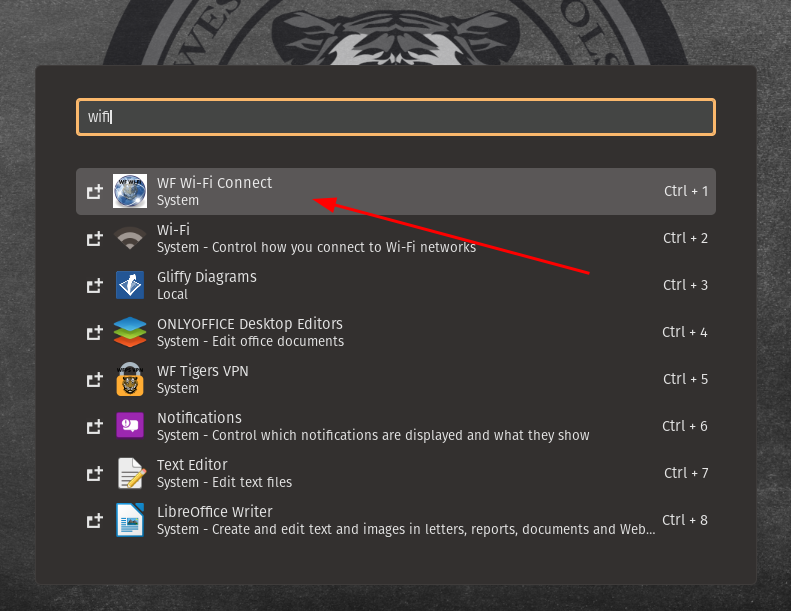
2.Type “wifi” in the search box. Click on “WF Wi-Fi Connect.” If you don’t see this option, then you will need to follow the backup plan at the bottom.
-
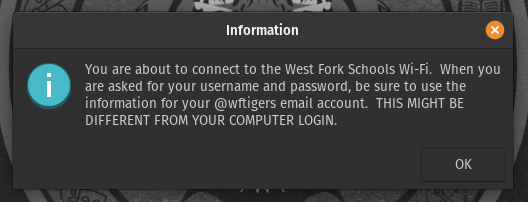
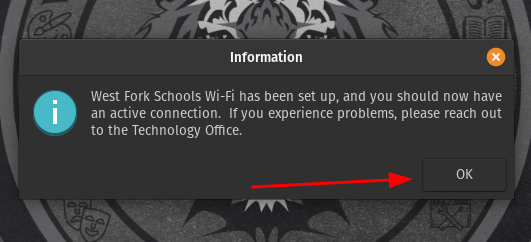
You will receive a popup box. Make sure you read it, then click “OK.”

-
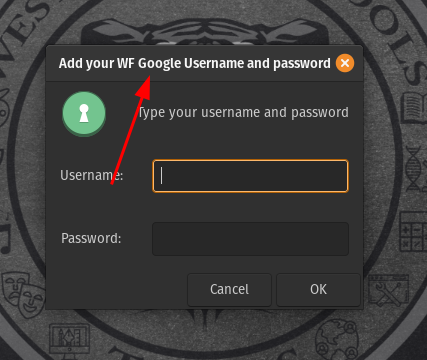
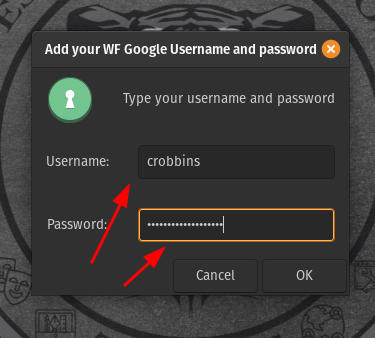
In the next box, type in your SCHOOL EMAIL username and password. The program should be smart enough to remove the @wftigers.org part, but it is best if you just type the part of your username that comes before that.


-
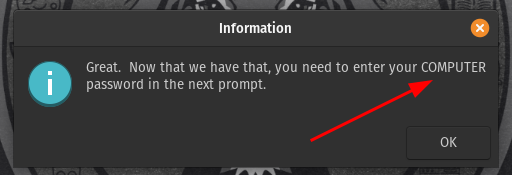
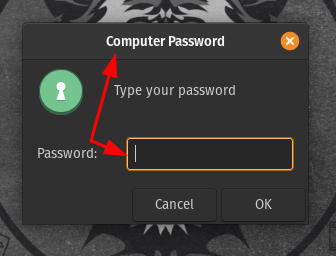
IF YOU ARE A STAFF MEMBER, you will get the next box. Because of how your computers work, you have to also provide your computer password. Click “OK,” then enter your computer password in the next box. STUDENTS WILL NOT SEE THIS BOX!


-
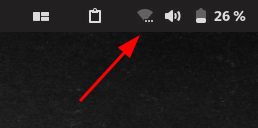
In the top right corner of your screen, you will see three little dots under the Wi-Fi symbol. This means that the connection is attempting to happen.

-
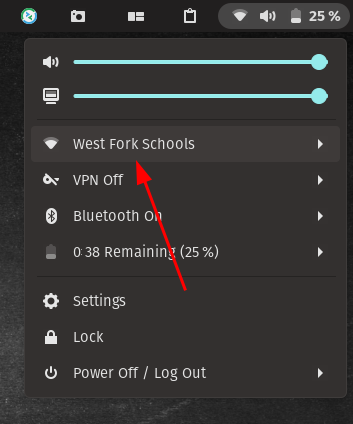
If everything was typed correctly, you will then get a box letting you know that the connection was successful, and asks for you to click on “OK.” You should be able to verify with a solid Wi-Fi symbol, and by seeing “West Fork Schools” as the connected network.


-
If something went wrong, you will get a message prompting you to try again. Make sure you are providing your SCHOOL email and password when prompted and your COMPUTER password when prompted. If you STILL can’t get a successful result, try the backup option below.
Backup Option
The method presented below is just a fancy wrapper for doing it the manual way, but you have to have been on Wi-Fi to download it. Luckily, it isn’t terrible to do it manually.
Click for Backup Plan Instructions
-
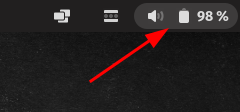
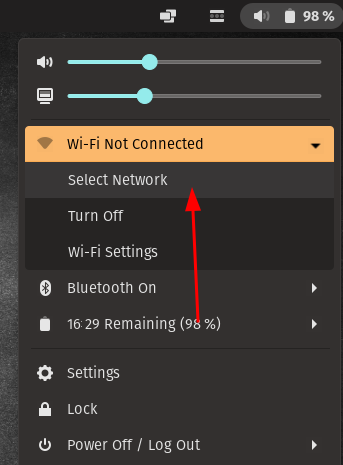
Click the battery/sound indicator at the top right of your screen.

-
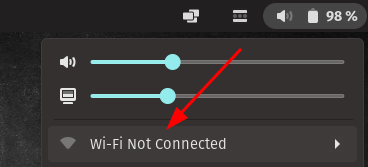
Click where it says “Wi-Fi Not Connected”

-
Click “Select Network”

-
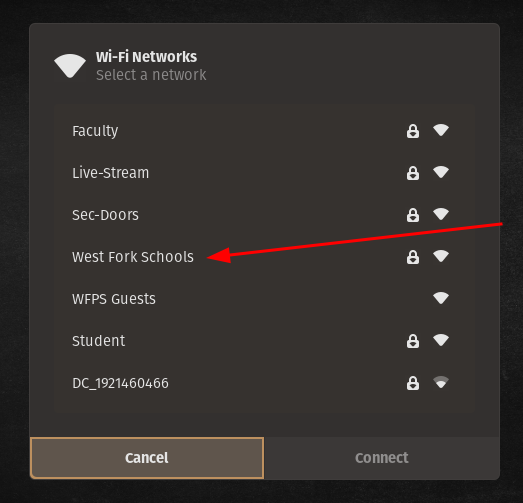
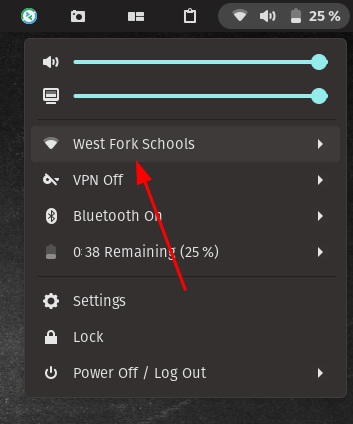
Click “West Fork Schools”

-
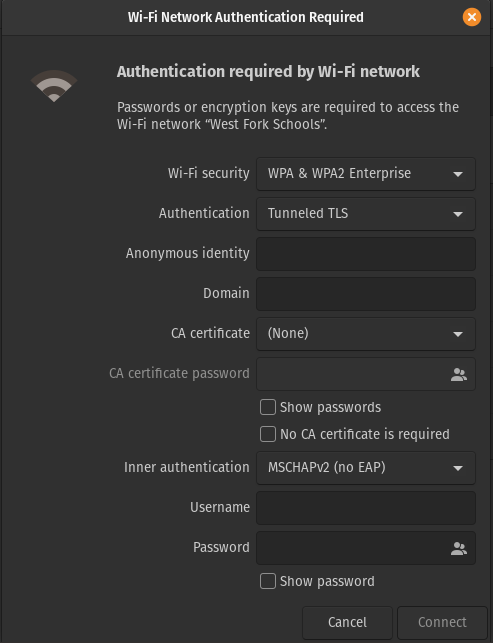
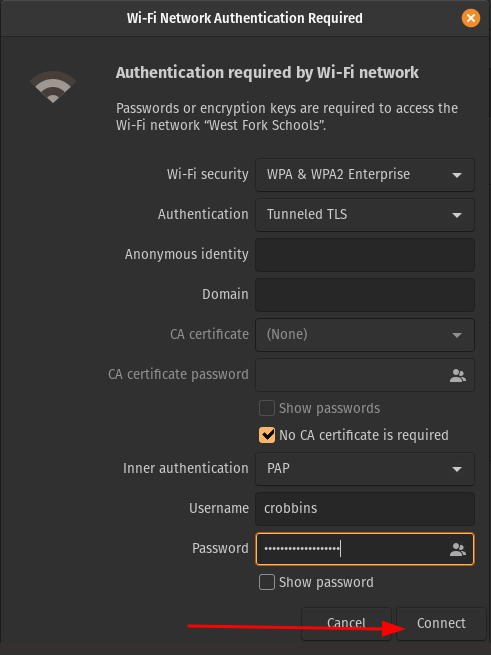
You should now see a settings page pop up. There is a lot in here, so let’s make sure everything is set up correctly.

-
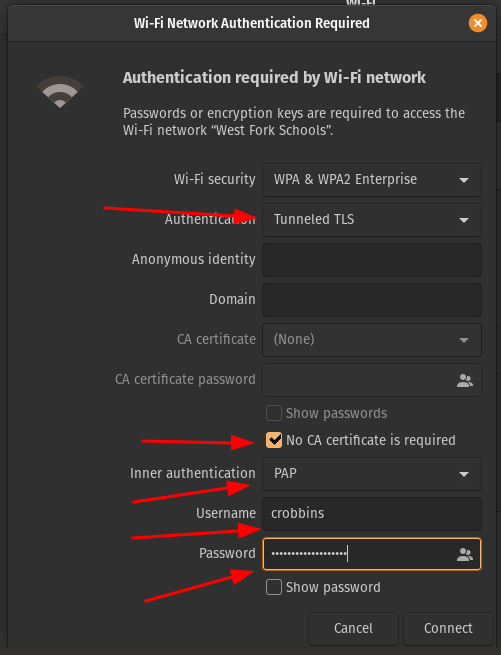
Make your settings match the ones in the screenshot below. Just make sure you use your username (the part before @wftigers.org) and your email password in the two bottom boxes.

-
Once you verify everything, you can click on “Connect.”

-
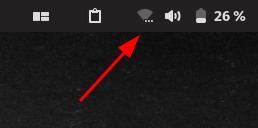
In the top right corner of your screen, you will see three little dots under the Wi-Fi symbol. This means that the connection is attempting to happen.
-
If everything was typed correctly, you will be able to verify with a solid Wi-Fi symbol, and by seeing “West Fork Schools” as the connected network.
BYOD Devices
There are several different options here. Device manufacturers make this complicated. Click on your device type, and follow those instructions.
iPhone/iPad
-
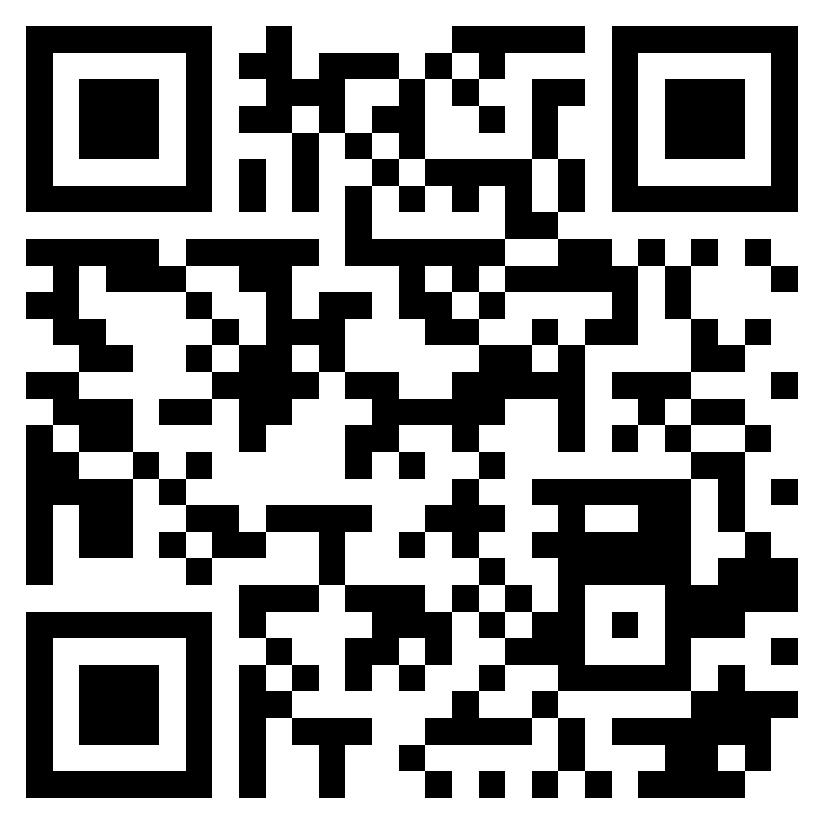
Scan this QR Code These codes will also be posted on your office doors, the tech office door, and at various locations around the building. You HAVE to use this code (or the direct link) for iOS and Mac devices because of the type of security being used on the network.

-
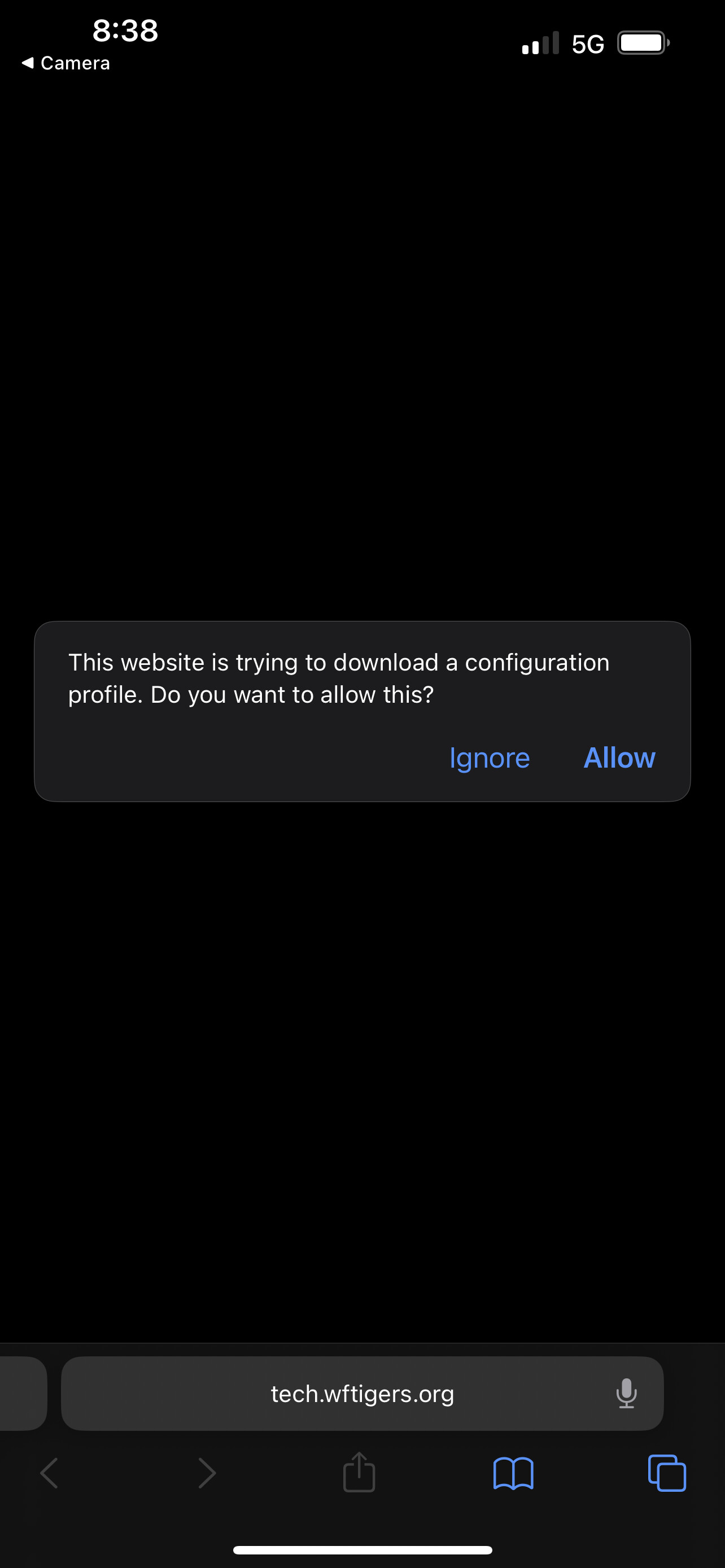
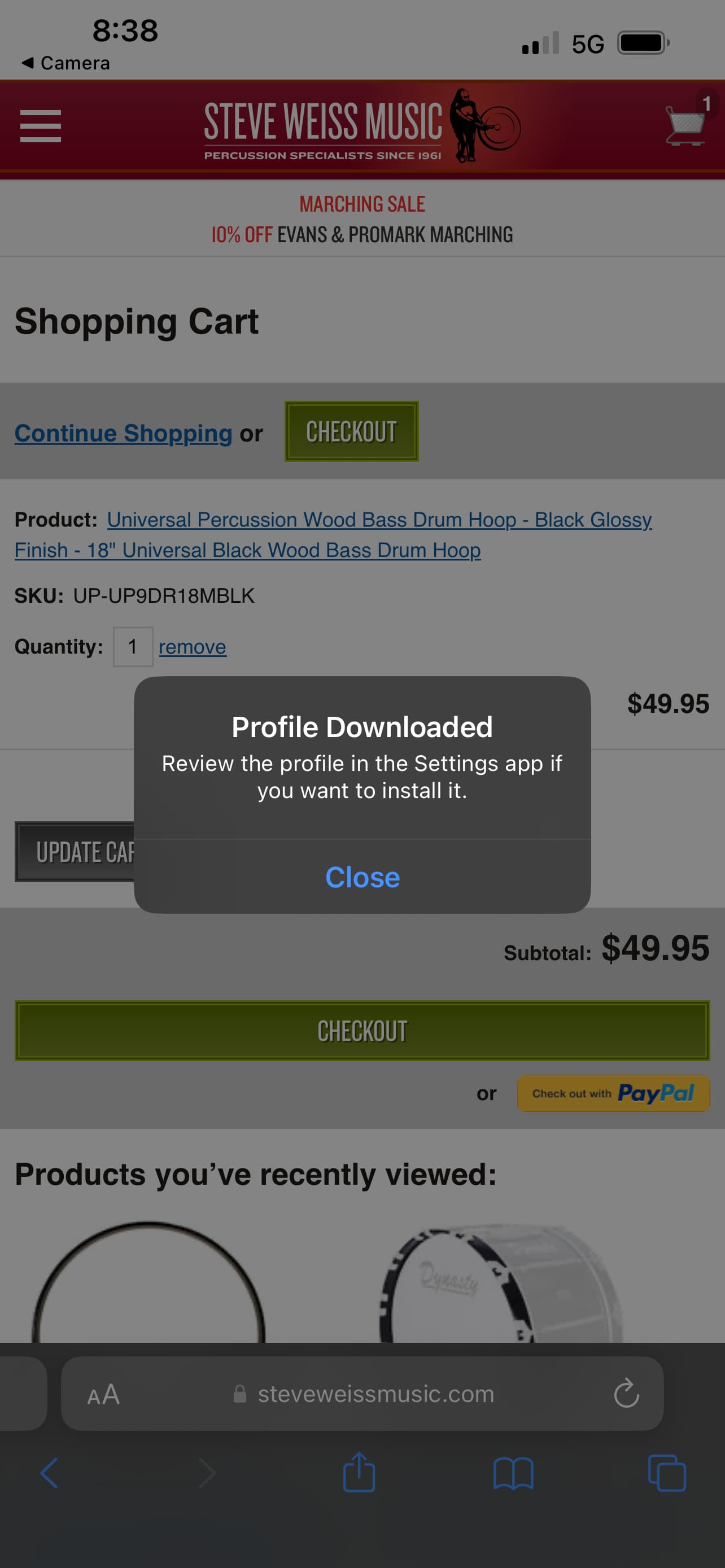
When you scan the code, you will see the page below. Press “Allow.”

-
Press on “Close,” then return to your homescreen.

-
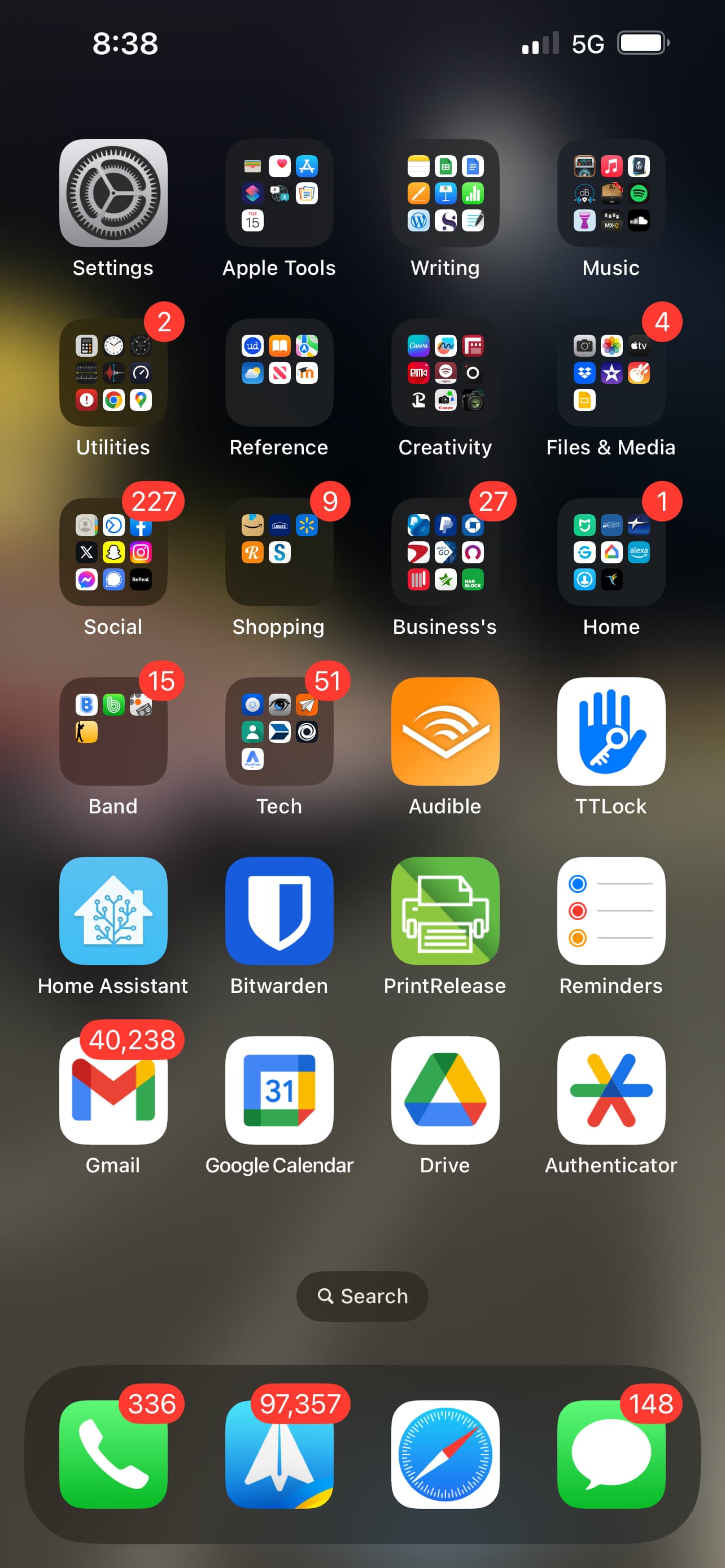
Open the Settings app.

-
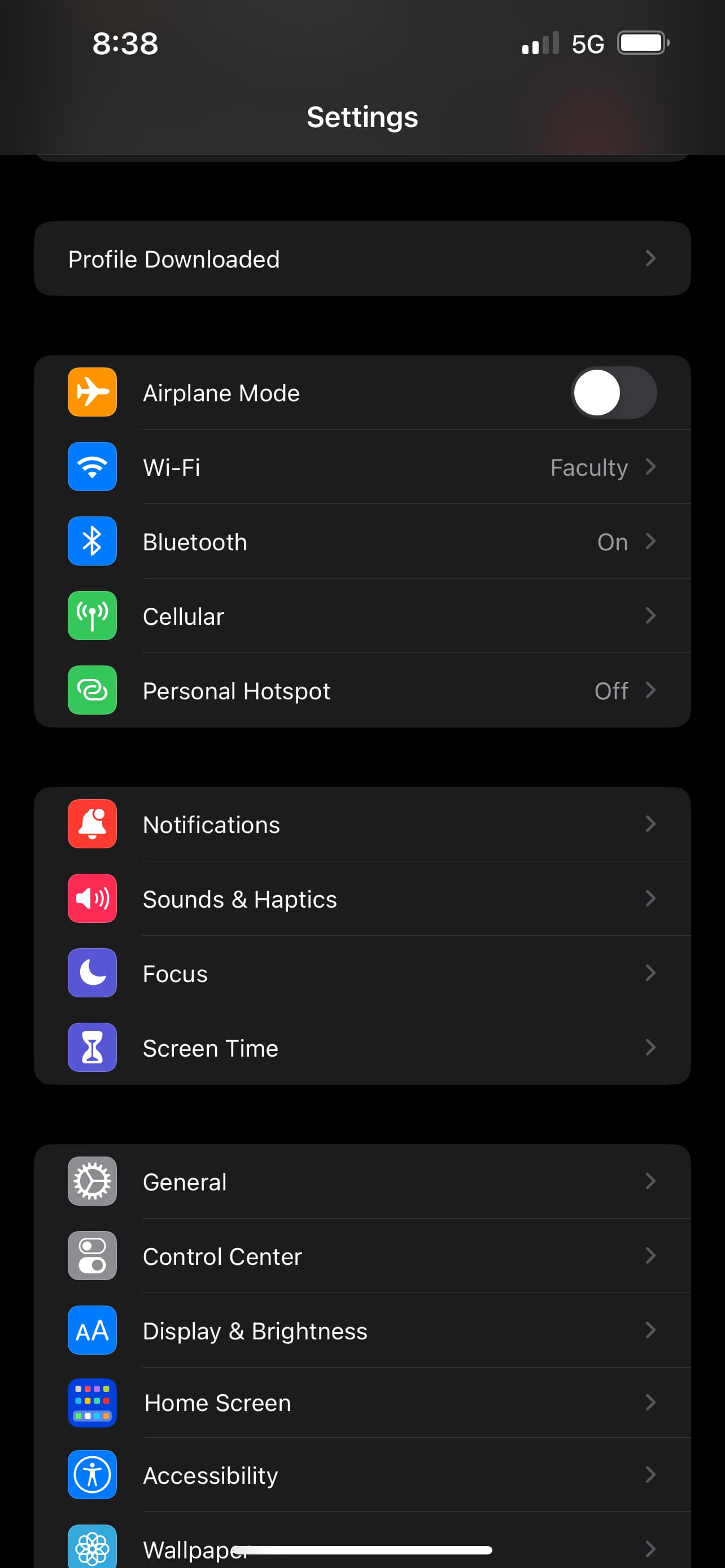
Very near the top of the Settings app, you will see “Profile Downloaded.” Press that.

-
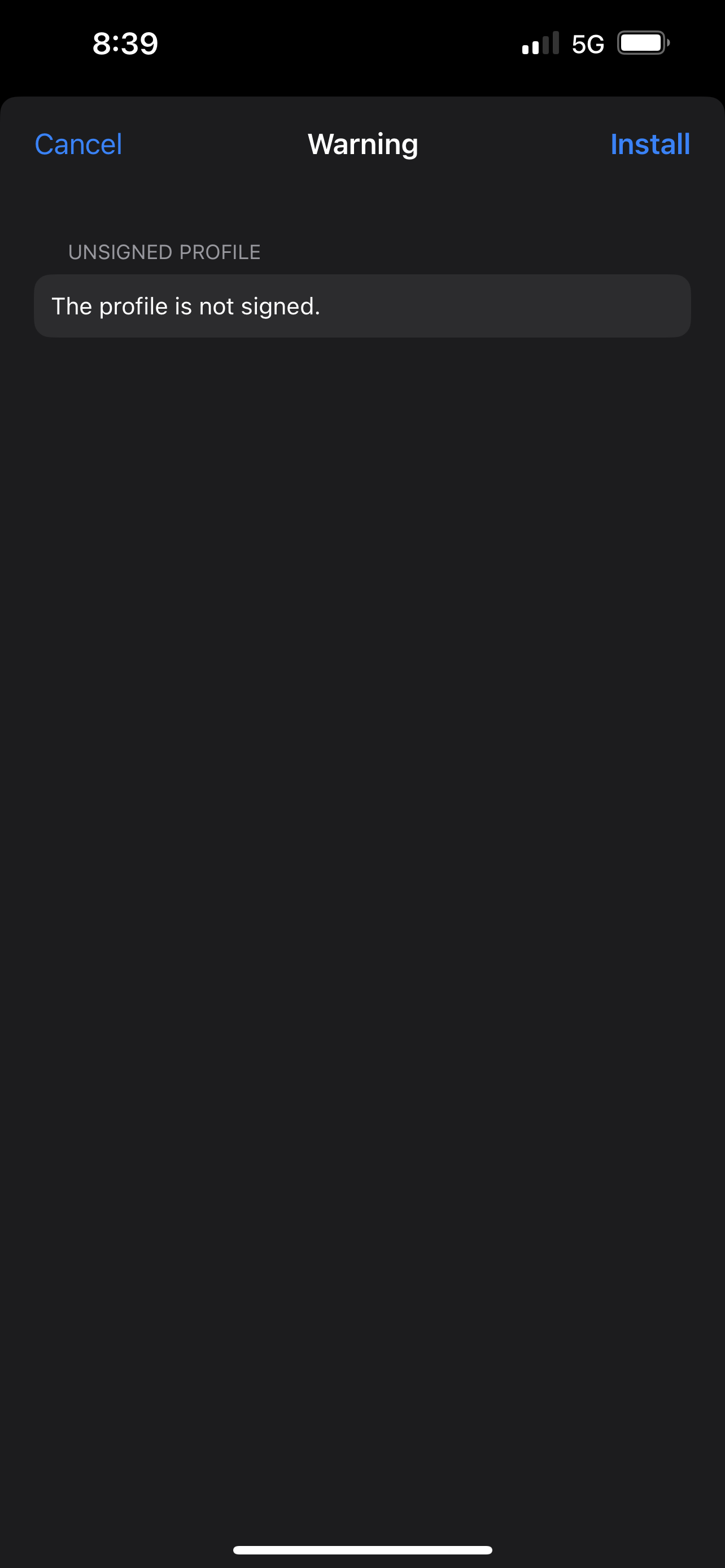
Press on “Install.” This certificate is what the phone uses to verify he connection. We are using an unsigned certificate because they don’t have to be renewed, meaning that you don’t have to do this setup process all the time.

-
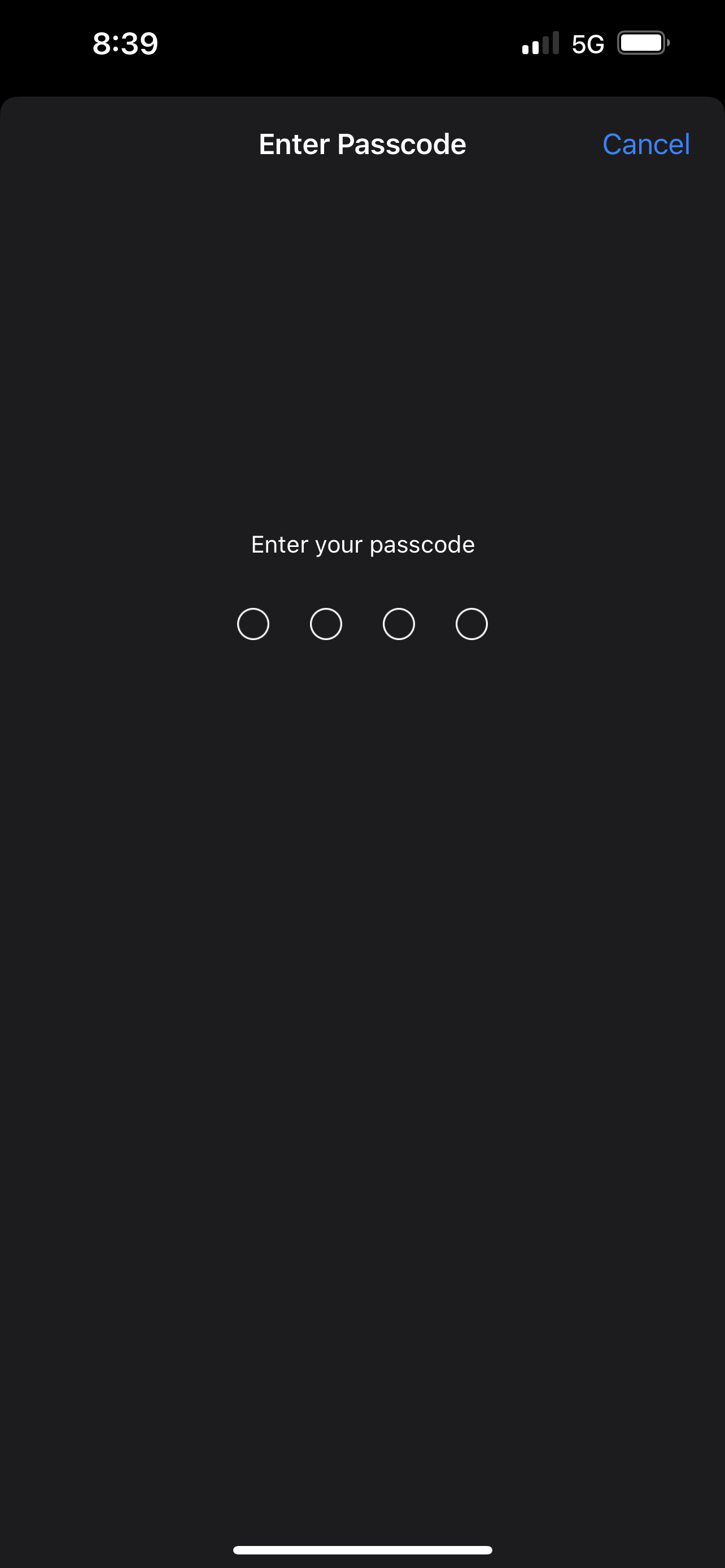
You will be prompted for your phone’s passcode. FaceID will not work here.

-
Press on “Install.”

-
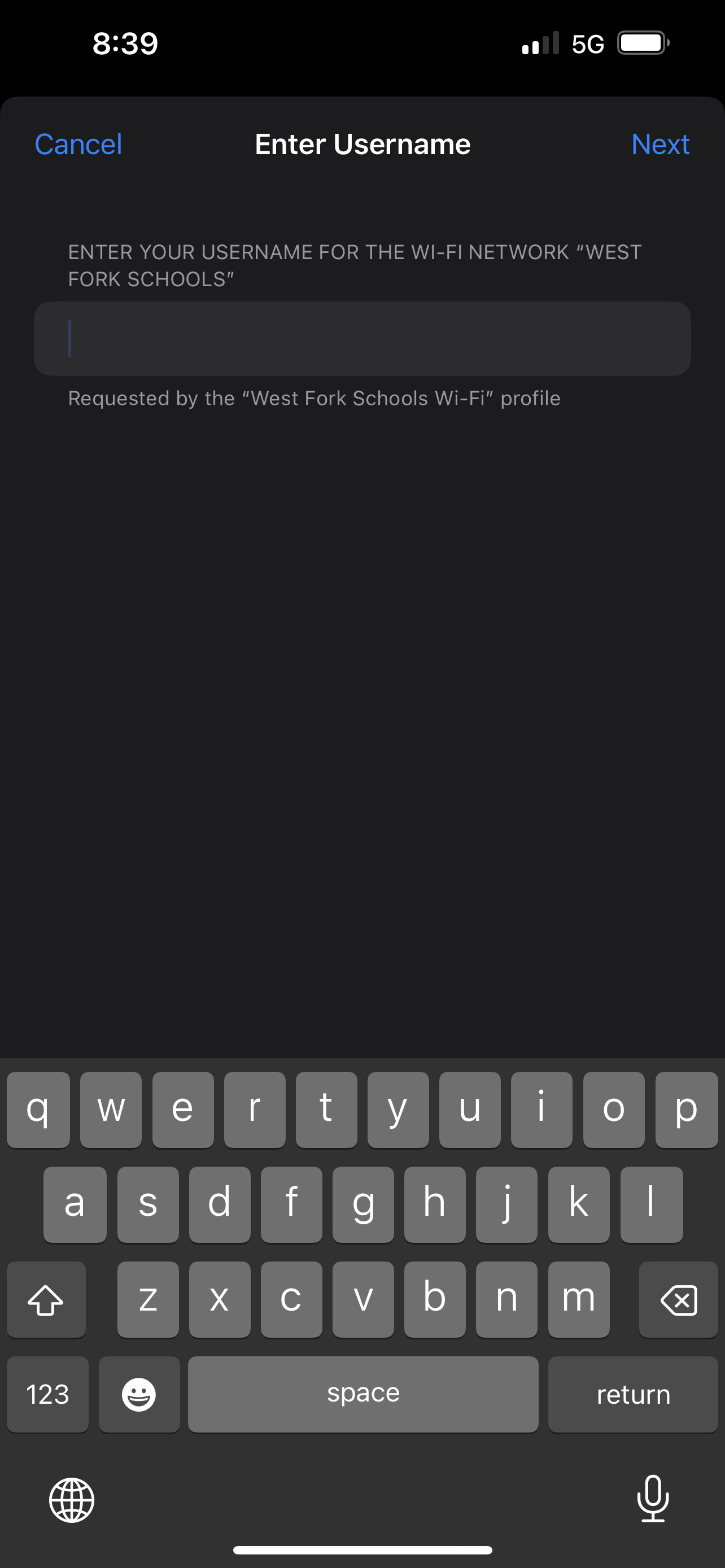
You will be asked for your username. Enter the part of your email that comes BEFORE @wftigers.org.

-
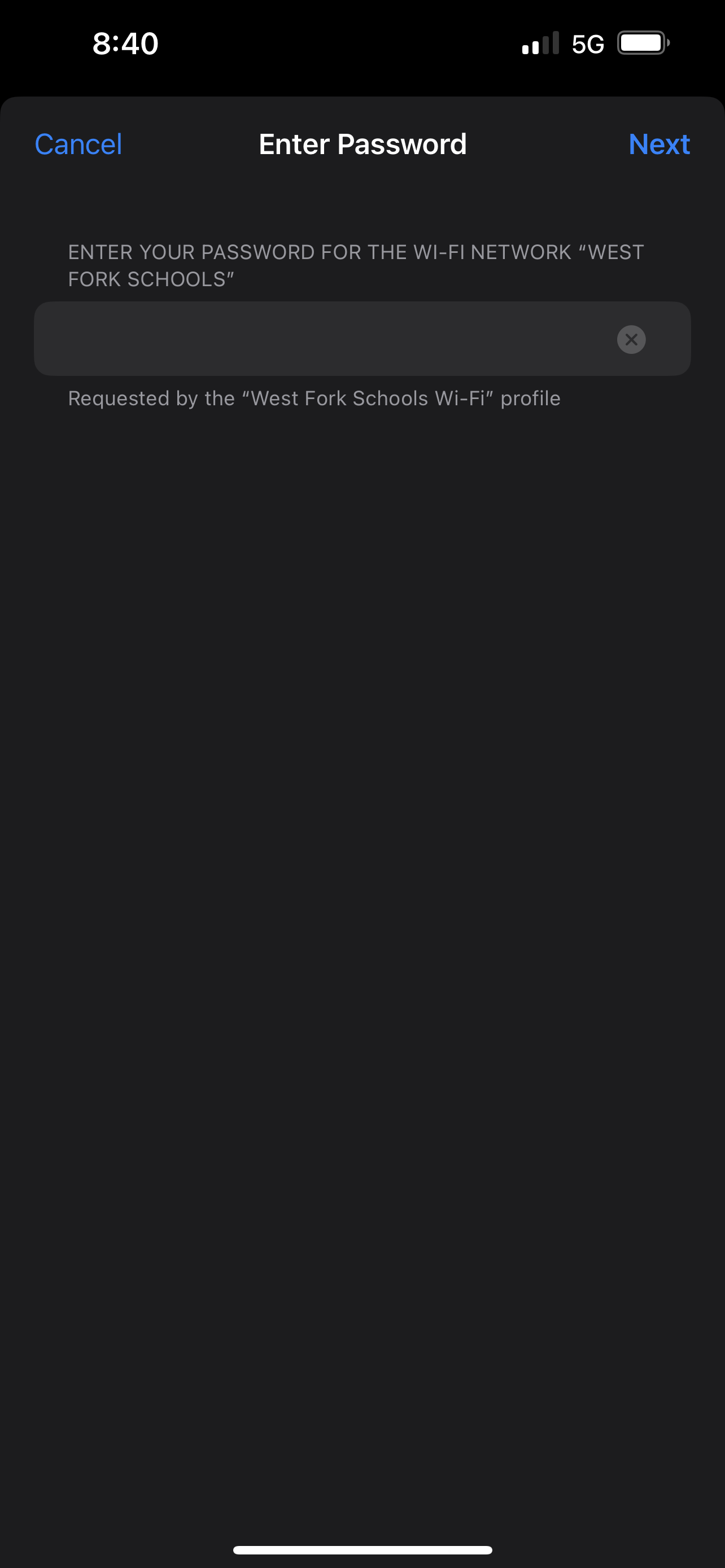
Enter your school email password.

-
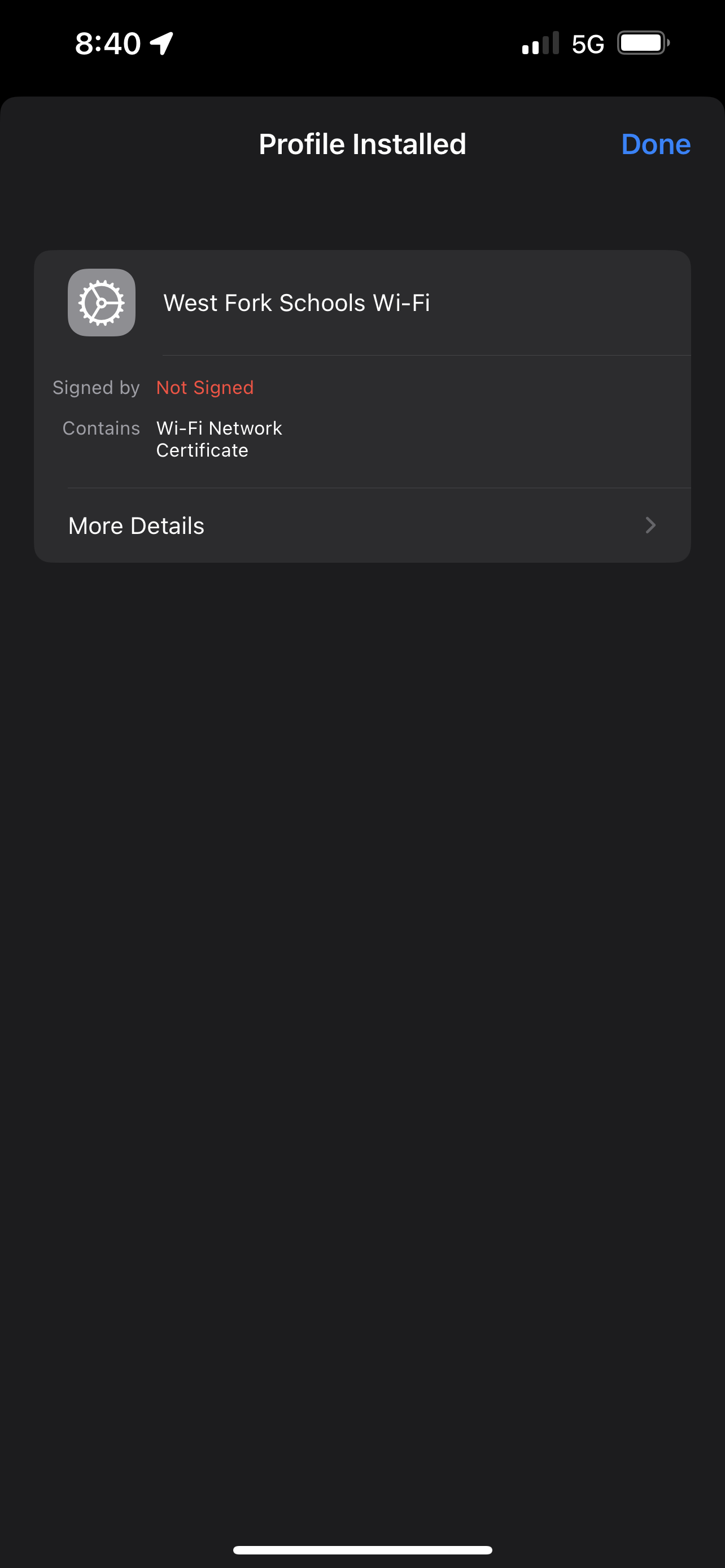
Press “Done.”

-
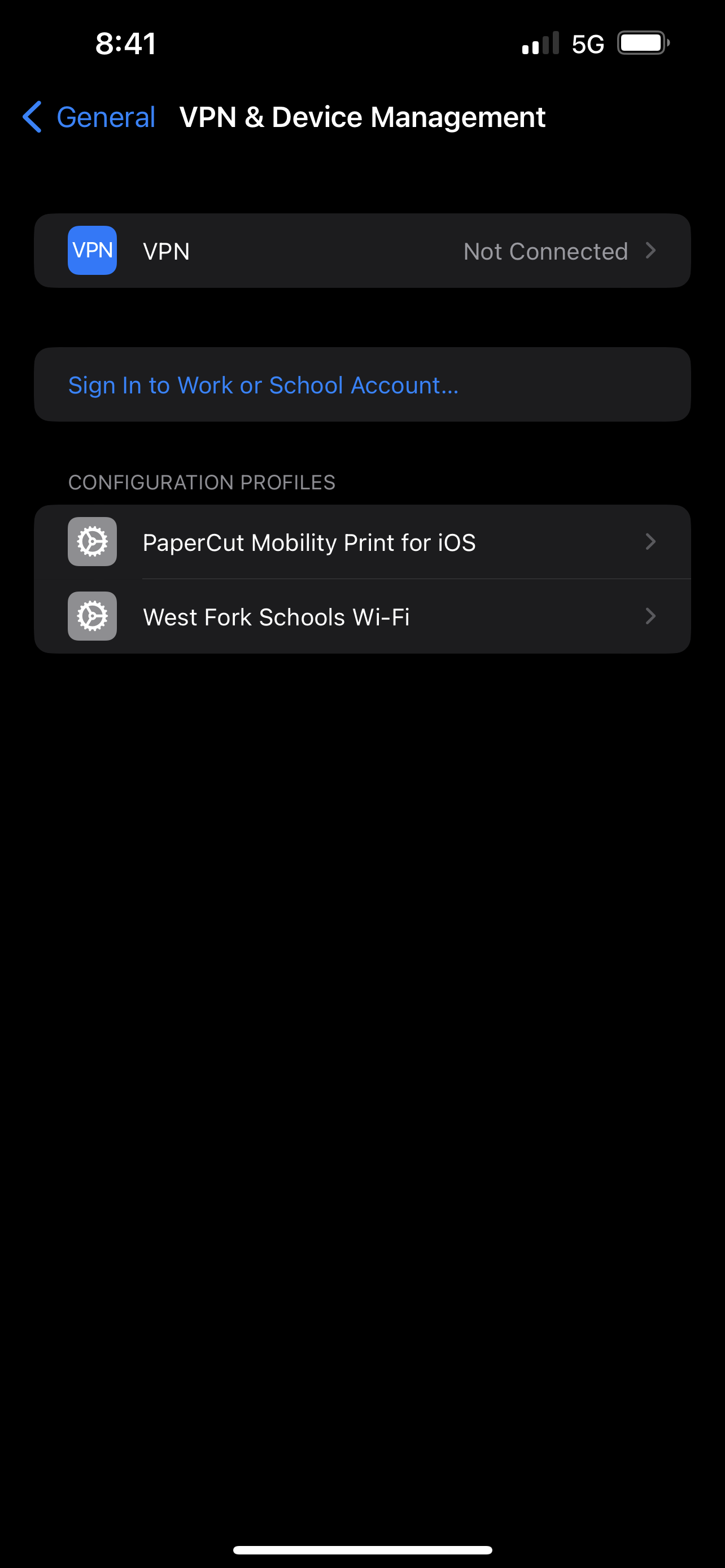
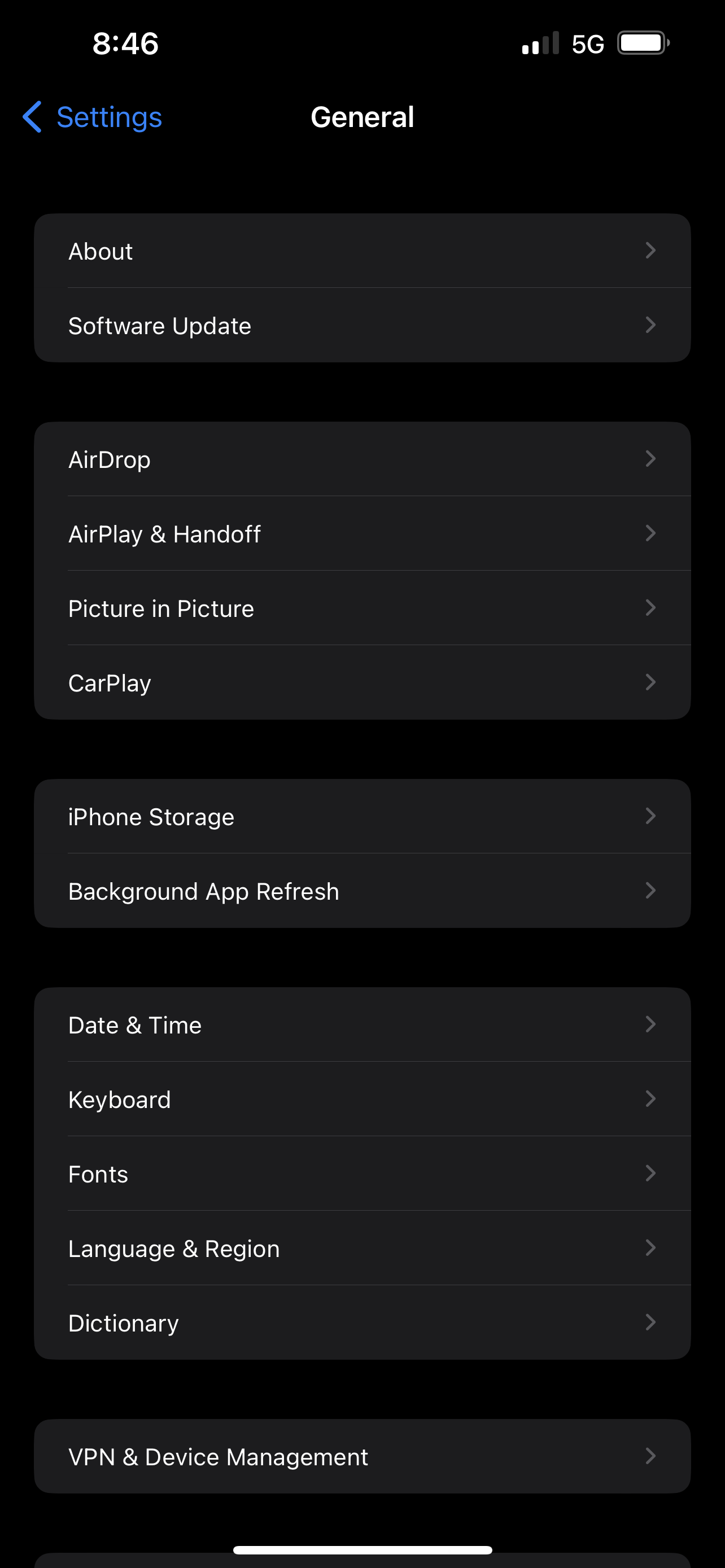
Press “General” at the top left to move back to your General Settings page.

-
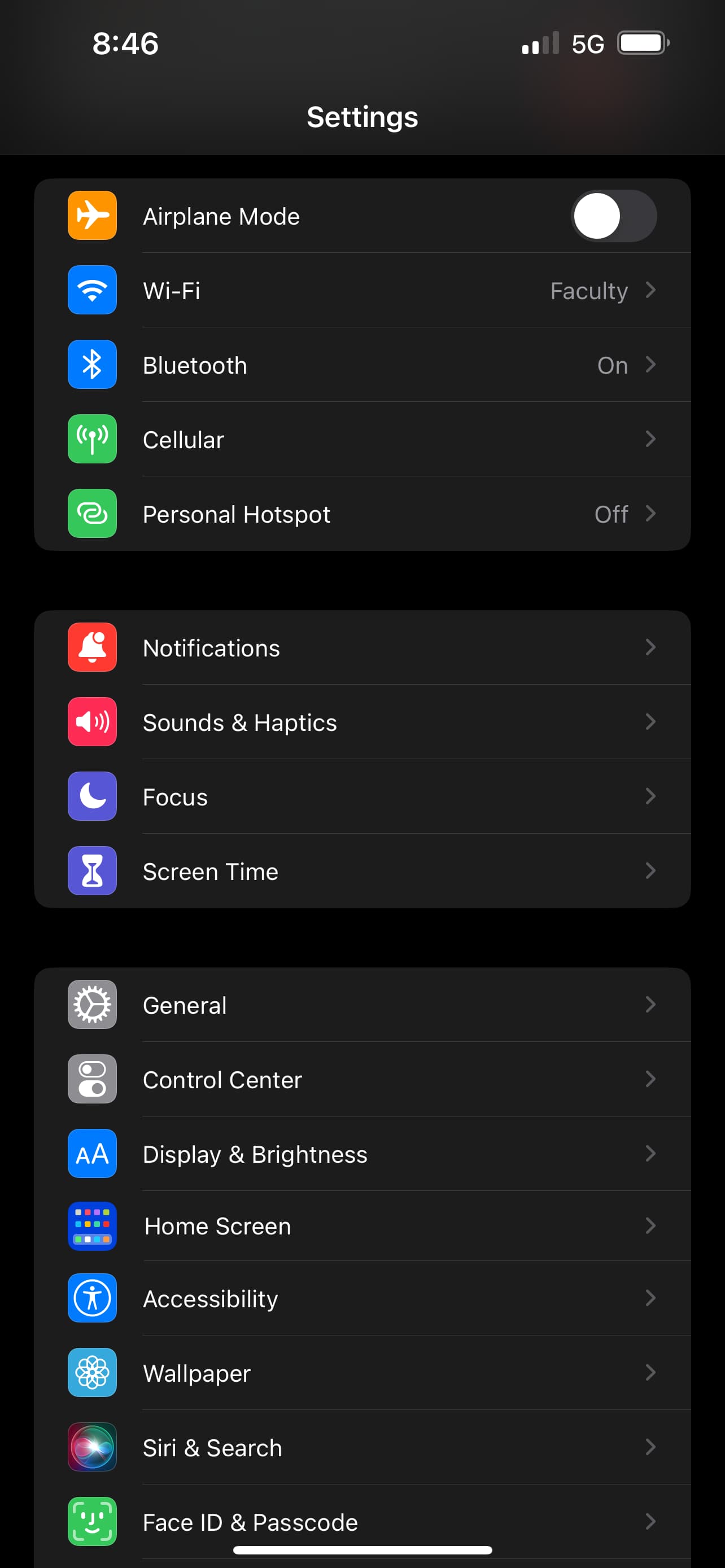
Press “Settings” at the top left to move back to your settings page.

-
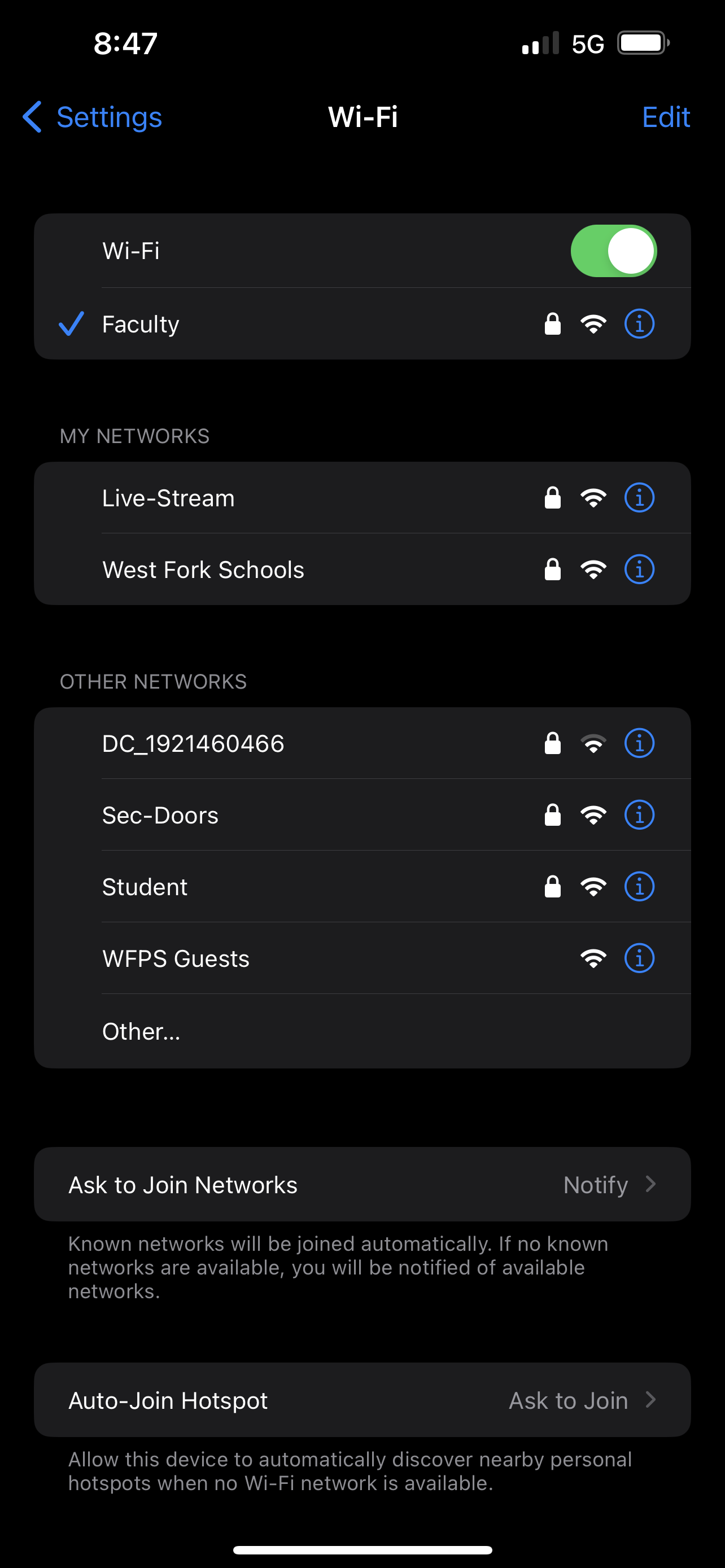
Press “Wi-Fi.”

-
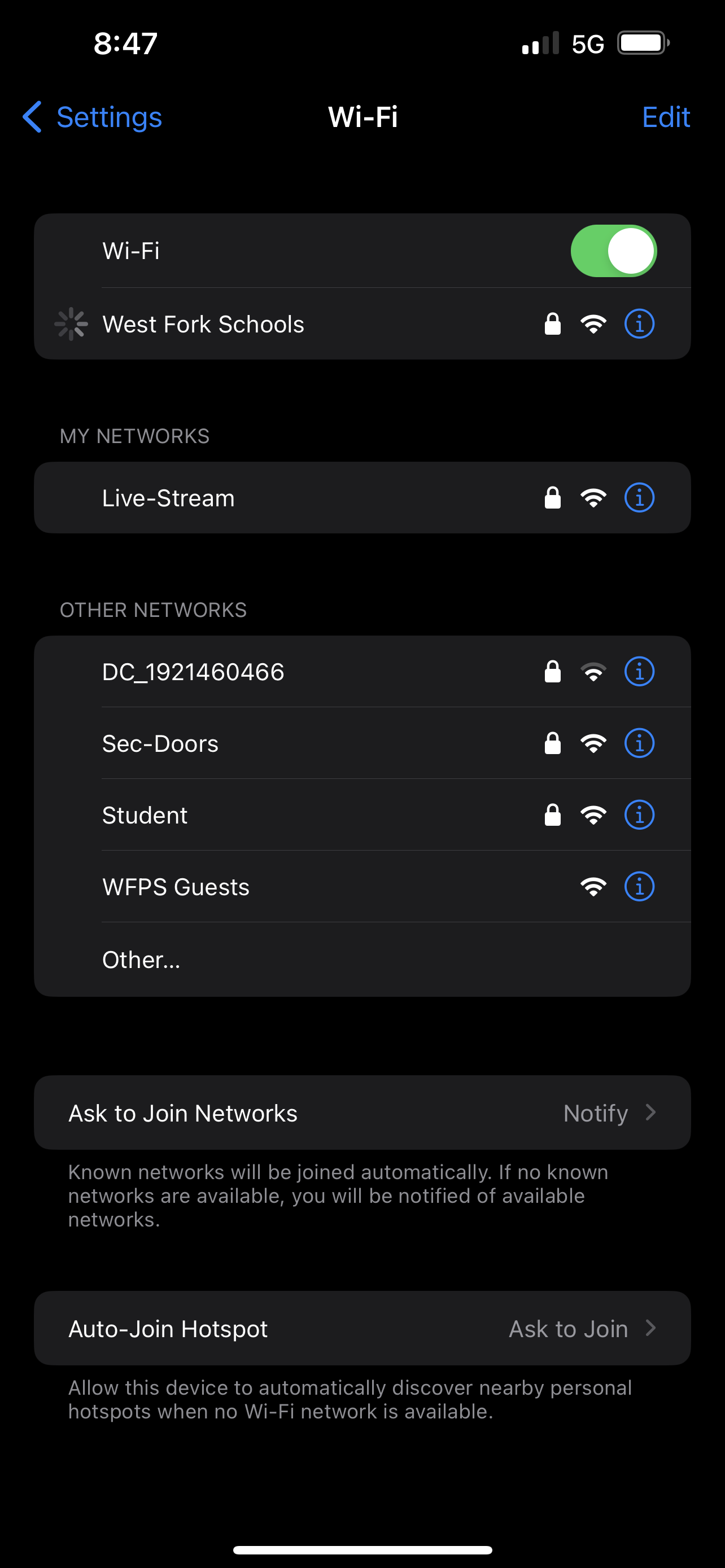
Press “West Fork Schools.”

-
The spinning connection icon should show up beside “West Fork Schools.”

-
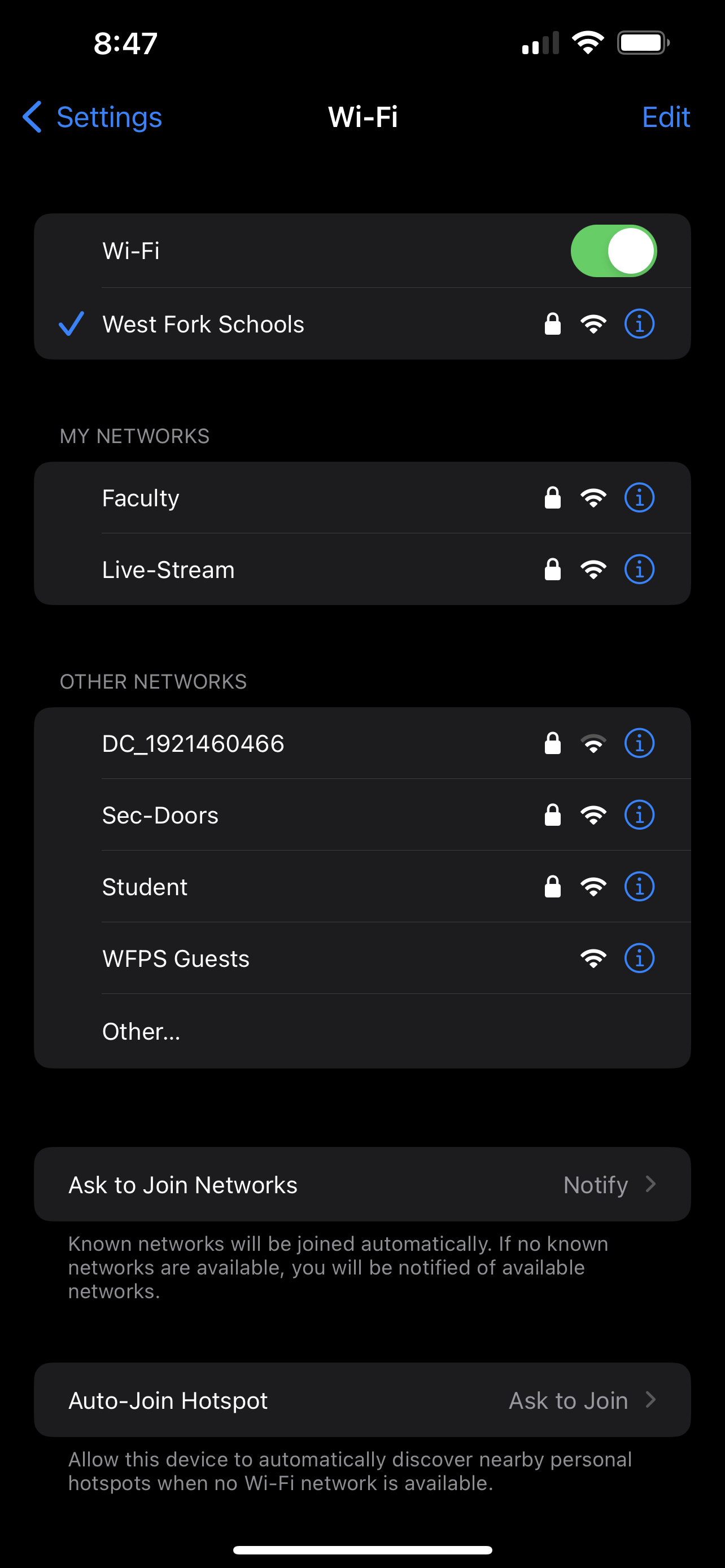
You should get the check letting you know your connection is successful.



Android
There are a LOT of different versions of Android. If you are an Android user, you are going to have to use the steps a little more loosely than an iPhone user would, but these steps should get you there.
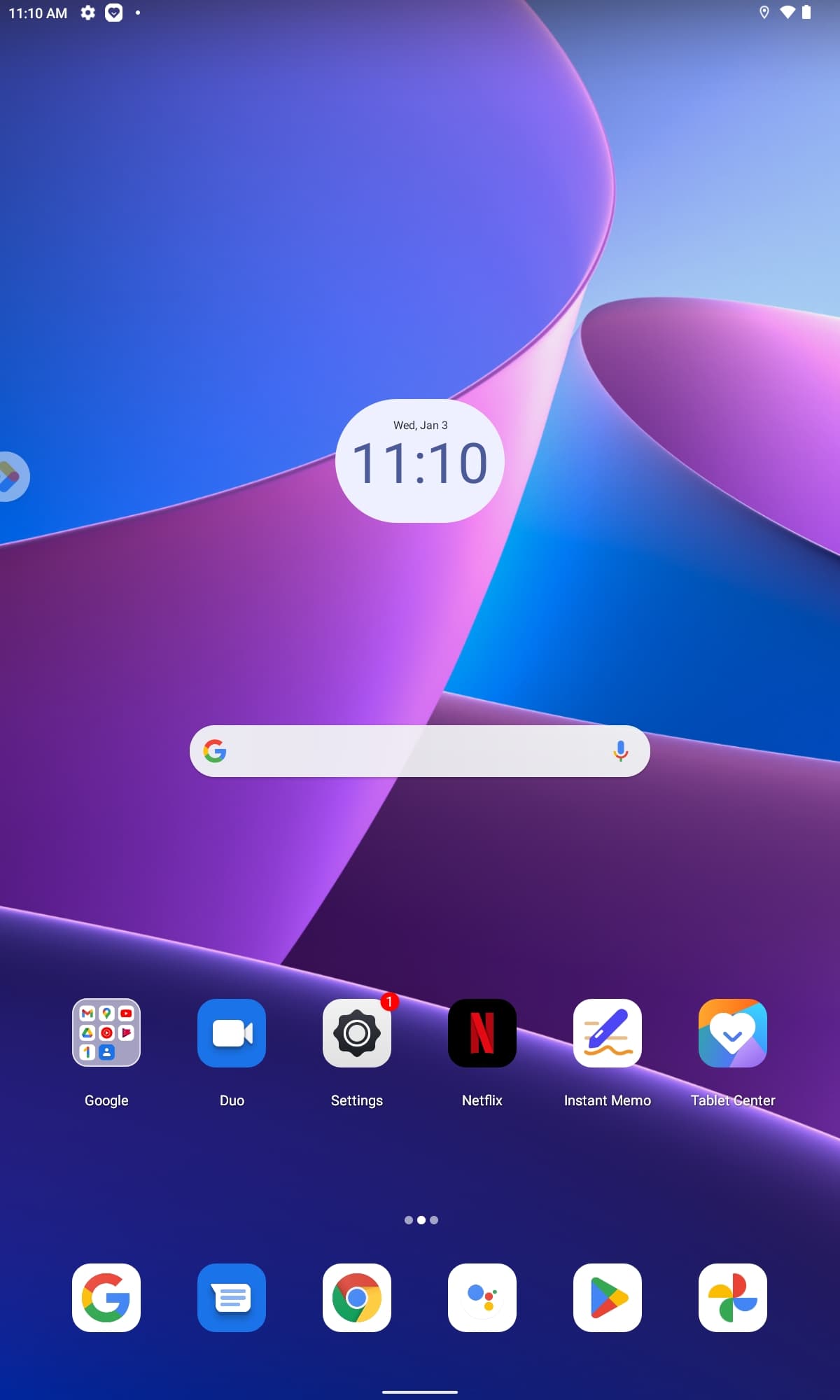
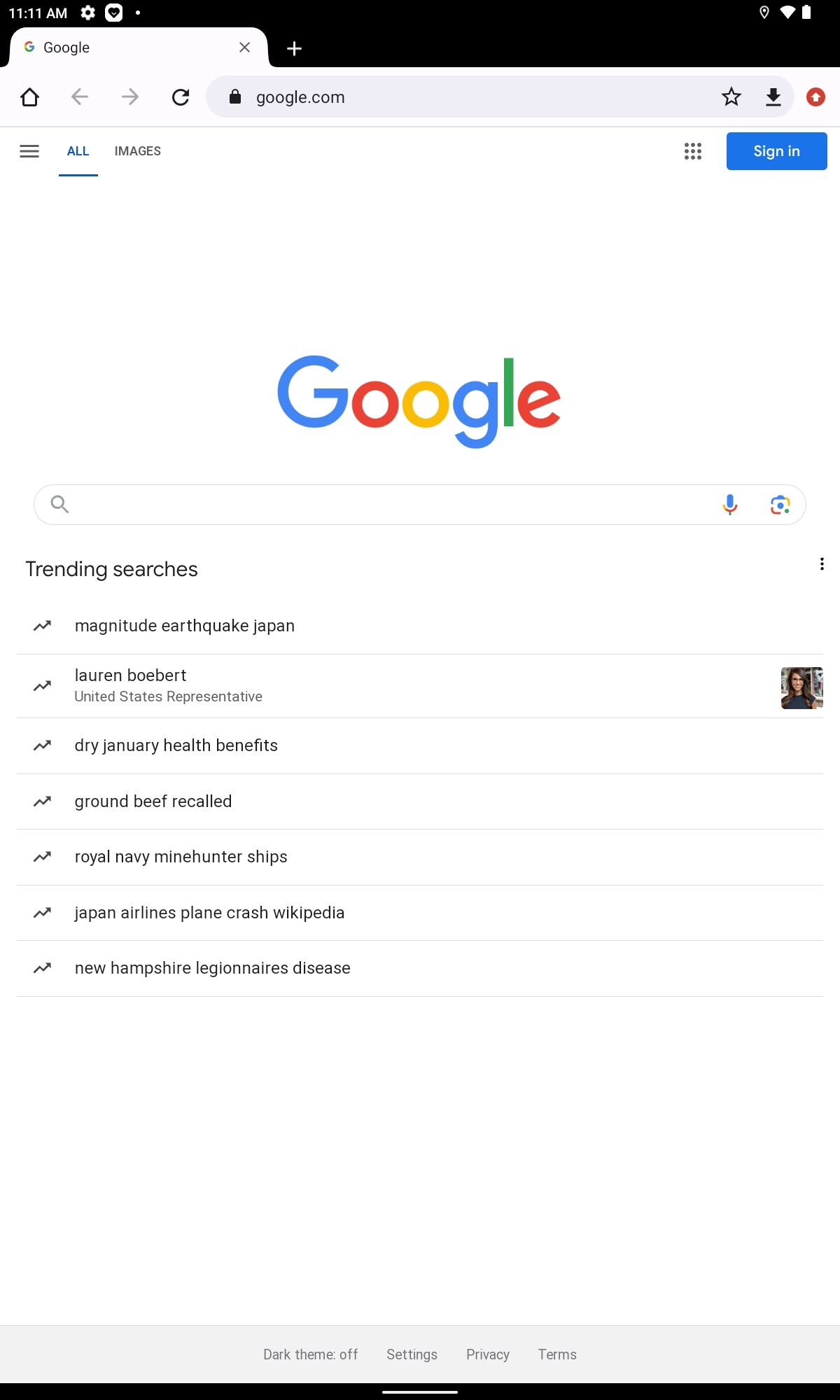
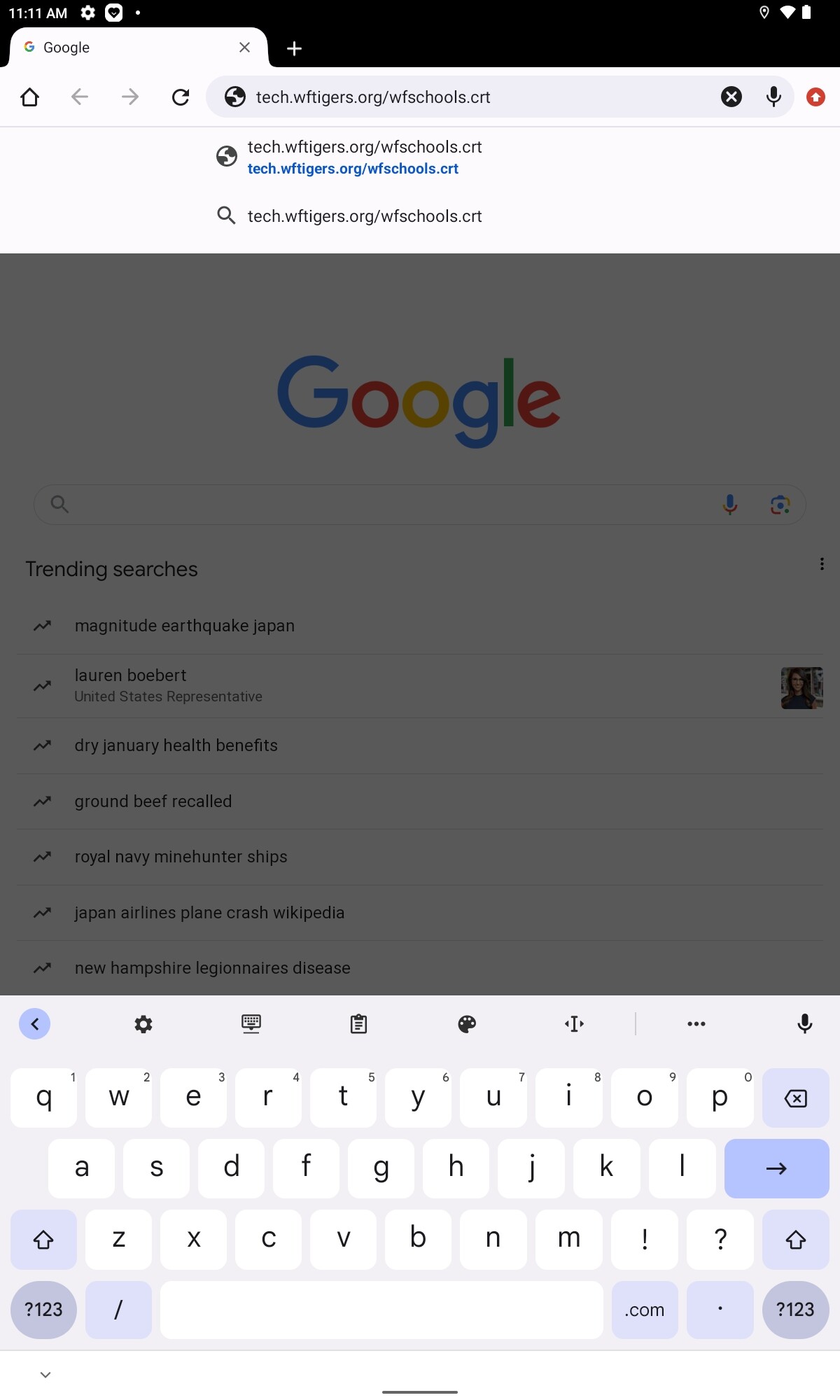
- We need to start by installing the school certificate within Android. Open your internet browser. Optionally, you can skip this step and the next one if you scan the QR code for the Android certificates.
-
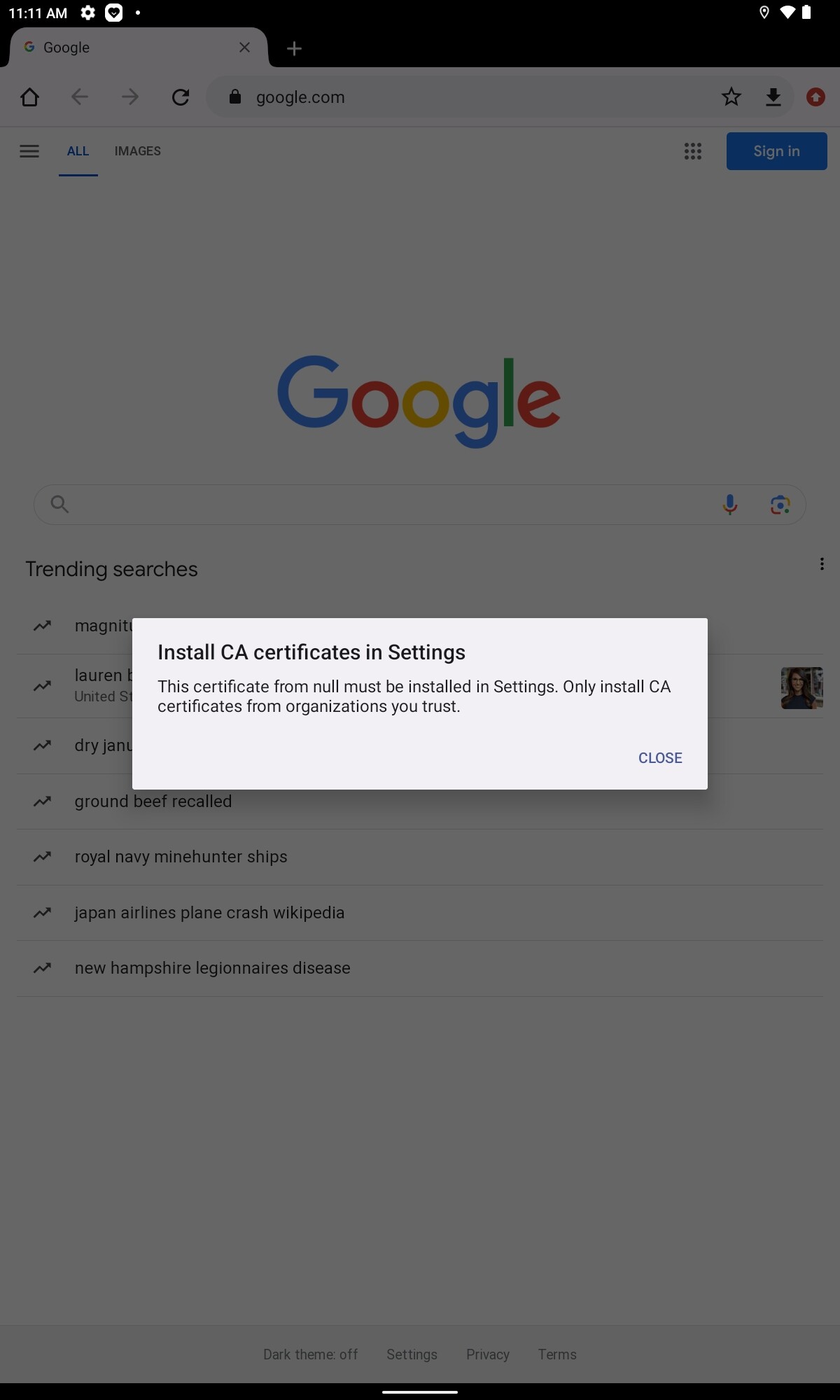
Close the prompt to only install trusted certificates (if you get one)

-
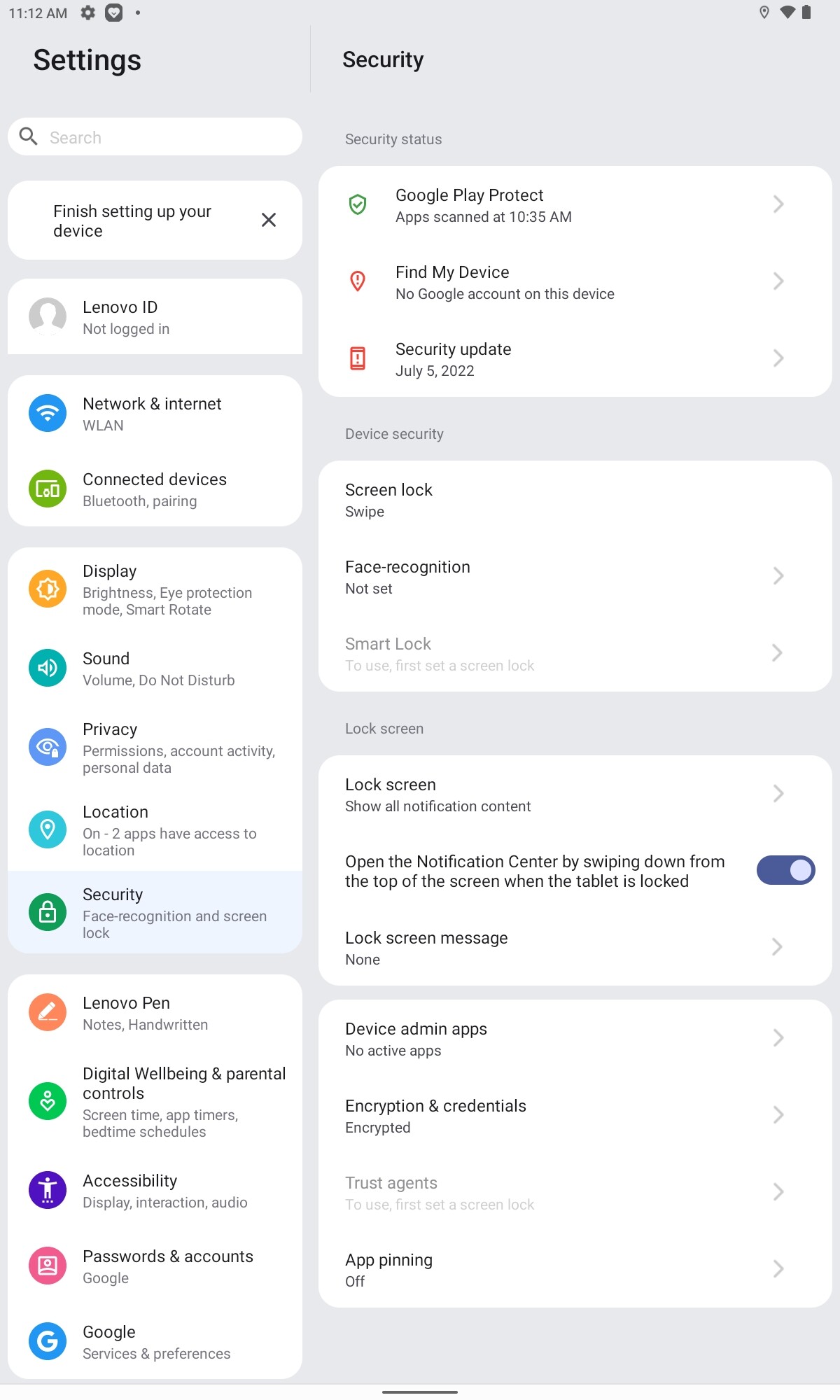
Open your settings app.

-
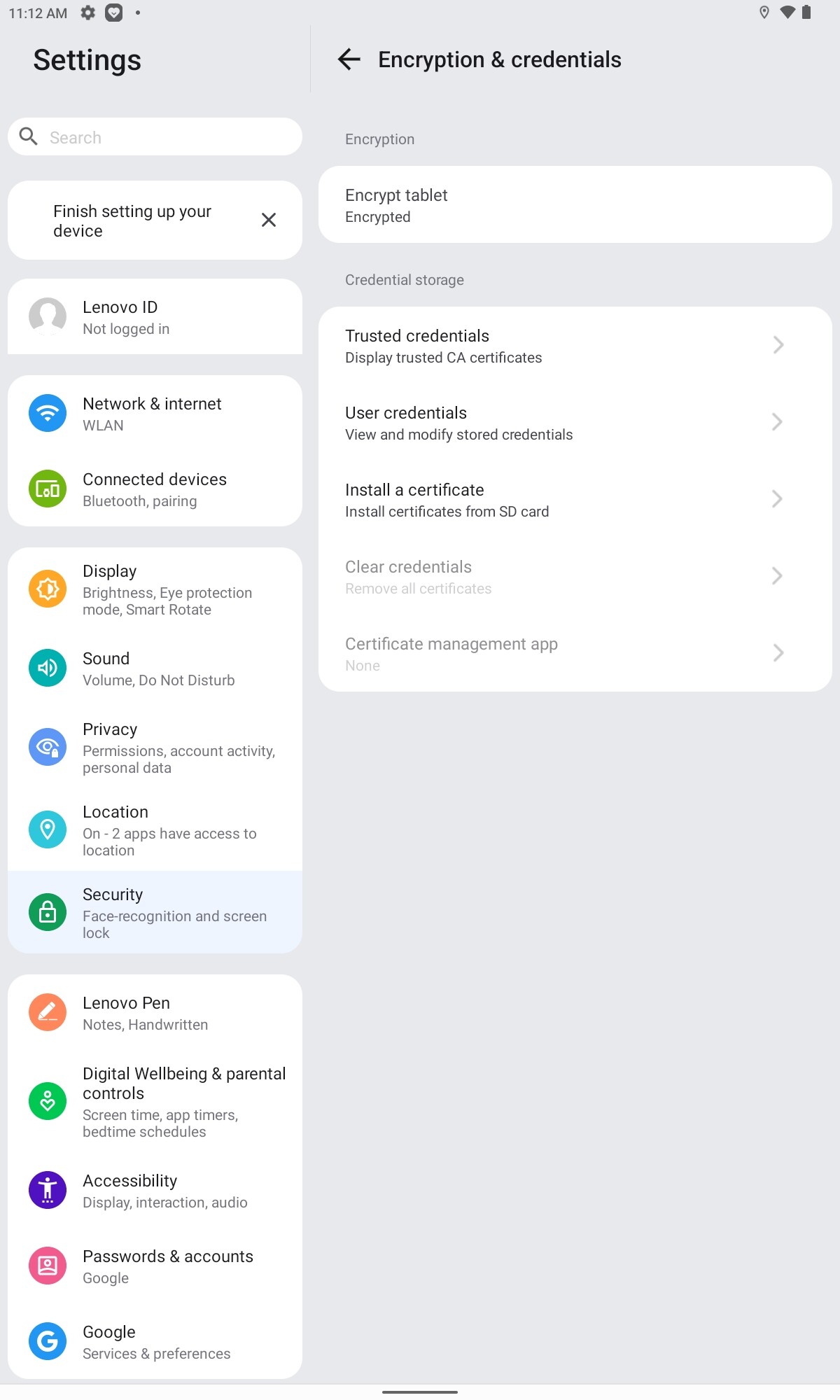
Go to your Security settings.

-
Go to the Encryption & credentials section.
-
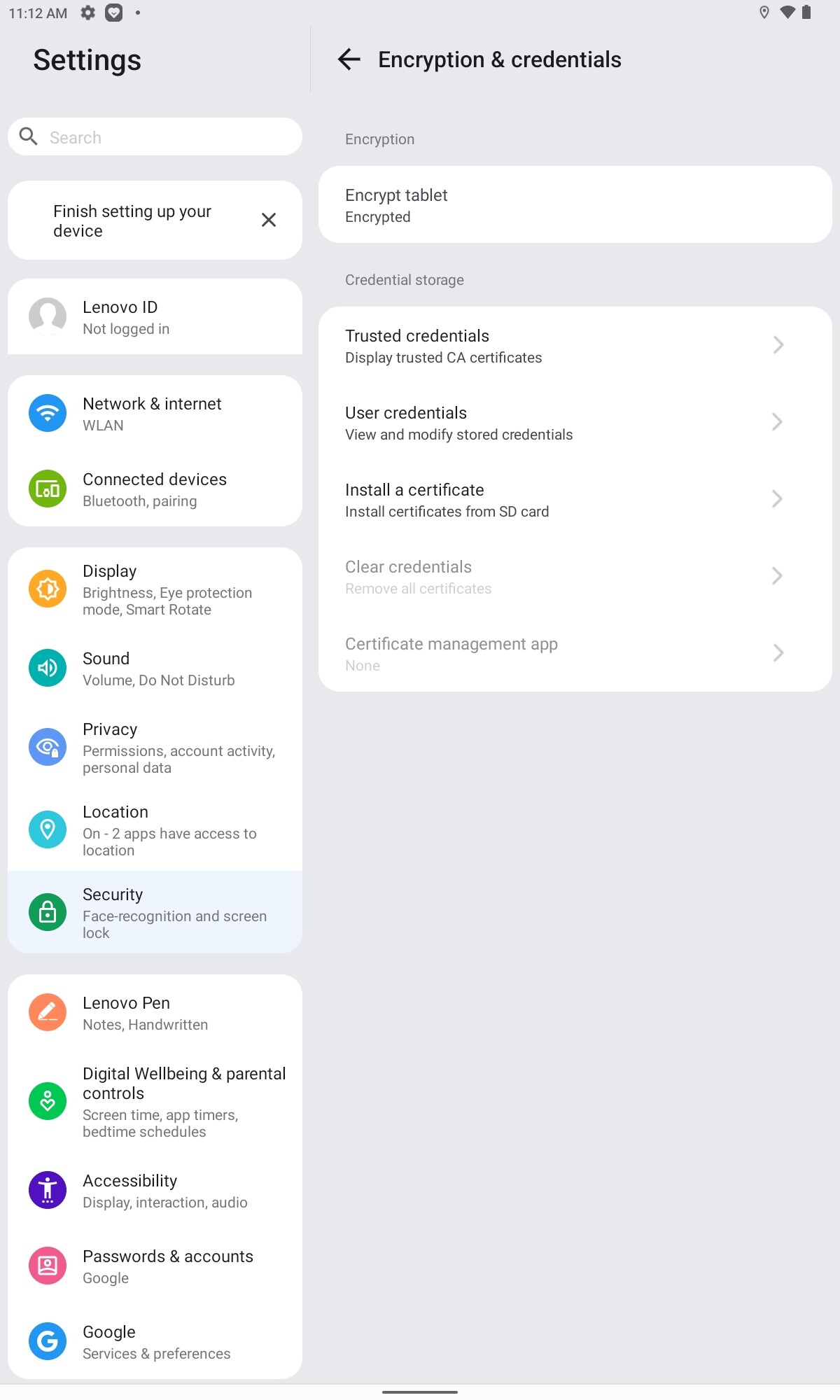
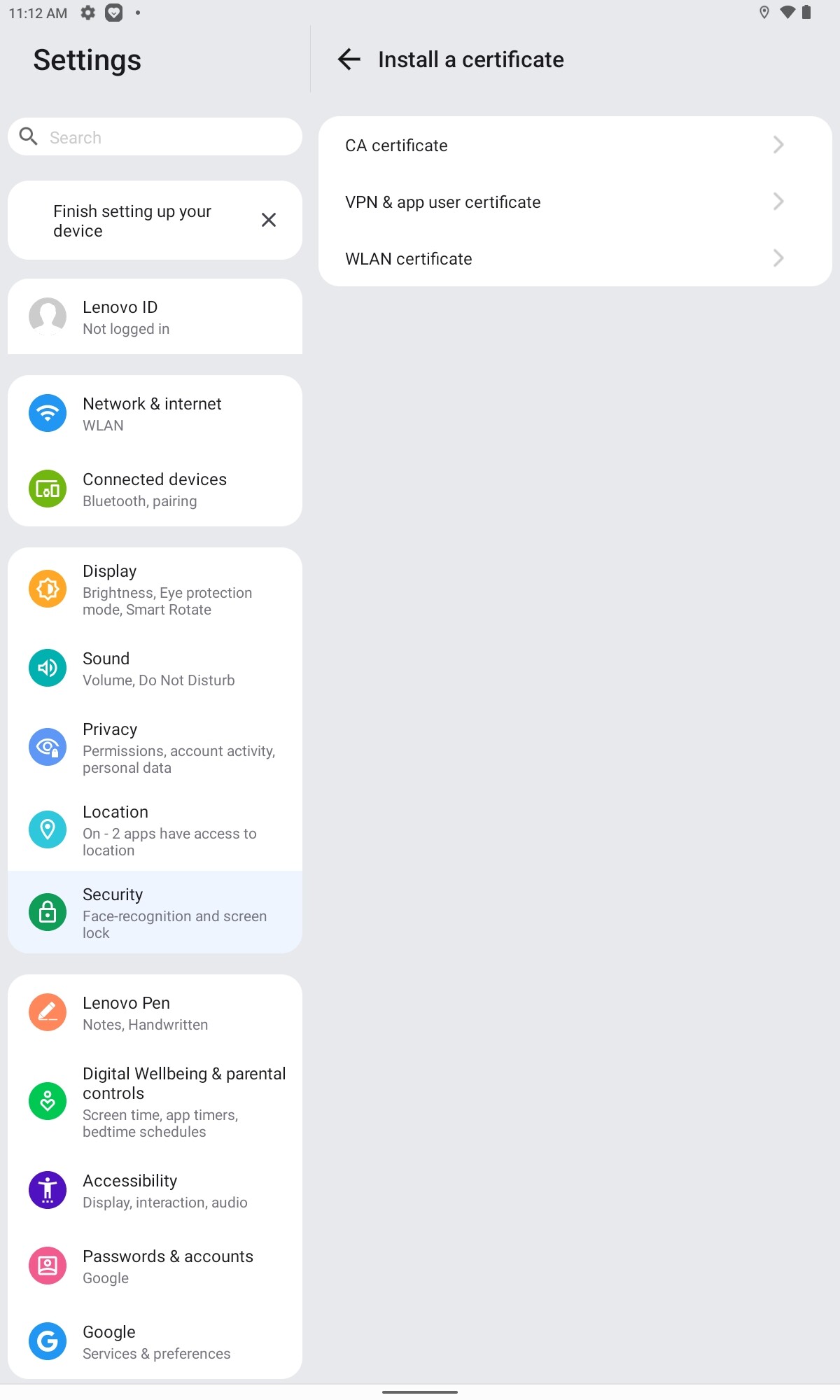
Tap either WLAN or Wi-Fi certificate.

-
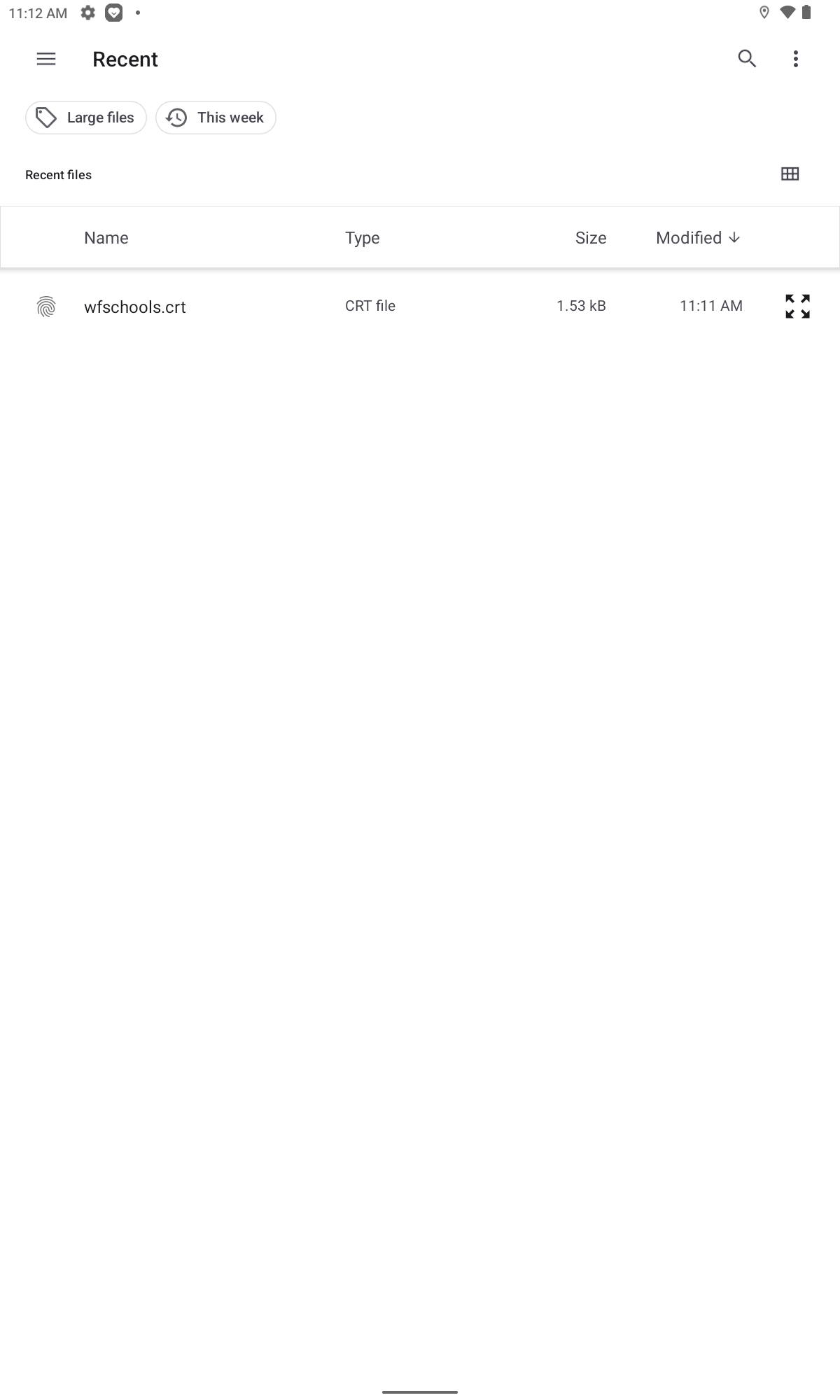
Tap the wfschools.crt file

-
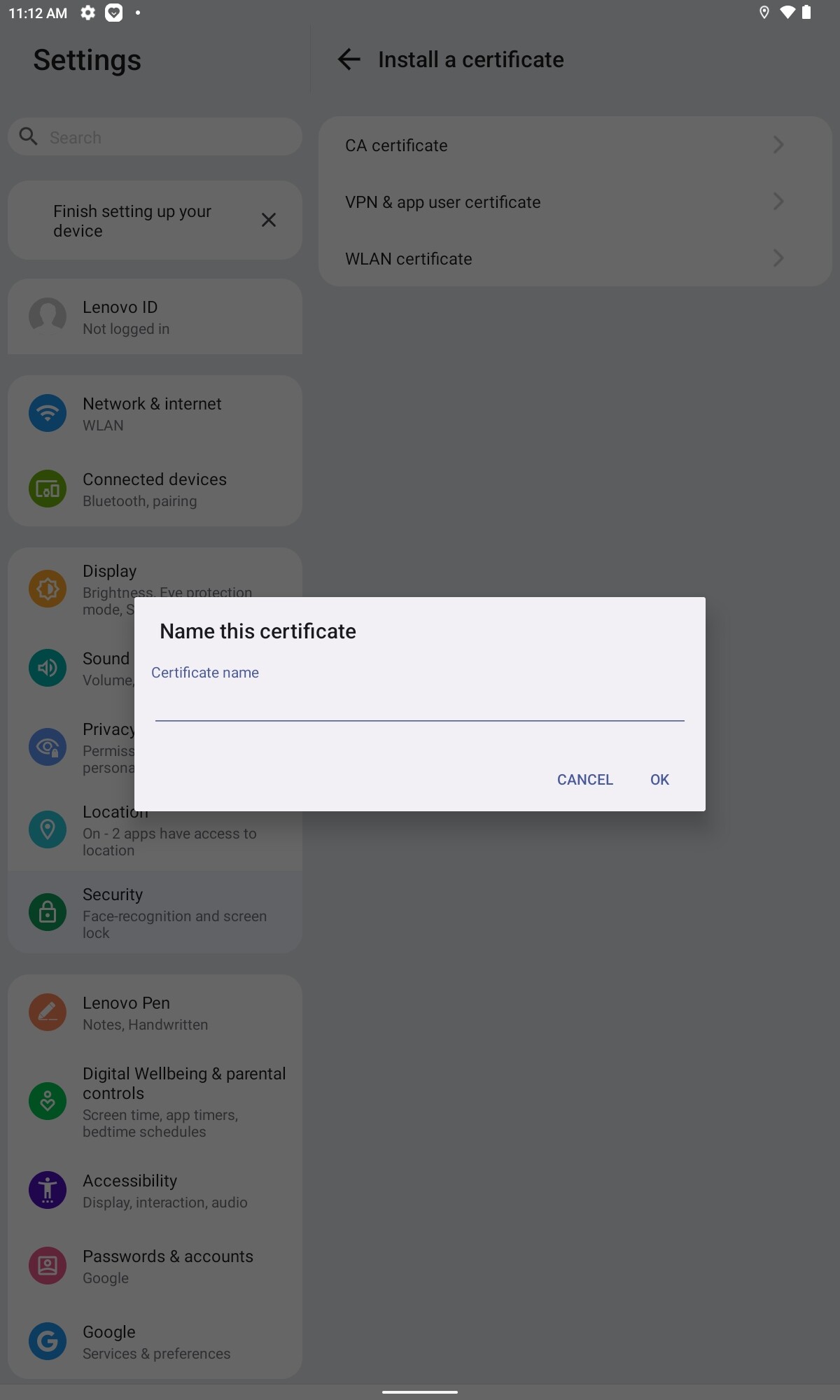
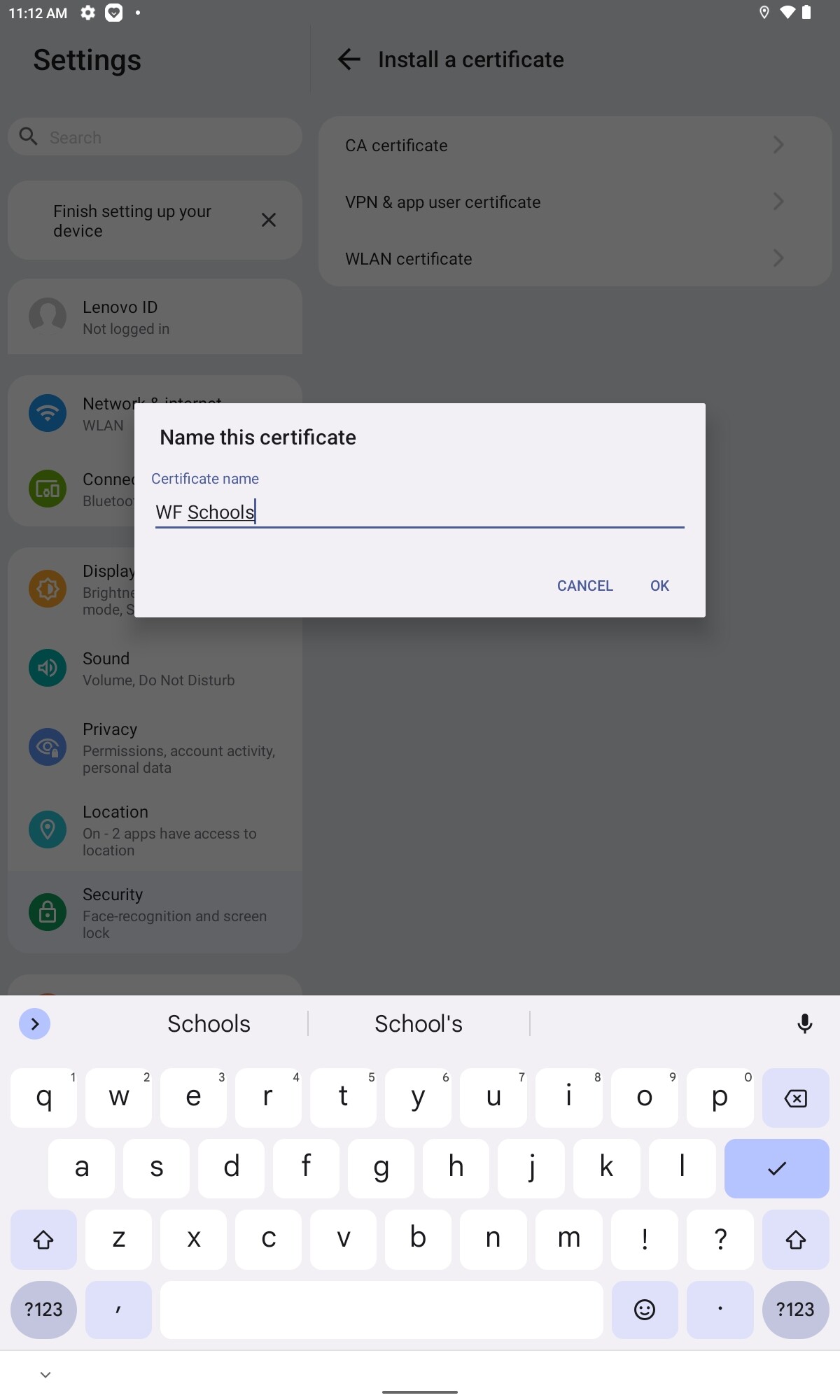
When asked to enter a name, enter WF Schools, then press ok.


-
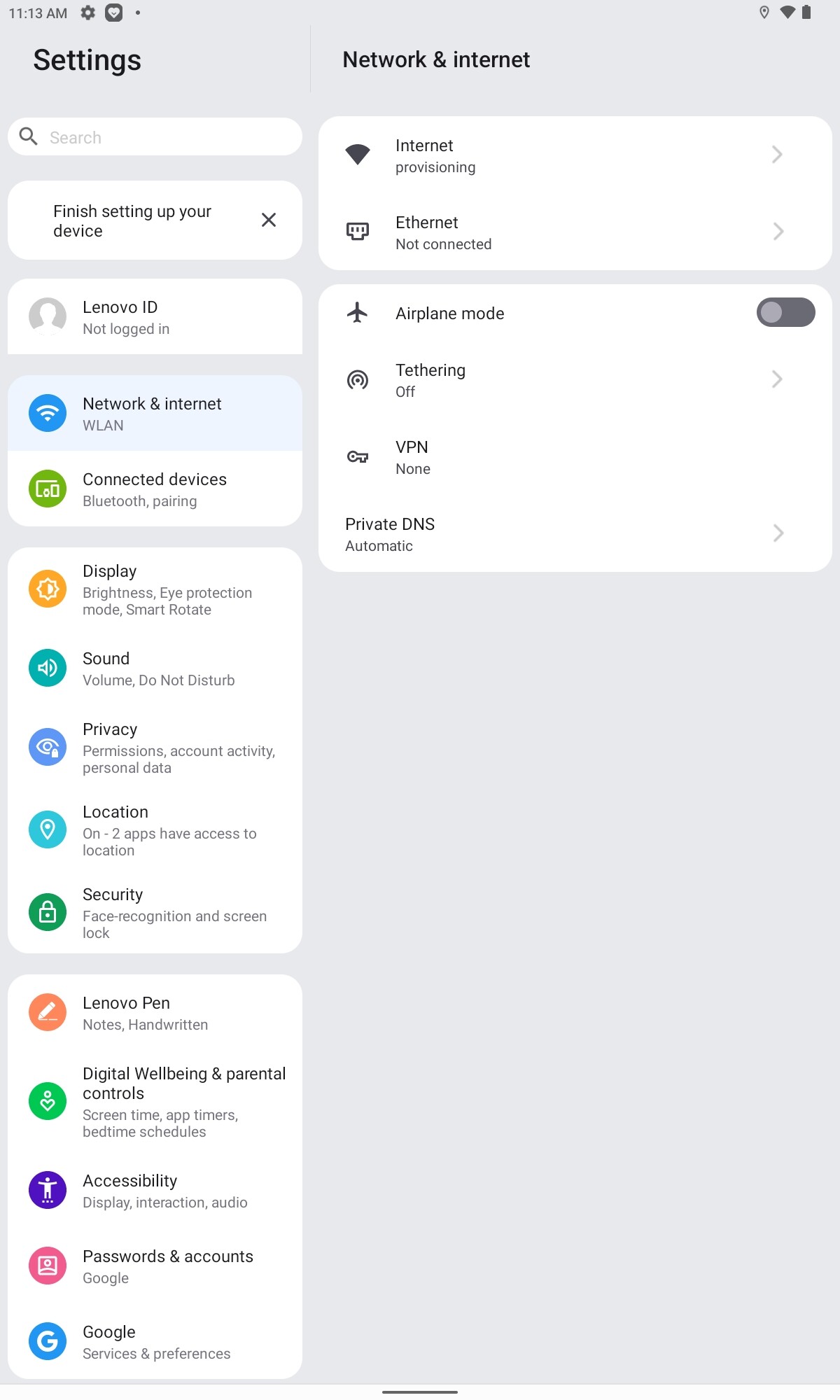
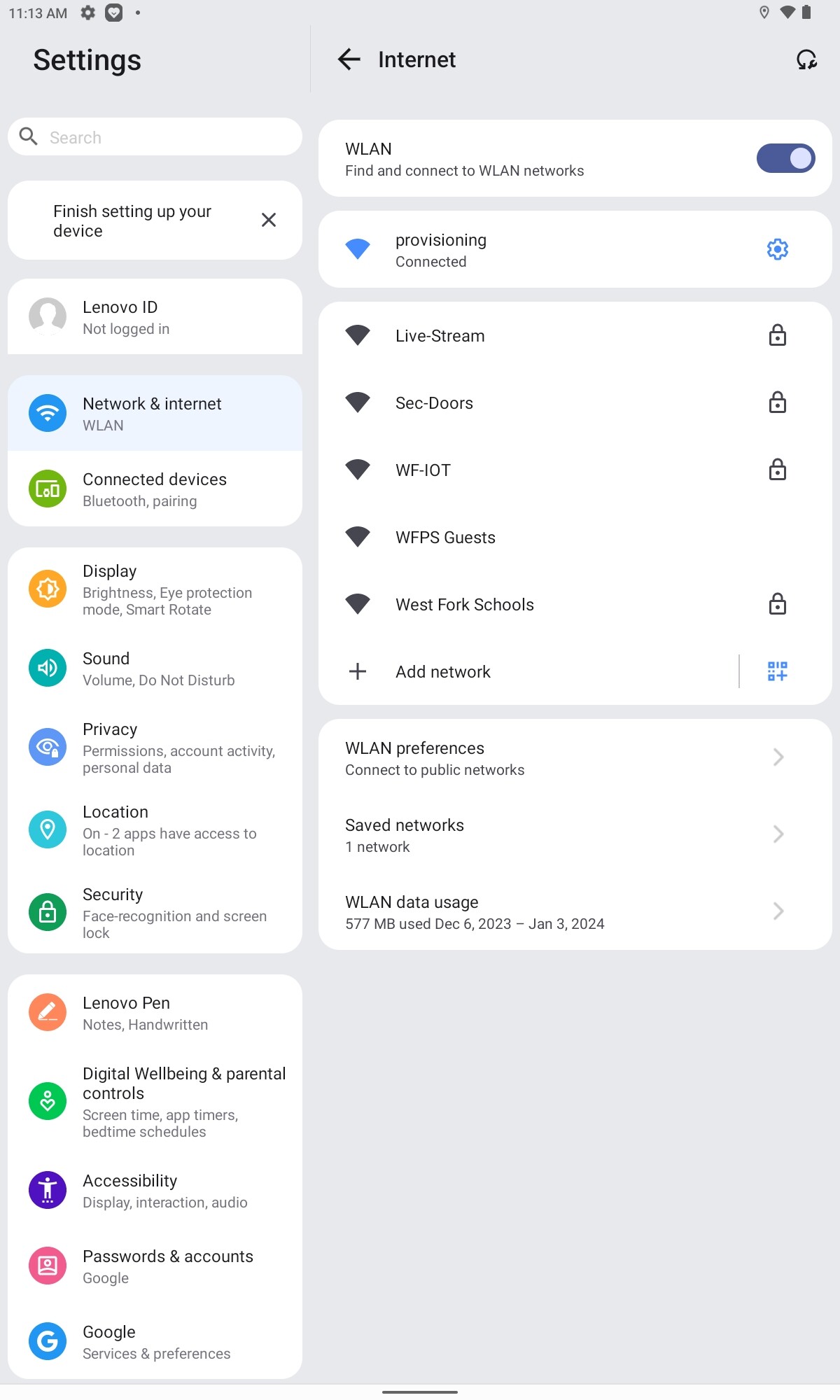
Go to your network settings

-
Press “West Fork Schools”

-
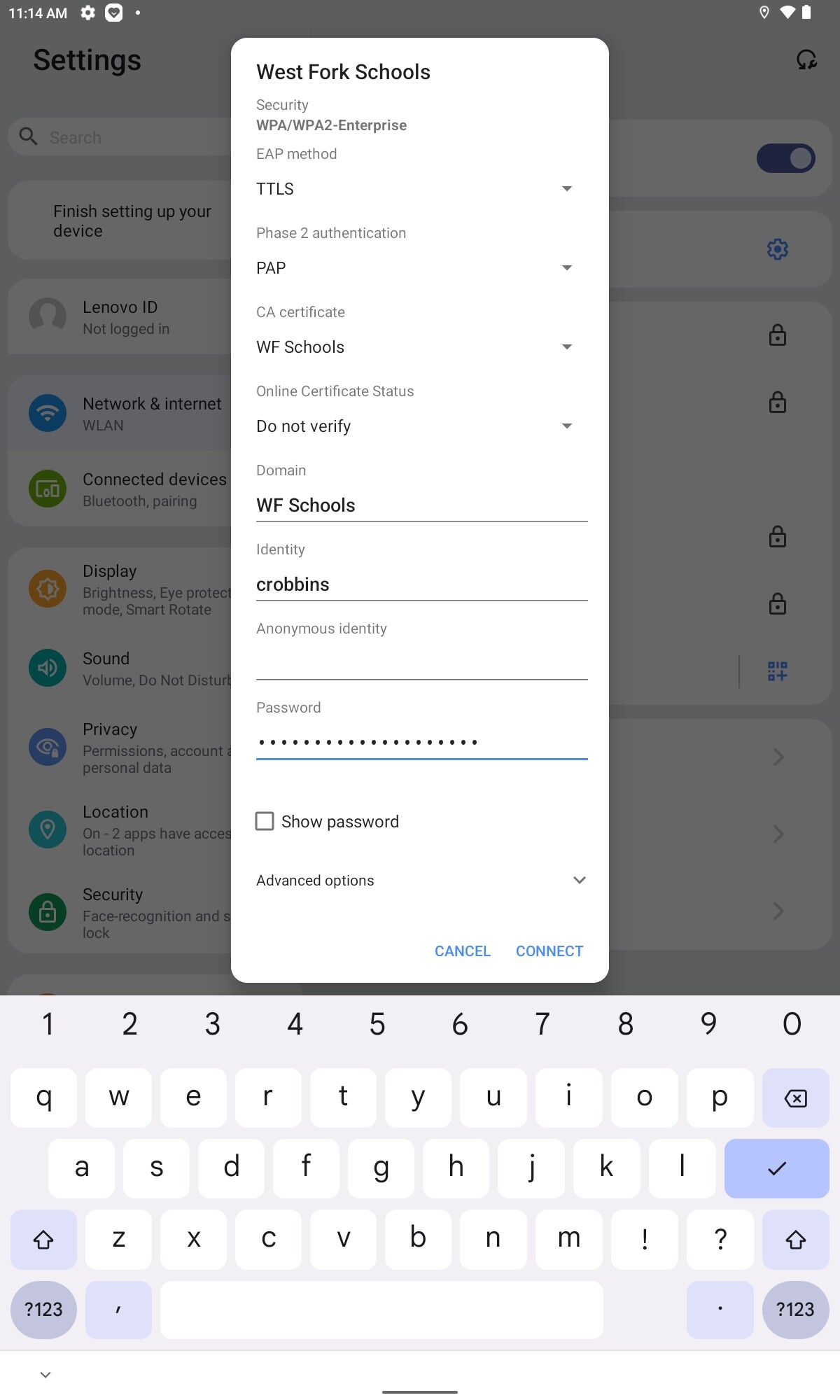
For the Wi-Fi Settings, you need to set the following things…

-
EAP method or Authentication Type, or Phase 1 Authentication needs to be “TTLS or Tunneled TLS”
-
CA Certificate needs to be WF Schools (this is the certificate you just installed)
-
If you are asked for a phase 2 authentication type, use PAP.
*Online Certificate Status needs to be either Do not verify or request status. Require will not work.
- For Domain, type in the following line, exactly as it appears:
WF Schools
-
Enter the first part of your email for the identity or username (the part before @wftigers.org),
-
Enger your school email password in the password field.
- At this point, you should be able to connect. If you need help, stop by the tech office so that we can see your device.
Windows 11 Home or Pro
This is very similar to the Windows 10 instructions. There is just one extra piece of information you must provide.
-
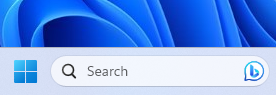
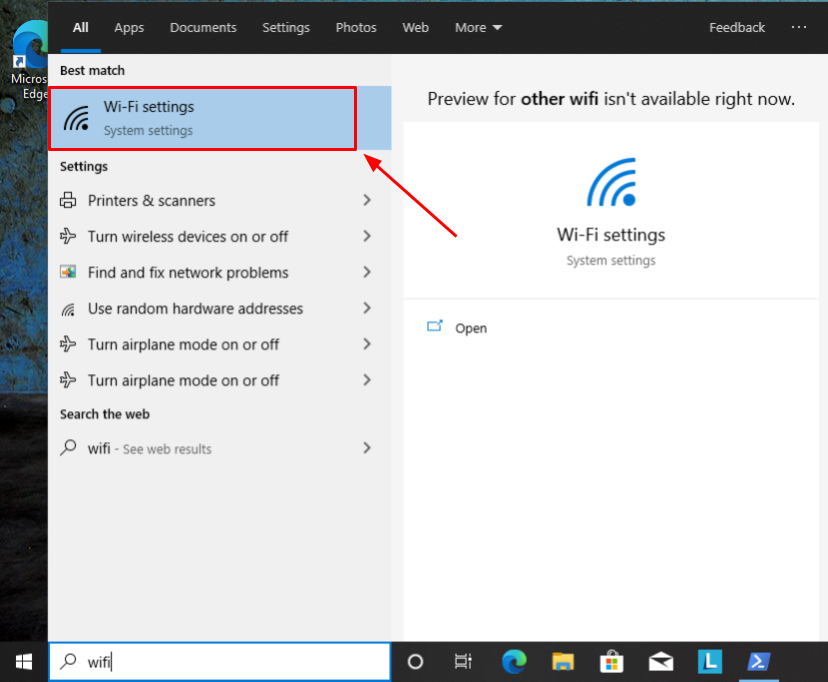
Press the Windows key on your keyboard, or click on the Start button.

-
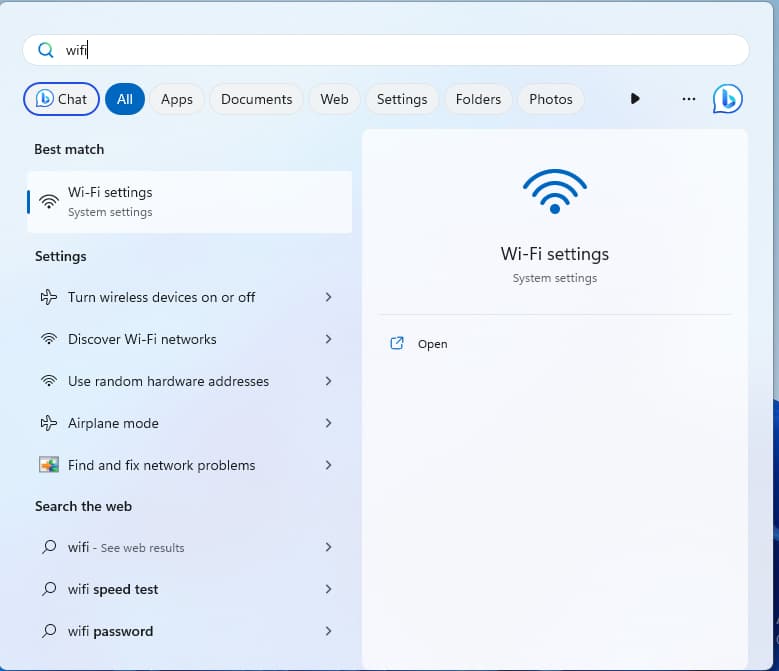
Type in “wifi,” then click the “Wi-Fi Settings” option that pops up.

-
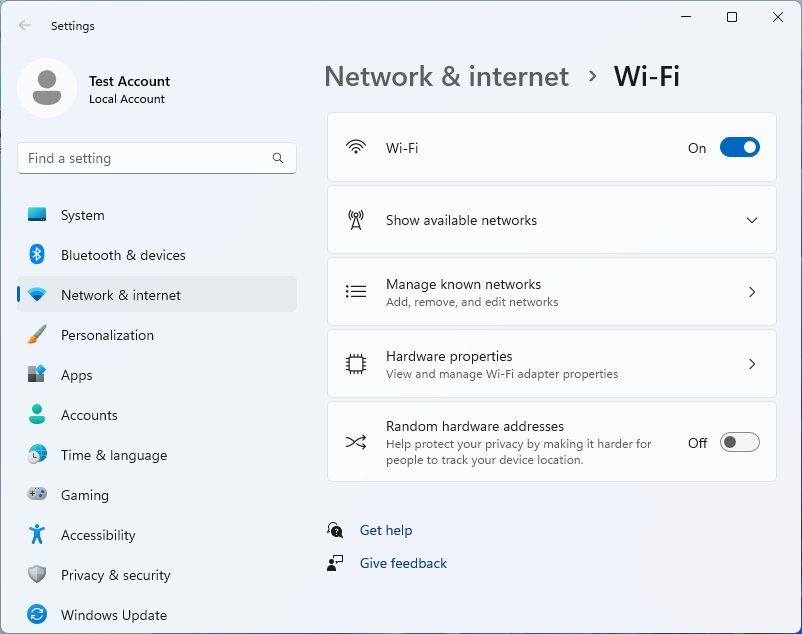
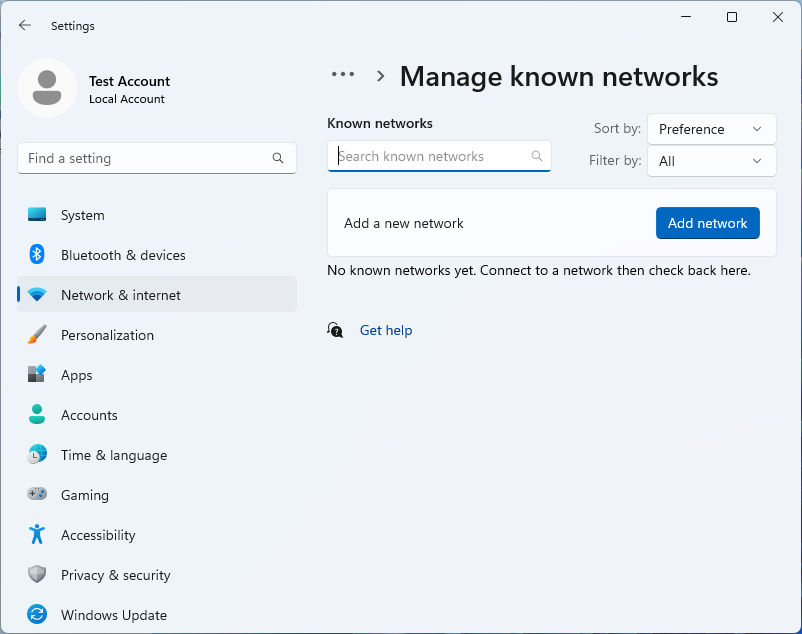
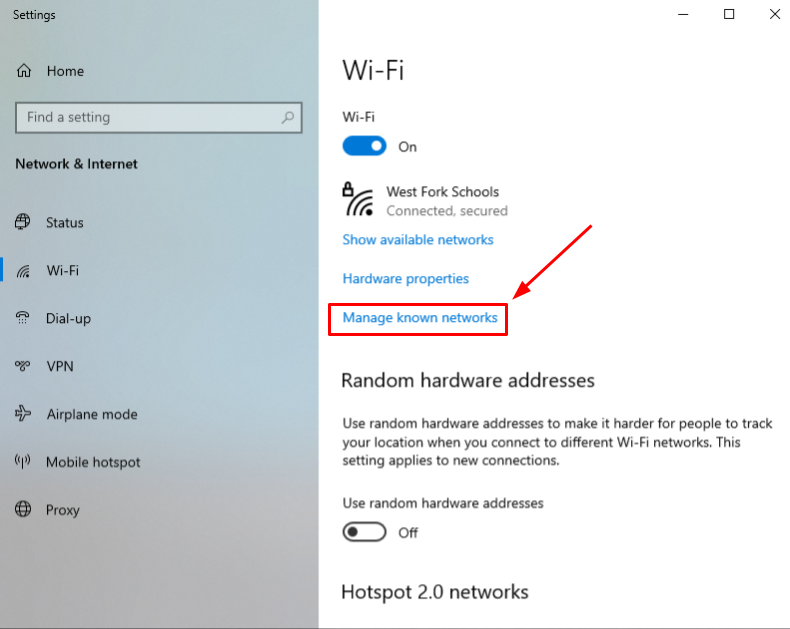
Click on “Manage known networks.”

-
Click on “Add network.”

-
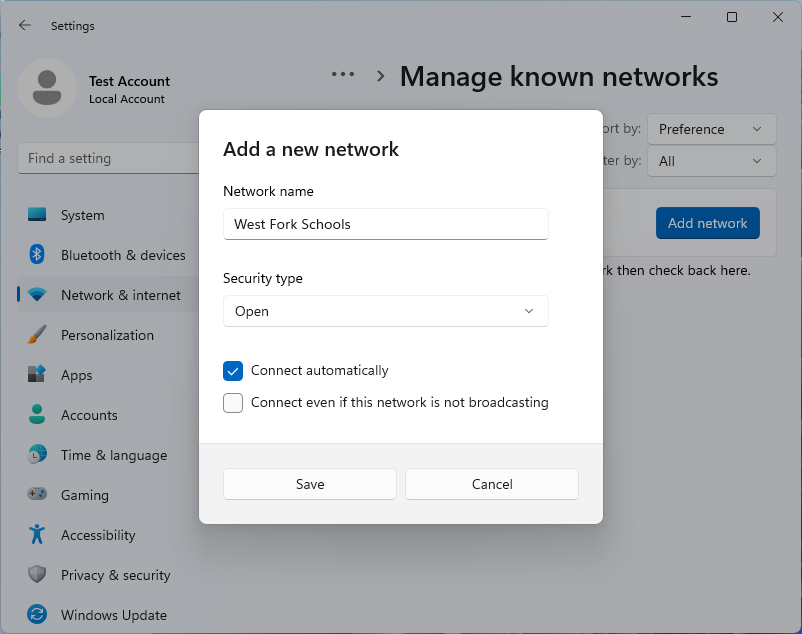
Start by typing “WestFork Schools” as the network name, and checking the "Connect automatically box.

-
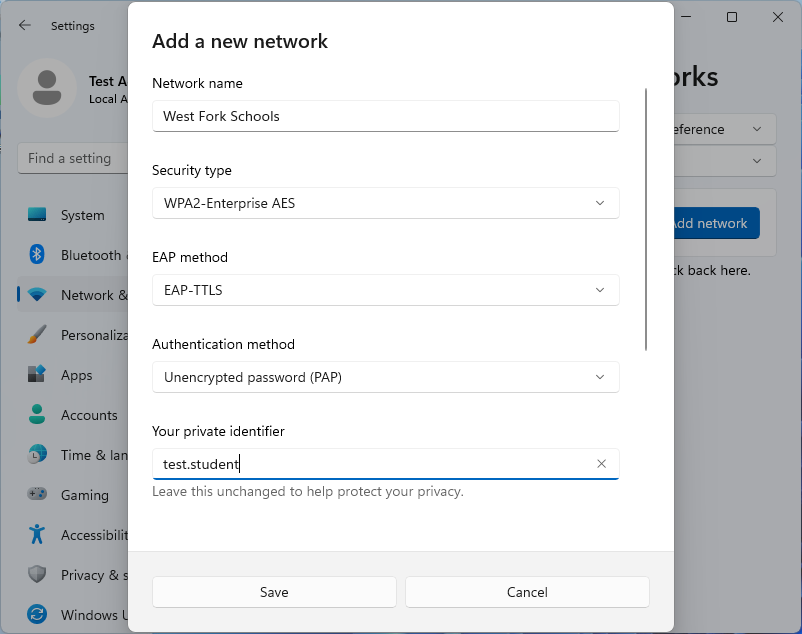
Click on the “Open” security type, and change it to “WPA2-Enterprise AES,” then make your settings match the screenshot below. Make sure to use your own google username (without the @wftigers.org portion). Then click on “Save.”

-
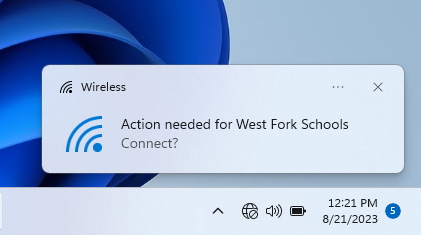
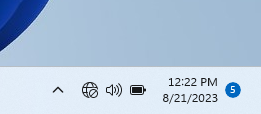
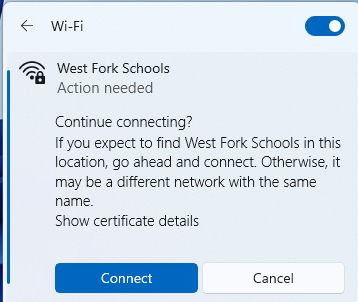
You should get a notice at the bottom of your screen stating that action is required to continue connecting.

-
Click on the notifications area to get to your options.

-
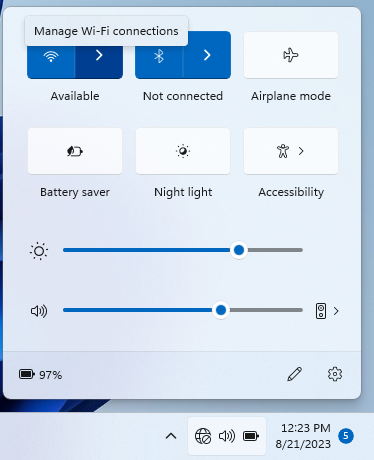
Click the arrow to the right of the wi-fi symbol.

-
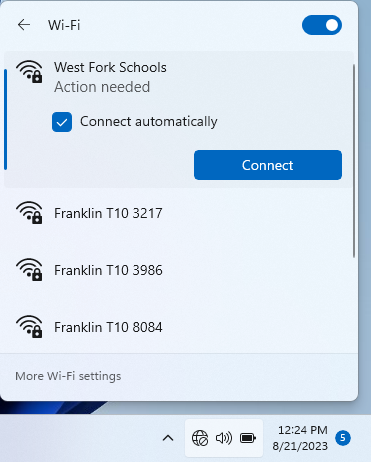
Click on “West Fork Schools” with the “Action needed” label.

-
Make sure the “Connect automatically” and click on “Connect.”

-
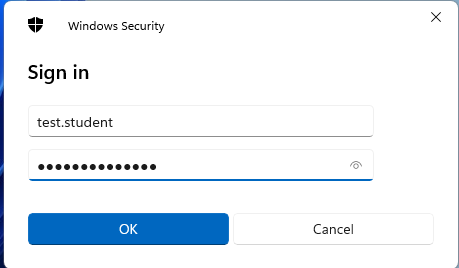
On the “Sign in” prompt, type in your username (the part BEFORE @wftigers.org) and you school google password. Then click on “OK.”

-
Click on the “Connect” button to confirm.

-
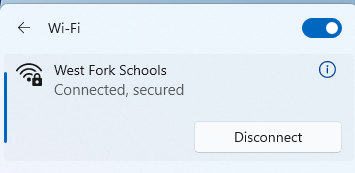
That’s it. You should get a message stating that you are connected and secured.


Windows 11 Enterprise or Education Laptops
While it pains me to admit it, this one is the easiest of them all. Windows 11 simply does not care about the type of security you have, so it is as simple as clicking on the network to join it.
When you are asked to authenticate, use the first part of your email (the part before @wftigers.org) for the username, and your email password for the password.
That’s it!
Windows 10 Laptops
-
Press the Windows key, and type in “wifi.”

-
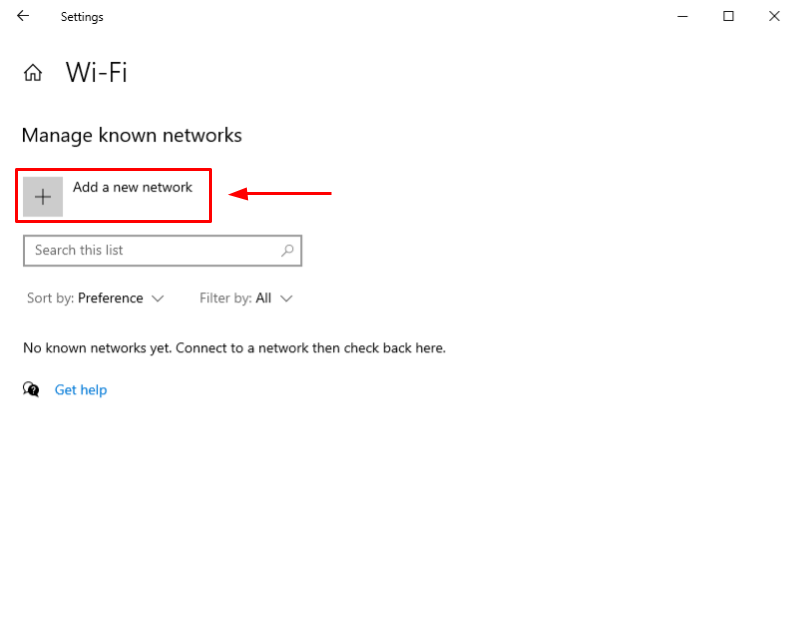
Click on the link that says “Manage known networks.”

-
Click on the “+ Add a new network” button.

-
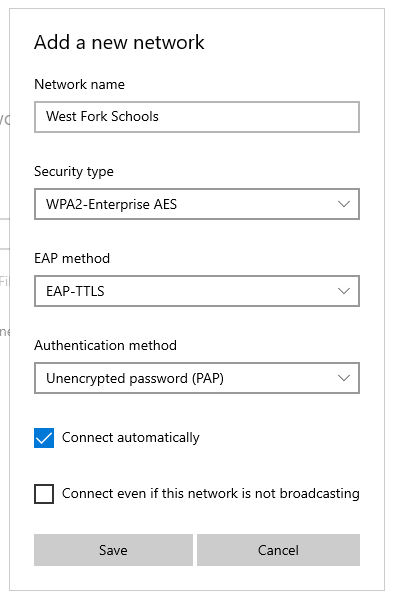
This is the important part! Make your screen look EXACTLY like the image below.

-
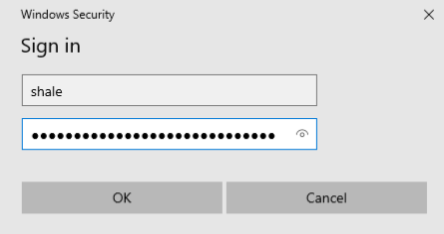
In the username box, type in the first part of your email (the part before @wftigers.org), and type in your email password in the password box. Press “OK.”

-
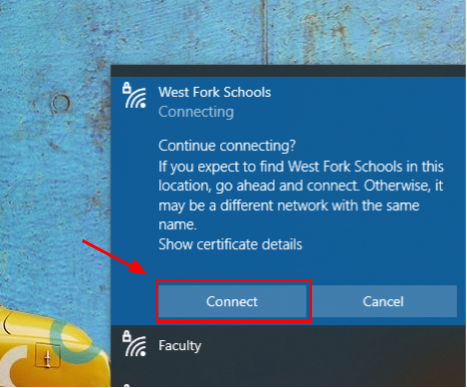
You should now be prompted to “Continue connecting.” Click on “Connect.”

MacBook
For MacOS, you have to install a profile, similar to how you do on an iPhone. I’m going to use Safari, because it is installed by default.

-
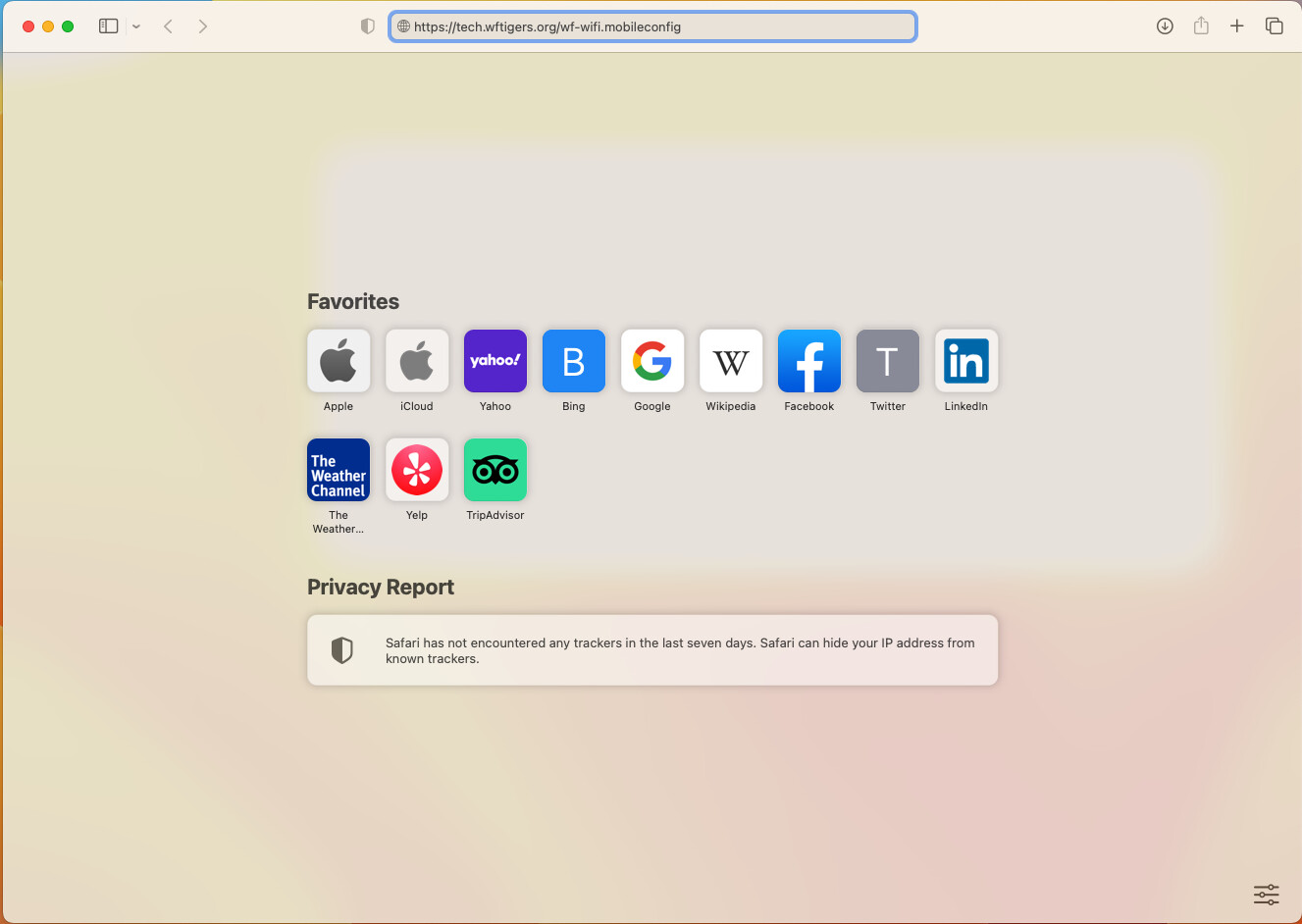
In Safari, type https://tech.wftigers.org/wf-wifi.mobileconfig (or click this link) and hit enter.

-
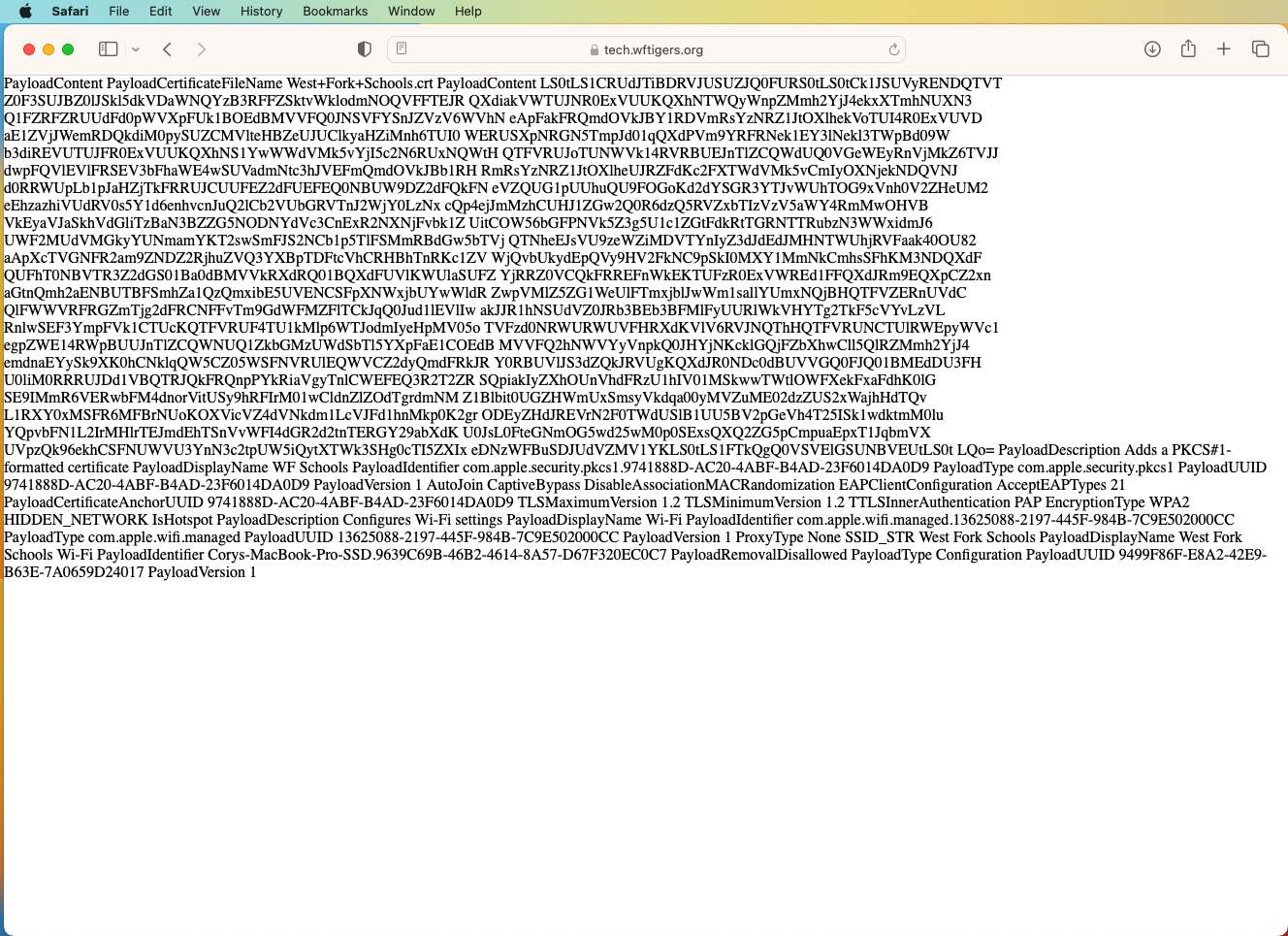
This should open a page that has a bunch of random-looking text.

6 -
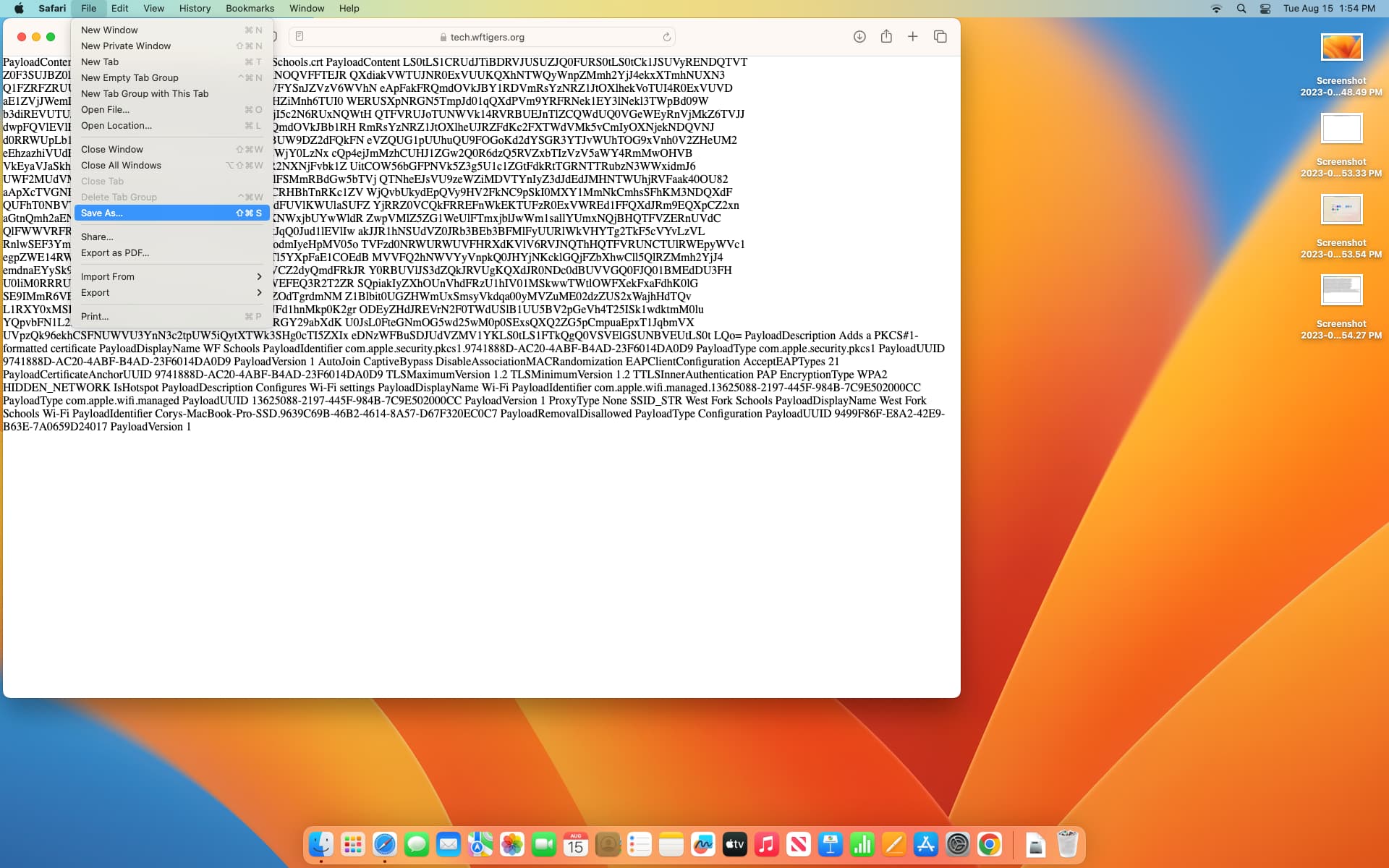
Click on the File menu, and choose “Save As…”

-
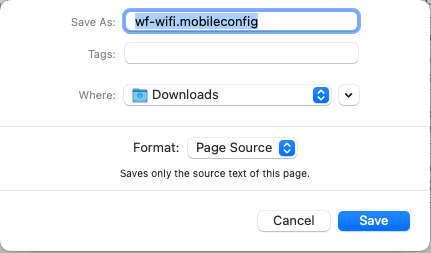
Leave the name alone, but choose where you want to save the file. I chose Downloads.

-
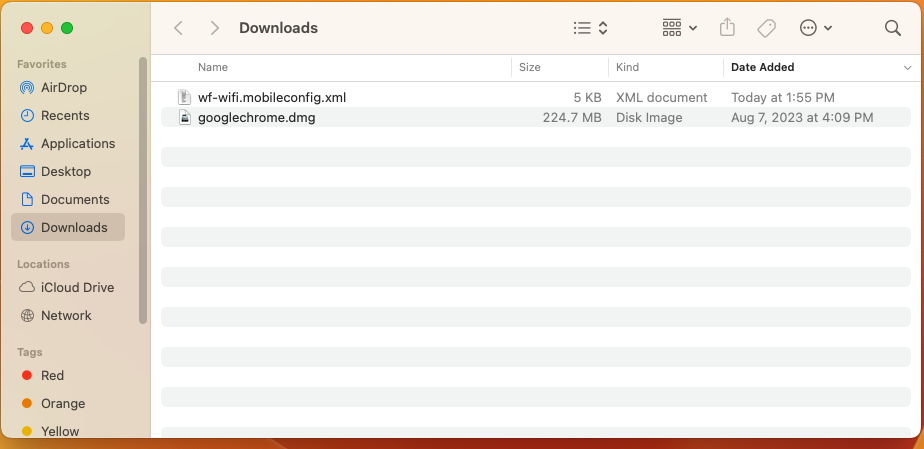
Go to where you saved the file.

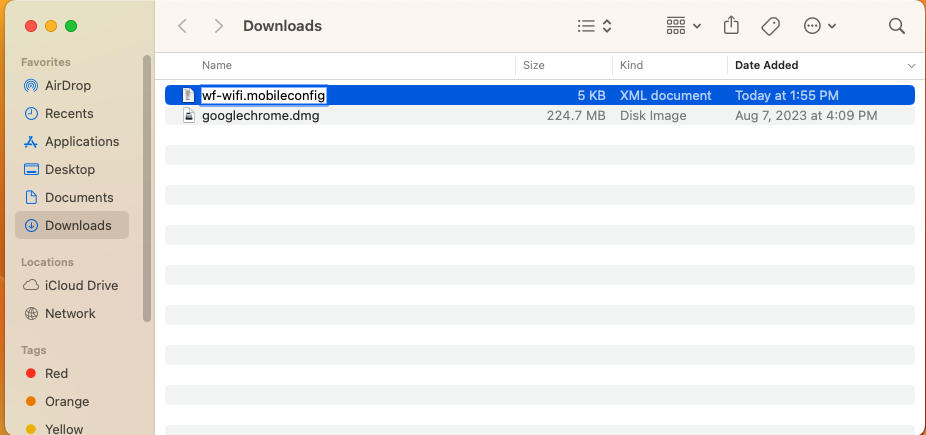
-
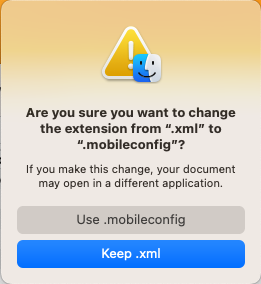
Rename the file. You need to remove the “.xml” at the end, so it ends in “.mobileconfig”.

-
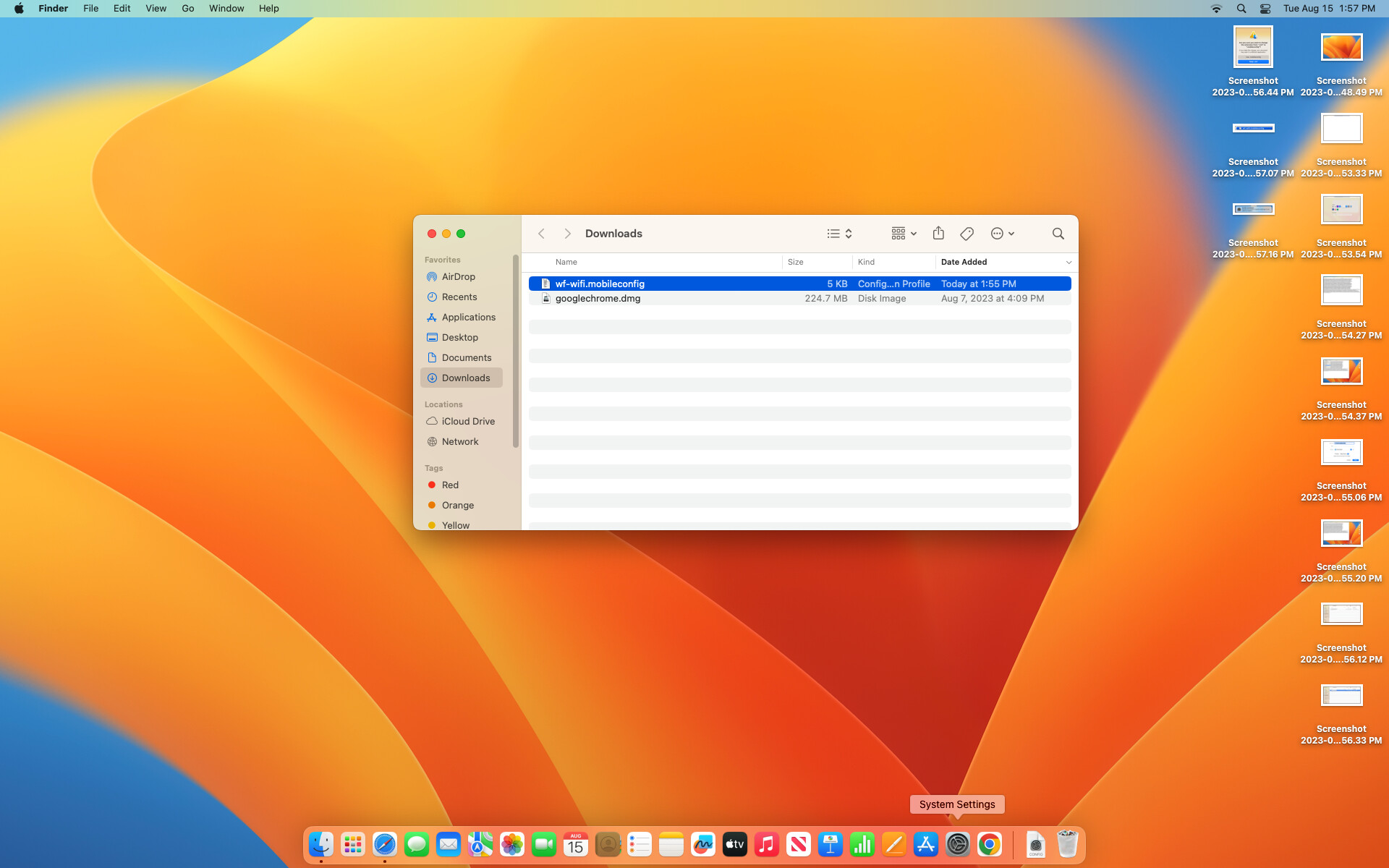
Click the “Use .mobileconfig” button

-
Double click the file.

-
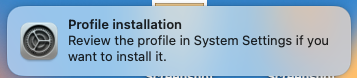
You will get a notice in the top right letting you know that the profile is ready to install.

-
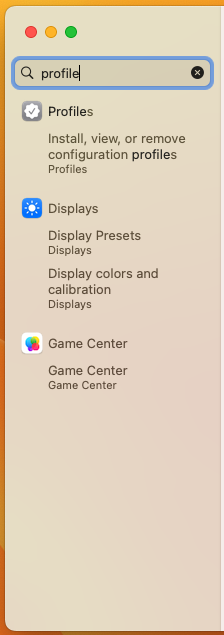
Open the system preferences (Click the Apple, then click on “System Preferences”). Then type “profiles” in the search box, then click on “Profiles” when it shows up. Note if you are using an older version of MacOS, there isn’t a search box, bot there is a button on the screen that says “Profiles.”

-
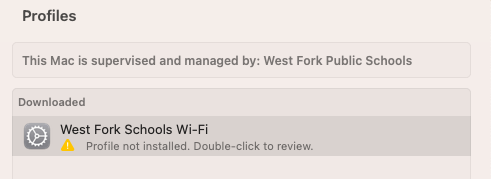
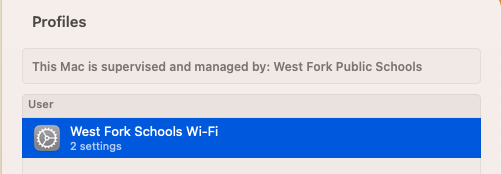
Click on the “West Fork Schools Wi-Fi” option.

-
Click on the “Install” button.

-
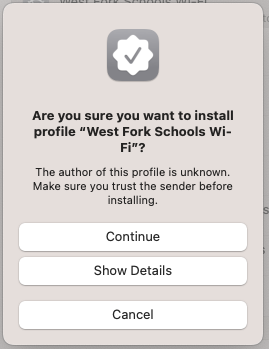
When asked if you are sure you want to install, click on the “Continue” button.

-
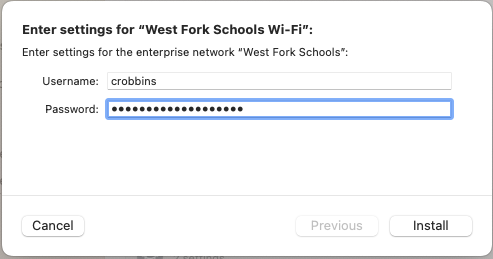
Enter your username (the first part of your email, before the @wftigers.org)

-
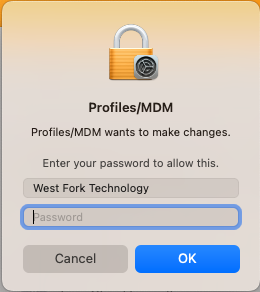
You will be asked to enter the password for your administrator user (this will probably be the same password you use to log in to your Mac).

-
You should now see that the profile is showing as “2 settings.”

-
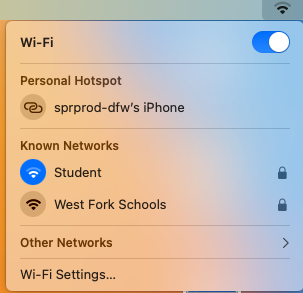
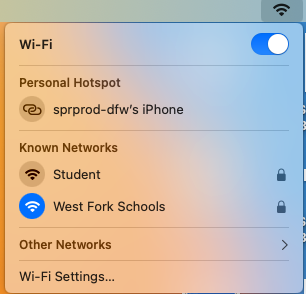
Open your Wi-Fi connection menu.

-
Click on the “West Fork Schools” option to connect.


Chromebook
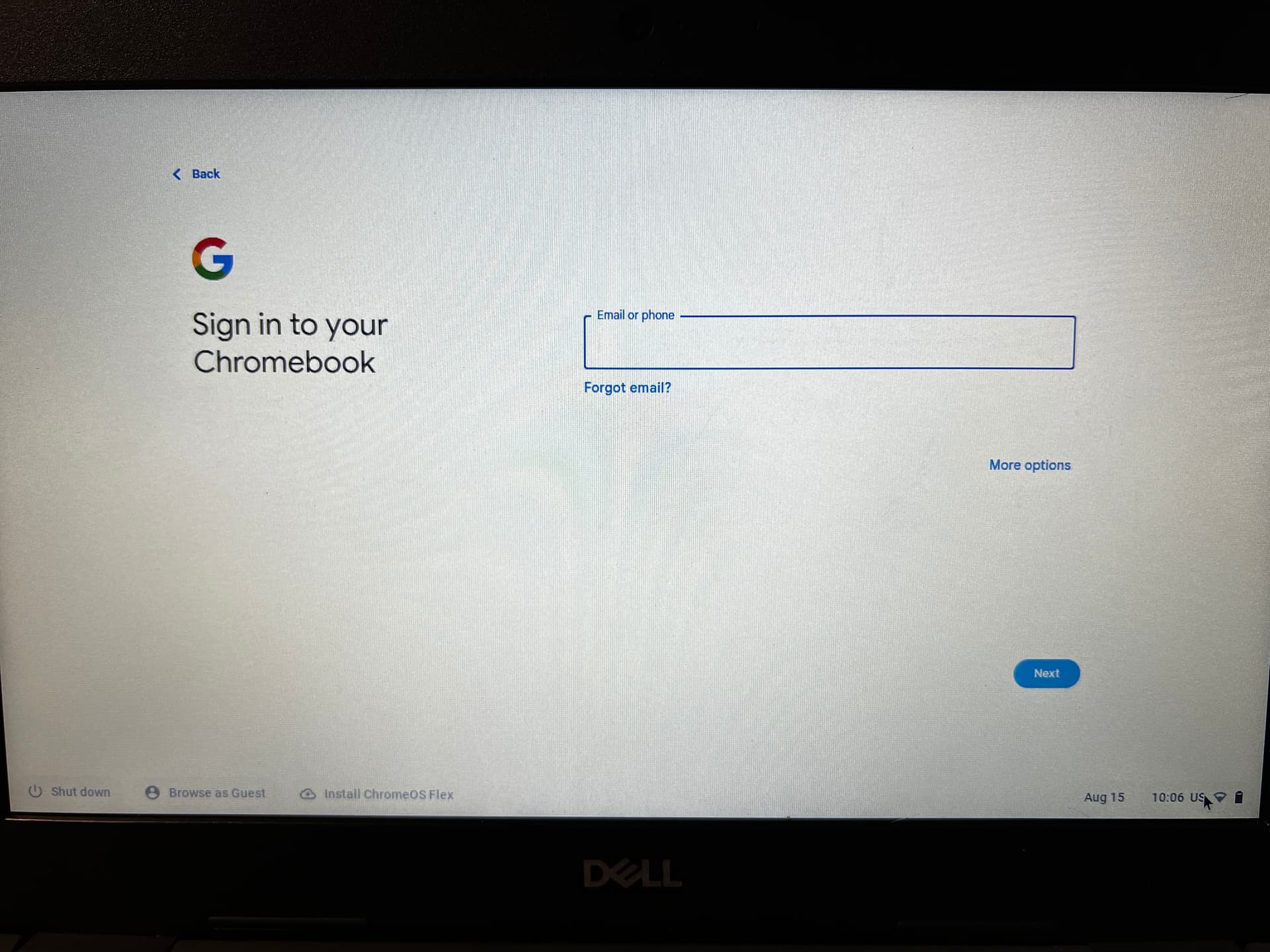
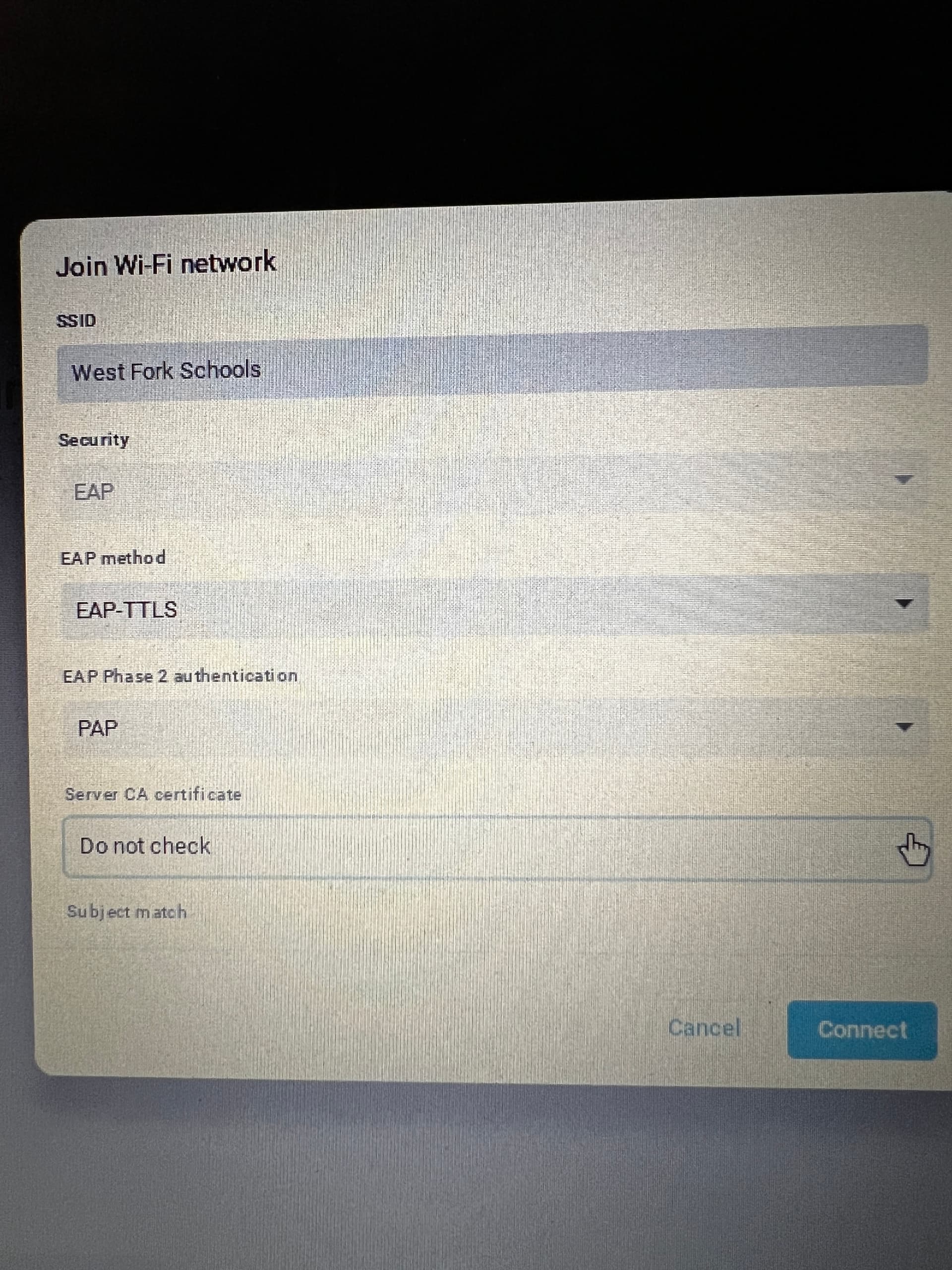
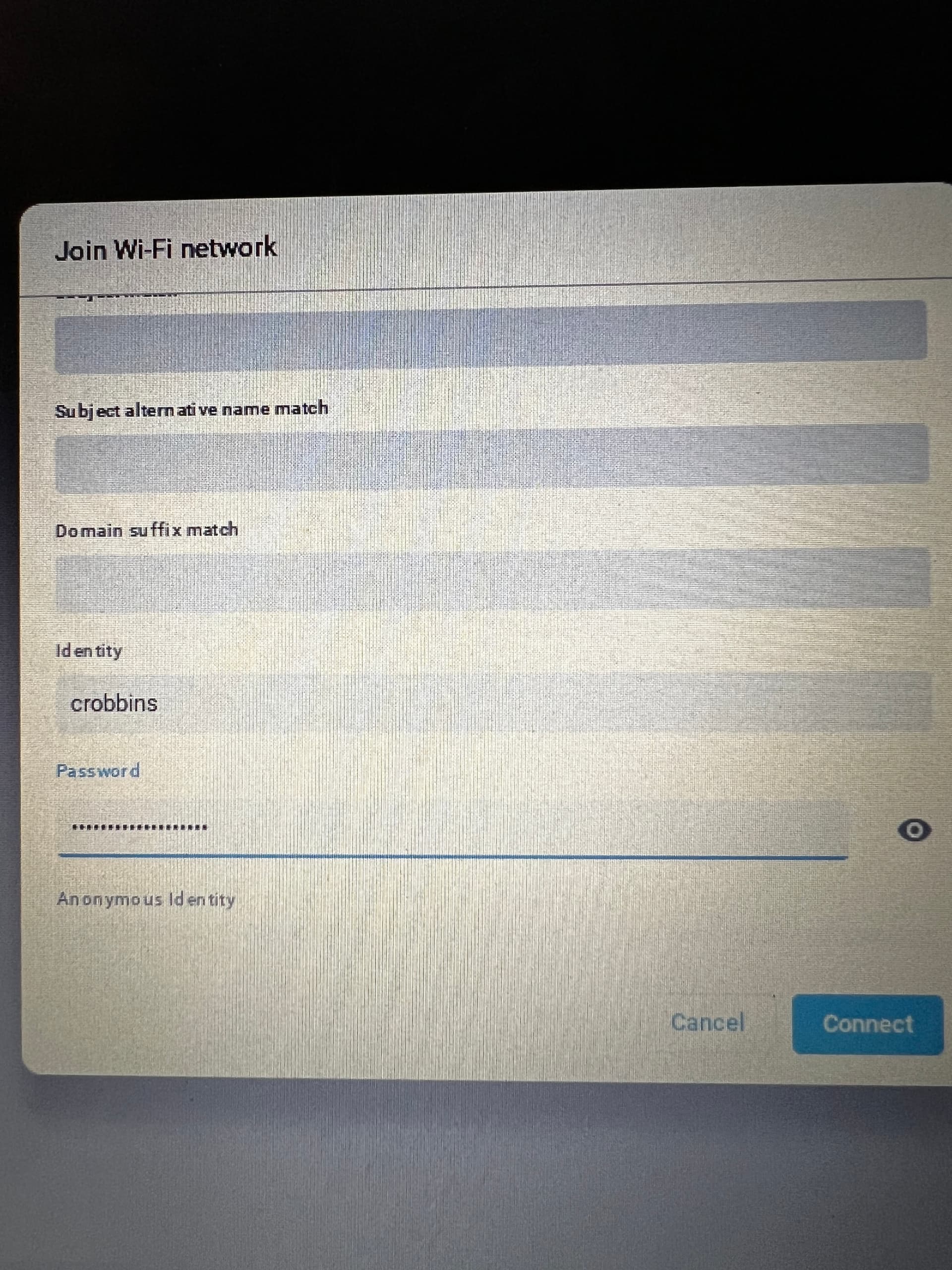
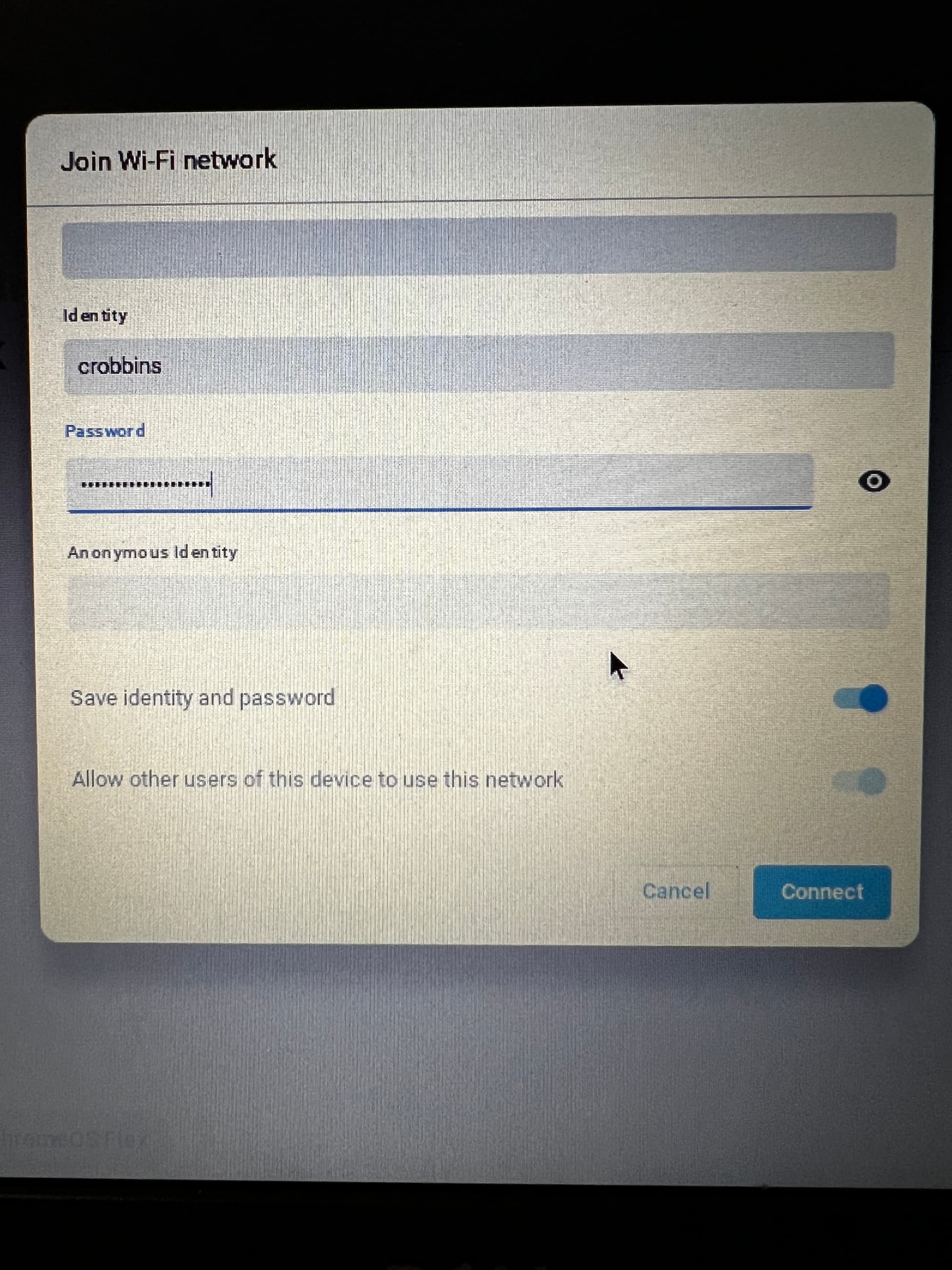
Sorry about the photos in this part. I can’t take screenshots before I log in. 😦
-
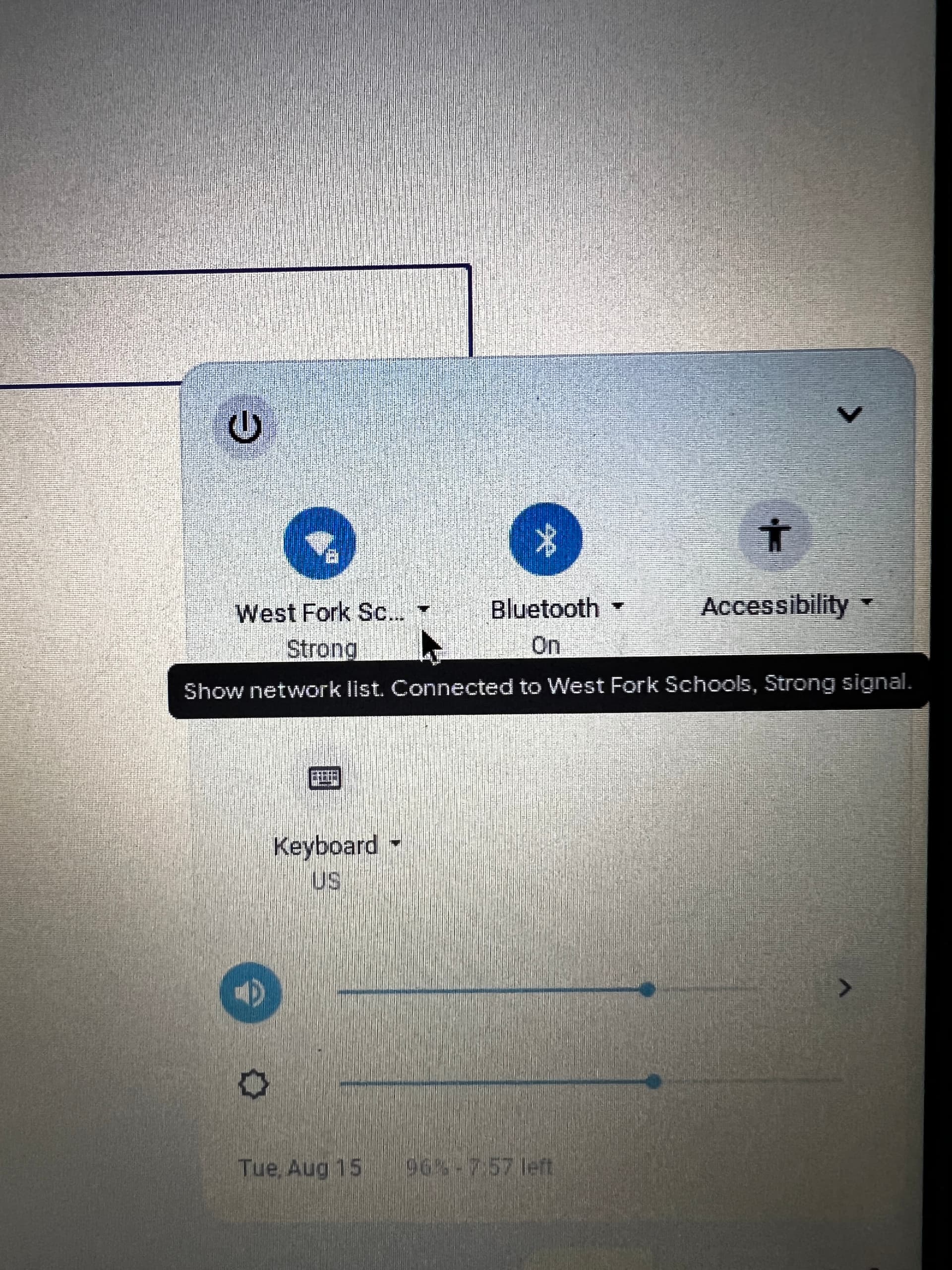
From your login screen (you CAN do it while logged in, but it is MUCH better to do it on the login screen, so that you have access to the internet outside of your account) click on the time in the lower right corner.

-
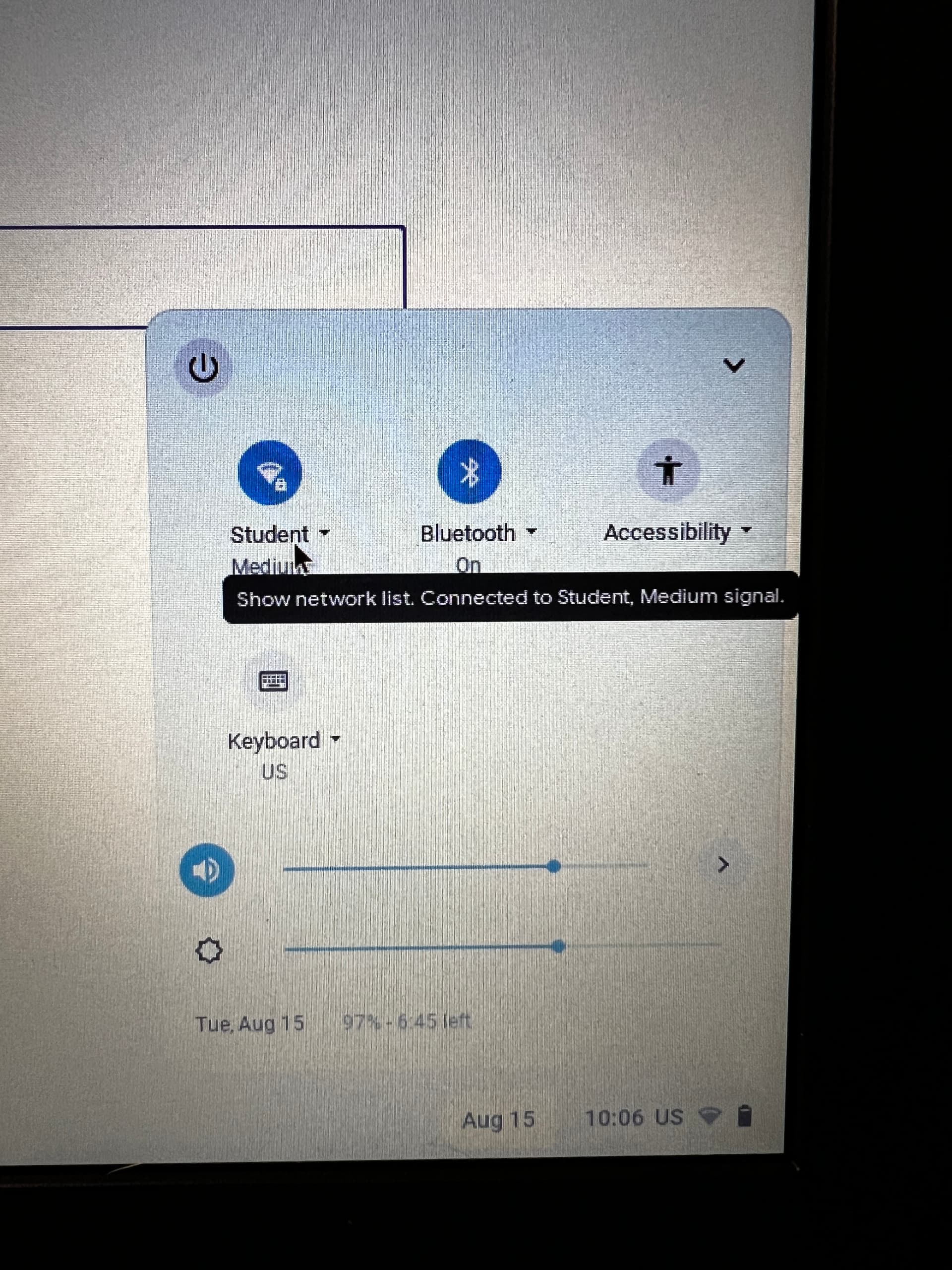
Click on the network name of the account you are currently connected to. If you are disconnected, just click on the Wi-Fi symbol.

-
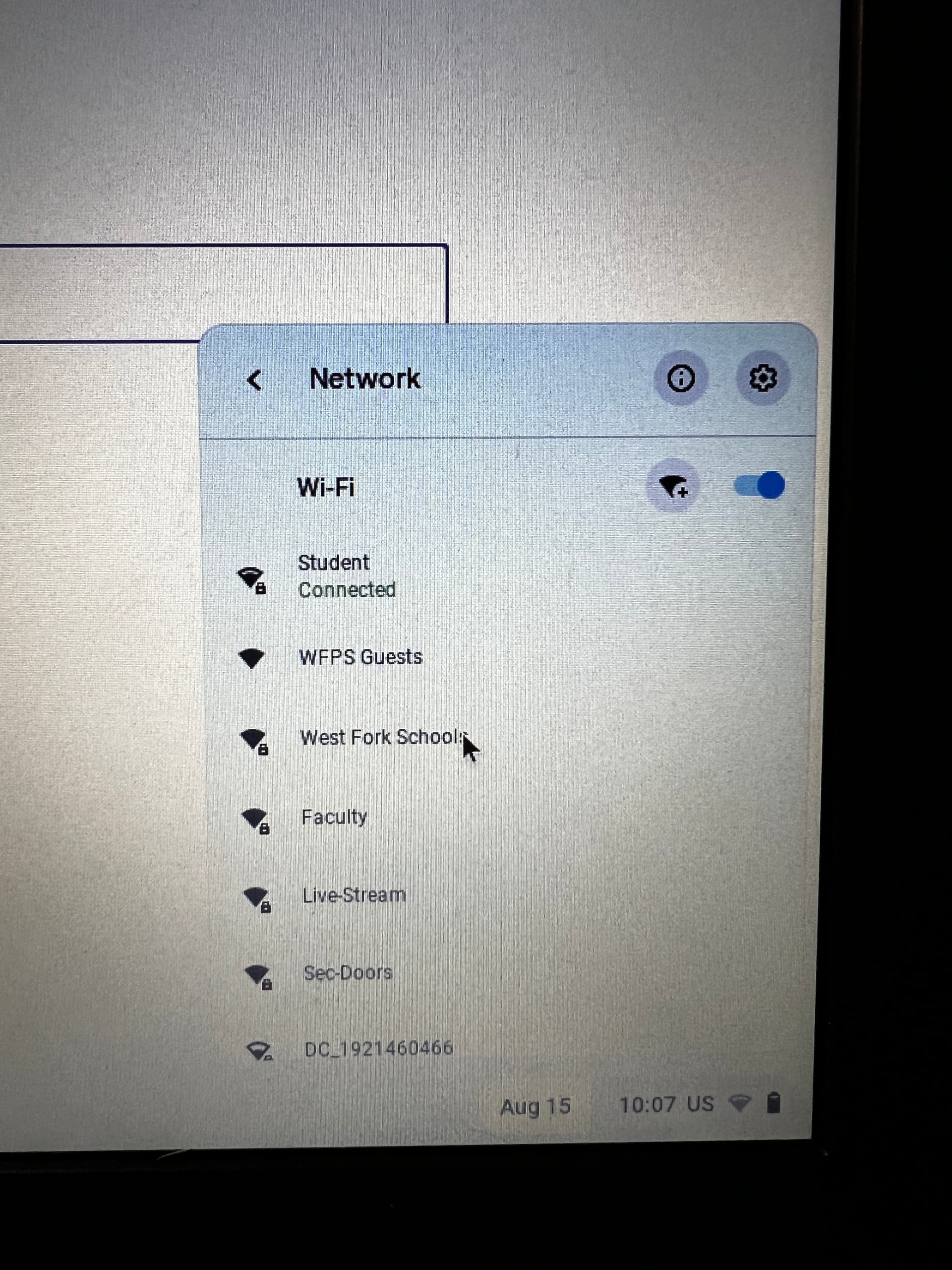
Choose “West Fork Schools.”

-
Make you settings match the 3 photos below, with the obvious replacement of my username and password with your own. Be sure that you don’t type the @wftigers portion of your email address, or it will not work. Then click on the “Connect” button.


-
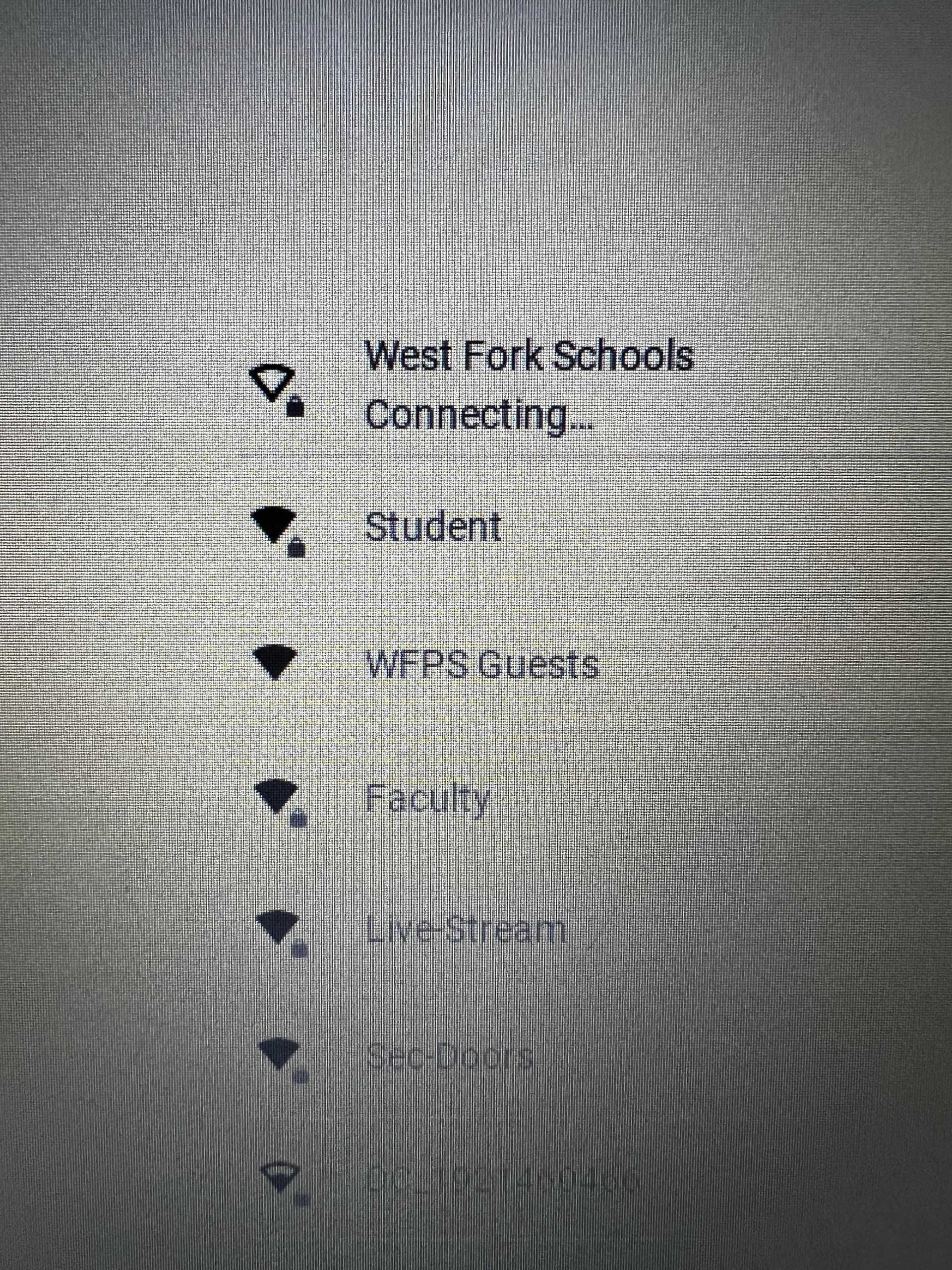
“West Fork Schools” should now say “Connecting…”

-
You should now be connected, but you may verify that this is true by clicking on the clock. You should see the West Fork Schools Network as connected.

Originally posted by Cory Robbins on the West Fork Technology Hub (2023-08-16).
End of the School Year -Tech FAQ
Here are some frequently asked questions and answers regarding technology that we get at the end of the school year.
-
What should I do with my laptop over the summer?
A. Don’t leave your laptop or charger in your classroom. While they are in your possession, please keep them in a safe place at home. Avoid leaving them in hot conditions (like a car) or an unsecured location. -
What should I do with my computer(s) if I’m not returning to West Fork next school year?
A. Please turn them in to your building principal. -
What should I do if I’m changing rooms/buildings next year?
A. You will keep the same laptop. Leave your classroom phone (and other technology) in your current room. -
What should I do if I have technology in my room that is old or I’m not using?
A. Open a tech ticket (email support@wftigers.org), and we will remove them over the summer. -
If I am leaving the district, what is the best way to leave lesson plans or other resources for my replacement?
A. Create a shared drive with a team member and/or your building principal. Copy the resources to the shared drive. -
If I am leaving the district, how can I take my electronic resources and/or important emails with me?
A. Use Google Takeout to copy the resources to a personal email account. Follow this link for more details.
Originally posted by Carl Clements on the West Fork Technology Hub (2023-05-16).
Microsoft Office
Tips for dealing with Microsoft Office documents
Converting Microsoft Office Documents to Google Drive Documents
Even though we are primarily a Google Docs school, there are occasions when we receive Microsoft Word Documents (docx files). Thankfully, it is quite simple to convert docx files to Google Docs files for editing, sharing, or printing.
There are two main scenarios for receiving docx files:
Scenario 1 - Email Attachment in docx format
Click for detailed instructions
- In Gmail, click on the preview of the docx file. (Note: The W and docx indicate this is a Microsoft Word File.)

- When the preview opens, click on Open with and choose Google Docs

- The file will open in Google Docs and can be edited but is technically still in docx format. It is best to click File and Save as Google Docs.


Scenario 2 - Downloaded File in docx format
Click for detailed instructions
Double-clicking the downloaded file will typically either open the document in Libre Office or try to download the file again. To open the document in Google Docs:
- Open a blank Google Docs document. (as a shortcut open a new tab in Chrome and type docs.new)
- From the File Menu select Open

- Click the Upload tab and then click Browse

- Navigate to where the file was saved and double-click the file.


Google Docs will scan the file for viruses and then open it as a Google Doc.
The same process works for Spreadsheets (Excel to Sheets) and Presentations (PowerPoint to Slides)
Operations Hero - Maintenance Request
For today’s tech tip, we will focus on two items:
- Logging In to Operations Hero
- Creating a New Maintenance Request
Logging in to Operations Hero
Open a new tab to launch PawPoint.
Click on the Operations Hero button.
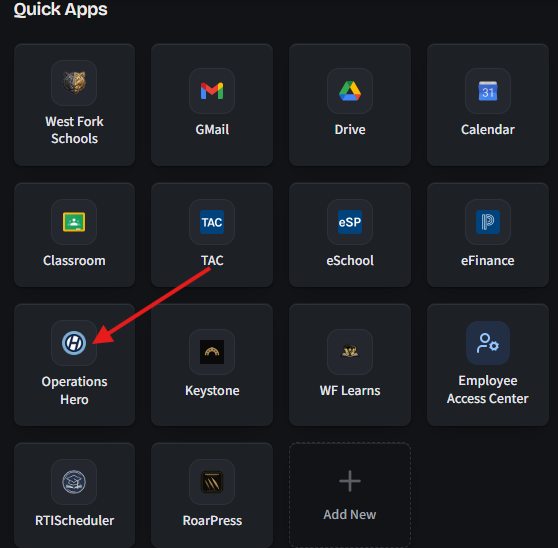
Or follow this direct LINK.
If you are on your school device, you will automatically be logged in to Operations Hero.
If not, log in with your school email account and password.
Creating a New Maintenance Request
A new maintenance request should automatically open when you log in to Operations Hero.
If not, click on the New Request button near the top of the screen.
The New Request window will be displayed. This is similar to the SchoolDude process.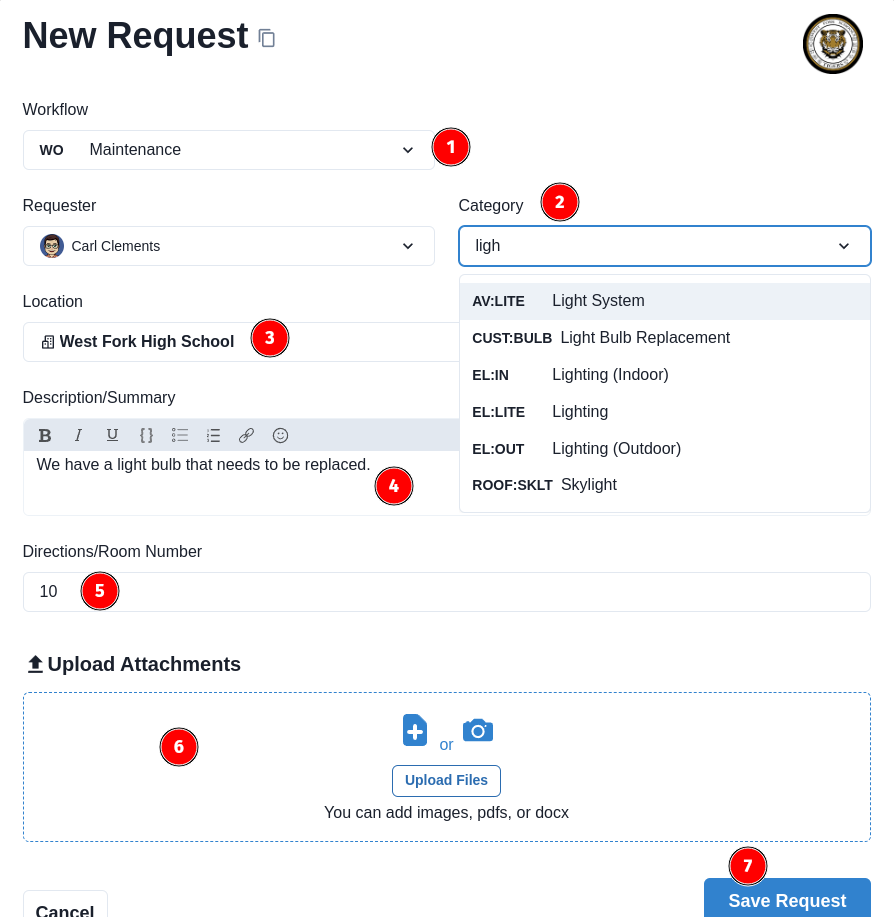
NOTE: Numbers correspond to the picture above.
- Be sure this is set to maintenance.
- The Category fields should be filled in. There are lots of options to choose from. Start typing to narrow down the category. ie: plumbing, lighting, electrical, etc.
- Choose the appropriate building
- Give some details for the maintenance crew to work off of. If it is a common area (ie: cafeteria) please include a contact person.
- Provide the room number or location.
- Files/Pictures are optional but can be included as needed.
- Click Save Request to submit it to the maintenance department.
Originally posted by Carl Clements on the West Fork Technology Hub (2023-05-02).