Chrome, Search & Extensions
- Clear Cache in Google Chrome
- Google Search Tools
- Kami - Google Chrome Extension
- Grammarly Extension
- Useful Keyboard Shortcuts
Clear Cache in Google Chrome
When you use a browser, like Chrome, it saves some information from websites in its cache and cookies. Clearing them fixes certain problems, like loading or formatting issues on sites.
-
On your computer, open Chrome.
-
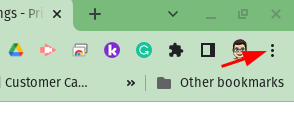
At the top right, click More

-
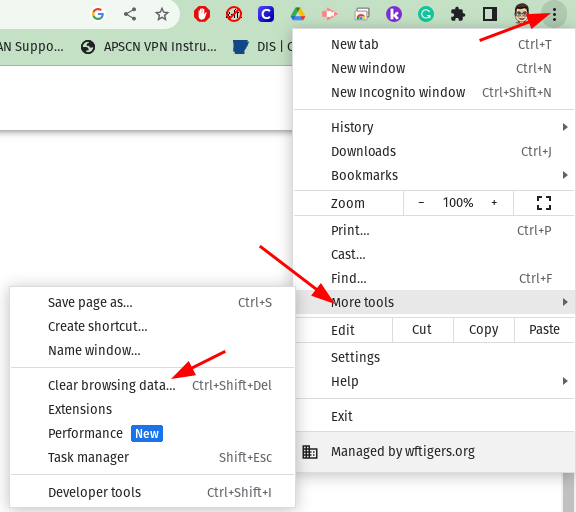
Click More tools
 Clear browsing data.

-
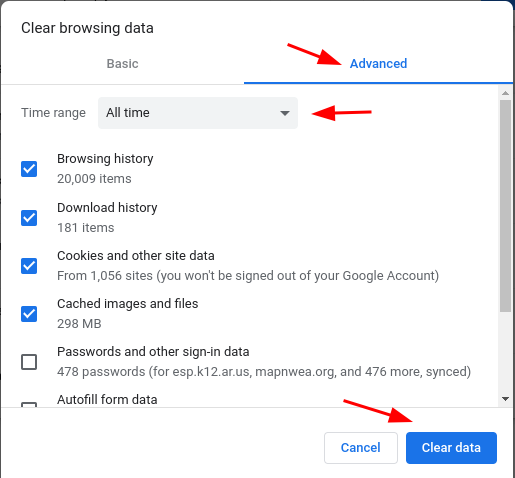
Choose Advanced
-
At the top, choose a time range. To delete everything, select All time.
-
Next to “Cookies and other site data” and “Cached images and files,” check the boxes. We recommend checking everything except “Passwords and other sign-in data” and “Autofill form data.”
-
Click Clear data.


Originally posted by Carl Clements on the West Fork Technology Hub (2023-01-17).
Google Search Tools
Google is the most used search engine in the world. It has many useful but hidden-away capabilities. This article explores some well-known and some lesser-known tools that are accessible from the Google search bar. Many of these are super handy in the classroom.
Click the arrow next to each topic for more details.
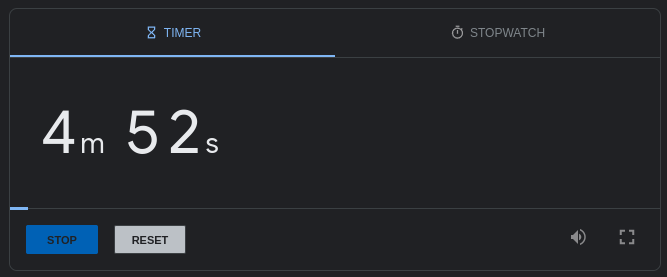
Timer
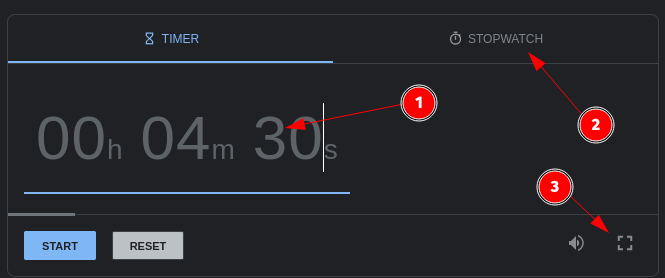
Type the word “timer” in the Google Search bar.
A 5-minute timer will load automatically.
-
Adjust the number of minutes by clicking on the time.
-
Click Stopwatch to switch modes
-
Clicking Full Screen is handy if displaying on a projector.
Calculator
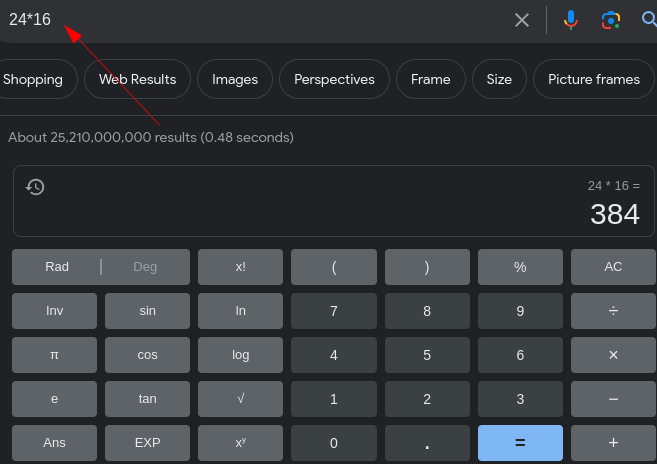
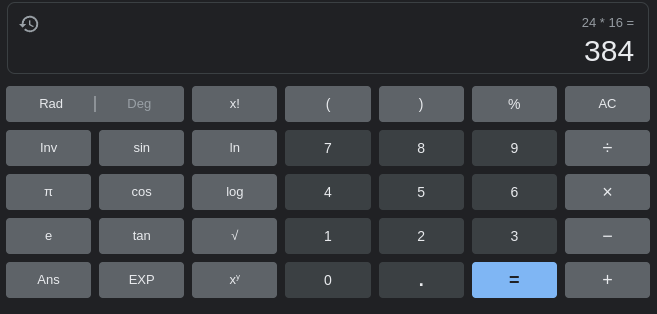
Type the word “calculator” in the Google Search bar.
A basic scientific calculator is displayed.
Alternatively, type a math problem directly in the search box. The calculator will load with the answer.
Unit Conversion
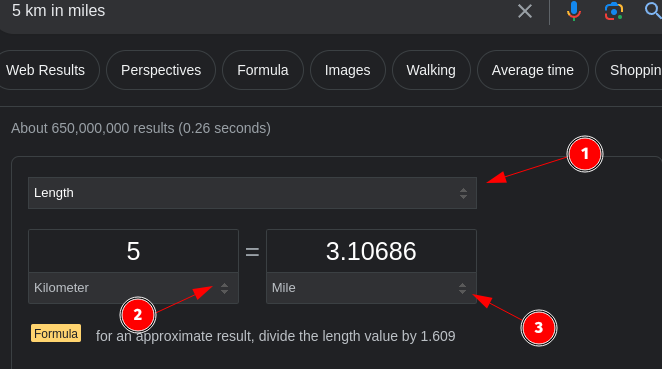
Type a number and then two different units in the Google Search bar.
Examples: 5 km in miles or 2 cups to ml
- Use the drop-down to change the type of conversion. Length, volume, time, temp, etc.
- and 3. Use these drop-downs to change the units.

Dictionary/Pronunciation
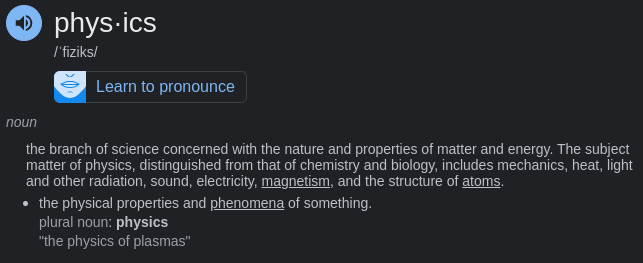
Type define and a word in the Google Search bar.
Click on the audio icon to hear the word pronounced.

Google Translate
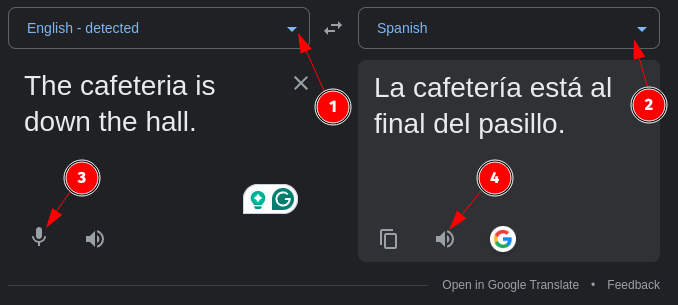
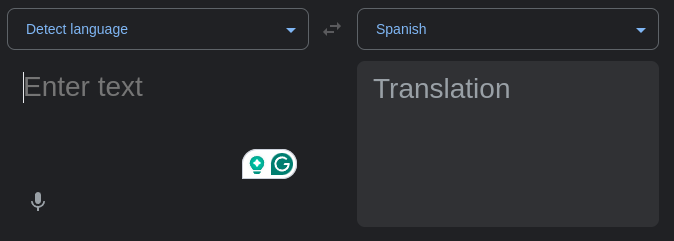
This is a simplified version of Google Translate.
-
Select the input language or begin typing and let Google detect.
-
Select the output language.
-
Click the microphone for audio input.
-
Click the speaker to hear the translation.
Sunrise/Sunset
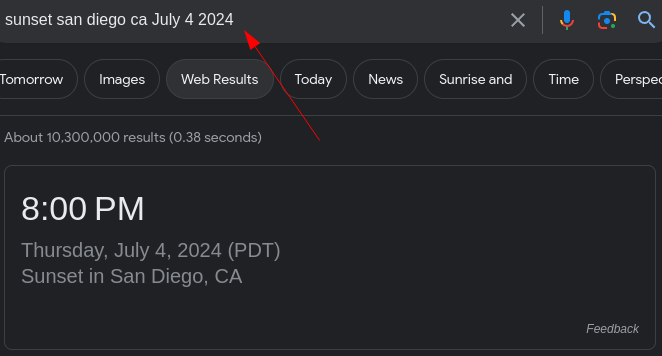
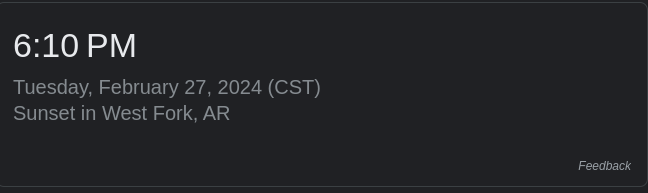
Type “Sunrise” or “Sunset” in the Google Search bar. This will display the sunrise or sunset time for your current location.
For more fun enter an alternate location and add a date.
Time In Any Location
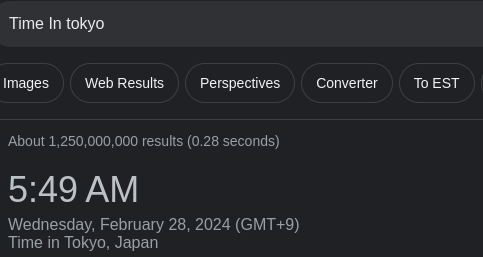
Type “Time In” followed by a location in the Google Search bar to see the current time.
Type just “Time In” to see the time in your current location.

Coin Flip
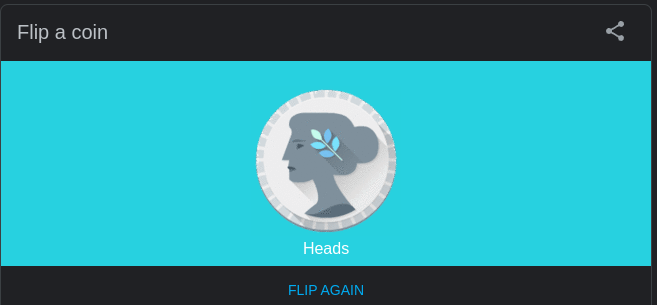
Type “Coin Flip” in the Google Search bar.
This can be a fun and unbiased way to decide between two options.
Also handy when teaching probability.
Click Flip Again to repeat.

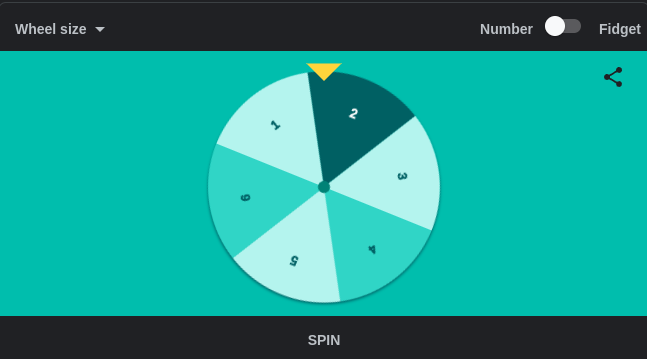
Spinner Wheel
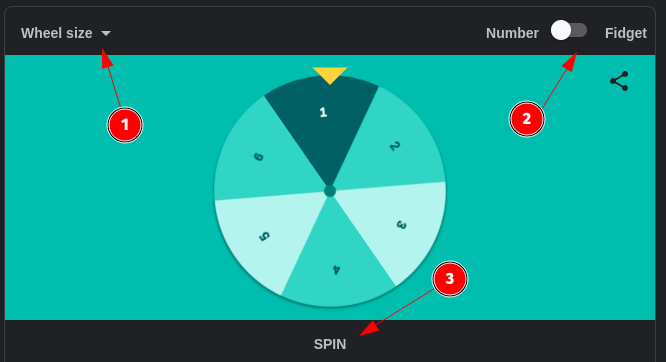
Type “Google Spinner” in the Google Search bar.
This could be a creative way to call on students (or many other uses).
-
Click in the upper left corner to change the wheel size.
-
Click in the upper left to change the wheel to a fidget spinner.
-
Click Spin to spin again.
Roll Dice
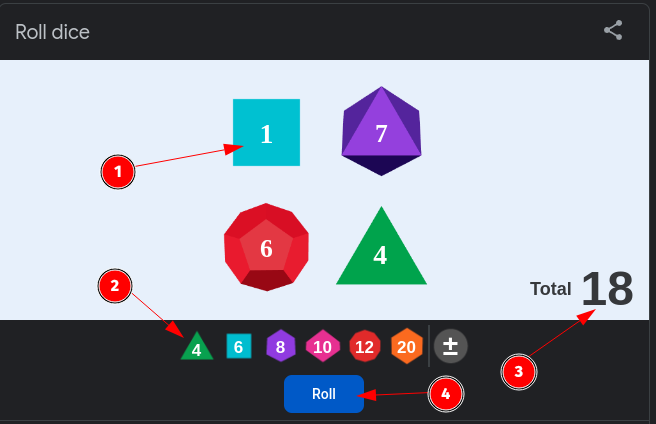
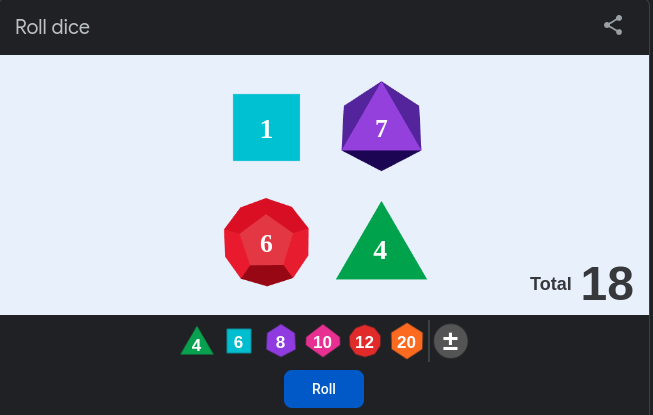
Type “Roll Dice” in the Google Search bar.
This is handy for playing games or probability lessons.
-
Click on a die to remove it from the board.
-
Click a die type to add it to the board.
-
The total is displayed automatically. Use the plus/minus button to add/subtract from the total.
-
Click Roll to roll again.
Google Metronome
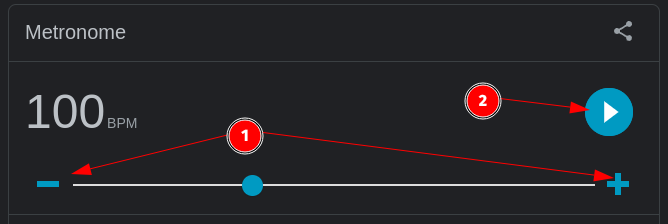
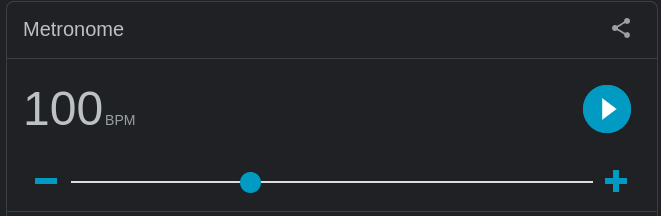
Type “Google Metronome” in the Google Search bar.
-
Click + or - to change the Beats Per Minute.
-
Click play to start the metronome.
Google Tuner
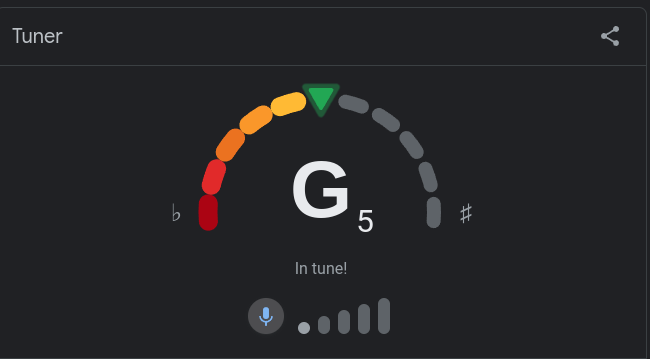
Type “Google Tuner” in the Google Search bar.
Click the microphone icon to begin.
It will display the musical note and if it is in tune.
Originally posted by Carl Clements on the West Fork Technology Hub (2024-02-27).
Kami - Google Chrome Extension
Kami is another free extension for Google Chrome (with paid advanced features). It is most popular for allowing the editing/annotating of PDF documents, which will be demonstrated in this article. However, it also has many other features including; text recognition, splitting and merging existing files to create new ones, free educational templates, and even Google Classroom Integration.
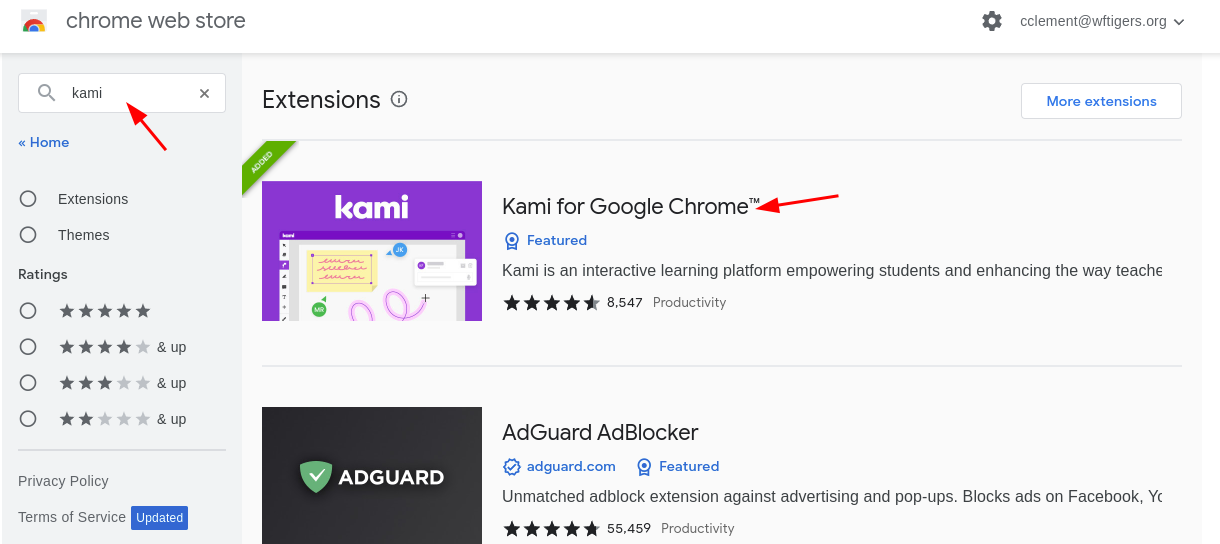
To get started, add the Kami extension. You can install it from a quick Google search or by searching the Chrome Web Store. When prompted, choose the “Login with Google” option and accept the appropriate security notifications.
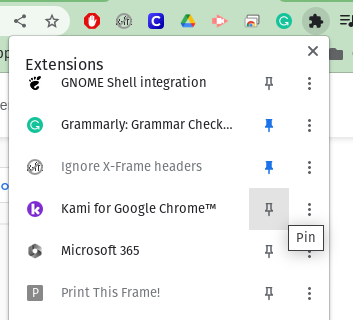
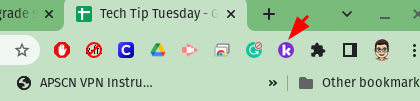
Go ahead and pin the extension to make it viewable to the right of the address bar.
Click on the K in the purple circle to launch Kami.
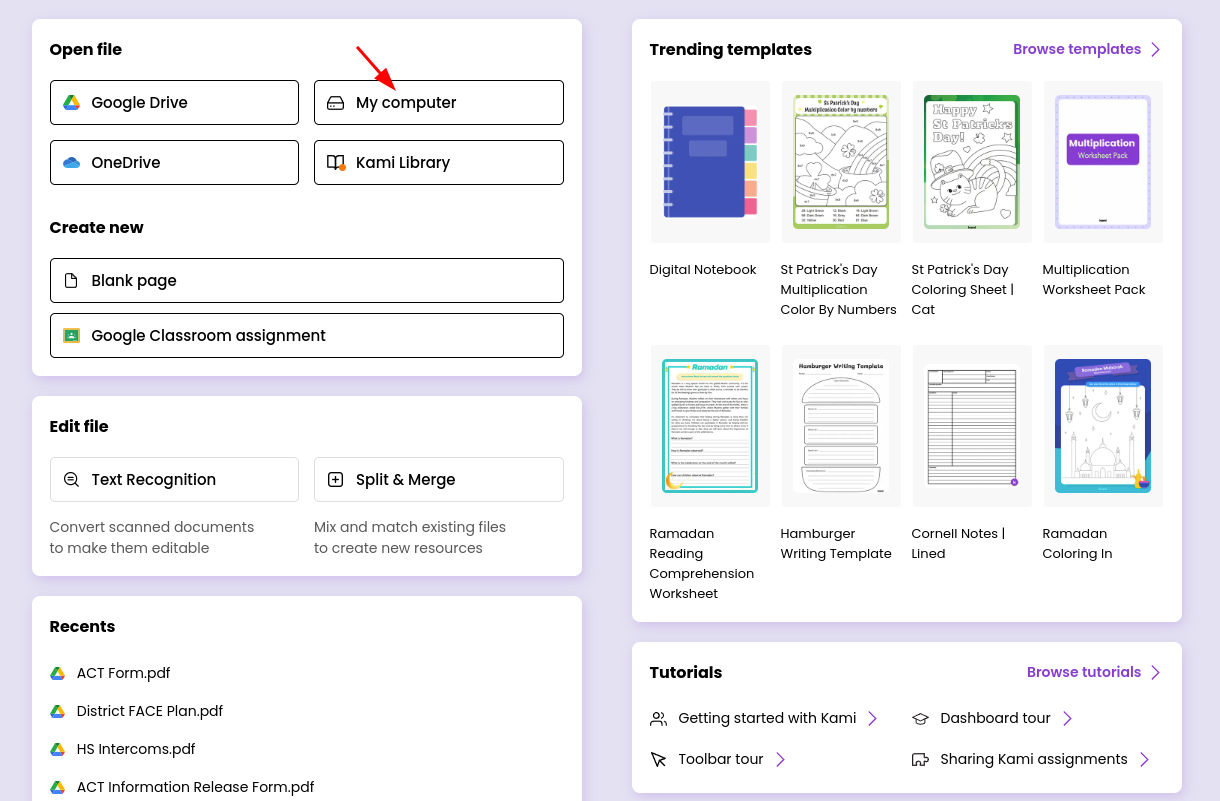
It will open the Kami home screen. For this example, I will open a PDF form from the state about ACT testing. Since it is already downloaded to my computer, I will click My computer and navigate to its location. Keep in mind you can also open files from Google Drive.
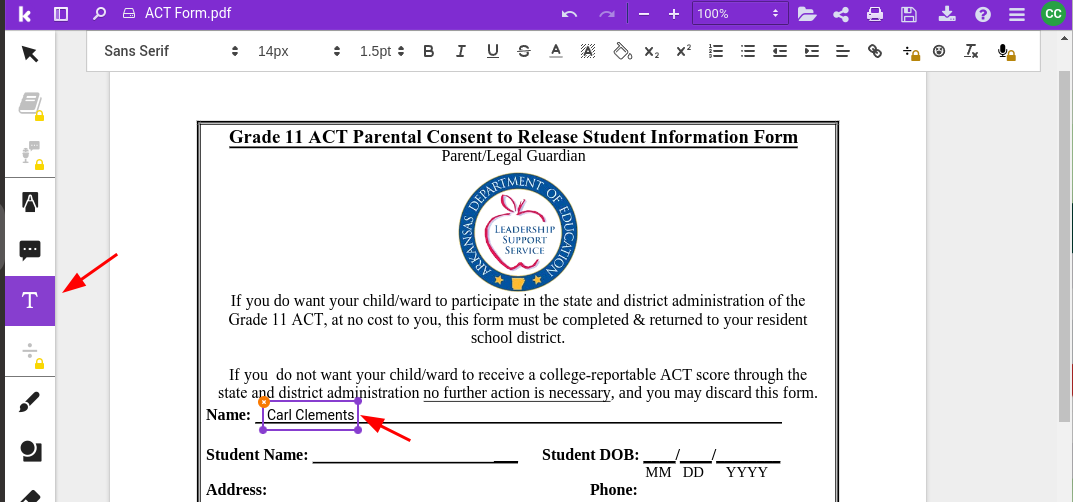
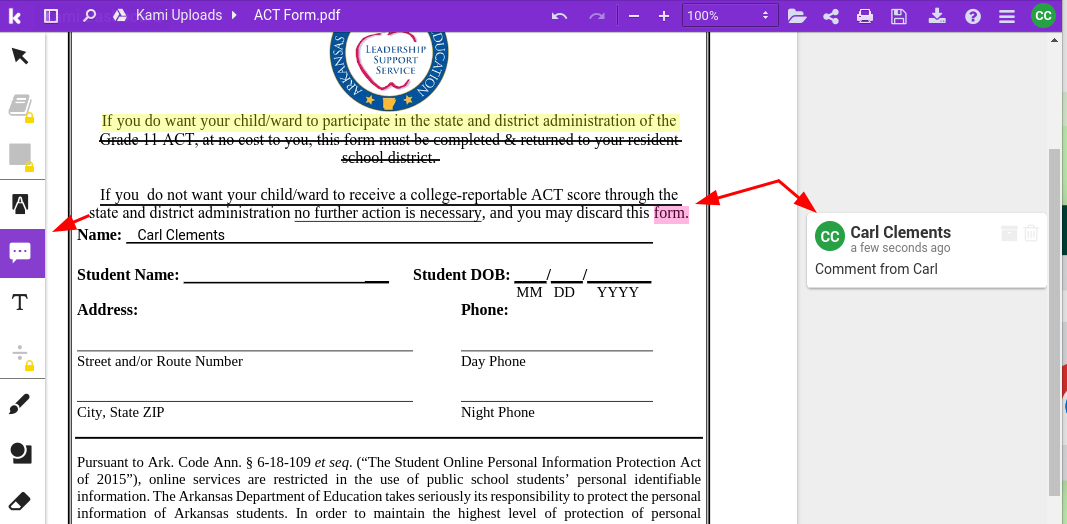
Click the Text Box tool. Then click on the screen where the text should be added and begin typing. Once modifications are made, Kami will prompt saving the document to Google Drive.
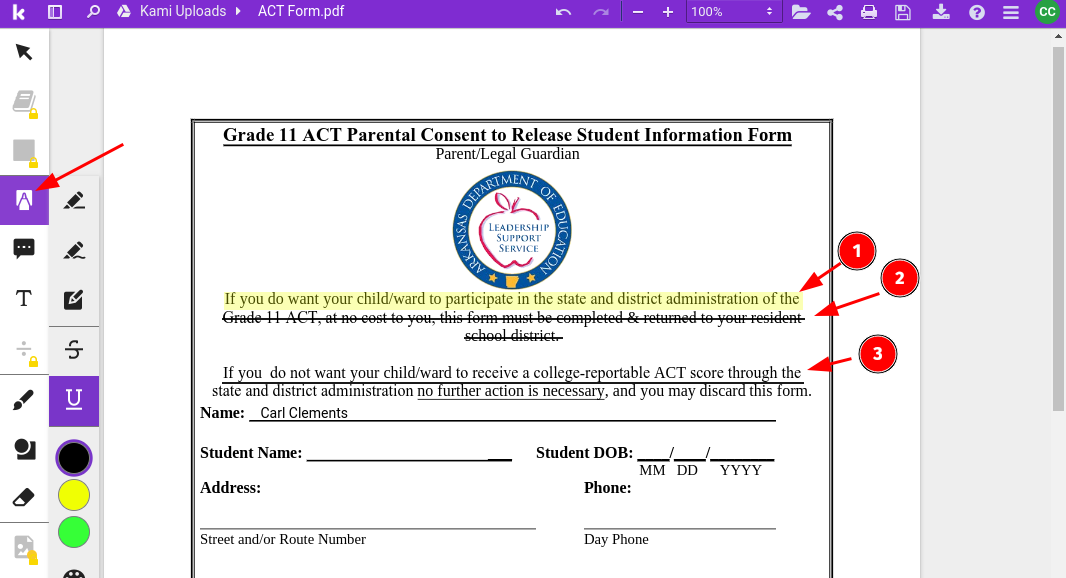
Use the Markup tools to highlight, strikethrough, or underline text. Great for giving student feedback on papers.
Use the Comment tool to add comments to the document. This is very similar to comments in Google Docs and is another great way to provide feedback.
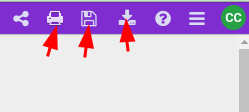
Once the modifications are completed, use the tools in the upper right to print, save, or download the file.
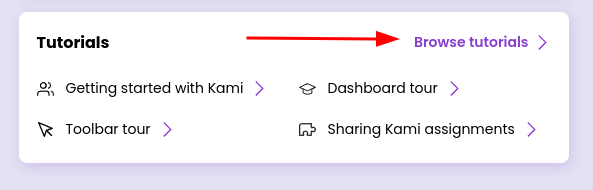
This is just one example of what Kami is capable of. To learn more, check out their Youtube Tutorials on the Kami home screen.
Originally posted by Carl Clements on the West Fork Technology Hub (2023-03-28).
Grammarly Extension
Grammarly is a free extension for Chrome and other web browsers. It is a powerful tool that checks for spelling, punctuation, and grammar mistakes.
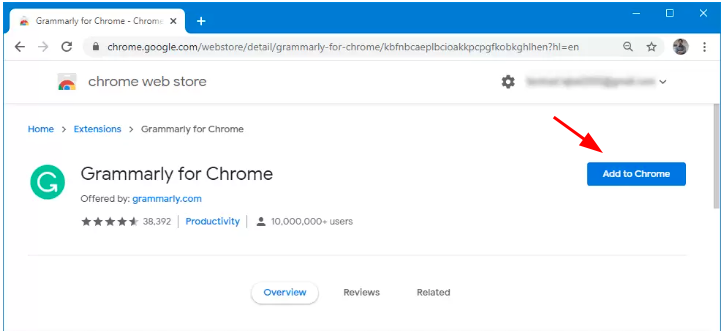
To install Grammarly open the Chrome web browser and click this link: https://chrome.google.com/webstore/detail/grammarly-grammar-checker/kbfnbcaeplbcioakkpcpgfkobkghlhen?hl=en-US
Click the Add to Chrome button and follow the prompts.
(It also works with Safari, Firefox, and Edge.)
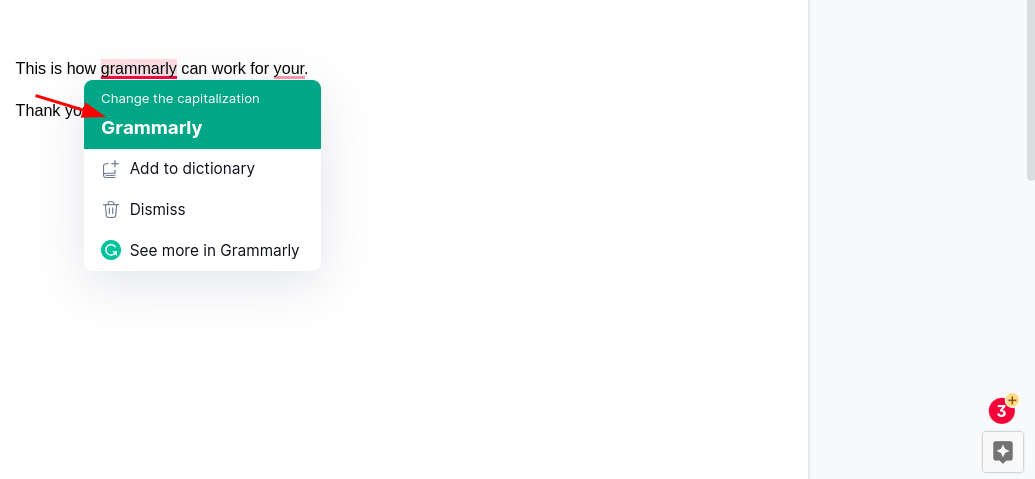
Once installed, it will proofread your writing in Chrome as you type. It works automatically in Gmail, Google Docs, and many other applications. It currently does not work in Google Sheets or Slides. Anything identified as suspicious will be underlined in red. This example has a capitalization error, an incorrect word, and missing punctuation. Grammarly will display a total of potential errors at the bottom right of the screen.

To clear the potential errors click on the underlined word or sentence and either accept the change recommended or choose “Dismiss” to ignore the suggestion. Choose “Add to dictionary” for uncommon words that are correct, but identified as an issue. ie: eSchool
Over time Grammarly will send reports by email that indicate your productivity, mastery, vocabulary, and tone. Not life-changing but fun to look at!
Originally posted by Carl Clements on the West Fork Technology Hub (2023-03-14).
Useful Keyboard Shortcuts

Google Workspace Shortcuts:
Full Article: Use Google Workspace keyboard shortcuts - Google Workspace Learning Center
Gmail
Full Article: Keyboard shortcuts for Gmail - Computer - Gmail Help
To see a complete list, open Gmail and press Shift + ?
- Compose new email:
C - Send email:
Ctrl+Enter - Reply to email:
R - Forward email:
F - Archive email:
E - Mark as read/unread:
Shift+I
Drive
Full Article: Keyboard shortcuts for Google Drive on the web - Computer - Google Drive Help
To see a complete list, open Drive and press Shift + ?
- Create new document:
Shift+T - Create new spreadsheet:
Shift+S - Create new presentation:
Shift+P - Open selected file:
Enter - Rename selected file:
N
Calendar
Full Article: Use keyboard shortcuts in Google Calendar - Google Calendar Help
To see a complete list, open Calendar and press Shift + ?
- Create new event:
C - Edit event:
E - Move to next/previous period:
J/K - Jump to today:
T - Go to date:
G
Google Meet
Full Article: Use Google Workspace keyboard shortcuts - Google Workspace Learning Center
To see a complete list, in a meeting press Shift + ?
- Mute/unmute microphone:
Ctrl+D - Enable/disable camera:
Ctrl+E - Raise/lower hand:
Ctrl+Alt+H - Show/hide people:
Ctrl+P - Increase/decrease maximum tiles:
Ctrl+Alt+K/J
Chrome Browser
Full Article: Chrome keyboard shortcuts - Computer - Google Chrome Help
-
Navigation:
- Open a new tab:
Ctrl+T - Close the current tab:
Ctrl+W - Reopen the last closed tab:
Ctrl+Shift+T - Switch to the next/previous tab:
Ctrl+Tab/Ctrl+Shift+Tab - Jump to a specific tab:
Ctrl+[1-8] - Go back / forward a page:
Alt+Arrow keys ← →
- Open a new tab:
-
Bookmarks and History:
- Bookmark the current page:
Ctrl+D - Open bookmarks manager:
Ctrl+Shift+O - Open the browsing history:
Ctrl+H - Clear browsing data:
Ctrl+Shift+Delete
- Bookmark the current page:
-
Other Useful Shortcuts:
- Open the Chrome menu:
Alt+ForAlt+E - Toggle full-screen mode:
F11 - Zoom in/out:
Ctrl++/Ctrl+- - Reload the current page:
Ctrl+RorF5 - Password Autofill:
Ctrl+Shift+L
- Open the Chrome menu:
Docs
Full Article: Keyboard shortcuts for Google Docs - Computer - Google Docs Editors Help
To see a complete list, open a Google Doc and press Ctrl + /
-
Basic Text Editing:
- Bold:
Ctrl+B - Italicize:
Ctrl+I - Underline:
Ctrl+U - Undo:
Ctrl+Z - Redo:
Ctrl+Y - Select all:
Ctrl+A - Copy:
Ctrl+C - Cut:
Ctrl+X - Paste:
Ctrl+V - Paste without formatting:
Ctrl+Shift+V
- Bold:
-
Formatting:
- Increase/decrease font size:
Ctrl+./Ctrl+, - Align left/center/right:
Ctrl+Shift+L/Ctrl+Shift+E/Ctrl+Shift+R - Bulleted list:
Ctrl+Shift+8 - Numbered list:
Ctrl+Shift+7 - Insert hyperlink:
Ctrl+K
- Increase/decrease font size:
-
Navigation and Selection:
- Move to beginning/end of line:
Home/End - Move to beginning/end of document:
Ctrl+Home/Ctrl+End - Move to previous/next word:
Ctrl+Arrow keys ← → - Select text:
Shift+Arrow keys
- Move to beginning/end of line:
Sheets
Full Article: Keyboard shortcuts for Google Sheets - Computer - Google Docs Editors Help
To see a complete list, open a Google Sheet and press Ctrl + /
-
Navigation and Selection:
- Move to beginning/end of row/column:
Ctrl+Arrow keys - Select entire row/column:
Shift+Space/Ctrl+Space - Extend selection:
Shift+Arrow keys - Show all formulas:
Ctrl+ `
- Move to beginning/end of row/column:
-
Editing and Formatting:
- Insert row/column:
Ctrl+Shift++ - Delete row/column:
Ctrl+- - Fill down:
Ctrl+D - Fill right:
Ctrl+R - Format as currency:
Ctrl+Shift+4 - Format as percentage:
Ctrl+Shift+5 - Clear formatting:
Ctrl+\
- Insert row/column:
Slides
Full Article: Keyboard shortcuts for Google Slides - Computer - Google Docs Editors Help
To see a complete list, open a Google Slide and press Ctrl + /
-
Basic Slide Navigation:
- Move to previous/next slide:
Arrow keys ← → - Jump to slide:
Ctrl+Shift+S - Start presentation:
F5
- Move to previous/next slide:
-
Editing and Formatting:
- Duplicate slide:
Ctrl+D - Insert new slide:
Ctrl+M - Delete slide:
Ctrl+D - Change text alignment:
Ctrl+Shift+L/Ctrl+Shift+E/Ctrl+Shift+R
- Duplicate slide:
Other Shortcuts
There are many other shortcuts out there, if you use a program often you may check and see if there are shortcuts in it to make your life a bit easier.
PopOS - Pop!_OS Keyboard Shortcuts - System76 Support
Canva - https://www.canva.com/help/keyboard-shortcuts/
Originally posted by Stephen Hale on the West Fork Technology Hub (2024-04-09).