Docs & Drive
- Google Docs - Add Ons
- Google Docs - Voice Typing
- Downloading Google Docs as PDF or DOCX
- Restricting Google Drive Search to a Specific Folder
Google Docs - Add Ons
If you grew up using Microsoft Office you are accustomed to a more robust toolset than Google Docs offers. If you have ever wished that Google Docs allowed for label printing, mail merge, math equations, bibliography, or a hundred other things, this tech tip should be of help.
Google has an expansive toolset called add-ons. Many of these are free while others are a paid service. To get started, open a blank Google Doc (NOTE: there are add-ons for sheets and slides as well. Some add-ons work across all three programs while others are specific to one.)
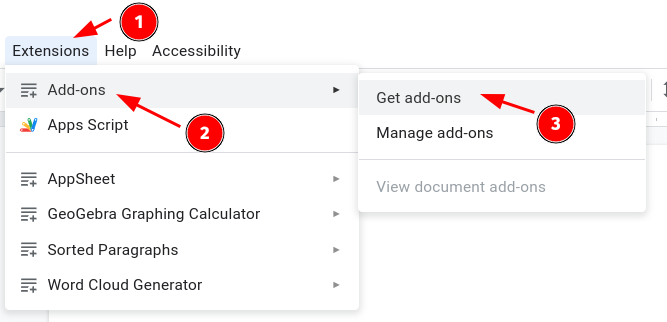
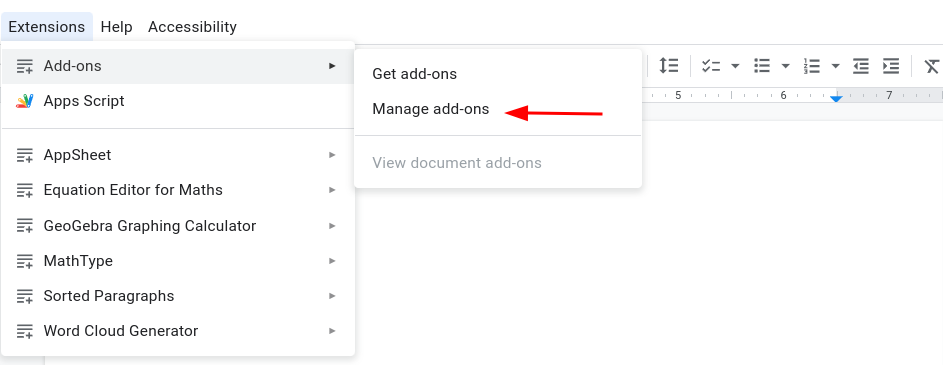
With an open Google Doc, navigate to Extension->Add-Ons->Get add-ons:
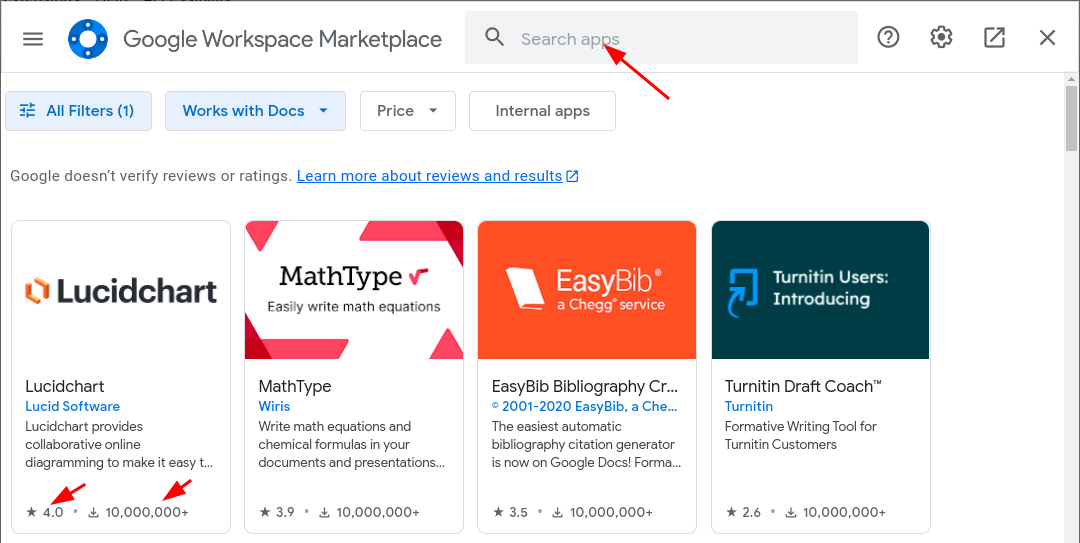
The most popular add-ons will be listed. You can see how many times they have been downloaded and how many stars they have earned. Feel free to browse the popular items or use the search capability.
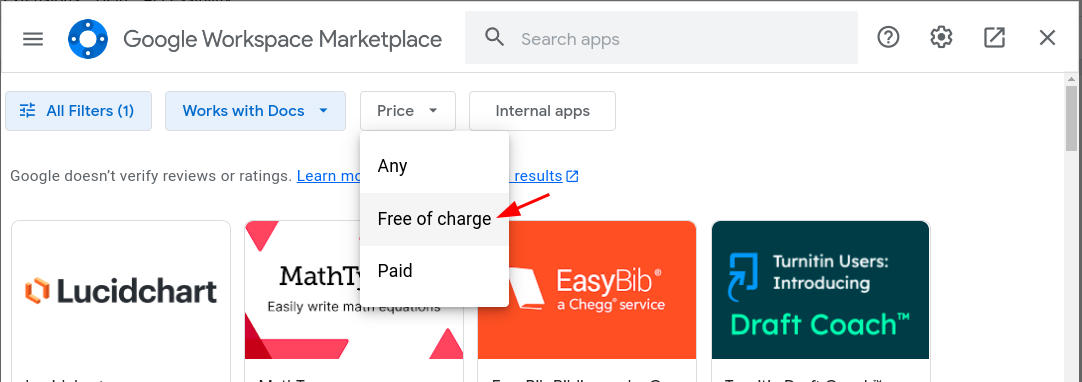
If you want free add-ons only select the Price drop-down and choose Free of Charge.
When you find one to try click on it and then click Install. There may be one or more permission prompts to click after that.
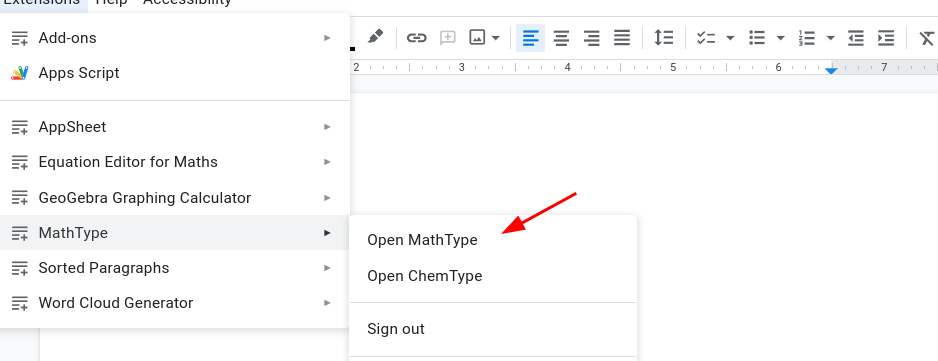
Once it installs, go back to the Extensions Menu. The add-on should now be listed. Each one is worded a bit differently but typically there is an option to open or launch.
Sometimes add-ons don’t work out or are not what you expected. If you need to uninstall an add-on go back to the Extensions Menu ->Add-Ons → Manage Add-Ons. Then select uninstall.
Each add-on works a bit differently, but for the most part, is fairly intuitive. Many have a separate workspace that allows for editing and then addition to a google doc.
Originally posted by Carl Clements on the West Fork Technology Hub (2023-03-07).
Google Docs - Voice Typing
Before jumping in, make sure to use a computer with a microphone and that the environment is reasonably quiet. You will need to allow access to your microphone in Chrome. This is the same process as joining a Google Meet. Keep in mind there are nuances to using any speech-to-text software. It will take a time investment before it becomes efficient.
Open a new Google Doc.
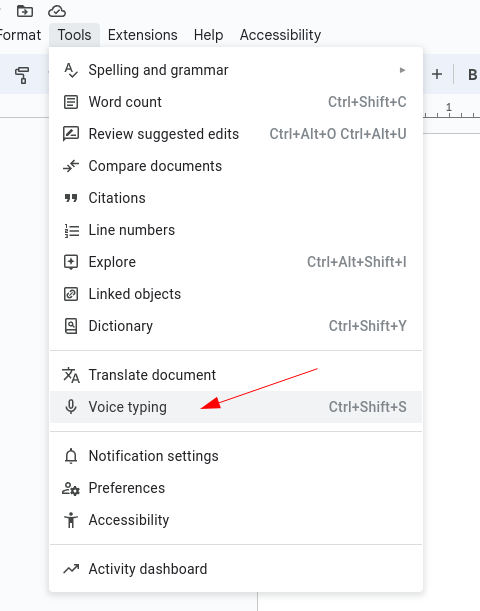
Click on the Tools Menu and select Voice Typing. (Alternatively, press Ctrl+Shitft+S)
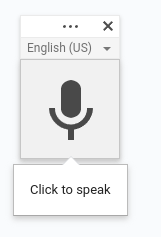
A microphone icon will appear to the left of your document. Click the microphone icon and begin speaking.
There are a ton of built-in commands that are intuitive. Here are a few common commands to help you get started.
-
Punctuation can be added by saying period, comma, etc.
-
Say “new line” or “new paragraph” to start a new paragraph.
-
Say undo or delete to undo the last action or delete the last word that was transcribed.
-
Say “select line” or “select paragraph” to highlight text. Once it is highlighted say any of the formatting options like bold or italicize.
-
Say “stop listening” to pause the dictation process.
-
I found it often does not capitalize the first word of a sentence. ie she went to the store. To remedy this, say “capitalize she”
For a complete list of commands check out this support article from Google:
You can type and edit by speaking in Google Docs or in Google Slides speaker notes. This feature works with the latest versions of Chrome, Firefox, Edge, and Safari browsers. Step 1: Turn on y
Originally posted by Carl Clements on the West Fork Technology Hub (2023-10-24).
Downloading Google Docs as PDF or DOCX
There are occasions when it is necessary to download a Google Doc in another format such as PDF or DOCX. This process is super simple. The same process works with Sheets (PDF or Excel) and Slides (PDF or PowerPoint). This is useful when sending an email attachment as a specific file type or when uploading a document to a web portal. For example, EES artifacts are easier to upload as a PDF.
With the Google Doc open:
-
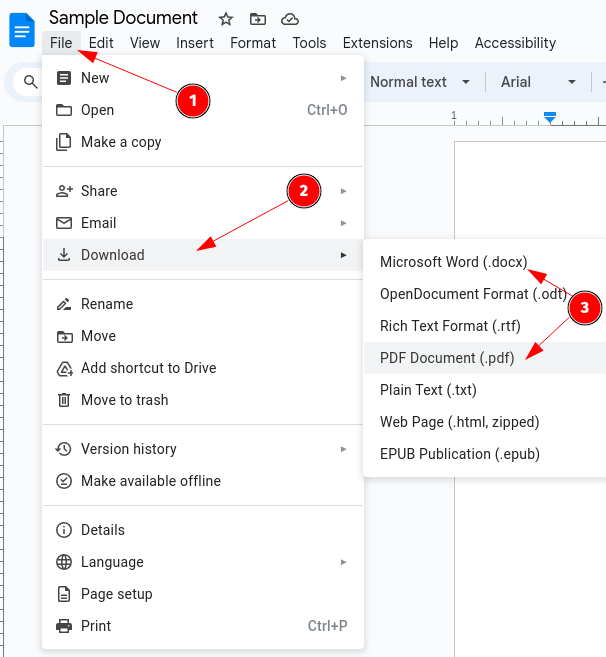
Click On File
-
Click Download
-
Select the type of file to be downloaded. Typically either DOCX or PDF
-
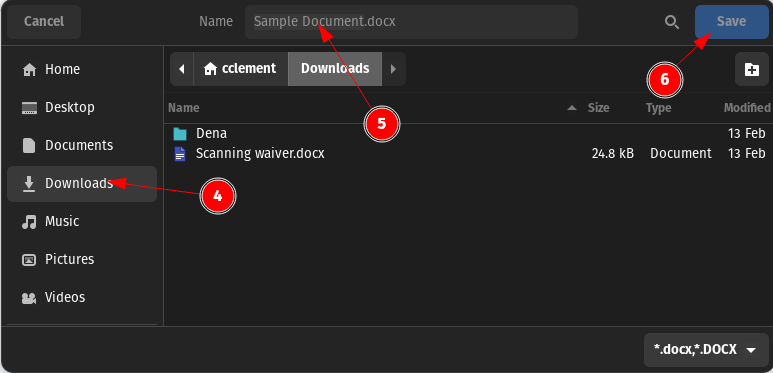
Navigate to the download location of your choosing
-
Rename the document is you desire. Be sure to leave the file extension. (DOCX, PDF, etc.)
-
Click Save

Originally posted by Carl Clements on the West Fork Technology Hub (2024-02-20).
Restricting Google Drive Search to a Specific Folder
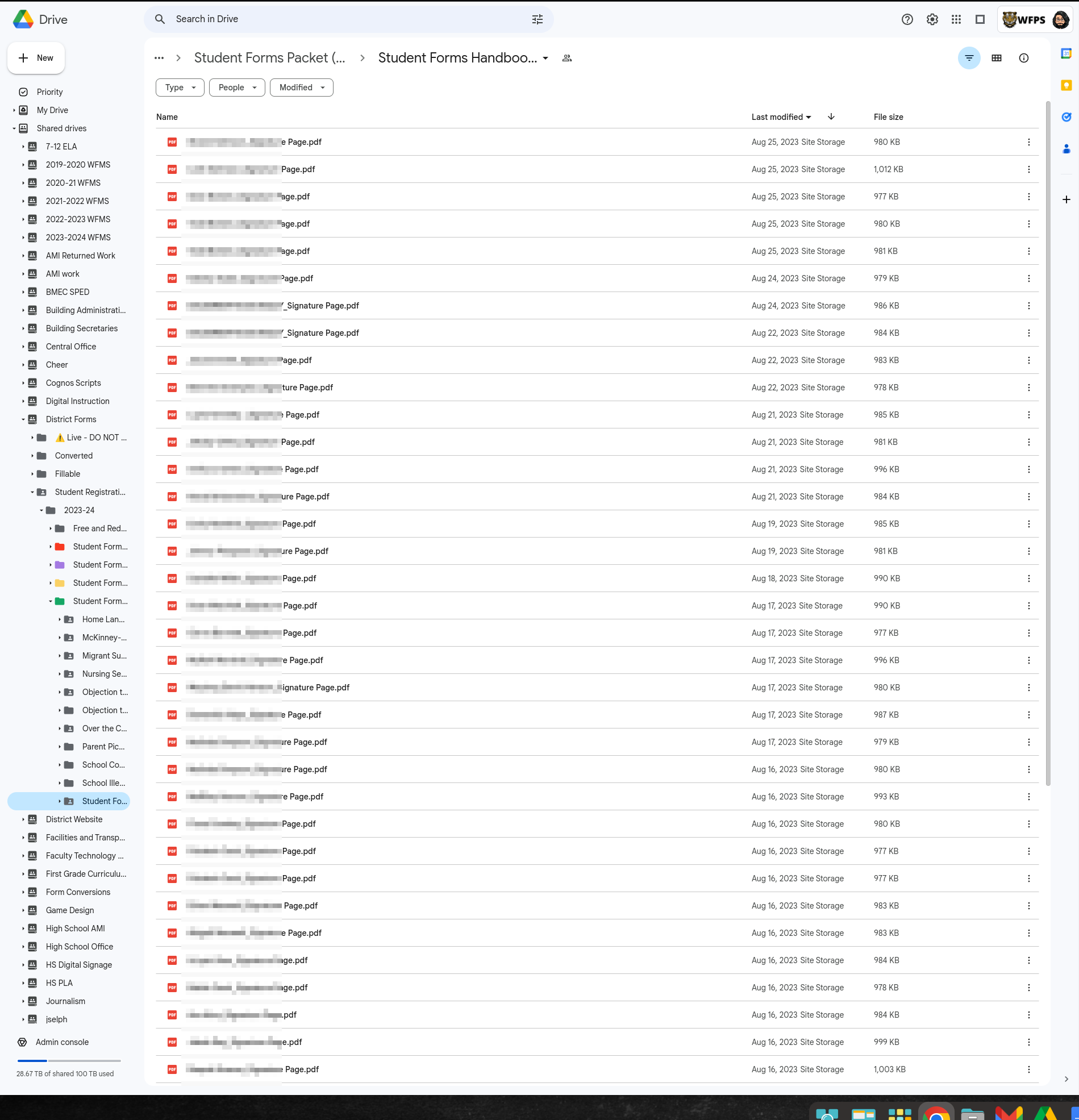
Google’s search within Drive is VERY deep, meaning that it will pick up on words within photos, documents, and titles, so it can sometimes be frustrating when you are looking for something specific. You might also be in a situation (like looking through all of the student photo objection pages) where there are more files than you can realistically sift through. In these occasions, it is helpful to limit Google’s scope on your search. Let’s use the photo objection pages as an example of how to search just within a single folder anywhere within your Drive.
-
Go to your Google Drive. You do not HAVE to be in the folder you want to search, but I am for purposes of this example. It does make step 5 slightly easier as well.

-
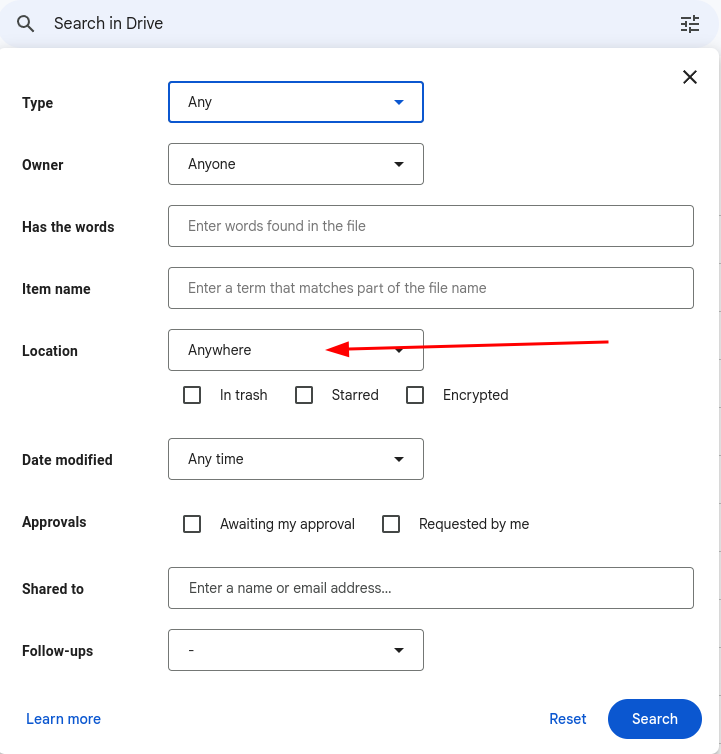
Click on the advanced search tool within the search box.

-
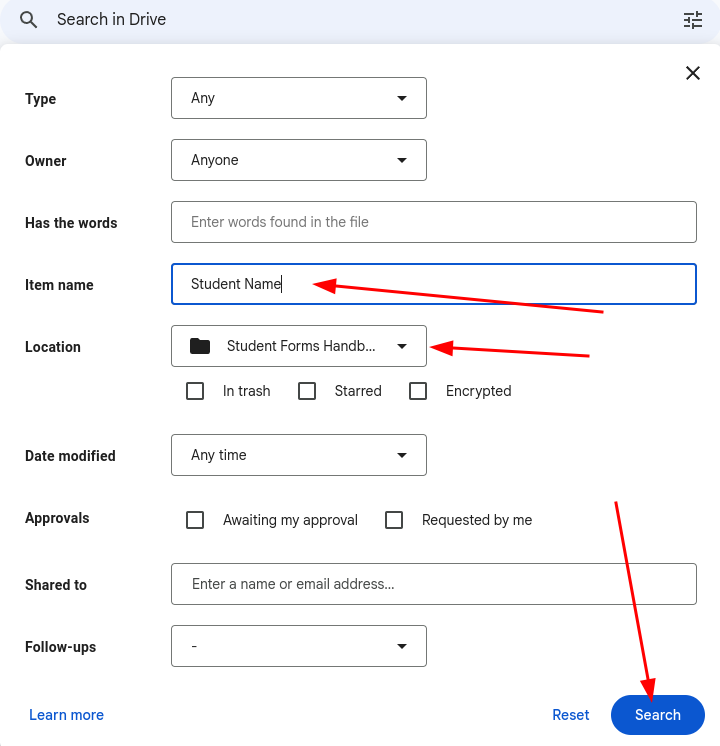
There are tons of options on this screen to help you narrow your view, but for our example, we will be primarily focusing on the “Location” box.

-
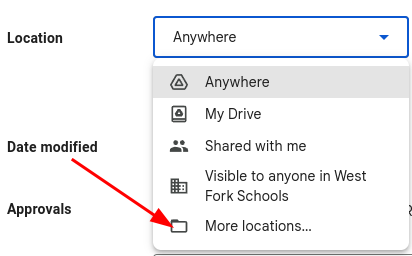
Click on the “Location” dropdown menu. This will present us with a few different option, but since I don’t see the option I need, I’ll chose “More locations…”

-
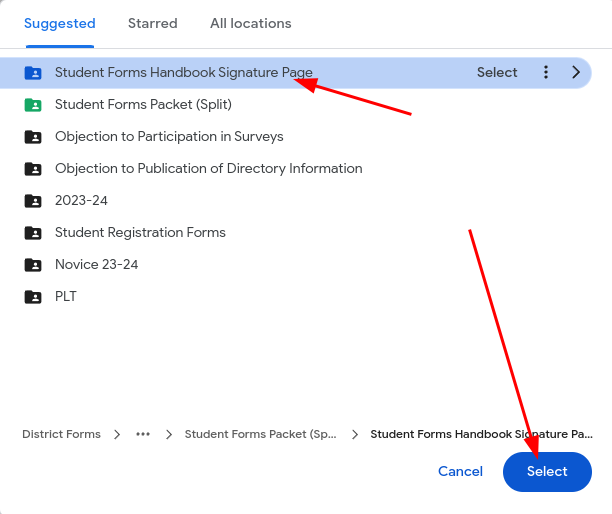
The screen that you are now presented with should open to a “Suggested” page. Since I’m in the folder, it is one of the options, so I’m going to click on it then click the “Select” button. If it isn’t in the suggested, you may use the “All locations” option to browse through your files to find the correct folder.

-
On the resulting screen, I now have the “Location” field populated with the name of the folder I chose, and I’ll put in the student first and last name in the “Item Name” box so that I’m only searching the title of the files. Once I’m all set, I’ll click on the “Search” button.


From this point, I should have a greatly reduced set of files. We encourage you to take a little time to look through the other search options available.
Originally posted by Cory Robbins on the West Fork Technology Hub (2023-08-28).