Google Docs - Voice Typing
Before jumping in, make sure to use a computer with a microphone and that the environment is reasonably quiet. You will need to allow access to your microphone in Chrome. This is the same process as joining a Google Meet. Keep in mind there are nuances to using any speech-to-text software. It will take a time investment before it becomes efficient.
Open a new Google Doc.
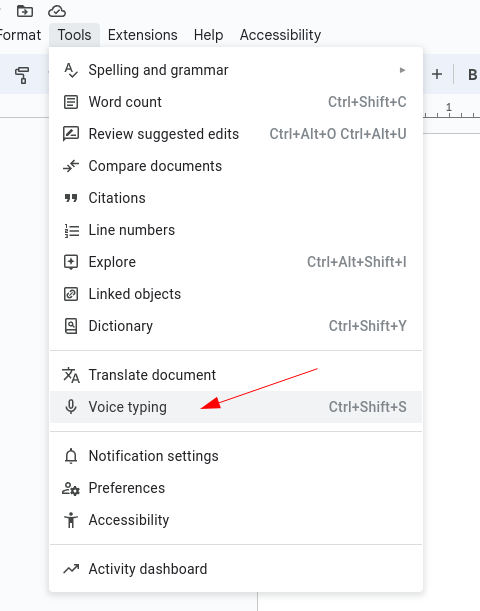
Click on the Tools Menu and select Voice Typing. (Alternatively, press Ctrl+Shitft+S)
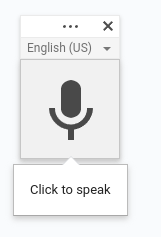
A microphone icon will appear to the left of your document. Click the microphone icon and begin speaking.
There are a ton of built-in commands that are intuitive. Here are a few common commands to help you get started.
-
Punctuation can be added by saying period, comma, etc.
-
Say “new line” or “new paragraph” to start a new paragraph.
-
Say undo or delete to undo the last action or delete the last word that was transcribed.
-
Say “select line” or “select paragraph” to highlight text. Once it is highlighted say any of the formatting options like bold or italicize.
-
Say “stop listening” to pause the dictation process.
-
I found it often does not capitalize the first word of a sentence. ie she went to the store. To remedy this, say “capitalize she”
For a complete list of commands check out this support article from Google:
You can type and edit by speaking in Google Docs or in Google Slides speaker notes. This feature works with the latest versions of Chrome, Firefox, Edge, and Safari browsers. Step 1: Turn on y
Originally posted by Carl Clements on the West Fork Technology Hub (2023-10-24).