PawPoint
- Completing Student Grade Checks in PawPoint
- Adding the Grade Check Widget to Your PawPoint Dashboard
Completing Student Grade Checks in PawPoint
The Grade check feature makes it easy for students to share grade information with parents, guardians, and mentor teachers.
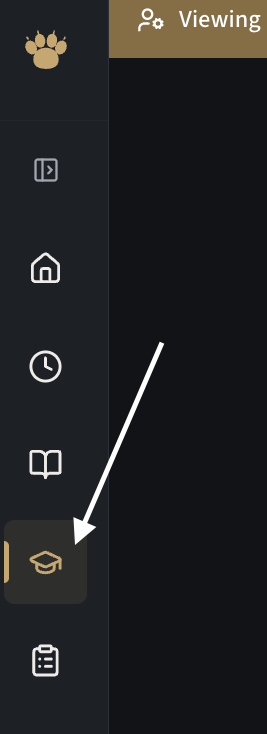
- Visit the Grades page in the menu:

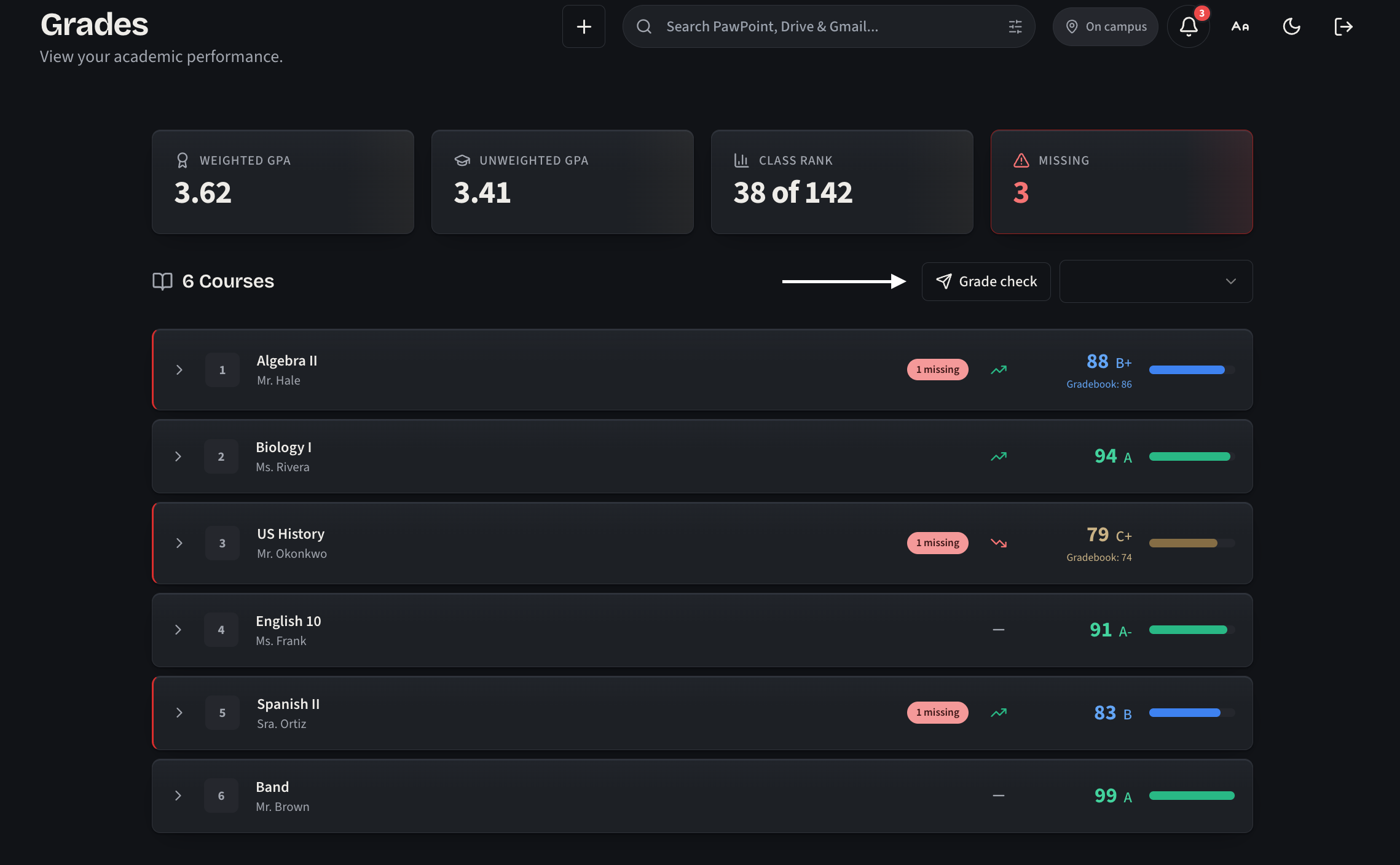
Click on the "Grade check" button under your stats bar.

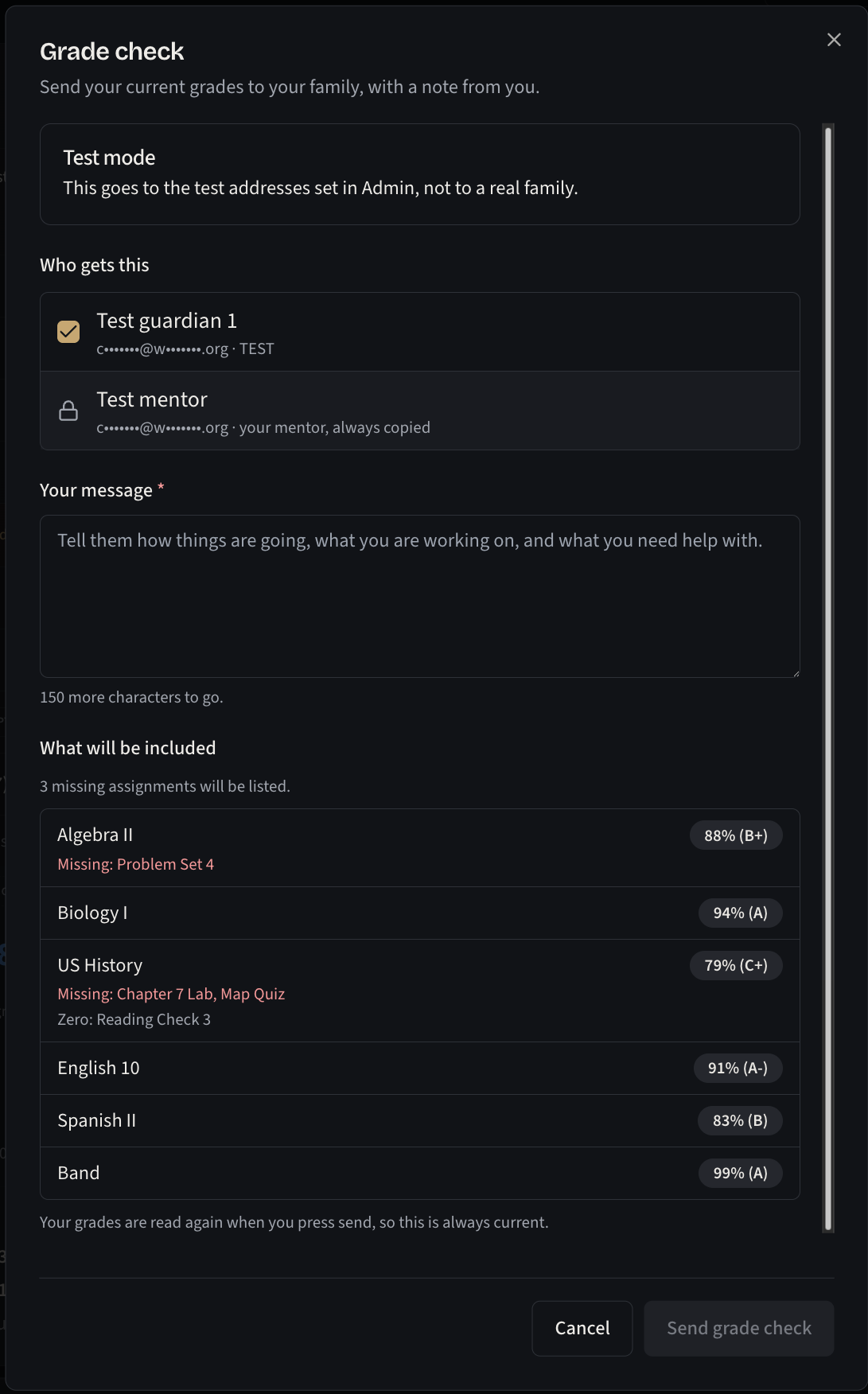
- Choose which guardians should receive your grade check, then type your email message before clicking the Send grade check button.

Adding the Grade Check Widget to Your PawPoint Dashboard
The Grade check widget allows you to view the full message sent by all of your mentees. It also allows building principals, counselors, and district administrators to view the same information.
- On your dashboard, click "Edit Dashboard."

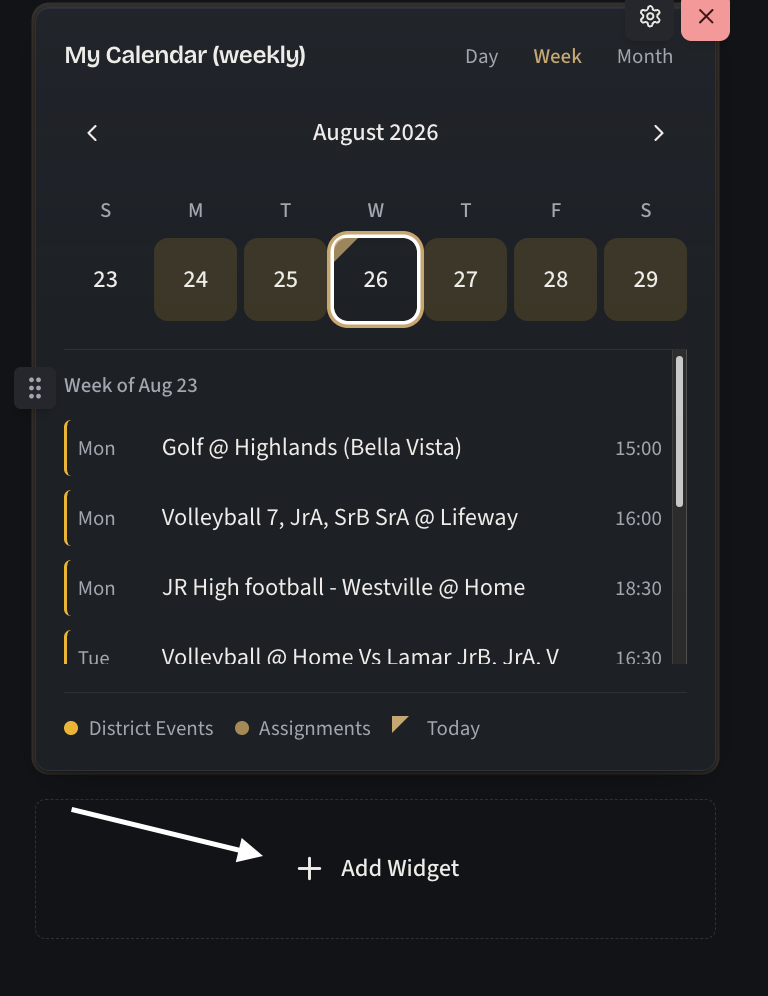
- Click on the "Add widget" button found at the bottom of your widget columns.

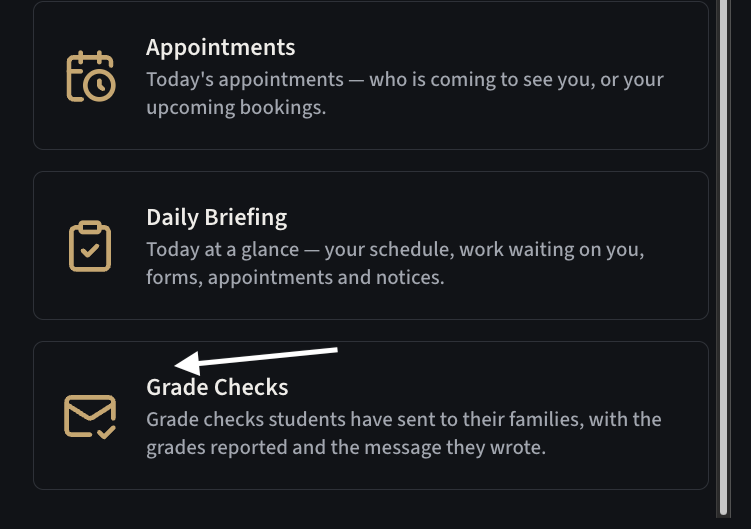
- Click on the Grade Checks widget. You might have to scroll.


By default, this will show you:
- Teachers - Your full list of rostered students as they complete a check.
- Building Principals/Conselors/Secretaries - Your building's full student roster, as they complete the checks.
- District Administration - The full district's student enrollment as they complete the checks.
Filtering is available.
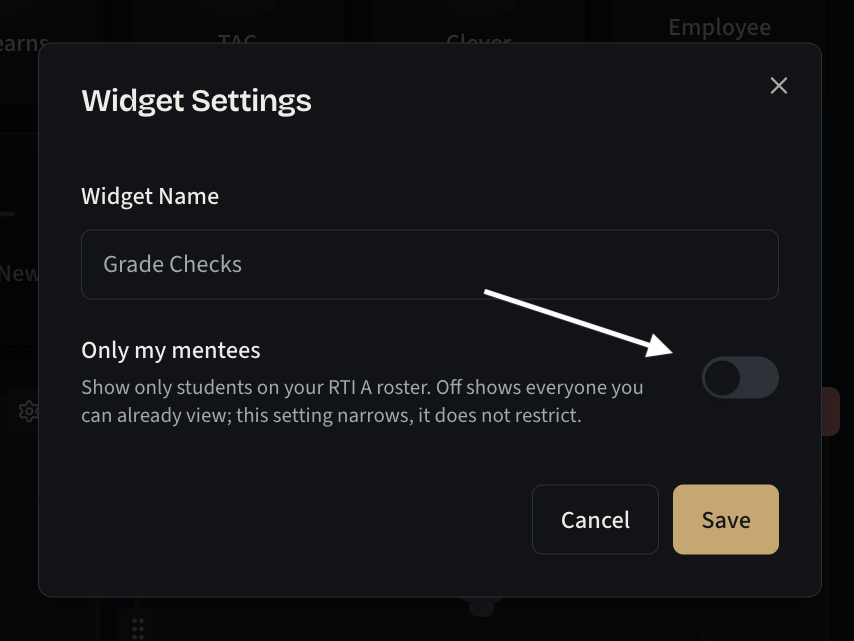
If you want to see only your mentee students, you may edit the widget, and enable the "Only my mentees" toggle.