# Saving Your Printer Authentication For Local Printers
The new local print deploy system allows you to use printers outside of Chrome.
The negative, I guess, about this is that you are required to put your password into the print system before your items print. This isn’t a huge deal because you can save it. Here are the steps to take care of that:
First, go ahead and print something to the Print\_Release printer. It doesn’t have to be anything special, and you don’t actually have to release it. We just need a job sent.
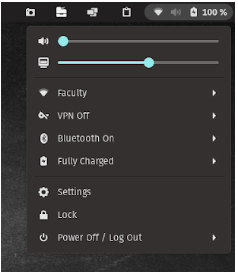
Now, click in the top right corner to open your menu(the battery icon is convenient to click).
[](https://info.wftigers.org/uploads/images/gallery/2026-10/38A40ImIL0U3uywm-978d97d0ecc7b4a3241adfc6fb87da8e58dc4dc0.png)
Click on “Settings.”
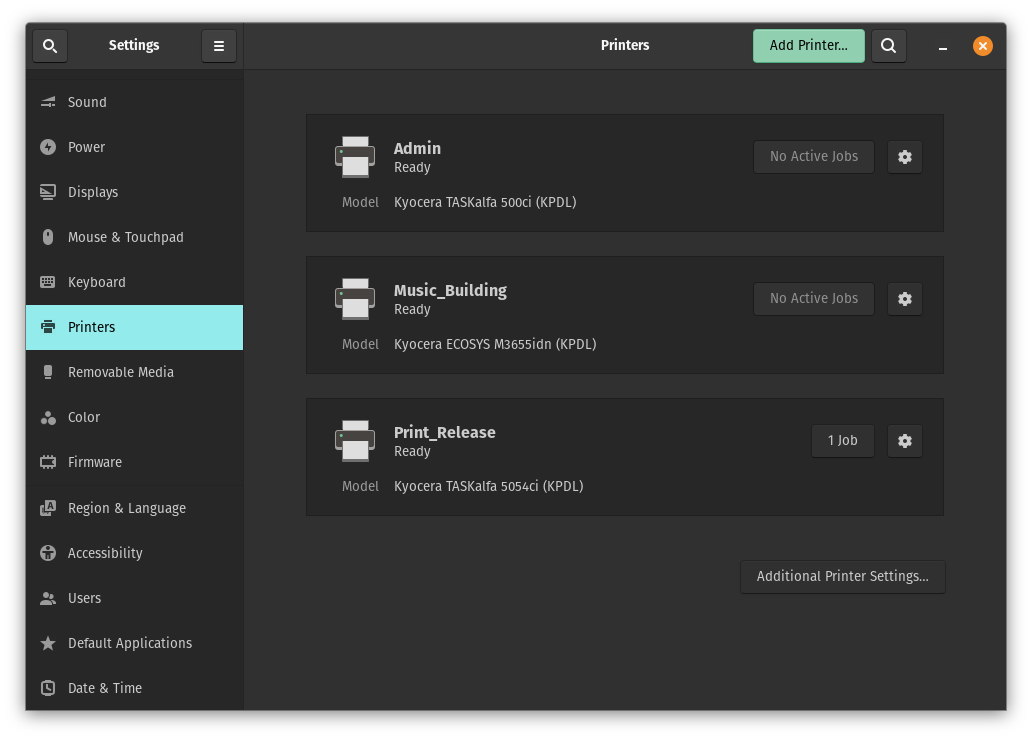
Click “Printers” on the left to get this window:
[](https://info.wftigers.org/uploads/images/gallery/2026-10/5LSspGhIW5aZXSxw-53570c2e812a8f584d47085806795ed2a871c3b7.png)
In the bottom right corner, click the button that says “Additional Printer Settings…”
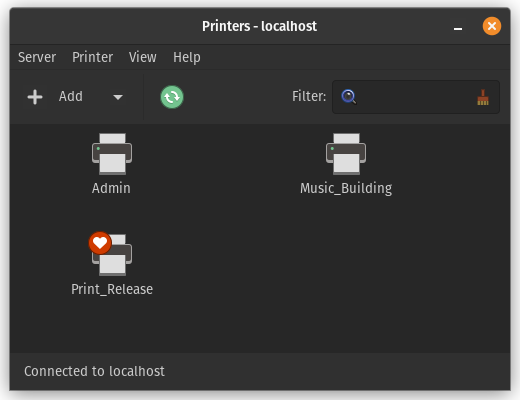
That will give you this window:
[](https://info.wftigers.org/uploads/images/gallery/2026-10/v604Zi34DBptMh9J-7e5f57eec991a6ab4baa388f9c7526b61a612830.png)
Right click on the “Print\_Release” printer, and click on “View Print Queue.”
There should be a print job with the status “Held for authentication.”
Right click that, and choose “Authenticate.”
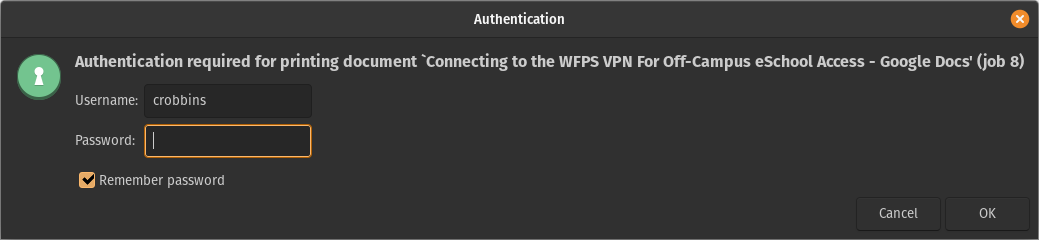
That should give you this window:
[](https://info.wftigers.org/uploads/images/gallery/2026-10/mQda2sJR7X2qA9Oo-a9b6f2b2558e71655e72f2873fd4b2a1f2cd72ec.png)
In the username box, type the first part of your email address (the part before @wftigers.org). Type your Google password in the password box. I also strongly suggest checking the Remember password box. That way, you only have to do this once!
Click on OK.
You can close all of the printing windows I just had you open. You should be good to go for future prints!
Originally posted by Cory Robbins on the West Fork Technology Hub (2023-02-16).