Scan From Copier to Email or Google Drive
The color copiers offer two delivery options for scanned documents. Scanned documents can be sent by email or saved directly to Google Drive in PDF format.
To get started, use your badge to log on to the copier.
From the home screen, click the Scan button.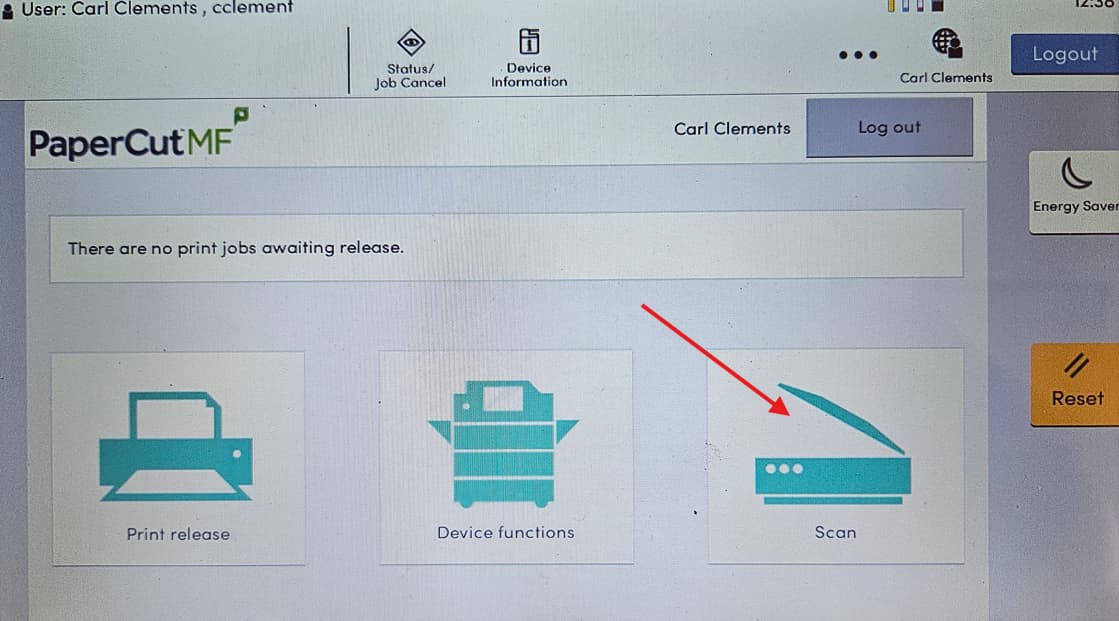
Choose either To Email or To Google Drive.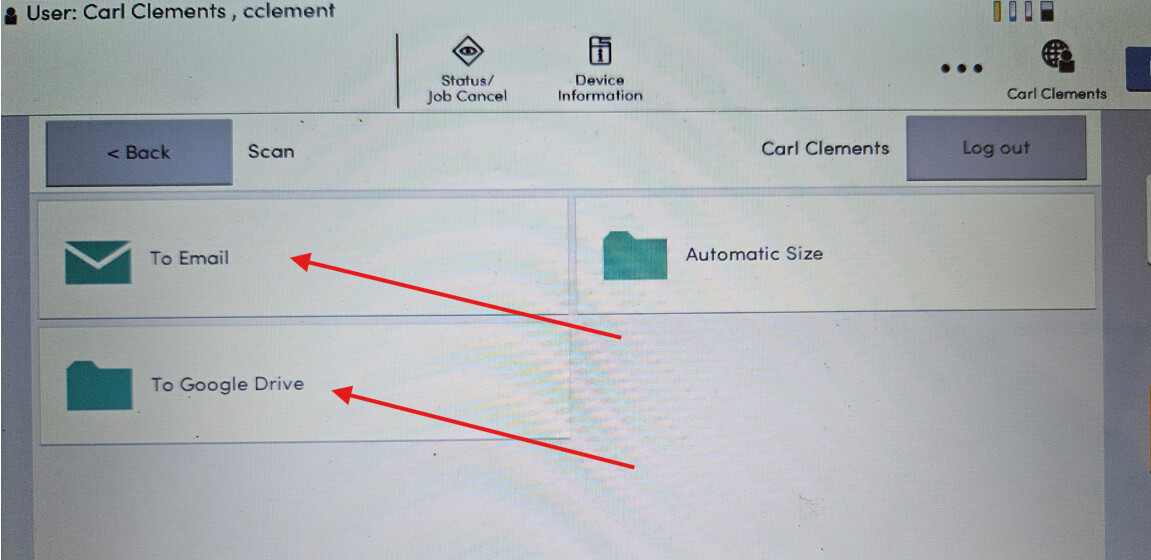
(Click the arrows below for detailed instructions.)
To Email
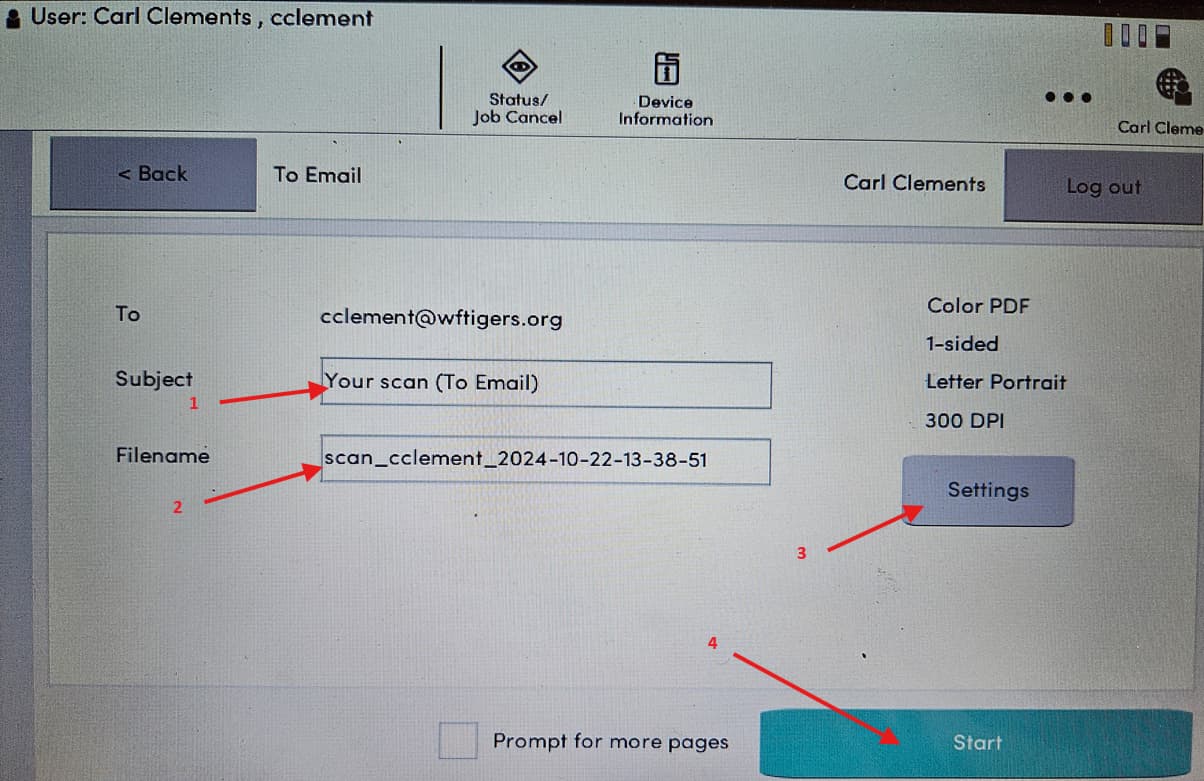
- The Subject of the email can be changed. Click to access the onscreen keyboard.
- The File name can also be changed in the same manner.
- Click the Setting button for 2-sided scanning and many other options.
- Place the document in the document feeder or on the scanner bed and click Start.

The document will be delivered to your email in pdf format. Note the sender is Tech.
To Google Drive
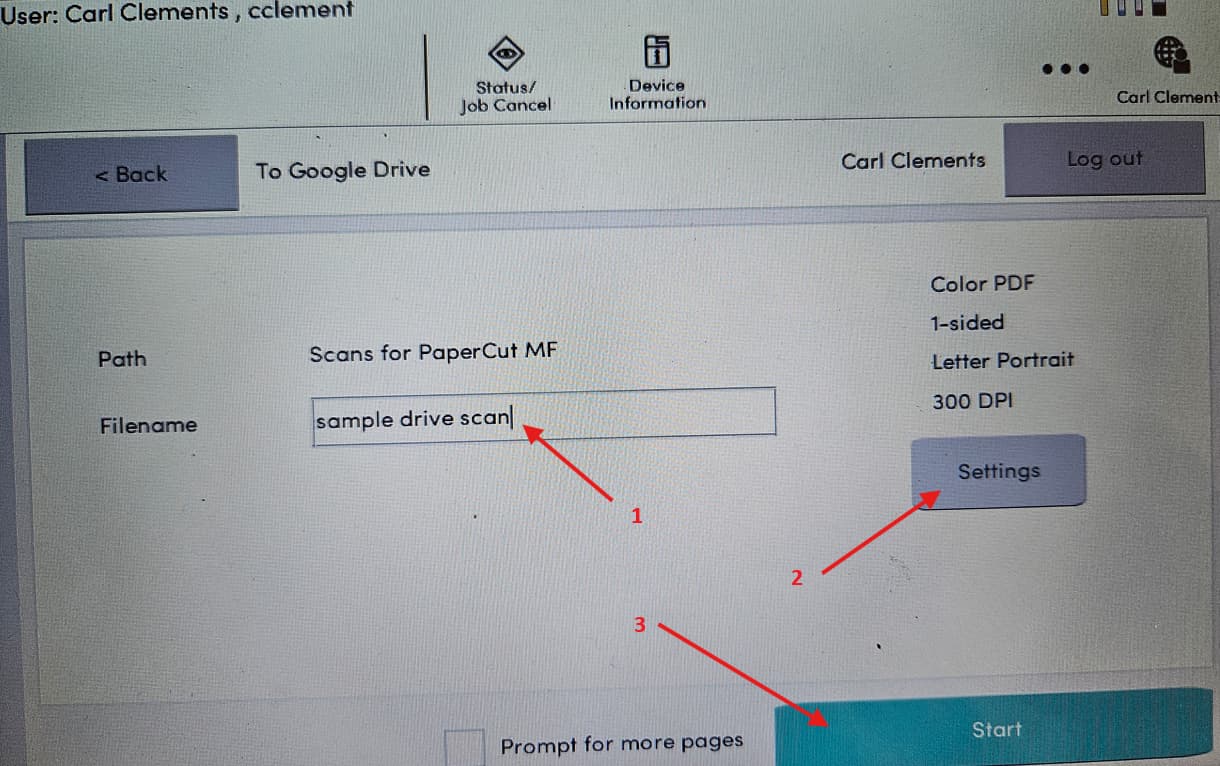
- The Filename can be changed. Click to access the onscreen keyboard.
- Click the Setting button for 2-sided scanning and many other options.
- Place the document in the document feeder or on the scanner bed and click Start.
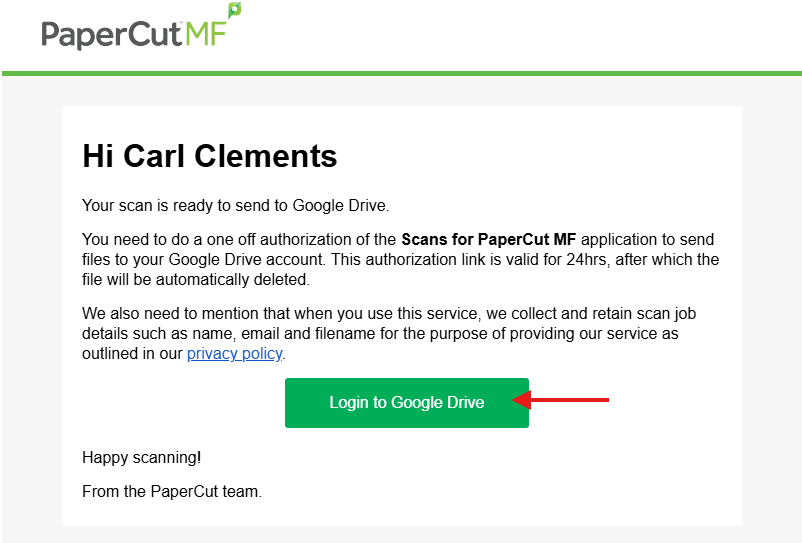
- The very first time (and only the first time) a document is scanned to your drive, PaperCut will send an email to your school account prompting you to Login to Google Drive. Click the button and follow the prompts.
After this, the document will be saved to your Google Drive in a folder called "Scans for PaperCut MF." Note: you will also receive an email from Scans for PaperCut with a link to the scanned document.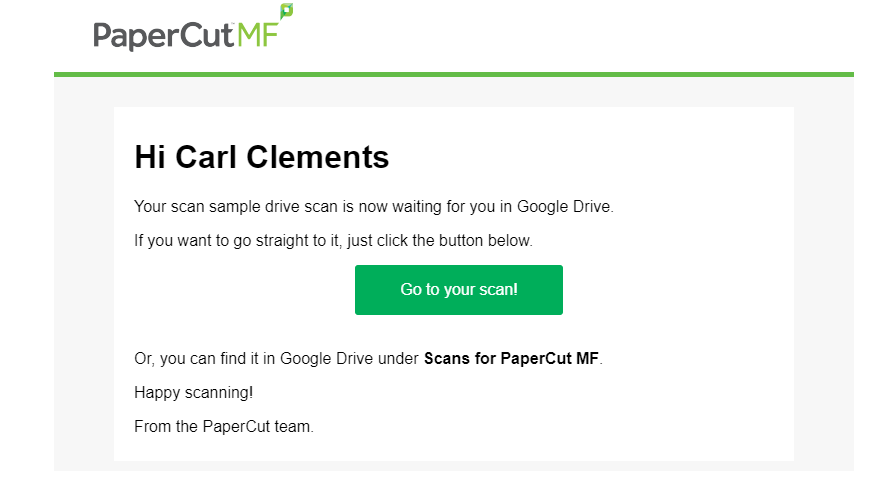
Originally posted by Carl Clements on the West Fork Technology Hub (2024-10-22).