Design & Publishing
- Canva - Introduction - Creating account
- Creating Newsletters with Canva
- Alternatives to Adobe Photoshop, InDesign, and Illustrator
- I Love PDF Tool
Canva - Introduction - Creating account
Canva is a free, online resource that has been around for about 10 years and is probably best known as a very powerful desktop publishing tool. However, it can also be used to make things like videos, gifs, websites, booklets, multimedia presentations, social media images, and much, much more! Much like Google Docs it allows for project sharing and collaboration. Canva can be used by your students and even integrates with Google Classroom, Moodle, and many other LMS platforms.
We will have some additional training on Canva in the future. For today, the goal is to create an account if you don’t already have one, and join the West Fork Public Schools team.
Follow this link to get started:
Choose the “Continue with Google” option to get started.
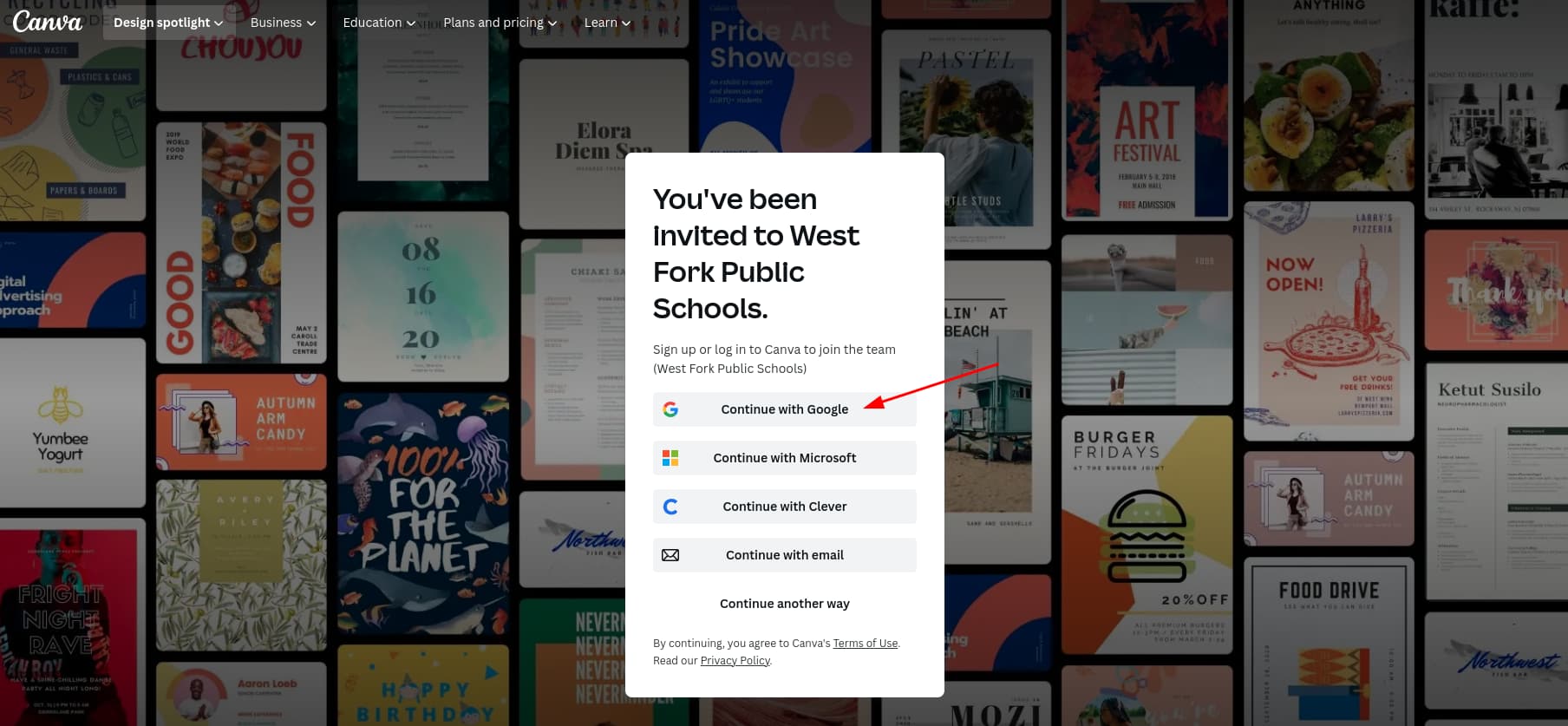
If you already have a Canva account you are still encouraged to join the West Fork Public Schools team. You can switch Canva teams by clicking here:
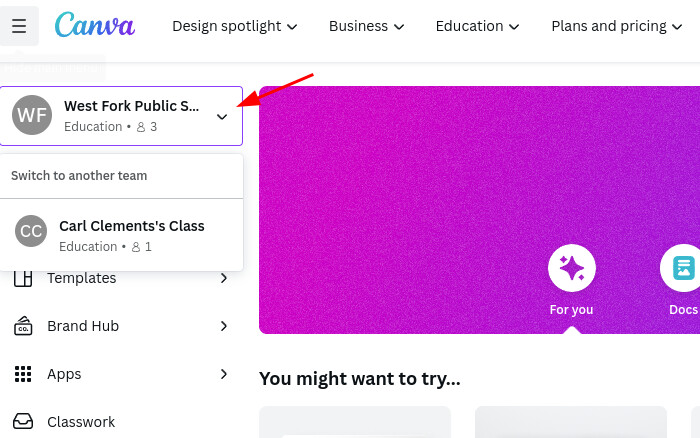
If you are creating a new account you will likely be asked to verify your account through email. Once verified, feel free to explore. If you want to learn more on your own, there are many tutorials and youtube videos for users of all abilities.
That’s all for today. Much more on Canva to come!
Originally posted by Carl Clements on the West Fork Technology Hub (2023-04-04).
Creating Newsletters with Canva
Check out Mr. Unger’s Tiger Weekly and Ms. Webb’s High School Newsletter to see some of what Smore is capable of.
Smore DOES have a free plan, but it locks quite a bit of the functionality behind a payment plan.
Soooo where does that leave us? We can actually use Canva to do some really nice newsletters! This allows you to use a platform that works for more design tasks (meaning you don’t have to learn different tools), and you have free access to all of the premium tools when using your school account.
Let’s Do it!
First, it would make sense to look at a newsletter template. This DOES make sense, but these template are more similar to the old, paper type of newsletter. There are some great templates, and if you want your newsletter to be printable, then this is your best starting point.
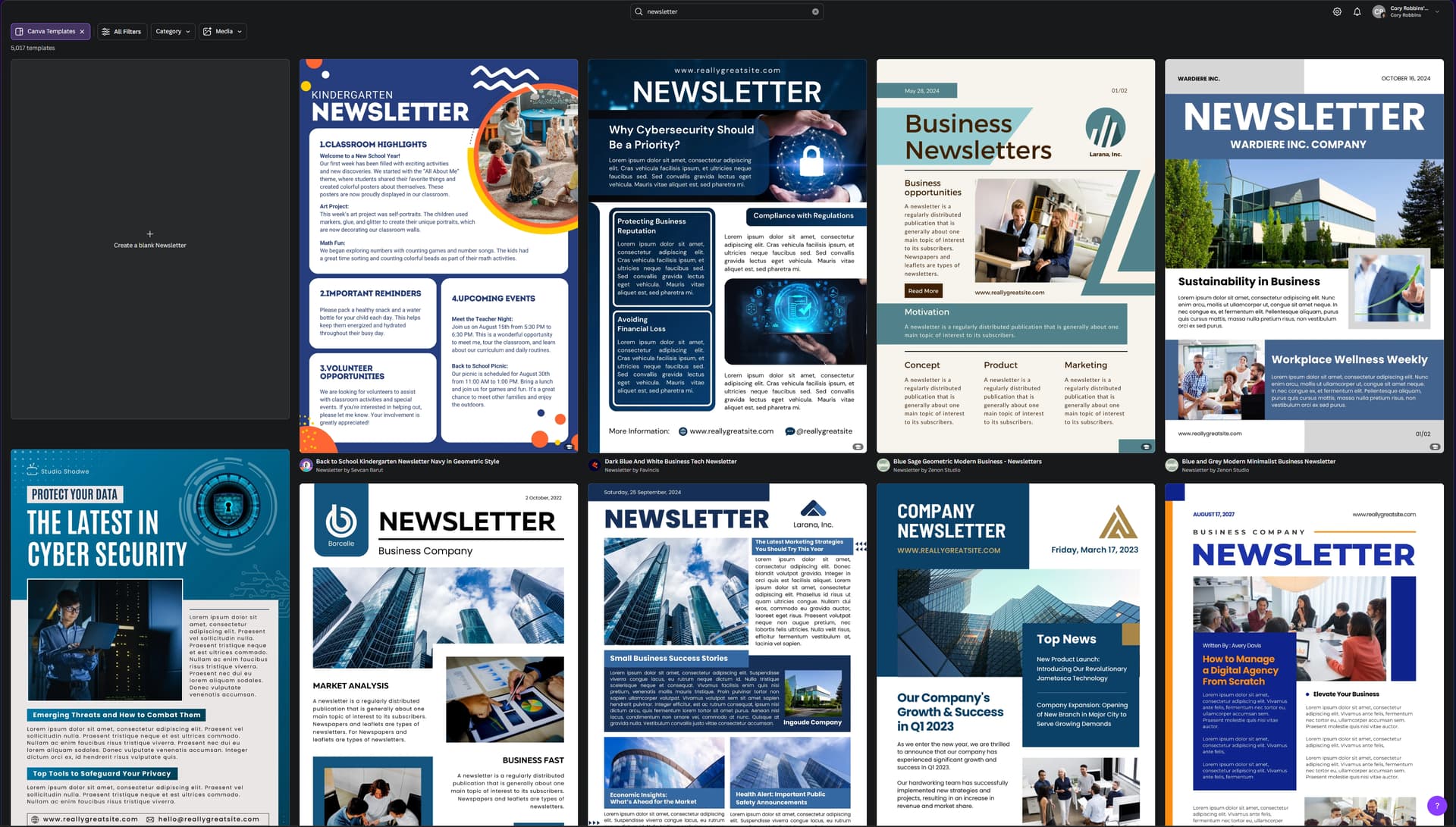
The biggest issue with the newsletter template is the vertical size of it. If you have a lot going on, a single 8 1/2" isn’t going to be all that easy to use. Sure, you can use multiple pages, but that puts a page brake and consequently, a visual break in your news. If you just need a little more height to your page, check out the infographic templates!
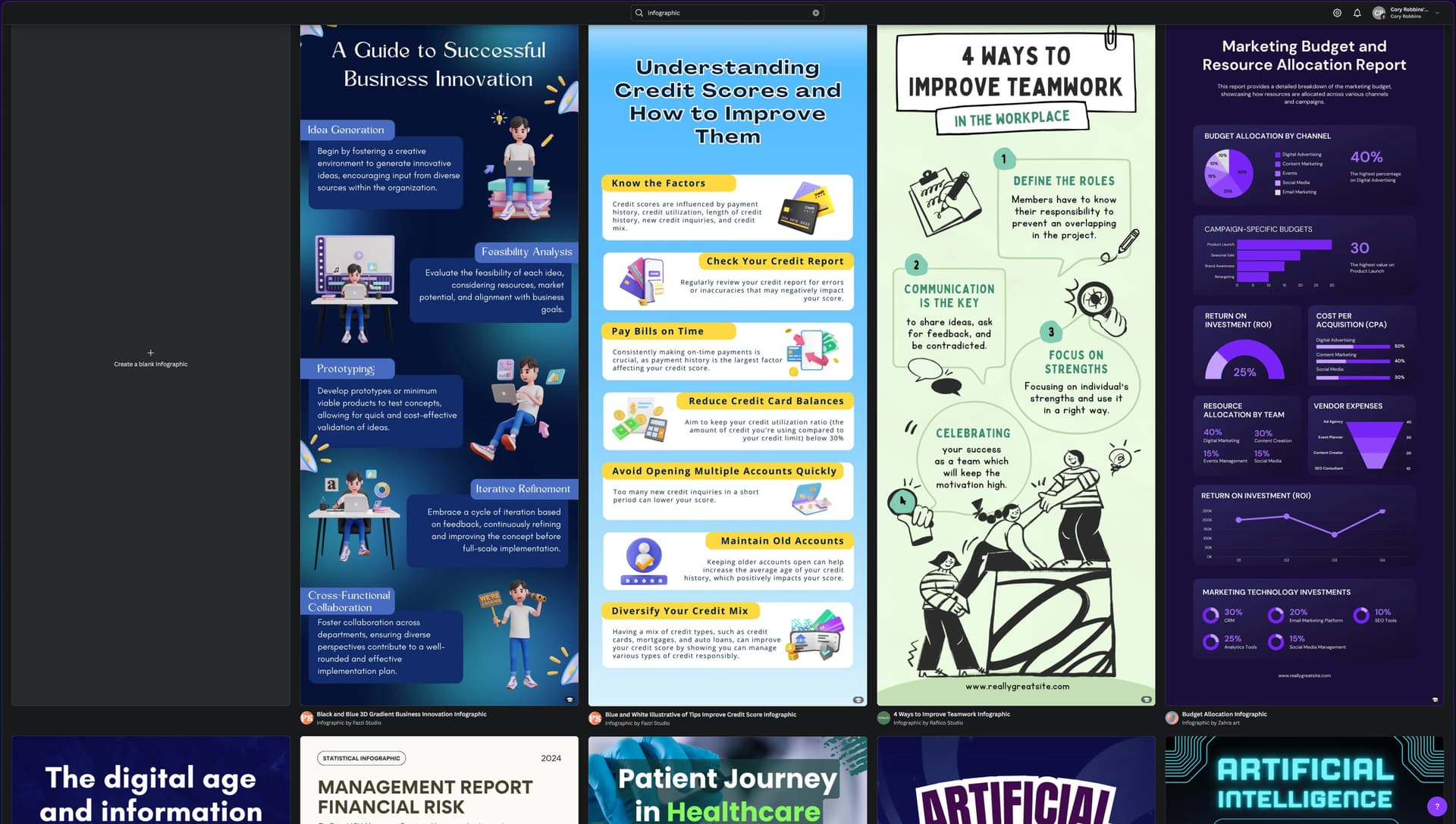
Cool, so we have two options so far, but MAYBE we want to be just that little bit different… that little bit extra… Maybe we want our digital newsletter to feel more, you know, DIGITAL!
Because this is what I’m looking for in this demo, I’m going to use the “website” template. It is a bit annoying that there isn’t a blank version of this, so either find a template that you like as a starting point, or just pick a random one that you can delete all of the contents of.
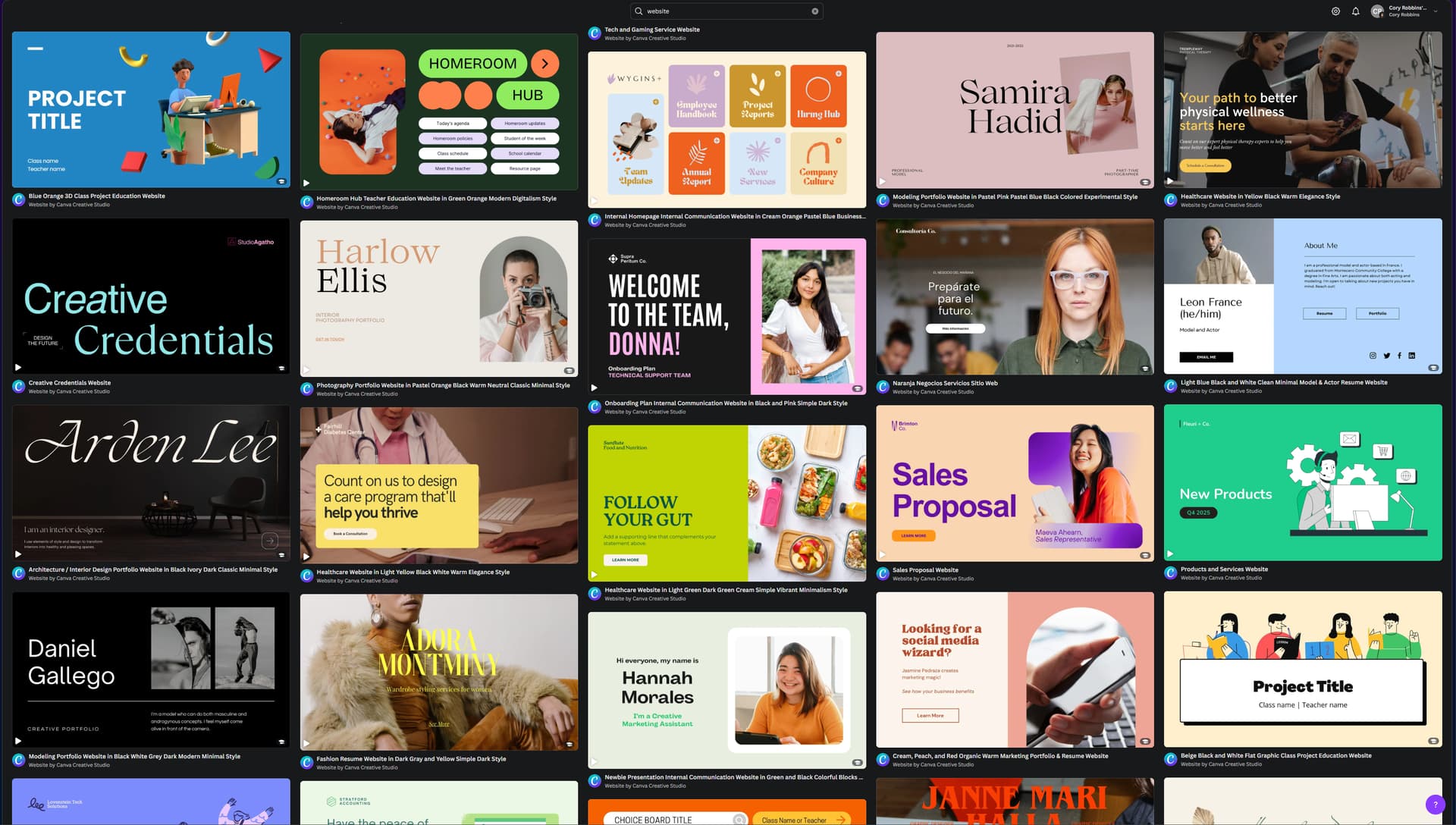
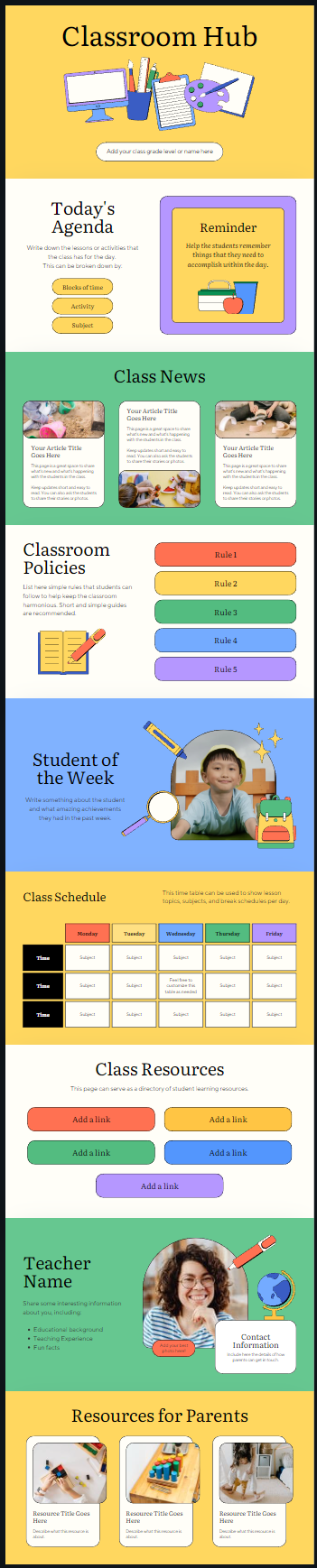
For this demo, I’m using the template called:
“Digital Noticeboard Teacher Education Website in Yellow Purple Colorful Lined Style”
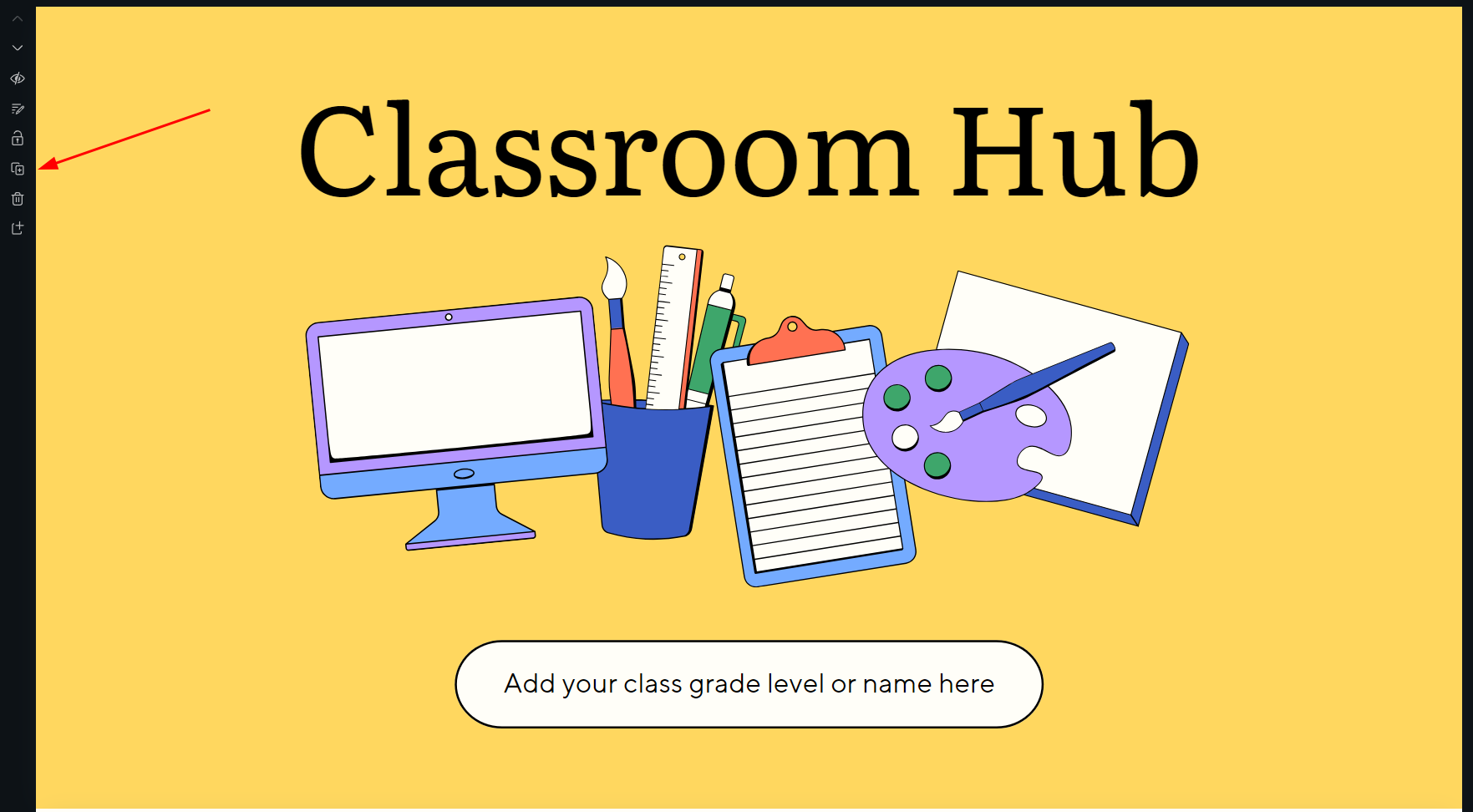
The cool thing about the website layout is that pages are basically equal to slides. Moving from page to page has animated transition effects instead of just scrolling. When I add a page by clicking on this button, I’ll get a new blank page after the currently visible page.
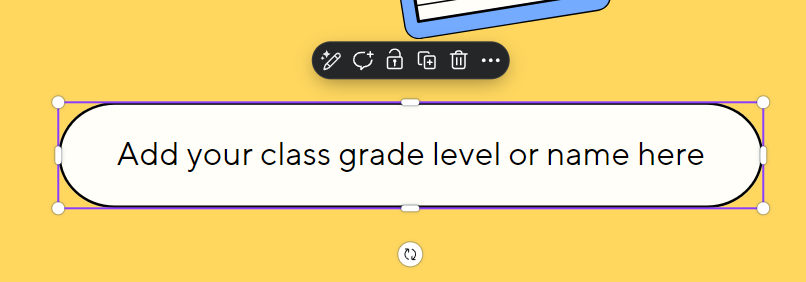
Templates usually provide pretty reasonable instructions on what to do, for example, I can double-click on this bubble, and add the information that I’m instructed to. Or, I can change it to whatever I think makes sense!
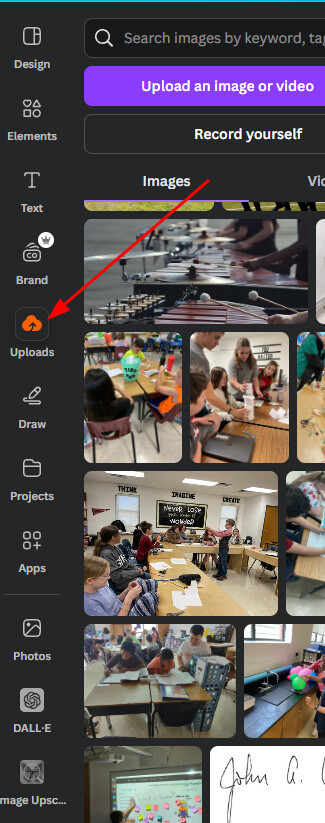
I don’t like this background on the first “page” or section. To change it, I’ll go to my uploads on the left, and I’ll click on a photo that I would like to use. If I don’t already have an image, I can also use the “elements” option to search for free image options.
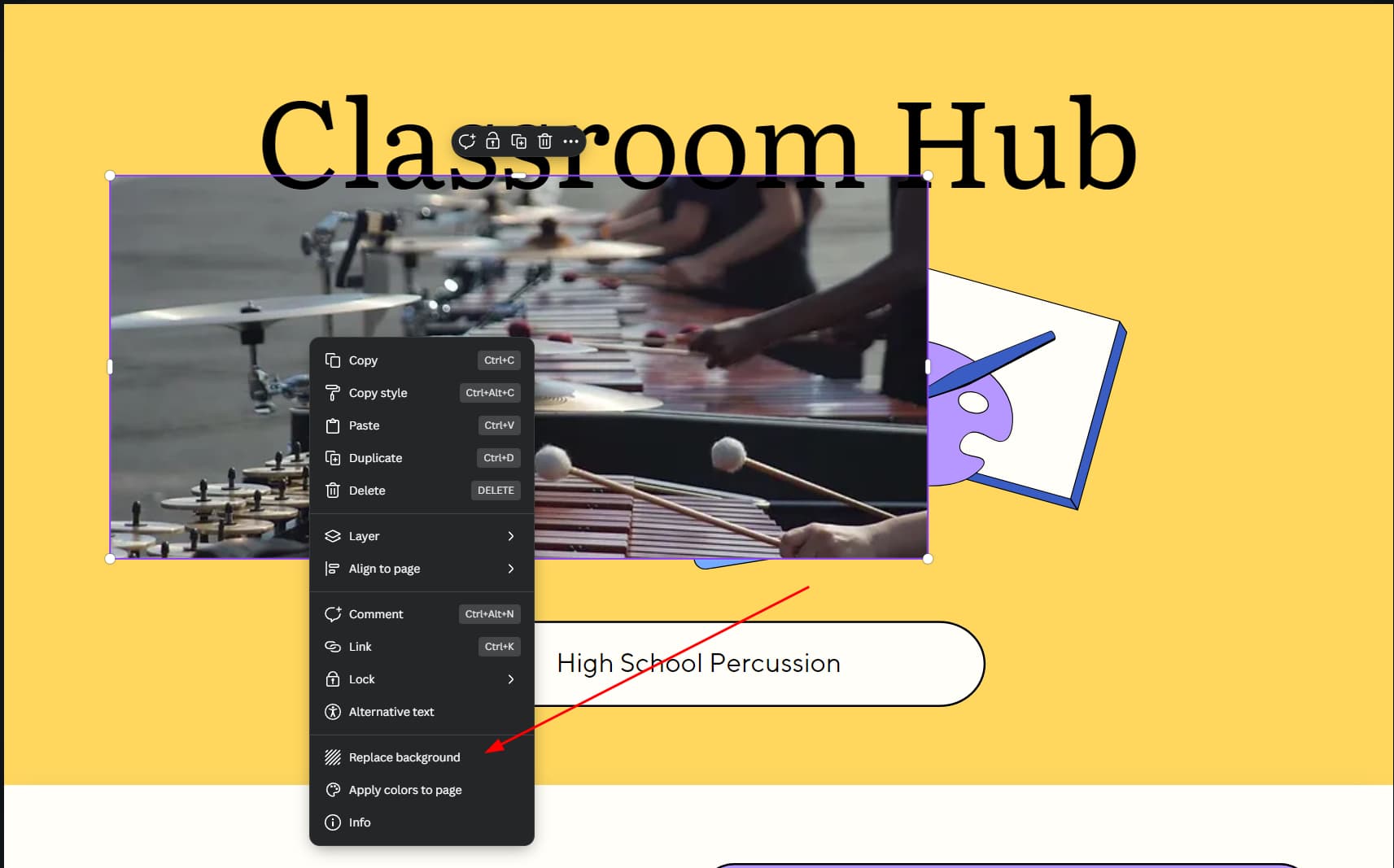
Now I’ve got a picture, but it clearly isn’t a background image.

Let’s right click on the image, and then click on “Replace background.”
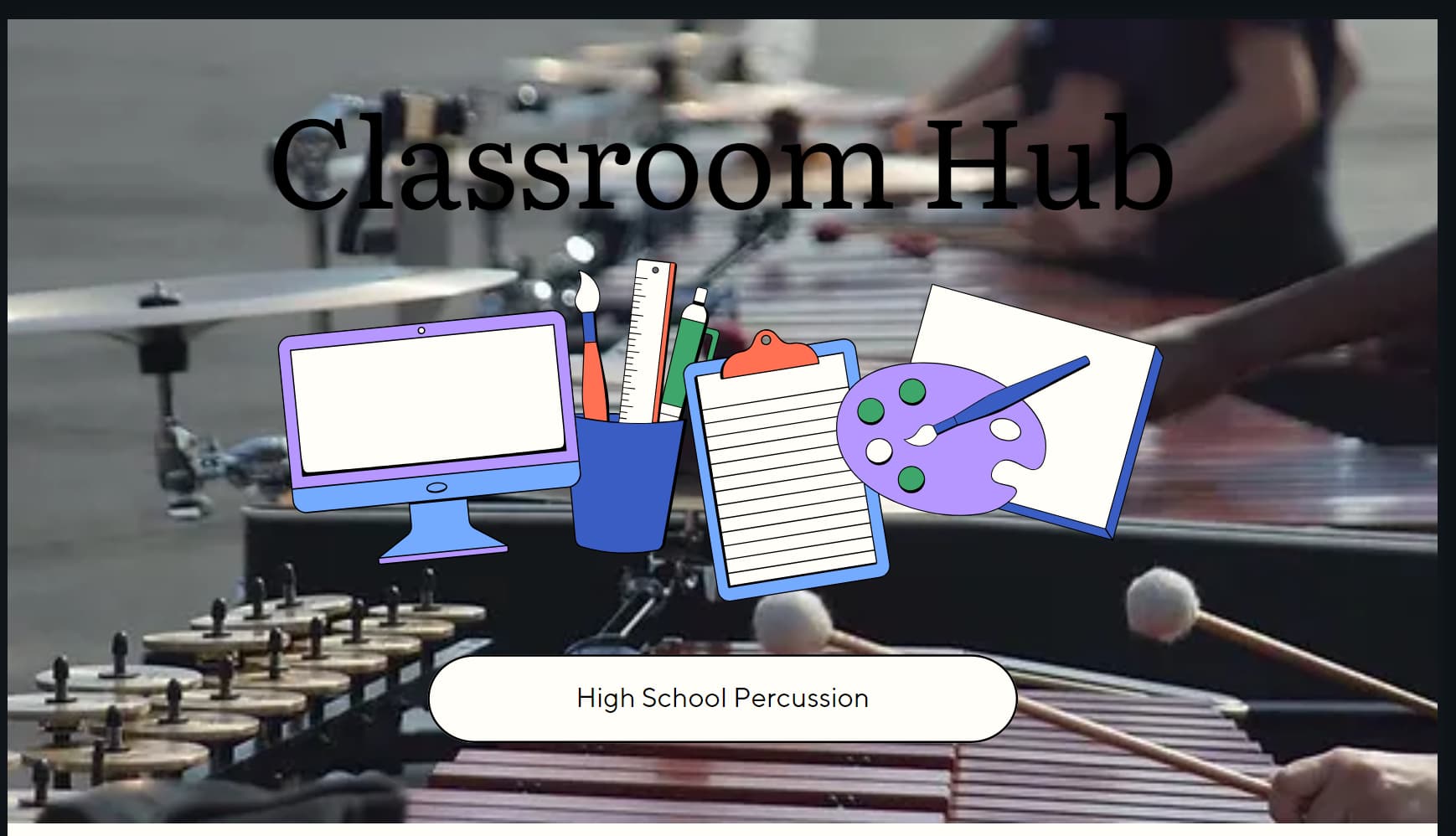
Cool! Now I have a fancy background on this first page! I’ve created another problem though. I can’t really read the title text.
I’m going to click on the title, then I’ll click on the font color option to bring up the left toolbar.
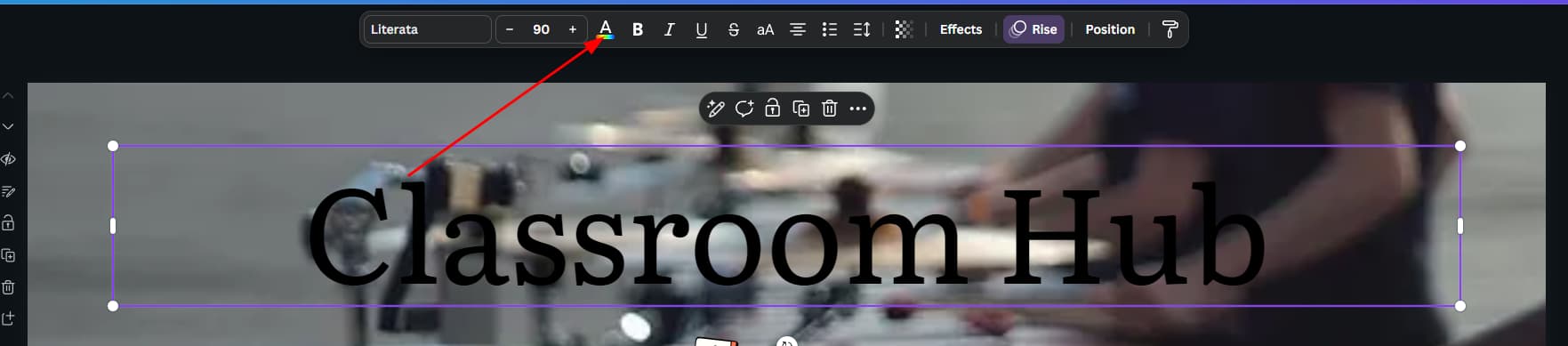
In the toolbar, I’ll click the font color, I’m going to try white.
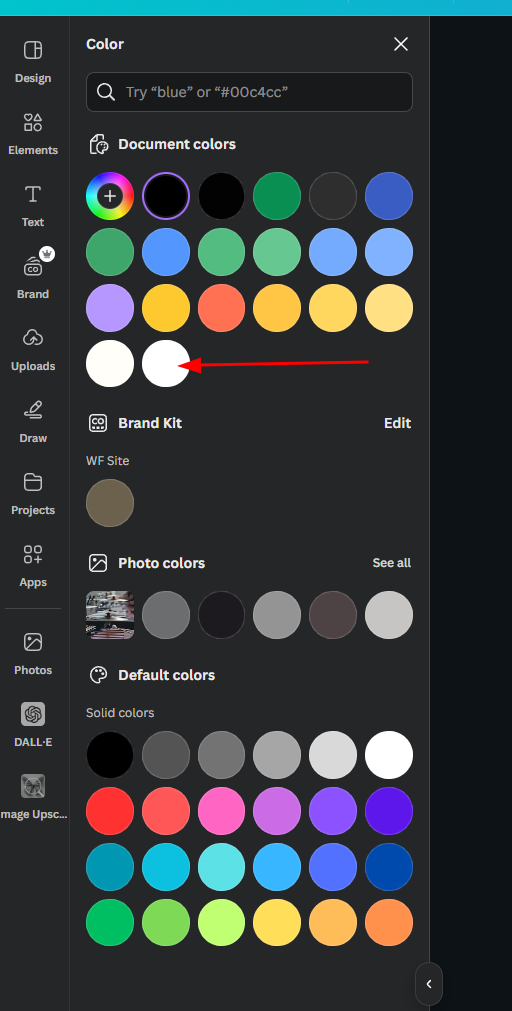
Well… That’s easier, I guess, but it is still not great. Let’s add an effect to try and bring the text “forward” on the image.
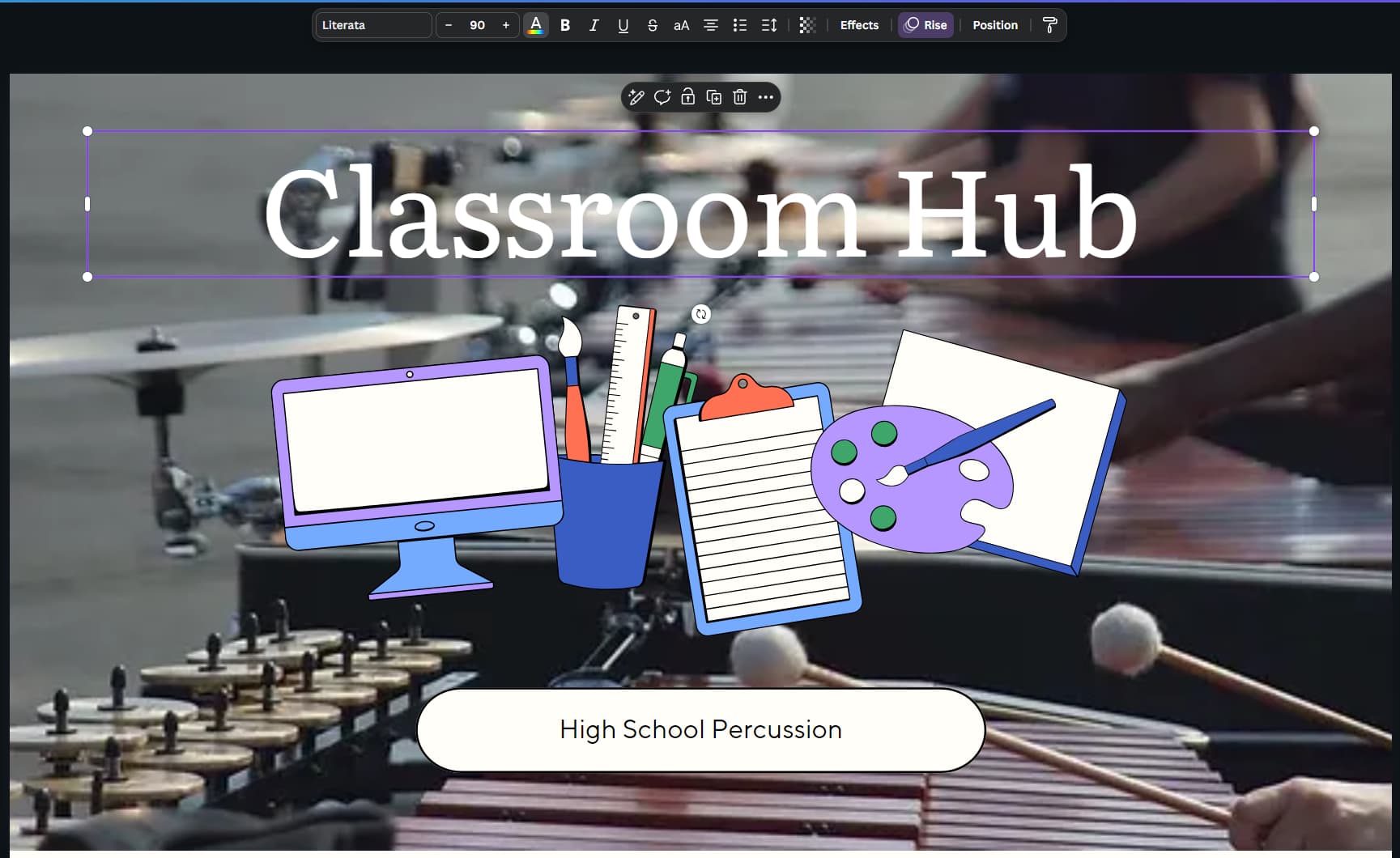
On my top toolbar, I’ll click on “Effects” to get my left toolbar.
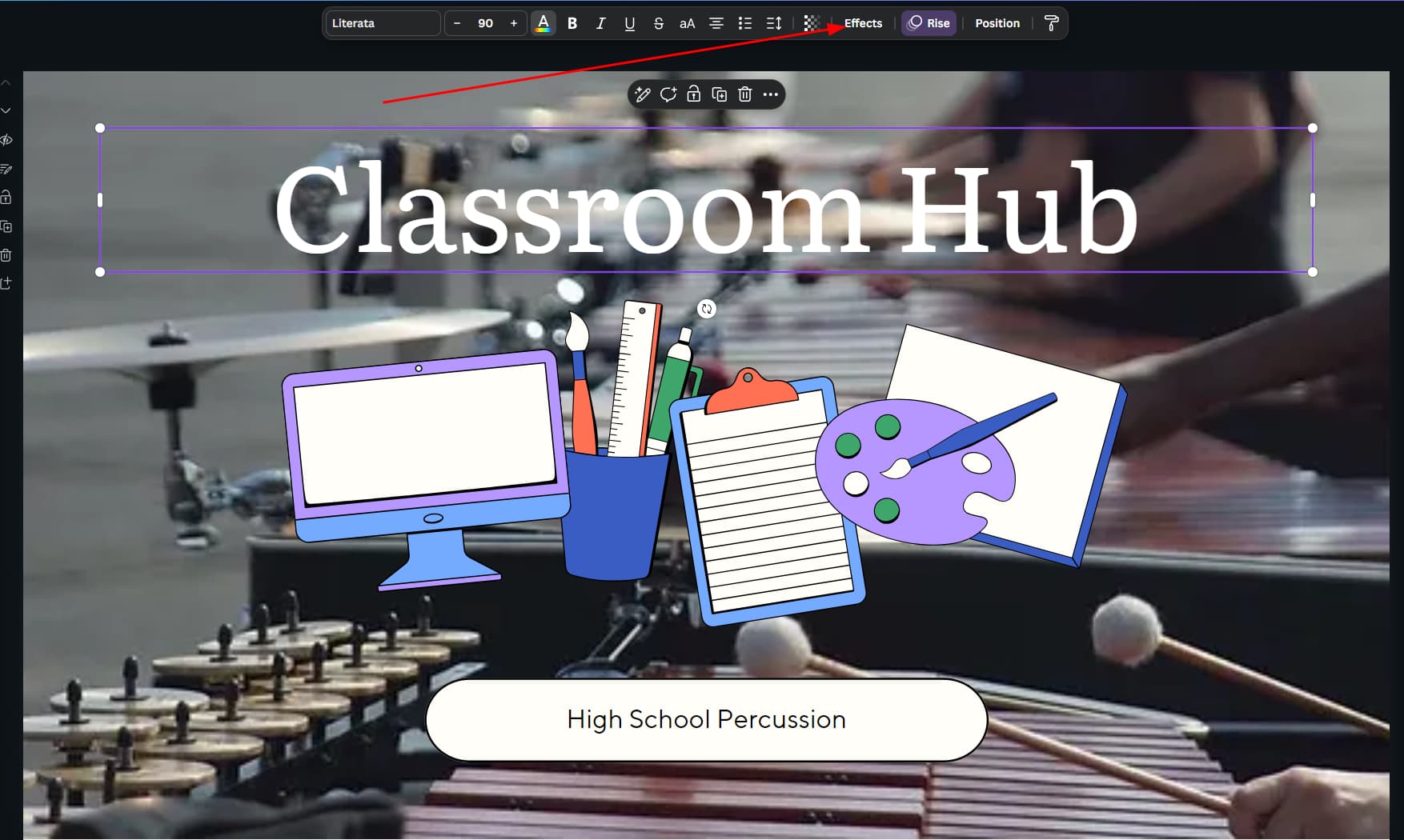
Conveniently, in the effects toolbar, there is an option called “Lift.” I’ll click that.
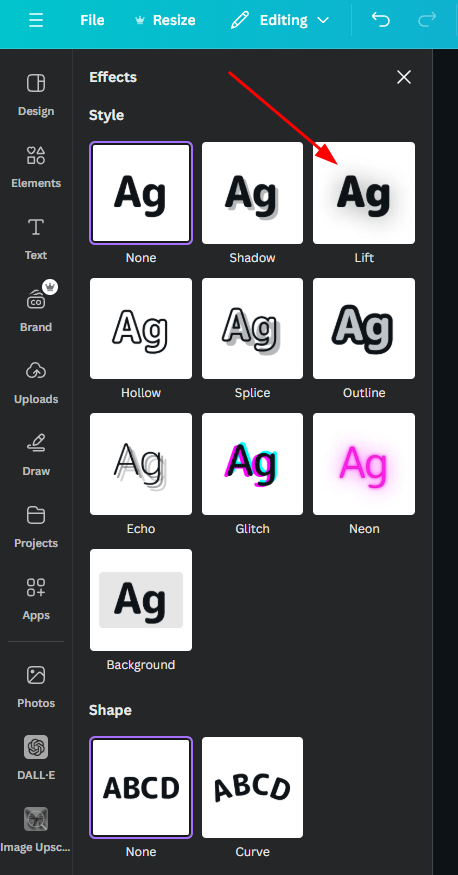
Great! Now the text is easier to read, and it kind of stands up on the page.
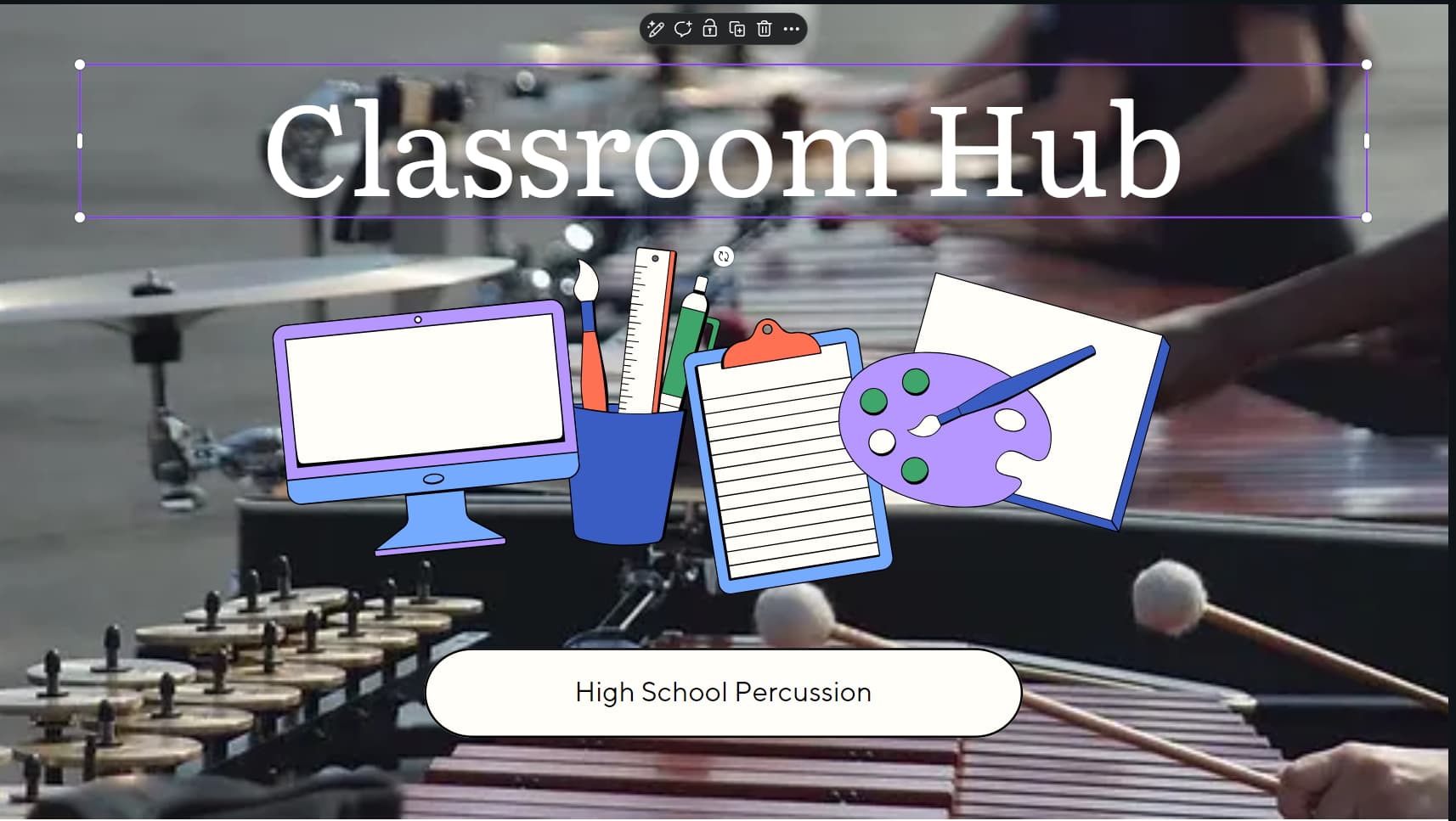
While I’m here, I’ll just rename the title.
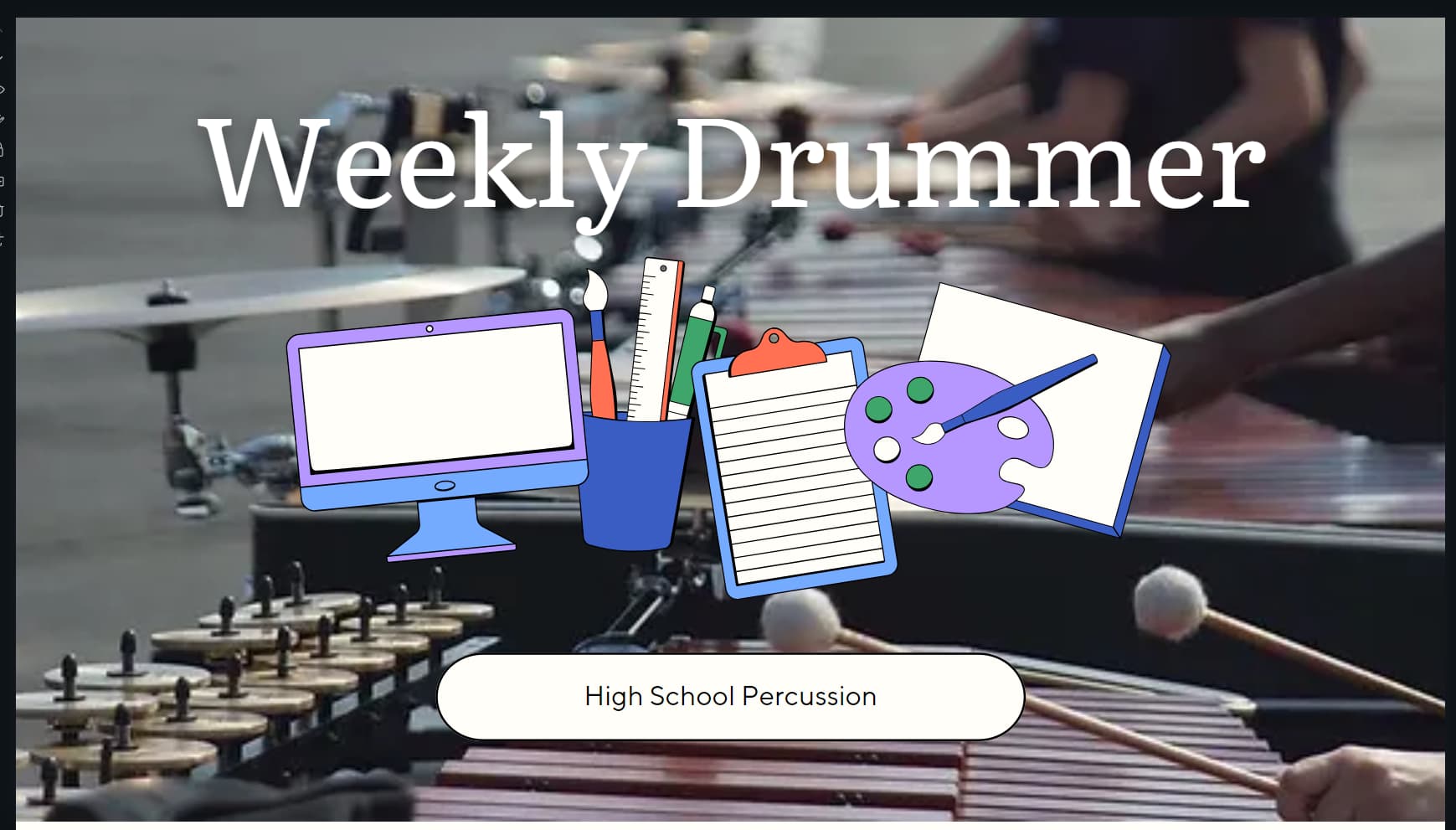
Something else that you would expect from a digital newsletter is the ability to click on things and be taken to new locations on the web. Maybe you want to link to the school website, this week’s lunch menu, or maybe your Clever page. I’m going to link to the percussion “Band” app.
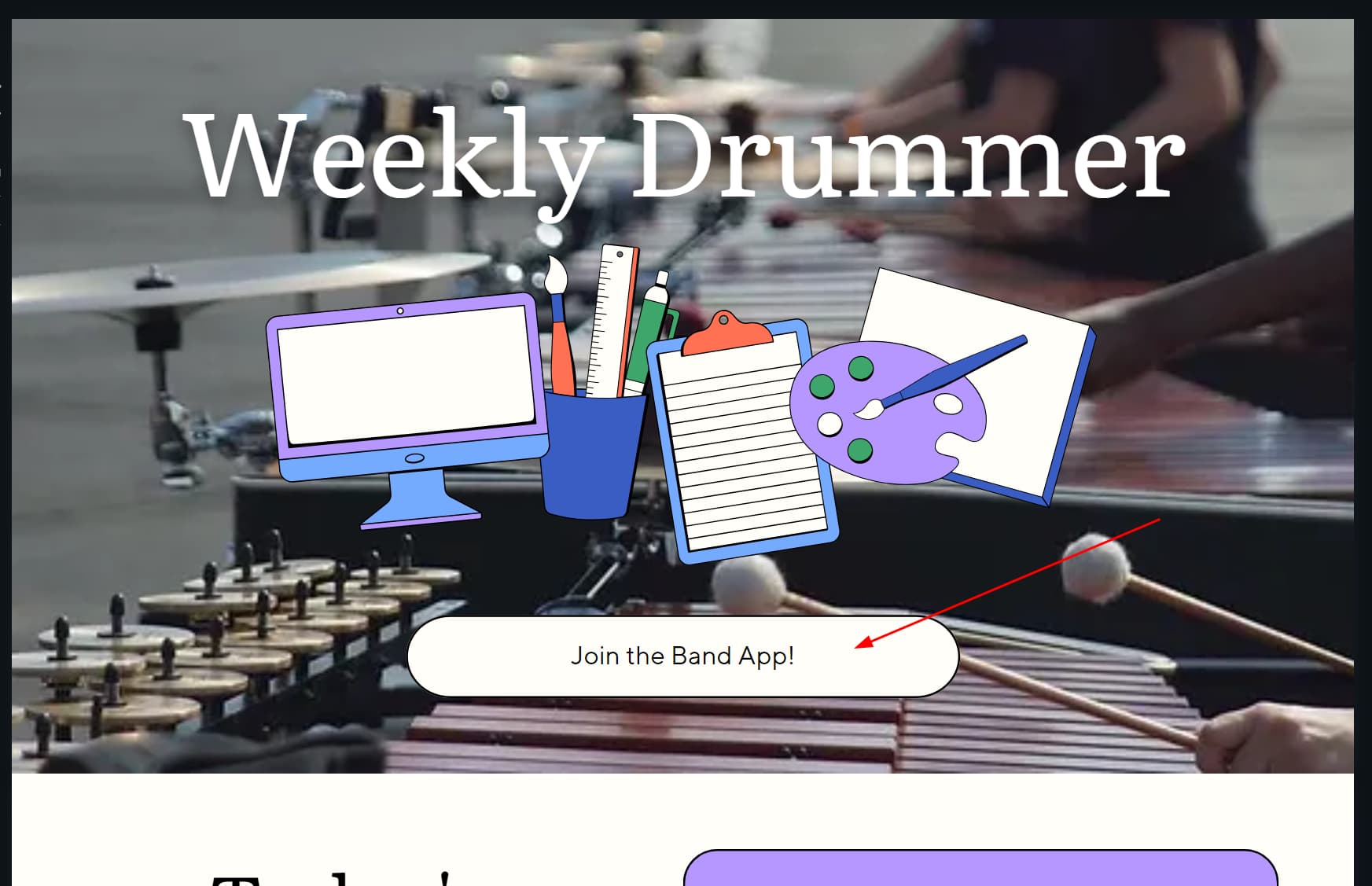
I’ll click on the button/bubble/asset that I want to turn into a link, and then I’ll click the three dots above it.
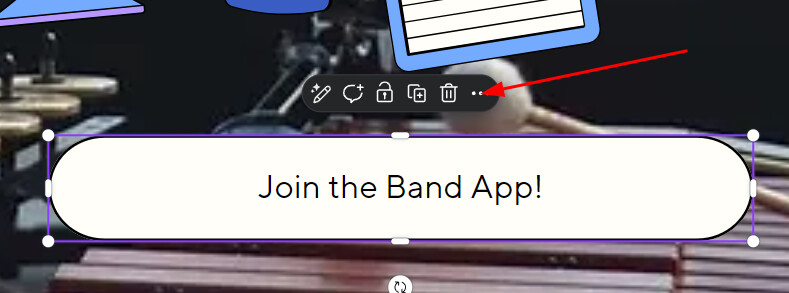
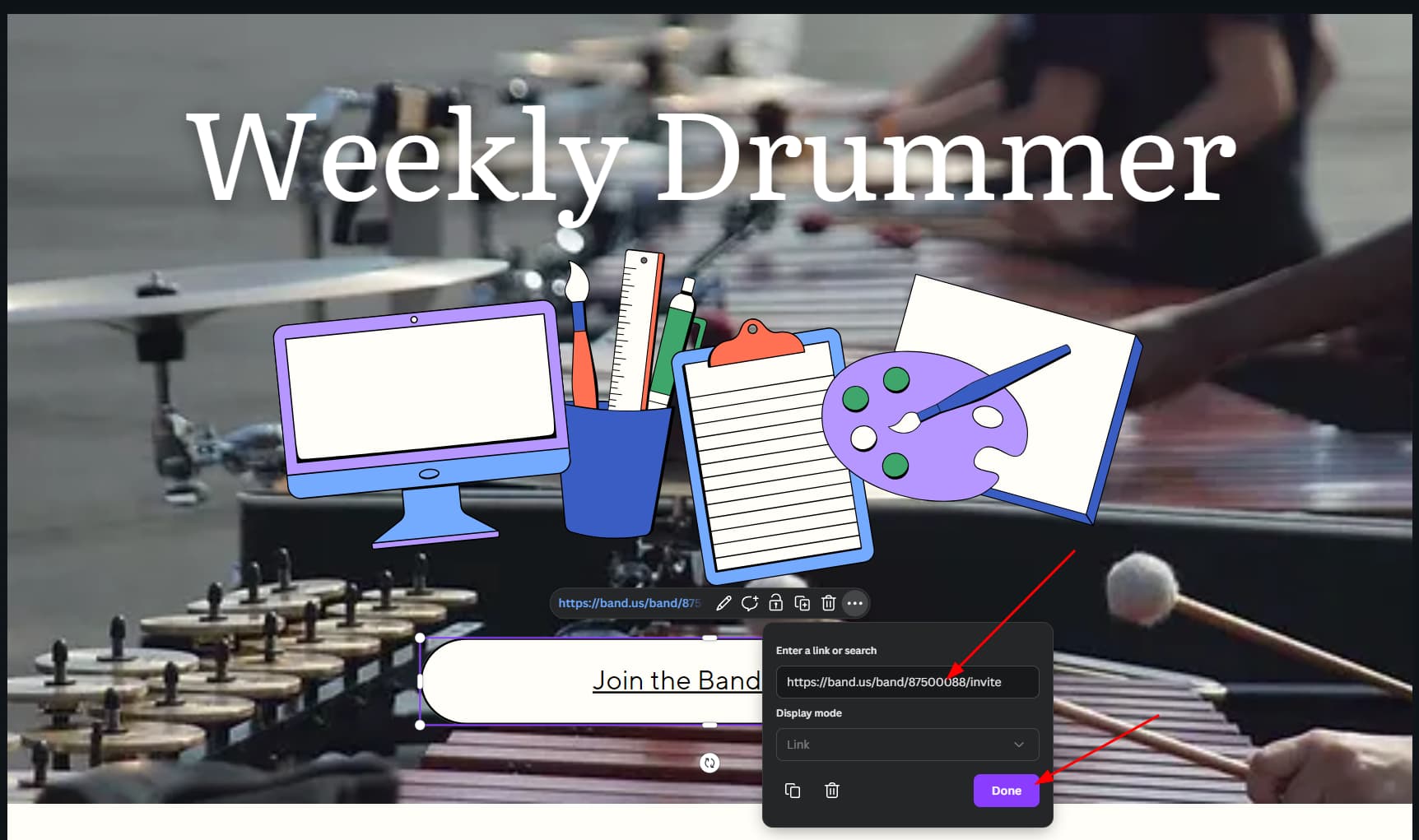
In this expanded menu, I’ll click on “Link.” I’ll also make a mental (or physical) note that I can also hold down my control key and press K to get to the same thing in the future).

That opened the link tool, so all I have to do is pate in the link the location I want my students to visit. Then I’ll hit done.
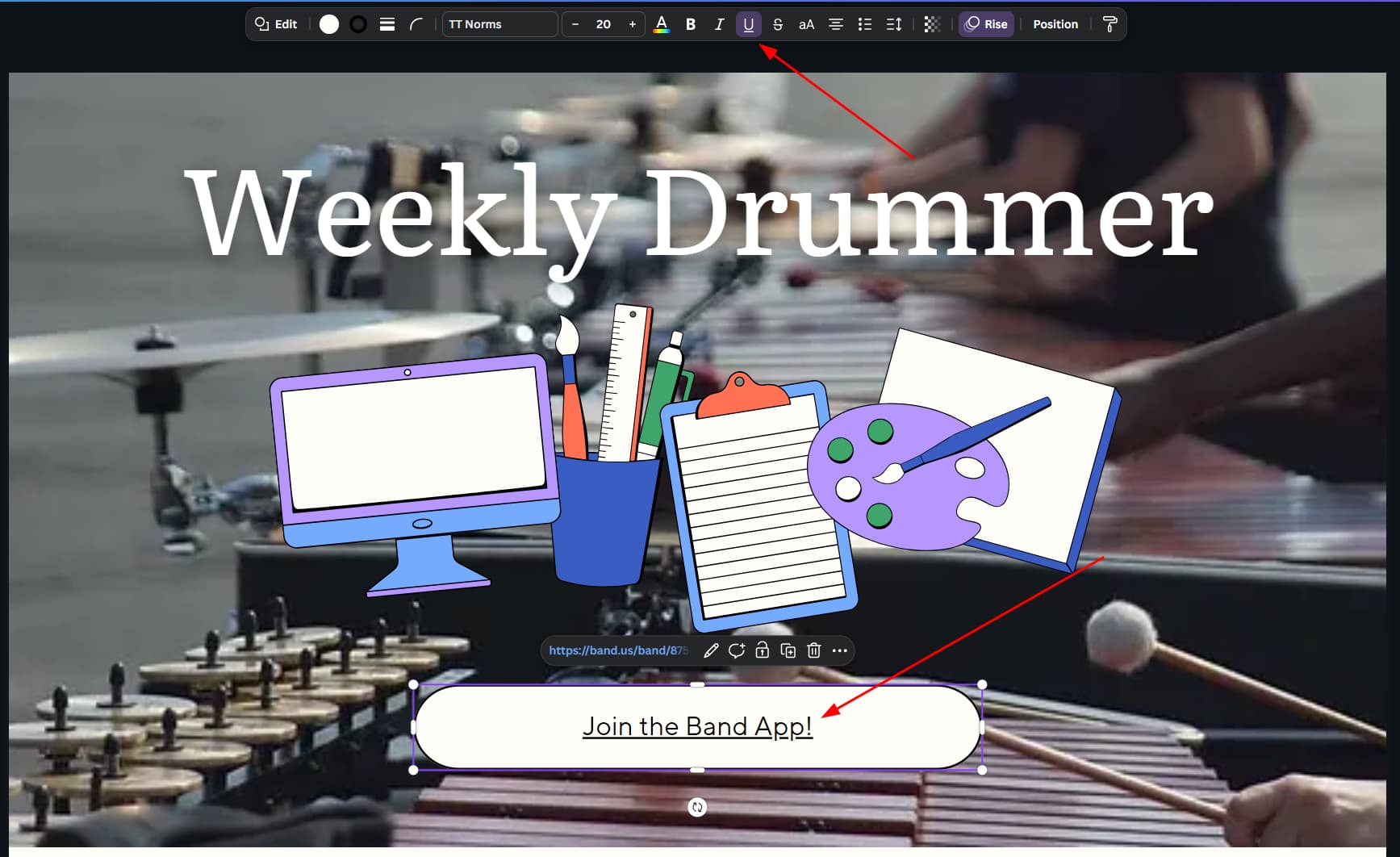
By default, this is going to underline the text, and that is totally fine, but I don’t like it here. I still have the “button” selected, so I’ll click on the underline font button to disable it.
Much better! Now it looks a lot more like a button you would find on a website.
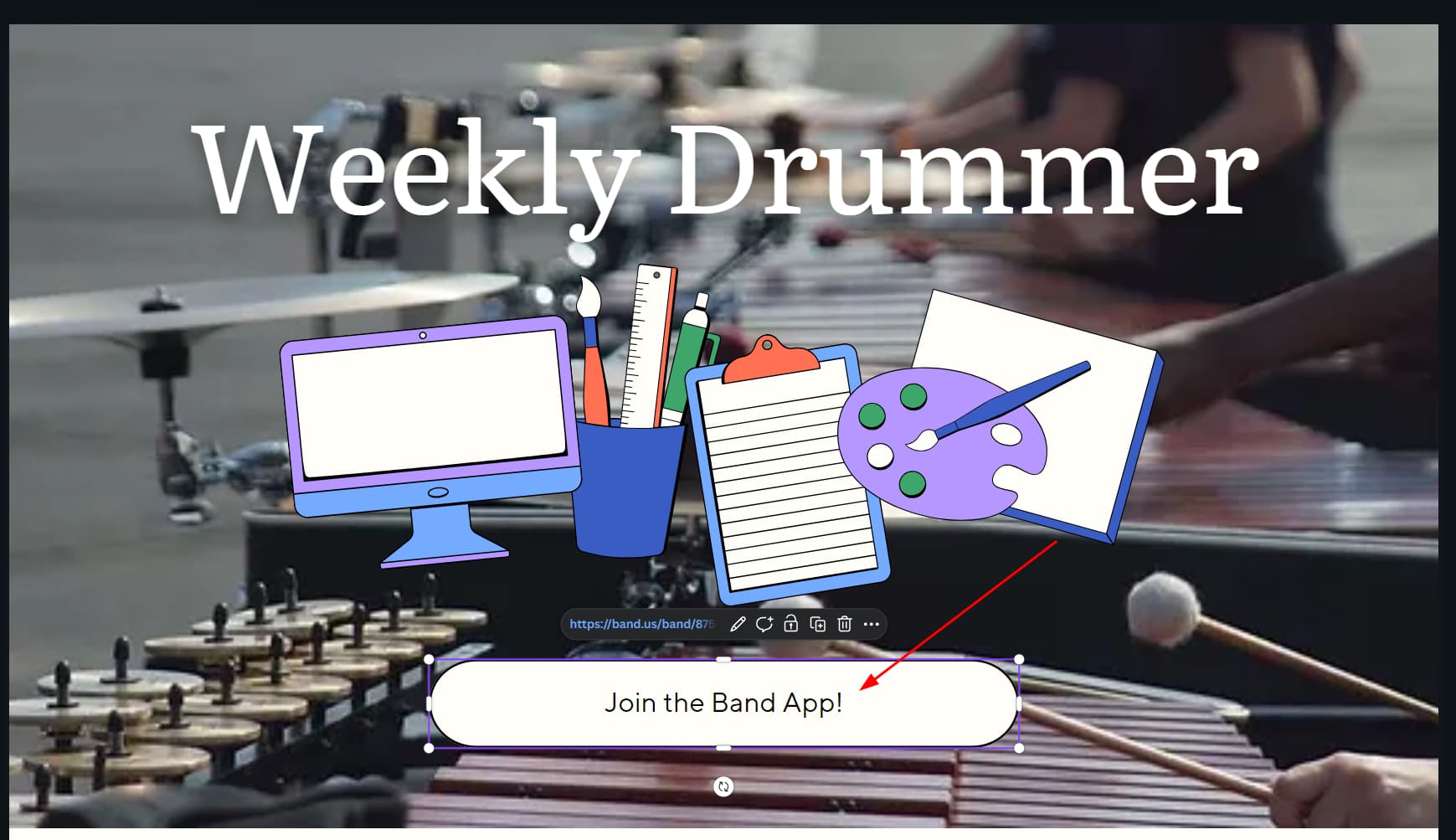
At this point, I’ll continue going through the template, adding, removing, and editing the elements to make my newsletter look the way I want (except I totally didn’t do that for the sake of the demo).
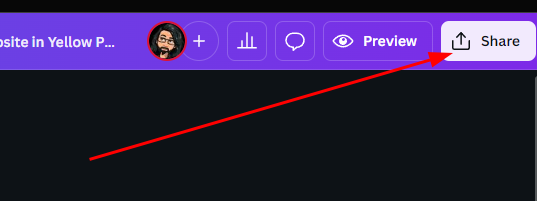
That brings us to sharing! What good is a newsletter if nobody sees it!?!? I’ll click on the “Share” button to option the options.
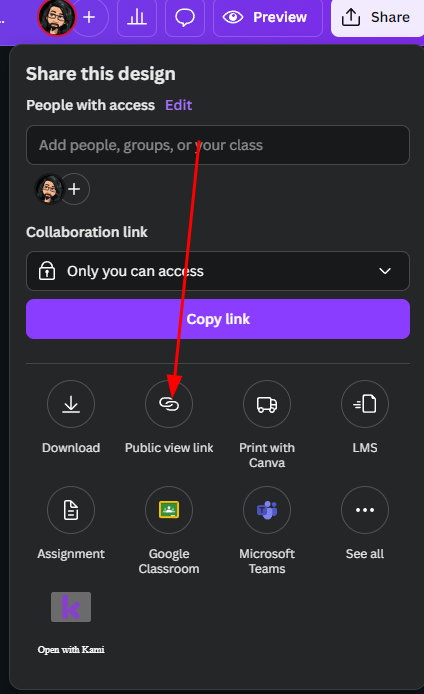
Now, I’ll choice the “Public view link” option.
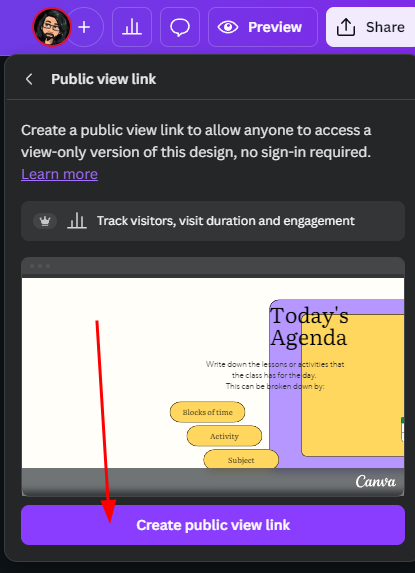
This gives me YET ANOTHER window, and I’ll click on “Create public view link.”
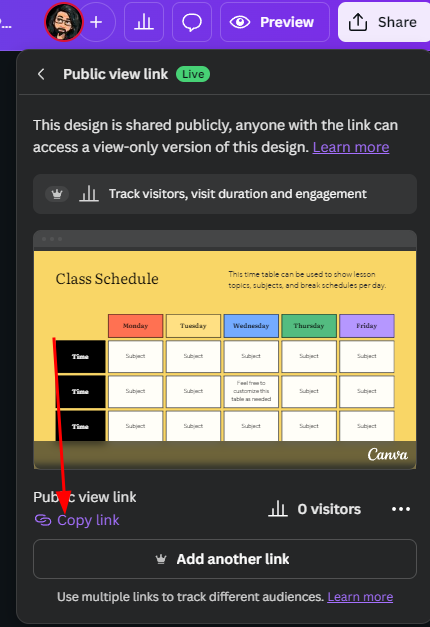
Now I can click on the convenient “Copy link” option, and my link is ready to paste into an email or Google Classroom, or wherever else I might think of.
So we can share our link, but wouldn’t it be cool if we could see who interacted with it? If we click on share again, our “Public view link” button has a new “live” tag to let us know it is active. Let’s click that.
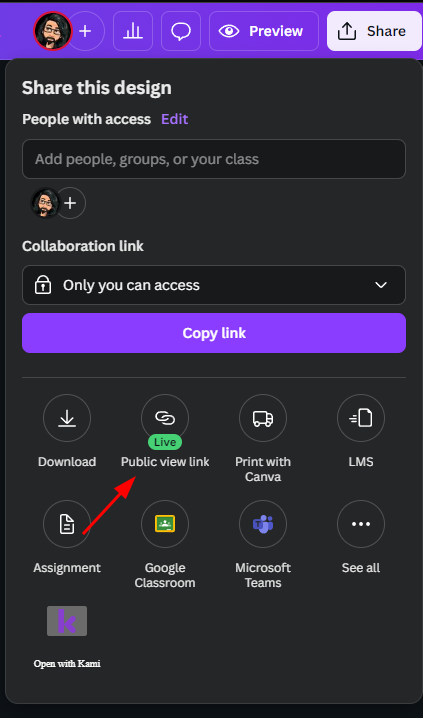
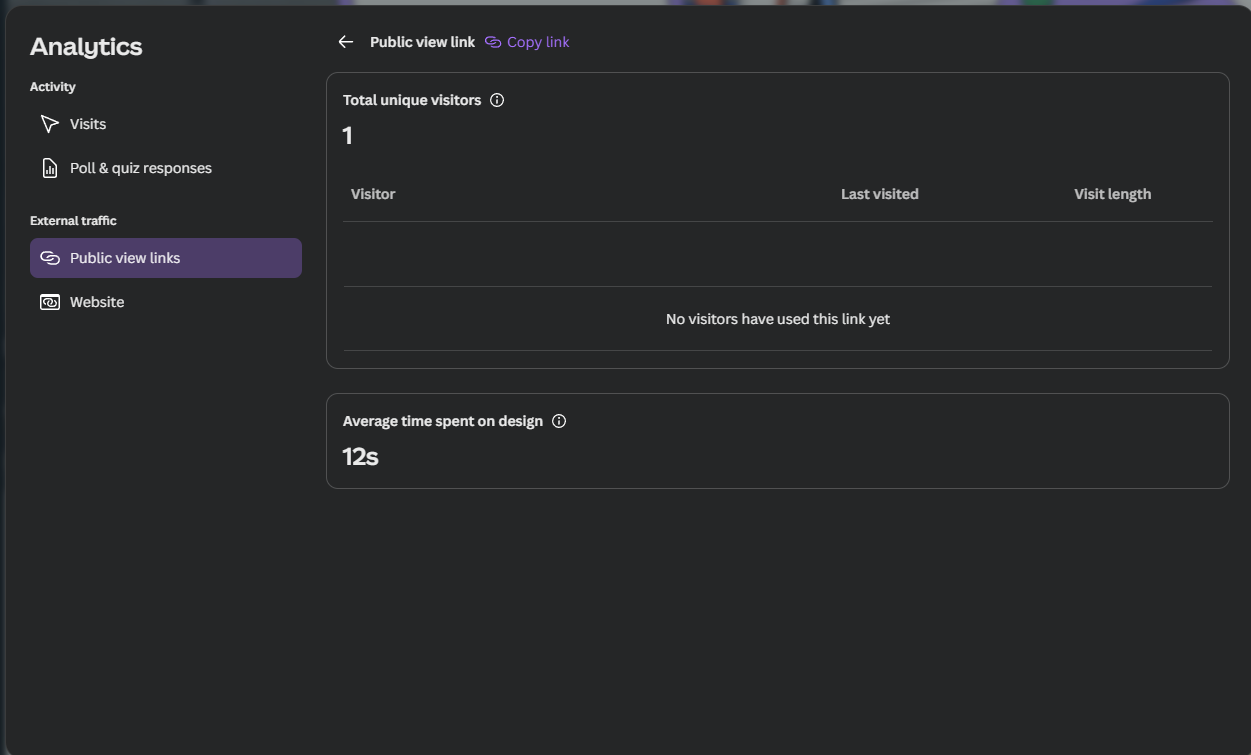
Now, if I click where the visitor label is, I’ll get the analytics window.

This shows several stats on views. This might not be critical, but it is nice to see if you are talking to yourself or not!
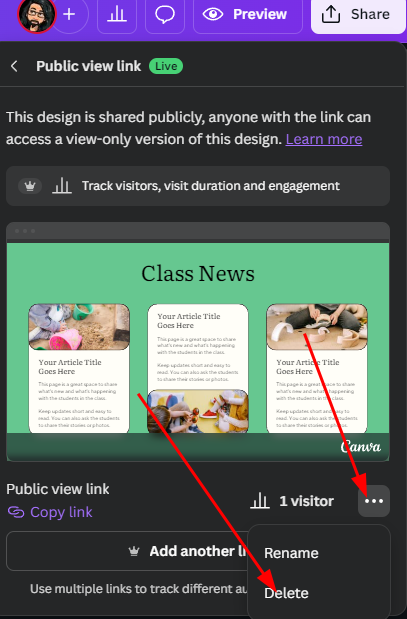
If you get to a point where you no longer want the newsletter to be public, you can click on Share > Public view link, and then click the three little dots to remove your link. Easy!
Click here to view my demo newsletter!
Well, that’s pretty much it! You can use these same techniques in all of your other Canva design projects, so don’t think that this information HAS to be used just for newsletters. I used exactly the same techniques to make the title thumbnail for this post. PLUS, I used Canva’s stupid-good background removal tool. One click, and we are background free!
Originally posted by Cory Robbins on the West Fork Technology Hub (2025-01-14).
Alternatives to Adobe Photoshop, InDesign, and Illustrator
This is pretty huge news if you are someone that loves Canva (or hates it) but feels like sometimes it is a little too… limiting.
Recently Canva purchased the Affinity company. Affinity is company that produces the most comprehensive and direct competitor to the Adobe Creative Suite (PhotoShop, Illustrator, and InDesign). The Affinity versions, Photo, Designer, and Publisher respectively, are really great pieces of software, and, in a lot of ways, they are better than the Adobe versions. At full price, the Affinity suite (works on Mac, Windows, and iPad) will cost $164.99 one time. That’s SO much nicer than the subscript required for Adobe products.
Why am I telling you this? It’s because Canva has a policy that provides the best versions of their software to students and teachers for free, and when they purchased Affinity, they made the choice to include the new programs in that free offering! So now, you get everything Canva has to offer, but you also have access to these three professional-level design programs! I think that’s pretty awesome, personally!
We have put the suite in Chocolatey, so you and your students can now follow these instructions to install and activate on your school computers. Want to install it on your personal computers? Just follow the step 2 instructions in this link.
Installing Affinity On School Computers
-
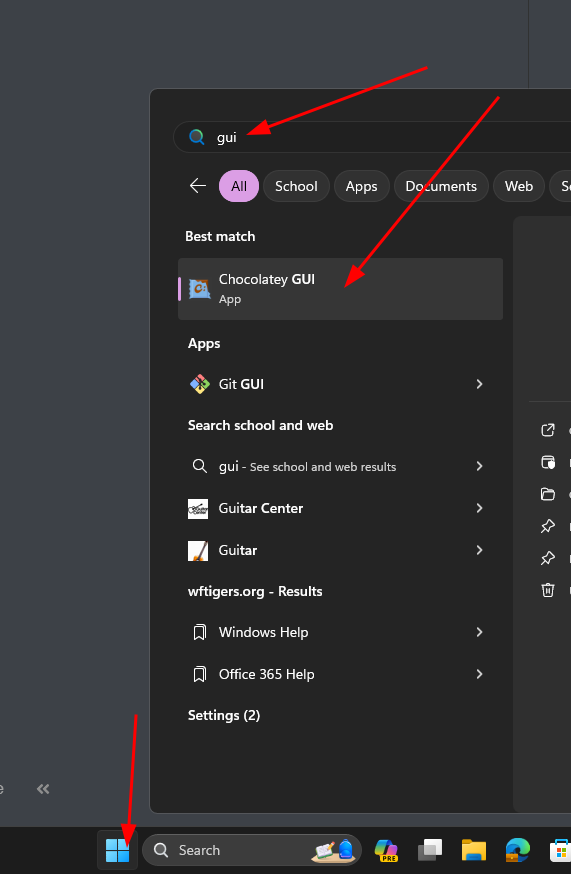
click the Windows button, and type in “GUI” or “chocolatey” to bring up “Chocolatey GUI.” Click on it to open.

-
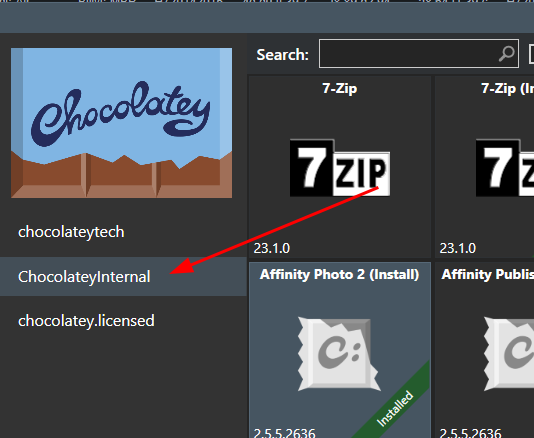
Click on “ChocolateyInternal” on the left side of the store.

-
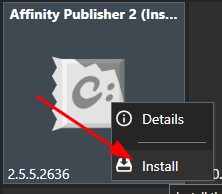
Affinity Photo, Designer, and Publisher are probably near the top of the list, but feel free to search for “Affinity” to narrow your choices. Once you see your Affinity options choose which of the three apps you want to install first, right-click it, and click on “Install.”

-
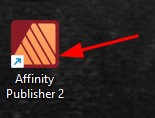
Your install window will close, and you will then see a new desktop shortcut for your application of choice.

-
If you want to install more of the apps, feel free to do that now or later. The next steps just have to happen with the first app you open.
-
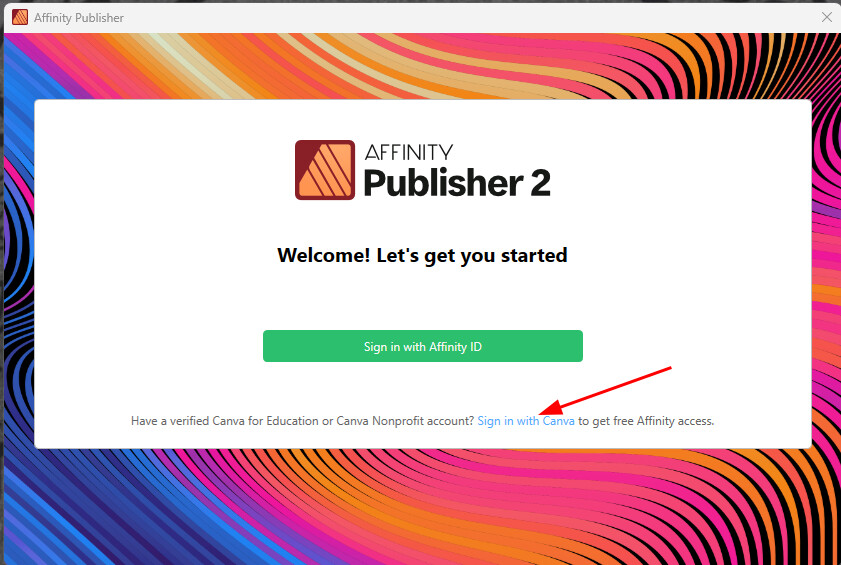
Pick one of your newly installed Affinity apps to open. You will see the screen below. Click on “Sign in with Canva.”

-
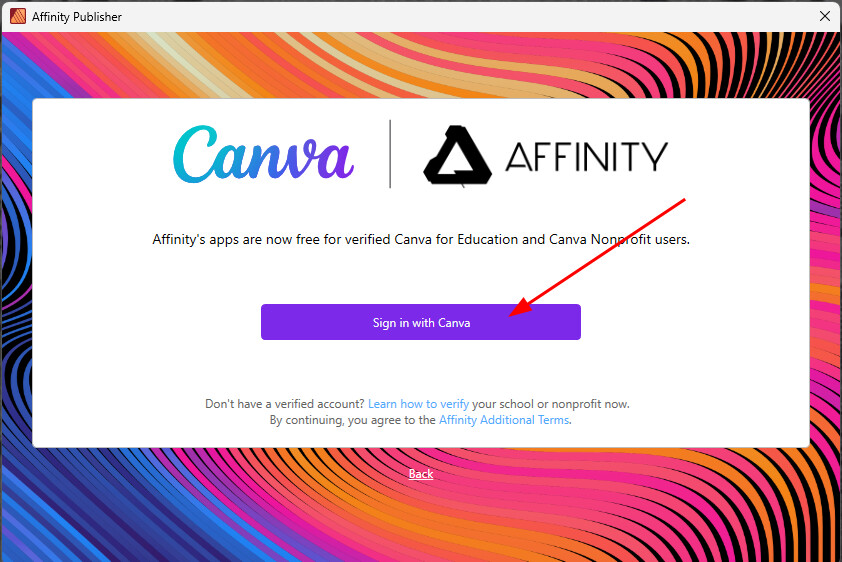
Then click on the “Sing in with Canva” button

-
This will open Chrome. On the page, select your team, then click on the “Allow” button.

-
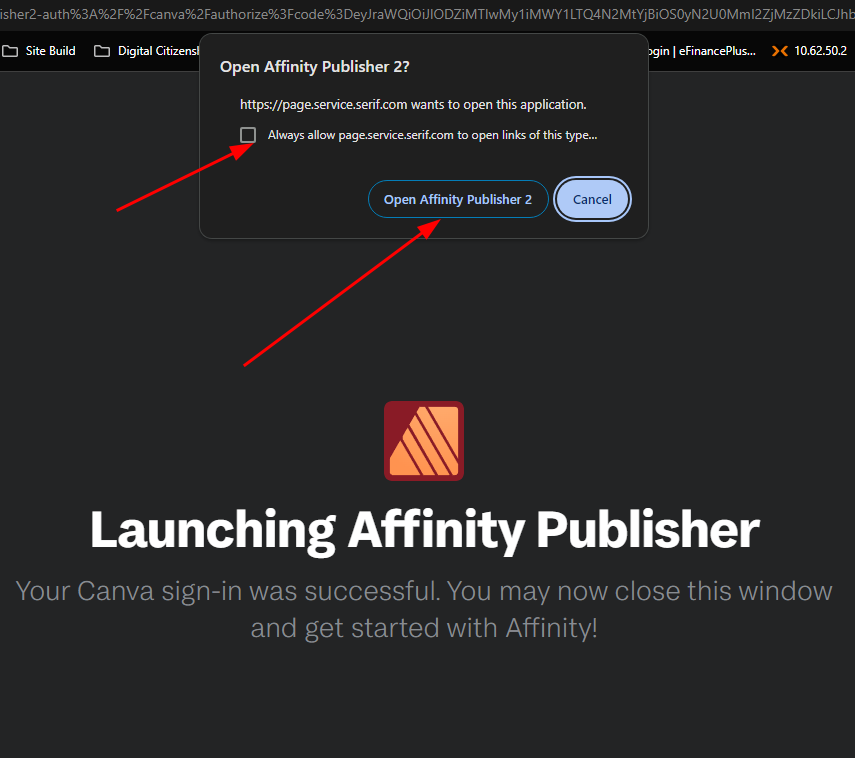
You will get an “Open Affinity [application] 2?” prompt. Select always allow, and then click the “Open…” button.

-
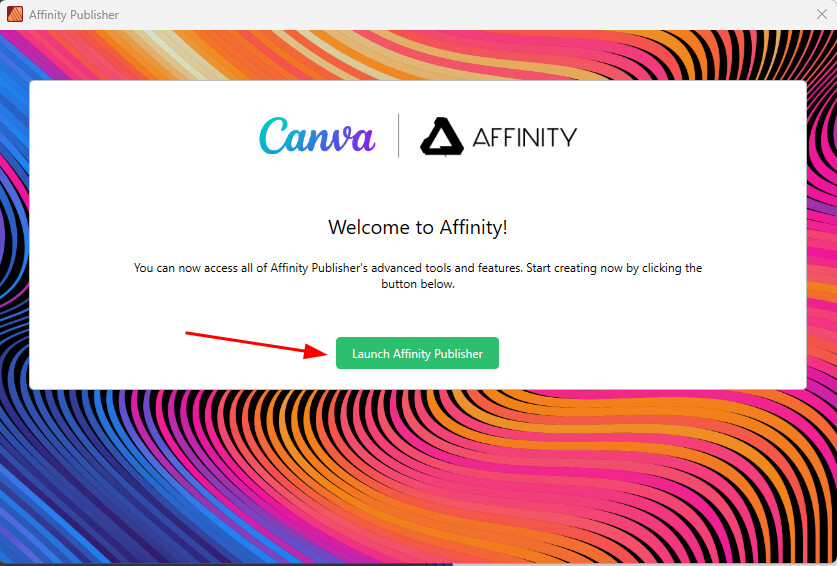
You will get one final button to let you “Lanuch Affinity…” go ahead and click that to get started.


The Internet is full of tutorials on this software. Go forth, make beautiful and/or functional things.
Bonus tip…
The major thing Adobe offers that Affinity doesn’t address is video production. They may add this in the future, but that doesn’t help right now. To fix this, we have also added DaVinci Resolve to Chocolatey. I really like this software too. They use it on Hollywood blockbuster films, so I’m pretty sure it should work for our purposes!
Originally posted by Cory Robbins on the West Fork Technology Hub (2024-09-10).
I Love PDF Tool
Whether scanned from the copier, downloaded from the Internet, or received in an email, PDF files are by design easy to open but difficult to edit. This article demonstrates two of the many tools available to make changes to PDF files.

ilovepdf.com is a powerful collection of free PDF tools.
Logging in to the website is optional. If you choose to, you can log in with your Google credentials.
There are multiple tools in each of the following categories:
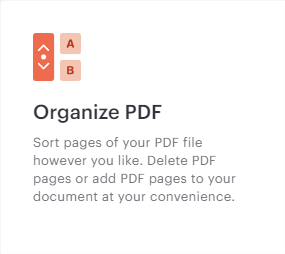
Organize PDF
Optimize PDF
Convert to PDF
Convert from PDF
Edit PDF
PDF Security
These tools are fairly intuitive to use. The rest of this document will be a demonstration of the tools we use on a regular basis in the tech office.
Click the arrow to expand
Tool #1 - Organize PDF
Click the Organize PDF button.
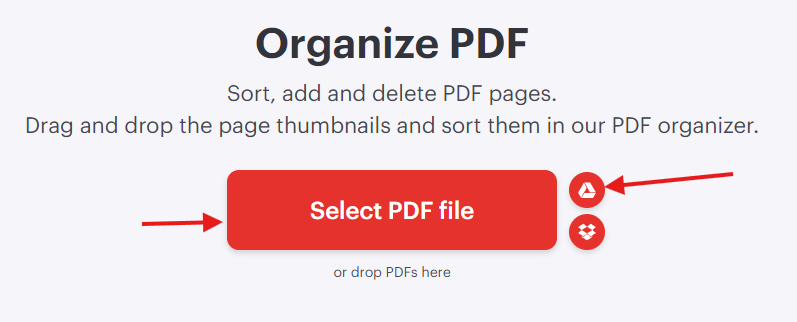
Select the PDF file you want to work with by: drag and drop, Clicking the Select PDF file button, or loading from Google Drive.
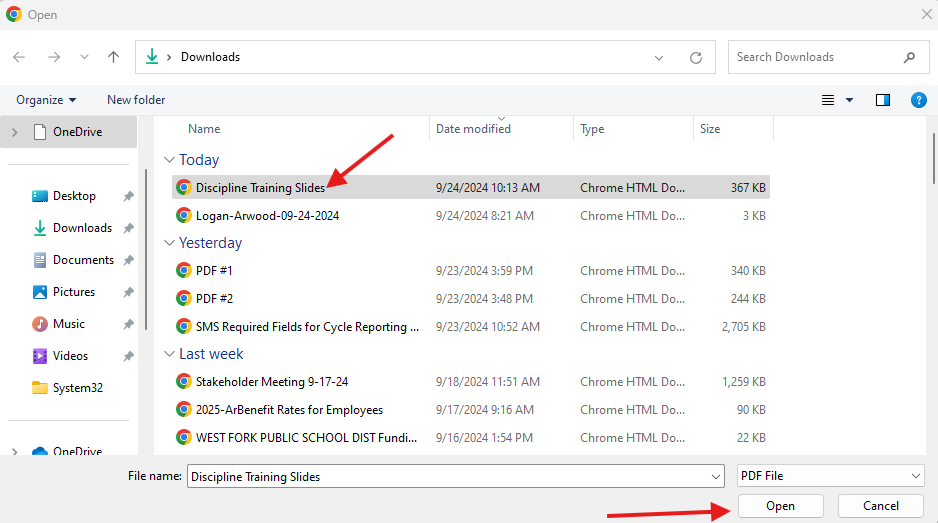
Select the file and click Open.
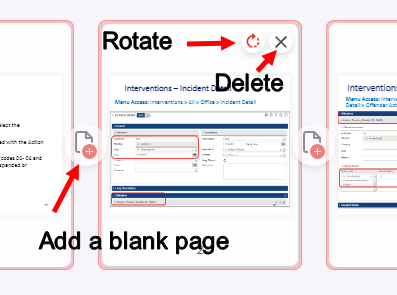
Once the file is open a thumbnail of each page will be displayed.
Drag and drop the pages to change the order.
Hover over the thumbnail to Add, Delete, or Rotate a page.
When done, click the Organize button.

The file can now be renamed and downloaded.
Tool #2 - Merge PDF
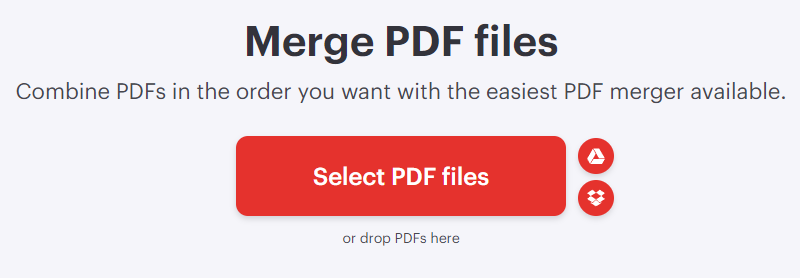
Click the Merge PDF button.

Select the PDF files you want to work with by: drag and drop, Clicking the Select PDF file button, or loading from Google Drive.
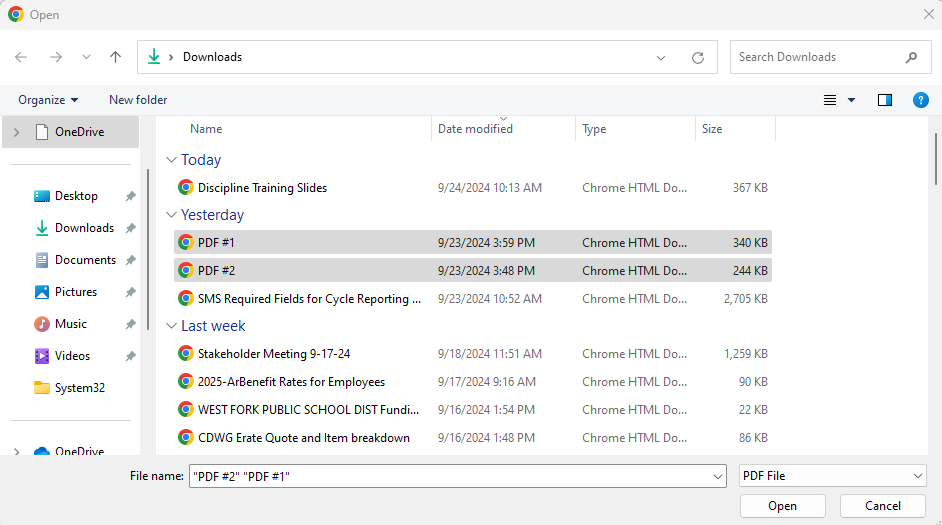
In this example, PDF#1 and PDF#2 are selected and opened.
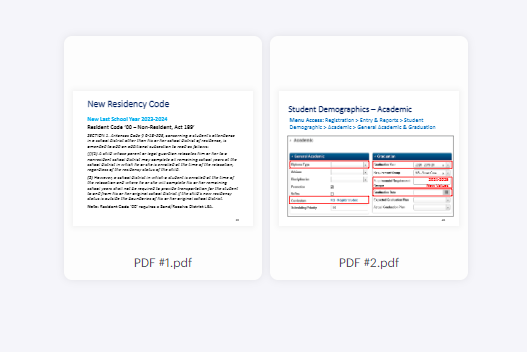
A thumbnail of each file will be shown. You can drag and drop to reorder.
Click the Merge PDF button.

The merged file can now be renamed and downloaded.
Originally posted by Carl Clements on the West Fork Technology Hub (2024-09-24).