Learning Supports
Texthelp - Read & Write and Equatio
As you have no doubt heard from Mrs. Ward, there will be some new tools available for the ATLAS tests moving forward. These include a powerful text-to-speech utility and a versatile math equation editor. In preparation for these testing tools, the state has provided two extensions for Google Chrome. We will be pushing these extensions out to all staff and students very soon.

Both tools are products of the texthelp company.

The text-to-speech tool is called Read&Write. There are a lot of other tools besides text-to-speech! Other tools include Talking Dictionary, Picture Dictionary, Prediction tool, language translation, and much more.
Here is a YouTube tutorial to get you started.
This one is designed to introduce Read&Write to students.

The math equation editor is called Equatio. There are handy tools for science as well.
Here is a YouTube intro tutorial for Equatio geared at teachers.
This one is designed to introduce Equatio to students.
Here is a useful website that the Coop Tech coordinators put together. There are lots of resources, including a handout that explains every button.
Originally posted by Carl Clements on the West Fork Technology Hub (2023-11-07).
How to Use escWorks
Click the arrow to expand each topic.
Creating an escWorks Account
-
Navigate to escWorks: Shoebox
-
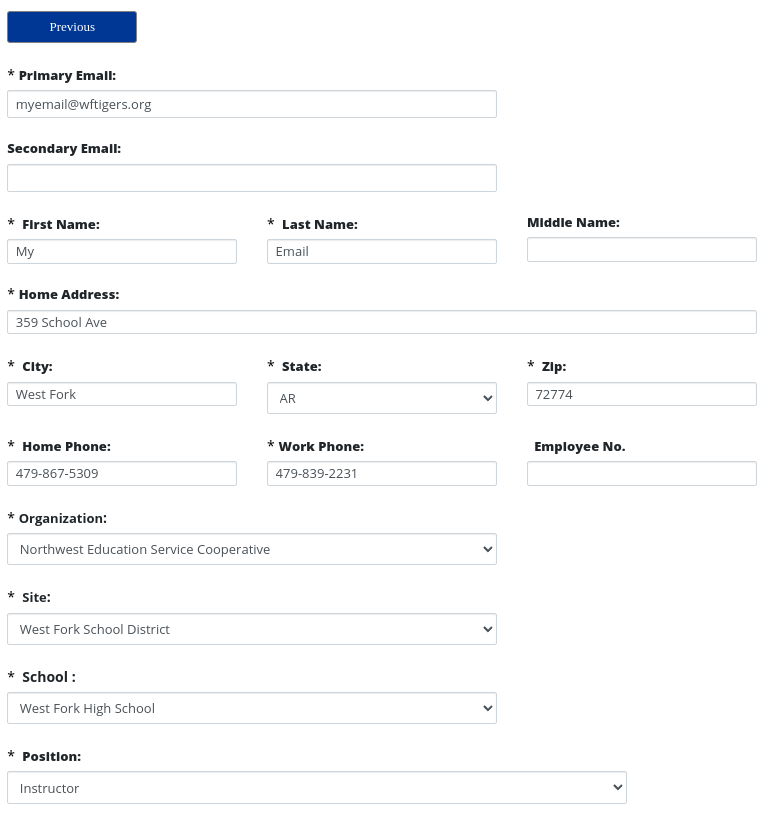
Click on “Click here to create and account”

-
Fields with an * are required
-
Choose Northwest Education Service Cooperative as your organization
-
Choose West Fork School District at your Site

-
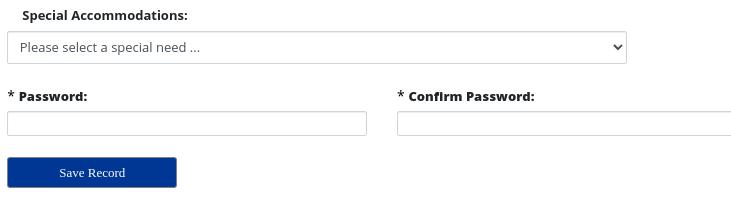
Enter a password
-
Click Save Record


Registering for a Regular Session
- Navigate to escWorks and click sign in.
- Enter your login and password
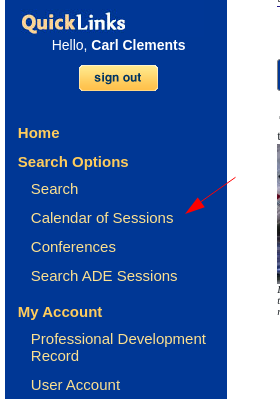
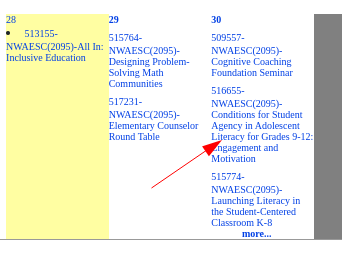
- Select “Calendar of Sessions”

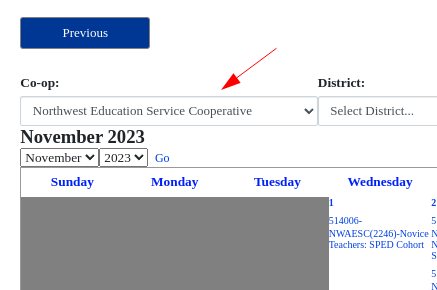
- Make sure Northwest Education Service Cooperative is selected.

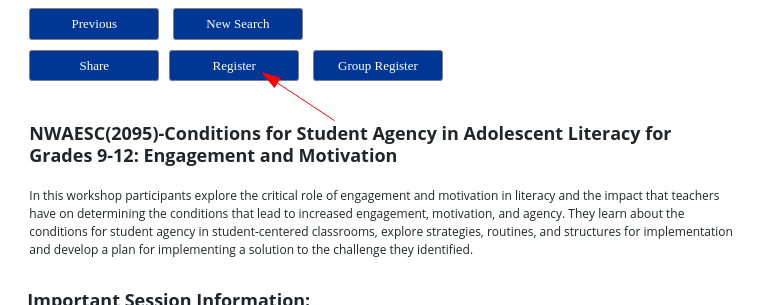
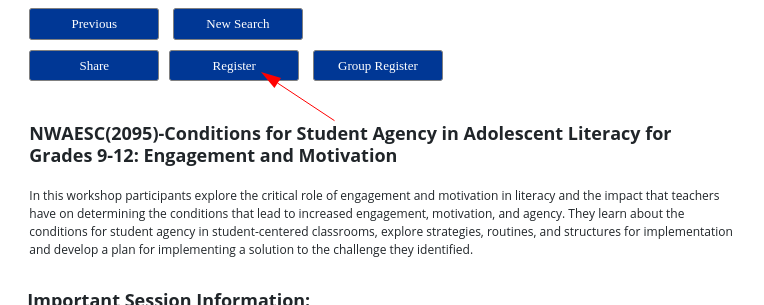
- Click on the desired workshop

- Click Register

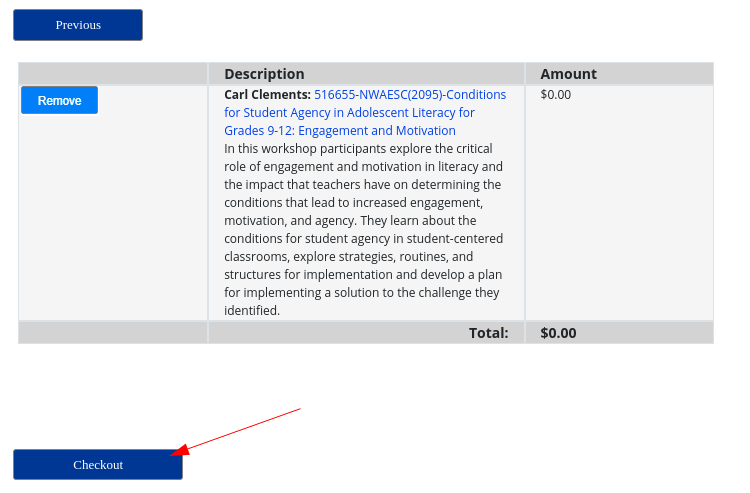
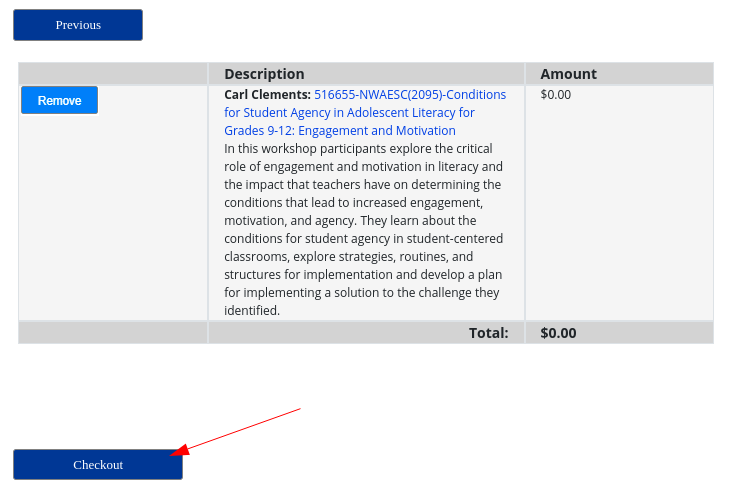
- Click Check Out

- You will receive an email confirming your registration

Registering for a Private Session
Some workshops are not advertised on the calendar. For these, you will receive an ID from an administrator or a coop employee.
- Navigate to escWorks and click sign in.
- Enter your login and password
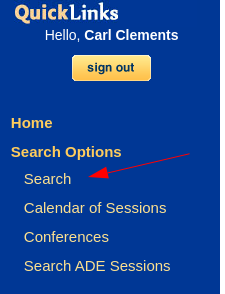
- Select “Search”

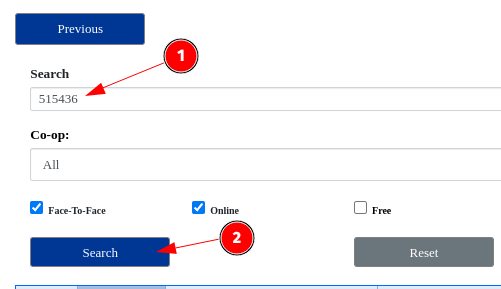
- Enter the provided session ID and click search

- Click on the desired workshop
- Click Register
- Click Check Out
- You will receive an email confirming your registration
Confirming a Session Registration
- Navigate to escWorks and click sign in.
- Enter your login and password
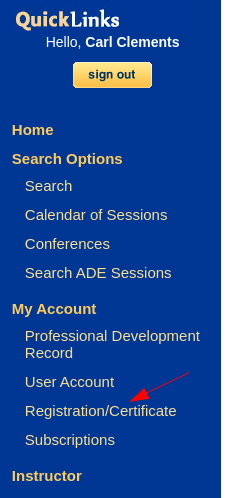
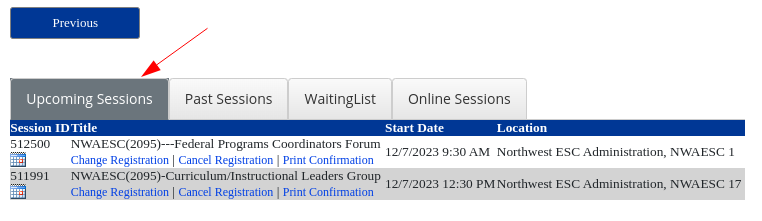
- Click on Registration/Certificate

- Upcoming Sessions will be listed

Cancelling a Session Registration
- Navigate to escWorks and click sign in.
- Enter your login and password
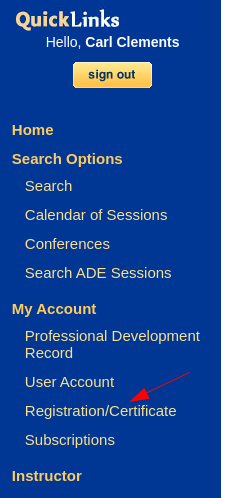
- Click on Registration/Certificate
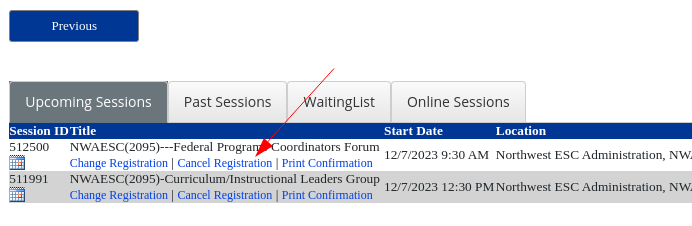
- Find the session to cancel and click Cancel Registration

- Confirm the cancellation

- You will receive an email confirming your cancellation

Downloading a Session Certificate
- Navigate to escWorks and click sign in.
- Enter your login and password
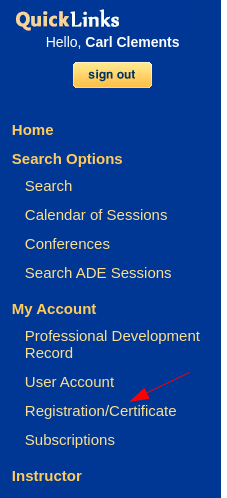
- Click on Registration/Certificate
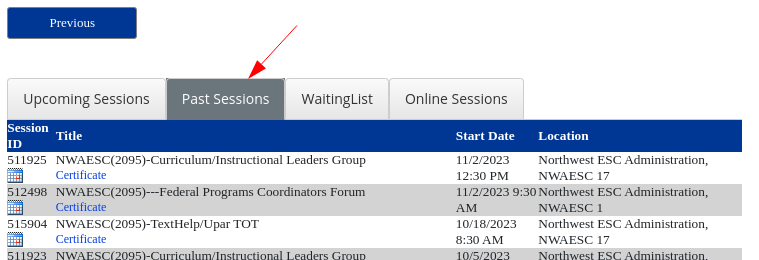
- Click on Past Sessions

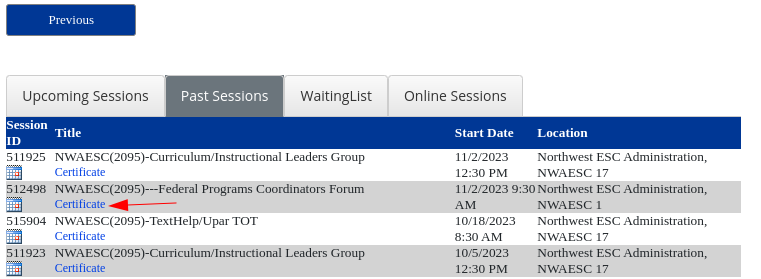
- Locate the desired workshop and click Certificate. The certificate will download as a PDF.

Updating Your Account Information
If your information has changed: New last name, moved to a different district, new email address etc. DO NOT CREATE A NEW ACCOUNT!!
- Navigate to escWorks and click sign in.
- Enter your login and password
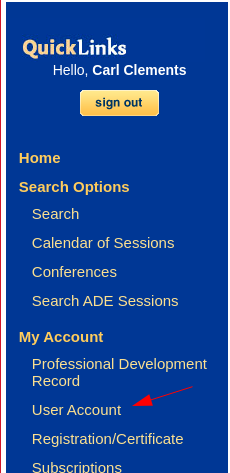
- Click on User Account

- Update any incorrect information
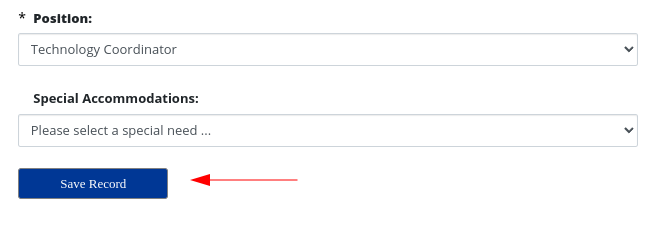
- Click Save Record

Downloading Your Professional Development Record
- Navigate to escWorks and click sign in.
- Enter your login and password
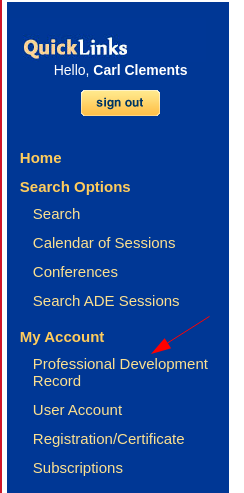
- Click on Professional Development Record

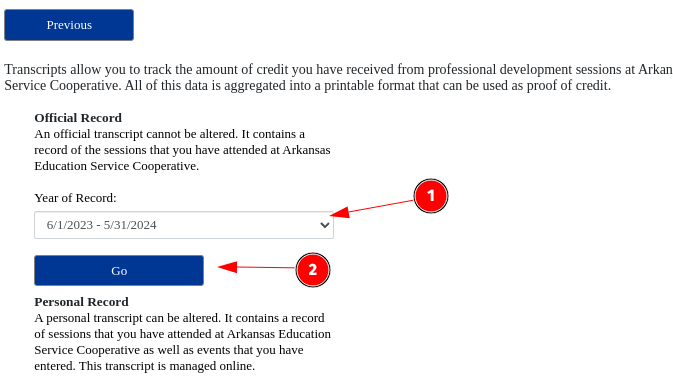
- Select the appropriate Year of Record and click Go

- The transcript will download as a PDF
Originally posted by Carl Clements on the West Fork Technology Hub (2023-11-28).