# How to Use escWorks
Click the arrow to expand each topic.
Creating an escWorks Account
1. Navigate to escWorks: [Shoebox](http://www.escweb.net/ar_esc/shoebox/)
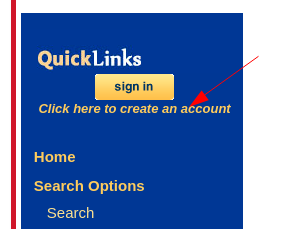
2. Click on “Click here to create and account”
[](https://info.wftigers.org/uploads/images/gallery/2026-10/R1A8SHPaLYlsUSeP-d976bc8706003122db549cb9cf9793b8b3ec87a7.png)
3. Fields with an \* are required
4. Choose Northwest Education Service Cooperative as your organization
5. Choose West Fork School District at your Site
[](https://info.wftigers.org/uploads/images/gallery/2026-10/DEGzdUFRrgmmw6Nv-d840b74f9448570b9f56eb92fd9d376baefafc90.png)
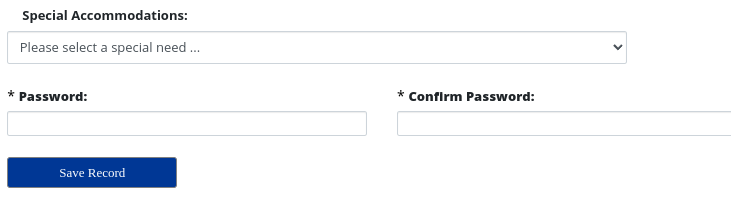
6. Enter a password
7. Click Save Record
[](https://info.wftigers.org/uploads/images/gallery/2026-10/N4REIrsG6vlwN0Yx-c6c8ec80bfee9f995cfec95bacc09210397e19e1.png)
Registering for a Regular Session
1. Navigate to [escWorks](http://www.escweb.net/ar_esc/shoebox/) and click sign in.
2. Enter your login and password
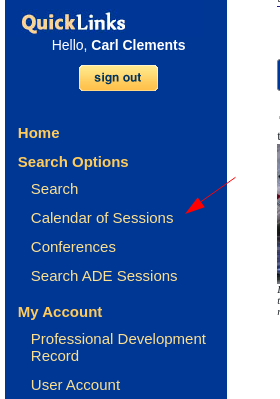
3. Select “Calendar of Sessions”
[](https://info.wftigers.org/uploads/images/gallery/2026-10/rtZSVHGsROJ8XvUU-77baa6d5602cbaabe5f833b399f85eddd4dc2d31.png)
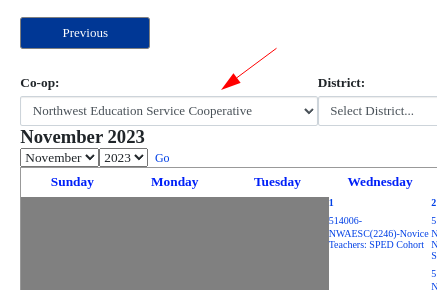
4. Make sure Northwest Education Service Cooperative is selected.
[](https://info.wftigers.org/uploads/images/gallery/2026-10/wv7ZWvwcaUP3Cvst-8405e6e93263ab146349e8cb7fe1ad64f53c5077.png)
5. Click on the desired workshop
[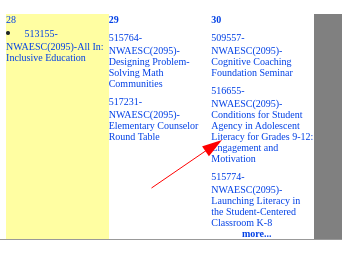](https://info.wftigers.org/uploads/images/gallery/2026-10/rrMCJTLrU22PRUXk-ec72395756f40193571b78efb5392daca92b1c3b.png)
6. Click Register
[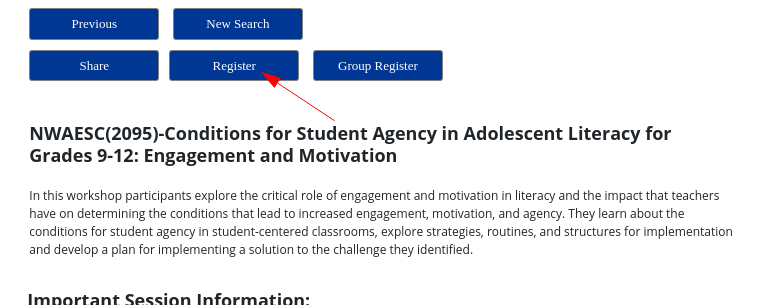](https://info.wftigers.org/uploads/images/gallery/2026-10/wCq2EUH102RNpToR-fadb33887de38755af914d247ce19e926768cc44.png)
7. Click Check Out
[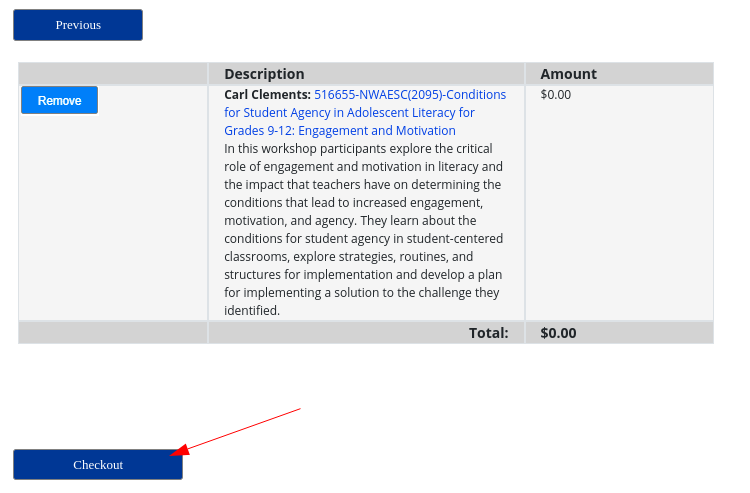](https://info.wftigers.org/uploads/images/gallery/2026-10/OF8TQh9zk5yJQaOw-b039ac23e1daf1e10164970c98f58760eb0701aa.png)
8. You will receive an email confirming your registration
Registering for a Private Session
Some workshops are not advertised on the calendar. For these, you will receive an ID from an administrator or a coop employee.
1. Navigate to [escWorks](http://www.escweb.net/ar_esc/shoebox/) and click sign in.
2. Enter your login and password
3. Select “Search”
[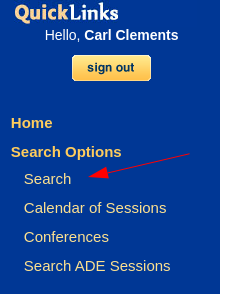](https://info.wftigers.org/uploads/images/gallery/2026-10/i0rBMB5zO1ffhwZX-426087d1d4e23746ef433ba8a478b3f9e746c302.png)
4. Enter the provided session ID and click search
[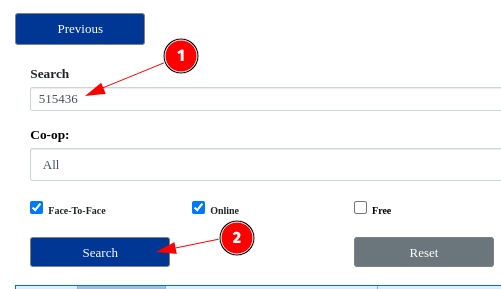](https://info.wftigers.org/uploads/images/gallery/2026-10/0XjFuR9MJqhC0bT3-d828bdf4de8fda85bfd373d77c51b7360a31ee36.png)
5. Click on the desired workshop
[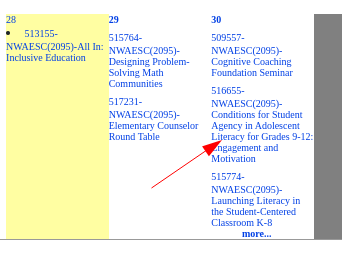](https://info.wftigers.org/uploads/images/gallery/2026-10/jEbLb2x8cp32eZZY-ec72395756f40193571b78efb5392daca92b1c3b.png)
6. Click Register
[](https://info.wftigers.org/uploads/images/gallery/2026-10/bwU3L4Da0l9tsZfL-fadb33887de38755af914d247ce19e926768cc44.png)
7. Click Check Out
[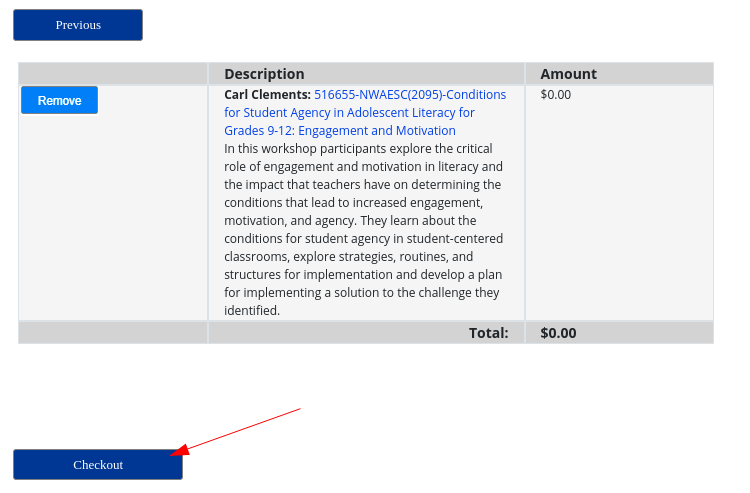](https://info.wftigers.org/uploads/images/gallery/2026-10/wUJo6lNwiBwE0XbW-b039ac23e1daf1e10164970c98f58760eb0701aa.png)
8. You will receive an email confirming your registration
Confirming a Session Registration
1. Navigate to [escWorks](http://www.escweb.net/ar_esc/shoebox/) and click sign in.
2. Enter your login and password
3. Click on Registration/Certificate
[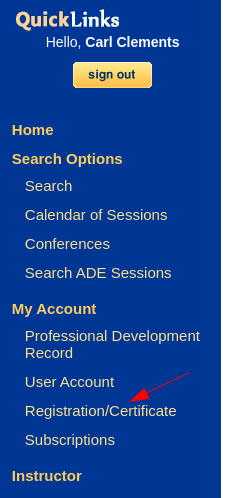](https://info.wftigers.org/uploads/images/gallery/2026-10/Vj8eQCUGQFAslByB-934f278895a5ea0491dc58527ac16a846f08c038.png)
4. Upcoming Sessions will be listed
[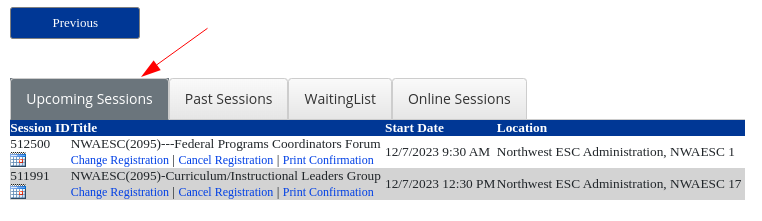](https://info.wftigers.org/uploads/images/gallery/2026-10/AgzX0TWKgpCNh51Z-be0bfdfb62ad226aa9e92ba7cee6b229e9a03e34.png)
Cancelling a Session Registration
1. Navigate to [escWorks](http://www.escweb.net/ar_esc/shoebox/) and click sign in.
2. Enter your login and password
3. Click on Registration/Certificate
[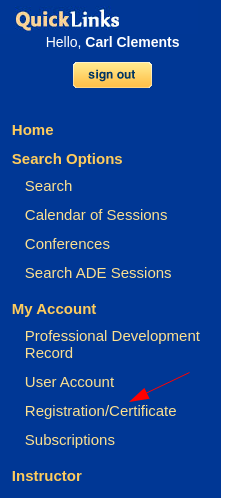](https://info.wftigers.org/uploads/images/gallery/2026-10/L5oVboH0pRt2Hsxi-934f278895a5ea0491dc58527ac16a846f08c038.png)
4. Find the session to cancel and click Cancel Registration
[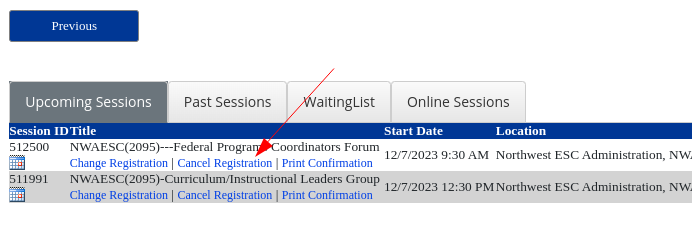](https://info.wftigers.org/uploads/images/gallery/2026-10/P7YlzMiE4KOS27I4-a3fe3d45f752ec362350db8604424170b396966f.png)
5. Confirm the cancellation
[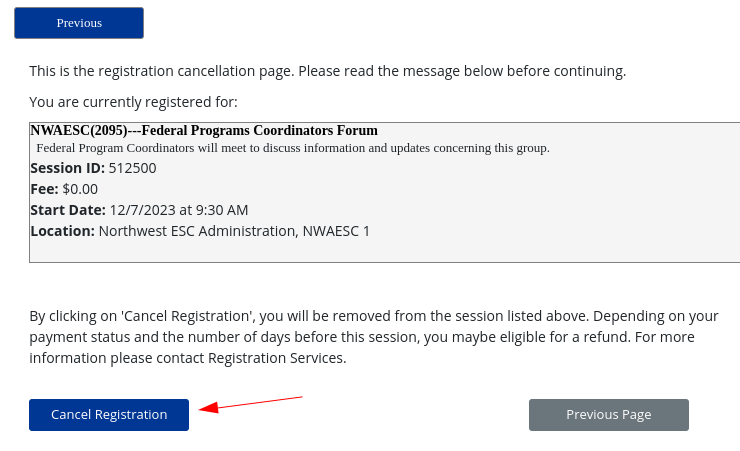](https://info.wftigers.org/uploads/images/gallery/2026-10/r9Jvk53wJCMcl9yn-98361abce144ed1f1f96d53ba32aee69ed74d31f.png)
6. You will receive an email confirming your cancellation
Downloading a Session Certificate
1. Navigate to [escWorks](http://www.escweb.net/ar_esc/shoebox/) and click sign in.
2. Enter your login and password
3. Click on Registration/Certificate
[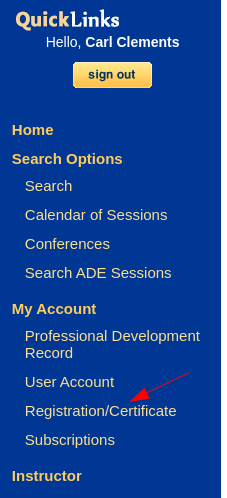](https://info.wftigers.org/uploads/images/gallery/2026-10/Asvg7sddx432fynv-934f278895a5ea0491dc58527ac16a846f08c038.png)
4. Click on Past Sessions
[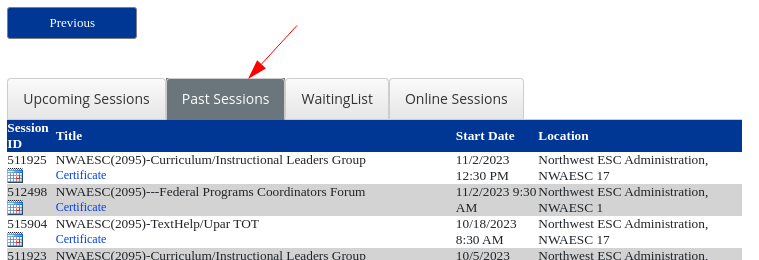](https://info.wftigers.org/uploads/images/gallery/2026-10/vyOB2DEtv3967MuA-f8d549a0d4525900c2c86130958312fce46b405a.png)
5. Locate the desired workshop and click Certificate. The certificate will download as a PDF.
[](https://info.wftigers.org/uploads/images/gallery/2026-10/9RYLU1DXJ3QsMKCs-1311c110cd1e951d57b3f65adb672179dae6138f.png)
Updating Your Account Information
If your information has changed: New last name, moved to a different district, new email address etc. DO NOT CREATE A NEW ACCOUNT!!
1. Navigate to [escWorks](http://www.escweb.net/ar_esc/shoebox/) and click sign in.
2. Enter your login and password
3. Click on User Account
[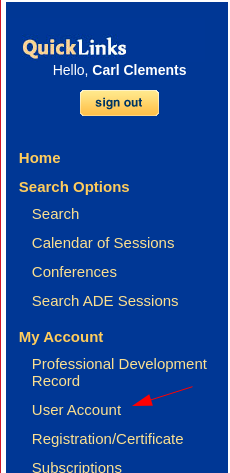](https://info.wftigers.org/uploads/images/gallery/2026-10/XZd3fB0PmpUmI337-b82943887dfcd7ab98286bc8906eb820561f1e27.png)
4. Update any incorrect information
5. Click Save Record
[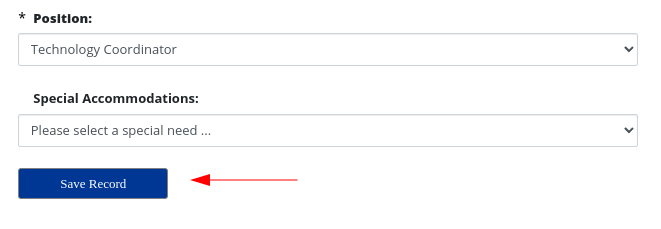](https://info.wftigers.org/uploads/images/gallery/2026-10/1dbYgeEvd4nHk7b9-d0345558092a69e14cb2c72ed1f05131d8665e95.png)
Downloading Your Professional Development Record
1. Navigate to [escWorks](http://www.escweb.net/ar_esc/shoebox/) and click sign in.
2. Enter your login and password
3. Click on Professional Development Record
[](https://info.wftigers.org/uploads/images/gallery/2026-10/MUqJdkGuHiTIqkeW-bf2181c787a9175282be4f3f25a174b1b2e0f363.png)
4. Select the appropriate Year of Record and click Go
[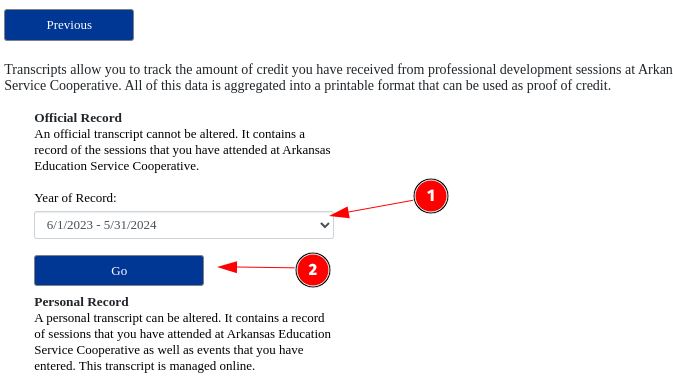](https://info.wftigers.org/uploads/images/gallery/2026-10/rp5GCbHdNZx99zON-1246da78e6e2bb5fd3ea6c968fc0247edcebf58d.png)
5. The transcript will download as a PDF
Originally posted by Carl Clements on the West Fork Technology Hub (2023-11-28).