Windows Laptops
Getting started on district Windows laptops, and Windows 11 tips.
Getting Started
Teacher/Aide Dell Laptop Initial Sign-in Instructions
Teacher/Aide Dell Laptop Initial Sign-in Instructions
Sign in to the Computer
- In the bottom left corner, click Other User
- Click the arrow next to “Sign in with work account”
- Sign-in
- Confirm two factor
- Read the Welcome screen and click “I Agree”
- Wait a minute (or two) while Windows does the initial user setup
Google Chrome Setup
- Once the desktop appears double click Google Chrome.
- Click Don’t Sign In and proceed. (You are already logged in to all things Google.)
- If you were just clicking through and logged in to Chrome it doesn’t hurt anything.
Sign in to Papercut
- Use your Gmail login and password
Sign in to the Bitwarden Extension
Refer to this knowledgebase article. Expand “The Chrome App” section
https://link.wftigers.org/bitwarden
Originally posted by Carl Clements on the West Fork Technology Hub (2024-07-25).
Student Laptop Initial Sign-In Instructions
Student Laptop Initial Sign-in Instructions
Sign in to the Computer
- In the bottom left corner, click Other User
- Click the arrow next to “Sign in with work account”
- Sign-in
- Confirm two factor
- Read the Welcome screen and click “I Agree”
- Wait a minute (or two) while Windows does the initial user setup
Google Chrome Setup
- Once the desktop appears double click Google Chrome.
- Click Don’t Sign In and proceed. (You are already logged in to all things Google.)
- If you were just clicking through and logged in to Chrome it doesn’t hurt anything.
Sign in to Papercut
- Use your Gmail login and password
Originally posted by Cory Robbins on the West Fork Technology Hub (2024-08-14).
Windows 11 Tips
Windows 11 - Move Start Menu to the Left
Windows 11 introduced a change, moving the start menu from the traditional bottom left of the screen to the center. This doesn’t bother some people😊, but others find it infuriating😡! If you are in the latter group, it only takes a few clicks to move the start menu back to the left.
-
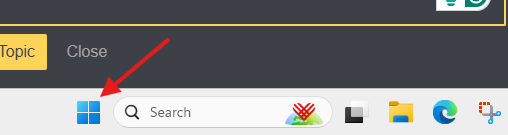
Click on the Start Menu.

-
Type in “Settings” and press enter.
-
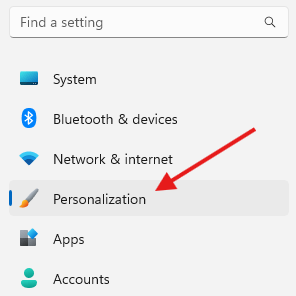
Click “Personalization” on the left side of the System dialog box.

-
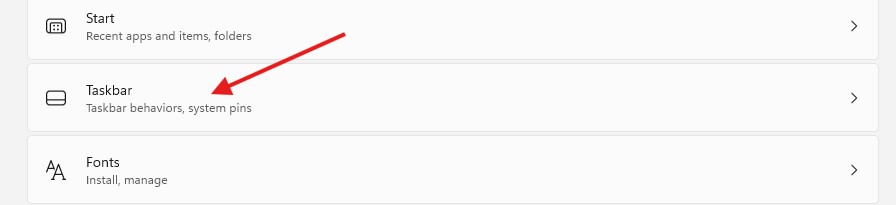
Scroll down a bit and click on “Taskbar”

-
Click “Taskbar behaviors”

-
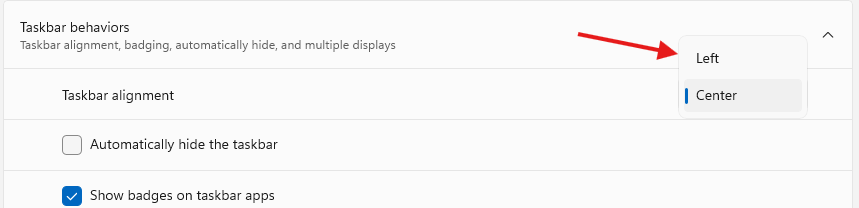
This will expand the Taskbar behaviors menu. There is a drop-down menu to the right of Taskbar alignment. Select “Left” in the drop-down menu.


Originally posted by Carl Clements on the West Fork Technology Hub (2024-12-03).
Windows 11 - Pin Application to Start or Taskbar
If an application is frequently used, consider adding a shortcut to the start menu or the taskbar to save searching for or navigating to it.
To get started, click the Windows icon and type in the application’s name. In this example, we will use the calculator app.

Right-clicking the application reveals the option to “Pin to Start” or “Pin to taskbar.”
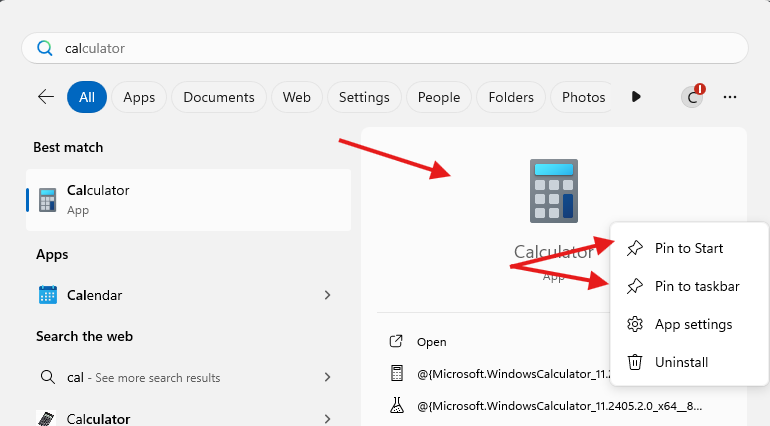
Pin to Start places a shortcut on the start menu.
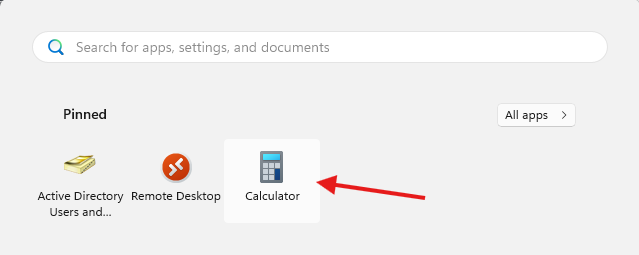
Pin to taskbar places a shortcut on the taskbar at the bottom of the screen.

Originally posted by Carl Clements on the West Fork Technology Hub (2024-11-13).
Windows 11 - Dark Mode
Dark Mode is an optional setting in Windows 11 (and many other apps and operating systems) intended to reduce eye strain and conserve battery life. It also makes the screen less jarring in low-light environments.
To enable it for Windows 11:
- Click on the start menu.
- Type in “Settings” and press enter.
- Click “Personalization” on the left side of the System dialog box.
- Click “Colors”

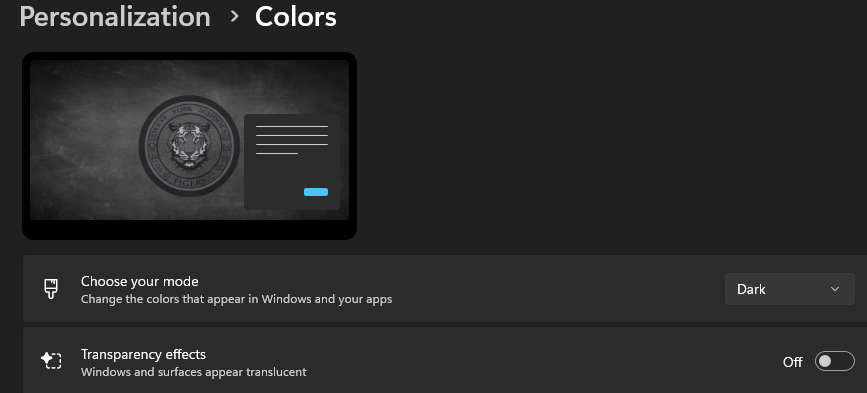
- In the “Choose your mode” section select “Dark” from the drop-down menu.


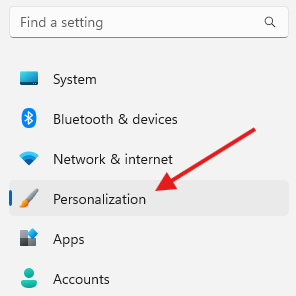
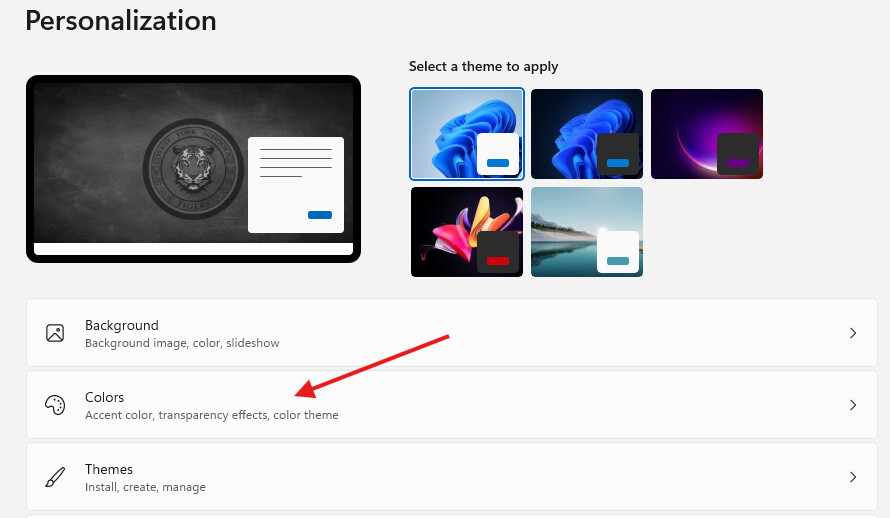
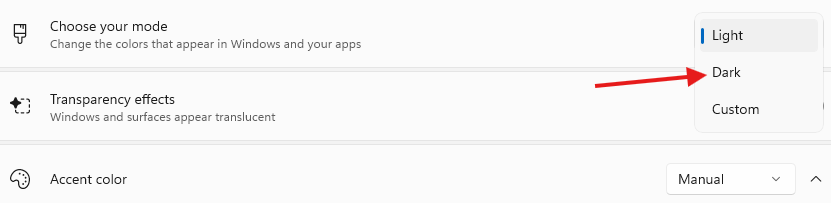
You will notice an immediate change in the appearance of several on-screen items.
Originally posted by Carl Clements on the West Fork Technology Hub (2024-12-03).
Windows 11 Calculator
The Windows 11 Calculator has come a long way since its humble beginnings in Windows 3.1.
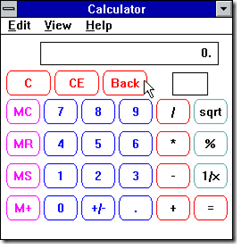
While the standard mode is not too different from the “good old days,” the current version has modes for scientific calculations, Graphing, Programming, Date Calculation, and many Converters.
Standard Mode
When the calculator app is opened it defaults to the standard mode. This works fine for basic arithmetic needs.

Click the hamburger menu to the left of Standard to explore the different modes.
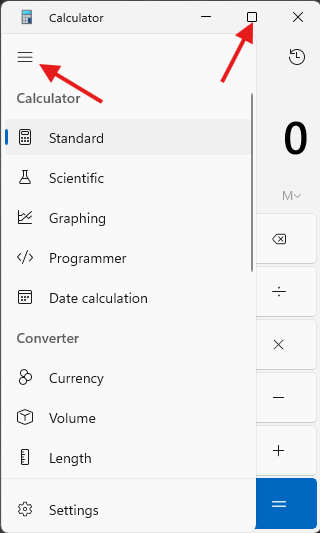
Many of the other modes work best when viewed full screen.
Scientific Mode
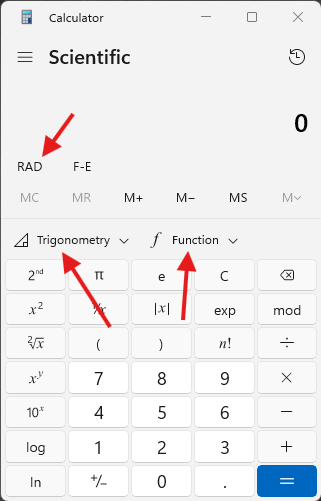
Lots of advanced math features. Don’t miss the trig and function menus as well as the ability to switch between radians, gradians, and degrees.
Graphing Mode
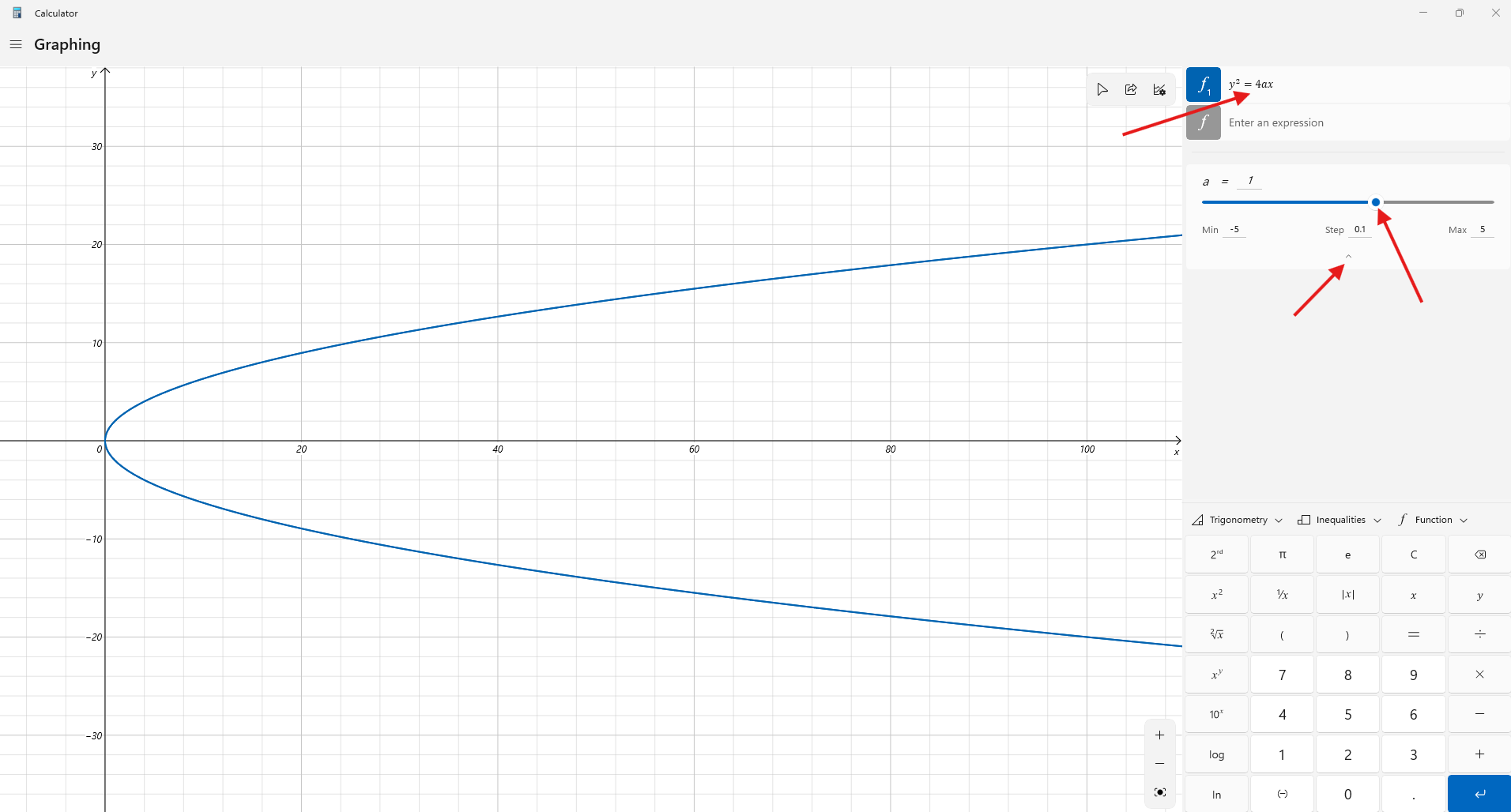
Definitely want to go full-screen for this mode!
Enter a function(s) to see it placed on the graph.
Depending on the function entered the slider can adjust the variable. Don’t miss the Min, Step, and Max feature.
Programmer Mode
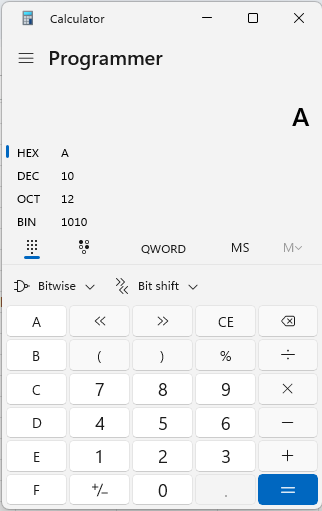
This mode is probably not very useful unless you are teaching programming. It is very handy if you need to convert between Hexadecimal, Decimal, Octal, and Binary!
Date Calculation
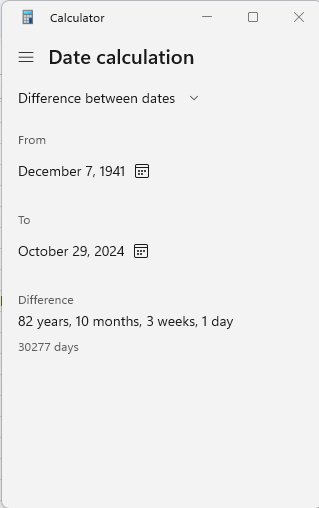
This mode calculates the number of years, months, weeks, and days between two dates. For example, it can tell you how long it has been since the invasion of Pearl Harbor.
Converter Modes
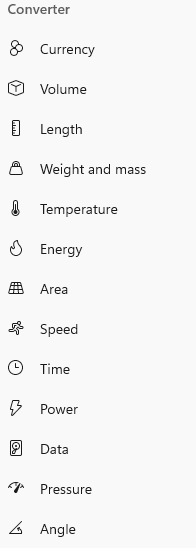
There are currently 13 different Converter Modes.
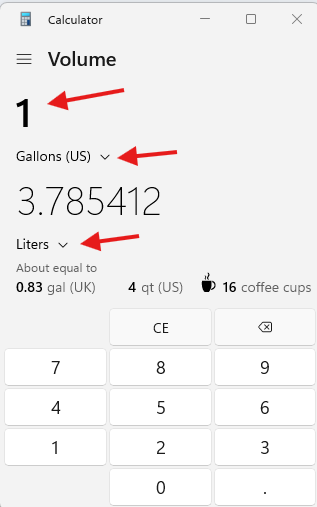
The process for each is pretty similar. Here is a quick example using the volume converter to see how many Liters are in one gallon. Select the desired units for each (Gallons and Liters) and enter the desired amount (1 Gallon)
Originally posted by Carl Clements on the West Fork Technology Hub (2024-10-29).
Clipboard History, Emojis, Math, and Language Symbols
Pressing the Windows Key and V in Windows 11 opens a powerful tool that allows you to paste anything you have recently copied as well as emojis, gifs, math symbols, and language symbols from an expansive library.
–––––––––––––––––––––––––––––––––––––––––
Pressing the Windows Key and V opens the following window.
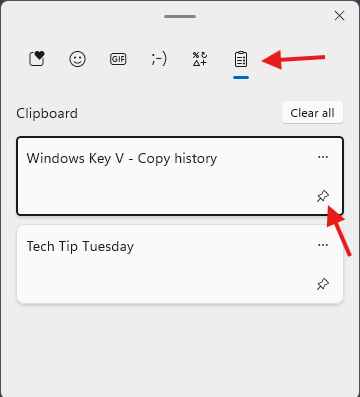
By default, the clipboard history is displayed. Clicking on the text/picture will paste the selection into the document, email, or other app being used.
Bonus tip: Click the Pin to keep the item in your clipboard history. A pinned item will stay in the history even after a reboot.
–––––––––––––––––––––––––––––––––––––––––
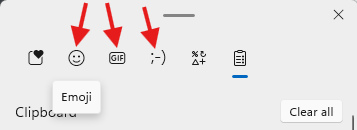
If you like to add emojis😊, gifs, or Kaomojis(❁´◡`❁) to emails or documents simply click the option in the menu, search/scroll, and click the item to paste.
–––––––––––––––––––––––––––––––––––––––––
Finally, the symbols area allows you to paste just about any symbol imaginable. Need an obscure math symbol or letters in another language? Chances are it will be here!

They are organized into the following groups:
- General Punctuation
- Currency
- Latin
- Geometric
- Math
- Supplemental
- Language
Originally posted by Carl Clements on the West Fork Technology Hub (2024-11-05).
Windows Screen and Power Settings
If your computer goes to sleep more quickly than you like or prompts you to log in more frequently than you like this article is for you!
Press the Windows key on the keyboard and type sleep
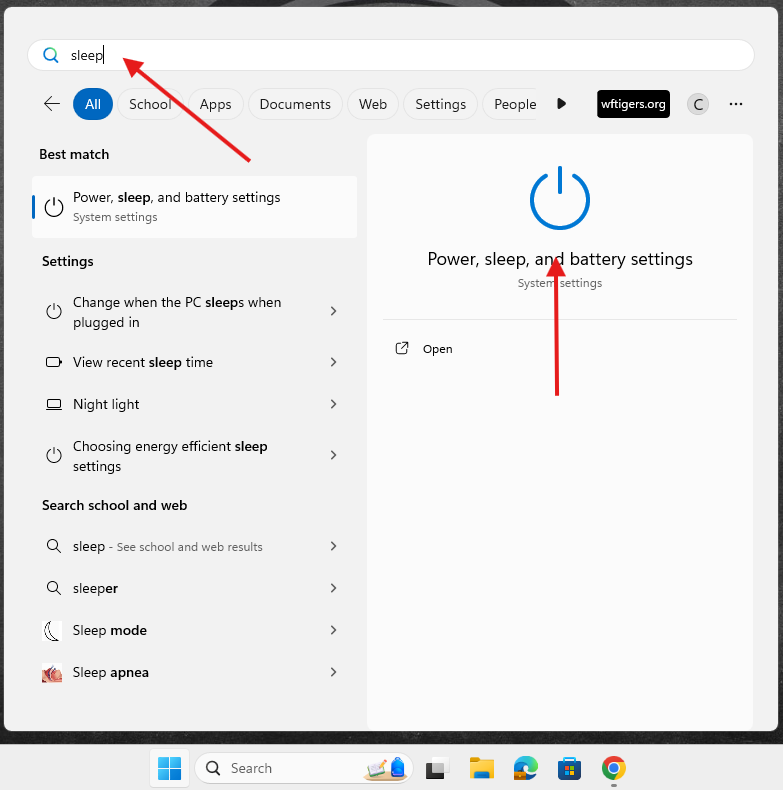
Click on Power, sleep, and battery settings.
The Power and Battery window will open.
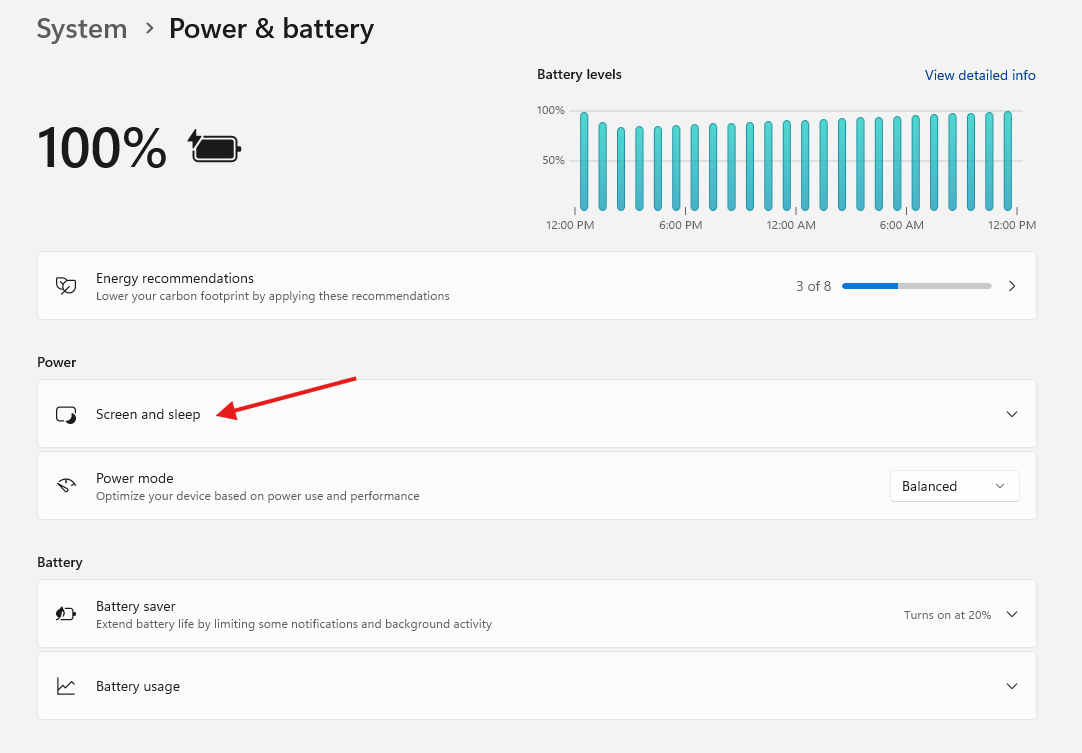
Click on Screen and sleep
The default times for turning the screen off and putting the device to sleep are shown while on battery and plugged in.
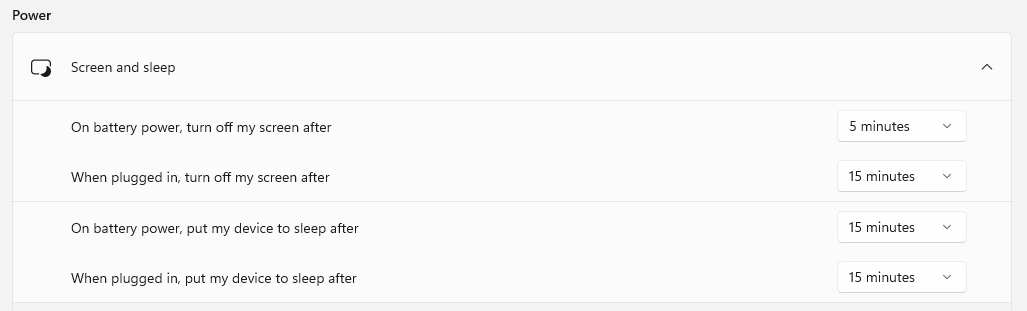
Increase these times as you see fit! There is no save button, the settings will be applied as you select them.
A couple of items to be aware of:
- Increasing the time of the “On battery power” options will decrease the time the computer can run while on battery power.
- Remember to press the Windows button and L to lock the computer if it is unattended.
Originally posted by Carl Clements on the West Fork Technology Hub (2024-10-15).
Turning the Trackpad On/Off
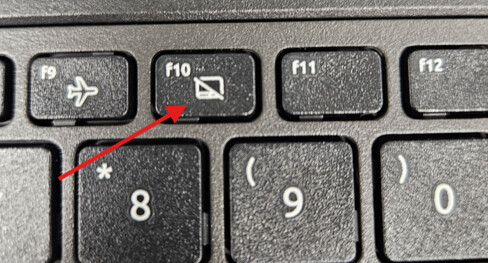
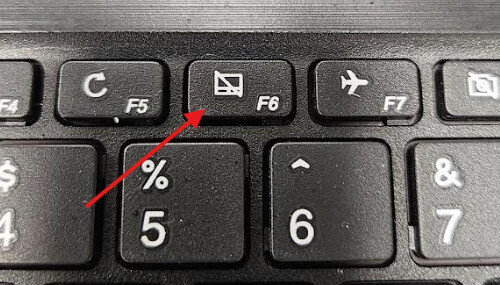
Certain models of the student Windows devices have a function key that turns on/off the trackpad. This can be helpful if they are accidentally hitting the trackpad while trying to type. More often, it gets pressed by mistake and they think their device is damaged beyond repair.
Below are the keys for the affected grades and models as well as the key to toggle the trackpad on/off.
-
5th and 9th (Acer Models) F10

-
7th and 8th (Lenovo Models) F6

Originally posted by Carl Clements on the West Fork Technology Hub (2024-08-20).