
BitWarden Setup Part 2 - Move Your Google Passwords to BitWarden
This is part 2 of our Bitwarden setup series.
Once you have set up your BitWarden account, you will probably want to move your existing passwords into it.
Luckily, this is super simple.
Step 1: Export Your Google Passwords
Click for instructions on exporting your Google Passwords
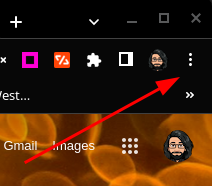
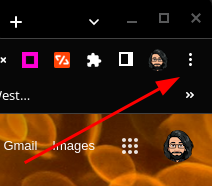
- To begin, open up a chrome window, and click on the three vertical dots menu.
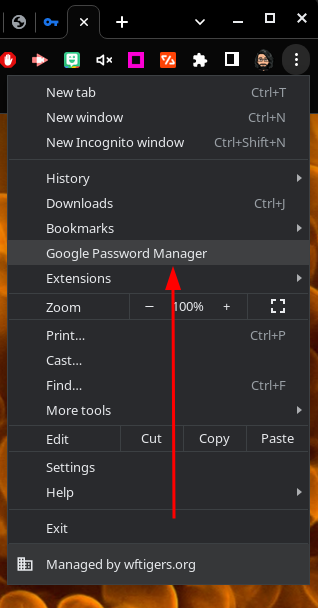
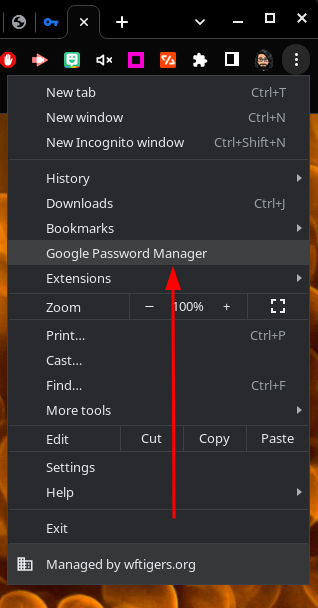
- Click on the “Google Password Manager” option.
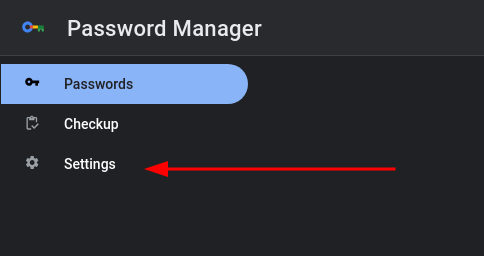
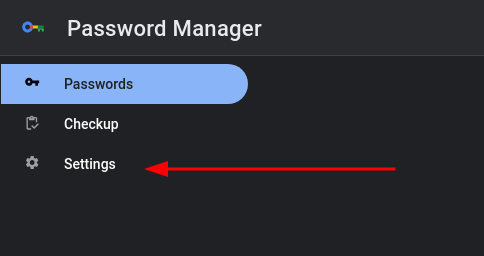
- Click on “Settings” on the left.
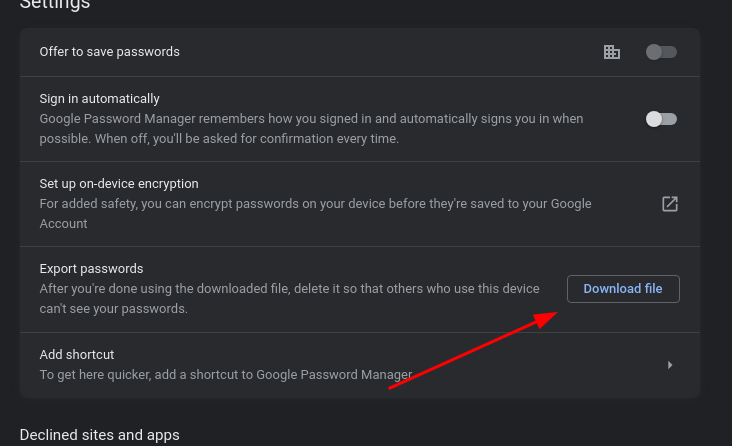
- Click the “Download file” button
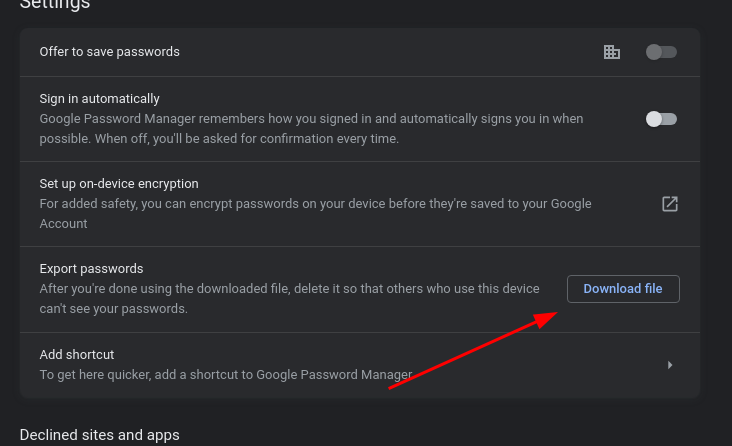
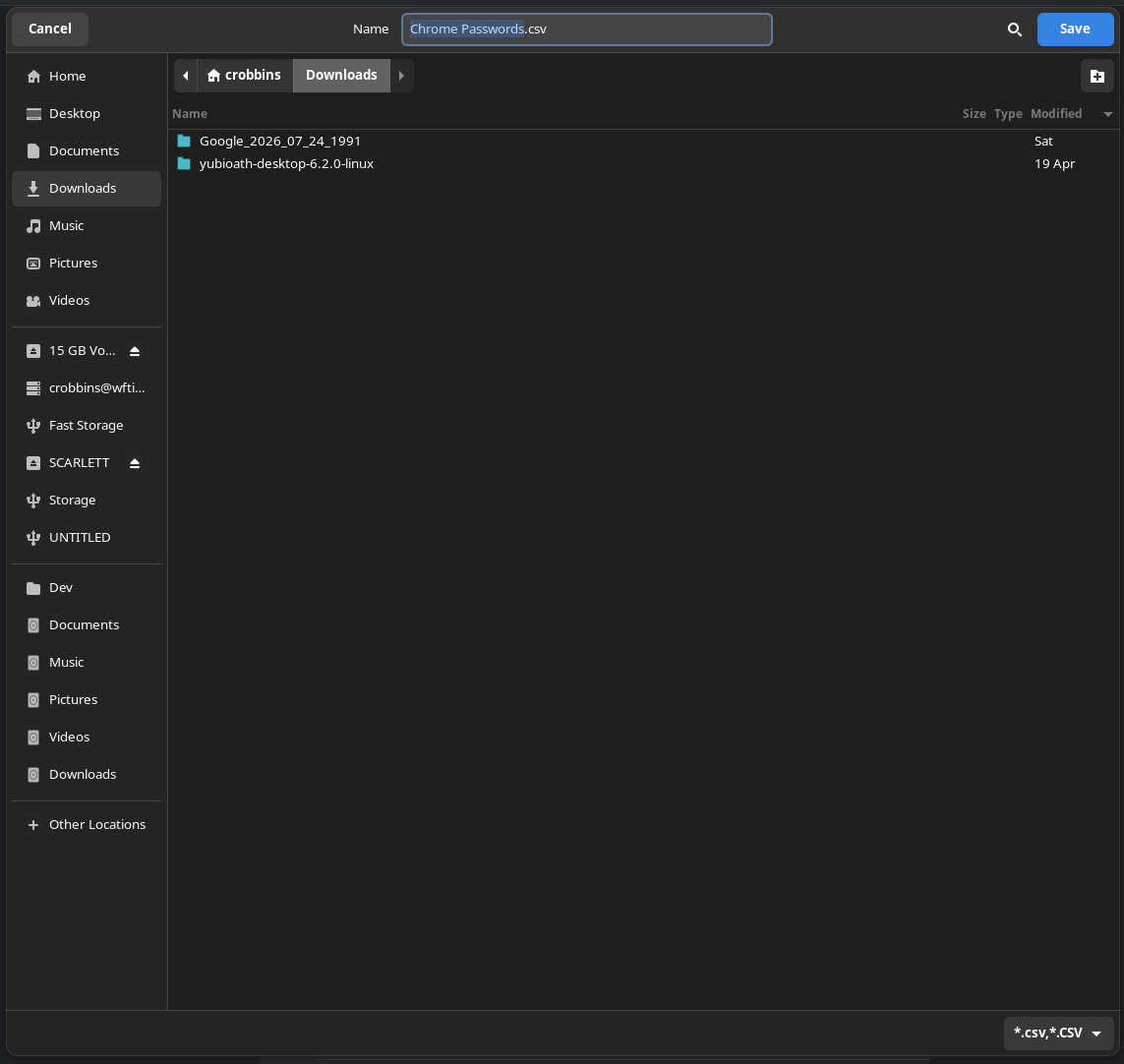
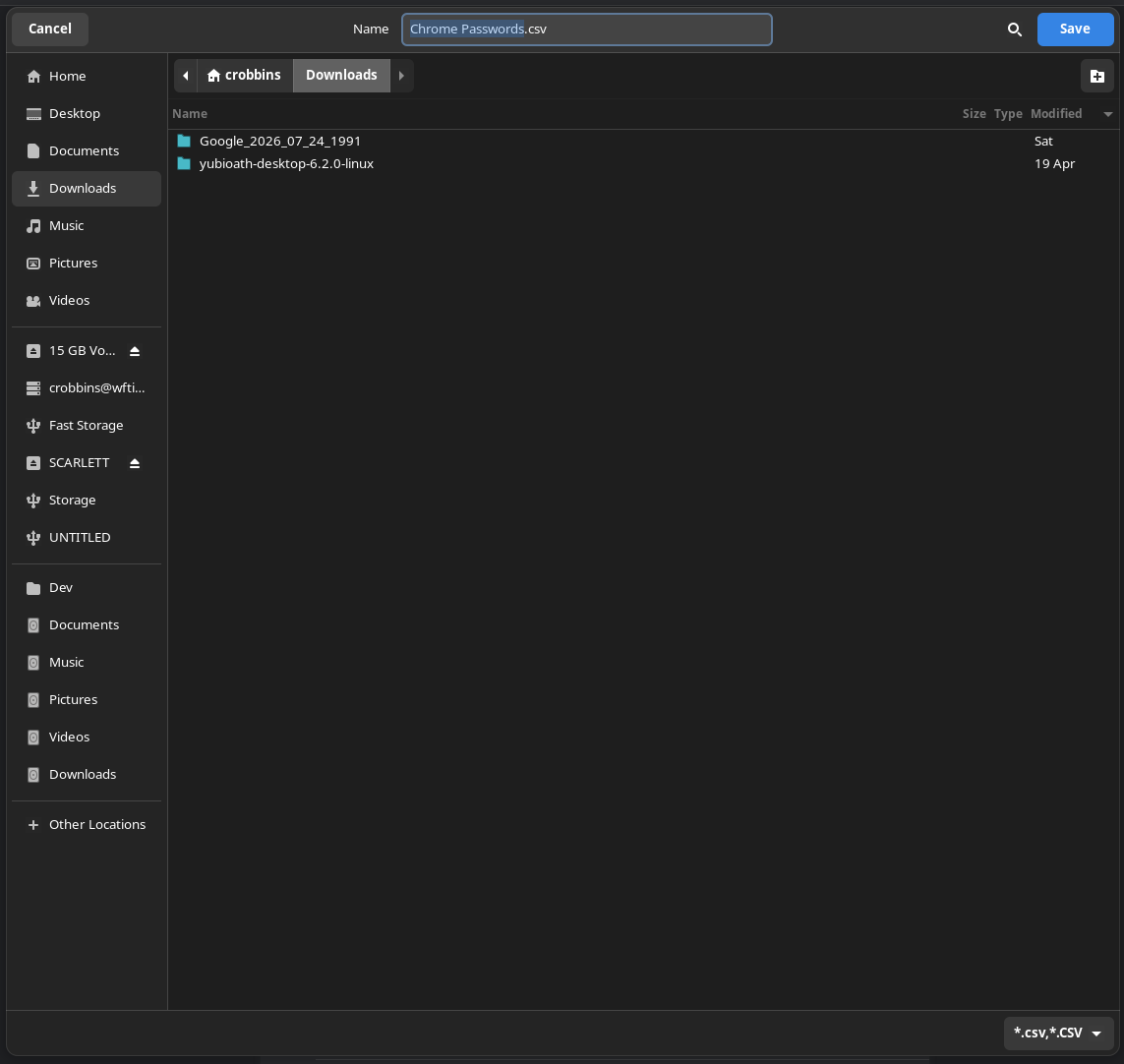
- Give your exported file a name, and choose where to save it, then click on “Save.”
Step 2: Import Passwords to BitWarden
Click for instructions on importing passwords to BitWarden
- Log in to BitWarden (click this link to be taken there directly, or use the WF Bookmarks link.
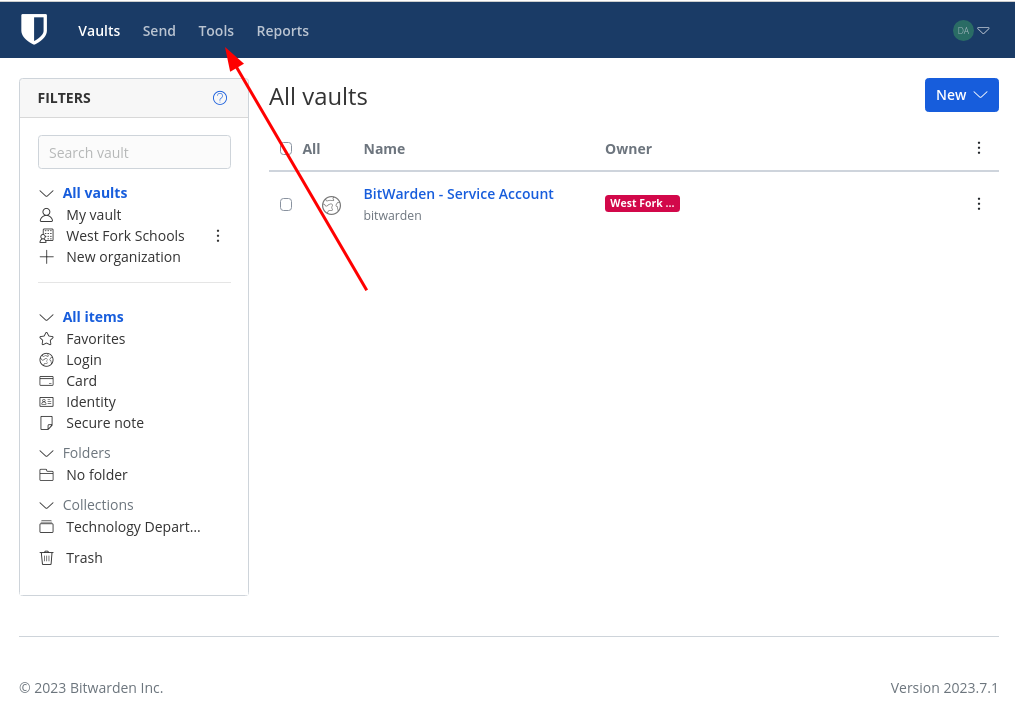
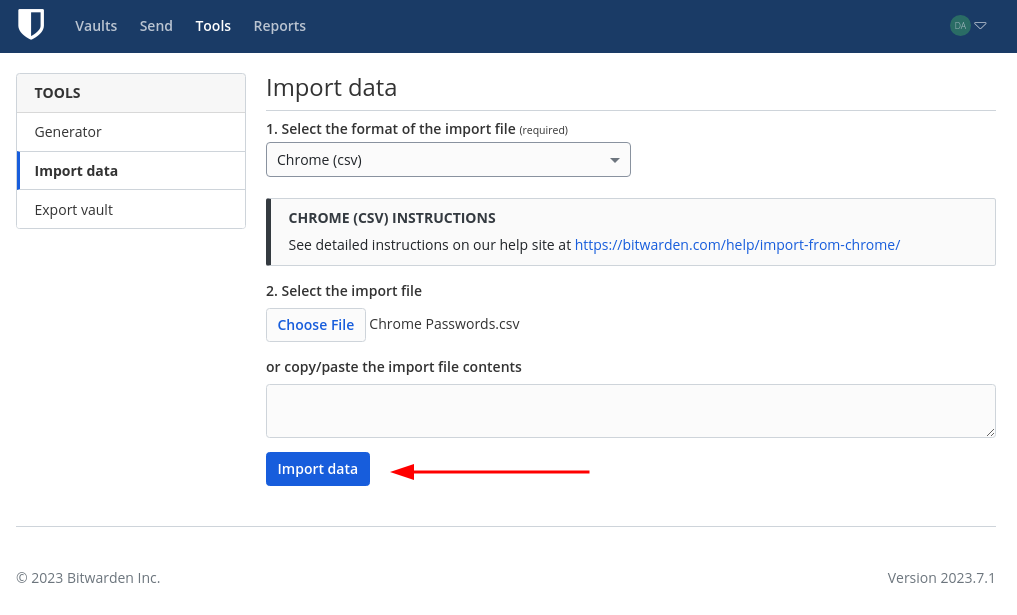
- Click on the “Tools” menu.
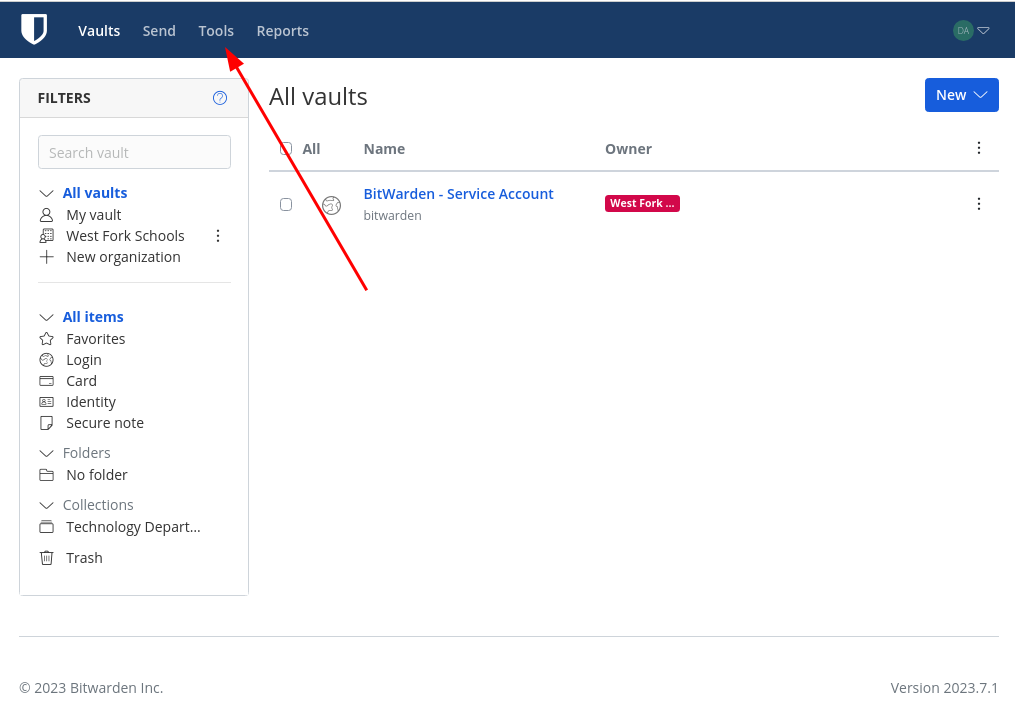
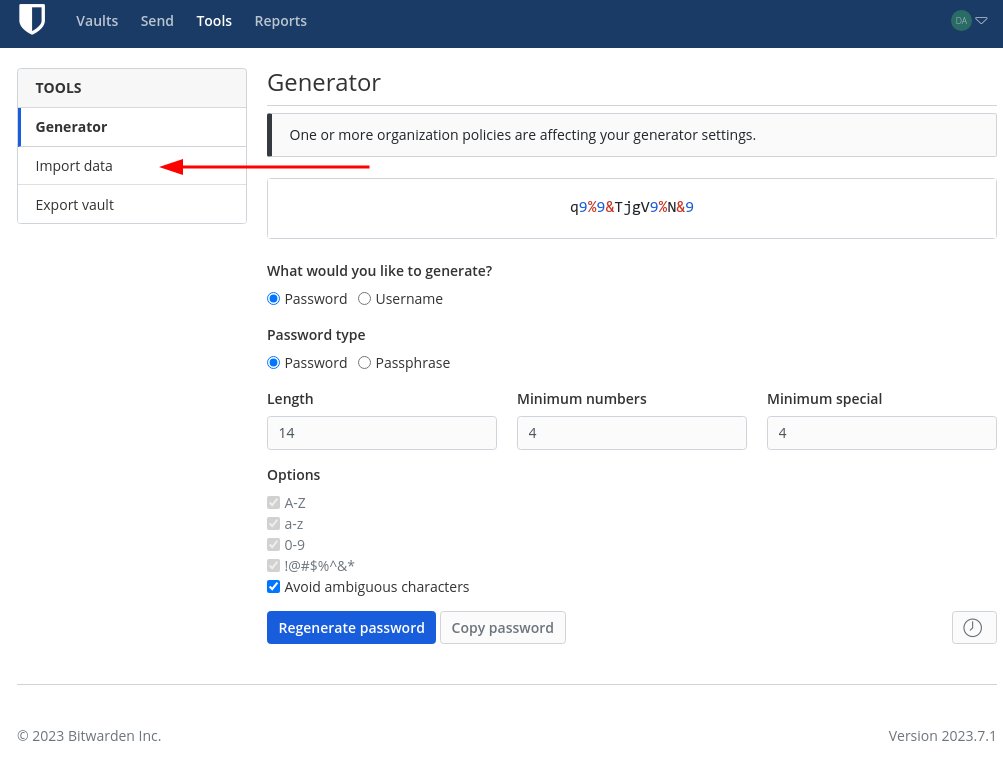
- Click on “Import data.”

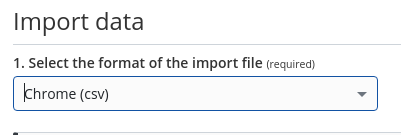
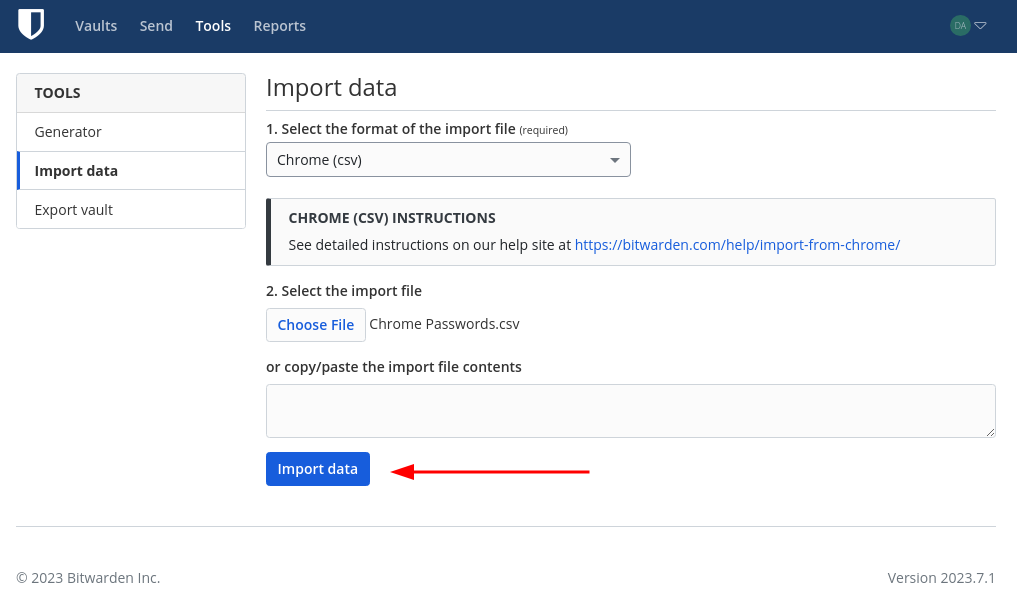
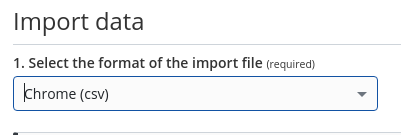
- From the “Select the format of the import file” dropdown menu, choose “Chrome (csv)”
- Click on “Choose File,” and then choose the file you downloaded from chrome in the previous step. You should see the name of the file to the right of the button once you do this successfully.

- Click on the “Import data” button.
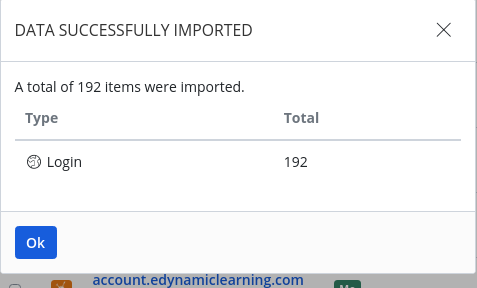
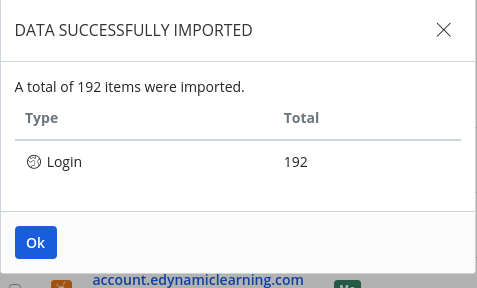
- You will get a verification page stating how many items were imported. Clicking OK will show you your new password vault.

Proceed to Part 3 and configure chrome.
Originally posted by Cory Robbins on the West Fork Technology Hub (2023-08-11).