
Blocksi - Classroom Management Basics
Importing…
West Fork Schools now uses Blocksi as a classroom management and student internet filtering platform!
Blocksi has TONS of features, so this Tech Tip will be the intro and the “getting started” of it all. Expect more information in the coming weeks!
Logging In
Click for login instructions
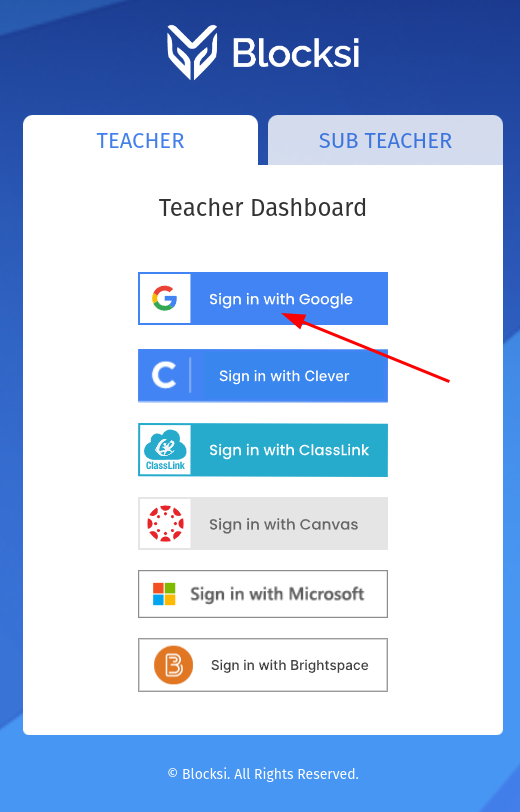
To begin, visit https://teacher.blocksi.net. This will give you several buttons to choose from.
We want to use the “Sign in with Google” button. Reach out if you have any issues with the Google button.
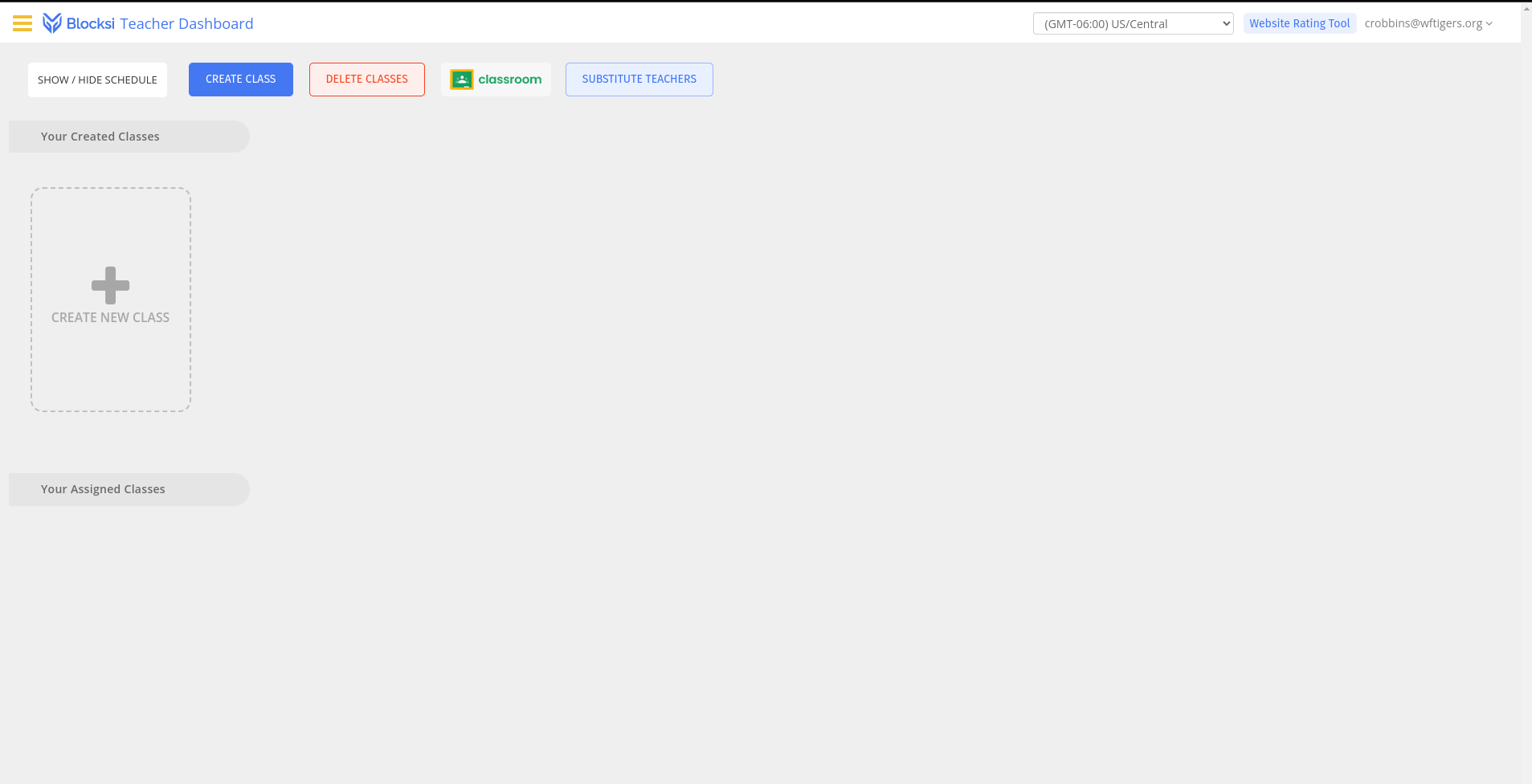
This should take you to the Blocksi Teacher Dashboard
Dashboard Overview
Click for the overview
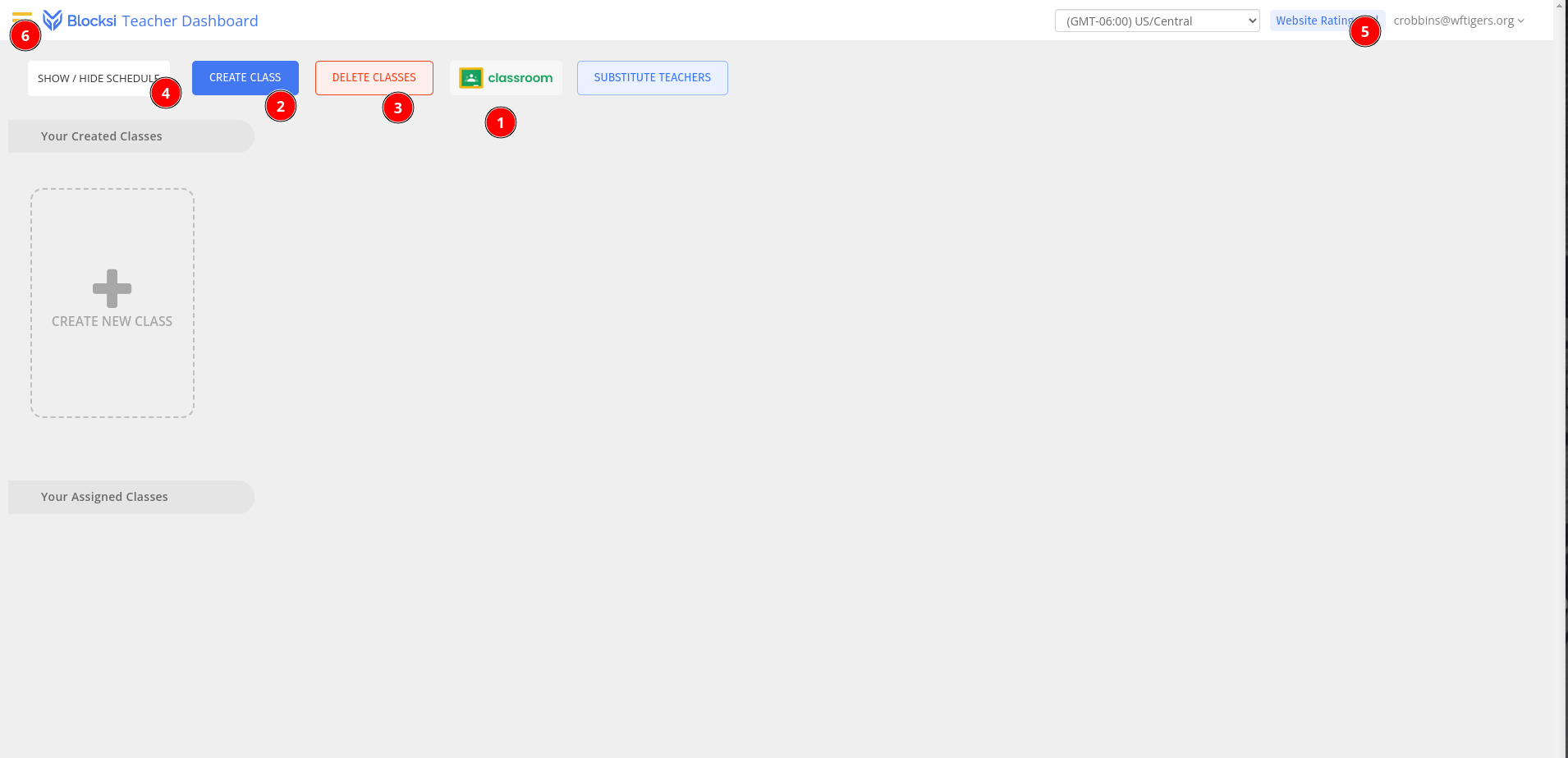
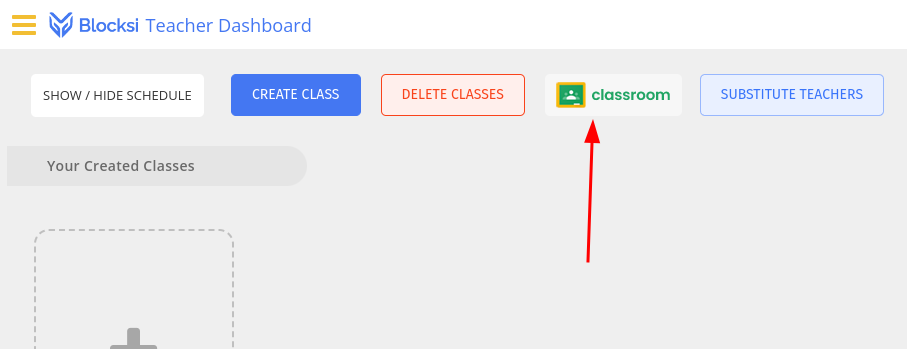
This button allows you to import your Google Classroom classes and rosters. Even if you don’t use Google Classroom, you will want to accept your class, and use it just for the purpose of rostering.
The “Create Class” button lets you manually create a class. We will use this later on to have a dedicated class for grading.
The “Delete Class” button will allow you to delete classes you imported from Google Classroom or manually created.
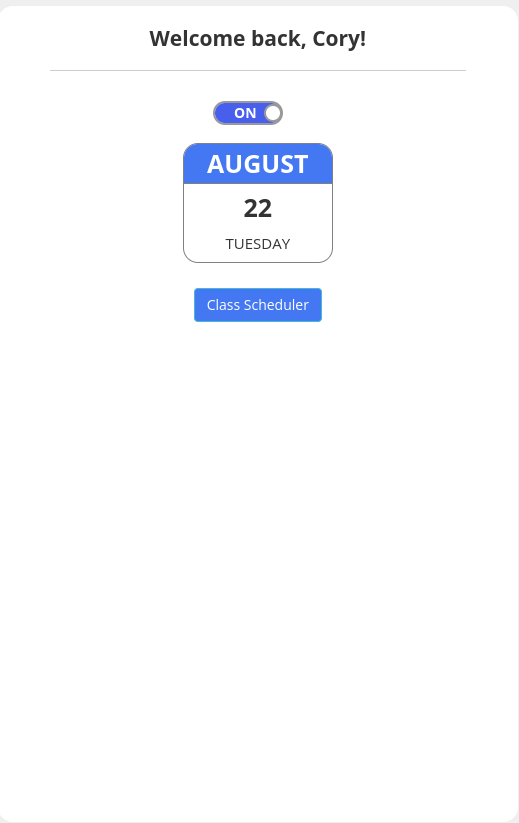
The “Show/Hide Schedule” button will show this nifty screen, which we will discuss a bit later.
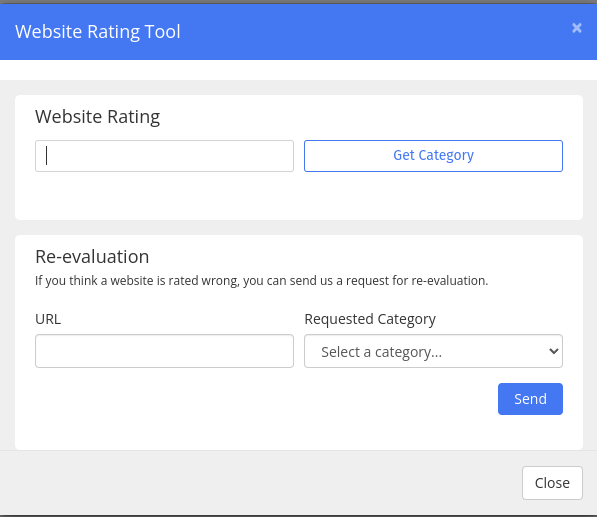
The “Website Rating Tool” is for testing to see if a website is categorized in a blocked area.
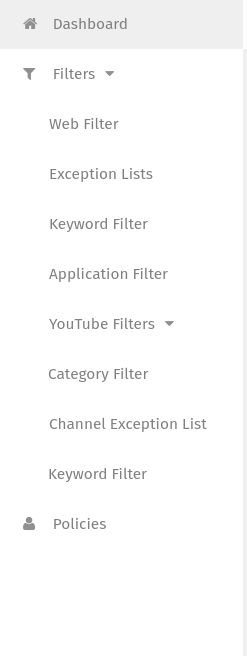
The hamburger menu opens up options for viewing and modifying filters for your class. Again, more info later on!
Importing Your Classes
Click to view the instructions
Click on the Google Classroom button
Check the boxes next to the Google Classrooms you wish to add. You can ONLY select courses you accepted.
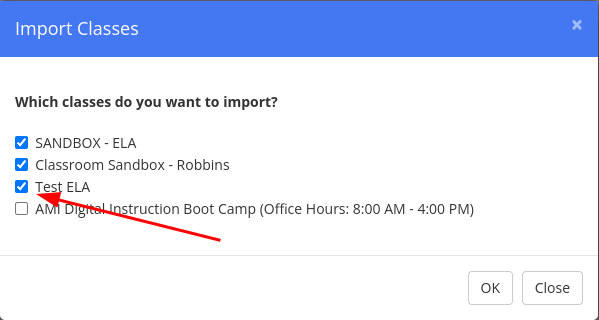
Click on OK to submit your selections.
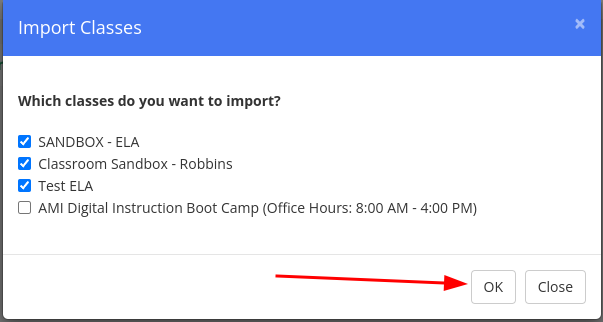
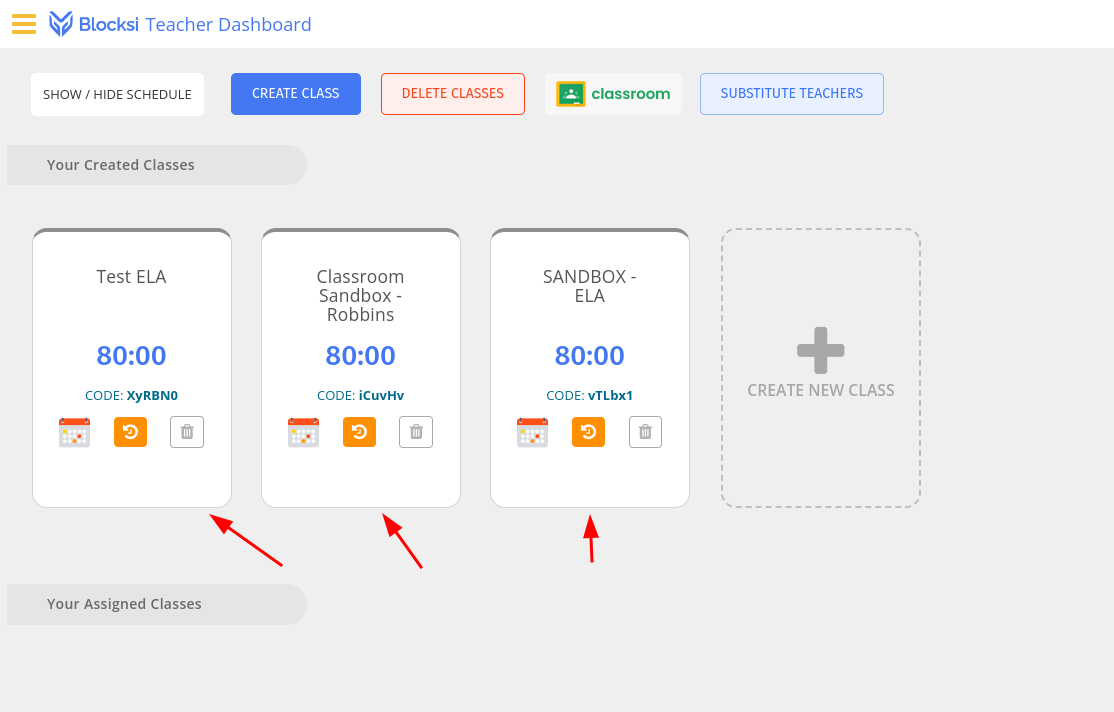
You should now see those courses listed under “Your Created Classes.”
Class Tiles
Click to learn about class tiles
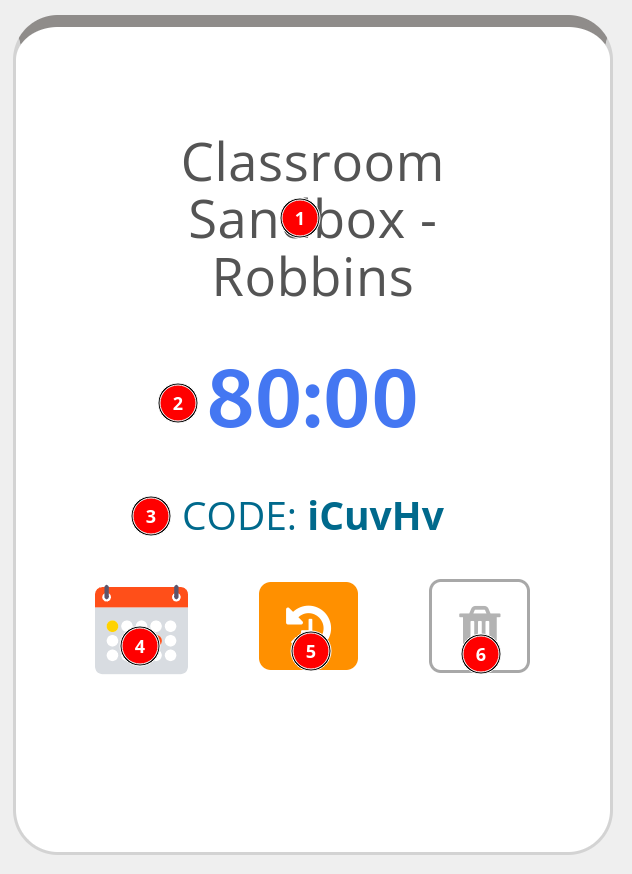
Class tiles are the quickest way to get to several settings and the fastest way to view some pieces of information.
Basic Class Navigation
How to Open the Class
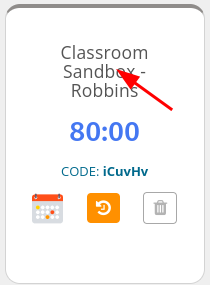
Start by opening a class. To do so, click on the class name.
Return to the Dashboard (list of classes)
To return to the dashboard (list of classes), click “Blocksi Teacher Dashboard.”
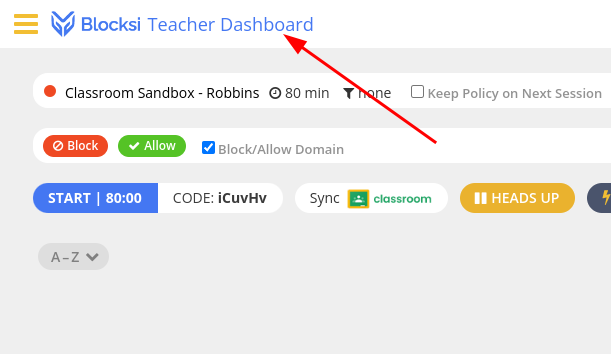
Basic Class Settings
Edit the Class Length
We need to be sure the class length is set correctly. That way we don’t accidentally block students in other classes.
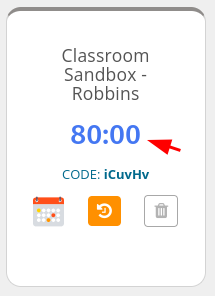
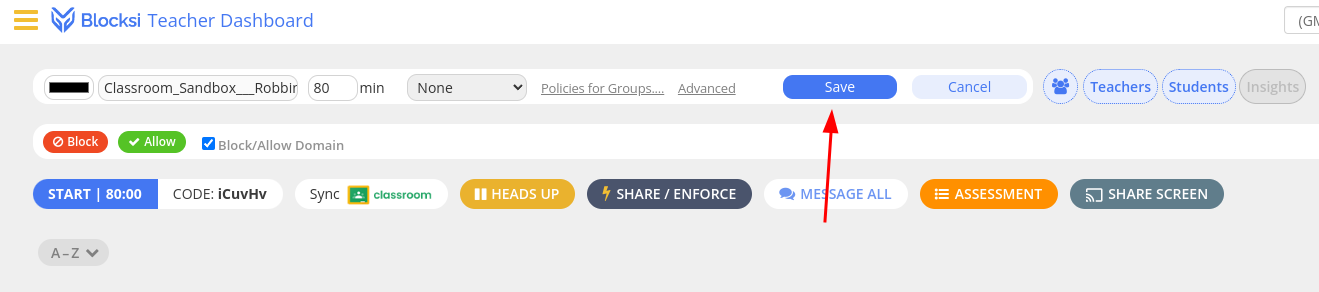
If the time listed in the area where the arrow is pointing is NOT correct, we need to adjust it.
Open the class.
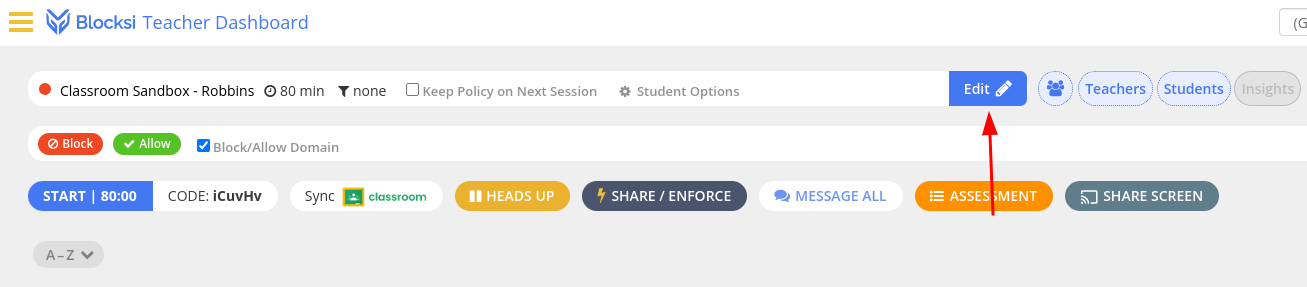
Click the “Edit” button.
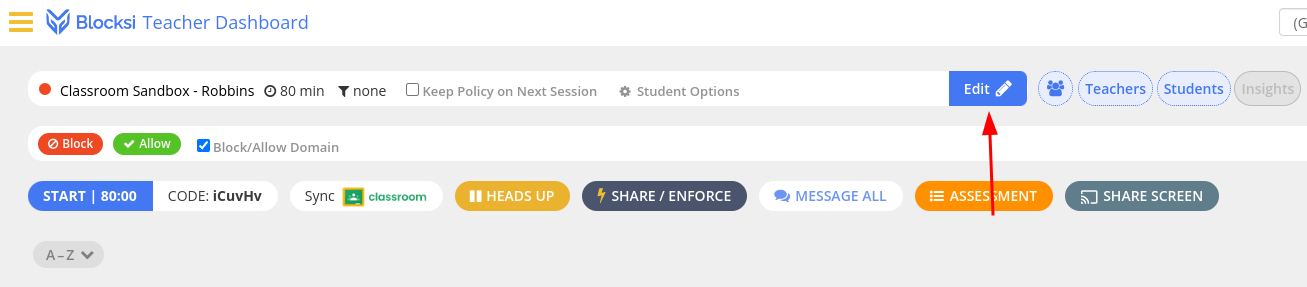
Edit the number of minutes to reflect the correct class length.
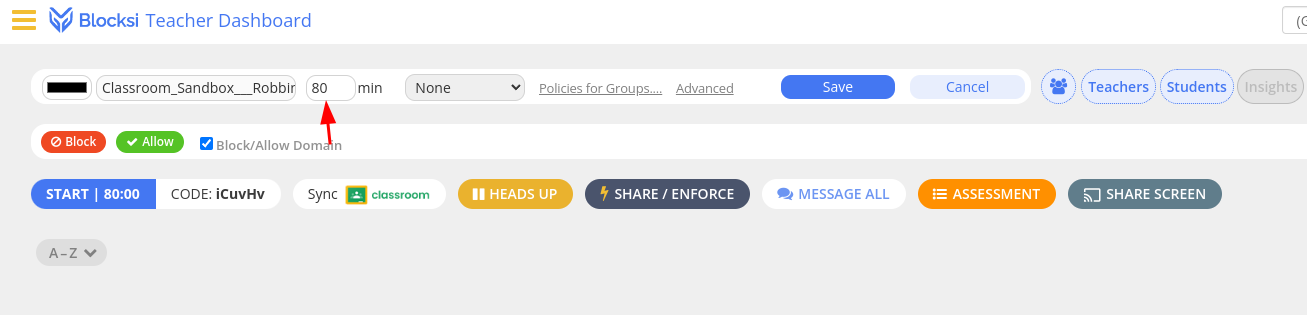
Click the “Save” Button.
Choose the Default Filter
The filter determines what websites students can and cannot access. You will have the choice of which of our filters you wish to apply to your class.
Open the class.
Click the “Edit” button.
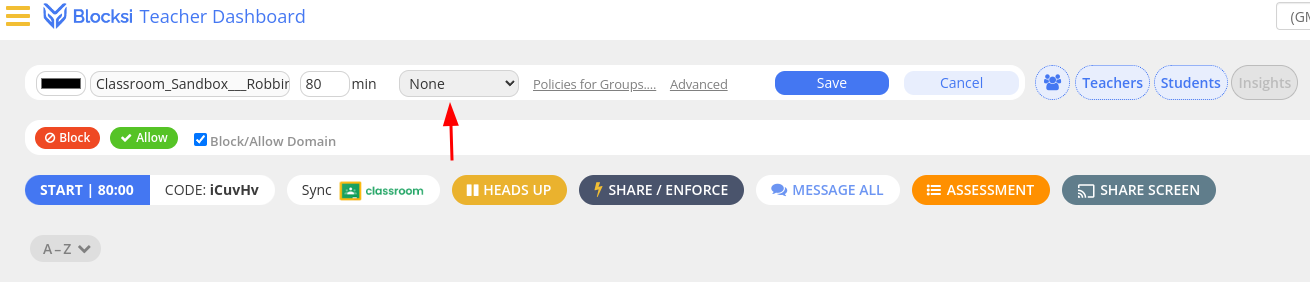
Click the dropdown to the right of the class time, and choose which filter to apply.
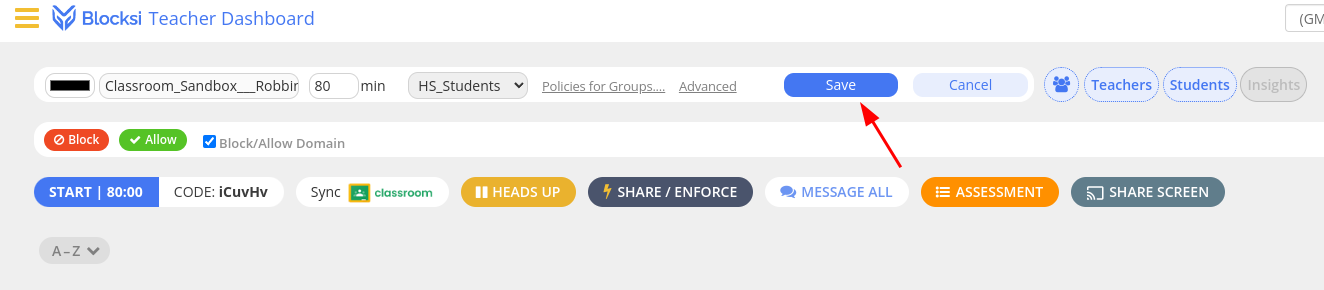
Click the “Save” button.
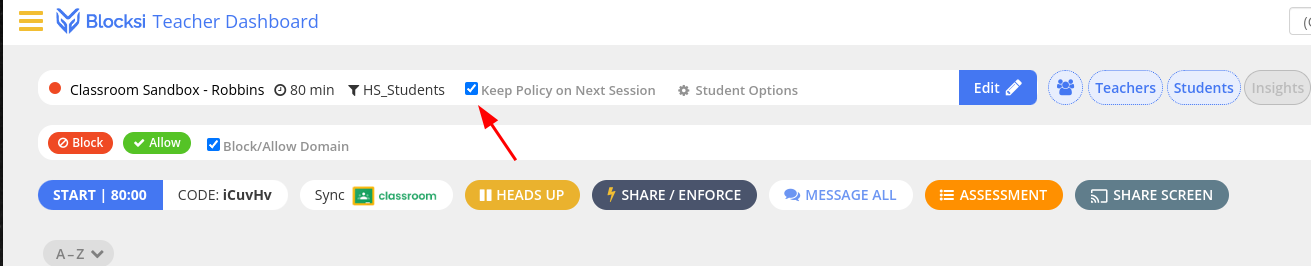
Check the “Keep Policy on Next Session” box to make sure this setting will continue to be applied each day.
Basic Functions
Starting a Class
Before you can actually view a student’s screen or manage any of their internet options, you must first start the class.
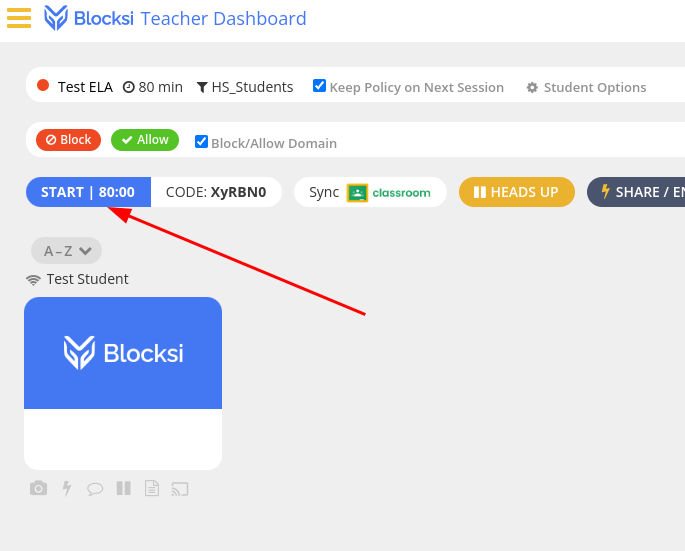
This will begin counting down the number of minutes until the class automatically ends and students are automatically released.
Stopping a Class
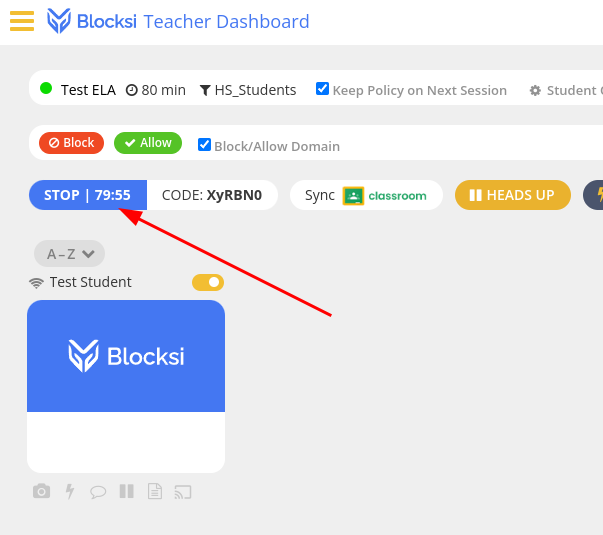
It is important to stop your classes if they end before the timer runs out.
Sync with Google Classroom
If you notice your Blocksi student list is not matching the students on your roster. You can pull those students in from your Google Classroom. Please understand that this ONLY works if schedules have been correct in eSchool/TAC for a day before you try to sync.
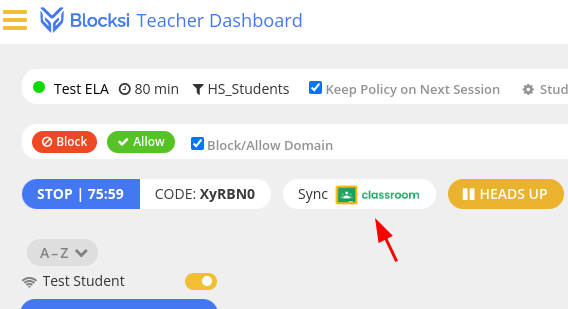
It is also important to note that you will NOT see this button if you clicked the log in with Clever button.
Heads Up - Lock Screens
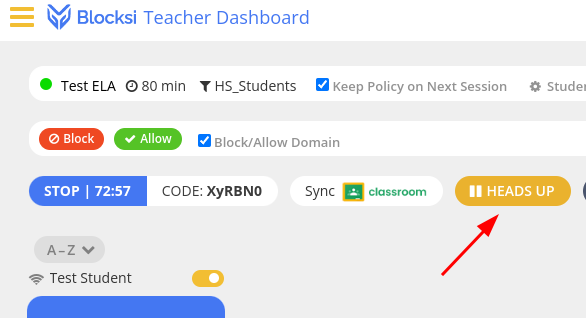
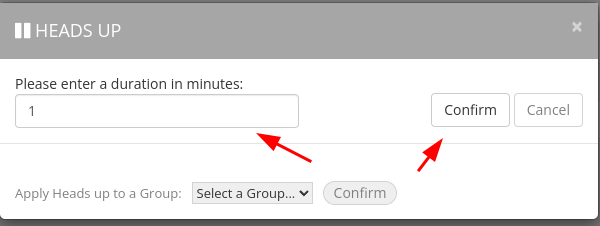
You can lock the screens of students with a “heads up” screen. This will prevent the students from using their device in any way during the duration of time that you set.
1 . Click on the “HEADS UP” button
Share/Enforce a specific website or set of sites to be opened
When sharing or enforcing, you will push a website or set of websites to student devices. They will not be able to close these pages, but they will be able to open others and to have these pages in the background.
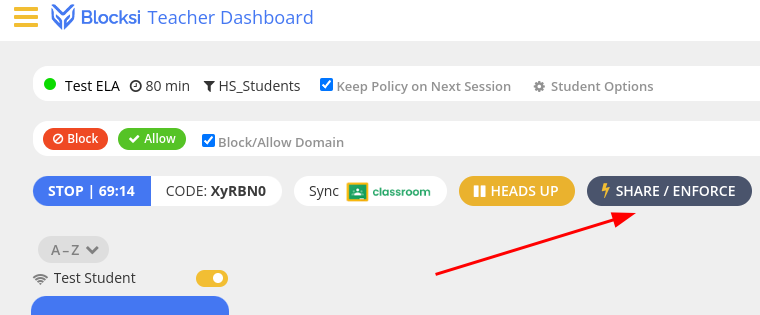
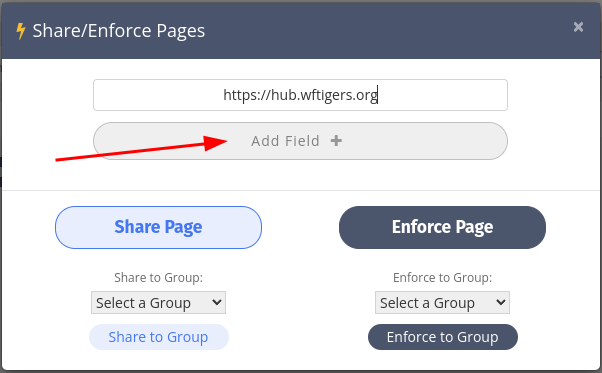
Click on the “SHARE/ENFORCE” button.
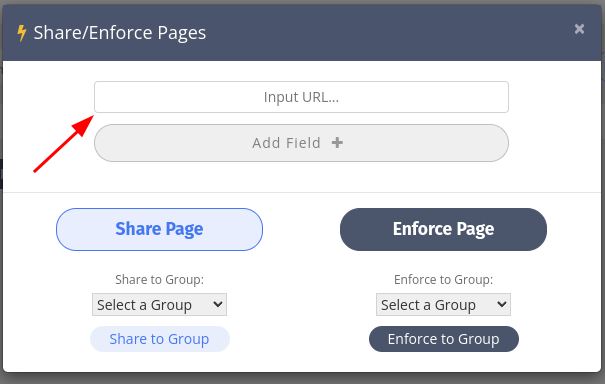
Type in (or paste in) the address you want kids to go to.
Click on the “Add Field +” button IF you want to add another website. You may add as many as you like.
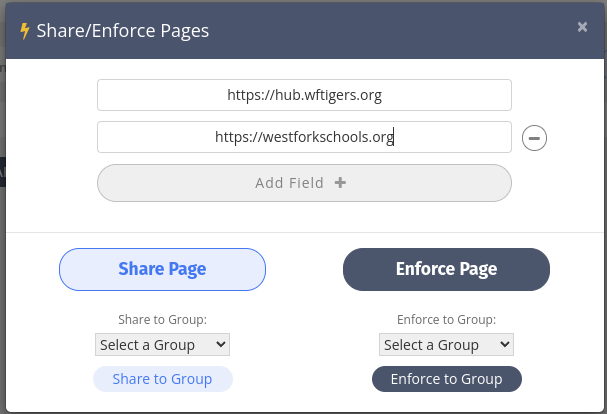
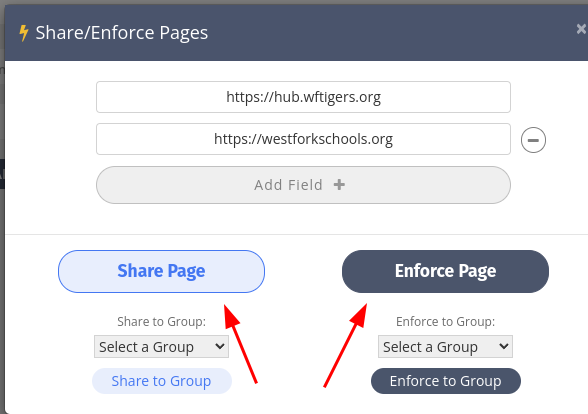
Click either “Share Page” or “Enforce Page.” If you choose share, students will be able to close the pages. If you click “Enforce,” the pages will keep opening when students try to close them.
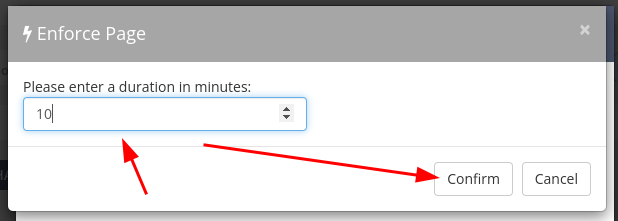
If you choose “Enforce,” you will be asked for how long you want these pages to remain open. Enter the number of minutes, and then click on confirm.
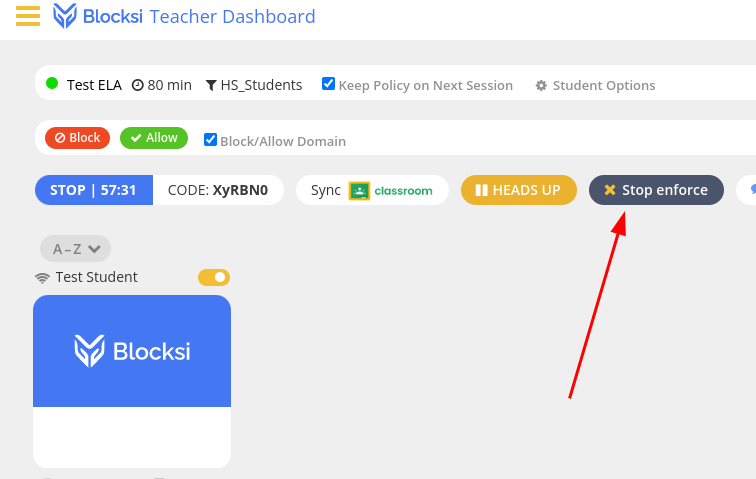
If you overestimate the amount of time you wanted the enforce to be in place, you can cancel it by clicking the “Stop enforce” button that replaced the “SHARE/ENFORCE” button.
Message All Students
Sometimes it might be helpful to send reminders for students to get back on task without verbally stepping in. Maybe this would be helpful if there is a guest speaker of some sort.
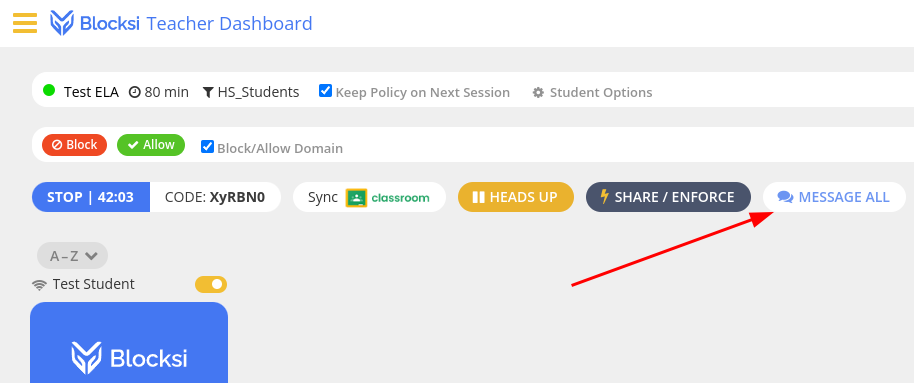
Click on the “MESSAGE ALL” button.
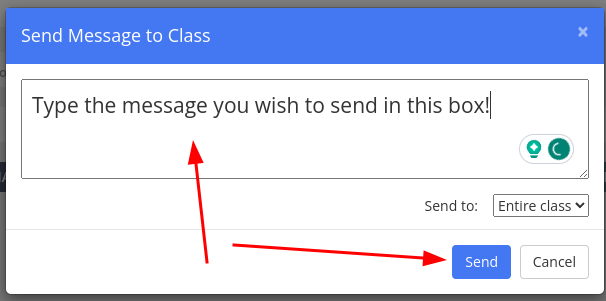
Enter the message you want to send, and then click the “Send” button. Students will receive this message at the top center of their computers.
Assessments
The assessment feature is very similar to the enforce feature, but students aren’t able to access recourses you don’t specifically allow.
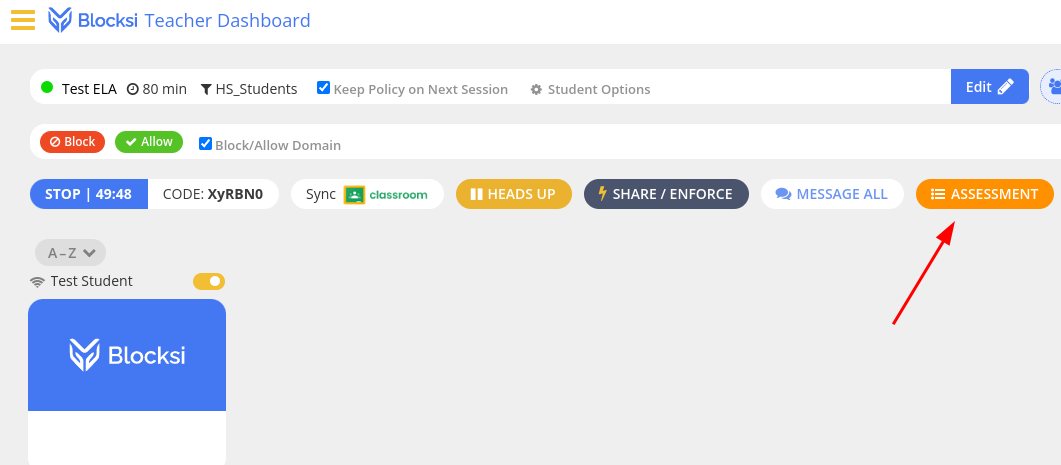
Click the “ASSESSMENT” button.
In the “Enforced URLs” enter the websites that you want to require to remain open for the duration of the assessment period.
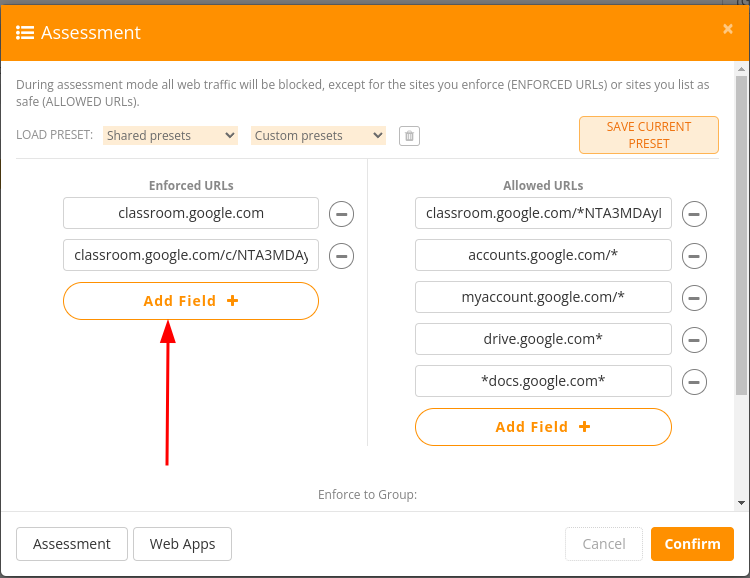
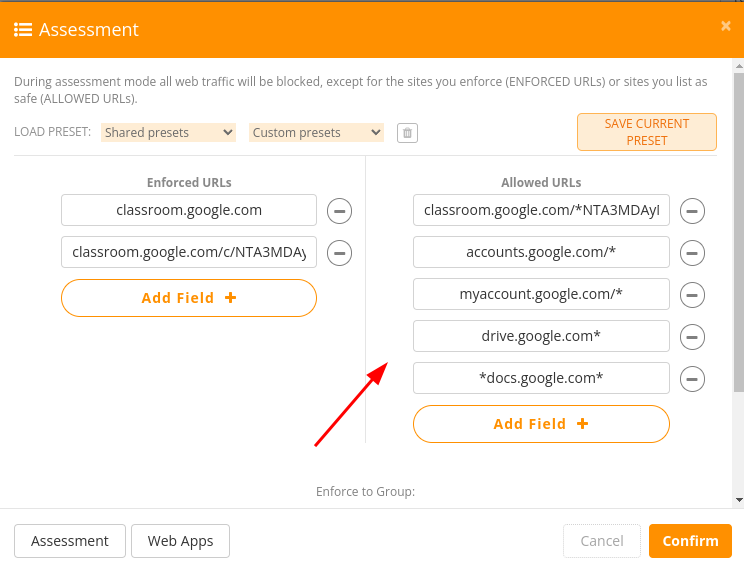
In the “Allwed URLs” boxes, enter the websites that you want to ALLOW students to access.
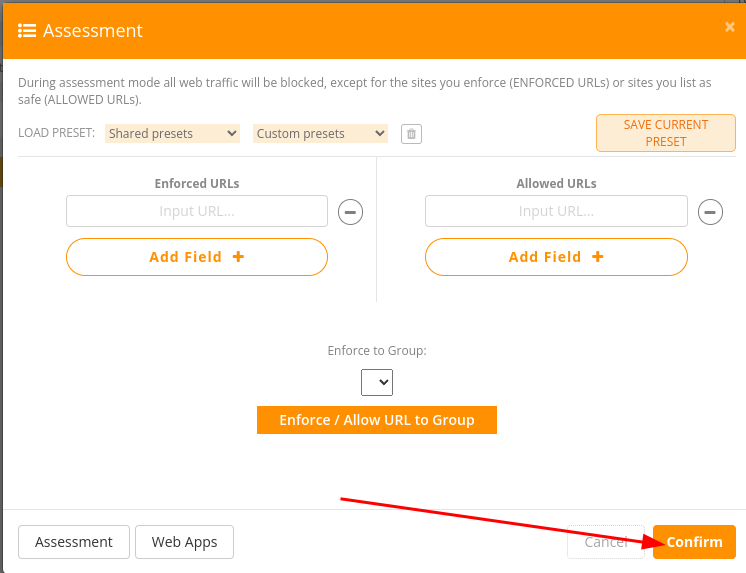
Press the “Confirm” button.
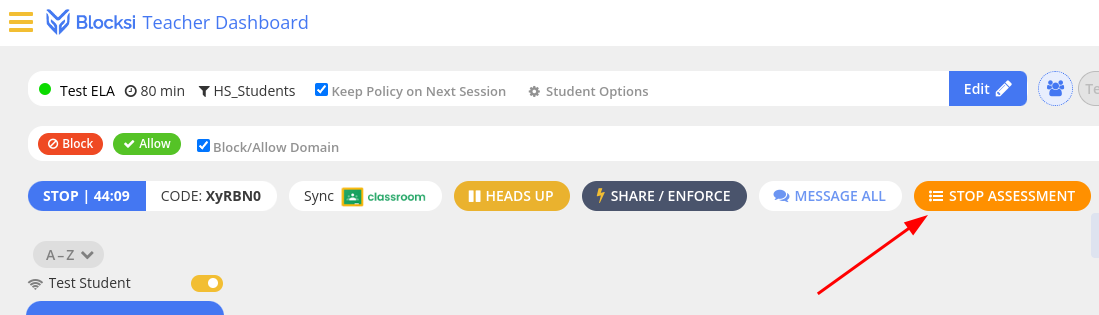
When you are finished with the assessment period, click the new “STOP ASSESSMENT” button.
Share Your Screen
Projectors are awesome, but sometimes it is more beneficial for each student to see a copy of your screen directly on their own!
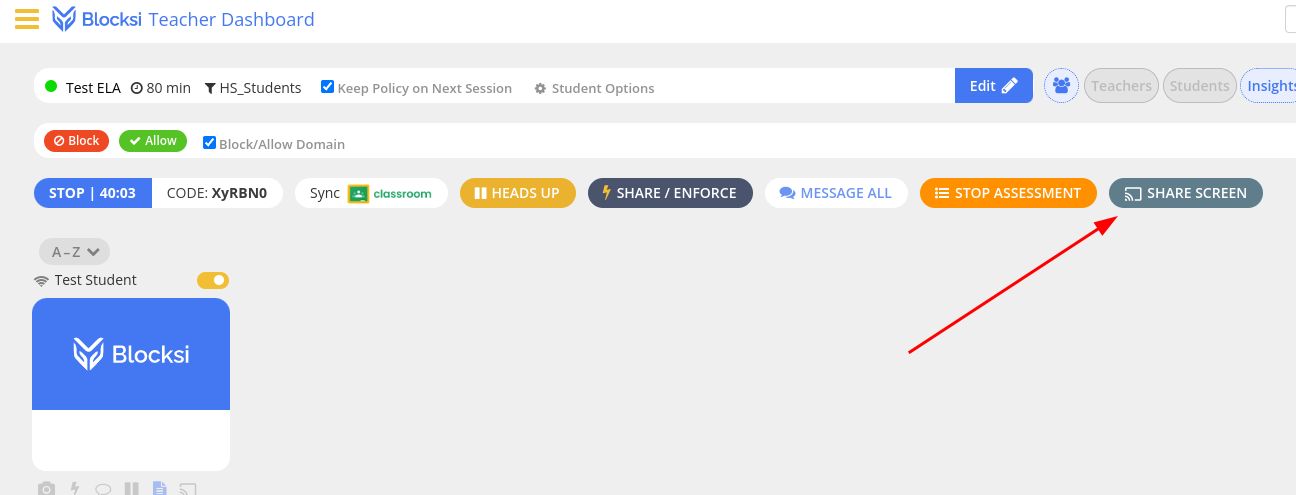
Click on the “SHARE SCREEN” button.
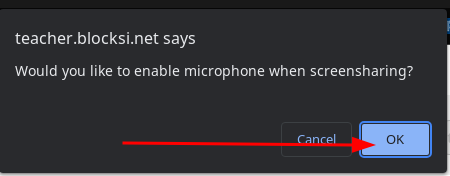
Click on “OK” to allow your microphone.
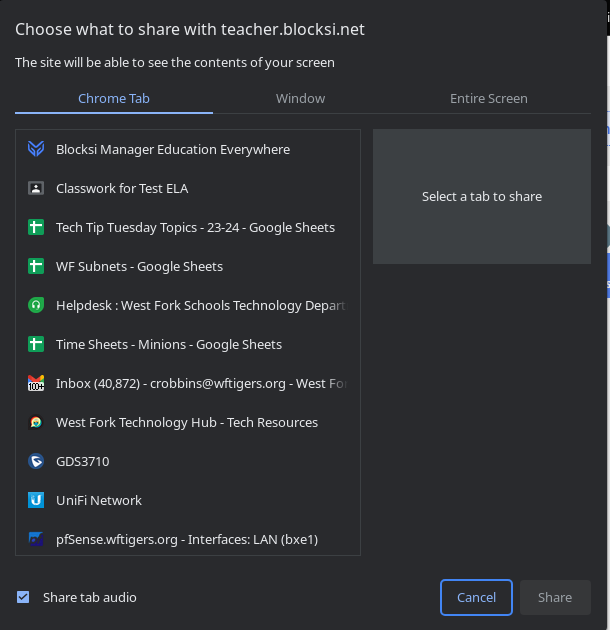
This screen works like sharing your screen in a Google Meet. Choose the Chrome Tab, Window, or screen you wish to share, then click the “Share button.”
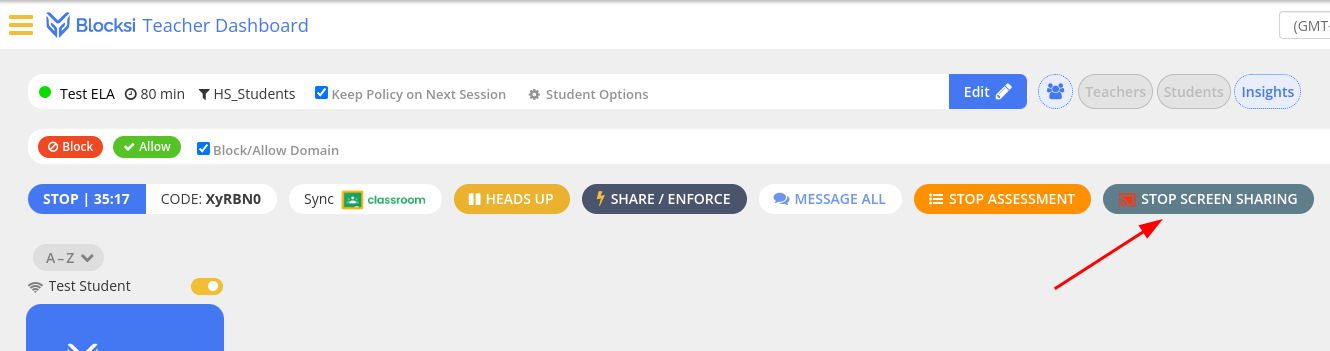
Once finished, click on the “STOP SCREEN SHARING” button.
View a Student Screen
The classroom view will automatically show a preview of the Google Chrome page the student is viewing. If the student isn’t in Google Chrome, you will need to open the individual student’s tile to view what they are working on. Please note that students will be prompted to share their screens with you when you do this. If they say no, you will be denied access, and you will have to do it again.
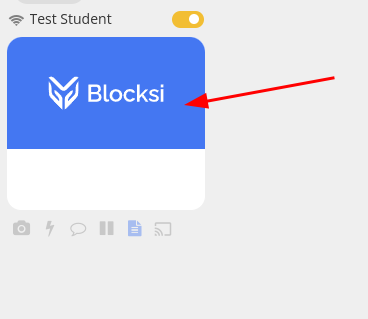
Click on the student tile you want to view.
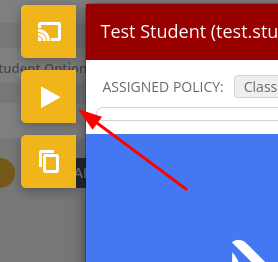
Click the play button on the left.
Wait for the student to confirm.
Checking for both AI and Traditional Plagiarism
While this isn’t 100% accurate, it has worked for me more times than not.
Click the “Plagiarism Checker” button.

Choose whether you want to copy and paste text or if you want to upload a file.
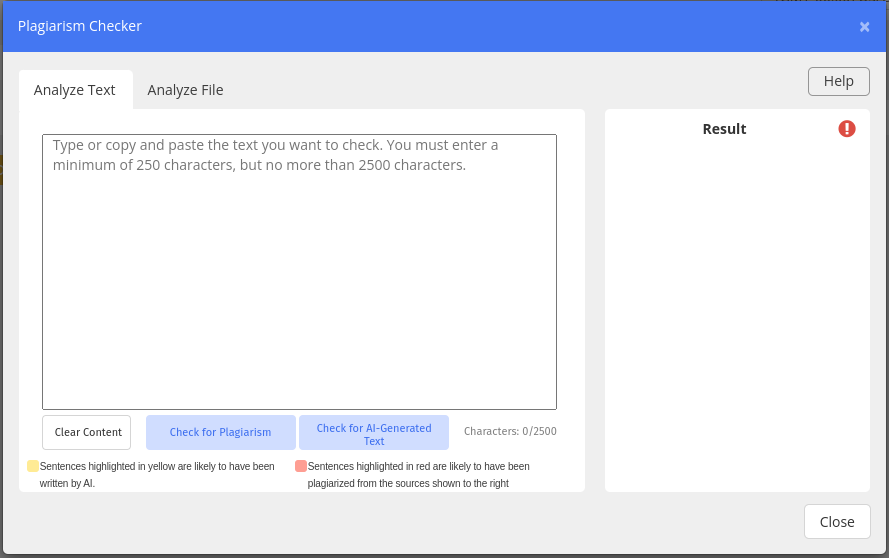
Choose whether you wish to check for traditional plagiarism or if you wich to check for AI-Generated Text.
Your results will be on the right.
Originally posted by Cory Robbins on the West Fork Technology Hub (2023-08-22).