
Emailing Students and/or Parents from TAC
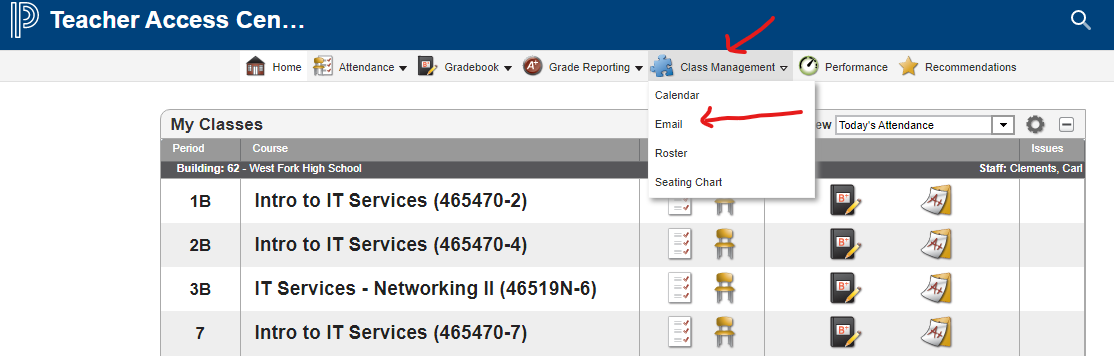
Importing…There is a handy email tool built into TAC that allows teachers to email students and/or guardians by class. To use it, log in to TAC and select Email from the Class Management Menu.
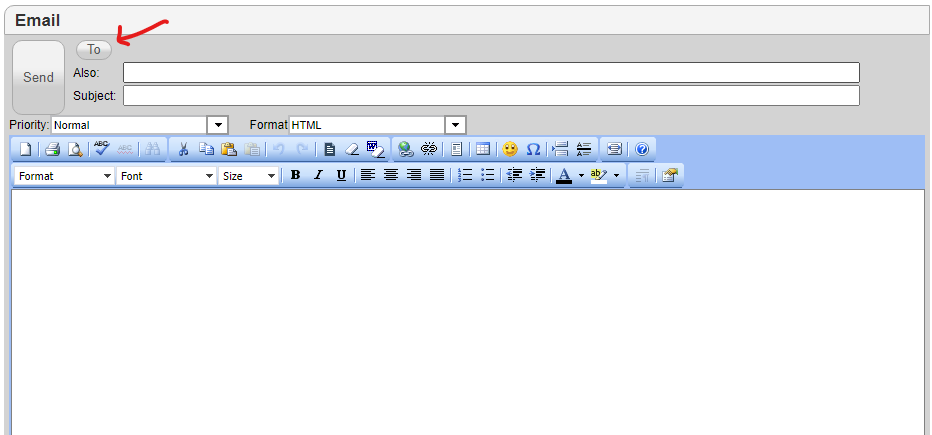
The email window will open. Click the To button to select your recipients.
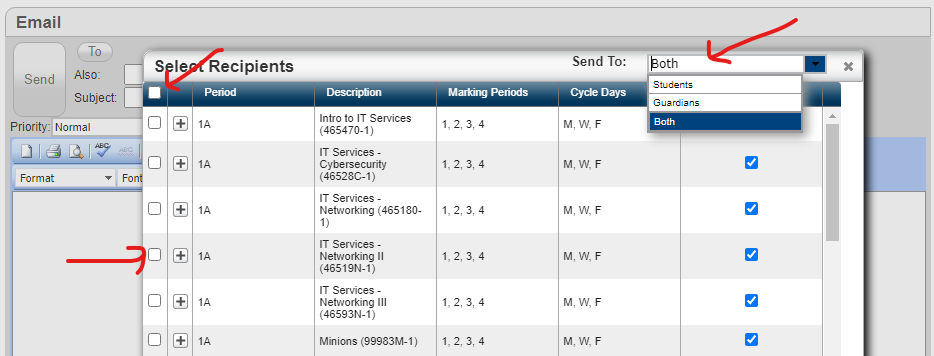
By default, both parents and students will be selected. To email students only or guardians only click “Both” and change the selection.
Choose a class or multiple classes by selecting the tick box to the left of the period name. To choose all classes, select the tick box in the upper left.
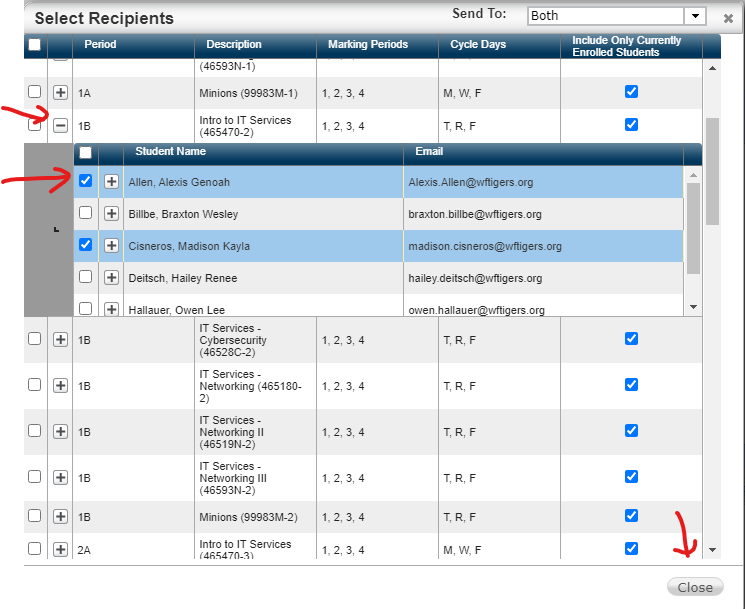
To select certain students from a class (for example those who are missing a particular assignment), click the plus sign to expand the roster. Click the tick box next to any student you would like to email. When your selections are complete, click Close.
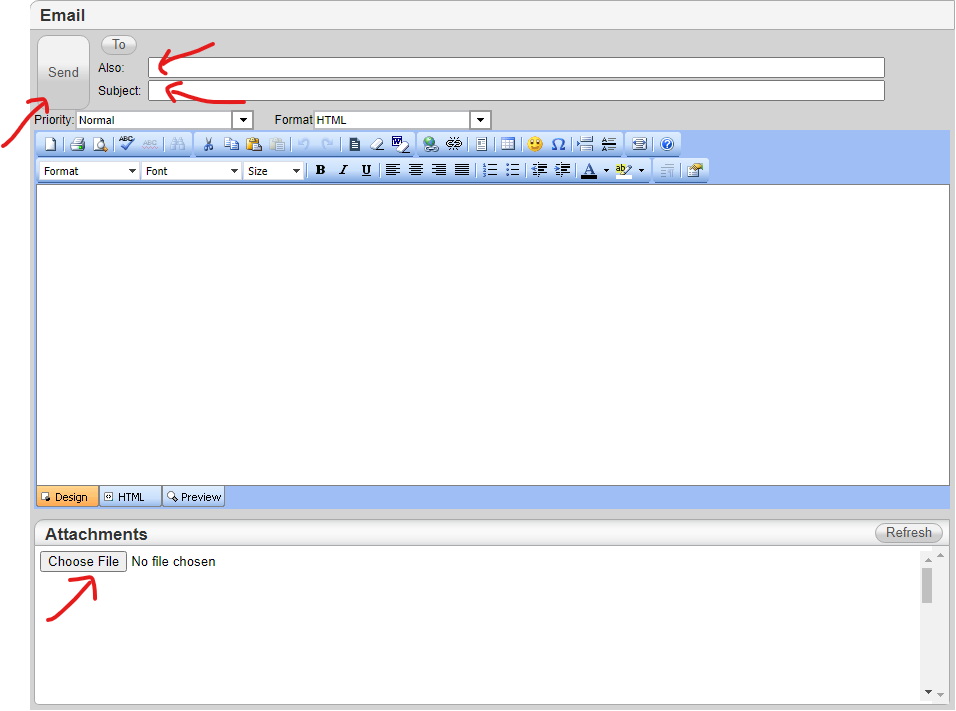
If you like carbon-copy (cc) yourself be aware TAC email uses the term “Also” instead of cc. In addition, a subject is required. Other than that it is pretty self-explanatory. It has a rich text editor and links and attachments can be included. Once the email is composed click the send button.
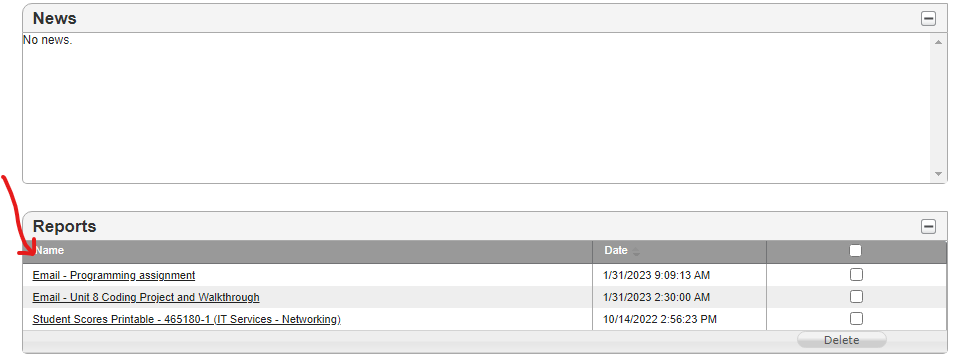
Finally, a record of sent emails is available on the TAC Home screen under Reports.
Originally posted by Carl Clements on the West Fork Technology Hub (2023-01-31).