
View Student information in TAC
Importing…This article will show how to view student information in TAC, including demographics, parent contacts, schedule, report cards, transcripts, missing assignments, and current classwork. This works for students rostered in your class but can also be used for any student in your building. This is useful for club sponsors and coaches.
The pictures are rather limited due to personally identifiable information (PII) of students. A few minutes of clicking through the tabs will fill in the blanks not pictured.
Once logged in to TAC, if the student is in your class, click on the student name to pull up the student information viewer. If they are not in your class, click on the magnifying glass in the upper right-hand corner.

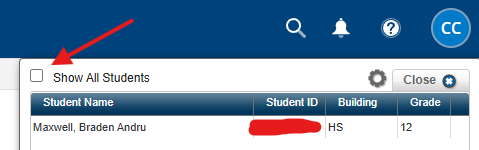
Type in the desired last name. Be sure to click “Show All Students” if they are not on your class roster.
After clicking on the student name, the Quick View tab is displayed.

The redacted section displays contact information. The full schedule and missing assignments are also displayed.
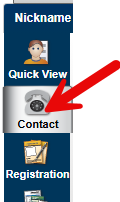
Click on the Contact button to see student, guardian, and emergency contact information.
The Registration tab is rather limited, so we will skip over that.
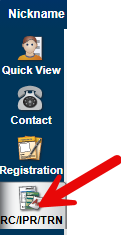
The RC/IPR/TRN tab shows report card, progress report, and transcript information.
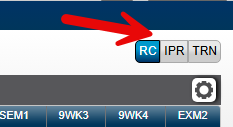
Click on the buttons in the upper right to switch between the three views.
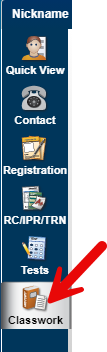
The Tests tab is not used; however, the Classwork tab shows all the current published assignments as well as the student’s grade in each class.
Originally posted by Carl Clements on the West Fork Technology Hub (2025-03-04).