
Operations Hero - Maintenance Request
As of today, 5-2-23 the state has replaced SchoolDude with Operations Hero. We will use Operations Hero for all maintenance requests for the remainder of the 22-23 school year. Next year it will expand to include field trip requests, technology tickets, and possibly some other items. More details on that to come!
For today’s tech tip, we will focus on two items:
- Logging In to Operations Hero
- Creating a New Maintenance Request
Logging in to Operations Hero
To log in to Operations Hero open Google Chrome and click on WF Bookmarks.
Select New Maintenance Request
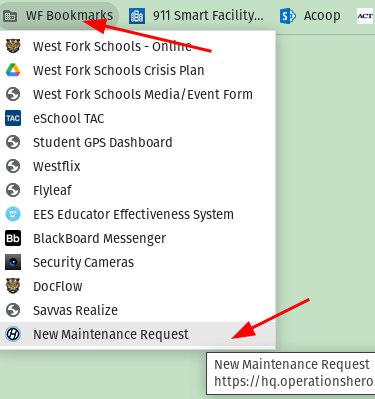
Or follow this direct LINK.
The following screen will be displayed. Click Continue with Google.
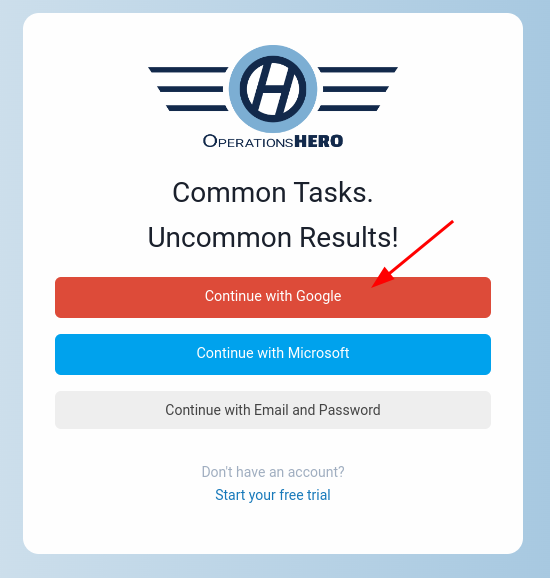
If you are synced to Google Chrome you will automatically be logged in to Operations Hero.
If not, log in with your school email account and password.
Creating a New Maintenance Request
A new maintenance request should automatically open when you log in to Operations Hero.
If not, click on the New Request button near the top of the screen.

The New Request window will be displayed. This is similar to the SchoolDude process.
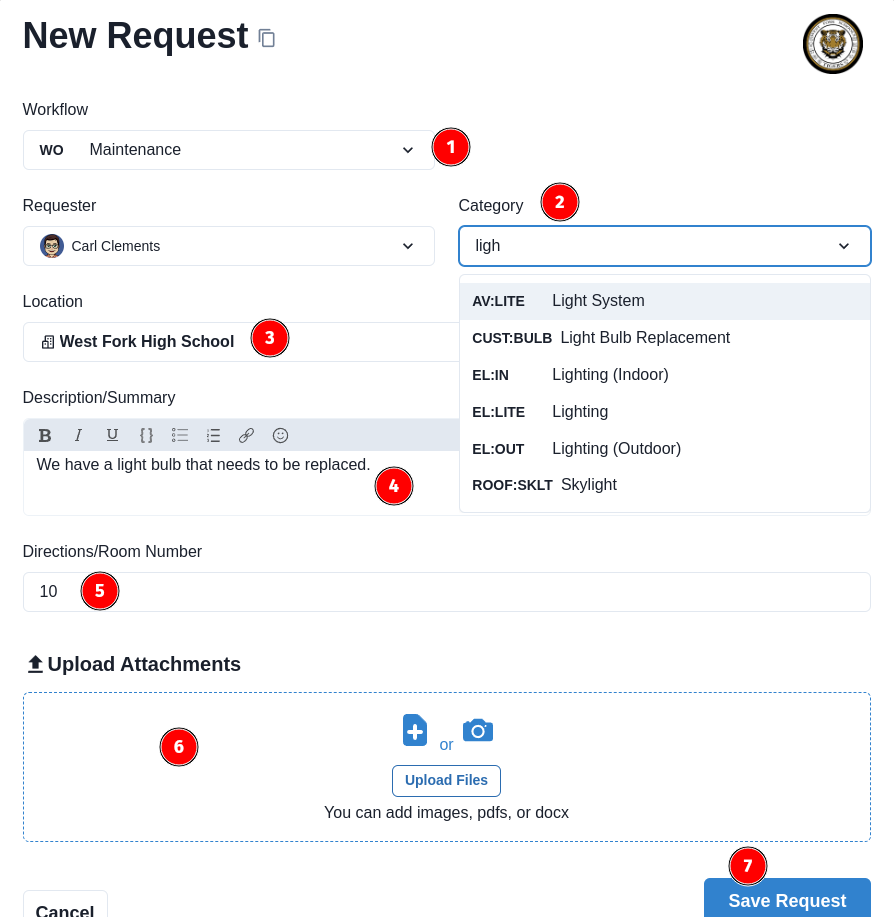
NOTE: Numbers correspond to the picture above.
- Be sure this is set to maintenance.
- The Category fields should be filled in. There are lots of options to choose from. Start typing to narrow down the category. ie: plumbing, lighting, electrical, etc.
- Choose the appropriate building
- Give some details for the maintenance crew to work off of. If it is a common area (ie: cafeteria) please include a contact person.
- Provide the room number or location.
- Files/Pictures are optional but can be included as needed.
- Click Save Request to submit it to the maintenance department.
Originally posted by Carl Clements on the West Fork Technology Hub (2023-05-02).