
Restricting Google Drive Search to a Specific Folder
Importing…Google’s search within Drive is VERY deep, meaning that it will pick up on words within photos, documents, and titles, so it can sometimes be frustrating when you are looking for something specific. You might also be in a situation (like looking through all of the student photo objection pages) where there are more files than you can realistically sift through. In these occasions, it is helpful to limit Google’s scope on your search. Let’s use the photo objection pages as an example of how to search just within a single folder anywhere within your Drive.
Go to your Google Drive. You do not HAVE to be in the folder you want to search, but I am for purposes of this example. It does make step 5 slightly easier as well.
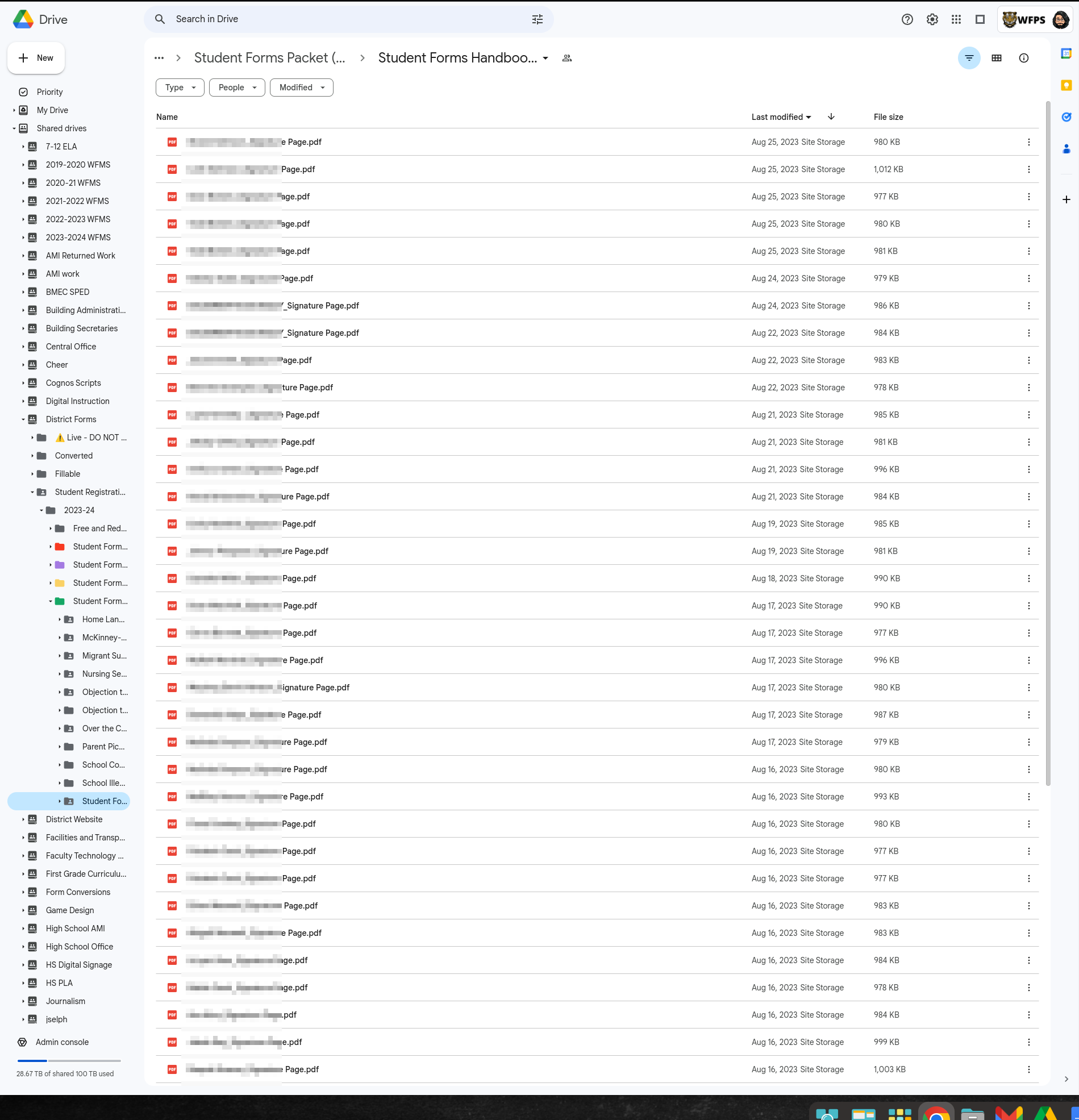
Click on the advanced search tool within the search box.

There are tons of options on this screen to help you narrow your view, but for our example, we will be primarily focusing on the “Location” box.
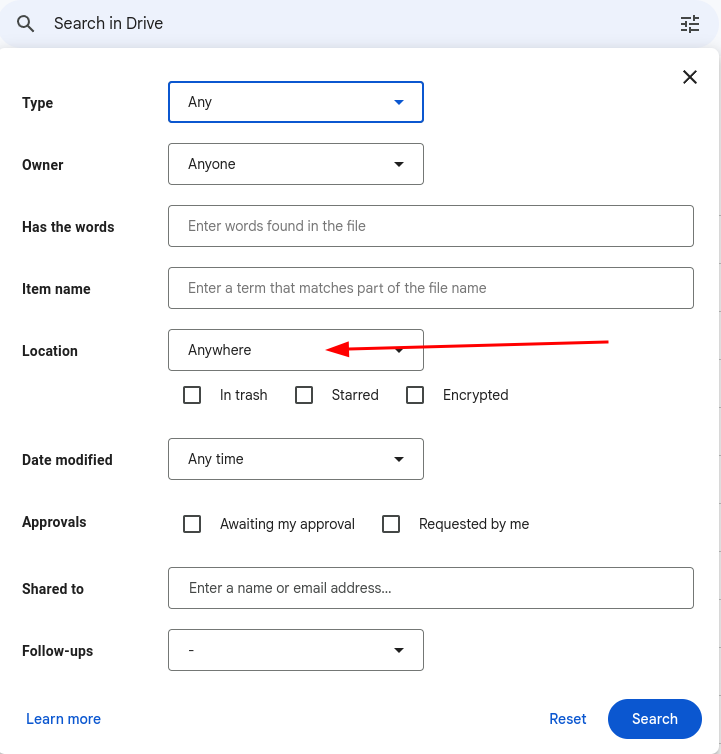
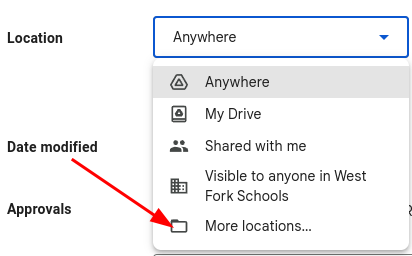
Click on the “Location” dropdown menu. This will present us with a few different option, but since I don’t see the option I need, I’ll chose “More locations…”
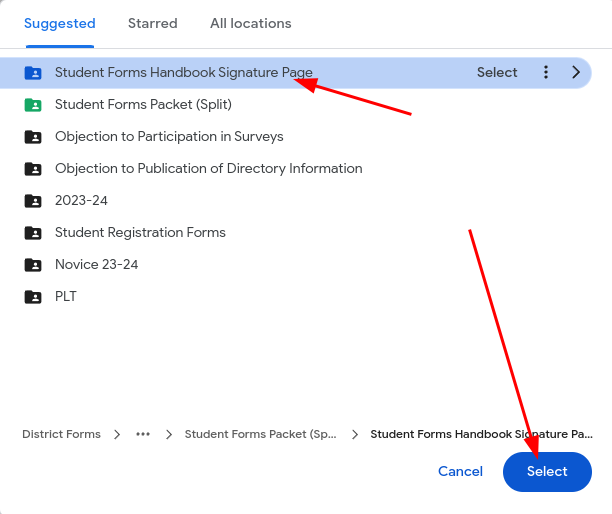
The screen that you are now presented with should open to a “Suggested” page. Since I’m in the folder, it is one of the options, so I’m going to click on it then click the “Select” button. If it isn’t in the suggested, you may use the “All locations” option to browse through your files to find the correct folder.
On the resulting screen, I now have the “Location” field populated with the name of the folder I chose, and I’ll put in the student first and last name in the “Item Name” box so that I’m only searching the title of the files. Once I’m all set, I’ll click on the “Search” button.
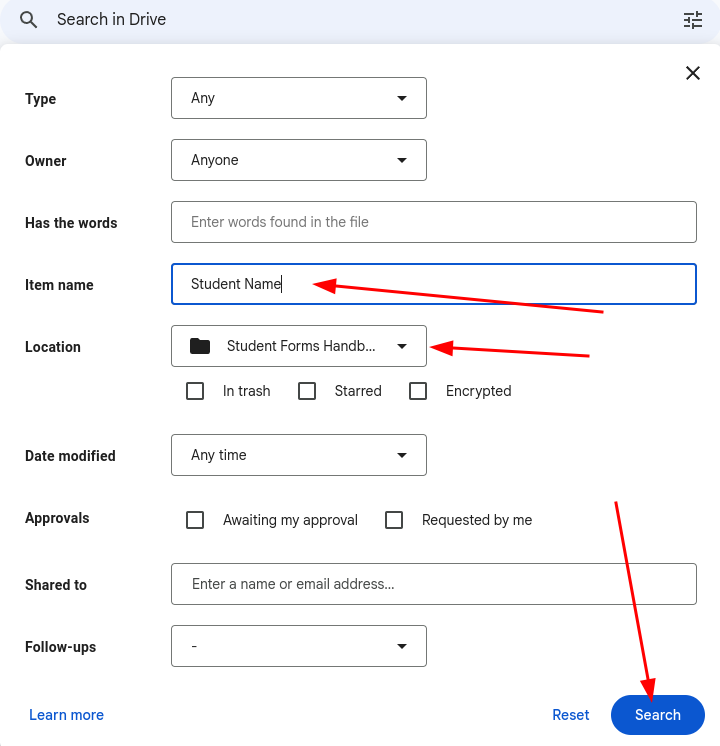
From this point, I should have a greatly reduced set of files. We encourage you to take a little time to look through the other search options available.
Originally posted by Cory Robbins on the West Fork Technology Hub (2023-08-28).