
Installing Local Printers With Print Deploy
Importing…
You should now see a new icon at the top right corner of your laptop (Linux only). This is your PaperCut Print Deploy Client. This nifty little tool allows you to install available printers on your device, and it will treat those printers as local connections. This is a big deal because it allows printing outside of Chrome, within any application!
The rest of this section will walk you through choosing which printers you want installed.
Click on the icon, and then choose “View my printers.”
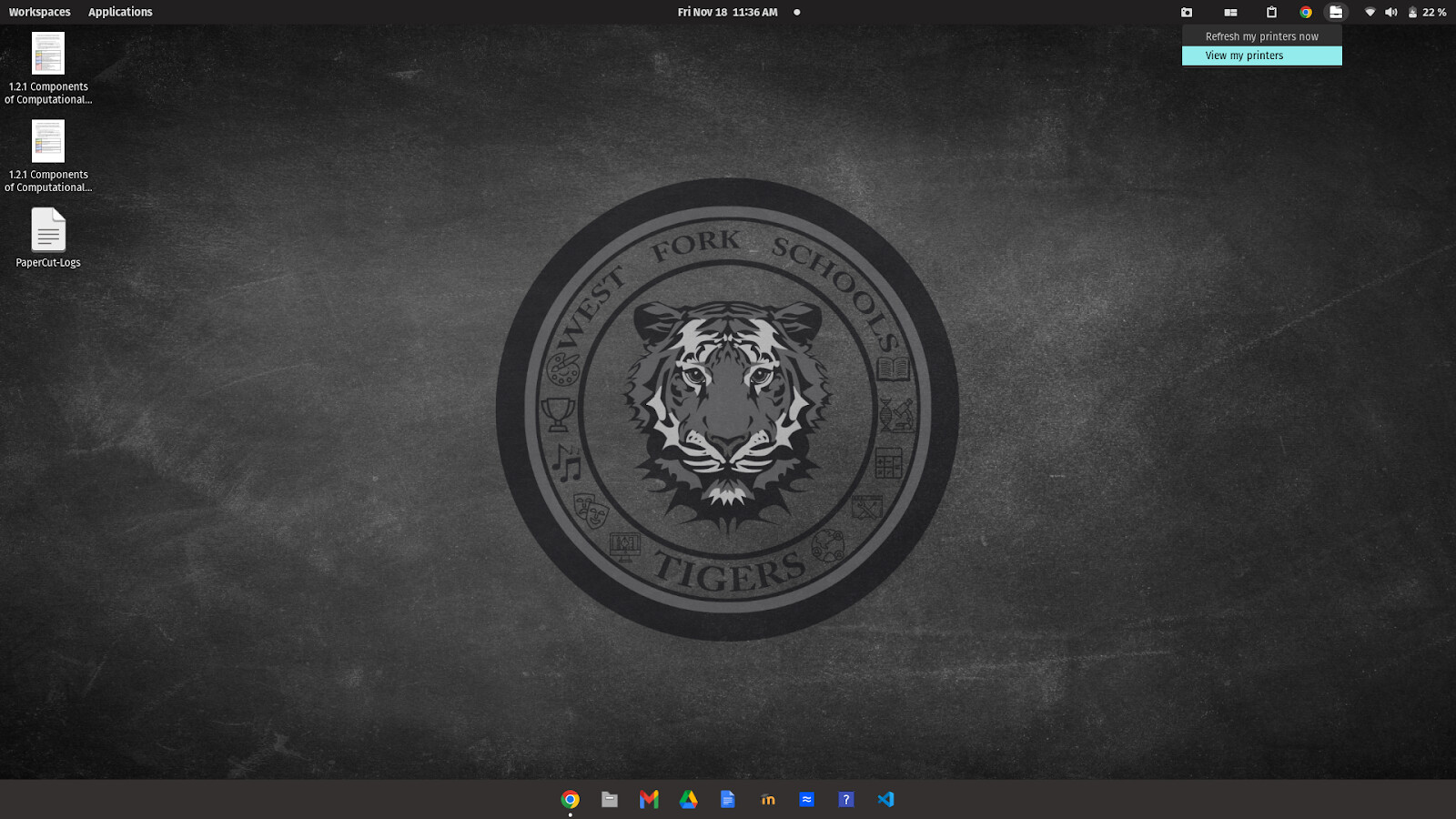
You will be required to log in. Just use your school Google account to do so.
The default installation is going to put a printer called “Print_Release” on your computer. This, technically, is the only printer that you really need access to since you can release to any machine.
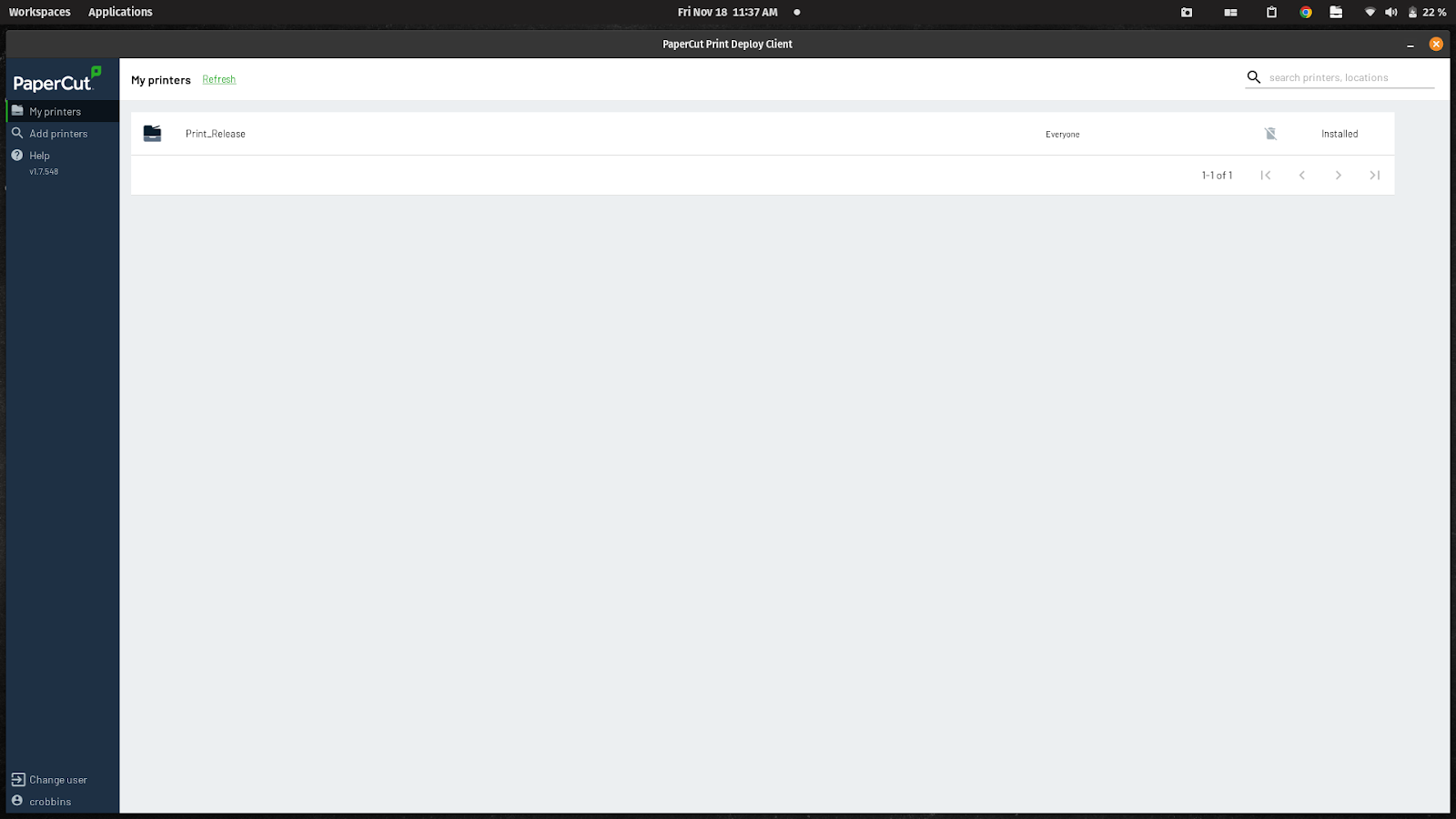
IF you REALLY want to, you can click on “Add printers” on the left of the page that pops up. Then click on the green “INSTALL” button for the device that you need to get installed.
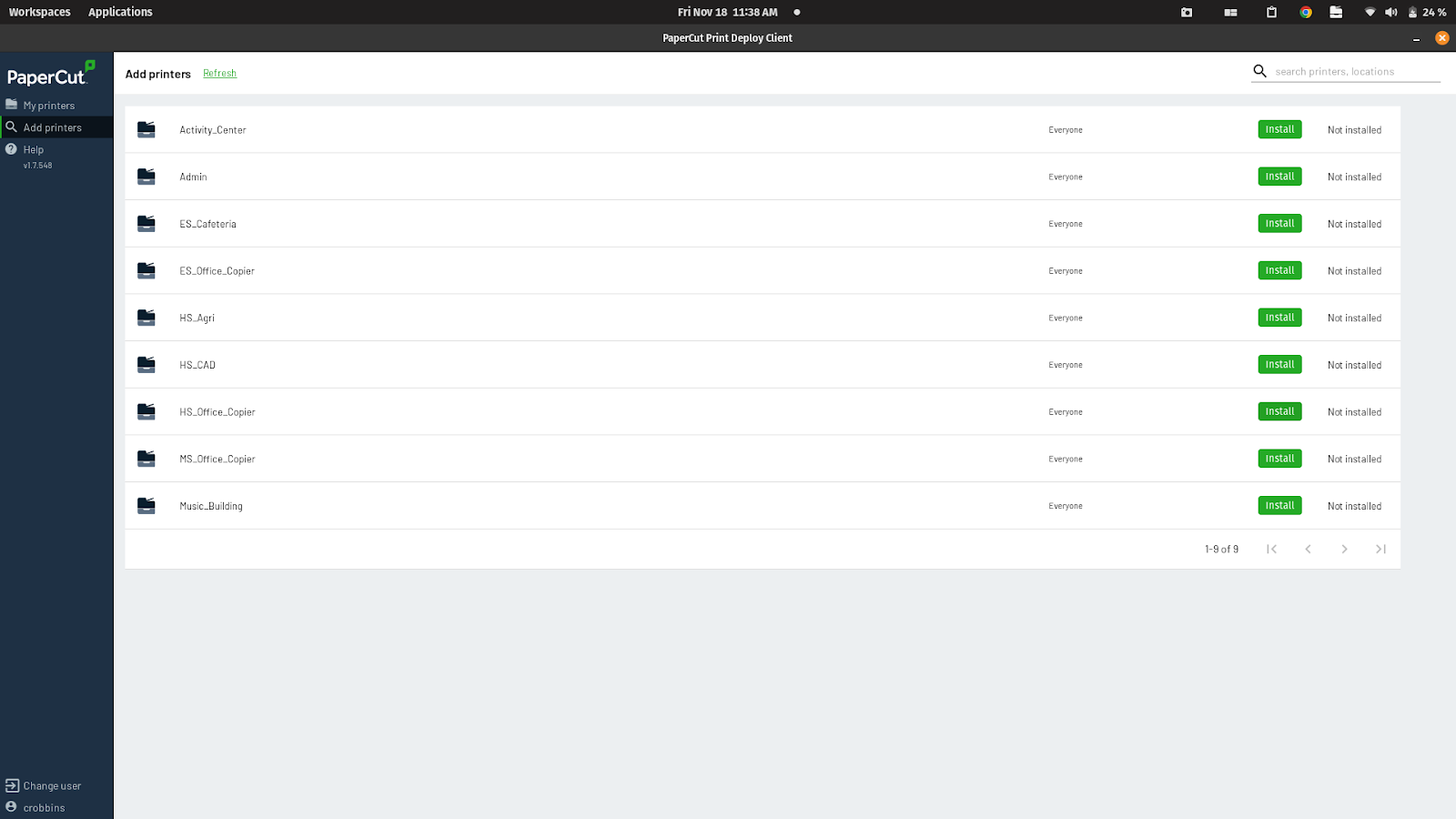
The printer you choose should disappear from the list, and you should get a green confirmation message at the bottom of your screen.
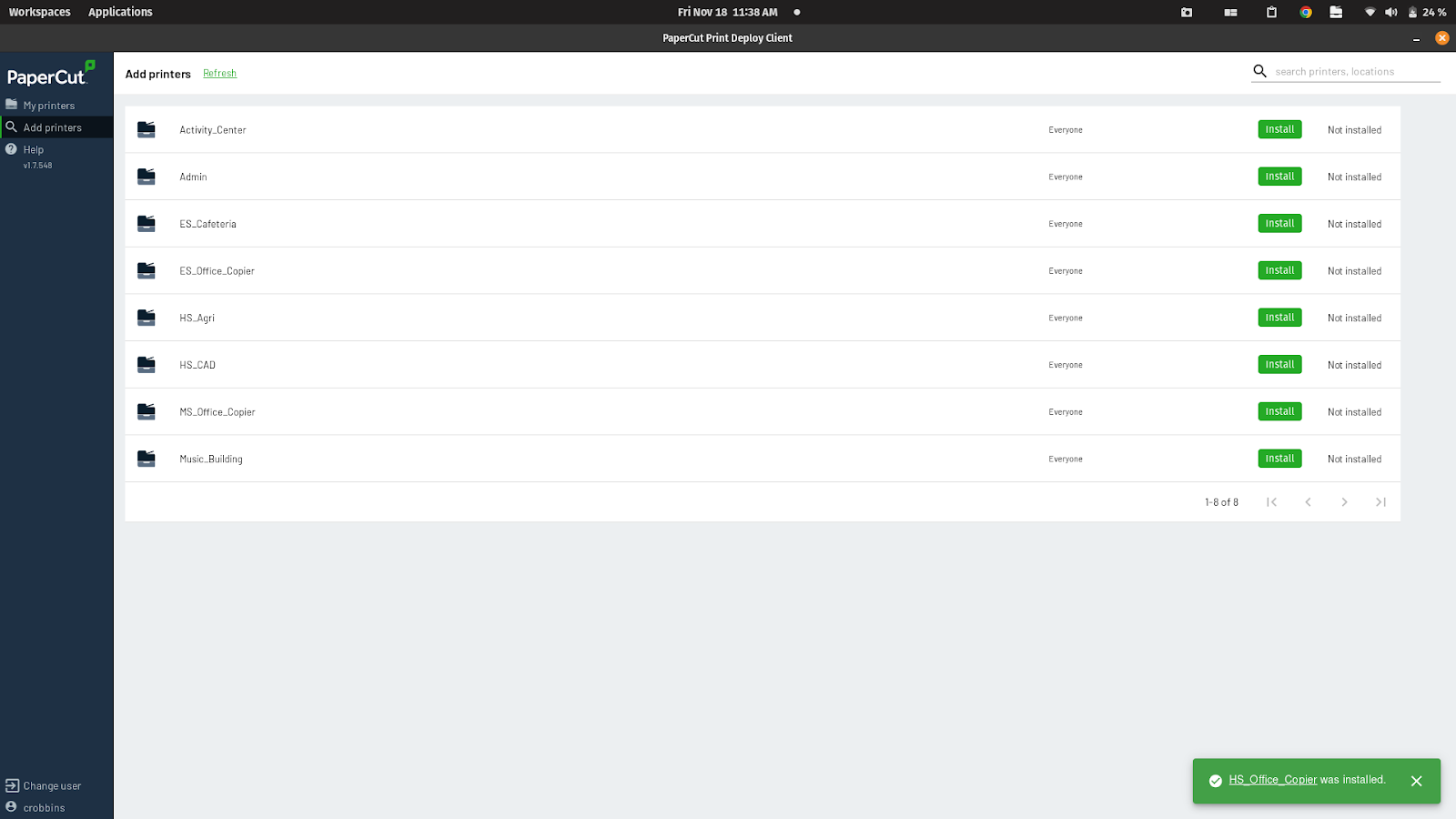
Now, when you click on “My printers” on the left, you will see the “Print_Release” and any other printer you chose to install.
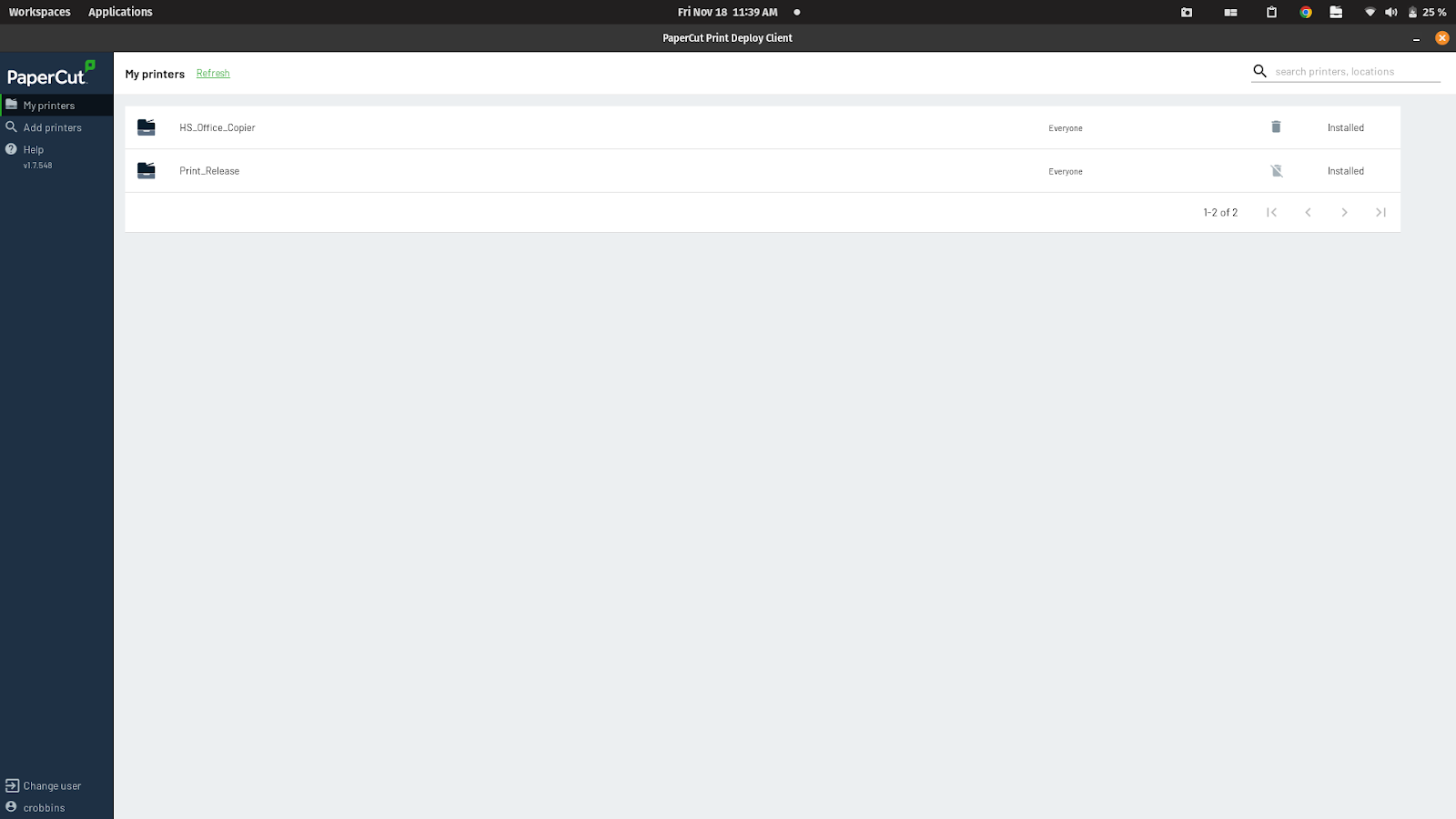
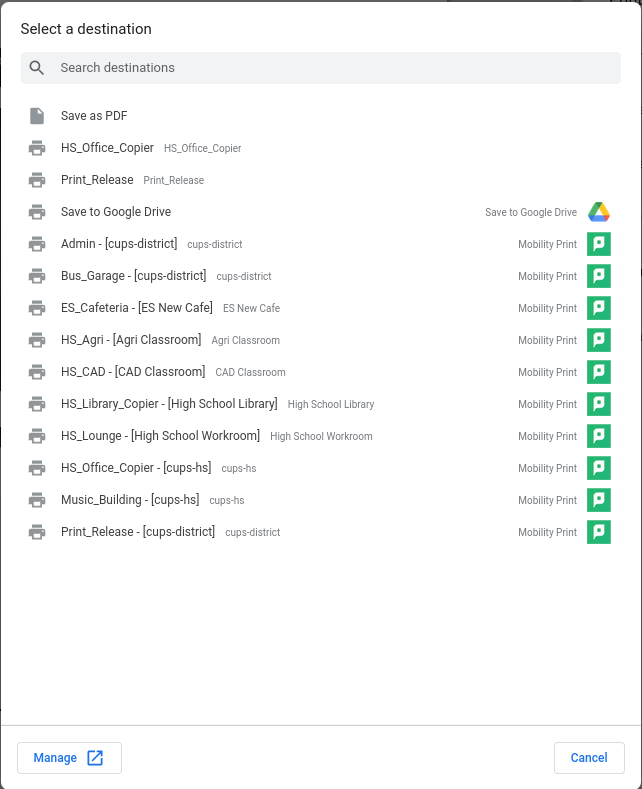
You will now see these printers in your printer selection menus, both in chrome and other print-enabled applications.
Originally posted by Cory Robbins on the West Fork Technology Hub (2023-02-16).