
Run a Classroom Newsletter with a Publishing Flow
DraftUse a publishing flow to run a class newsletter: students write and take photos, student editors check the issue, and you make the final call before anything goes online. This guide walks through one full issue, start to finish, with screenshots of each step.
What you'll set up once: a publishing flow (who writes, who reviews, who publishes) and a shared class folder (so students can work on the same issue). After that, every issue follows Parts 3 to 5.
How it works
Students sign in to RoarPress with their district Microsoft account. Have every student sign in once before you set up the class folder. A folder can only be shared with someone who has signed in.
Part 1: Build the publishing flow (teacher, once)
Step 1. Open Publishing flows
In the side menu, choose Publishing flows. Choose + New publishing flow.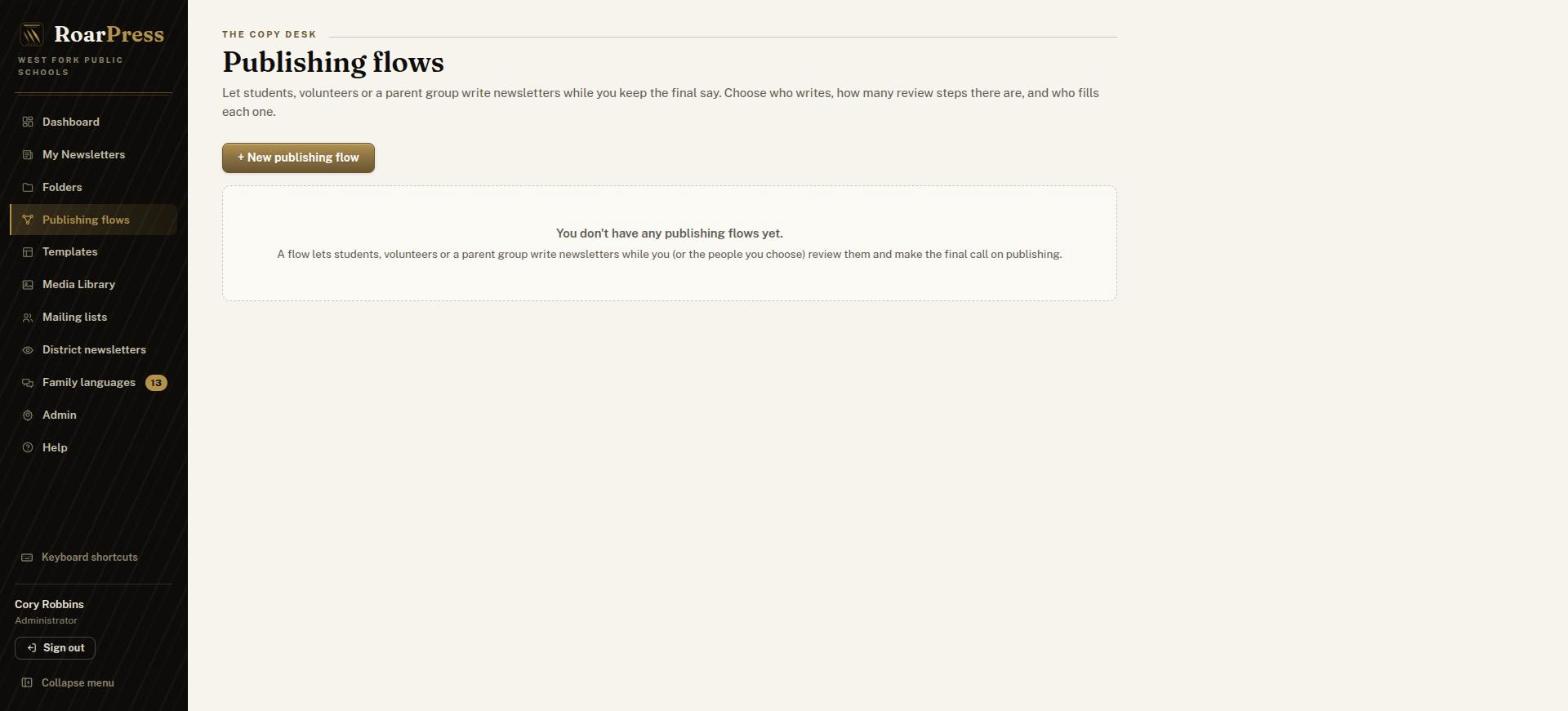
Step 2. Name it
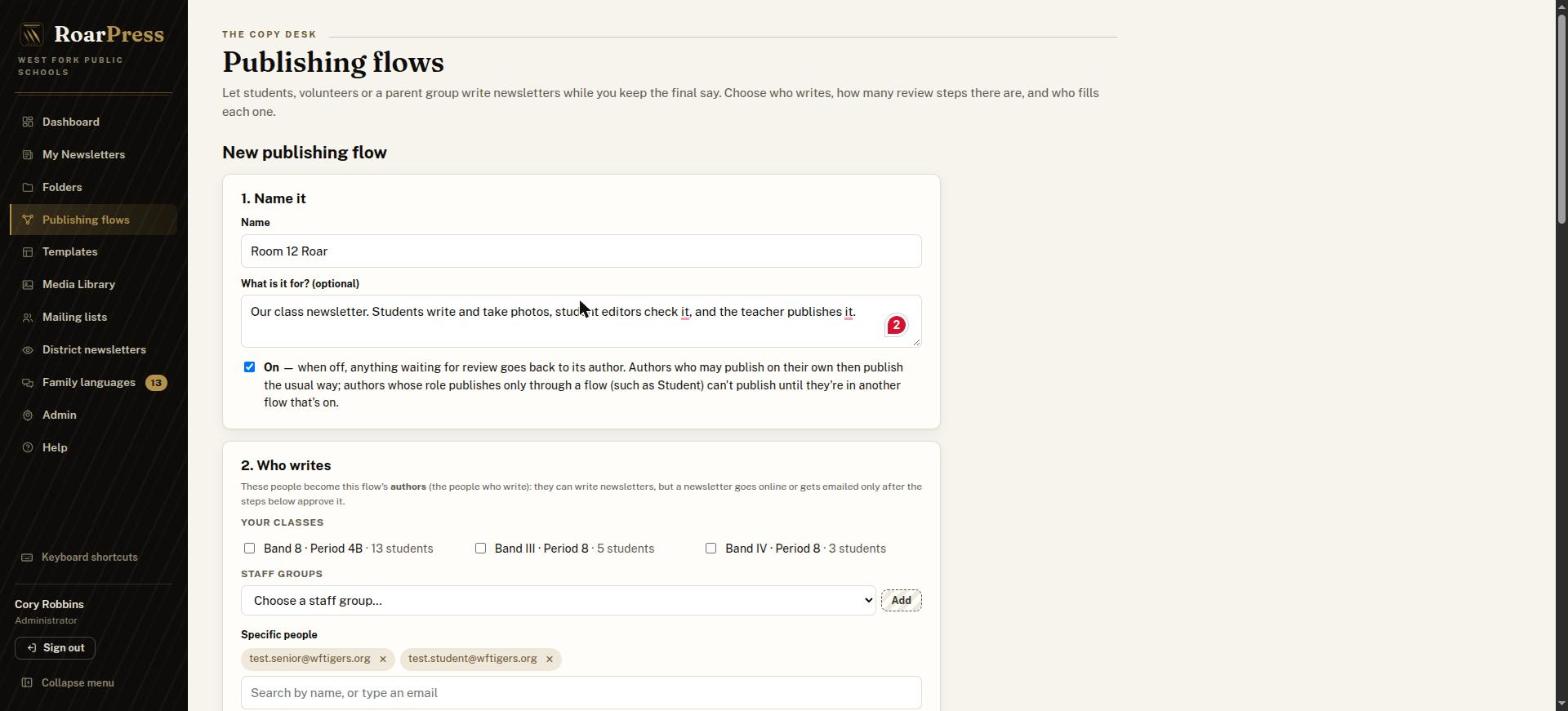
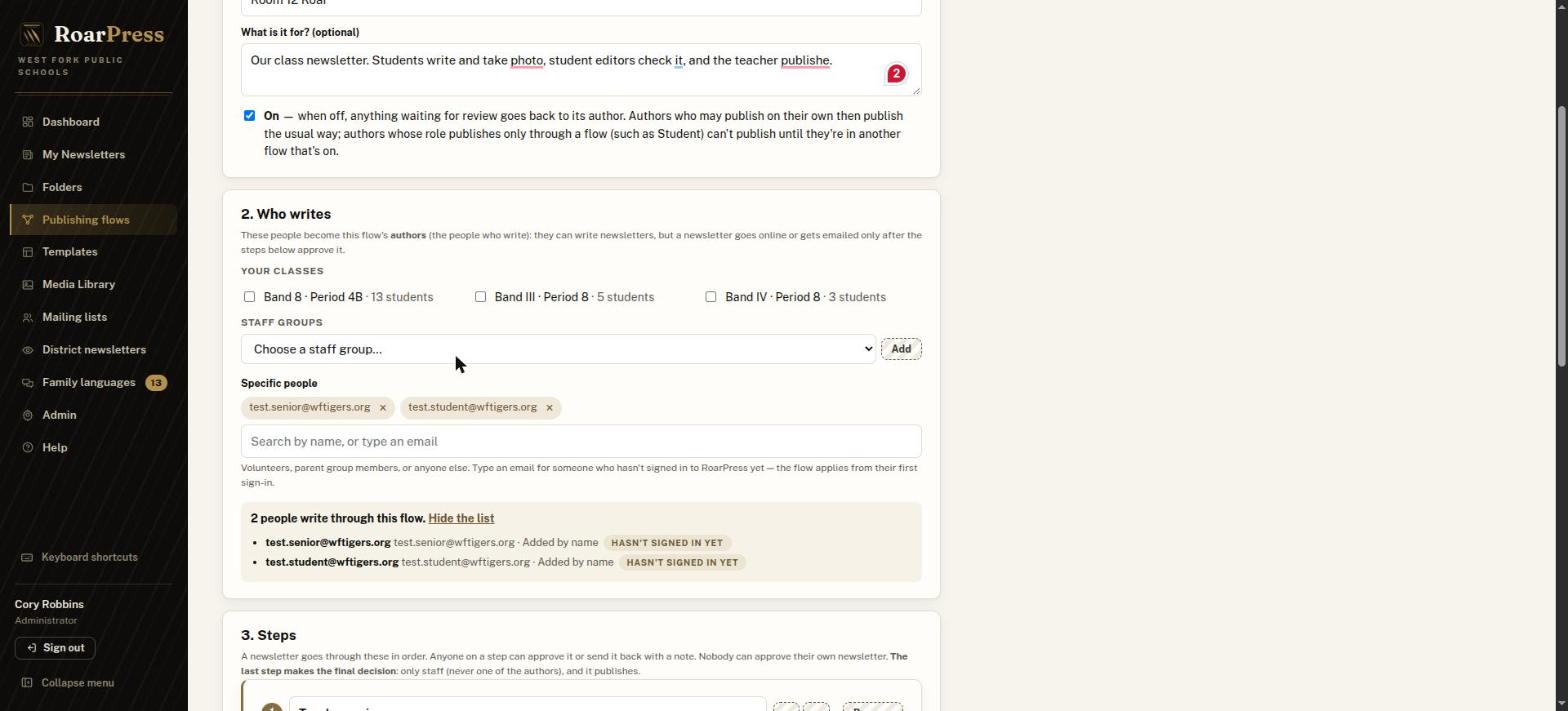
Step 3. Choose who writes
Step 4. Add a student editor step
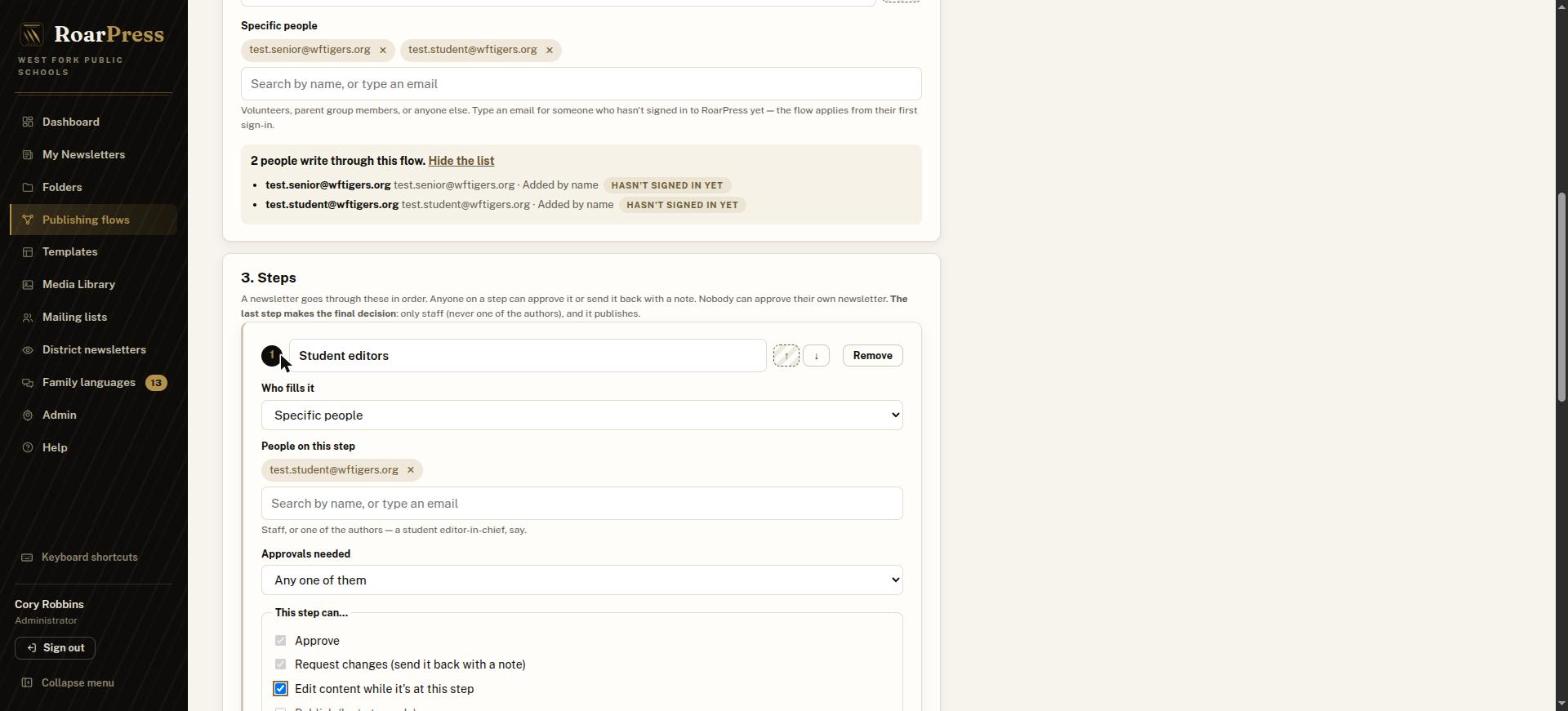
Step 5. Check the final step
The last step is already set up: it's named Teacher review, marked Final decision · Staff only · Publishes, and filled by The flow's owner (you).
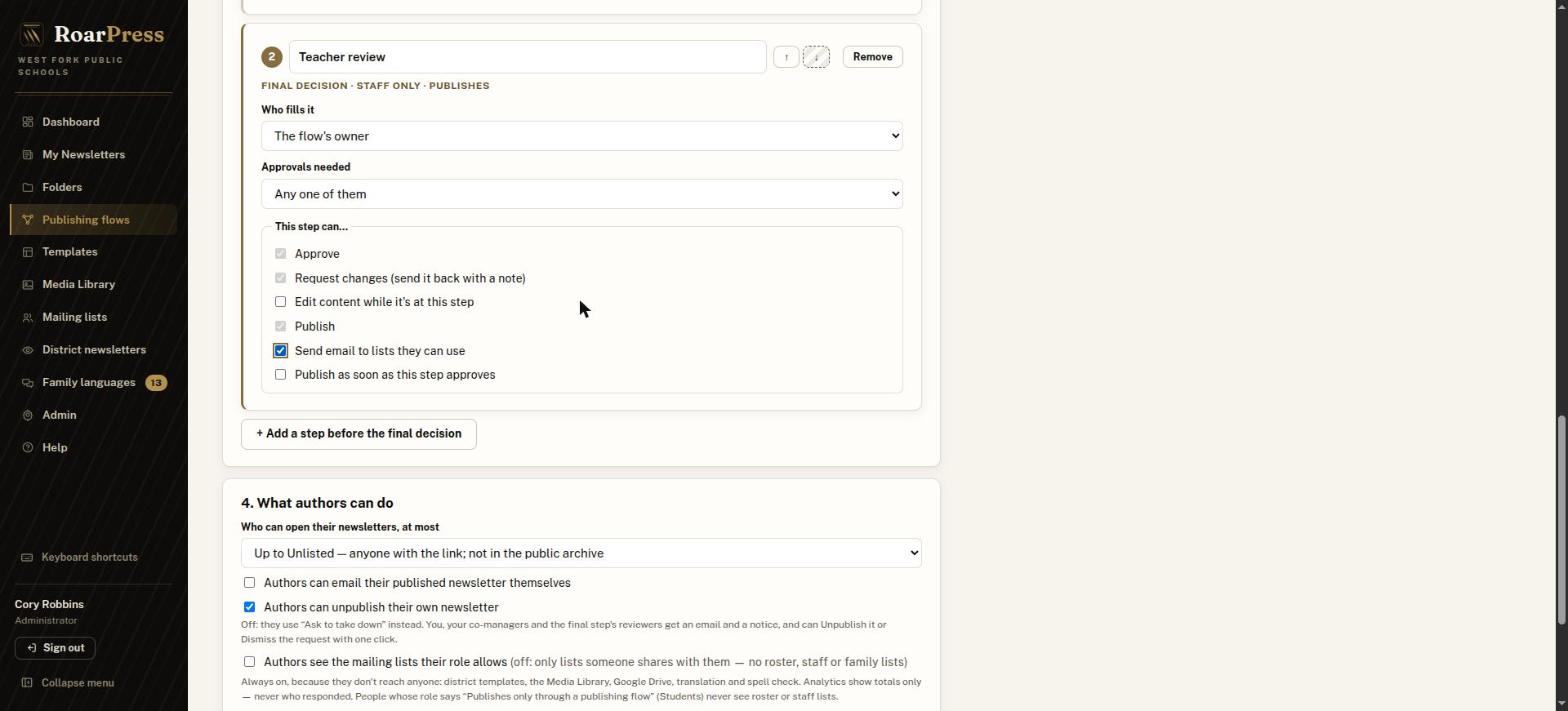
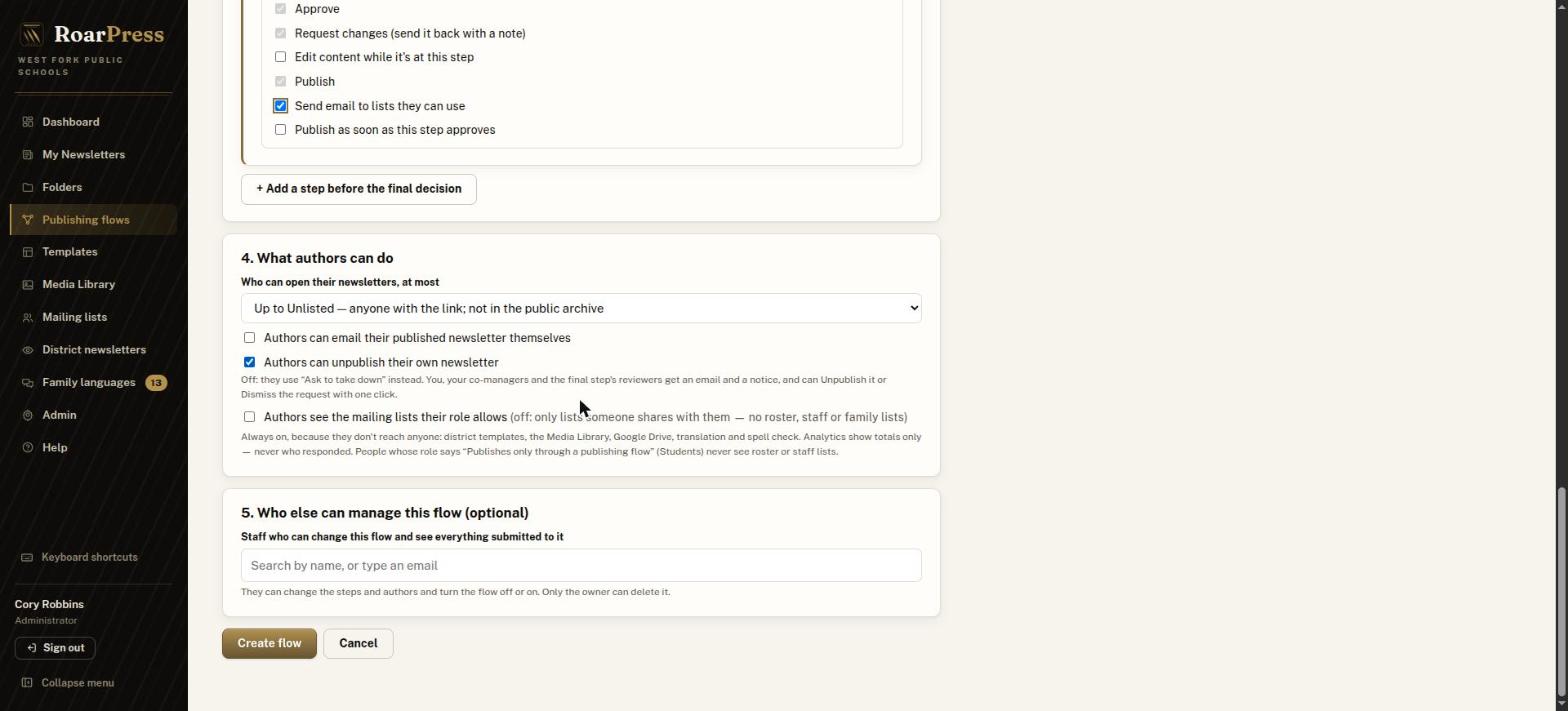
Step 6. Choose what authors can do, then create the flow
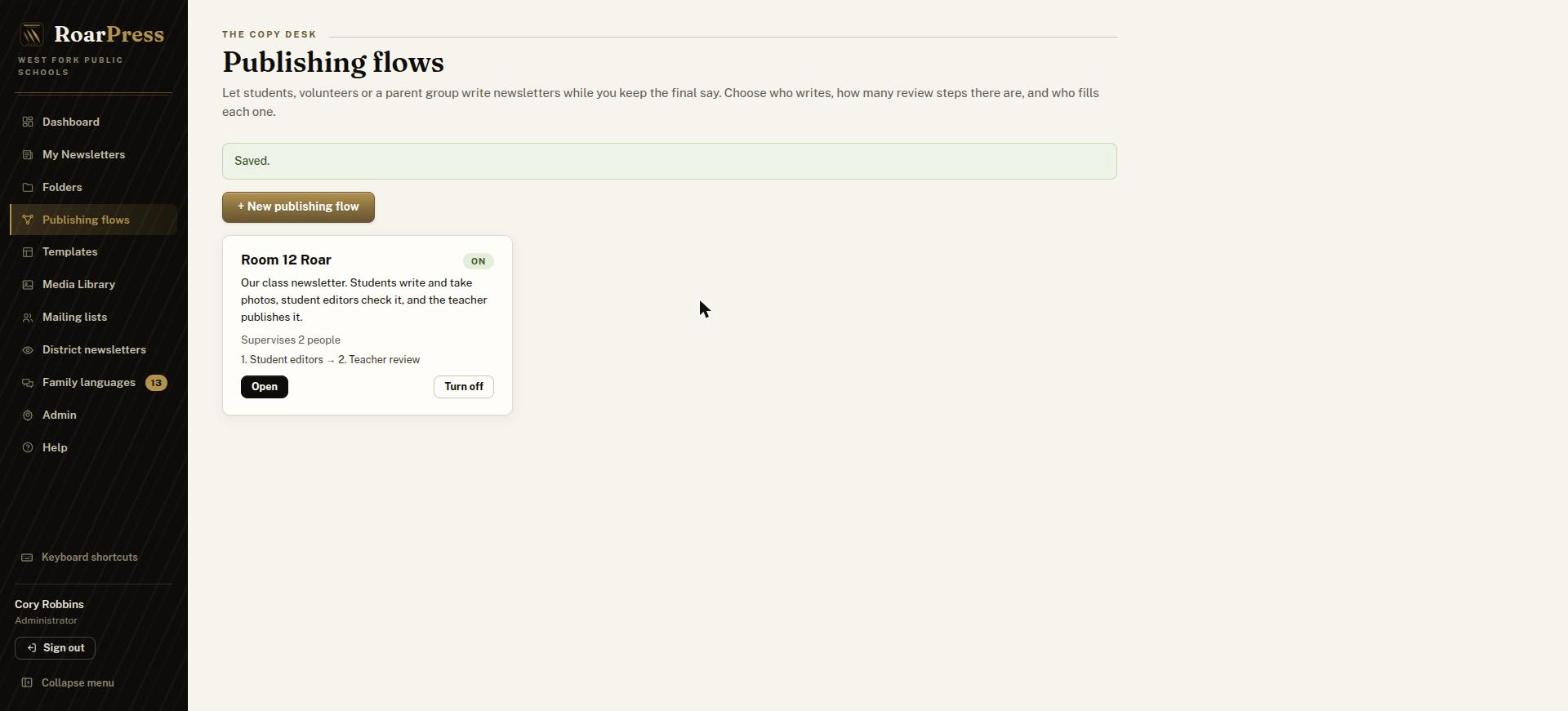
The flow is live straight away. Its card shows who it supervises and the steps in order.
Part 2: Make a shared class folder (teacher, once)
The flow decides who reviews. A shared folder lets writers and photographers work on the same issue.
Step 7. Create the folder
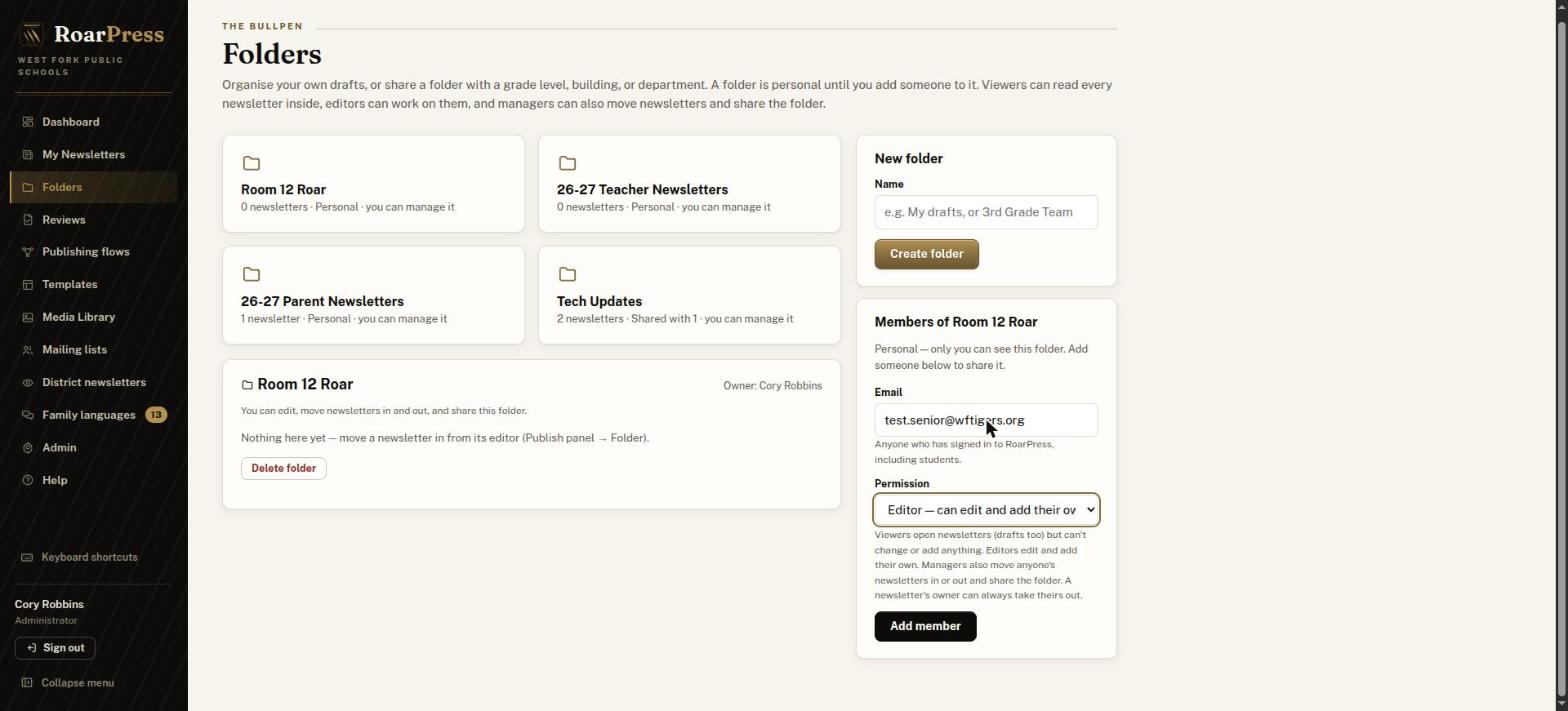
In the side menu, choose Folders. Under New folder, type a name such as Room 12 Roar, then choose Create folder.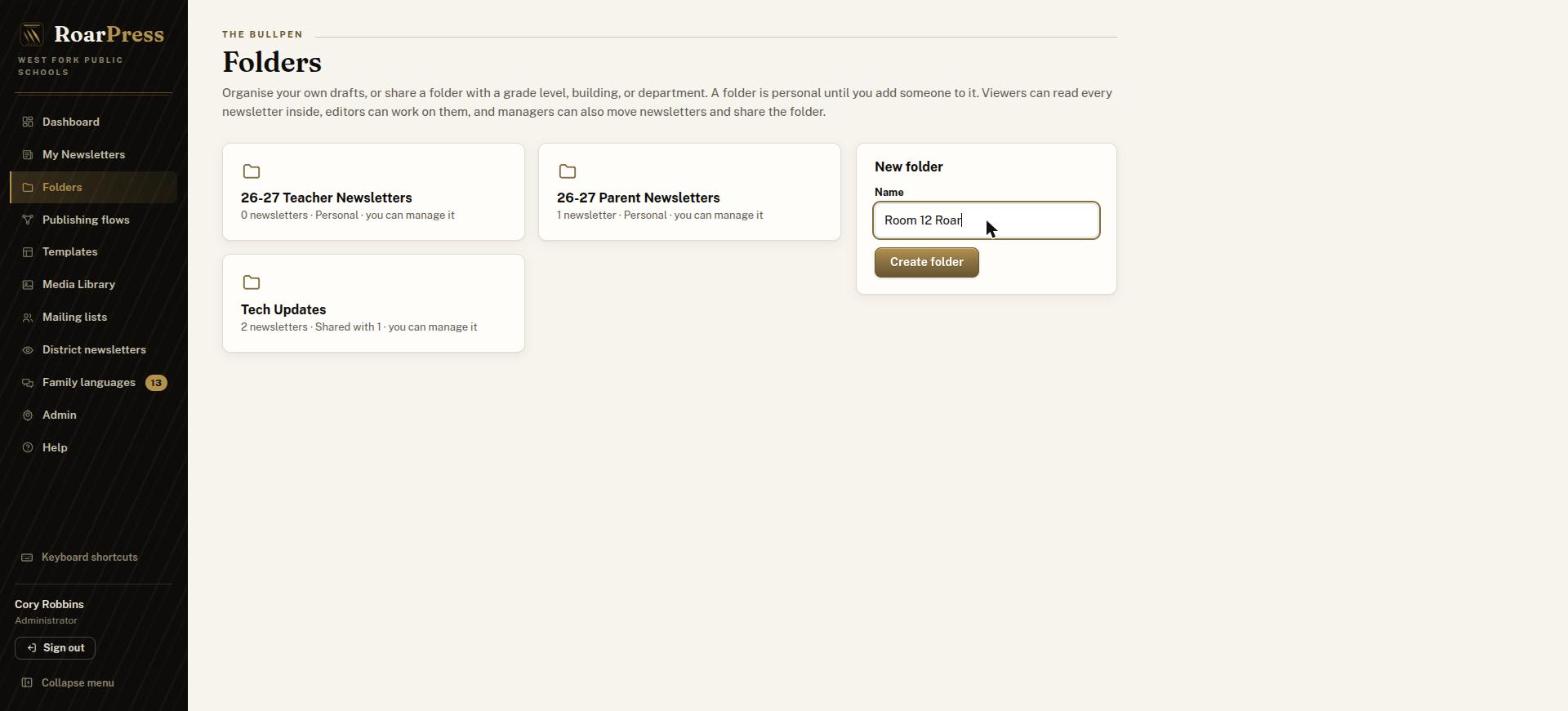
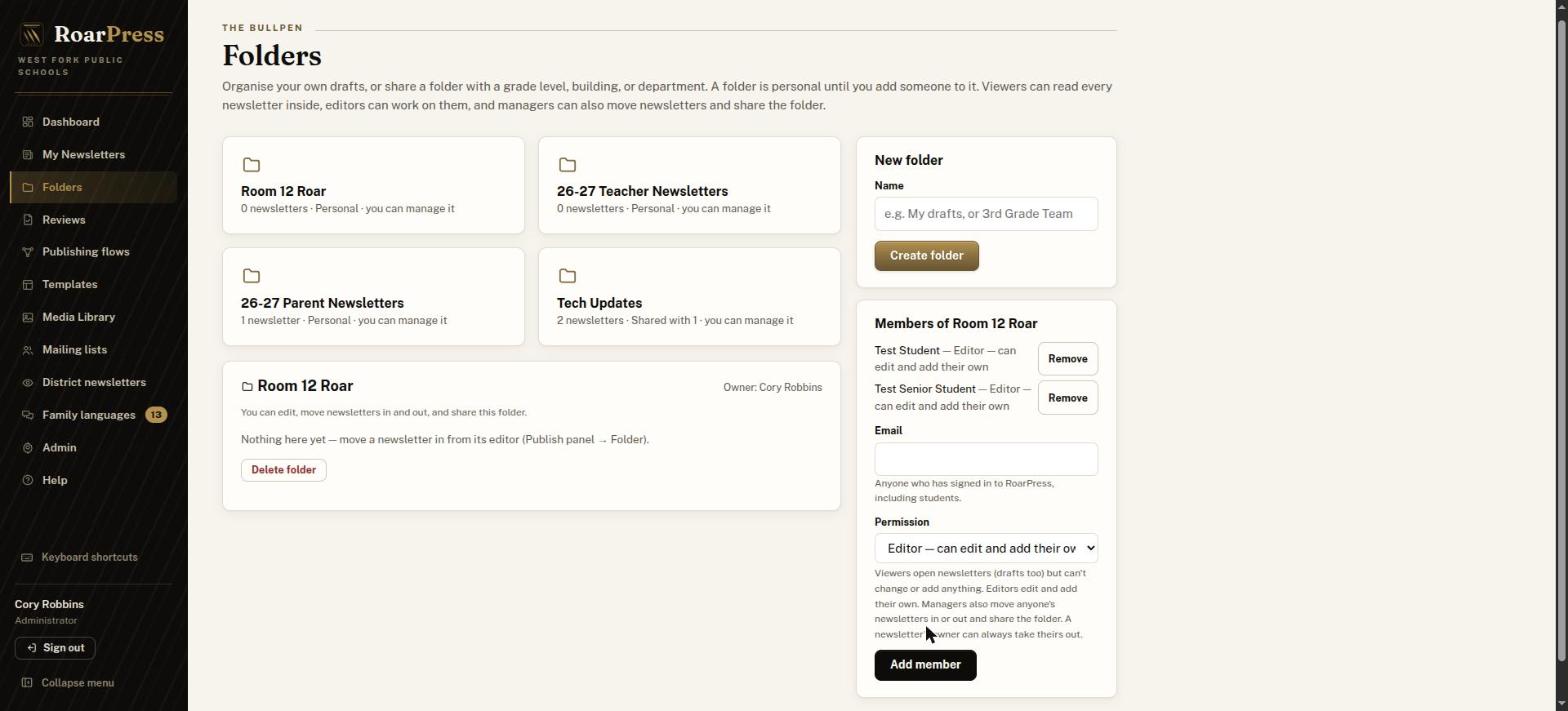
Step 8. Add your students as editors
Part 3: Students write the issue
Step 9. Students sign in
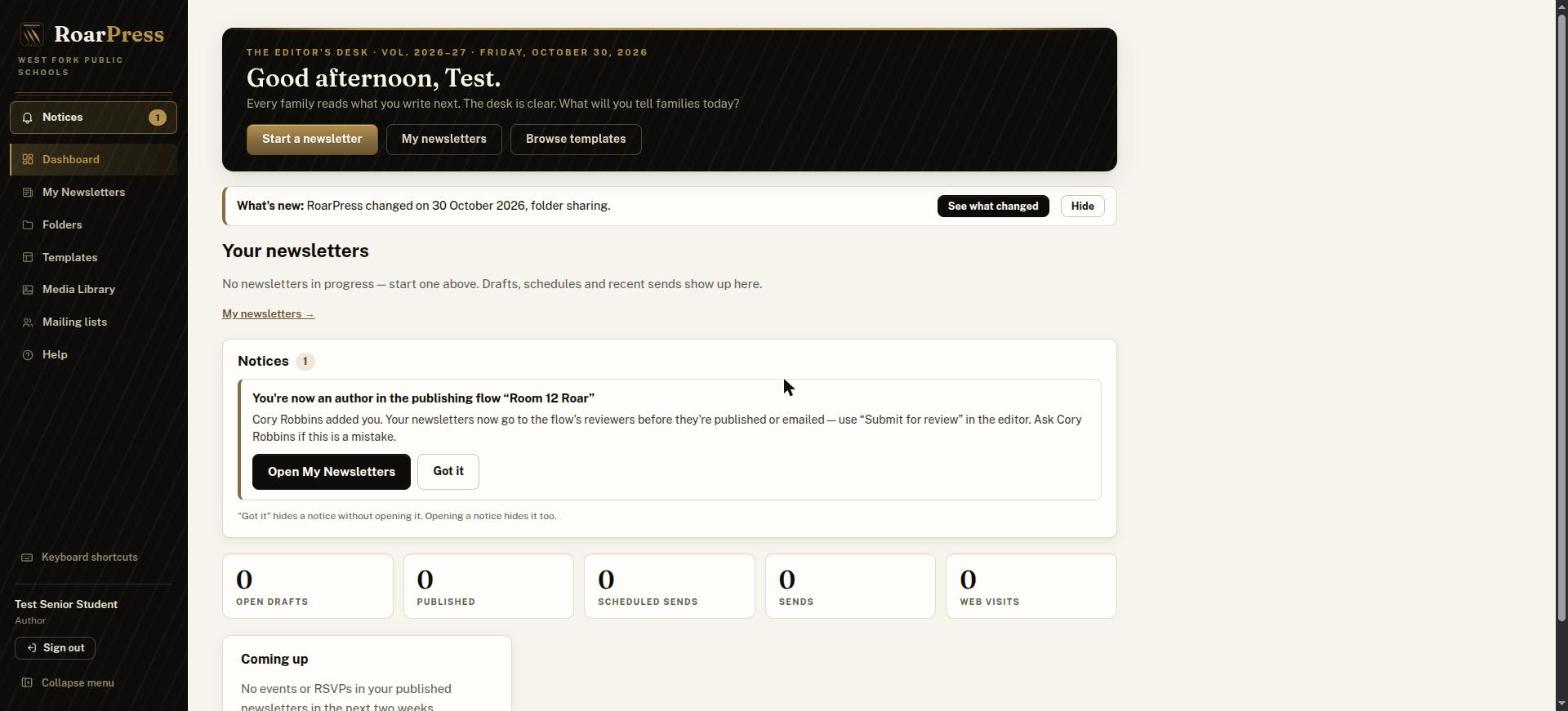
When a student is added to a flow by name, their dashboard shows a notice that they're now an author in your flow.
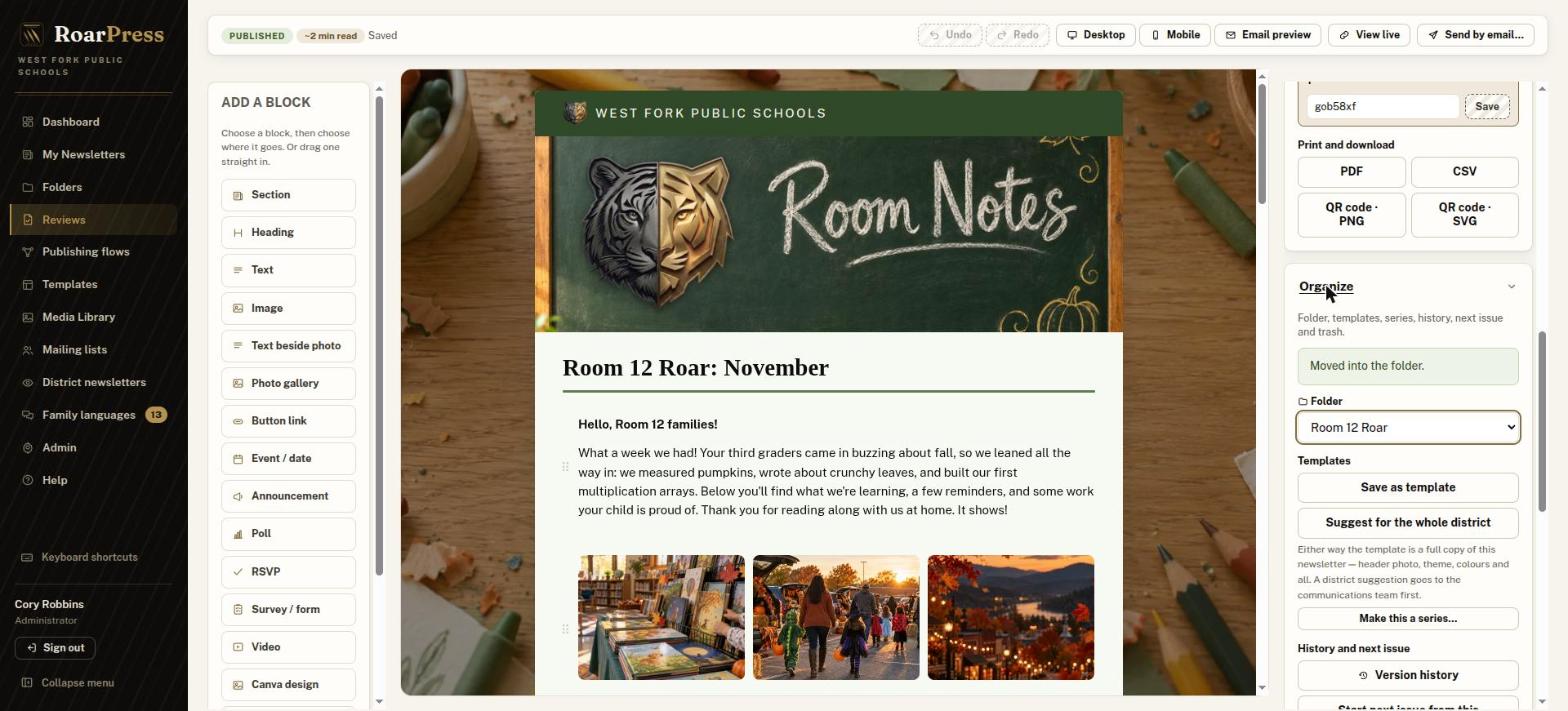
Step 10. Start the issue and move it into the folder
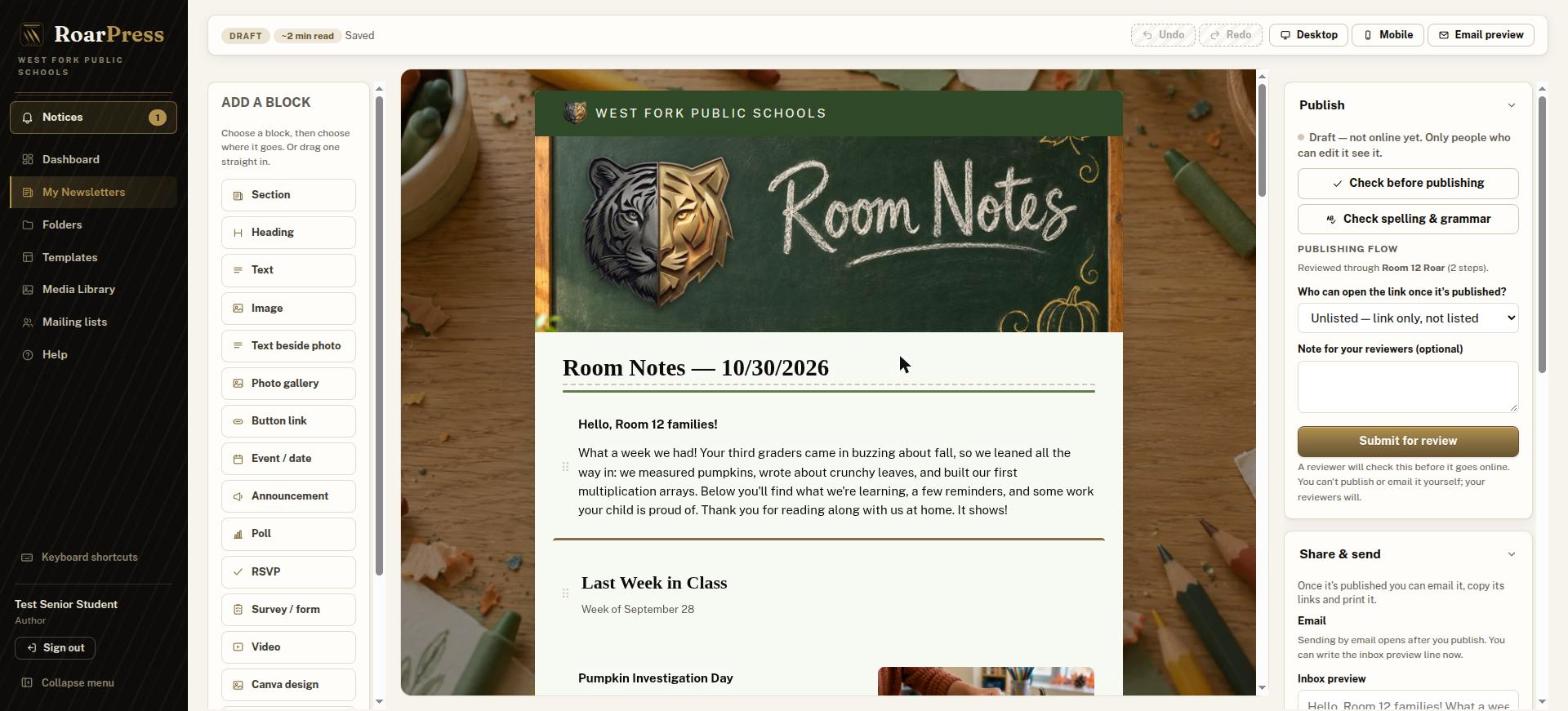
Pick one student to start each issue (a rotating "issue lead" works well). They should not be a student editor, because nobody can approve their own newsletter.
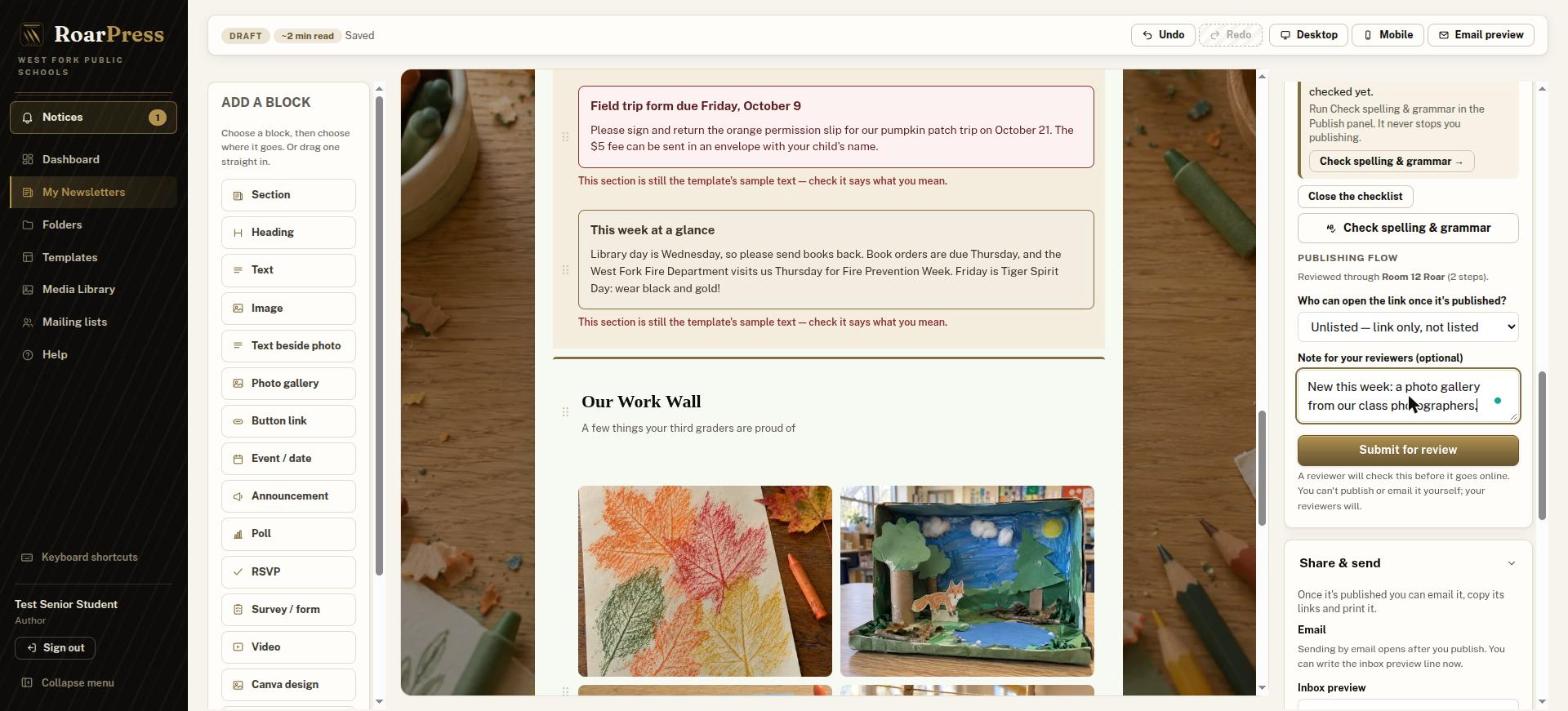
Notice the Publish panel on the right: students see Submit for review and "Reviewed through Room 12 Roar (2 steps)", never Publish.
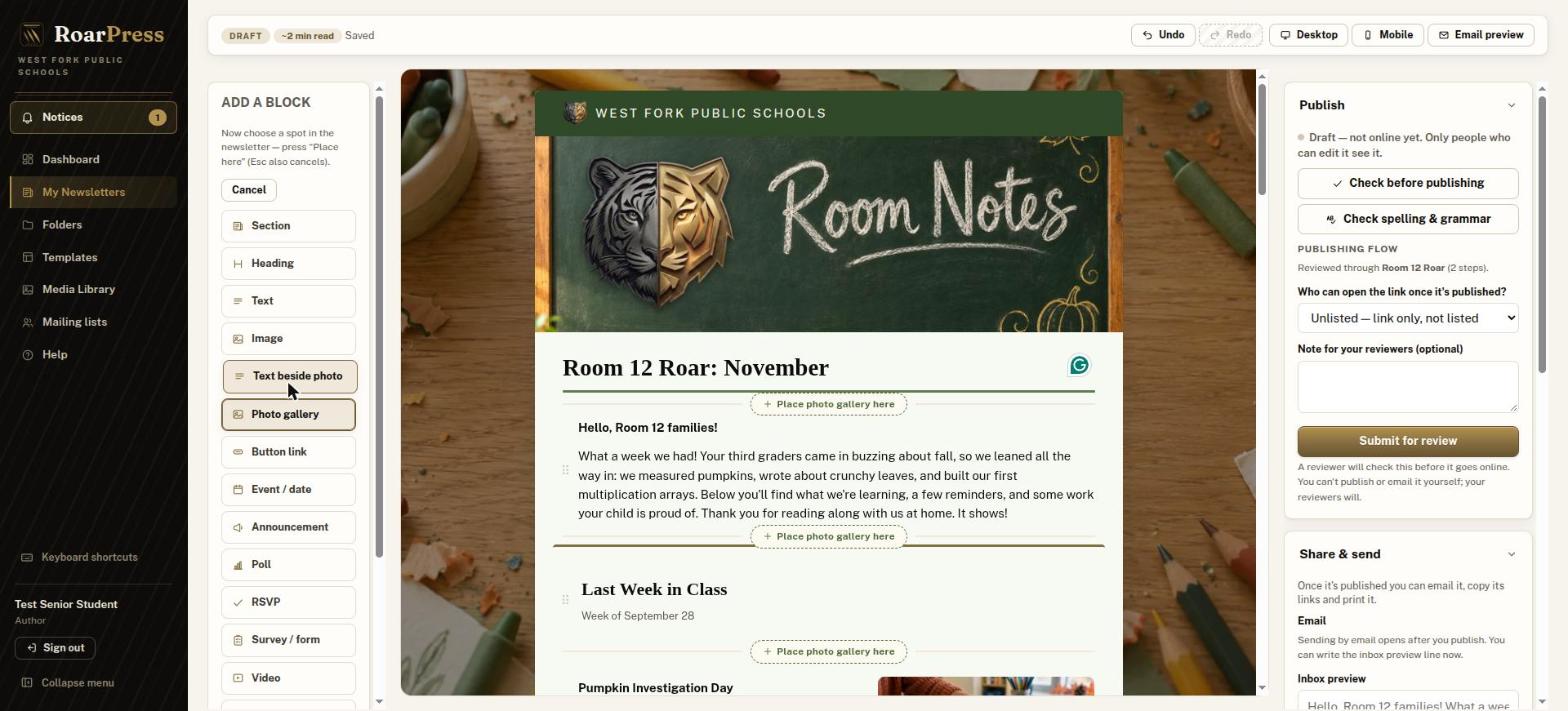
Step 11. Photographers add photos
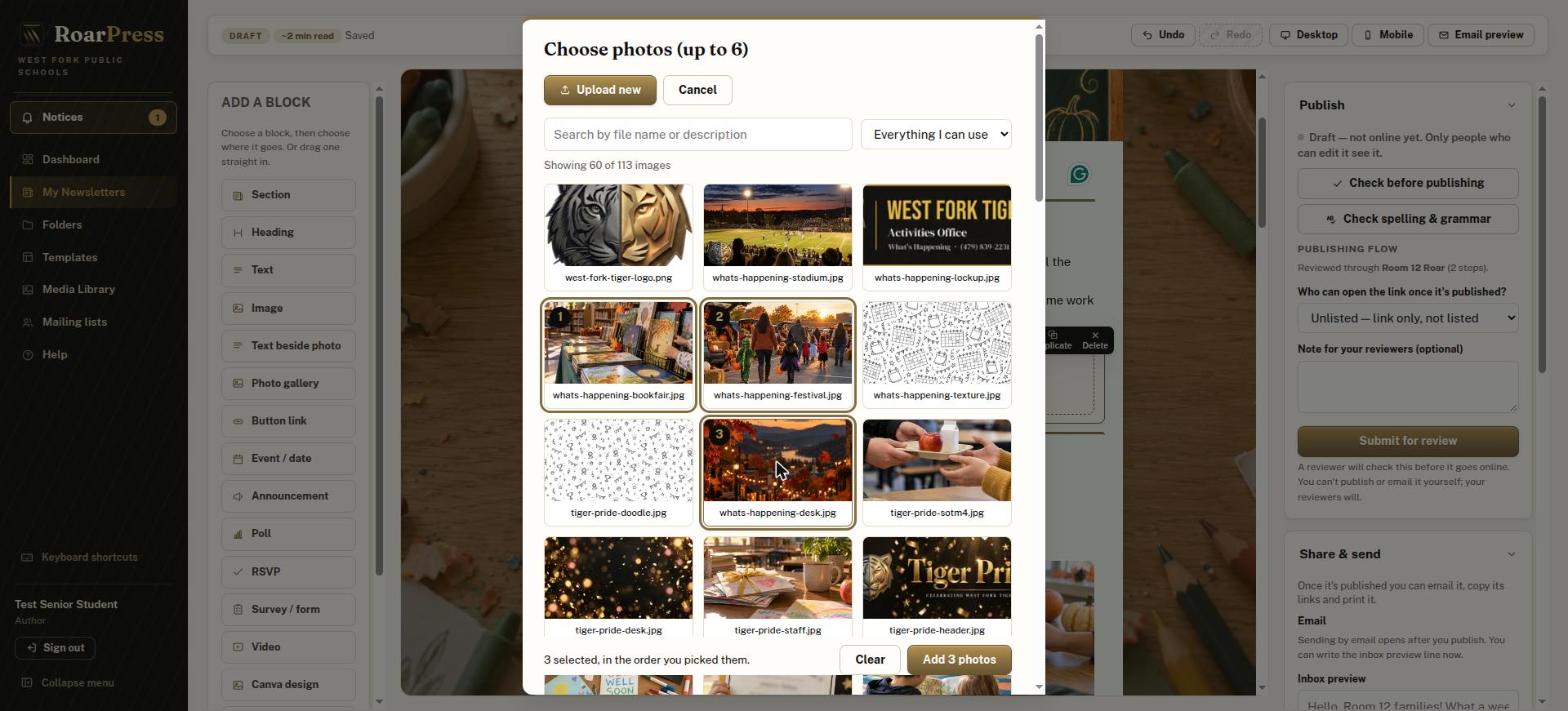
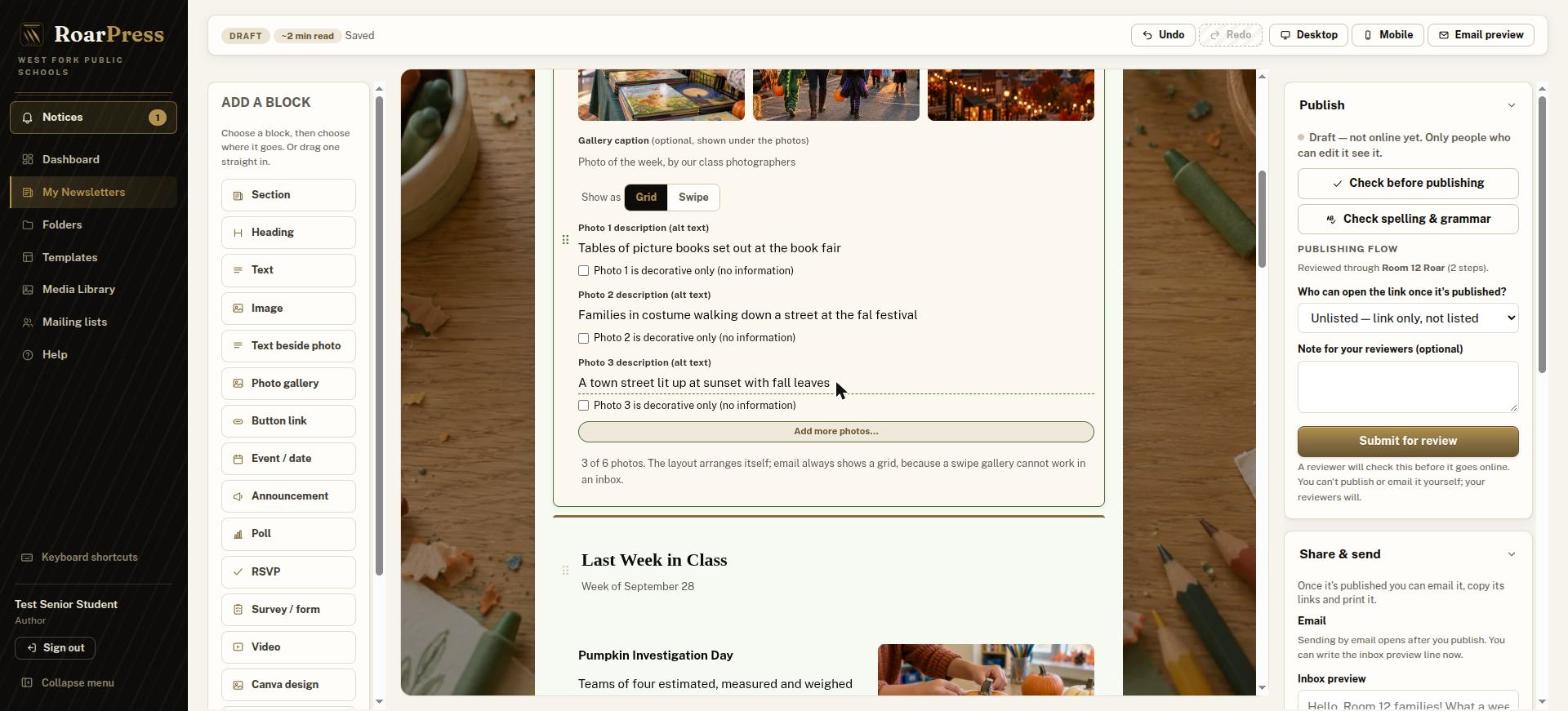
Use photos with no identifiable students unless families have agreed. iPhone HEIC photos aren't accepted; save them as JPG first.
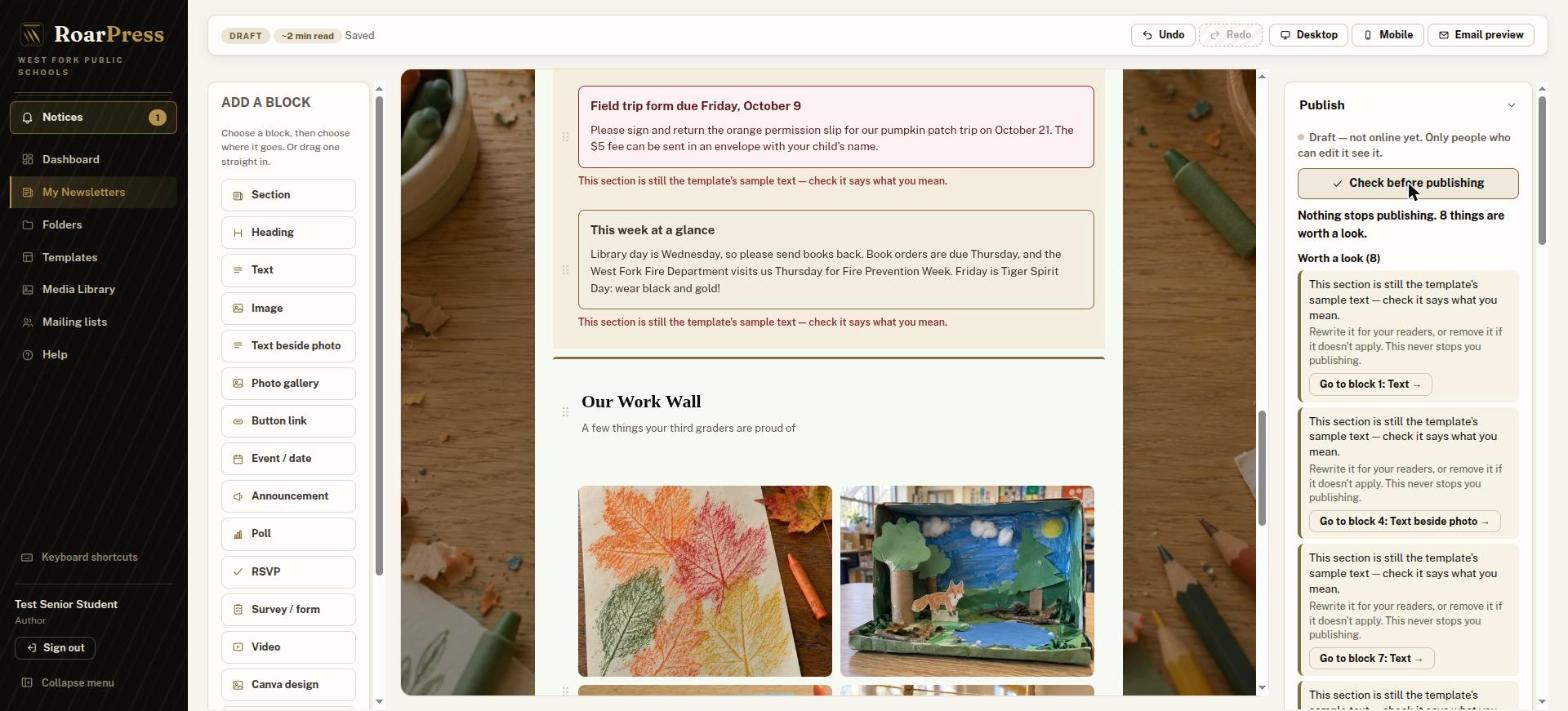
Step 12. Check before publishing
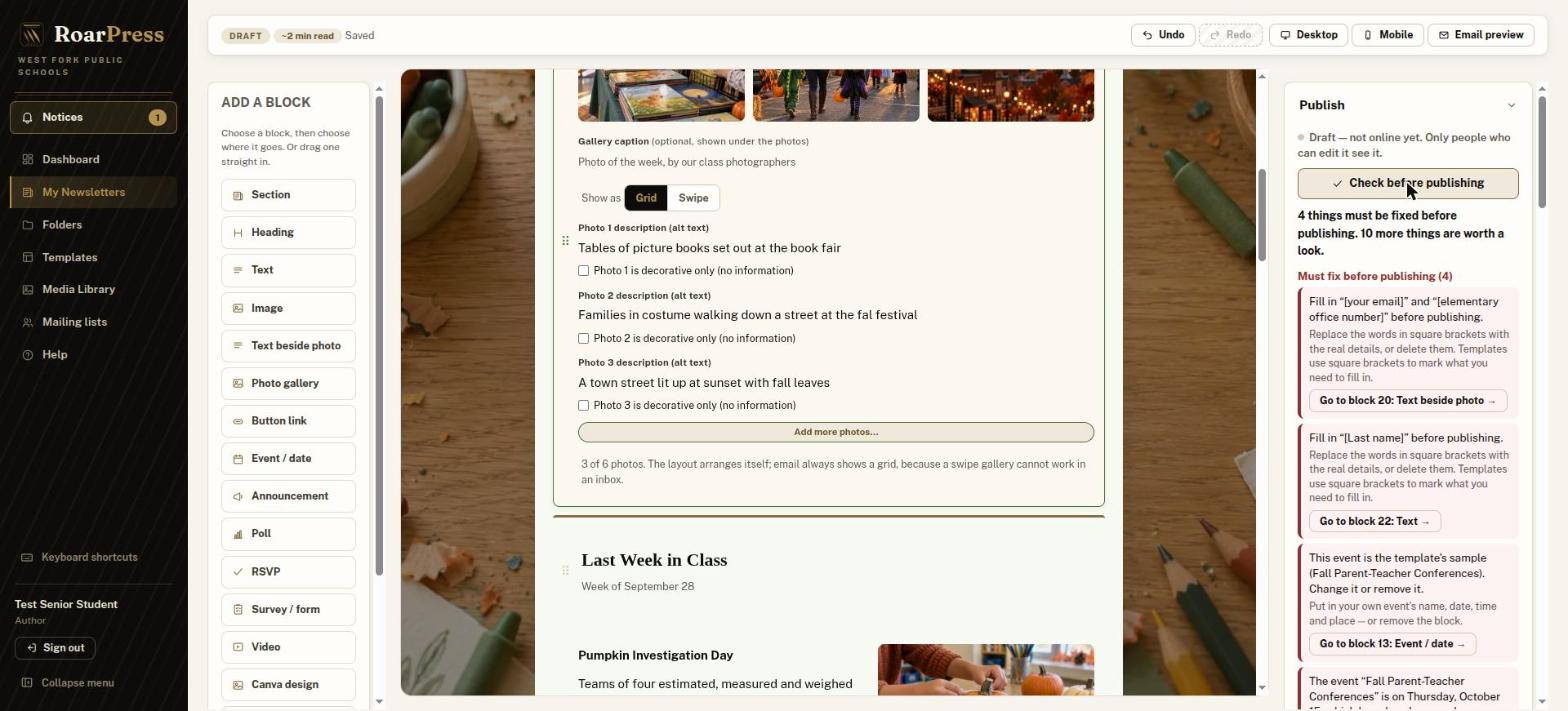
When the panel says Nothing stops publishing, the issue is ready. Items under Worth a look never block submitting.
Step 13. Submit for review
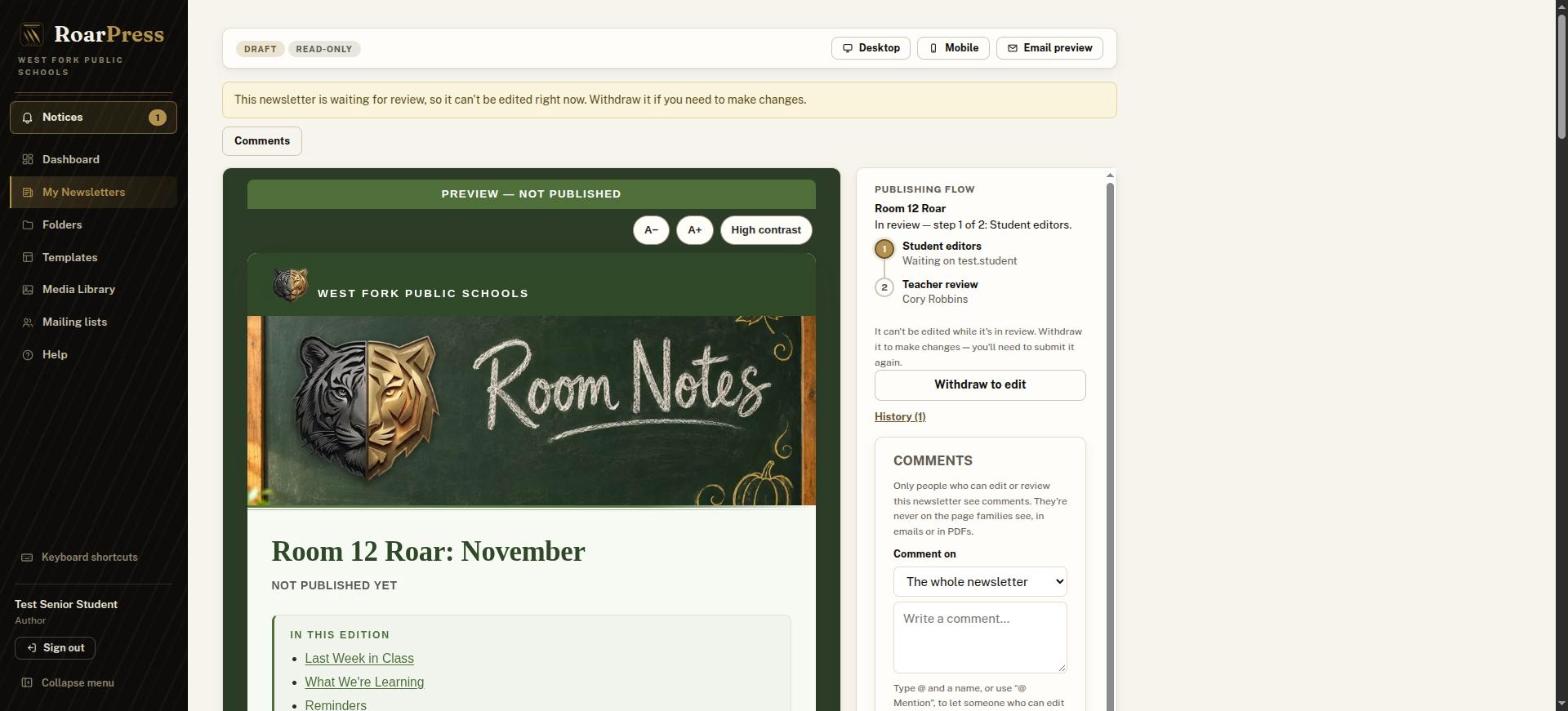
The issue is now locked for everyone in the folder. A progress strip shows where it is and who it's waiting on. To change something, the student chooses Withdraw to edit, and review starts again at step 1.
Part 4: Student editors check it
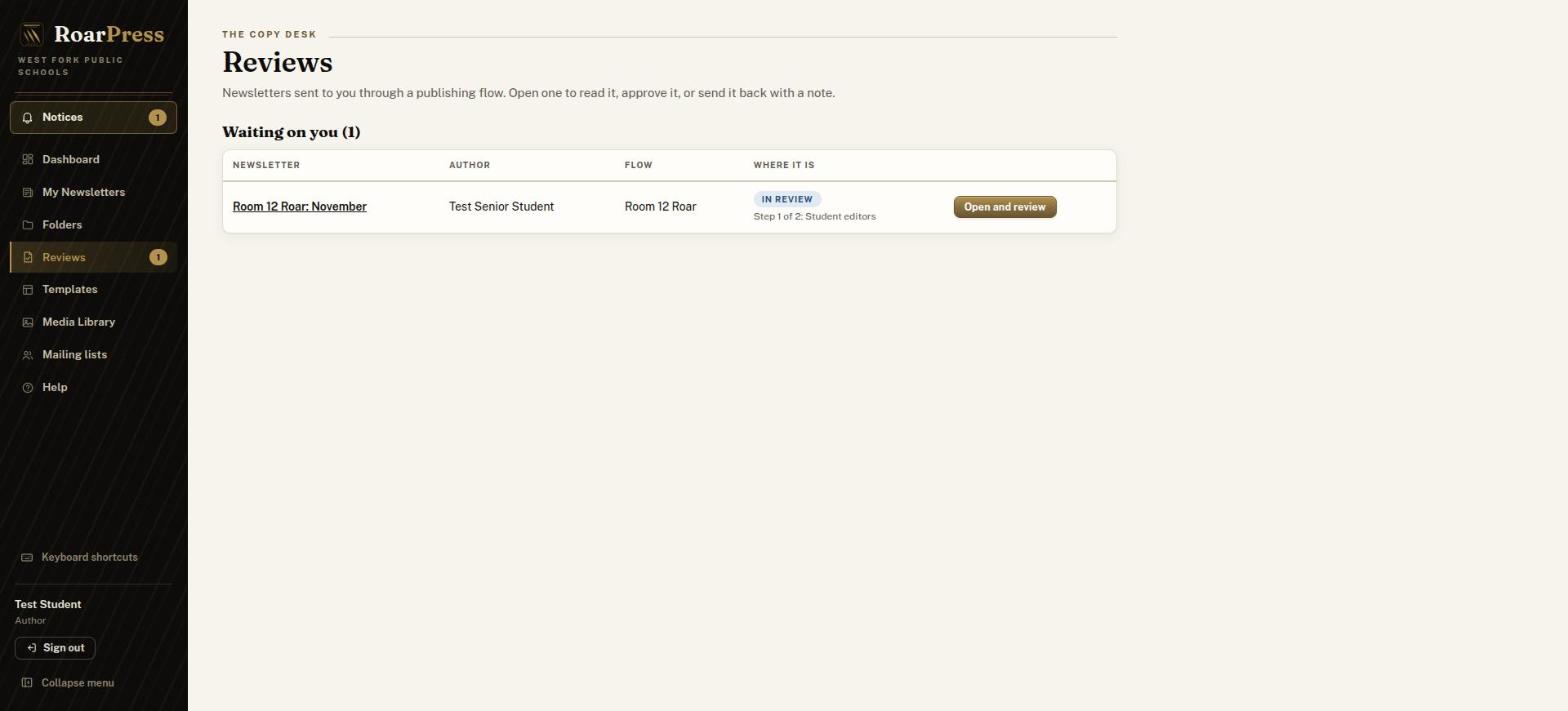
Step 14. Open the issue from Reviews
Student editors get a "Review needed" email. They can also choose Reviews in the side menu and then Open and review.
Step 15. Fix, then approve
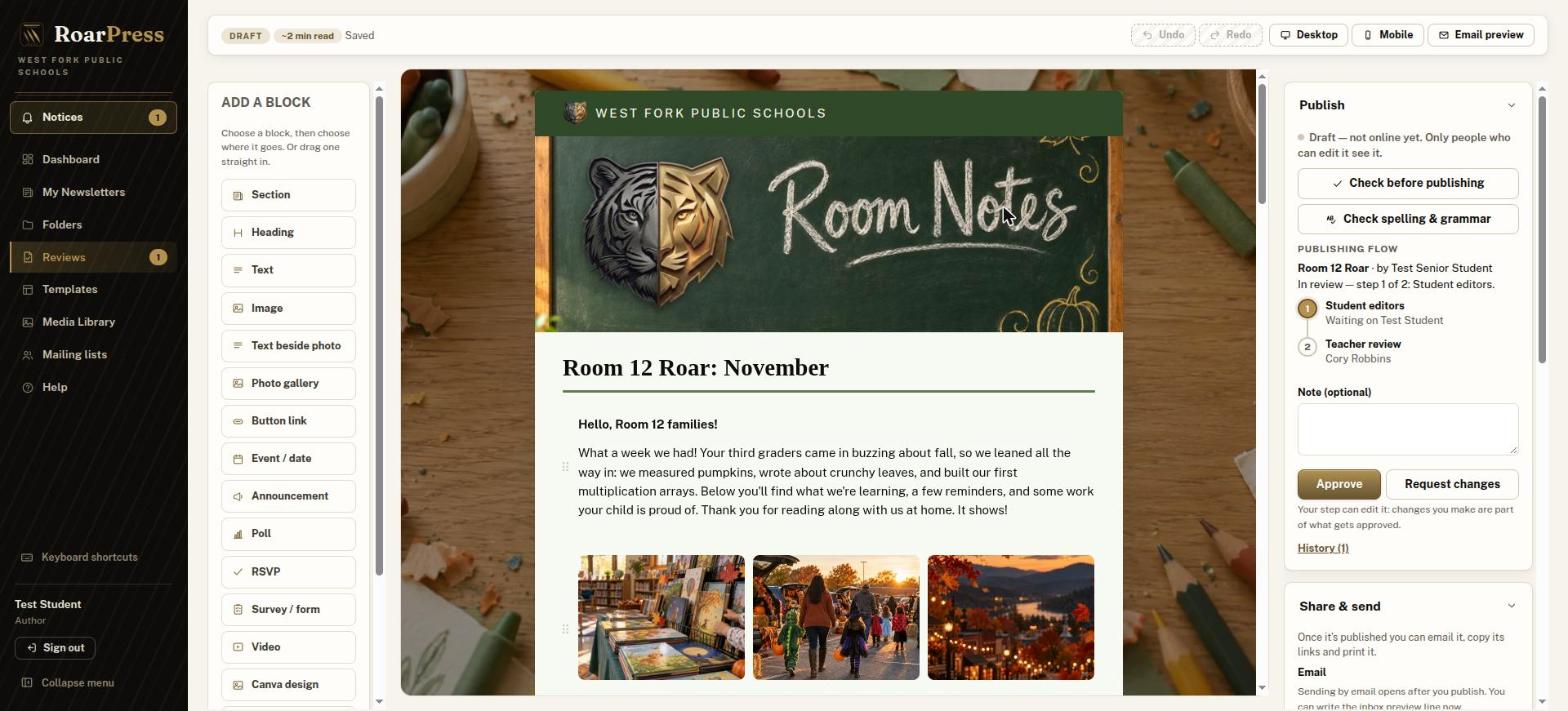
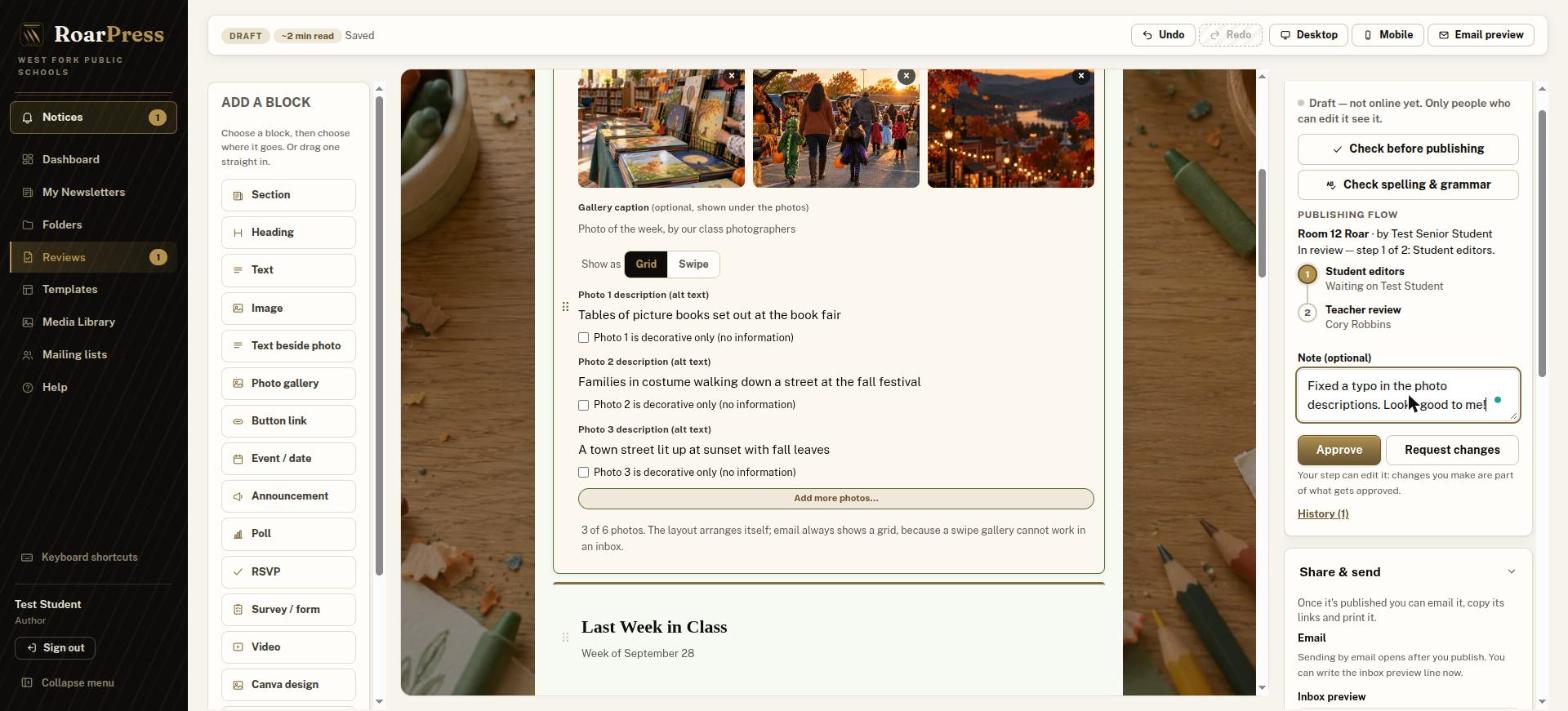
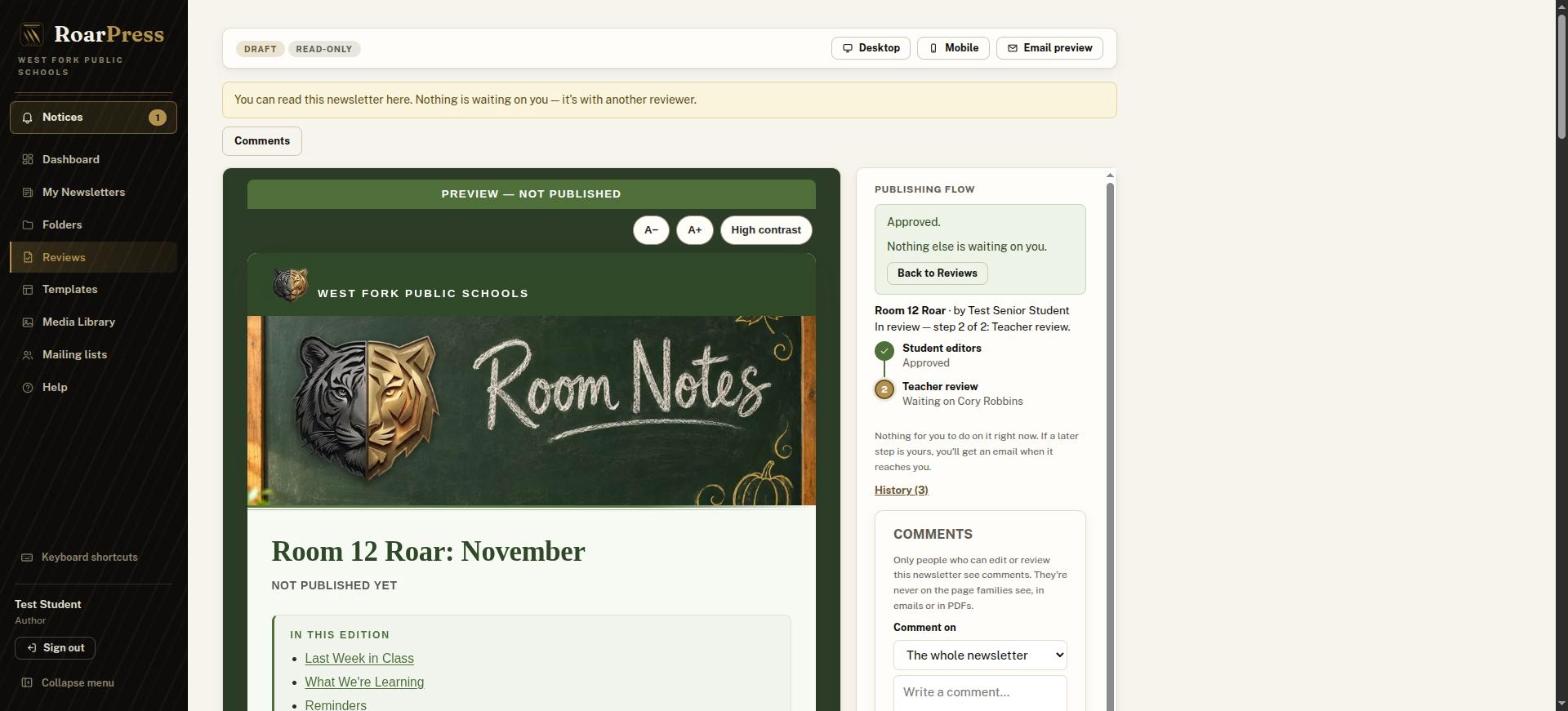
The issue moves to step 2 and waits on you.
Part 5: You review, publish and email
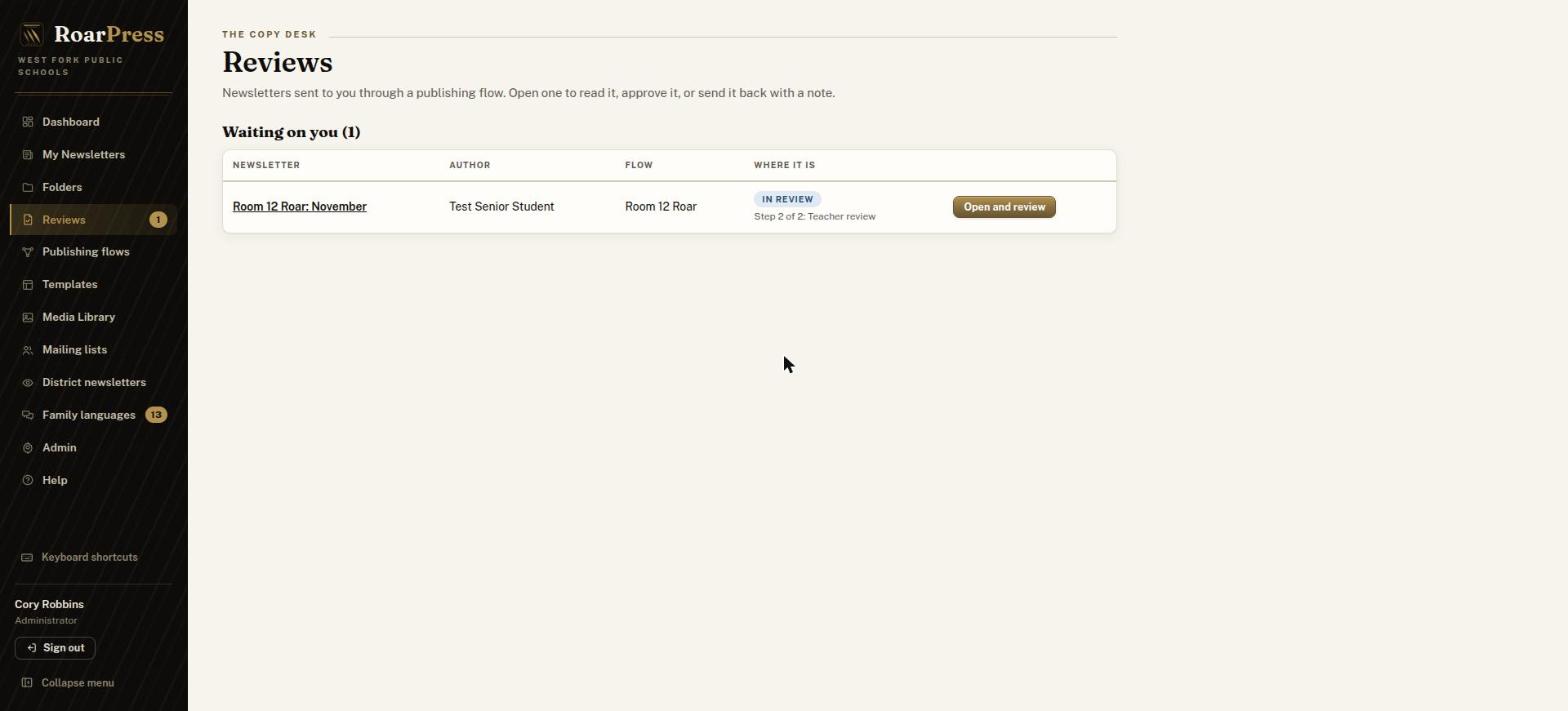
Step 16. Open it from Reviews
You get a "Review needed" email. Or choose Reviews in the side menu, then Open and review.
Step 17. Read it and decide
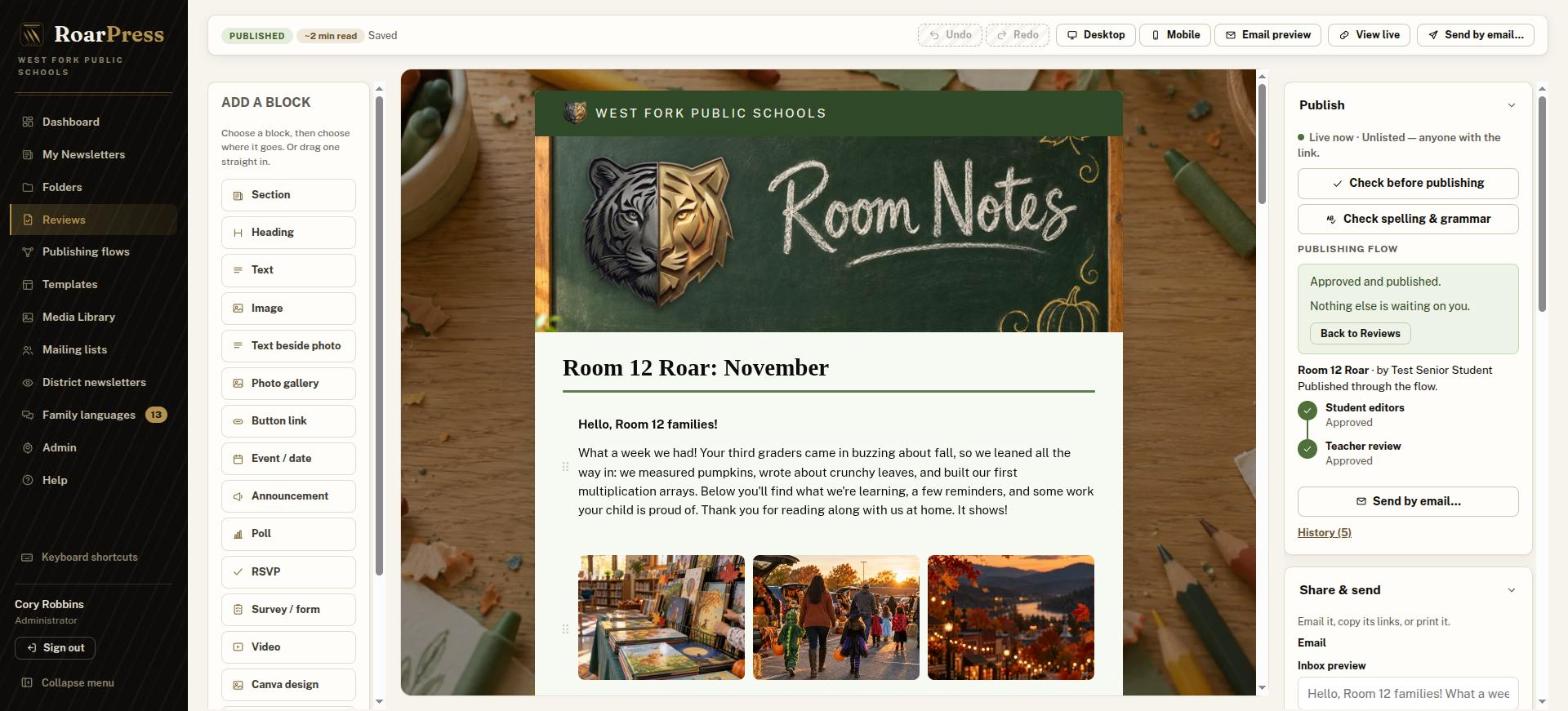
The Publishing flow panel shows the steps, a Note box, Who can open the link?, and your buttons.
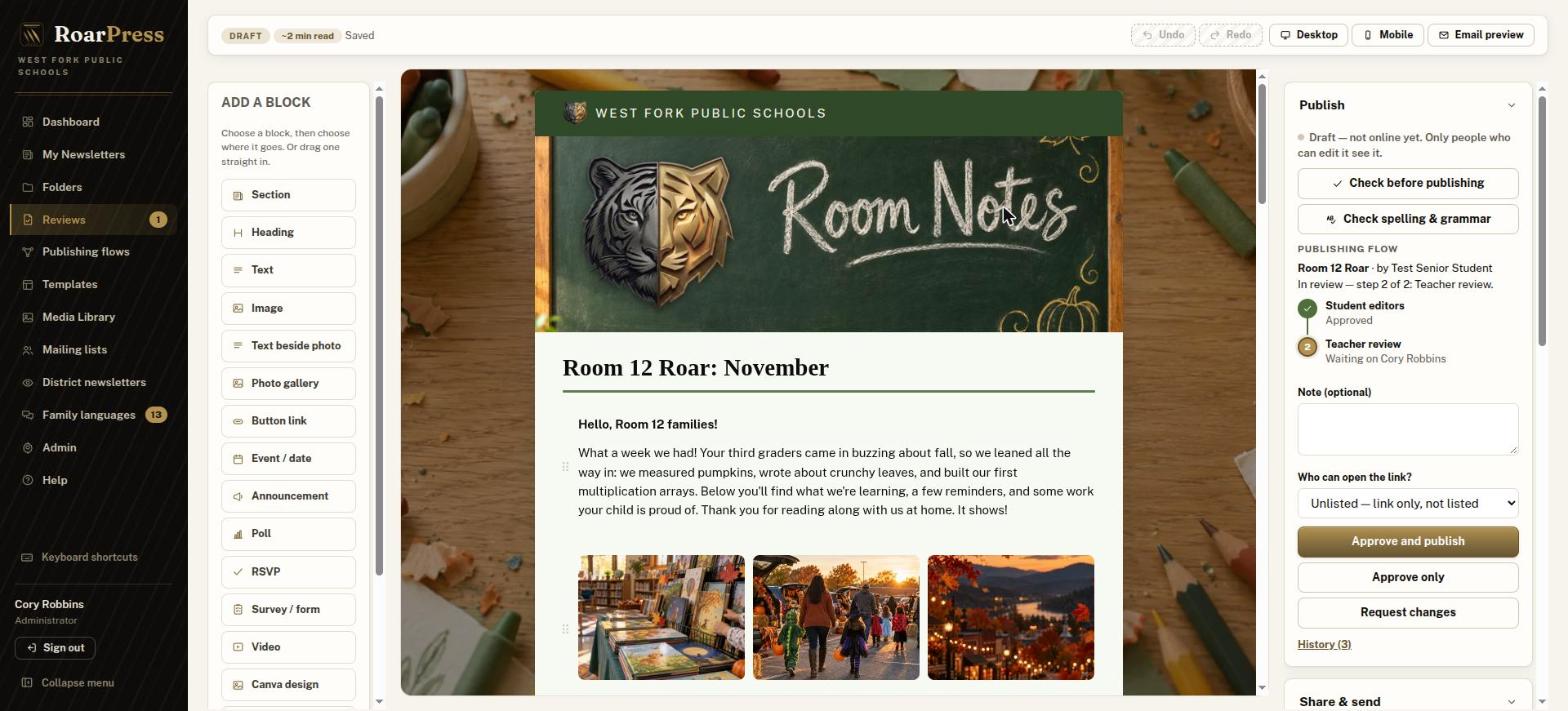
These screenshots were taken with an admin account, which opens the full editor. A teacher account opens a read-only preview of the issue with the same Publishing flow panel and buttons beside it.
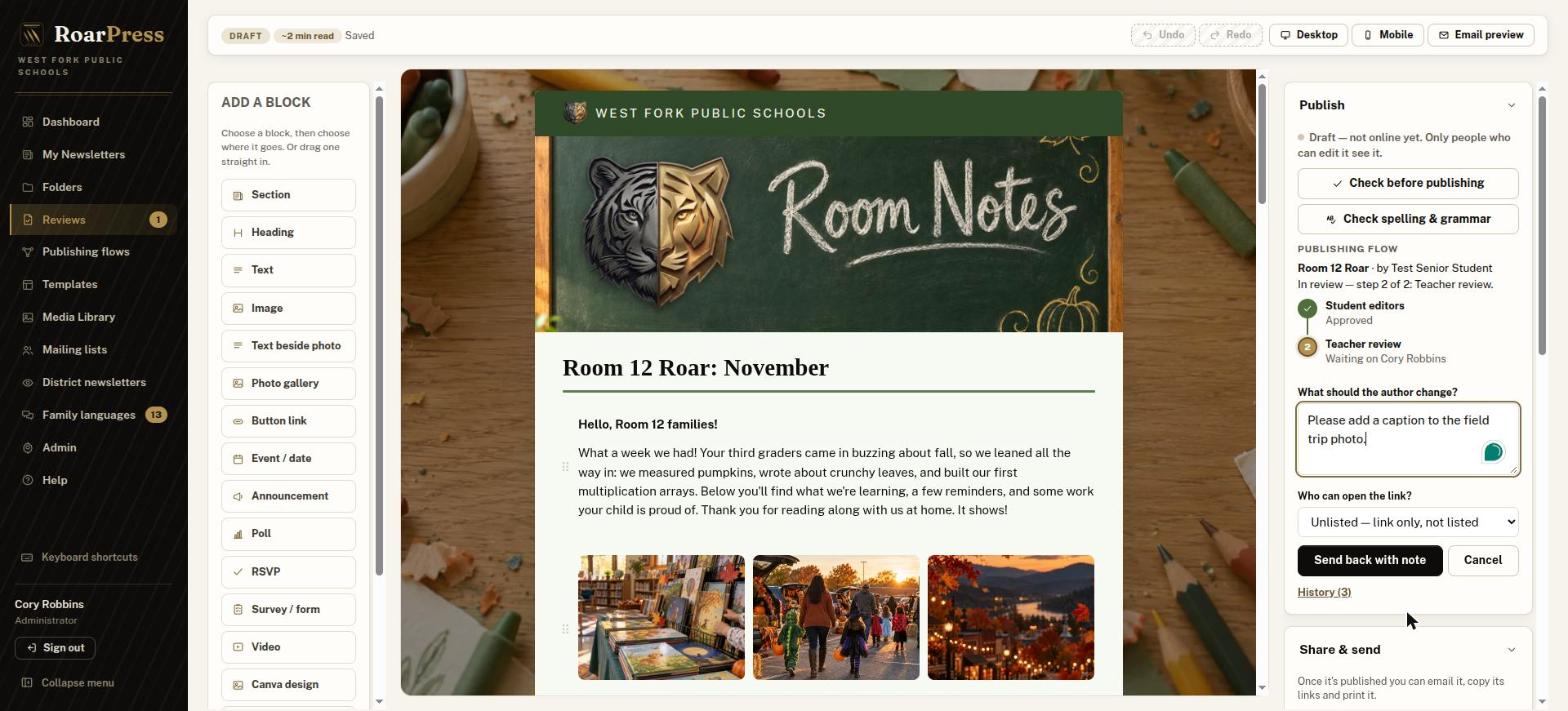
Not ready? Choose Request changes, type what the students should change (be specific and kind), then Send back with note. Students see your note at the top of their editor, and the resubmitted issue goes through every step again.
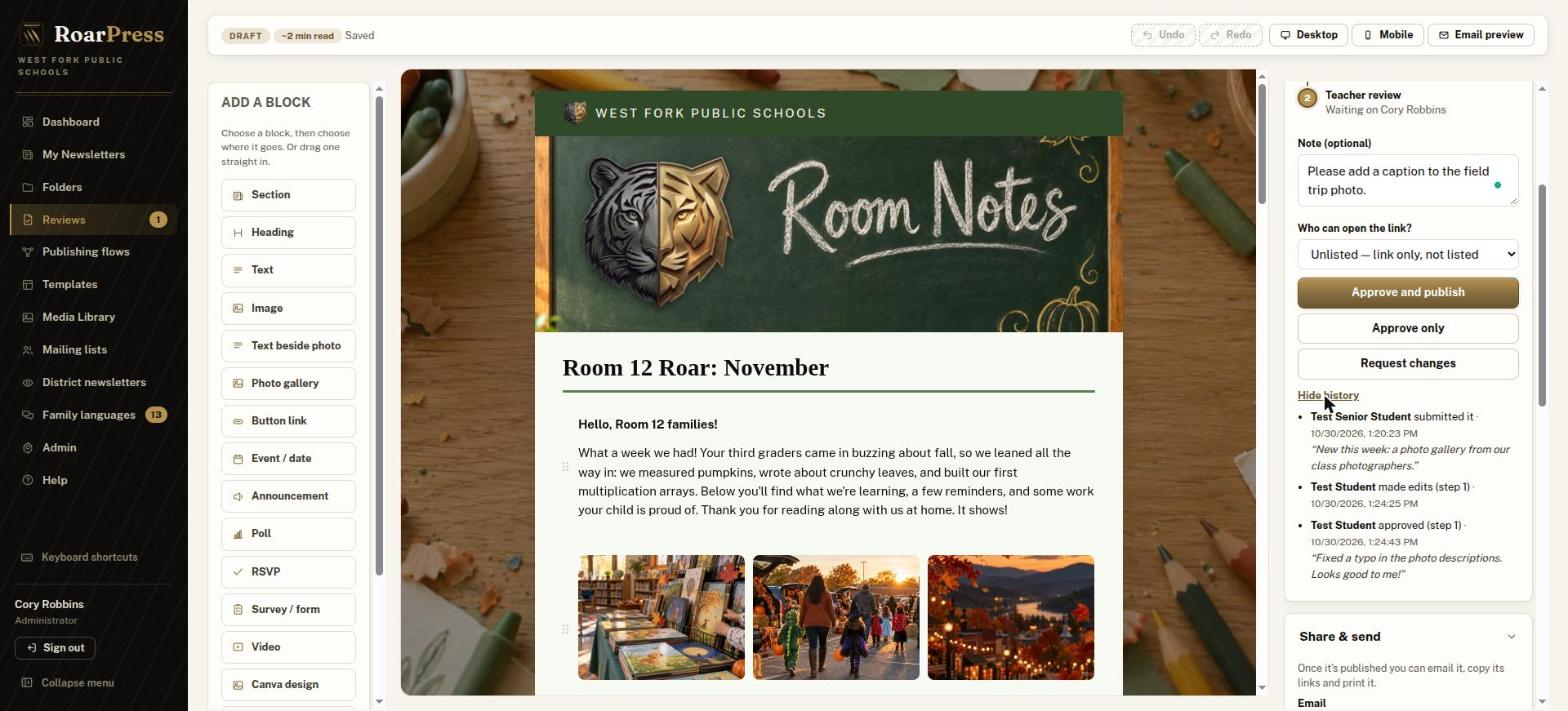
Choose History to see who submitted, edited and approved the issue, with their notes.
Step 18. Approve and publish
If you choose Public and the issue names or shows students, RoarPress asks you to confirm that no family on the directory-information or photo opt-out list is named or pictured. You answer this as the staff approver; students are never asked.
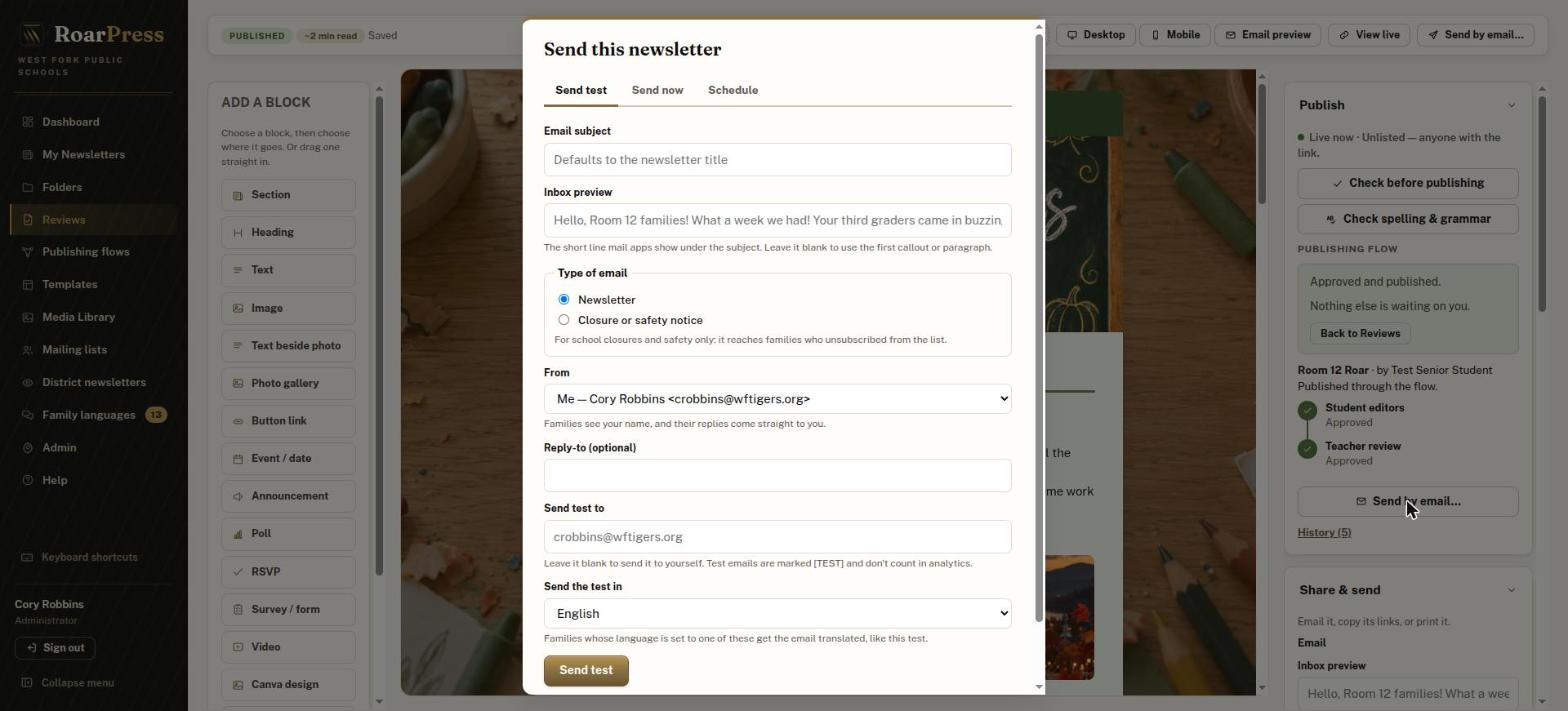
Step 19. Email it to families (optional)
Good to know
More help: in RoarPress, open Help and read Set up a publishing flow, Write in a publishing flow, Review newsletters and Folders.