
Google's AI Studio - Introduction
Importing…Ohhhh Boy! This one is fun! Today, we will be looking at AI Studio, a Google product, sort of a user interface, for the Gemini AI platform.
In this demo, I will be using my microphone to interact with Gemini in real-time. I’ll have it observe, analyze, and diagnose a set of scoring rubrics, it will guide me through using the maintenance website to submit a work request, and I will also have it analyze a very small amount of code.
Note: this is the first time I’ve ever used this tool. I wanted you to see the process, whether it was simple or a struggle. I’m basically playing around, and I REALLY hope this helps you see how approachable this technology is.
Quick Click-by-Click to get started
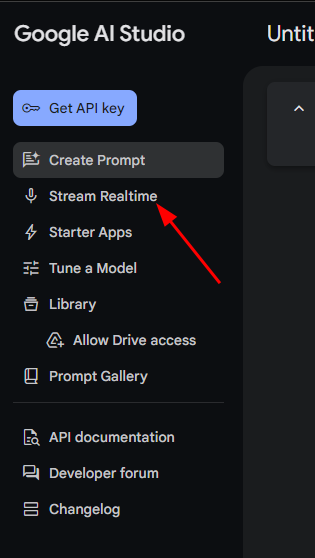
*Click on the “Stream Realtime” option in the menu
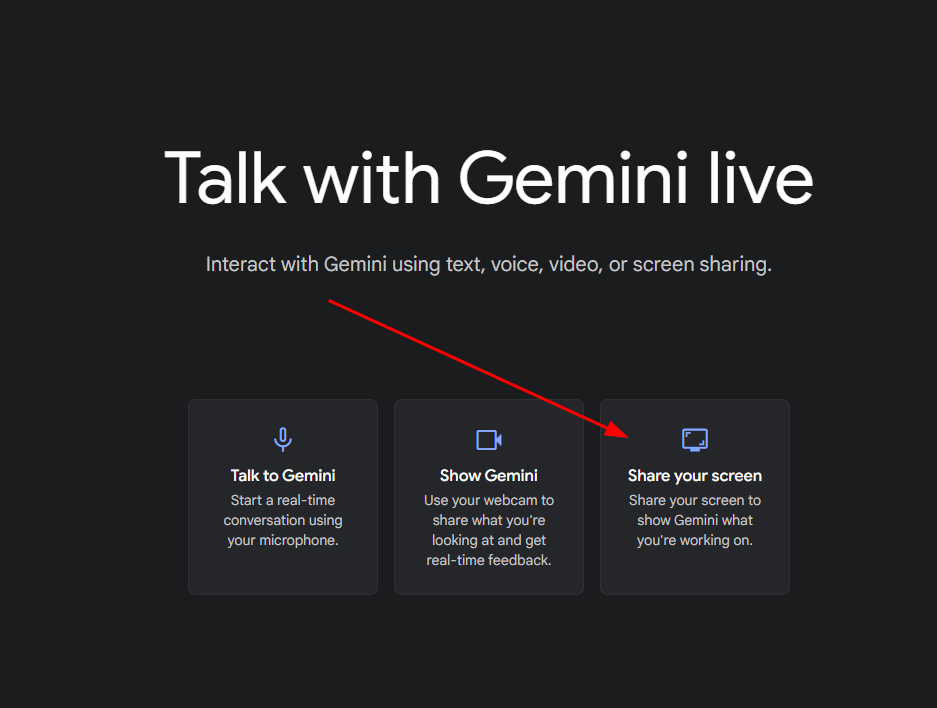
*Click on “Share your screen”
*Grant any microphone/webcam access you are prompted for
*Choose the screen you want to share
*Click on share and begin speaking
This tech tip is a video because it is difficult to present in any other way, but, out of respect for your time (and to use more AI tools), I’ve also used NotebookLM to provide some audio and text resources, starting with this video summary:
This video demonstrates Google AI Studio’s screen-sharing capabilities, showcasing its real-time interaction with Gemini. The presenter uses AI Studio to analyze student work, providing feedback on a complex rubric for a drumline audition. The AI identifies common student weaknesses and suggests improvement strategies, demonstrating its utility in grading and providing feedback. Furthermore, the presenter illustrates how AI Studio can assist in navigating unfamiliar websites and building Google Sheets, highlighting its versatility across various tasks and platforms. The technology’s ability to process large amounts of information quickly and provide actionable feedback is emphasized.
Podcast #1 (I told NotebookLM to target instruction to teachers):
Google Drive file.
Podcast #2 (This was the default output without any prompting):
Google Drive file.
Briefing Document
Okay, here is a detailed briefing document summarizing the key themes and ideas from the provided text:
Briefing Document: Google AI Studio Screen Sharing Analysis
Introduction:
This document summarizes the key takeaways from a tech demonstration of Google’s AI Studio, specifically focusing on its screen-sharing capabilities. The demonstration explores how AI Studio, using the Gemini model, can analyze screen content in real-time and provide feedback, assistance, and insights. The user tested this tool across several scenarios, including analyzing student performance data, navigating new software, creating spreadsheets, reviewing lesson content and even debugging code.
Key Themes & Ideas:
Specific Examples of AI Functionality:
Conclusion:
Google AI Studio’s screen sharing feature shows significant potential as a real-time assistant with a variety of applications. It is particularly useful for educators for analyzing student data and improving teaching, but it’s also valuable in general learning, software navigation, and code assistance. While not perfect, it offers a faster and more interactive way to process information and get help with digital tasks. The user concluded that it “has the capability to basically remove the limitation of knowing how to use anything that you can have on your screen within reason obviously…is pretty powerful.”
Frequently Asked Questions about AI Studio’s Screen Sharing Feature
**What is AI Studio's screen sharing feature and how does it work?**
AI Studio’s screen sharing feature allows you to share the contents of your computer screen with the AI model, Gemini. Gemini can then “read” the content of the screen and provide feedback, answer questions, or assist you in various tasks related to what you’re showing it. You can use it for a variety of tasks, like getting feedback on a document, understanding how to navigate a website, or even getting help with coding. When you initiate screen sharing, you’ll be prompted to select the specific screen or window you wish to share, granting the AI access to visually perceive the content being displayed. This effectively creates a real-time, visual interaction with the AI.
**How can I use AI Studio's screen sharing feature in an educational context?**
The screen sharing feature has numerous applications for educators. It can be used to get feedback on student work, such as rubrics or assignment scores, allowing the AI to identify areas where students are struggling and suggest improvements. It can also help teachers learn how to navigate complex websites or software platforms, create new resources, and even assist with lesson planning. By sharing your screen, you can essentially have an AI tutor or assistant to guide you and provide support in a variety of tasks related to teaching and curriculum development.
**Can AI Studio analyze data displayed on my screen, like a spreadsheet of grades?**
Yes, AI Studio can analyze data displayed on your screen. For instance, it can process a spreadsheet of student grades and identify patterns in student performance, such as common areas of weakness. In the example in the text, it quickly reviewed student scores in a Google sheet and determined that internal pulse and technique were the main areas of deficiency. The AI can summarize trends, compare student data, and provide helpful insights you can use to adjust your teaching methods or provide targeted support.
**How does AI Studio handle complex documents or long web pages when screen sharing?**
AI Studio can process complex documents and long web pages by reading the content as you scroll through it. In the example with the rubric, the user scrolled through the lengthy Google Sheet and the AI was able to read and analyze the data. This allows it to understand context, which is important when analyzing information across multiple fields. This enables you to have the AI evaluate various pieces of information in real-time without having to manually copy and paste anything or share direct files.
**Can AI Studio help with tasks beyond just data analysis, such as navigating websites or using software?**
Absolutely. AI Studio’s screen sharing isn’t just for analyzing data. It can also assist with navigating websites, software applications, and other programs. You can use it to get step-by-step guidance on how to use a platform, troubleshoot problems, or complete tasks, such as filling out forms, opening support tickets, or working through specific processes in a given program. This makes the tool not only useful for content-related tasks, but also for more general assistance with software.
**How can AI Studio assist me in creating new digital resources like Google Sheets?**
AI Studio can help users, especially those who are new to a certain tool, to create new digital resources. By screen sharing a blank sheet, the AI can walk you through the steps required for the project. It can provide guidance on column headings, formulas, and other necessary functions. This can be extremely helpful in making sure you know how to properly set up a sheet or other resource that might be essential to your productivity.
**Can AI Studio provide feedback on curriculum or teaching materials?**
Yes, AI Studio can analyze curriculum and teaching materials by visually processing them on your screen, including analyzing an audition packet and suggest elements that might be beneficial for students based on their weaknesses. The AI can identify complex or problematic areas in the curriculum and help to decide what is or is not working for a specific group of students. This functionality will help teachers refine lessons and make sure the learning material is targeted to areas of improvement.
**Is AI Studio helpful for debugging code or providing programming suggestions?**
Yes, AI Studio can help with coding, including debugging code and providing suggestions for improvements. It can understand the logic of your code, explain its functions, and point out areas for enhancement by identifying best practices. While it can’t directly modify your code, it can help you analyze it and give suggestions on what to do next, so it can be used as a programming resource. This can be especially useful for learning new languages or improving the quality of your code.
Originally posted by Cory Robbins on the West Fork Technology Hub (2025-01-28).