
NotebookLM - Introduction
Importing…
NotebookLM is a free, AI-powered tool from Google designed to help users interact with and learn from their documents. Described as a “personalized AI research assistant,” NotebookLM summarizes uploaded sources and generates insights into their content. It works by analyzing uploaded files, including Google Docs, PDFs, text files, web pages, and even copied text. It then uses Google’s Gemini AI model to allow users to ask questions, summarize information, and create new outputs based on those sources.
More About NotebookLM
There are several really powerful features in this tool, but the biggest advantage is the concept of “source-grounding.” This just means that, instead of trying to use the entirety of the internet as a source, NotebookLM limits its content knowledge to only the sources you have active in the open notebook. This is huge because the internet is FULL of incorrect information. The ability to specifically point NotebookLM to a set of sources and have it become an “instant expert” on all of that content is a huge deal.
Don’t misunderstand… this is not just a tool that will regurgitate the information you feed it. Instead, it “reads,” “watches,” and “listens” to the content you provide, makes connections, and interprets it… similar to if you studied and tried to compile a working knowledge of the sources on your own. Once given the resources, you can:
Creating Your First Notebook
Show Instructions
Visit notebooklm.google.com
On your first visit, you will get a welcome message. You can choose to check the box if you want emails when new features are added to NotebookLM, or you can just click on the “okay” button to get started.

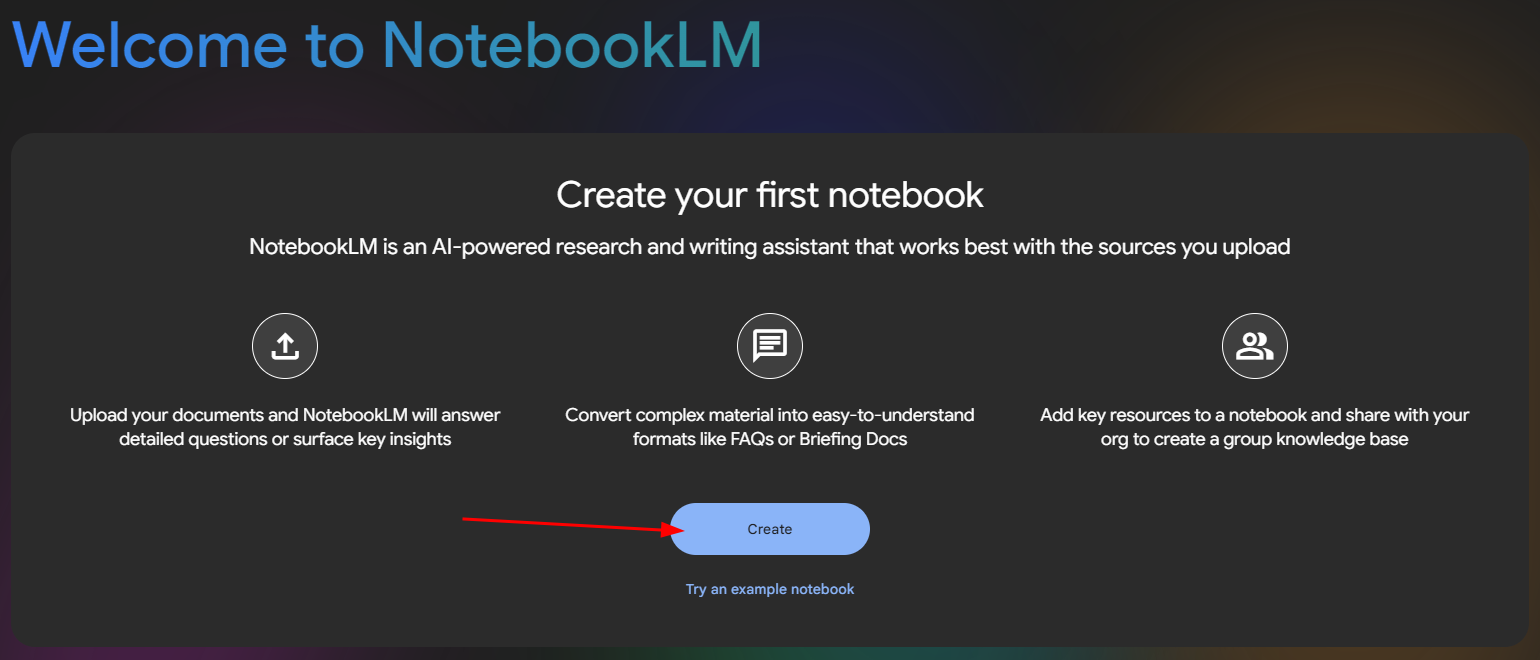
We don’t have any notebooks yet, so, again, just for the first time, we will get the “Create your first notebook” page. I’ll click on “Create” to make the notebook.
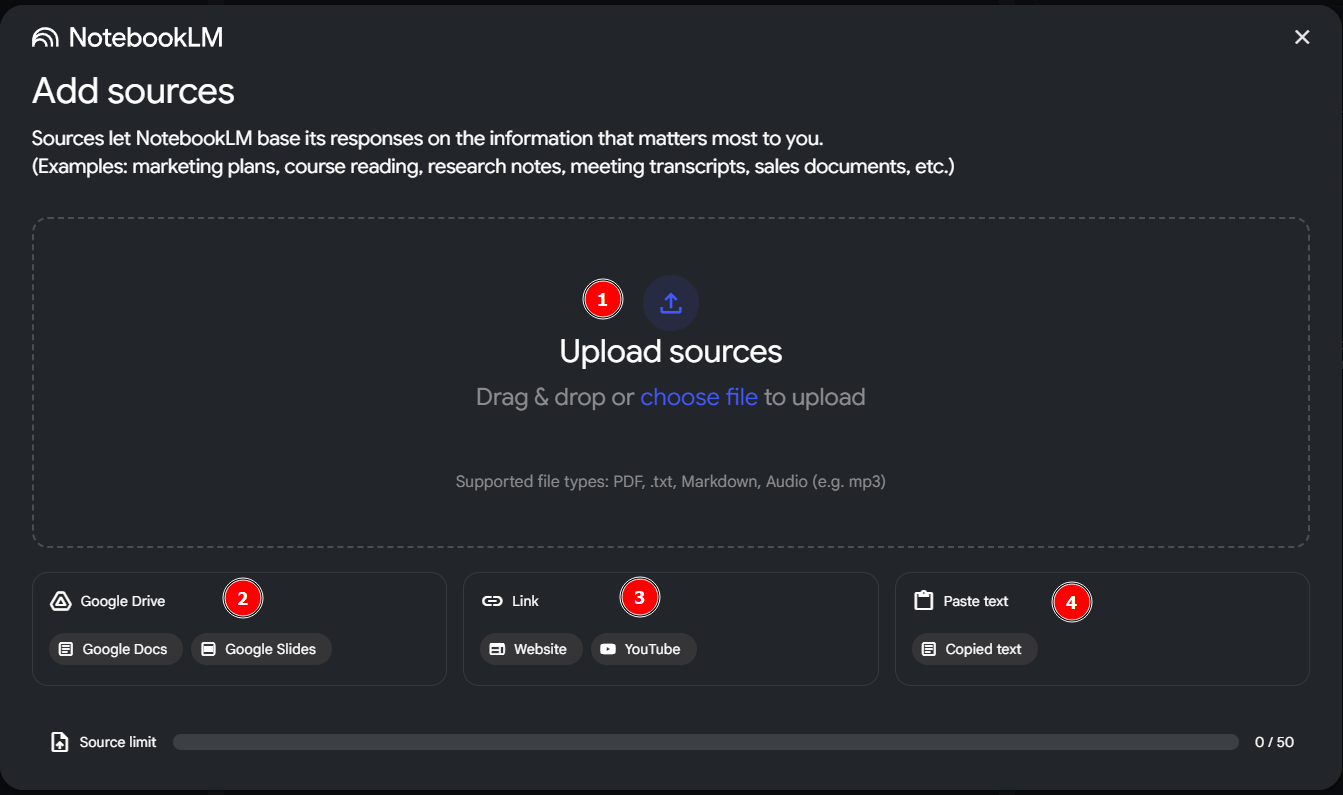
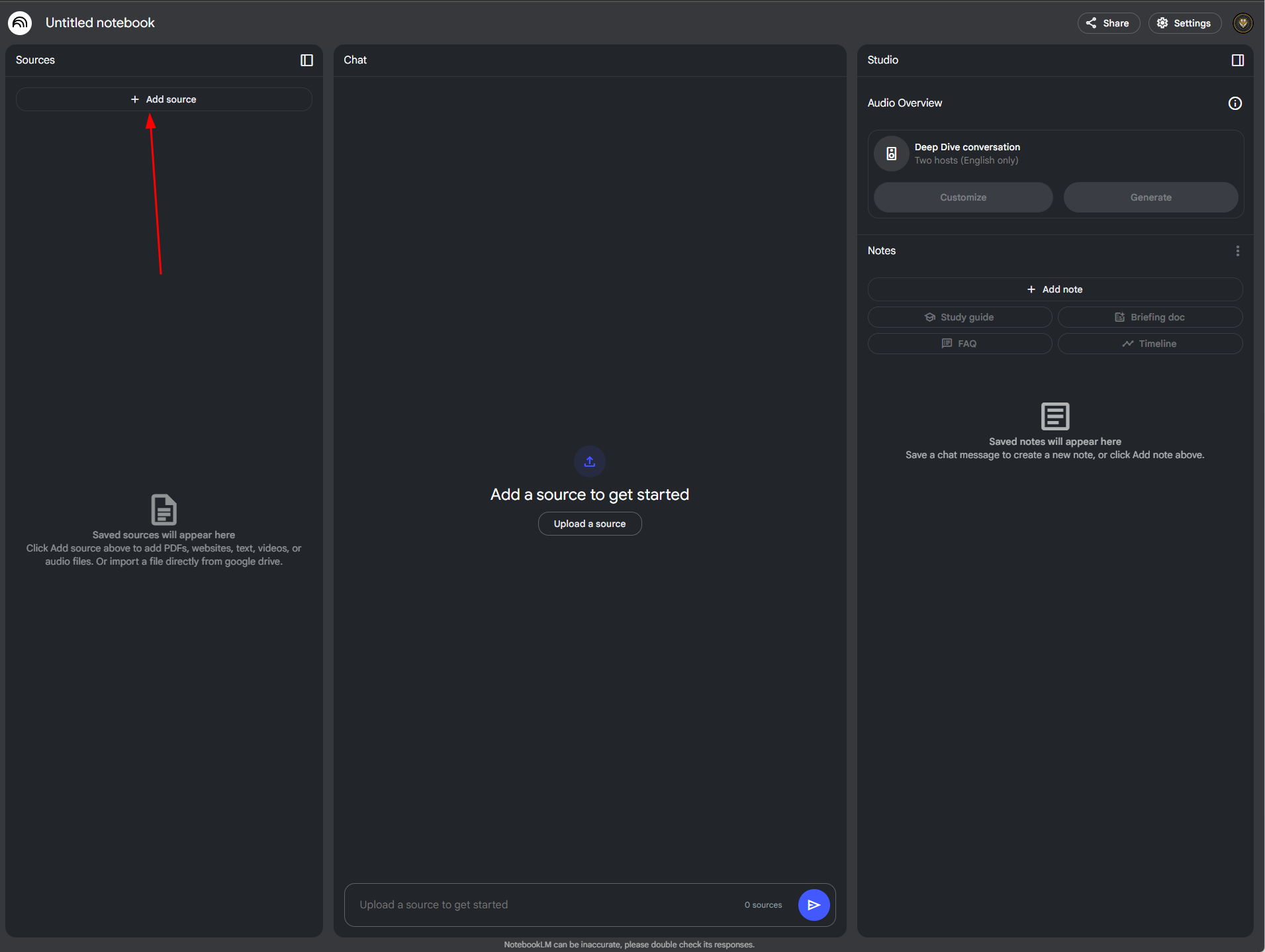
Great! When you create a new notebook, you will automatically get this “Add Sources” prompt. We can open this prompt manually to add more sources, but we will talk more about that later. For now, we have 4 primary source types that can be added.
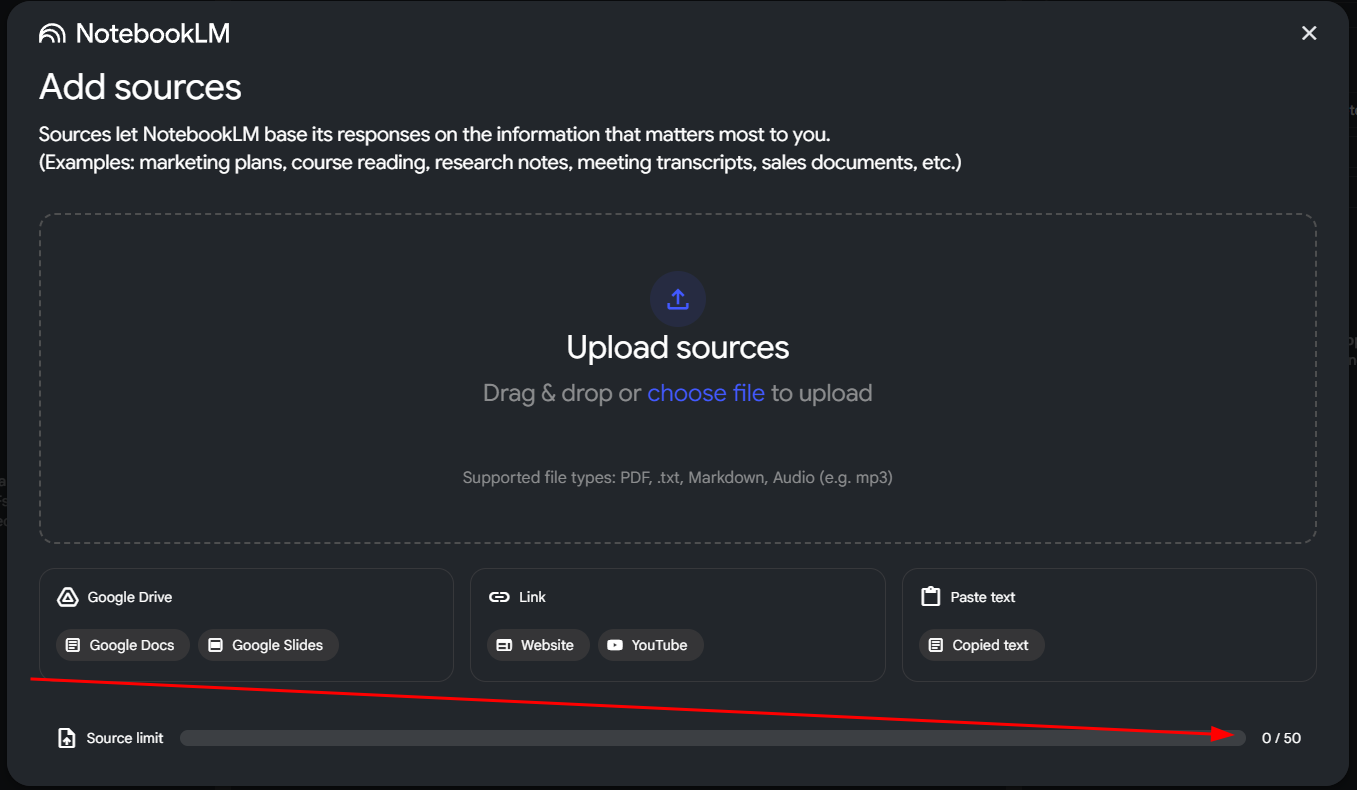
Start adding sources. You can have up to 50 sources for each notebook. That is quite a bit!
If you accidentally closed the add source window, or to add more sources, click the Add source button at the top left!
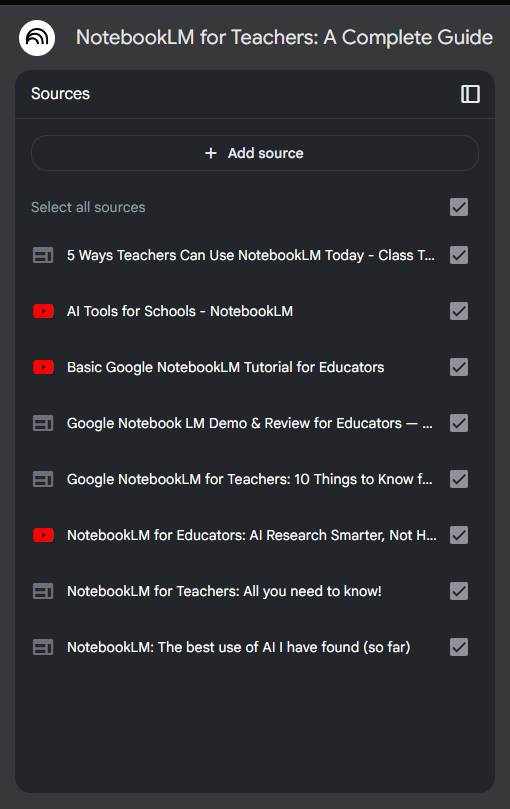
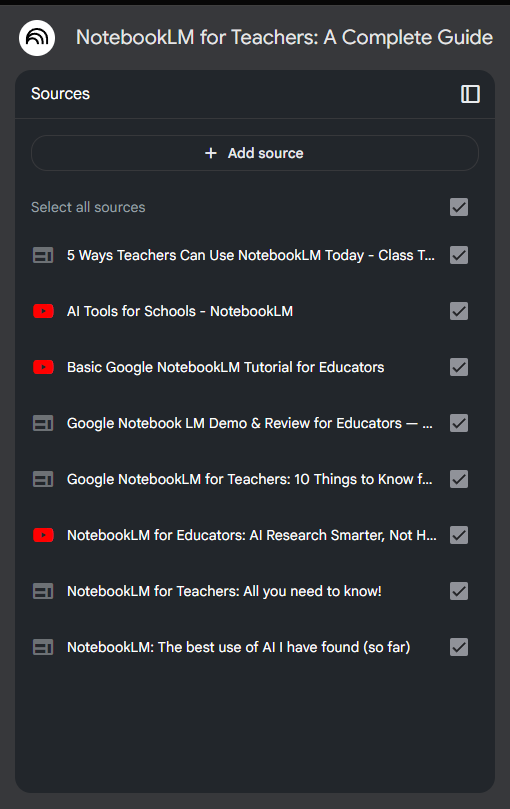
Your sources will now appear in the source list on the left. Each source has a checkbox to the right. If it is clicked, that means that the source will be active in any of the conversations or actions you have with NotebookLM. If it is unchecked, that source becomes dormant and ignored.
Example Use case: I could add a rubric as a source, then I could add each student’s essay in a separate Google doc or PDF. Then I can check only the rubric and a single student’s essay. Now when I ask NotebookLM to “analyze the student essay to see how well it adheres to the assigned rubric. Offer suggestions for improvement, areas that are particularly well executed, and suggestions for further research based on this student’s demonstrated knowledge.” NotebookLM should give me a pretty thorough response to that, and it should be pretty valuable insight for me to formulate a response to the student.
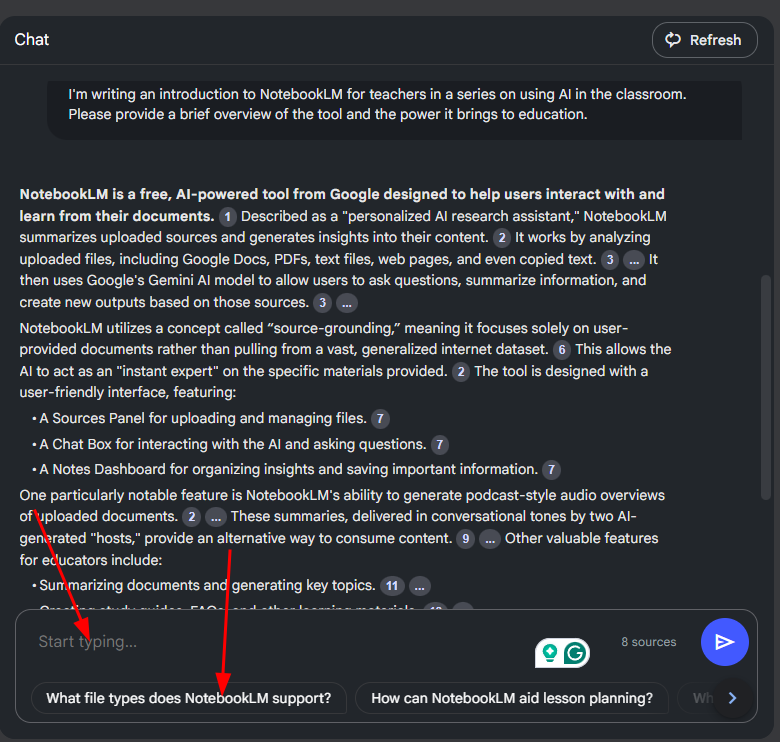
Once we have our sources uploaded and selected, we can use the center area to ask questions and guide the research. We can type whatever we would like, but NotebookLM does an initial reading, and it will offer some questions below the text input area. You can click one of these to get the conversation started. This is particularly helpful if the content area is something you know very little about.
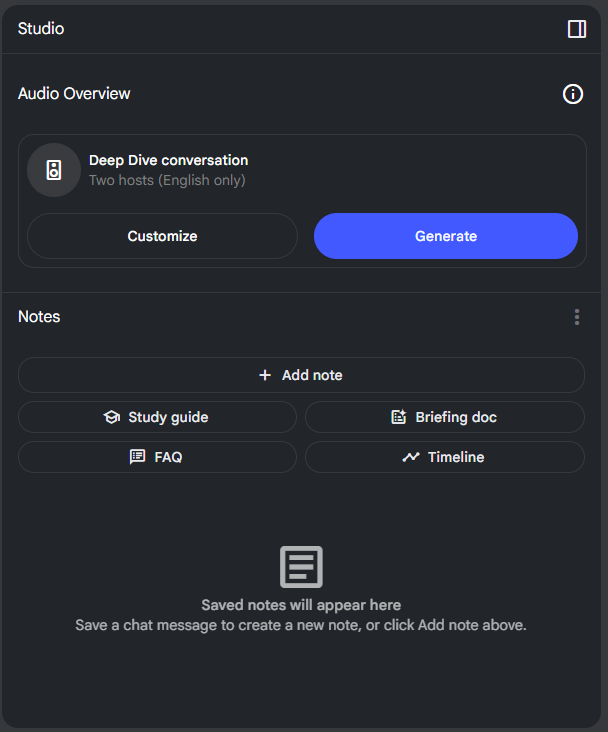
The Studio/Notes panel is on the right. There is an Audio Overview section that allows you to generate a podcast-style conversation between two AI hosts, one male, and one female. I’ve included an example below. It is pretty slick. If you would like, you can click the “Generate” button, and the system will automatically take all of the content and present a podcast that covers the research sources in an overall sense. If you click on the “Customize” button, you can guide the conversation, meaning that you can require the conversation to delve more deeply in specific directions, set a language level, assume a content knowledge level, and many other potential guided parameters.
In addition to the audio overview, you have the main “Notes” features. Clicking on the “Add note” button will let you create a note of your own making. You can type whatever you want, and it will be collected at the bottom of the panel.
Clicking on any of the other buttons in this panel will automatically generate the element that is indicated on the button. Once clicked, NotebookLM will place these items in the Notes panel. You can click on a note at any time to open it in an expanded view. I’ve included the FAQ option below.

Sample Output
My Sources
Deep Dive conversation (Podcast)
Google Drive file.
NotebookLM FAQ
What is NotebookLM?
NotebookLM is a free, experimental AI tool developed by Google that acts as a personalized research assistant. It helps users organize, analyze, and synthesize information from various sources like documents, PDFs, websites, and even audio files. Users can create digital “notebooks” containing up to 50 different sources, each with a maximum of 200,000 words. NotebookLM uses Google’s Gemini AI model, which has a large token window allowing it to process and understand large amounts of text.
How Does NotebookLM Work?
NotebookLM utilizes a process called “source-grounding,” meaning it focuses specifically on the documents you upload rather than pulling information from the broader internet. This makes it an “expert” on your chosen material. Once you’ve added your sources, you can ask NotebookLM questions about the content in a chat-style interface. The AI then analyzes your sources and provides summaries, answers to your questions, and generates insights based on the information provided.
What Can I Do with NotebookLM?
NotebookLM offers a range of functionalities for various tasks:
How is NotebookLM Different from Other AI Tools?
NotebookLM stands out from other AI tools in a few key ways:
Can Students Use NotebookLM?
Currently, NotebookLM’s terms of service restrict use to individuals aged 18 and older. However, educators can utilize the tool to create resources for their students, such as study guides, summaries, or audio overviews, and then share those outputs with students.
What are Some Examples of How Educators Can Use NotebookLM?
What are the Limitations of NotebookLM?
How Can I Get Started with NotebookLM?
You can access NotebookLM by visiting notebooklm.google. Create a free account and start experimenting by uploading your own documents or trying out the example notebooks provided.
What are Some Tips for Using NotebookLM Effectively?
Originally posted by Cory Robbins on the West Fork Technology Hub (2025-01-21).