
Installing Atlas Secure Test using Chocolatey Gui
Importing…
If a student is missing the Secure Test Browser for ATLAS testing, follow these instructions.
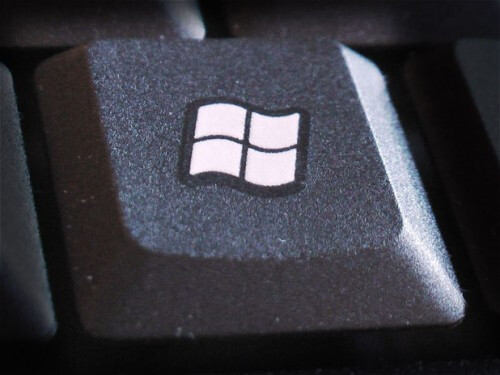
Press the Windows key on your keyboard
Type in chocolatey
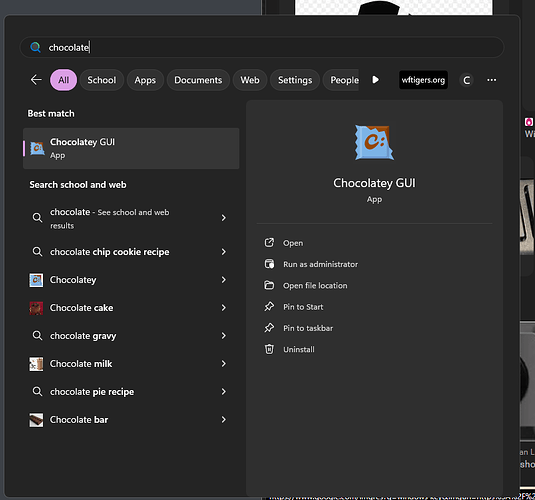
You should see “Chocolatey GUI” as an option. Click on it.
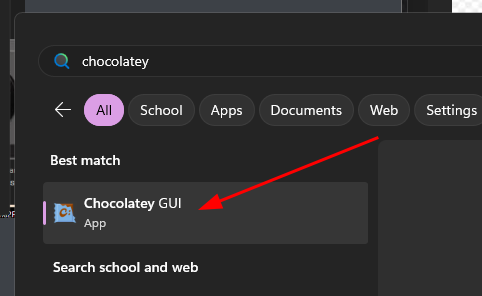
It takes a little time for this program to open. Be patient while it opens and looks for available applications.
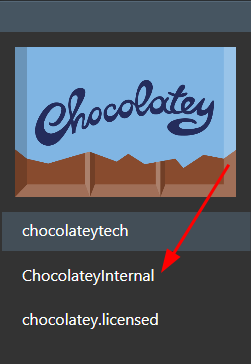
Once loaded, you should see the Chocolatey app store. To look for a new program to install, click on “ChocolateyInternal” on the left.
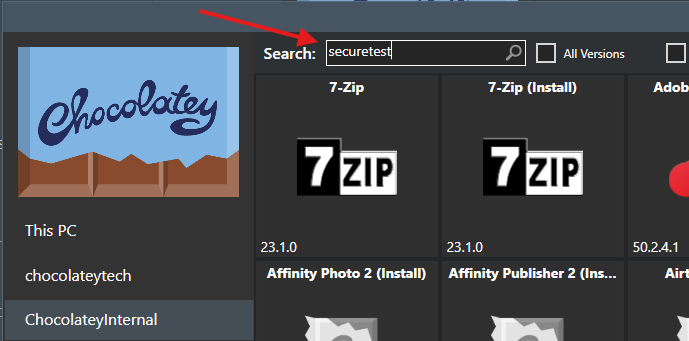
In the search box, at the top, type in “securetest” and press enter.
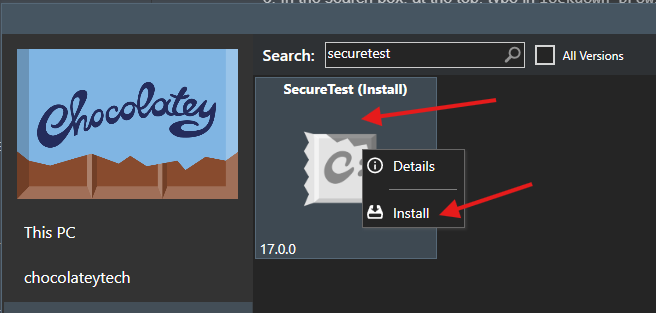
This should bring up an icon that is named “SecureTest.” Right-click on it, and choose “Install.”
You will get a progress indicator letting you know that ar-secure-test is being installed. Wait until this goes away. It will take a few minutes.

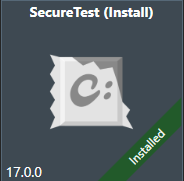
When it is finished, the box will close, and your lockdown browser icon will have an “installed” badge.
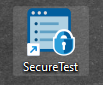
To open the Secure Test browser, double-click the icon on the desktop.
Originally posted by Carl Clements on the West Fork Technology Hub (2024-11-15).