
Installing Respondus Lockdown Browser for VA Students
If you are a Virtual Arkansas student and need to install the Respondus Lockdown Browser, follow the steps below.
-
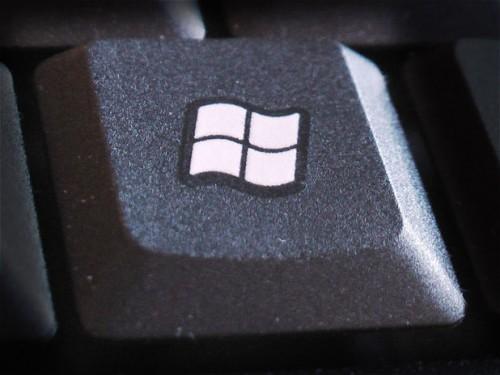
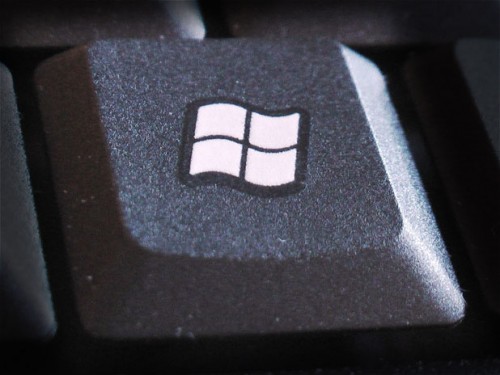
Press the Windows key on your keyboard
-
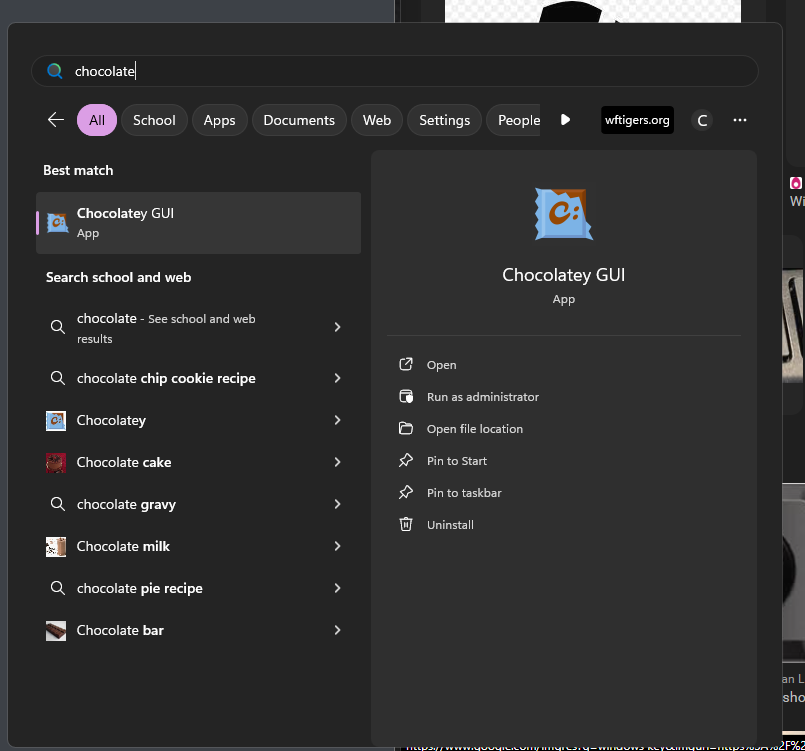
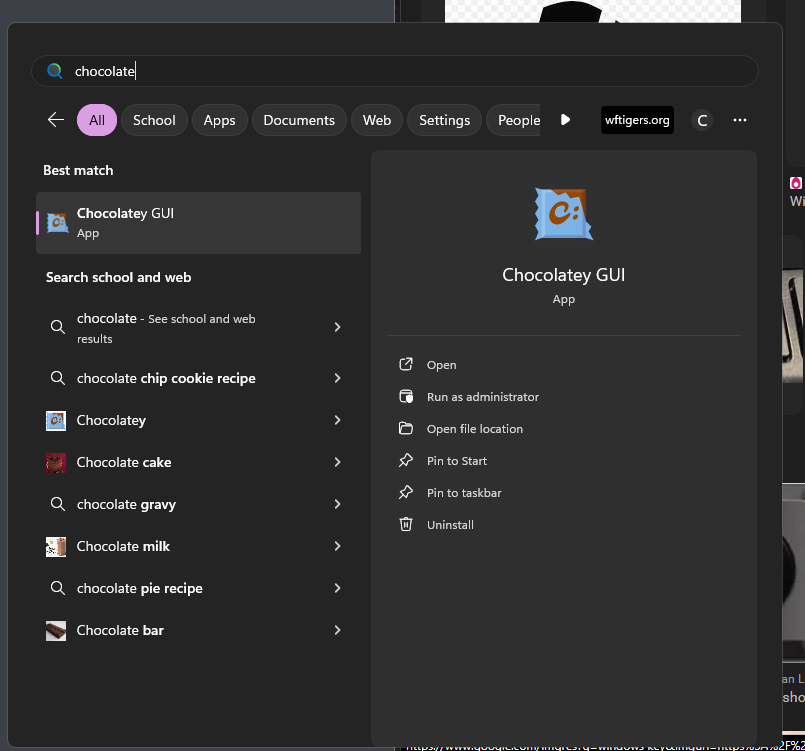
Type in
chocolatey
-
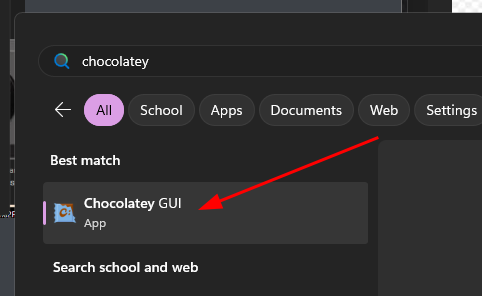
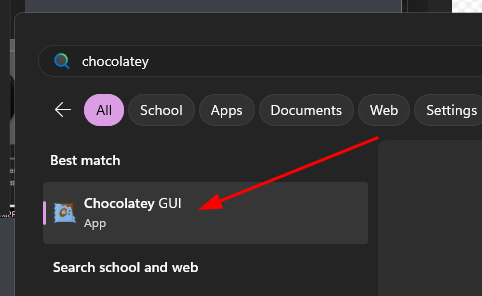
You should see “Chocolatey GUI” as an option. Click on it.
-
It takes a little time for this program to open. Be patient while it opens and looks for available applications.
-
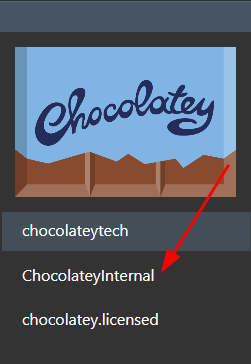
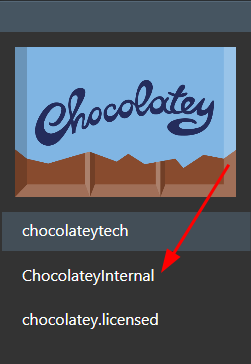
Once loaded, you should see the Chocolatey app store. To look for a new program to install, click on “ChocolateyInternal” on the left.
-
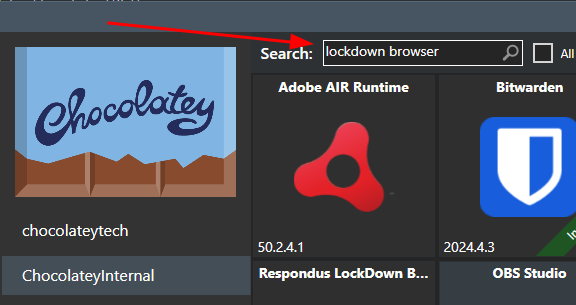
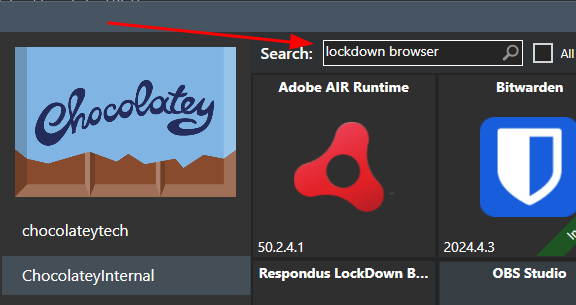
In the search box, at the top, type in
lockdown browser
-
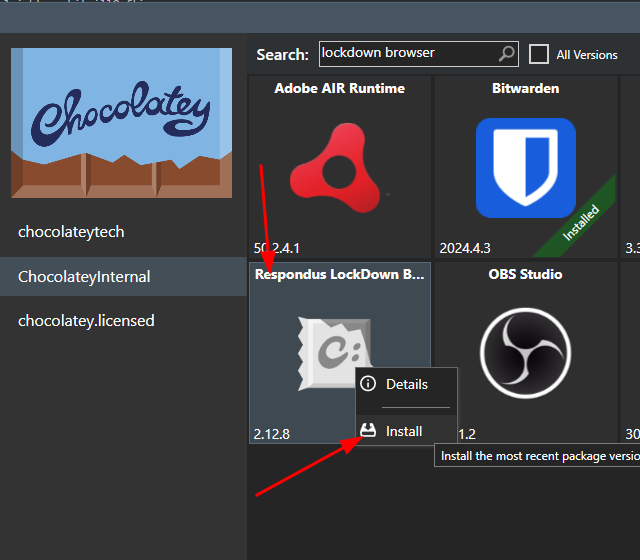
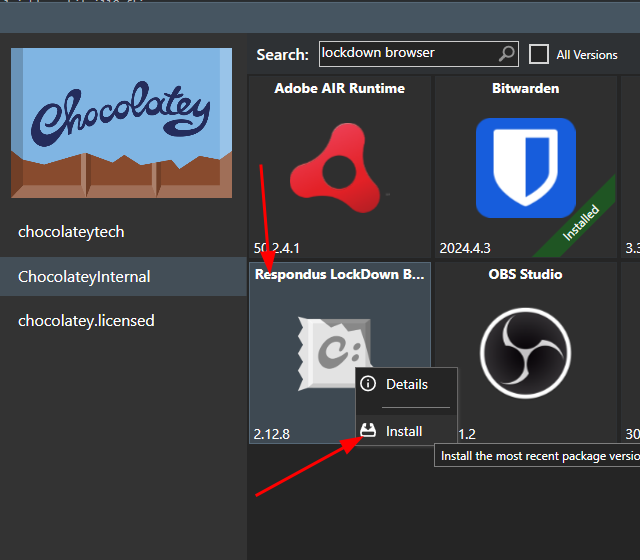
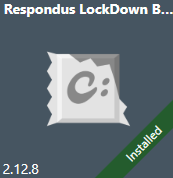
This should bring up an icon that is named “Respondus LockDown Browser.” Right-click on it, and choose “Install.”
-
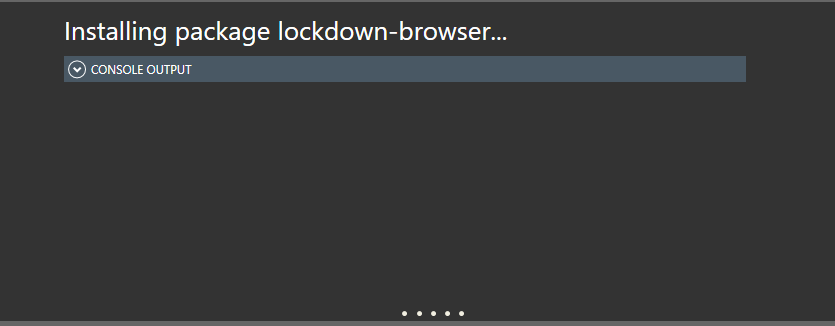
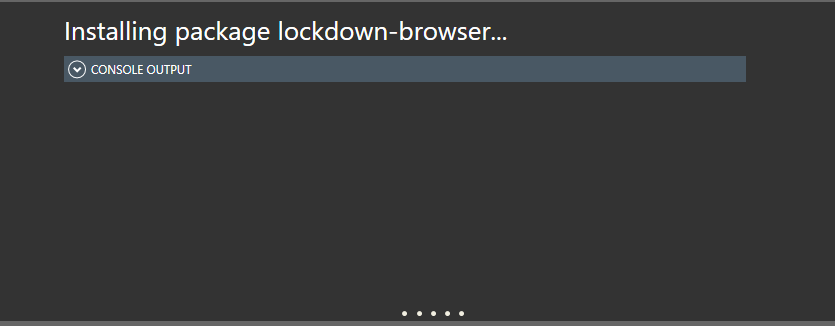
You will get a progress indicator letting you know that your lockdown browser is being installed. Wait until this goes away. It will take a few minutes.
-
When it is finished, the box will close, and your lockdown browser icon will have an “installed” badge.

-
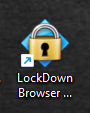
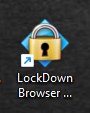
To open your lockdown browser, you should be able to double-click on the desktop icon.
Originally posted by Cory Robbins on the West Fork Technology Hub (2024-08-21).
No comments to display
No comments to display