
BitWarden Setup Part 3 - Configure Chrome to Use BitWarden Instead of Google Password Manager
This is part 2 of our Bitwarden setup series.
Check out Part 1
Check out Part 2
In this part of the BitWarden setup, we will turn off the automatic password save prompts for Google Password Manager and configure the BitWarden extension settings.
Step 1: Turn off Google Password Manager save prompts.
Click here for instructions
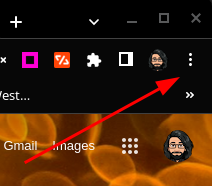
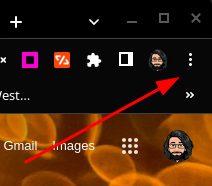
- To begin, open up a chrome window, and click on the three vertical dots menu.
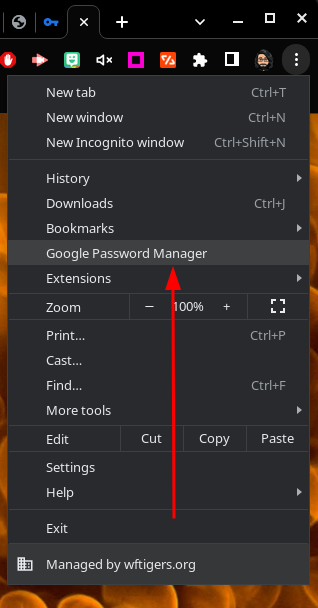
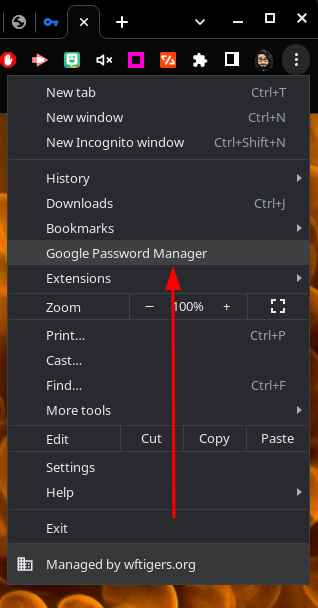
- Click on the “Google Password Manager” option.
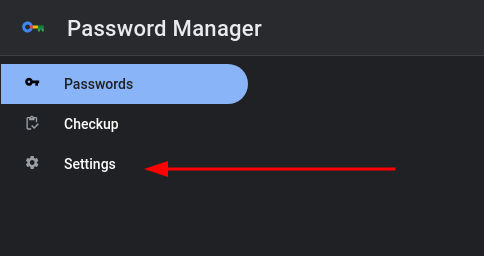
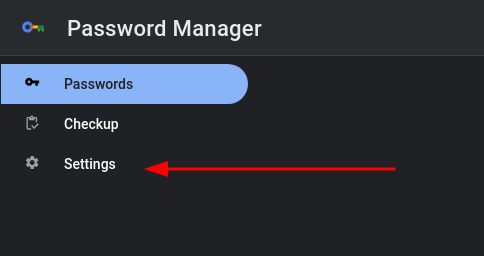
- Click on “Settings” on the left.
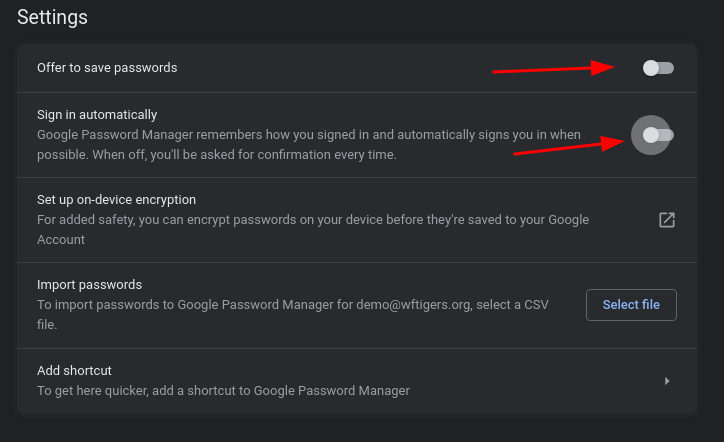
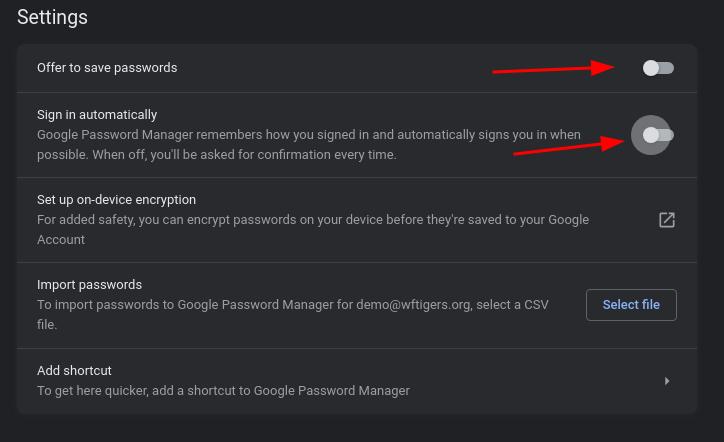
- Turn off the switches for both “Offer to save passwords” and “Sign in automatically.”
Step 2: BitWarden Extension Settings
Click here for recommended settings
-
Open the BitWarden extension, and Click on the “Settings” gear
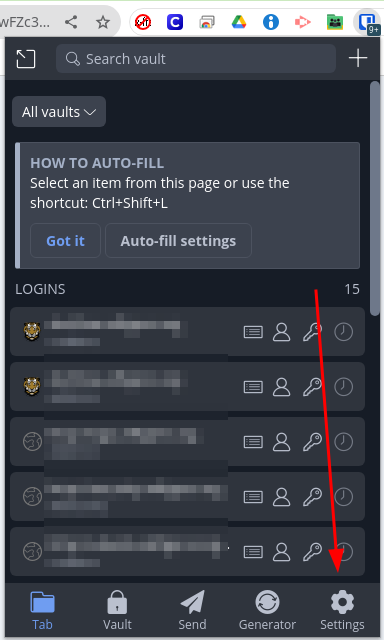
-
Auto-fill
- Auto-fill on page load
- This is probably something most of you will want to turn on, but it is worth paying attention to the warning.
- Default autofill setting for login items
- If you enable auto-fill, you can also choose to disable auto-fill for new passwords you add. You will probably want to keep this as the default, “Auto-fill on page load,” but it is worth remembering that you CAN still disable auto-fill on websites you don’t want to risk being compromised.
- Auto-fill on page load
-
Vault timeout
- The default on this option is “On browser restart,” meaning that each time you fully close chrome and open it again, you will be asked to unlock your vault. This is ok, but for added security, it would be better to set this to “On system lock.”
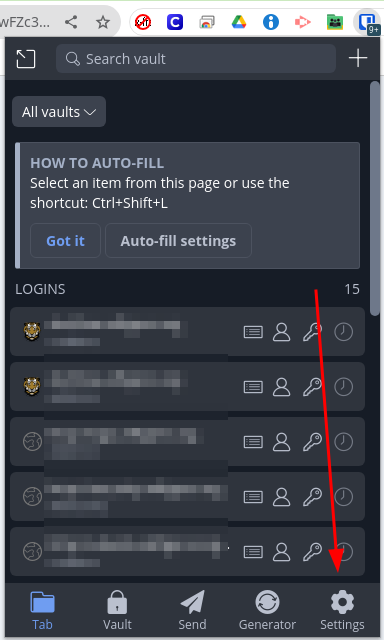
There isn’t a save button. Once you make the changes, they will just work.
Please note, you will likely have to change these settings on each device you use the BitWarden password manager.
Originally posted by Cory Robbins on the West Fork Technology Hub (2023-08-11).
No comments to display
No comments to display