
Bitwarden - Login / Unlock Your Vault
This article assumes you’ve set up the Bitwarden password manager based on our setup guides. If you have not set up Bitwarden then you should check out Part 1 of the walkthrough. Also, the extension for bitwarden will be used throughout this article. The setup for the extension is explained in the part 1 guide under the section “The Chrome App.”
Click to show or hide instructions
The good news is that we already pushed the extension to all Chrome browsers with sync enabled. Woot!
The better news is that you can also install it on unmanaged Chrome browsers (and pretty much every other browser). This page has download links for desktop clients, web browsers, and phones.
Once you have the extension installed, you will be presented with a login screen. But wait!!! Before you type in your email, there is a setting you need to change. Click where it says “Accessing: bitwardent.com” as shown in the screenshot.
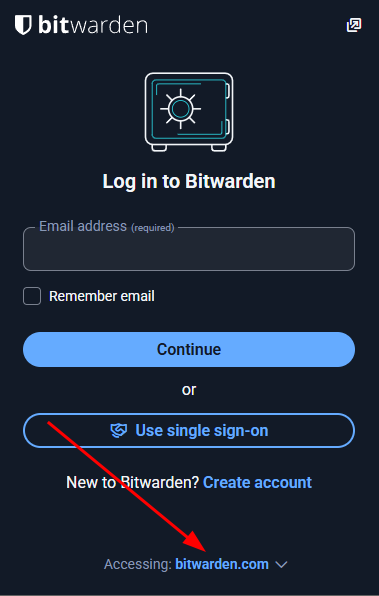
You need to change this to Self-hosted. That will bring up a window, and in the top box, labeled “Server URL,” type in:
https://bw.wftigers.org
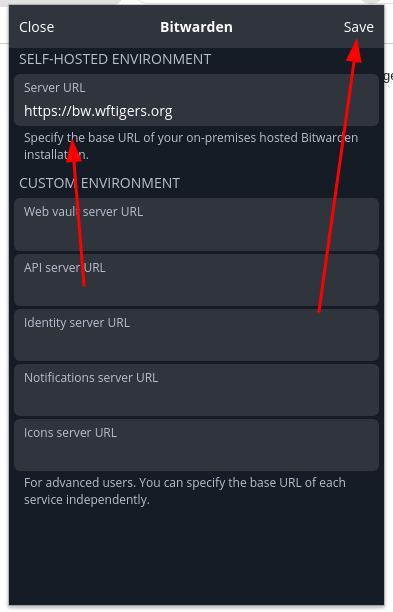
Then click on Save at the top.
You should then get a green confirmation notice at the bottom, and it should say Self-hosted under the email address box.
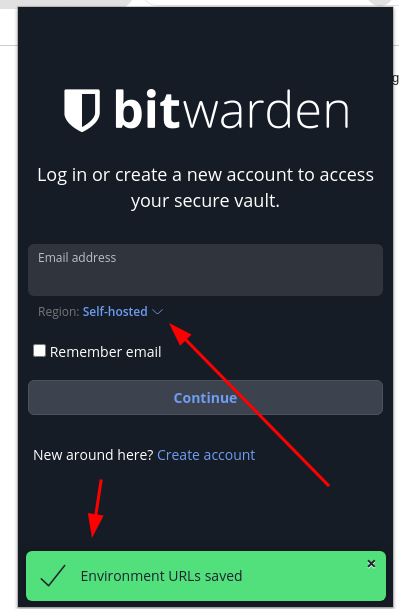
Now go ahead and type in your email address! I also click the “Remember email” checkbox.
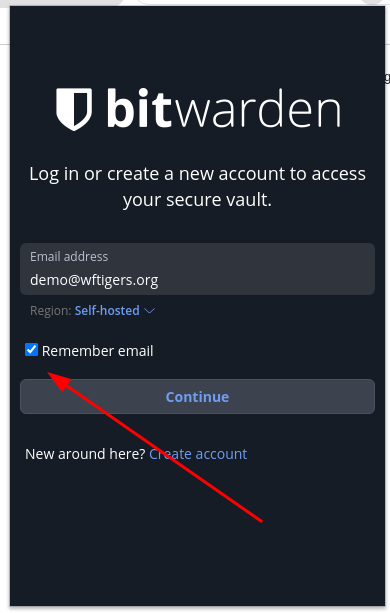
Then click on Continue.
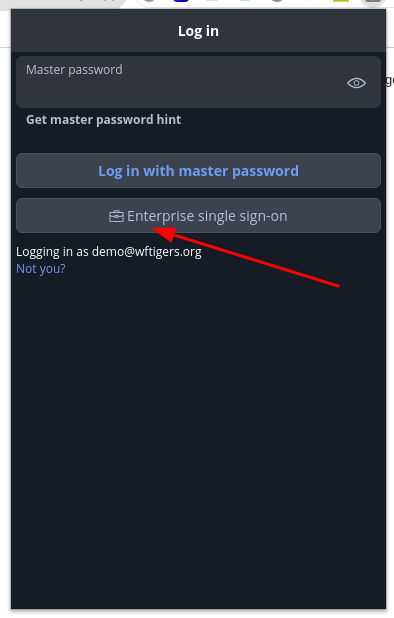
On the next page, if you have been approved by tech, you need to click on the “Enterprise single sign-on” button. That will take you to a Google page (unless you are already logged in). Complete the Google authentication and any two-factor that is required.
You will then get this screen:
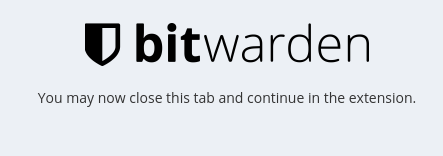
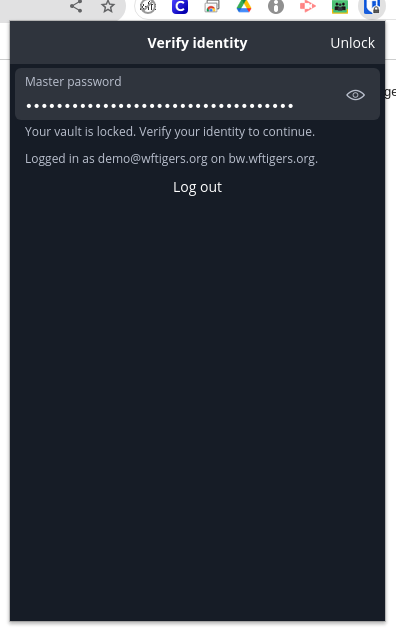
This just means you may now open the extension, and then type in your master password, and click on “Unlock”
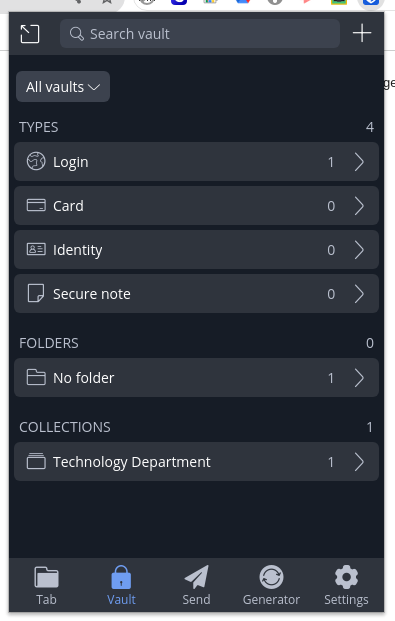
You will now be presented with your Bitwarden vault and other options.
Now that you’ve set up Bitwarden you’ll want to make sure it auto-fills your logins when you visit a page. If you’ve restarted your device or closed out of chrome after finishing the setup then you’ve probably noticed it stopped auto-filling your passwords. This is expected behavior. This is because your Bitwarden vault will be locked  when you either close chrome or lock your computer screen (depending on your settings/preference).
When you first start chrome or unlock your device, you’ll first want to unlock your password vault so that it will begin to auto-fill. There a few ways to bring up the prompt for your master password and each will have their preference. The purpose of this guide is to outline three of these methods.
1: via Chrome App / Extension
Probably the most user friendly option is to use the extension icon to determine if your vault is locked and then click to bring up the prompt for a password. To find the extension, there is a puzzle piece icon in the top left of your chrome browser like such…
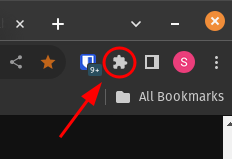
Note that my Bitwarden extension is already pinned, it is the blue shield icon to the left of my puzzle piece. When you click the puzzle piece you should get a list of extensions, find the extension titled “BitWarden - Free Password…” and use the pin icon immediately right of it to pin it. If the pin icon is blue then it should be pinned, and you can now look for the shield icon next to the puzzle piece.
Now that our extension is pinned we have a quick visual indication of whether or not our vault is locked. These cues are as follows…
 - Vault is locked, click to enter master password.
 - Vault is unlocked, auto-fill should work if configured!
 - Same as unlocked, the number indicates how many logins are saved for this page/domain!


That should be all you need to know to unlock your vault through the extension. Remember you can change the settings in the extension for things such as how often the vault locks. Just be cautious and understand what that setting will do before changing it.
2: via Right-Click
Another easy method is to just right click on the login field you are wanting to have filled and go to the Bitwarden option. The following screenshot is the navigation to this.
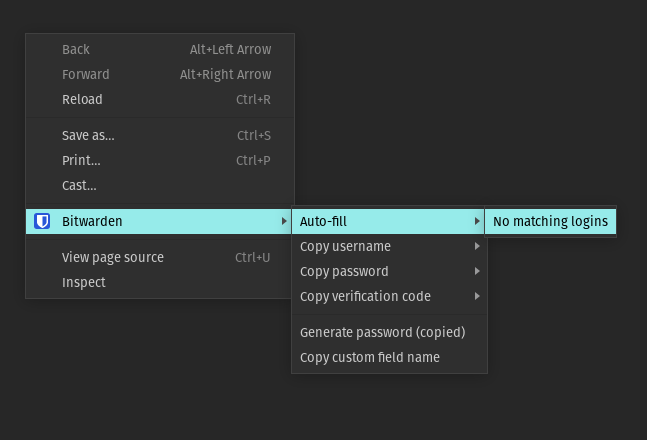
Mine says “No matching logins” because I did not have a login saved for the page as it was a blank chrome tab. On your device it should either list one or more logins or say Unlock your vault. If it is the latter, clicking this will prompt for a master password, then you can refresh the page or select a login to auto-fill.
Also note the other options available here, such as generating a password. This is also in the extension, and you can use Bitwarden to create secure passwords and save them in your vault.
3: via Keyboard Shortcut
Naturally, the most elite method is to forego all tedious mouse-clicking as you squint at a bright screen to find that pesky blue shield.
Auto-fill on modern browsers, such as chrome, should by default have a keyboard shortcut set to Ctrl + Shift + L or Cmd + Shift + L (for Mac). To make this more mnemonic you can think of “L” as “Login.”
If you can be comfortable with the keyboard shortcut it might be the most convenient as it will more quickly become muscle memory compared to mouse clicks.
Originally posted by Stephen Hale on the West Fork Technology Hub (2023-10-17).
No comments to display
No comments to display