
Blocksi - Alternative URL Blocking (NOT FULL DOMAINS)
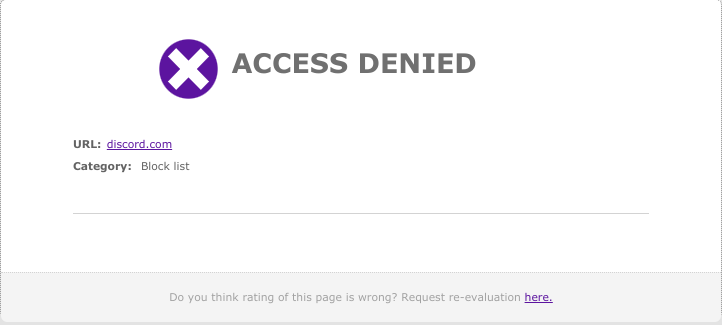
We have had some teachers struggling with blocking access to specific pages, mainly different Google Sites. When they try to block the Google site, it actually blocks all of Google.
The BEST way to do this is to add the full address, for example:
https://sites.google.com/site/classroom6x/intrusion
To an Exception List that is tied to a policy that you connect to your class. Here are the instructions for doing that: Blocksi - Filtering Policies and Assessment Mode
Click here for instructions.
-
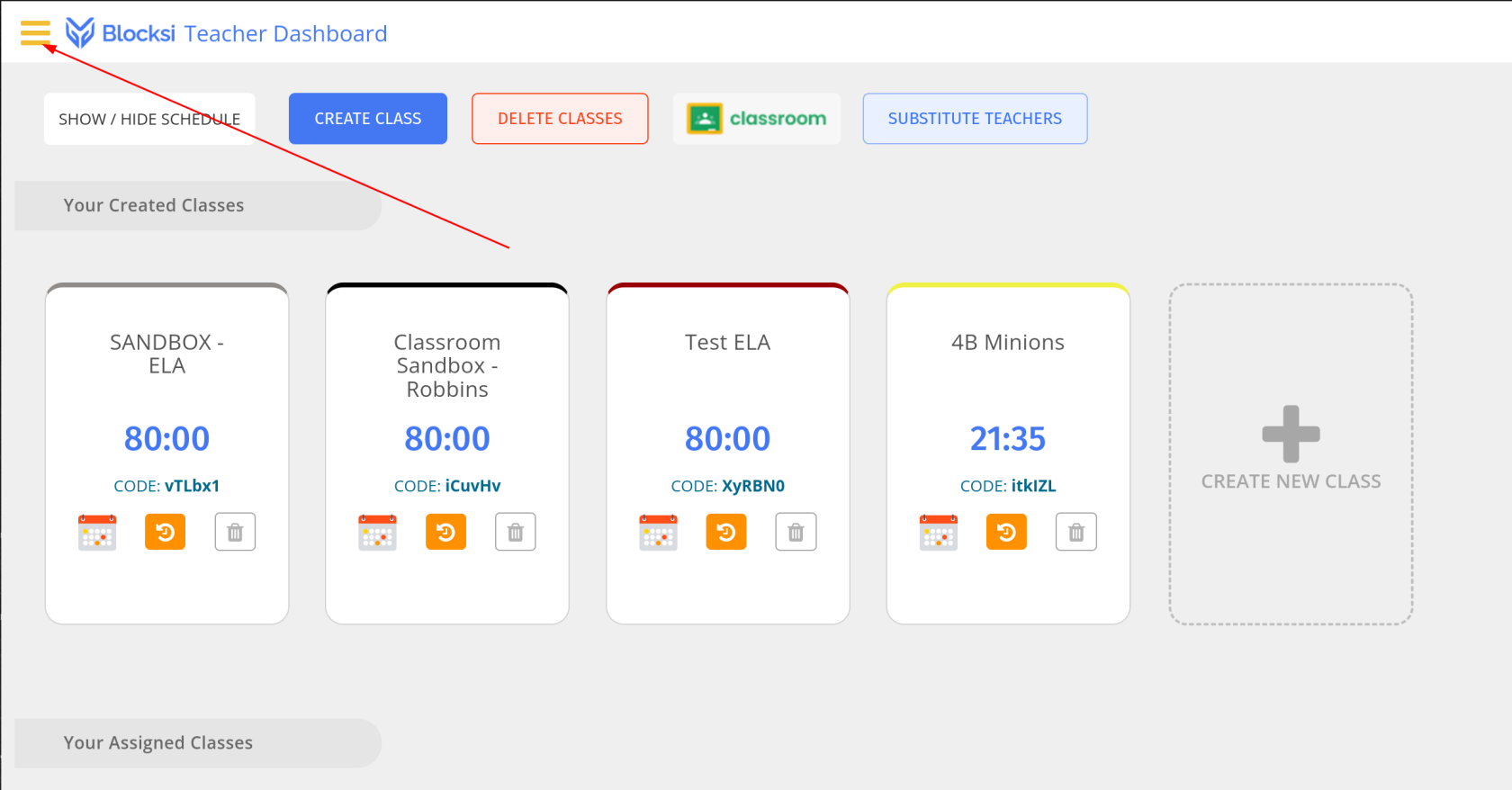
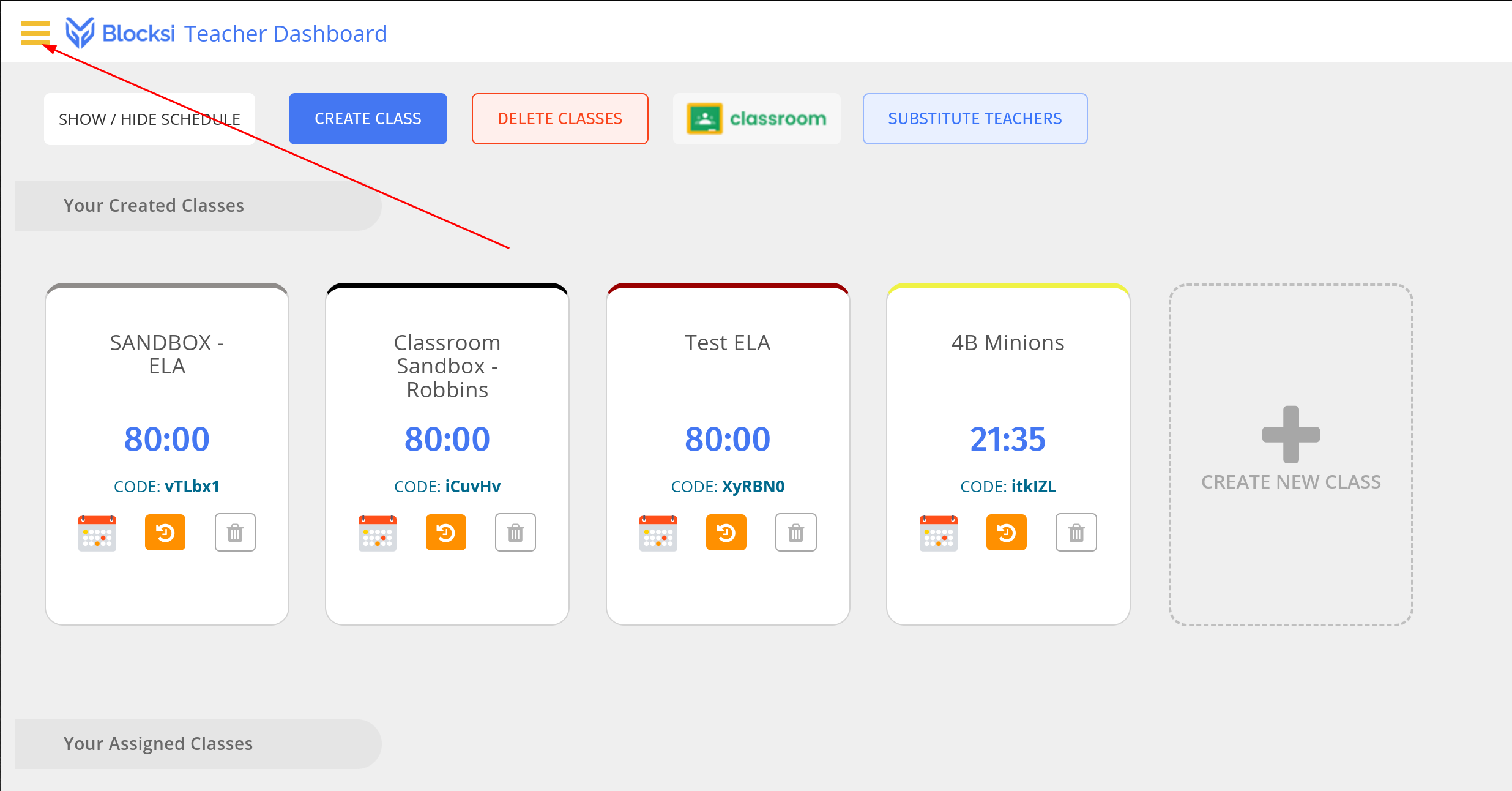
Click on the little yellow hamburger menu at the top left of the Blocksi page.
-
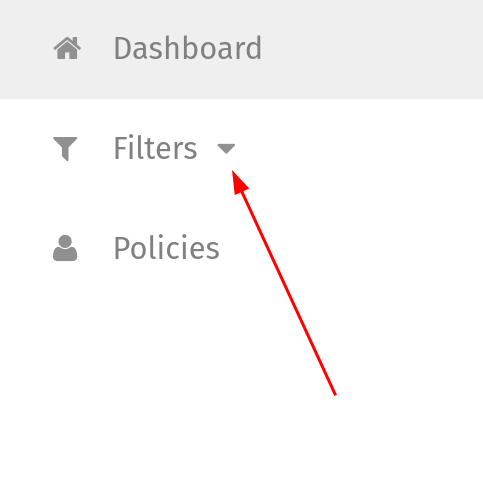
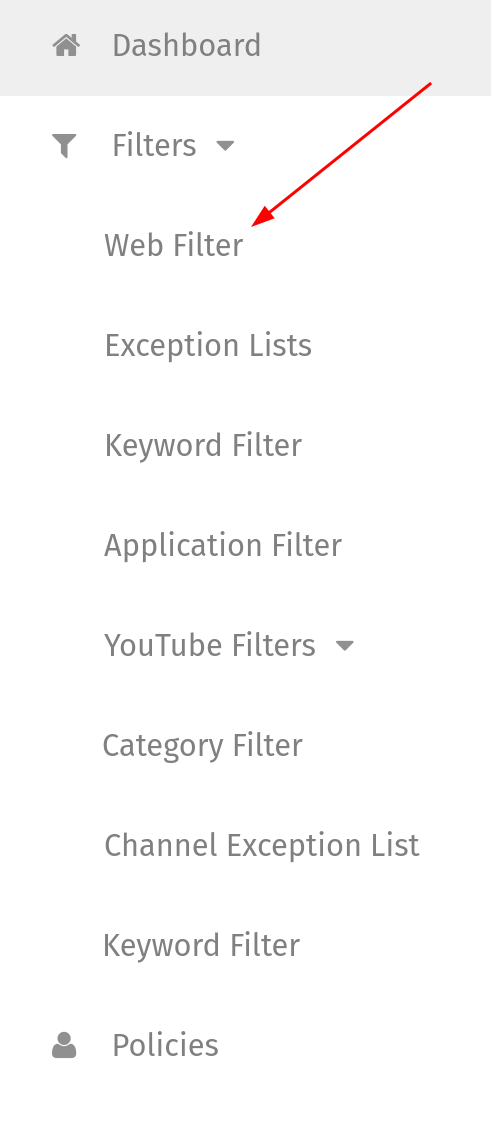
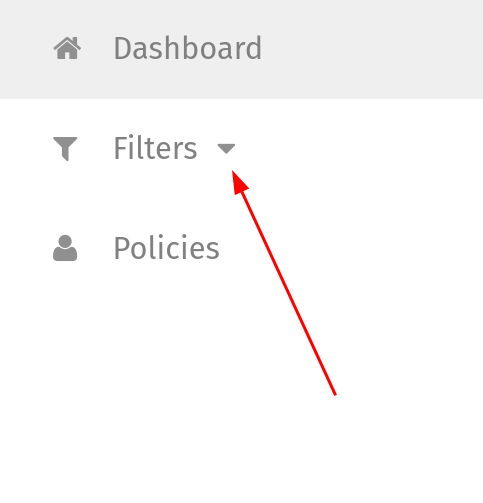
This will present you with you filtering menu. Go ahead and click on “Filters” to expand it.
-
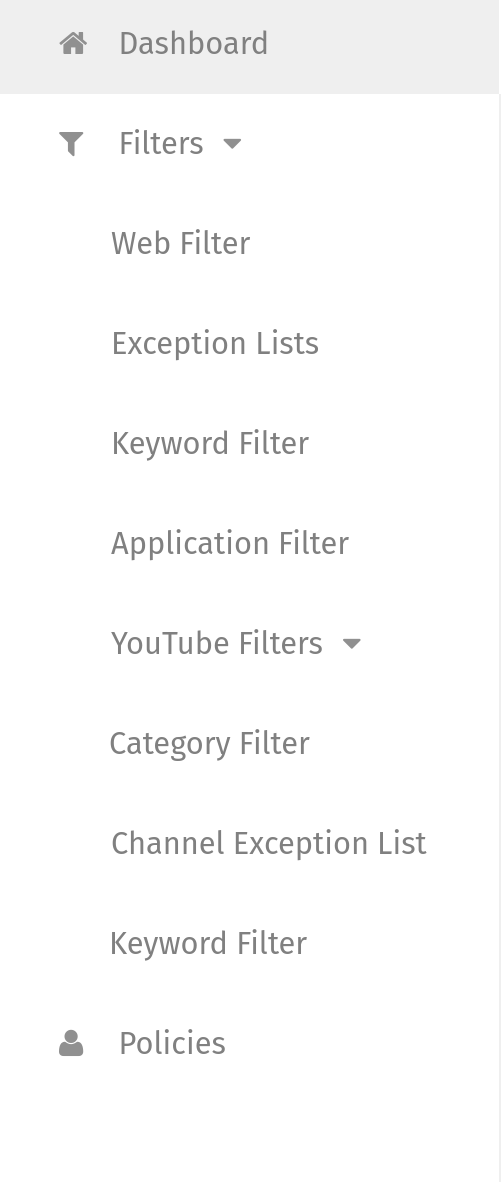
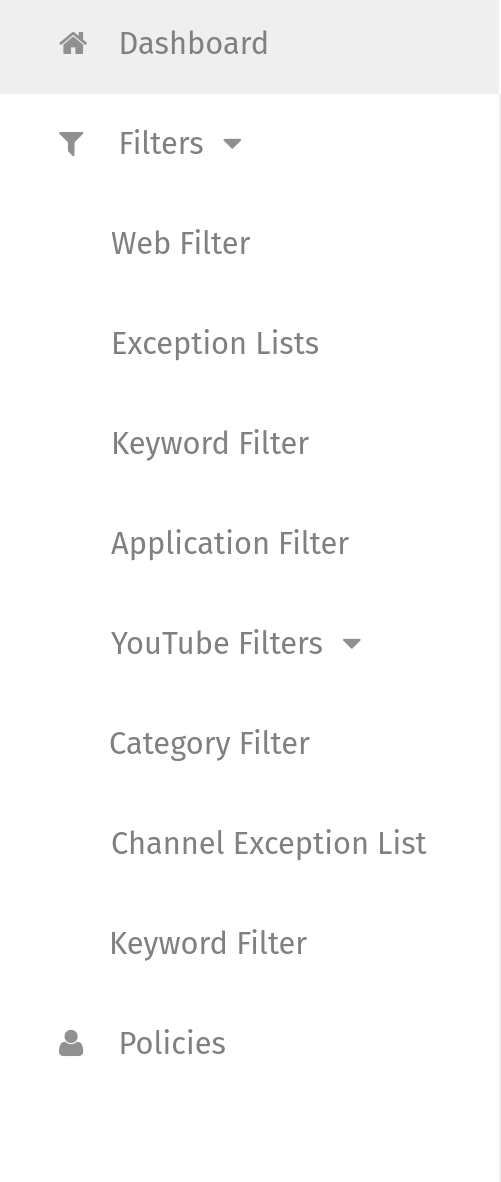
This opens the menu to include several options. We will go through each of them for our class filtering.
-
Click on “Web Filter.”
-
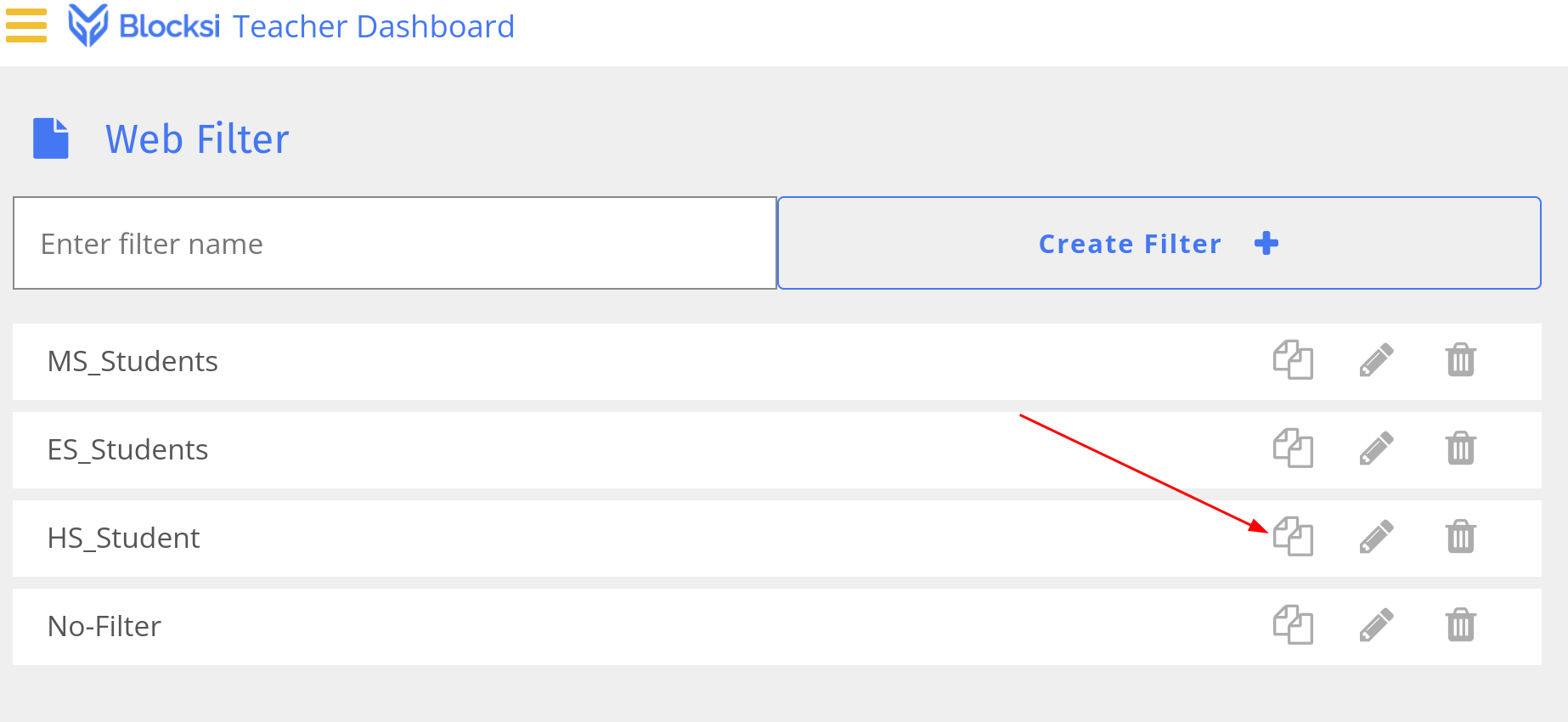
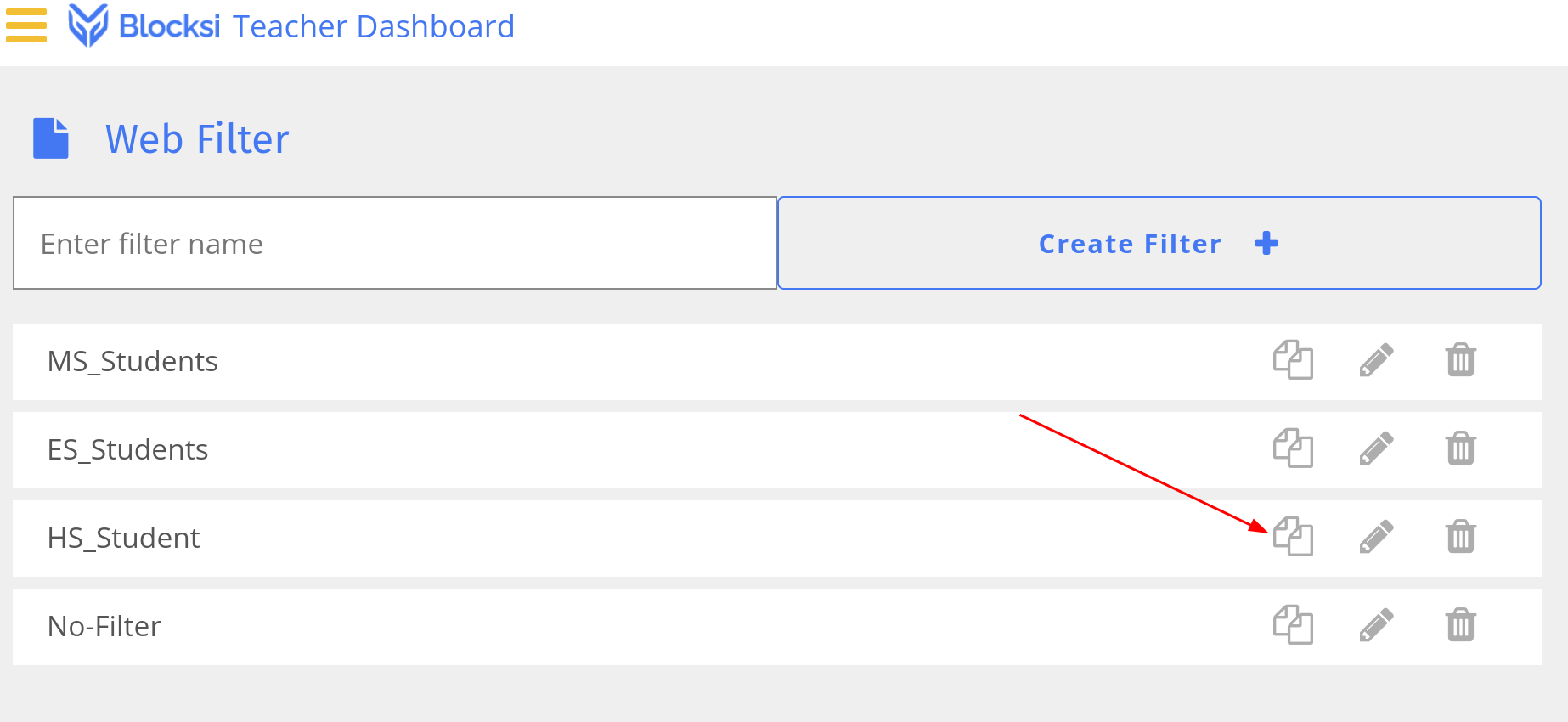
While not required, I recommend you pick XS_Student as a starting point. Click on the little copy icon to duplicate the filter instead of starting from scratch.
-
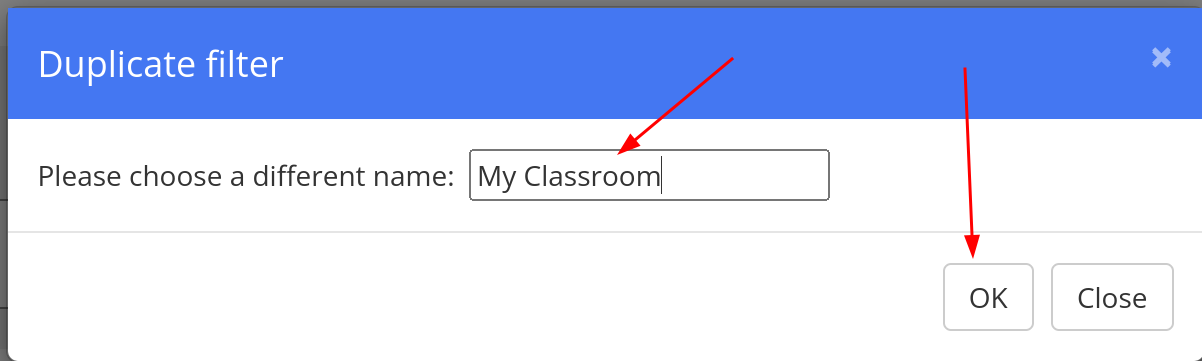
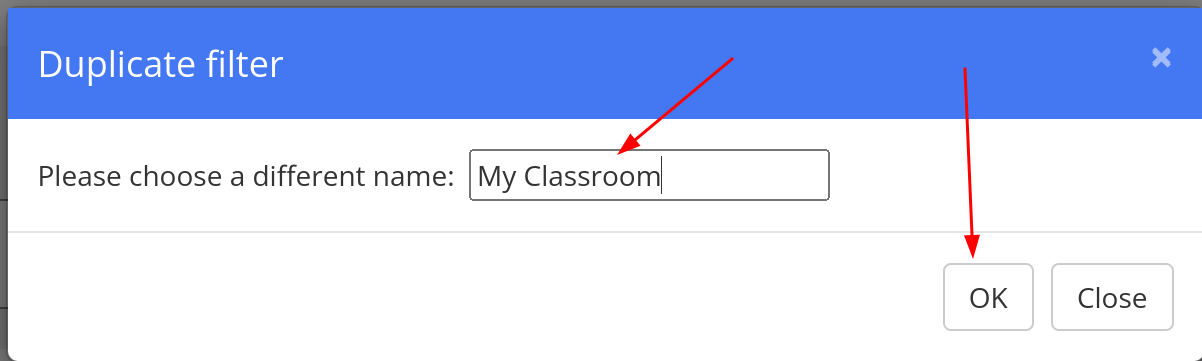
Enter a name (I’m using “My Classroom” for all of the names to make things less confusing), then click on OK.
-
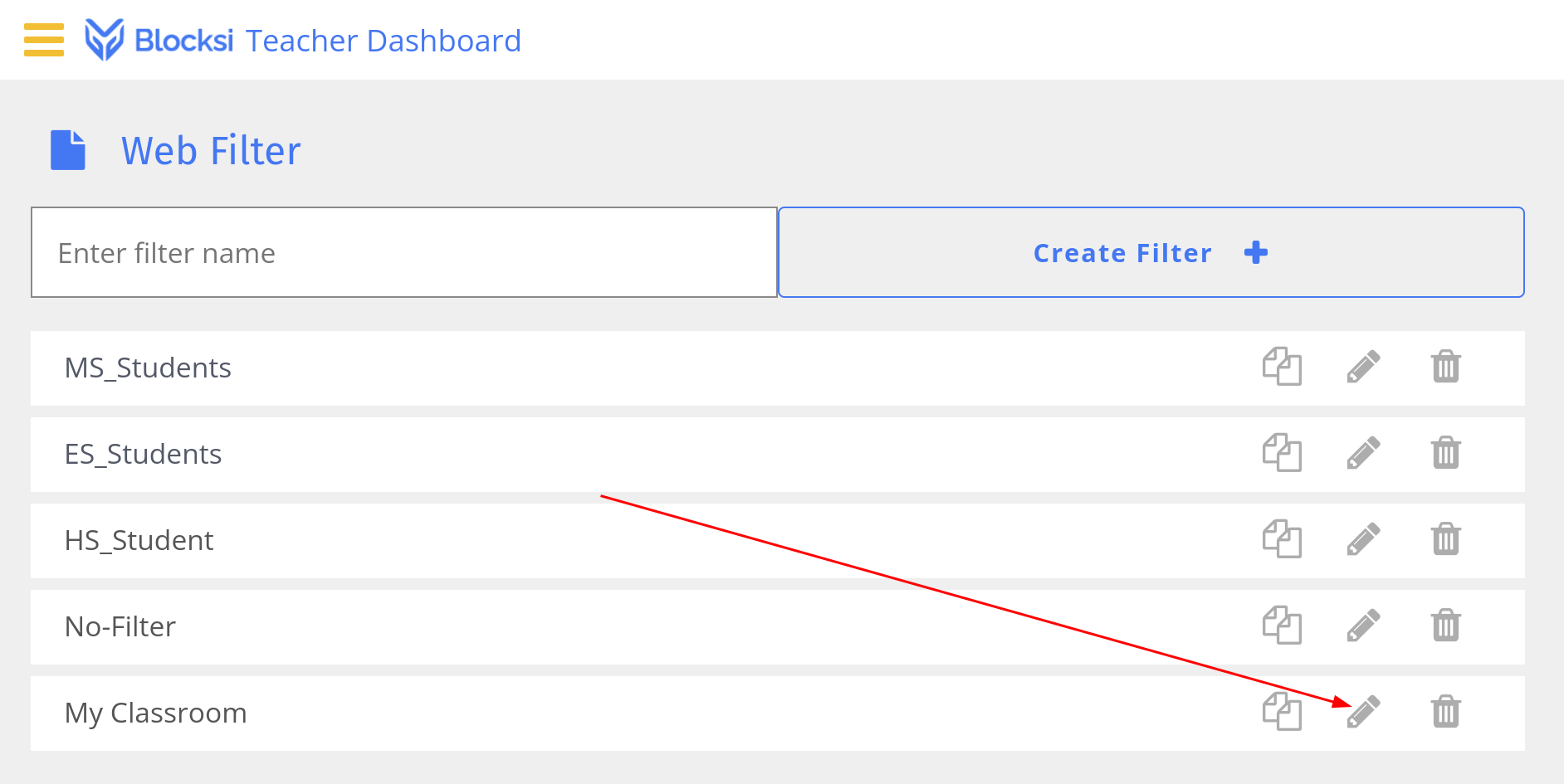
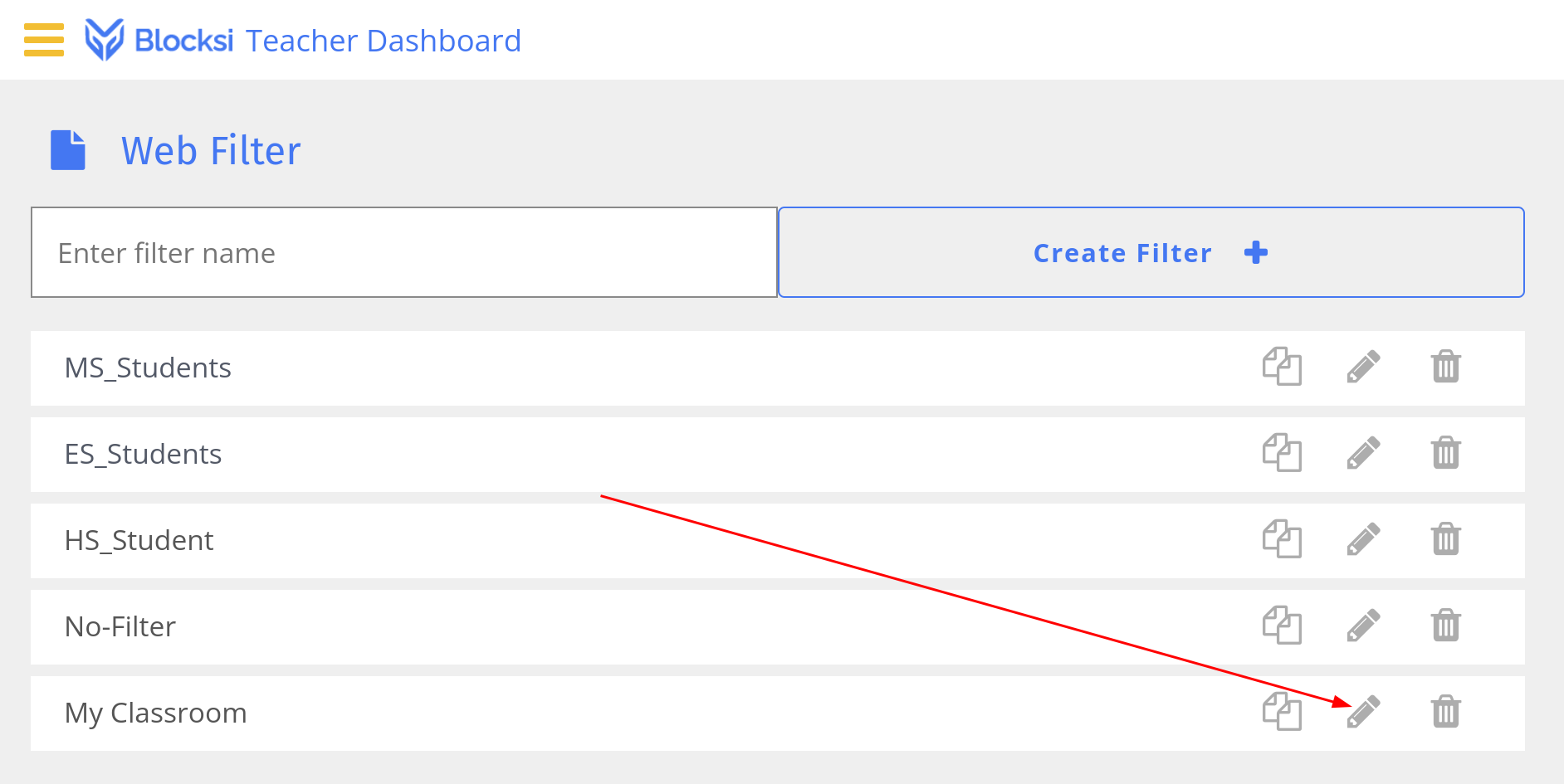
This will add “My Classroom” (or whatever you name it) to the web filter list. We will click on the pencil icon to edit the filter.
-
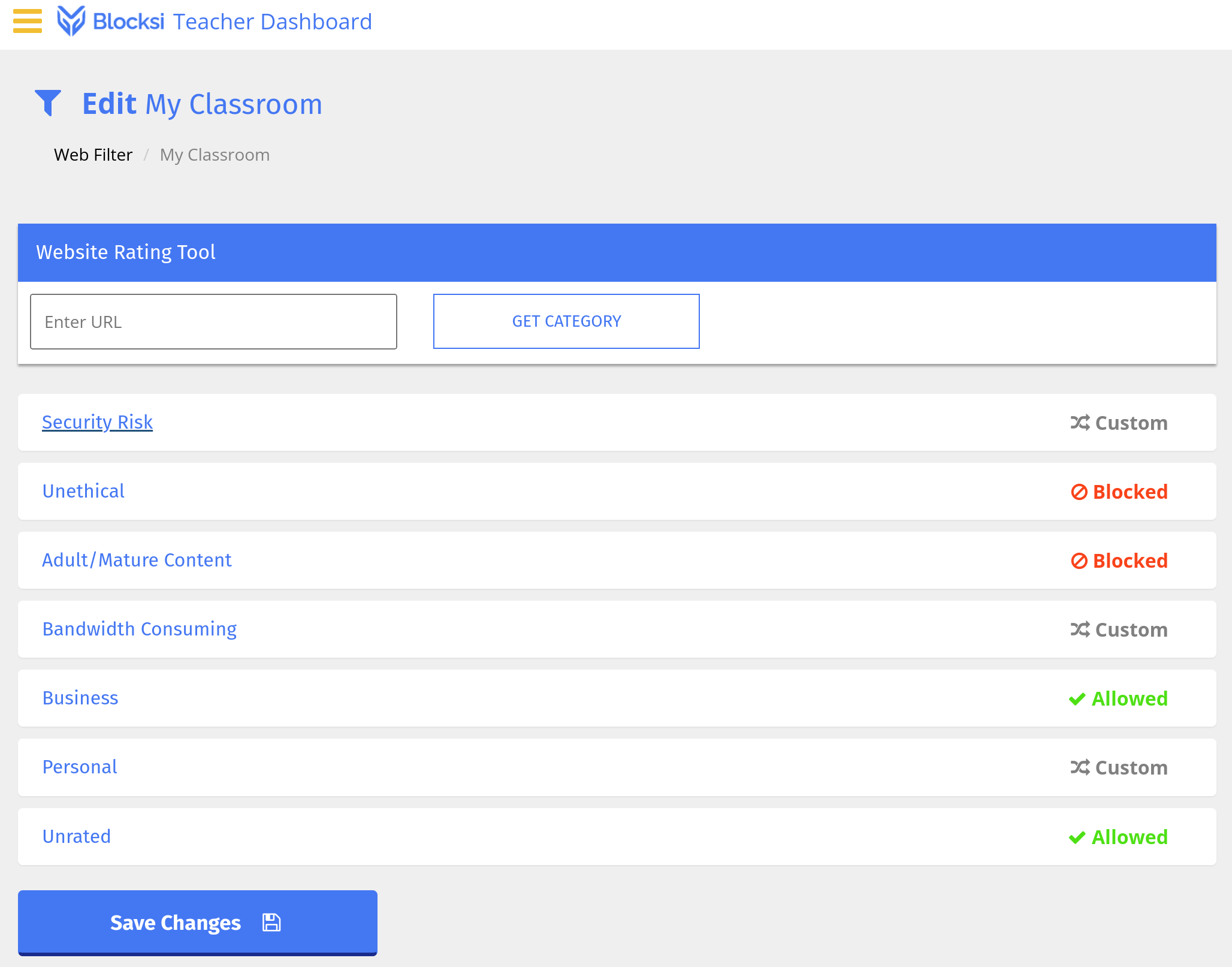
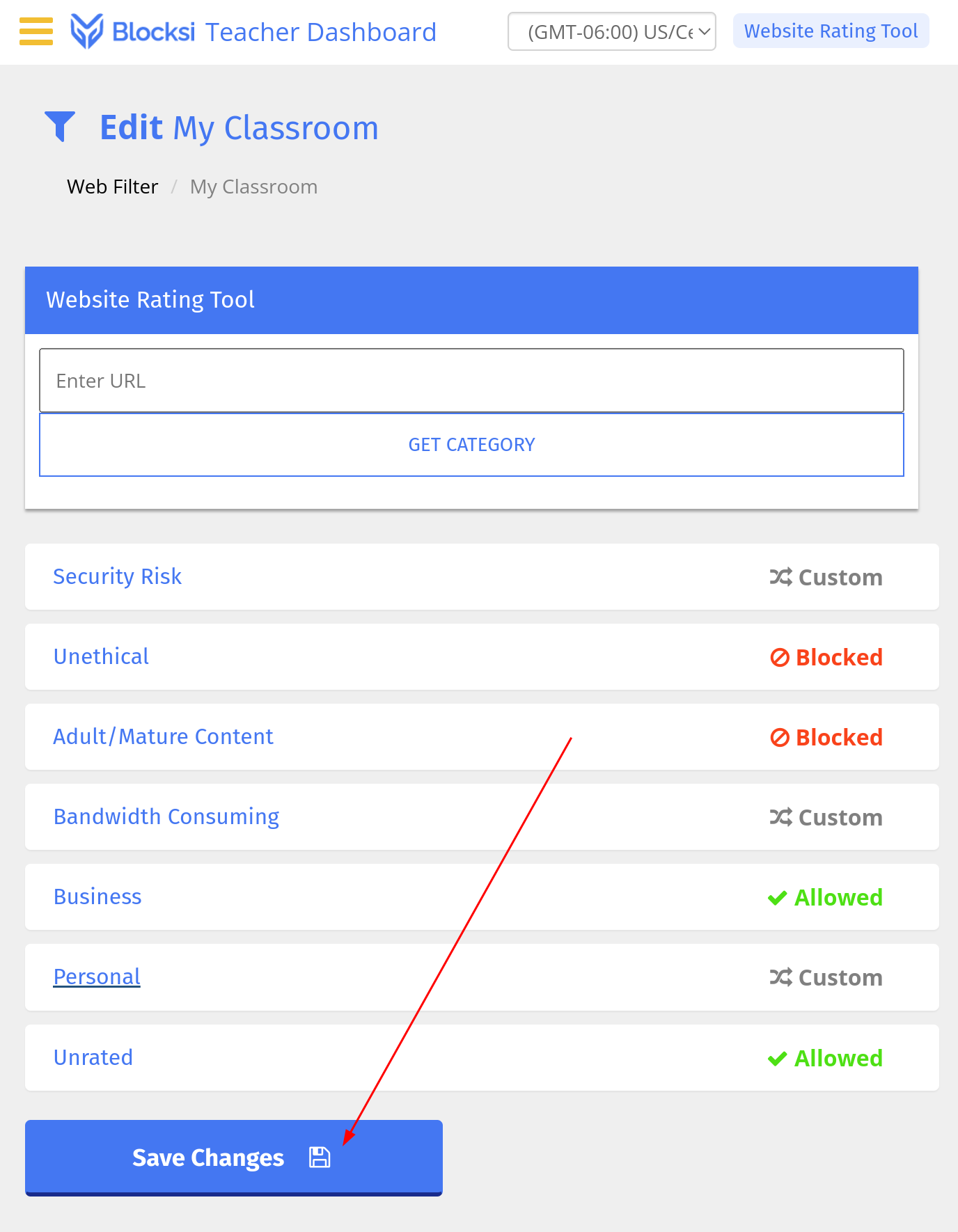
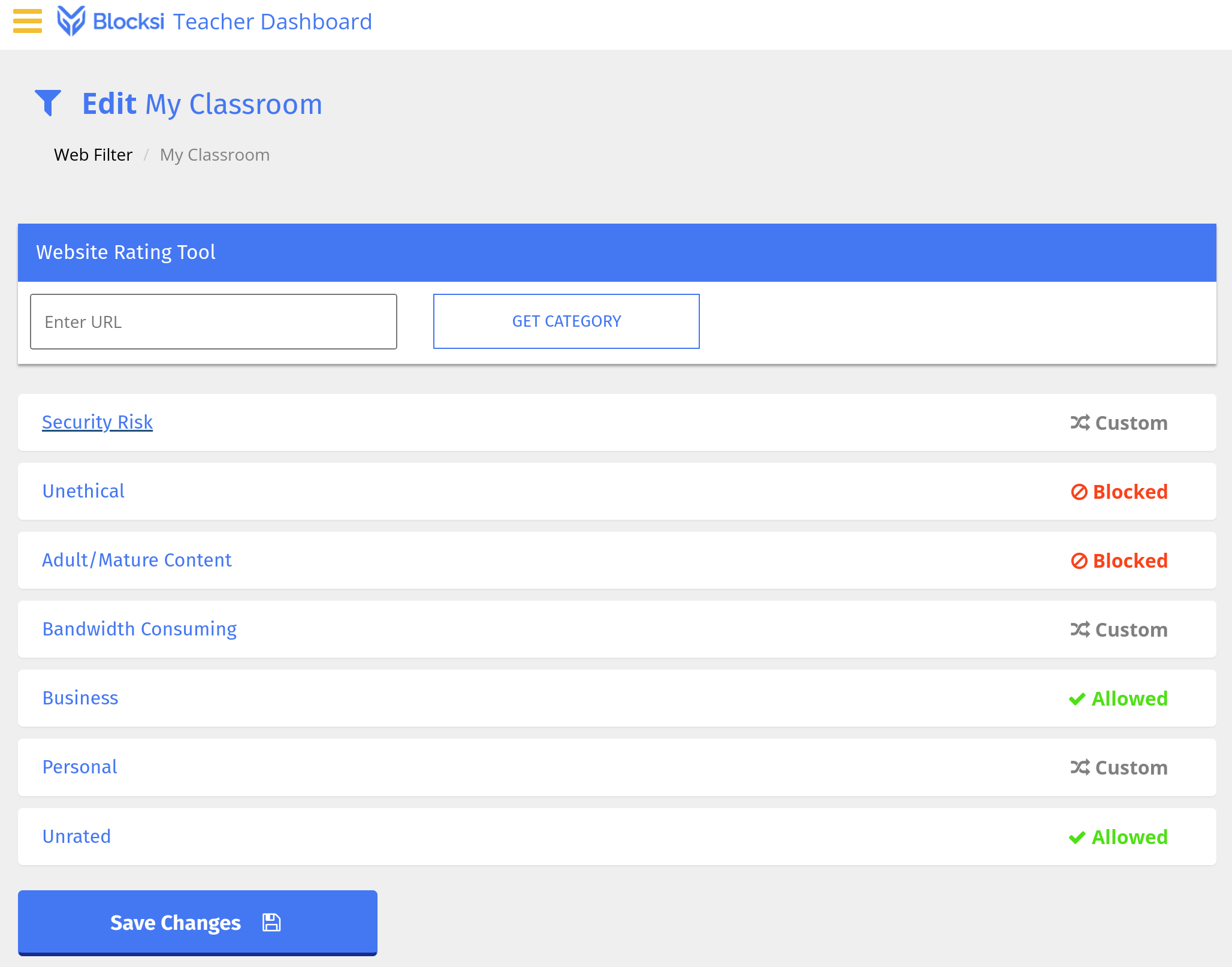
This page shows all of the various categories that Blocksi puts sites in. At the top, you can put in a web address, and Blocksi will tell you the category. Handy if you aren’t sure which category niggles you…
-
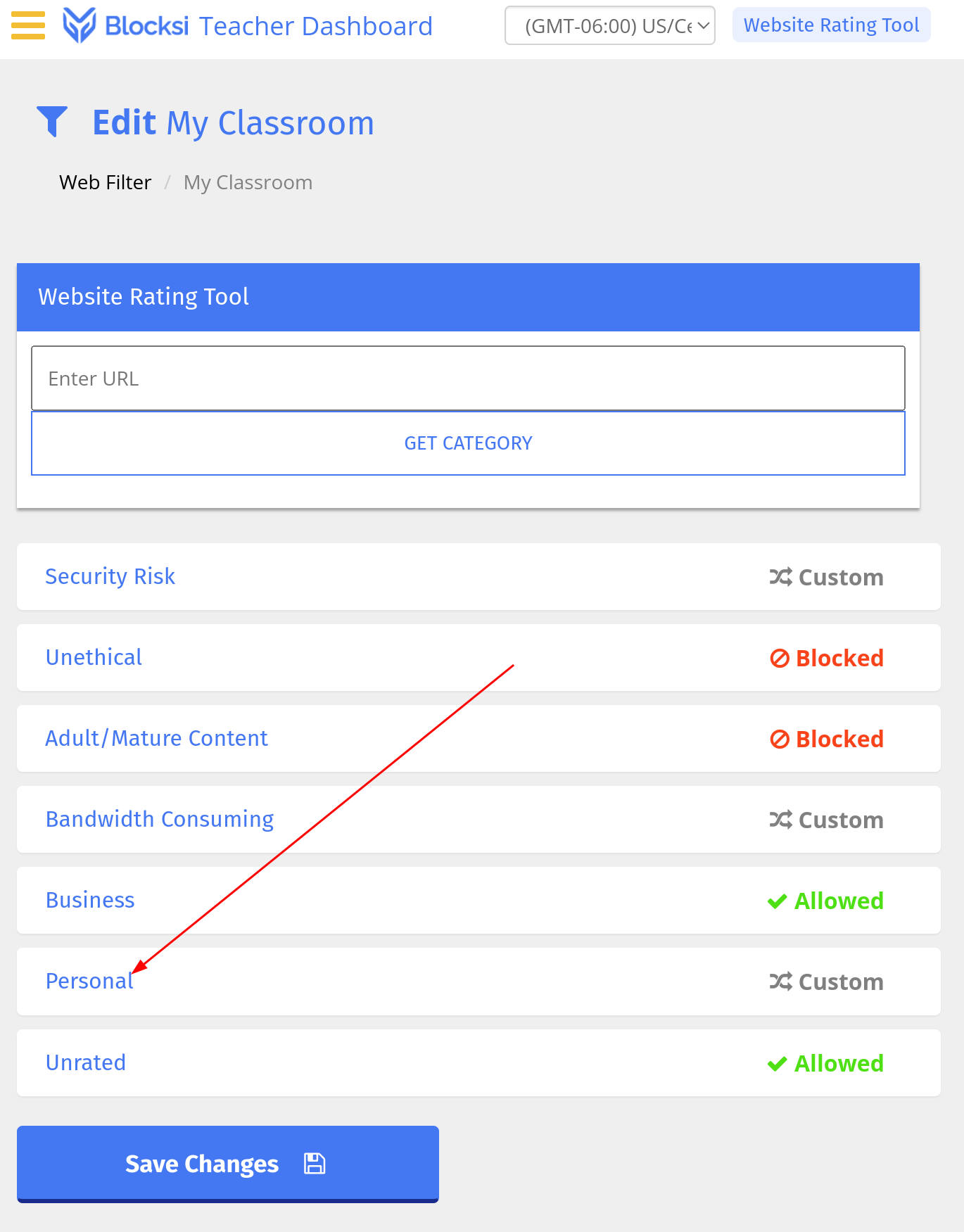
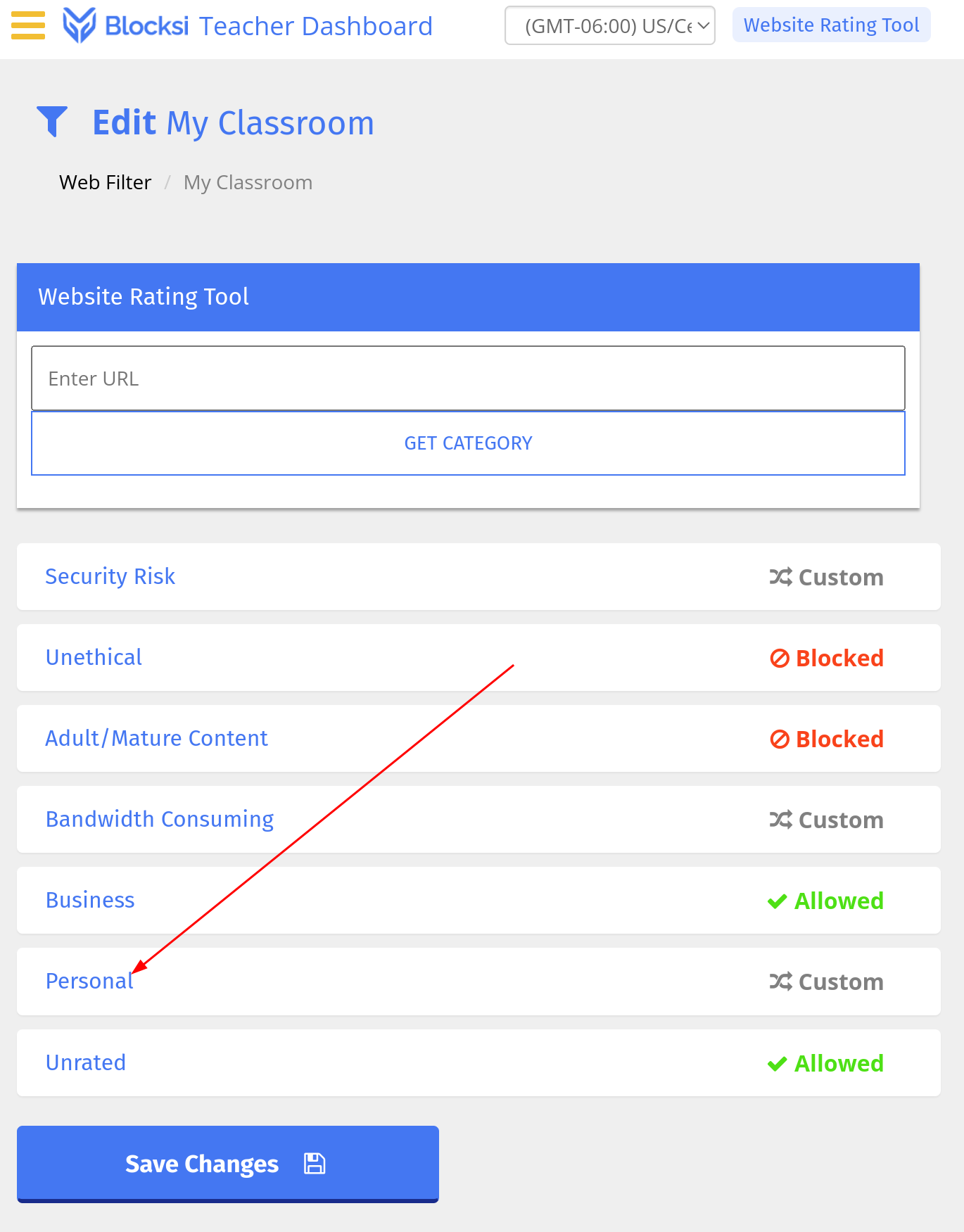
To edit the web filter, click on a category.
-
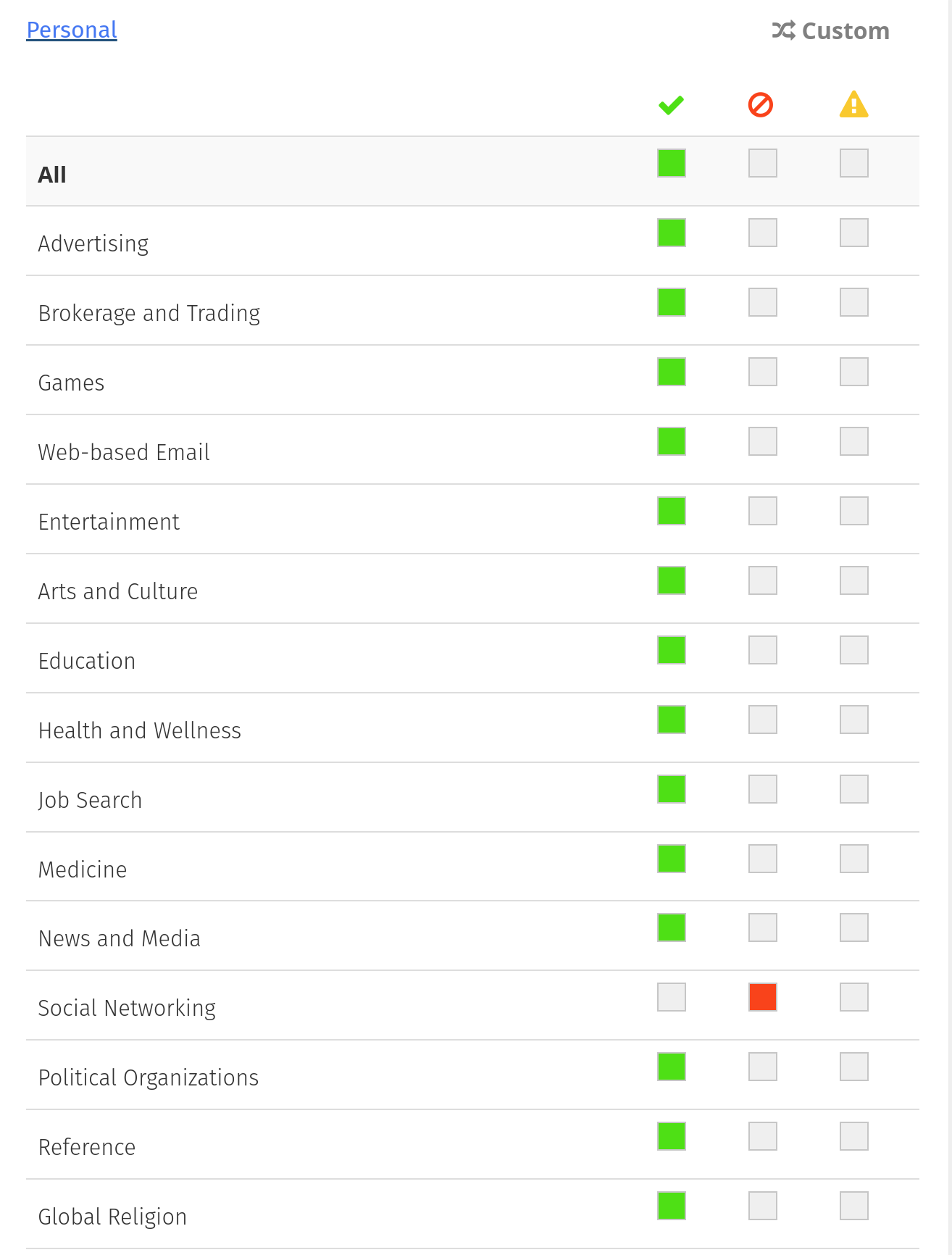
This will expand the category to show the sub-categories.
-
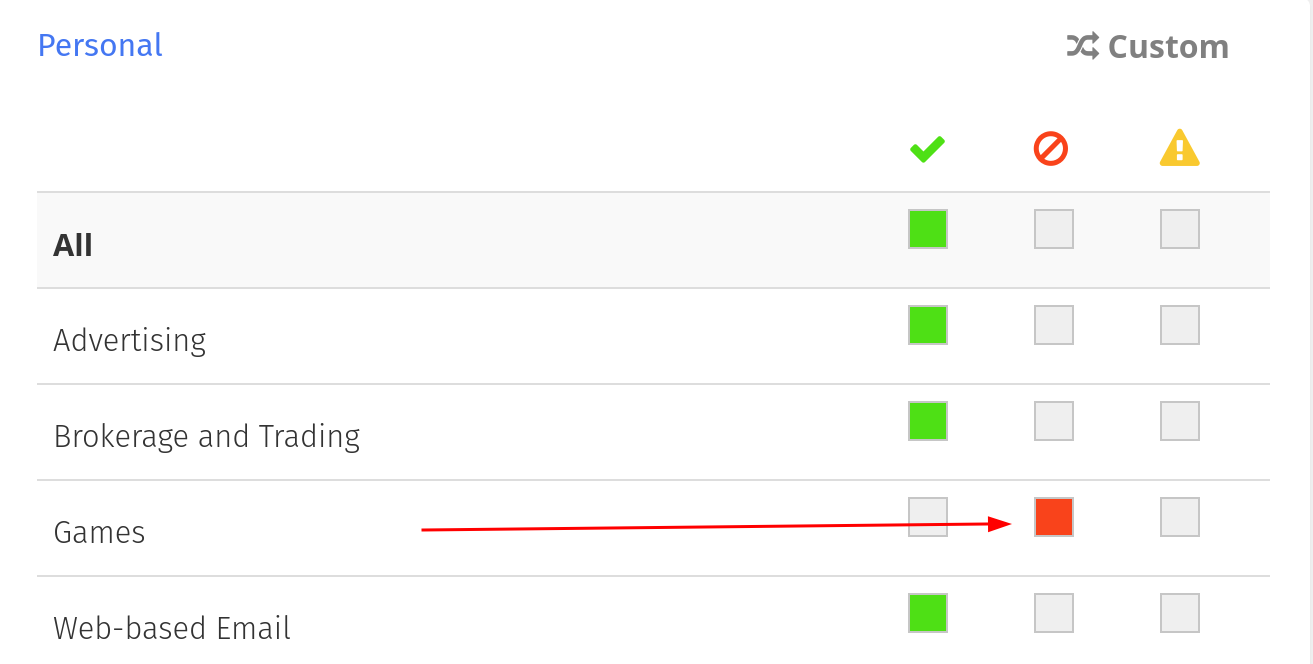
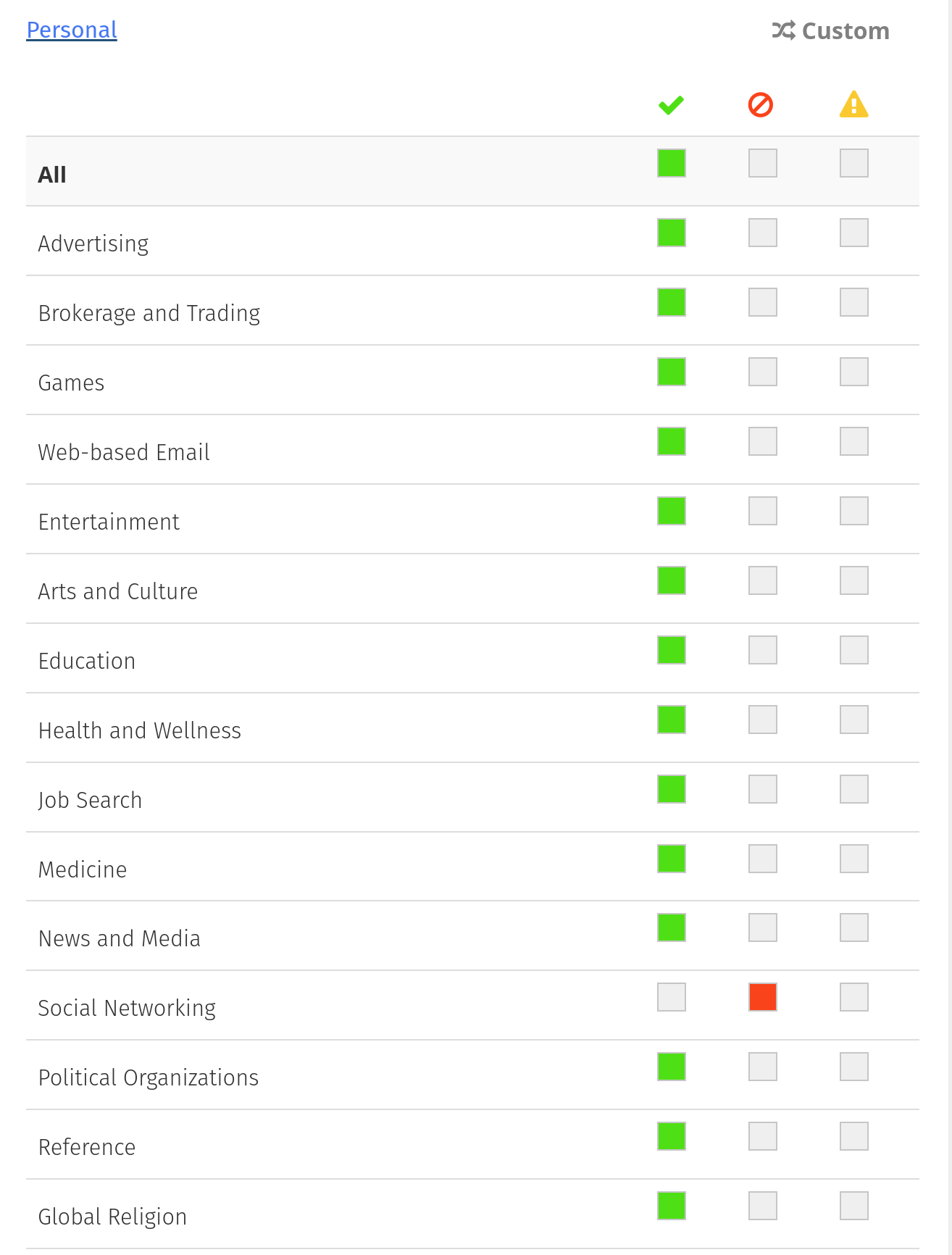
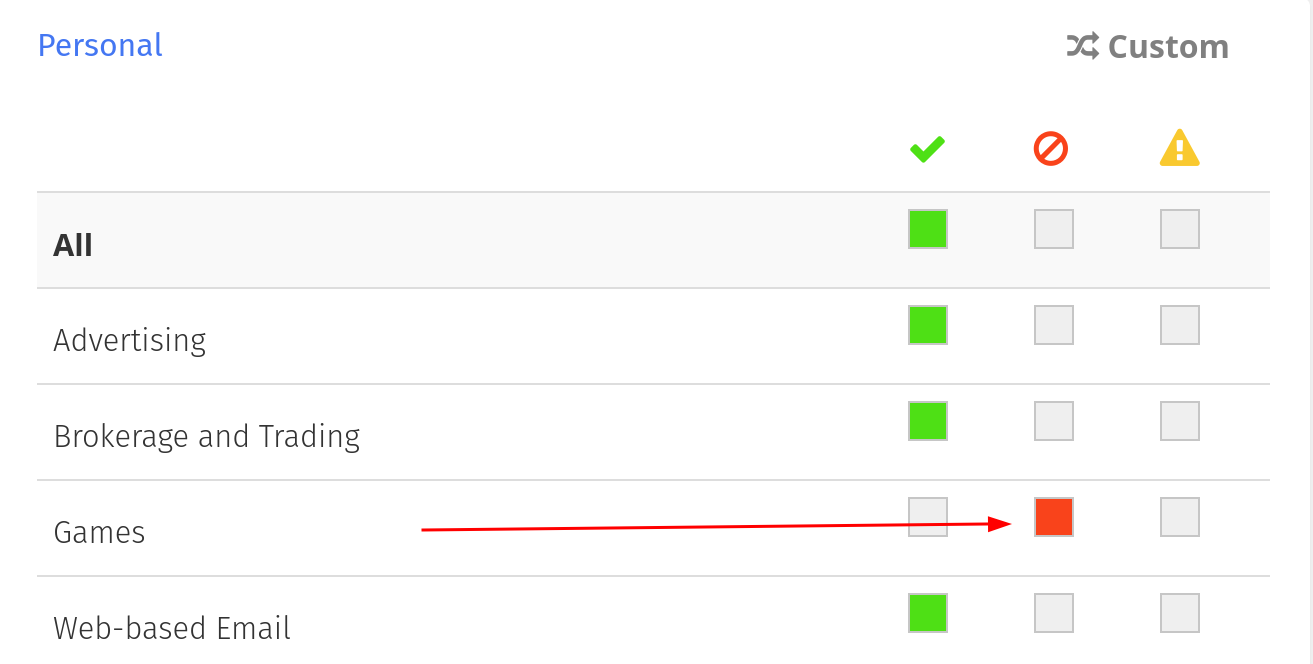
If you want to block something that isn’t blocked, activate the center square. If you want to allow something that is blocked (be careful, we blocked things for a reason), activate the left square. If you want to warn people when they visit a page, but you still want the student to be able to visit, click the right square.
-
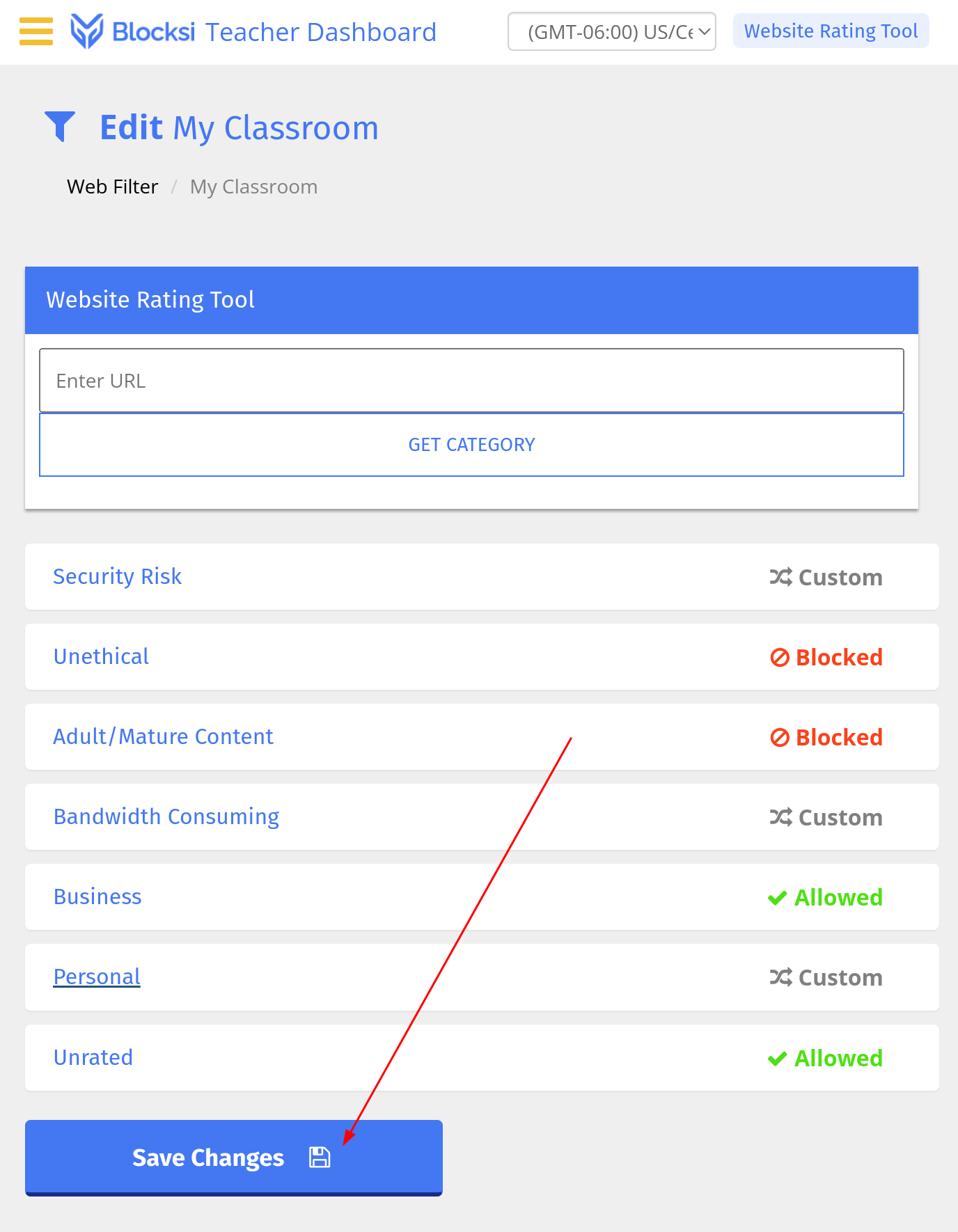
Once you have edited all of the categories to your satisfaction (you can always edit them again later), click the “Save Changes” button.
-
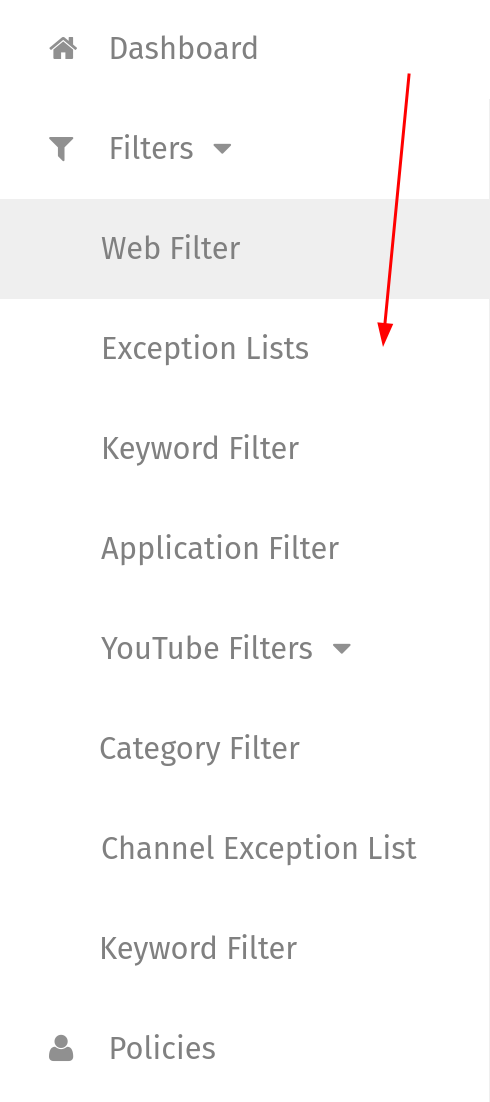
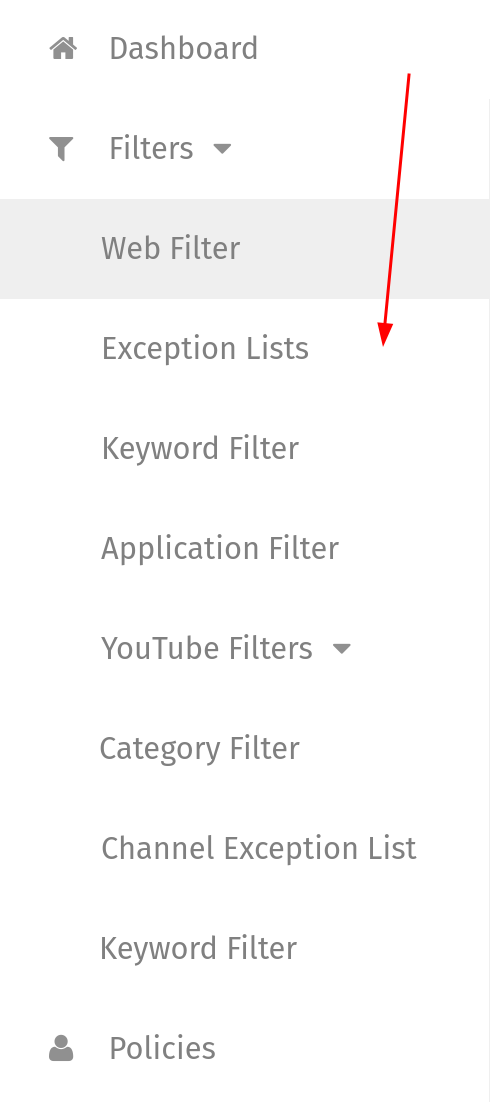
In our menu, let’s click on “Exception Lists”
-
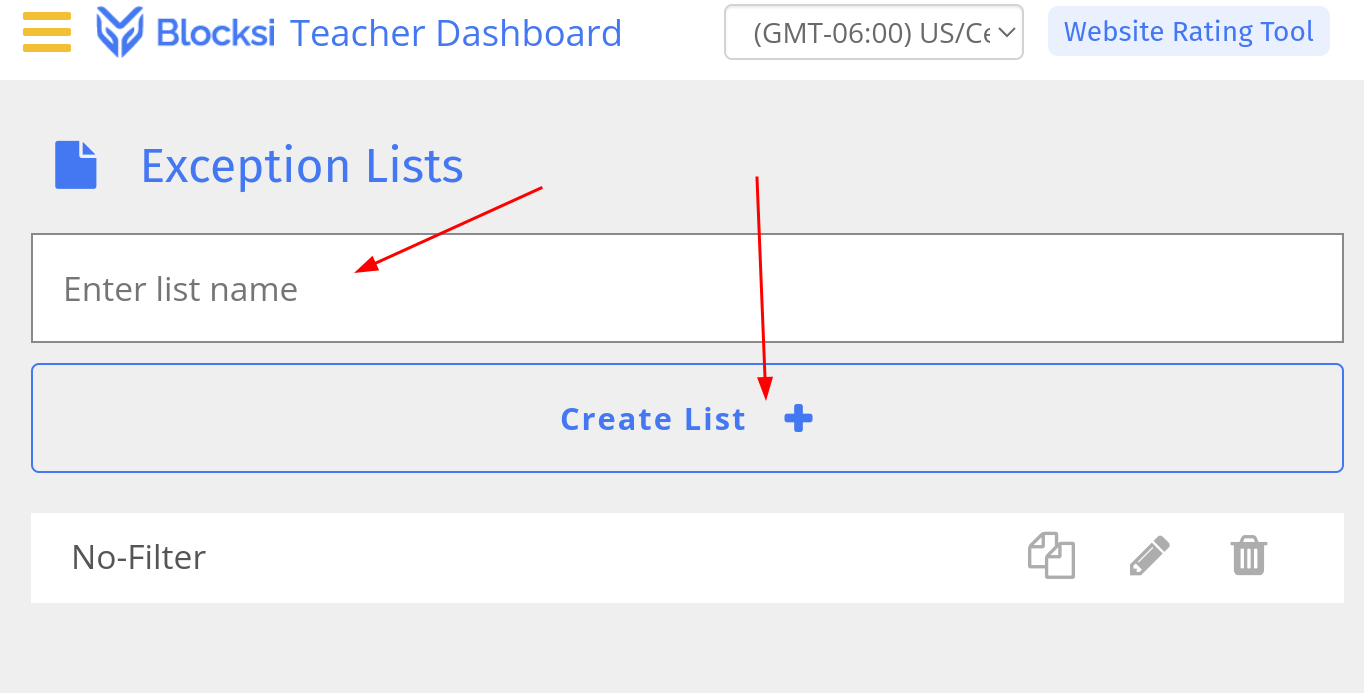
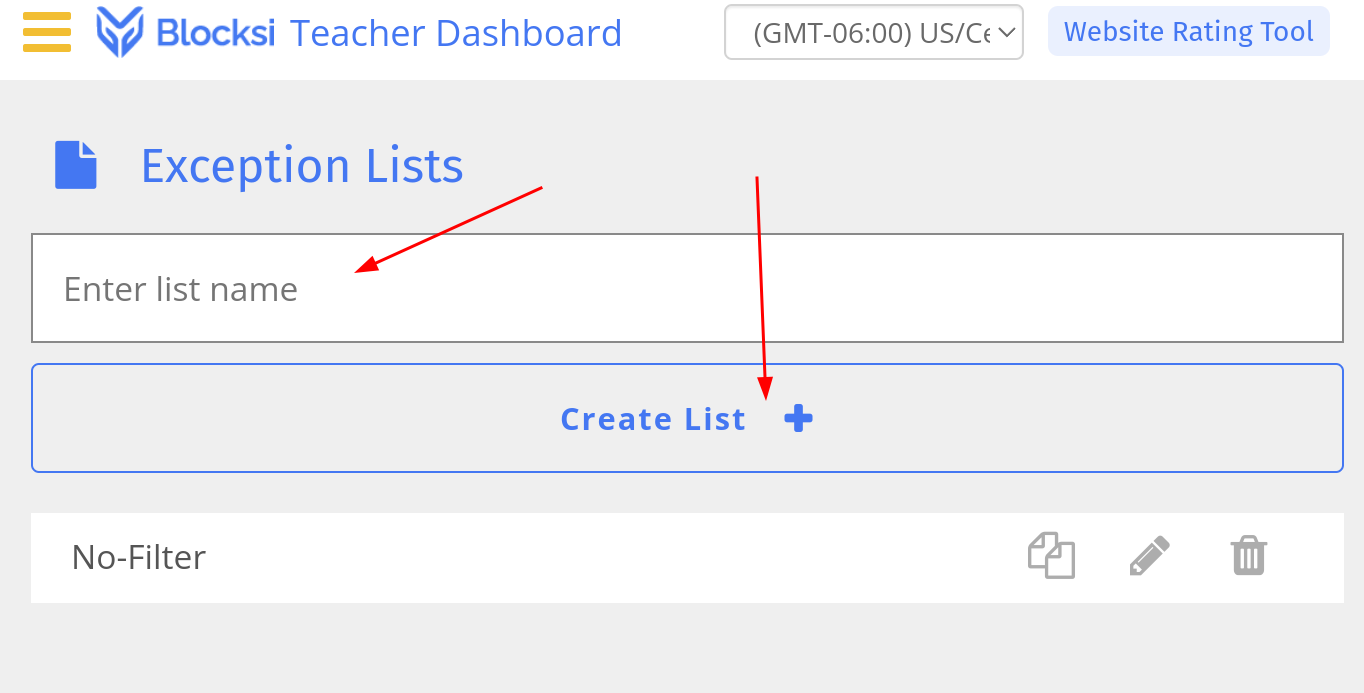
Enter a name (I used My Classroom again), then click “Create List.”
-
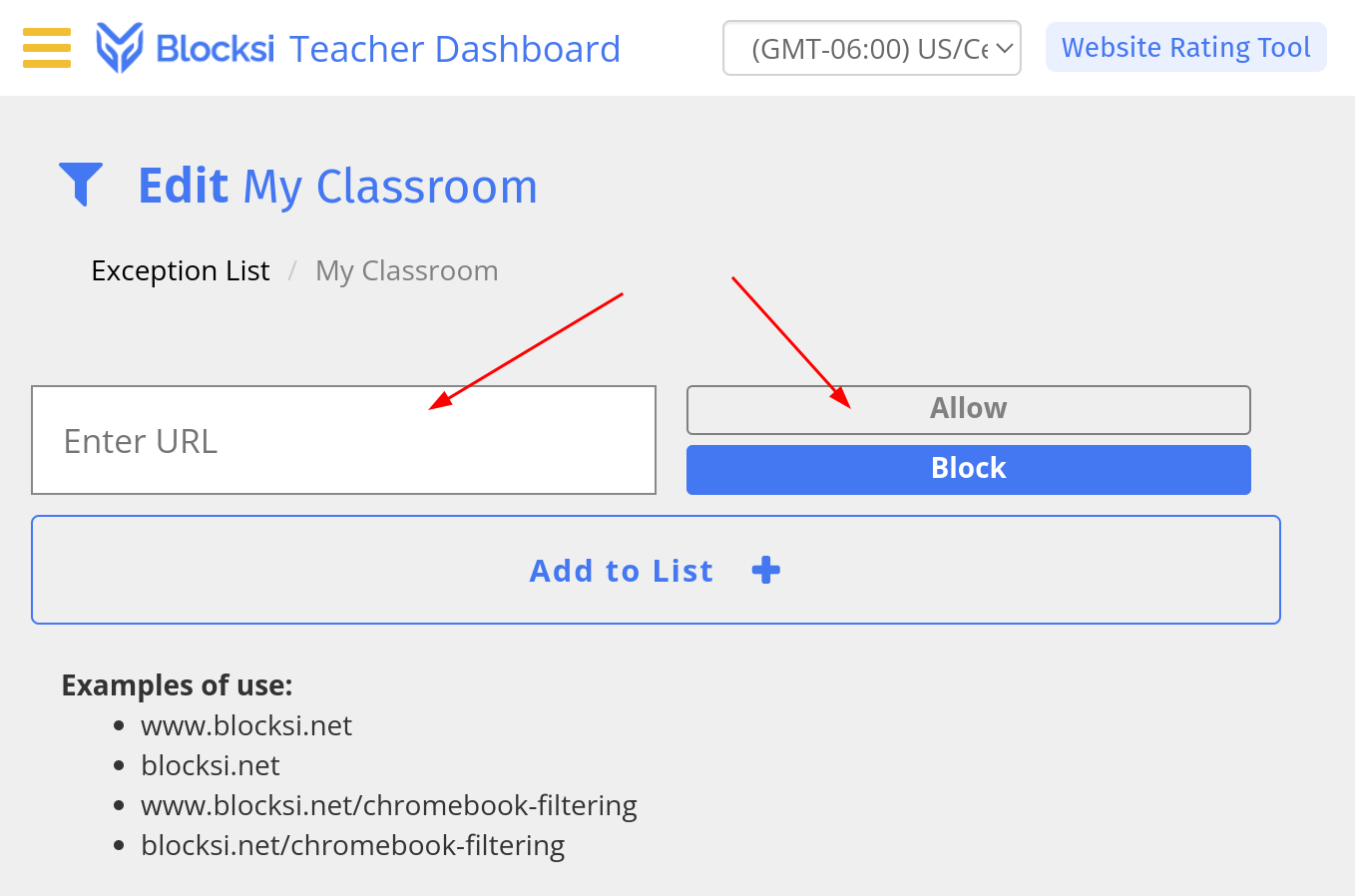
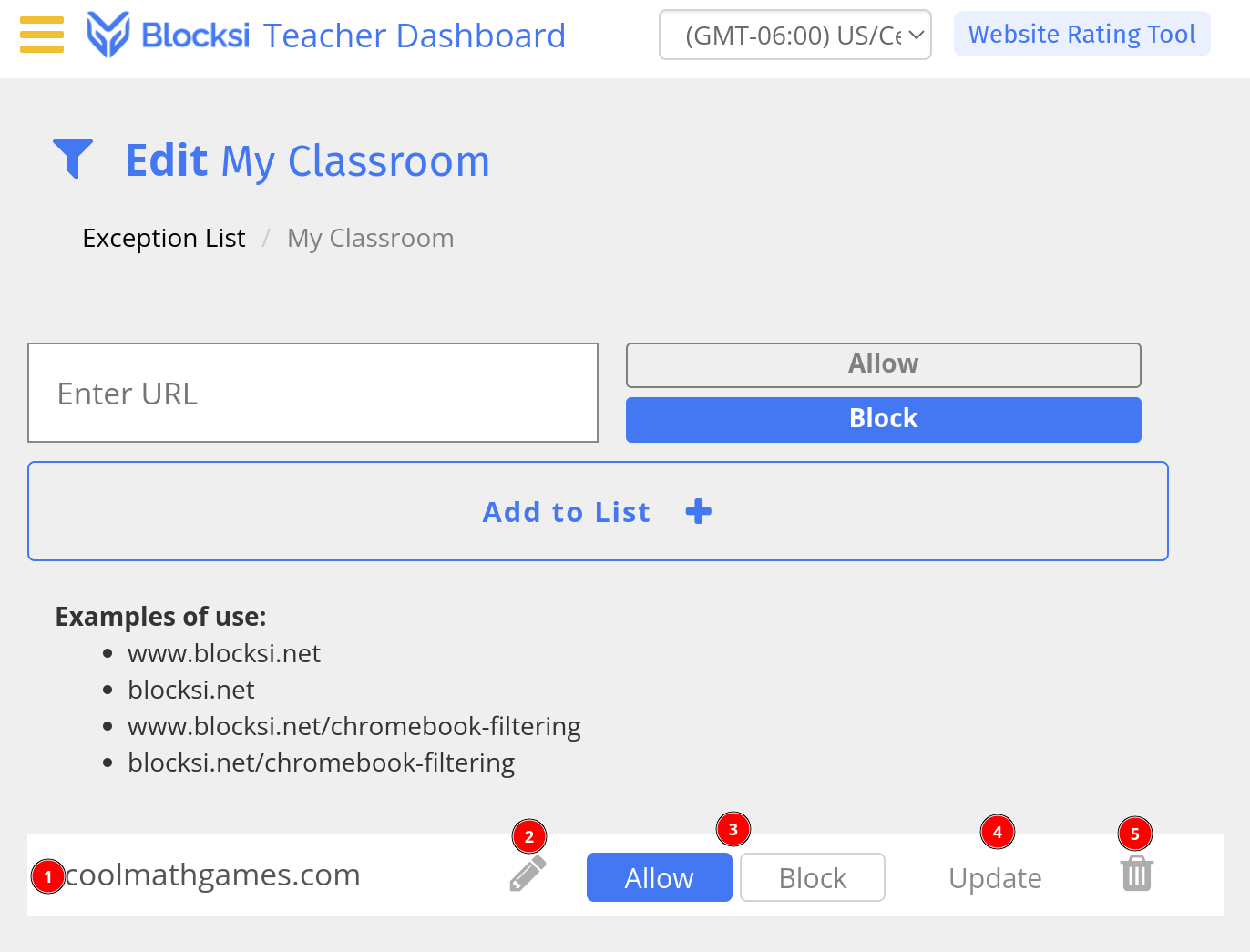
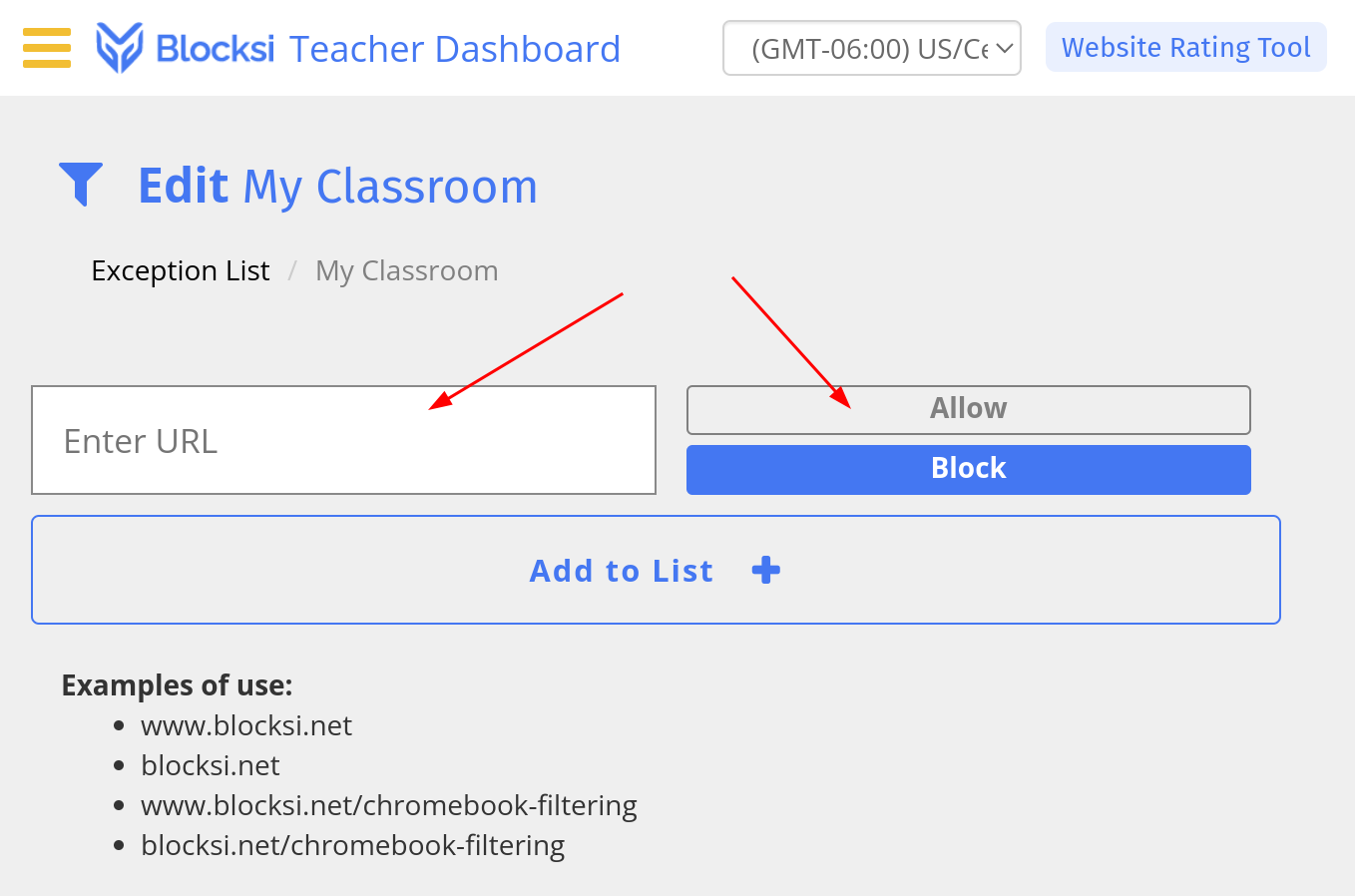
This opens the list editor. This list is both an allow and a block list. If you blocked a category in step 11, but you need a site that is in that category, you can paste that site in the “Enter URL” box, be sure that the “Allow” option is selected, then click on the “Add to List” button. Likewise, if you DON’T have a category blocked, you can enter a site in the box, choose the Block button, then click on “Add to List” to prevent access to that website.
-
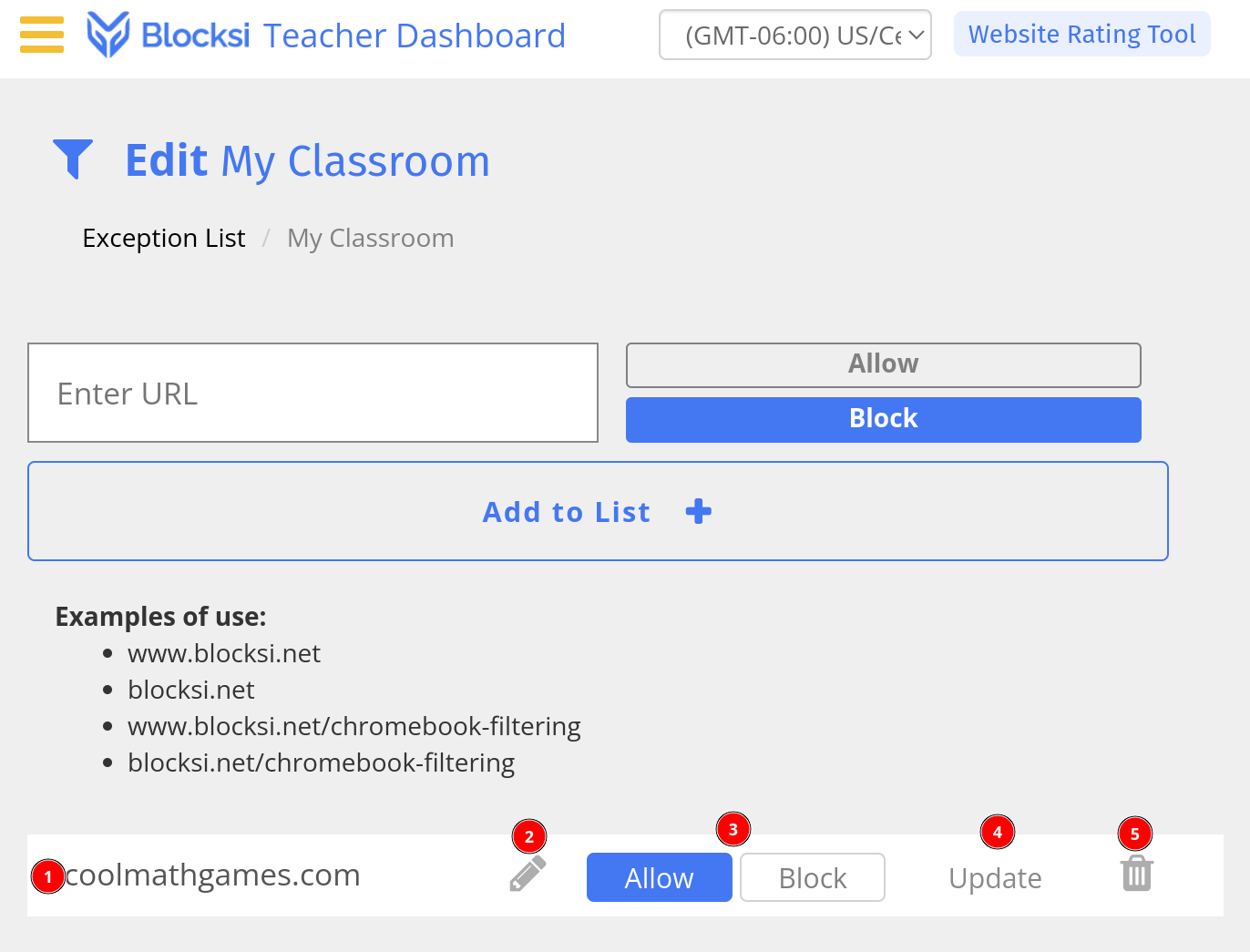
Once you add an item to the list, it will be listed at the bottom. You can see the site, edit it, toggle between allow/block, update your settings, or delete anything you add.
-
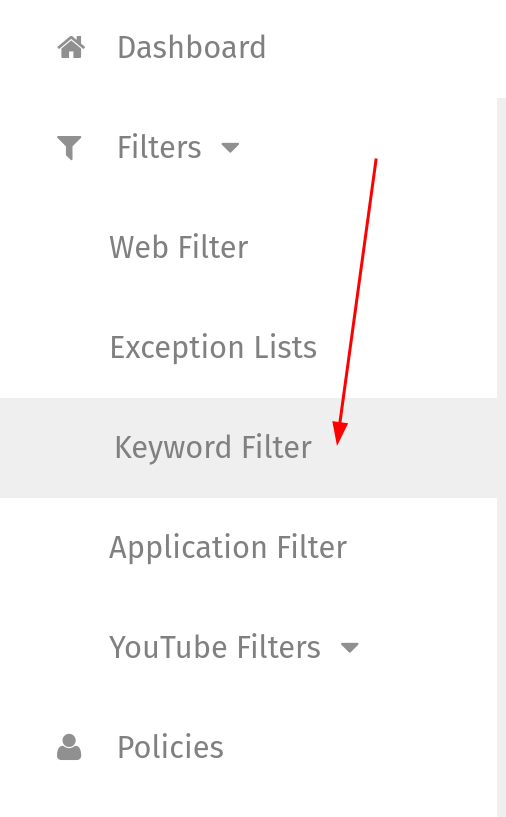
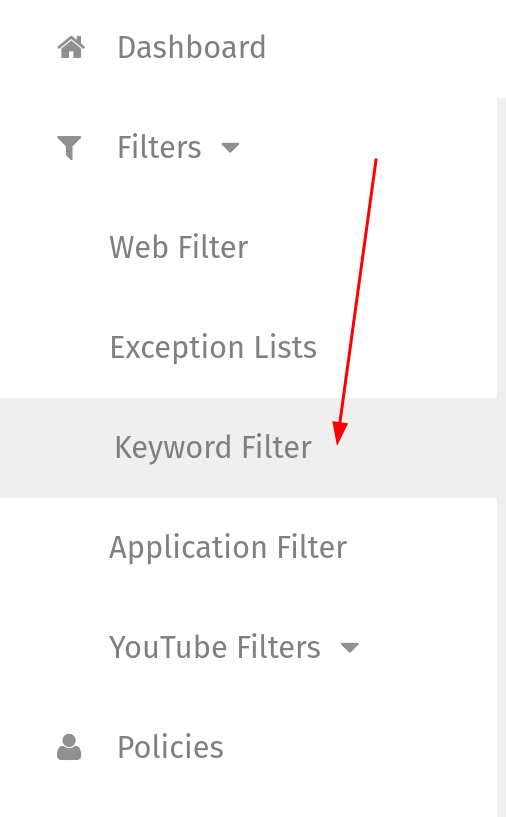
Let’s go to “Keyword Filter” in our menu.
-
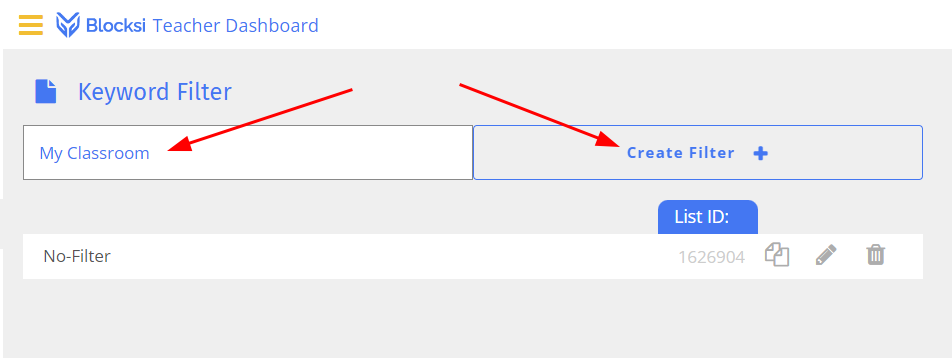
Keywords allow us to block websites that have certain words in them. You must be careful with this. It might seem like a good idea to block the word “naked,” but doing so also blocks any website with the phrase “naked truth.” Enter a name and then click “Crete Filter.”
-
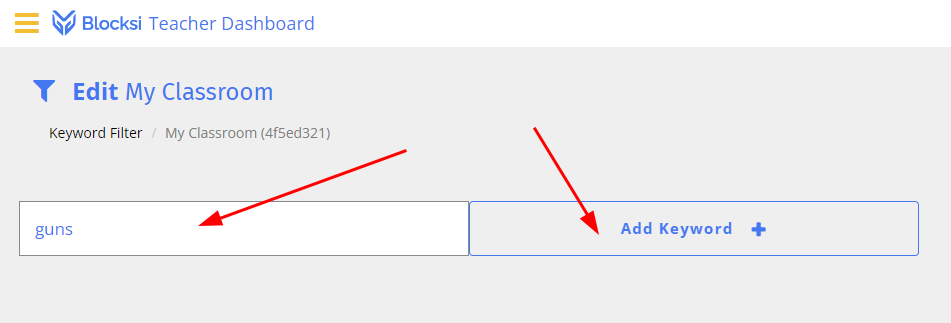
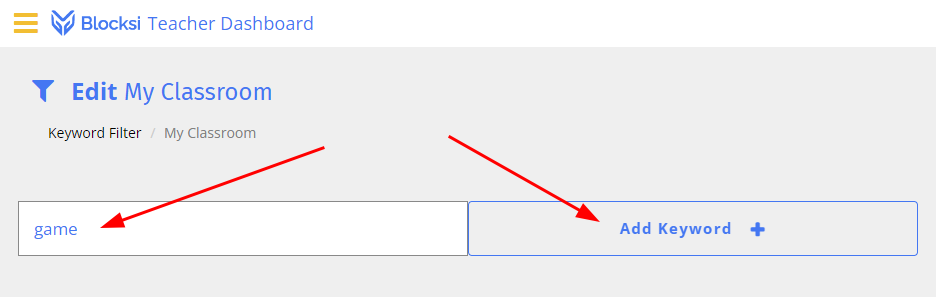
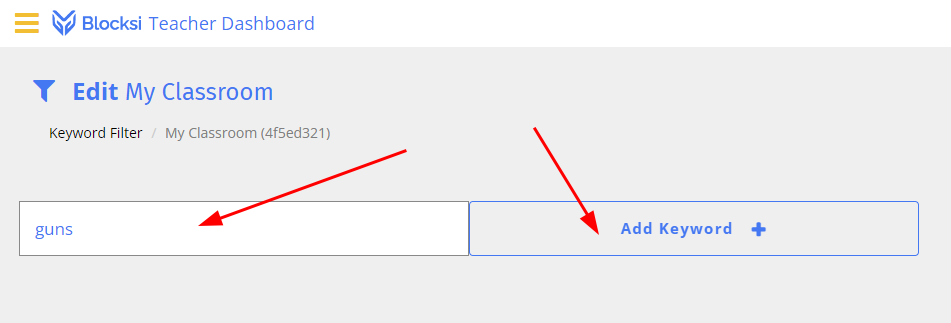
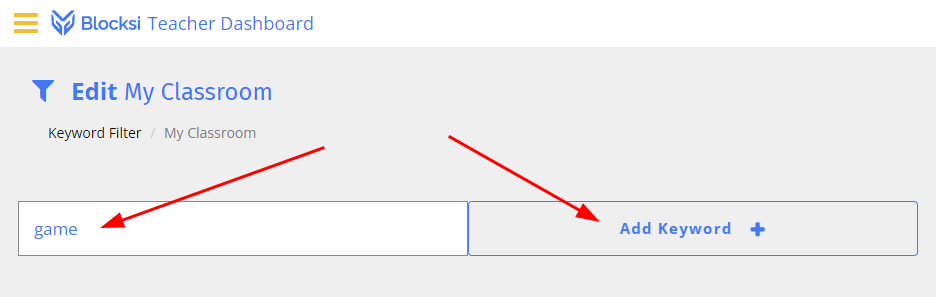
Enter the first word you want to block (must be at least 4 characters long), then click on “Add Keyword.” Side note… “guns” could also block a LOT of legitimate resources as well.
-
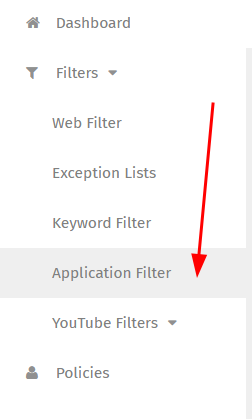
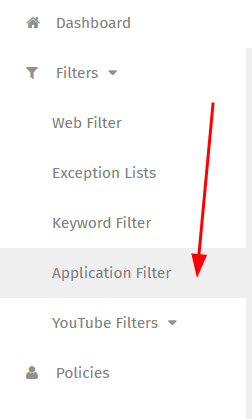
Let’s go to the “Application Filter” now.
-
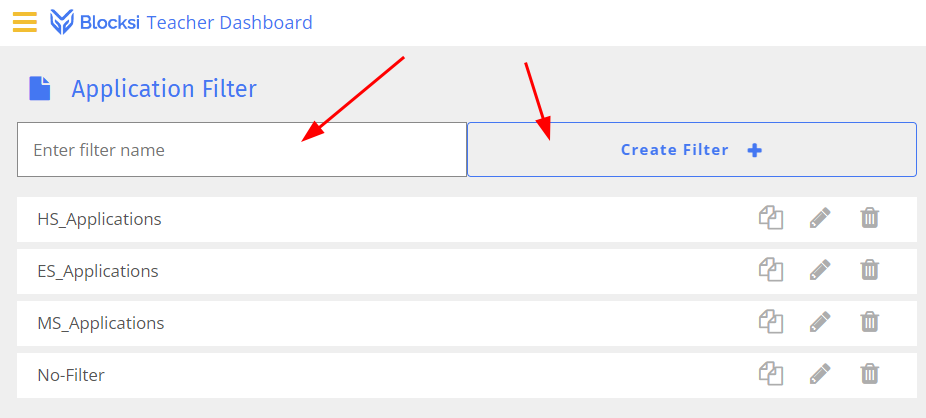
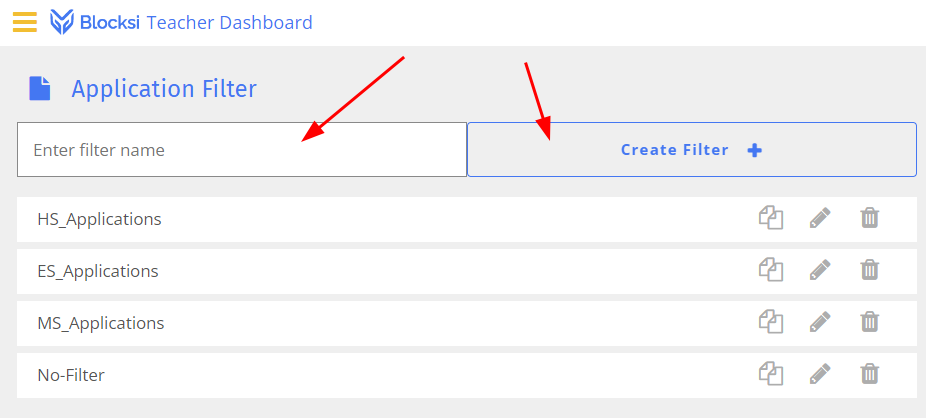
Enter a name, then click “Create Filter.”
-
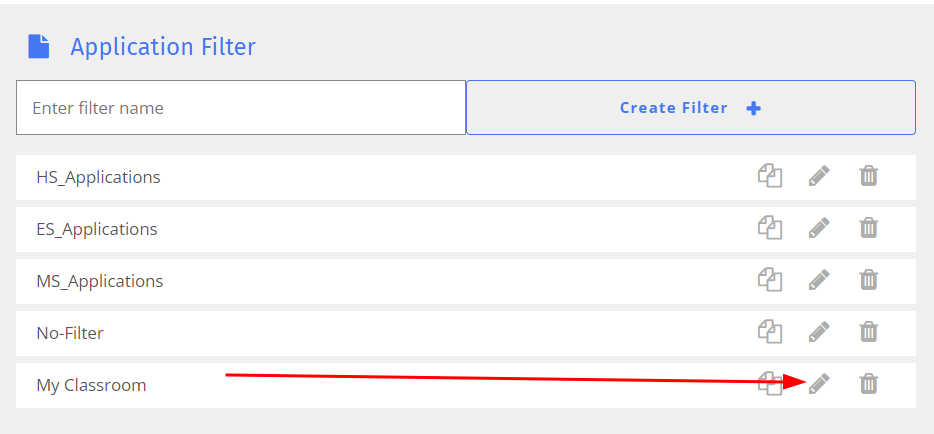
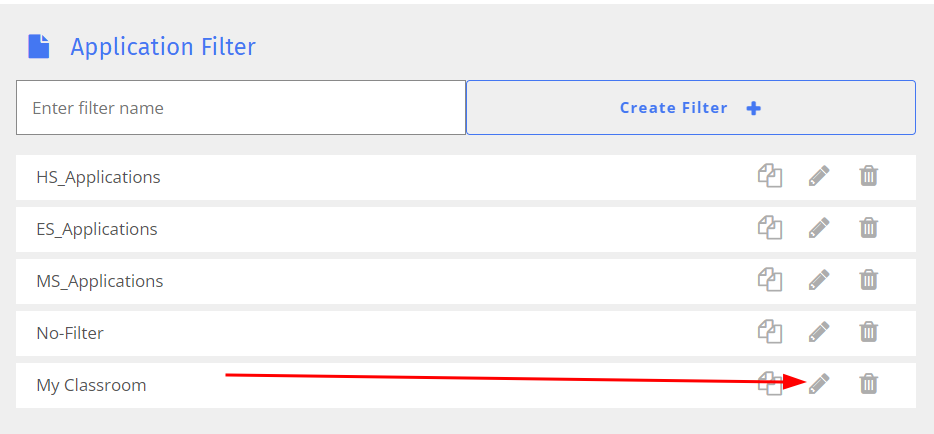
Click on the little pencil to edit the Application Filter you just added.
-
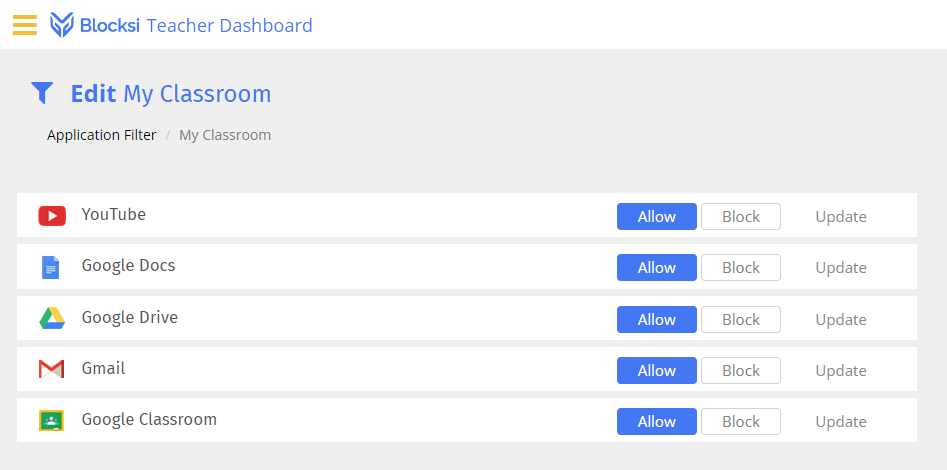
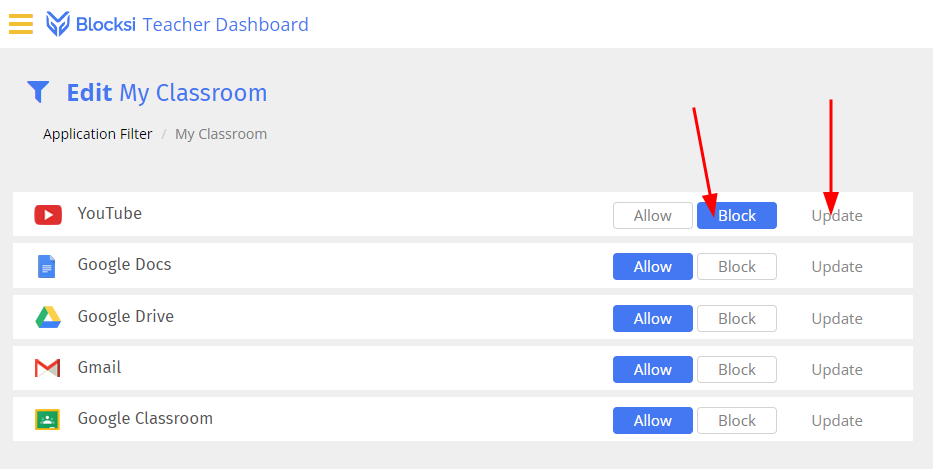
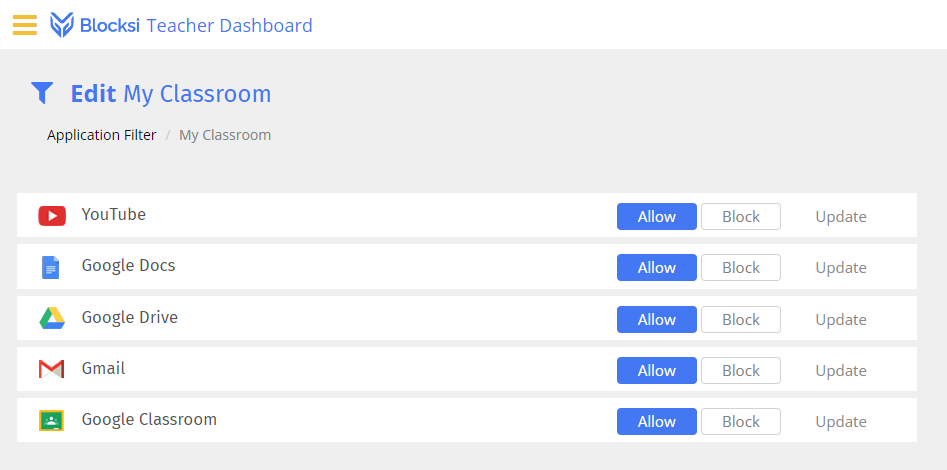
The following page shows the main Google apps. You can turn off any of these that you choose, but think about each option carefully. It is possible that you have a class where it isn’t at all helpful to have access to email. If that is true, Block Gmail. You may also choose to block YouTube, but this is more aggressive than blocking YouTube in our Exception Lists. It MIGHT work, and there is no harm in trying.
-
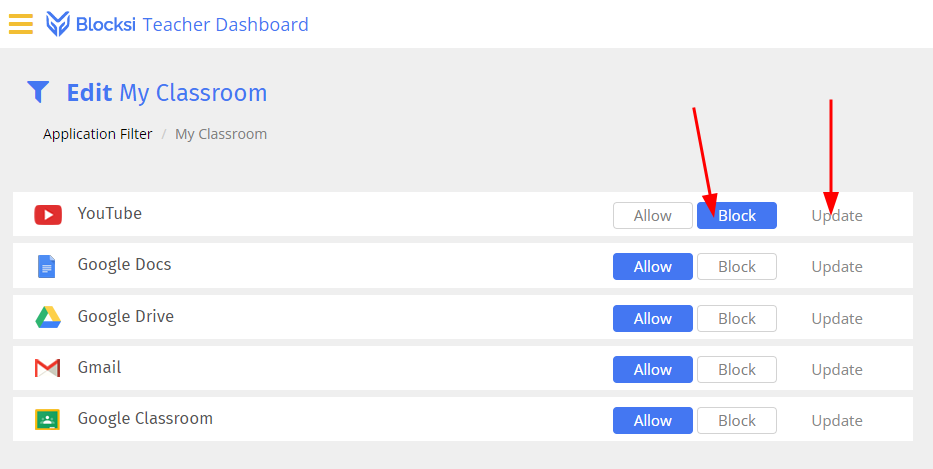
To block an item, click on “Block,” then click on “Update.”
-
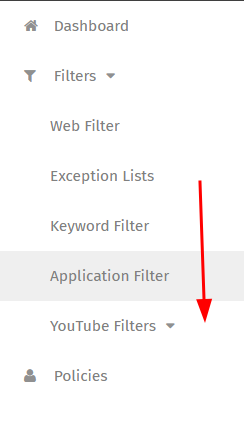
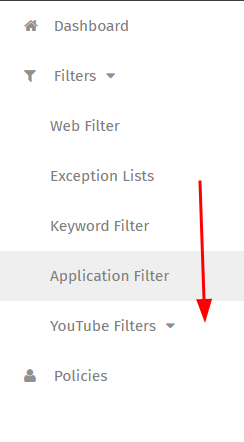
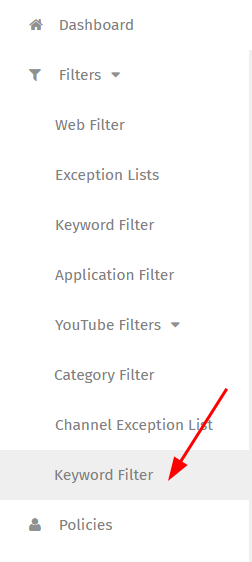
On to the YouTube Filters! Click on the menu item to expand it.
-
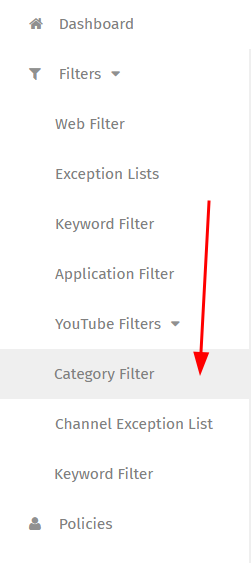
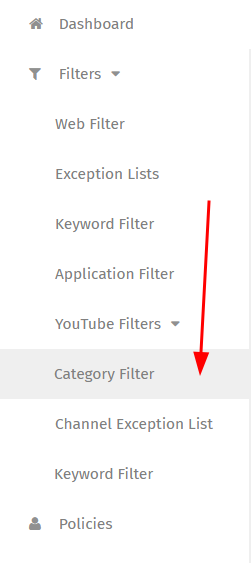
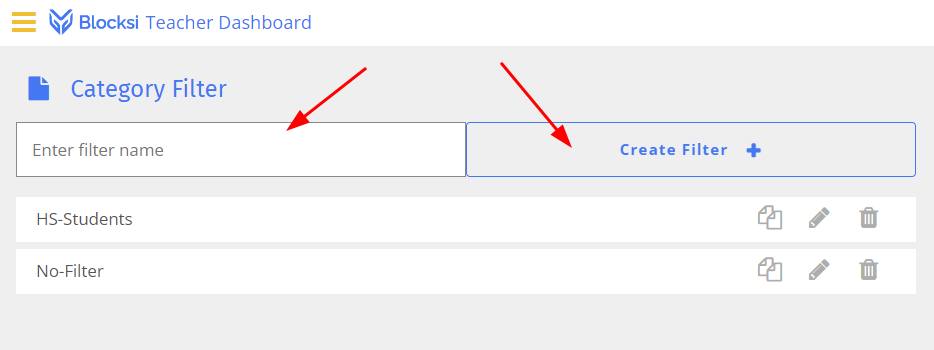
We will start with the “Category Filter.”
-
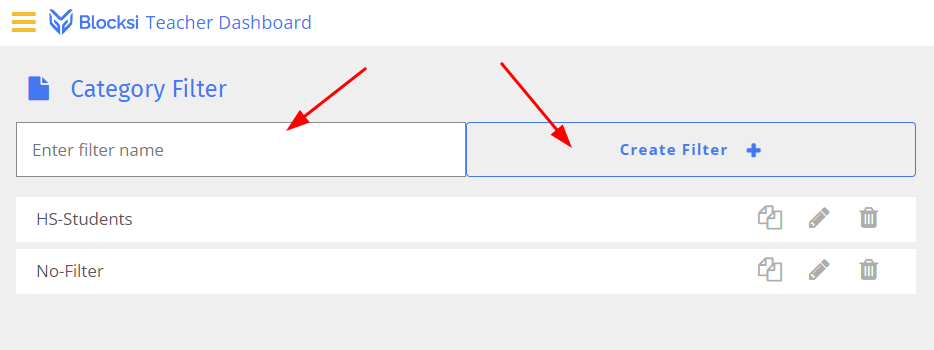
As should now be familiar, enter a name, then click “Create Filter.”
-
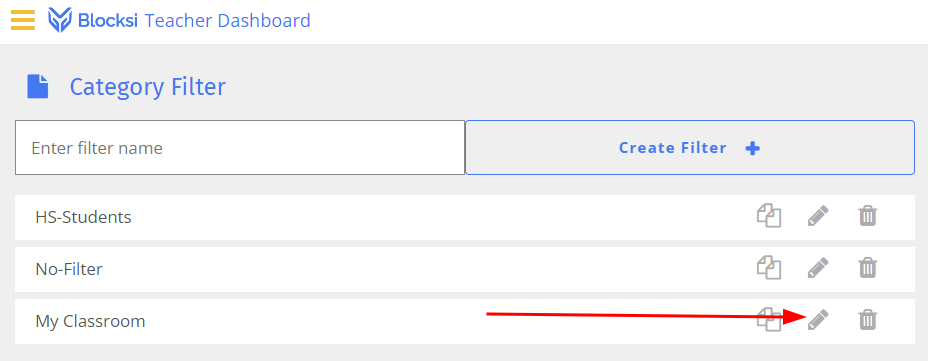
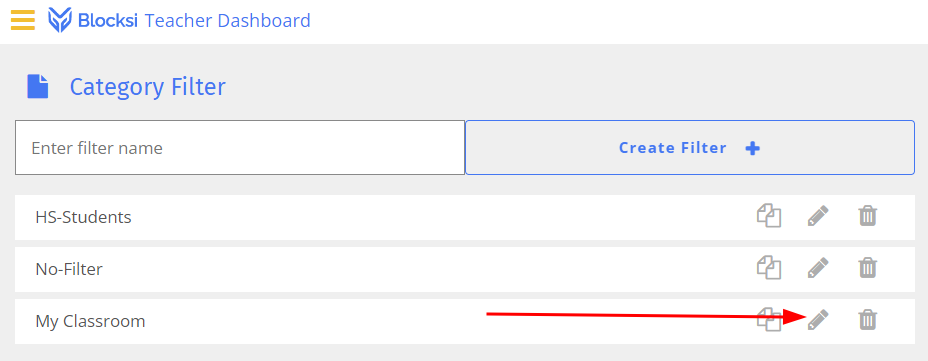
Click the pencil icon on the filter you just added.
-
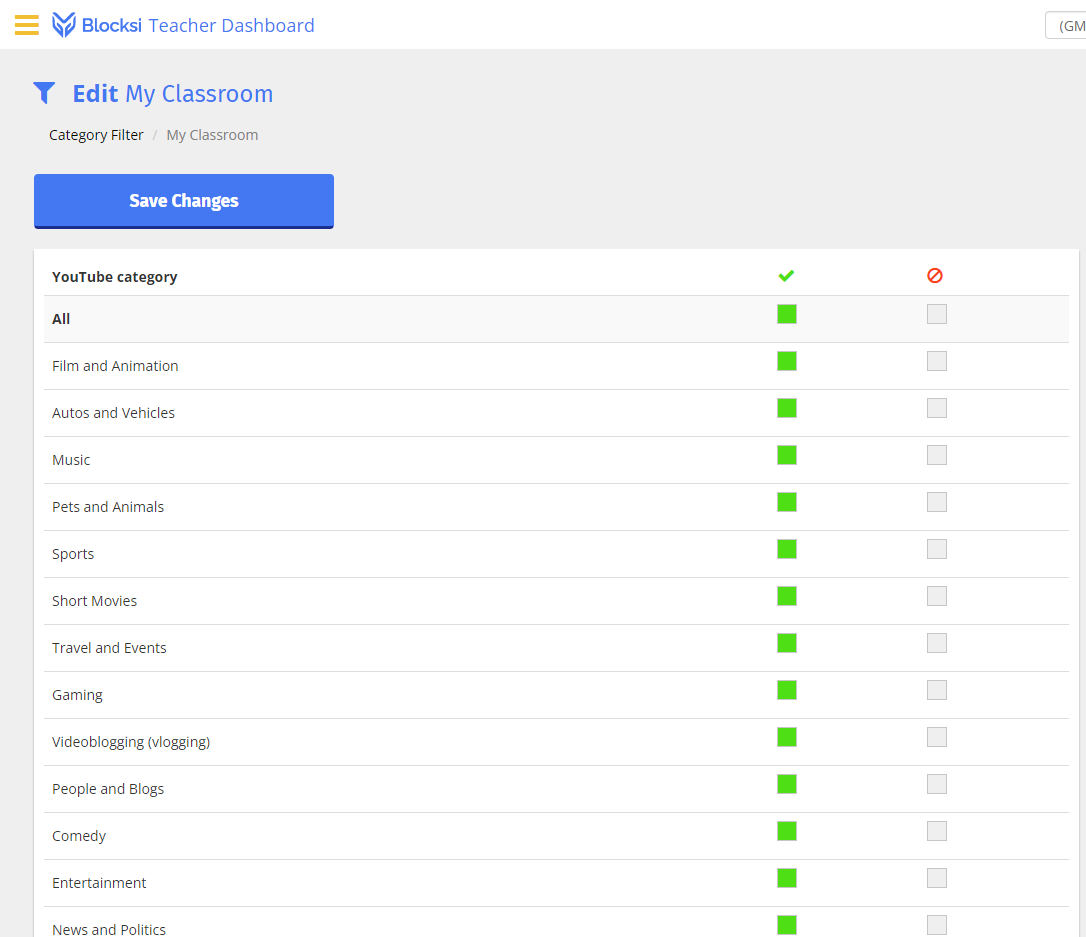
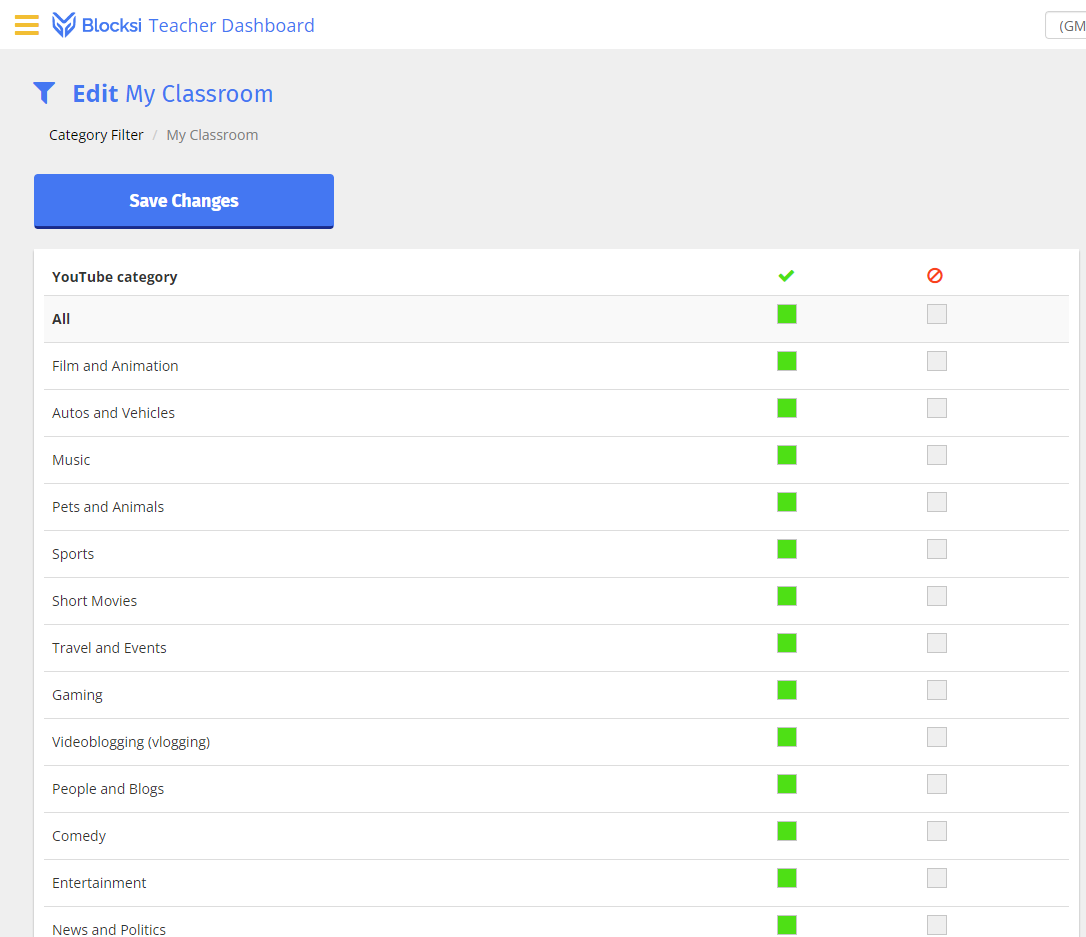
This will bring up EVERY category within YouTube.
-
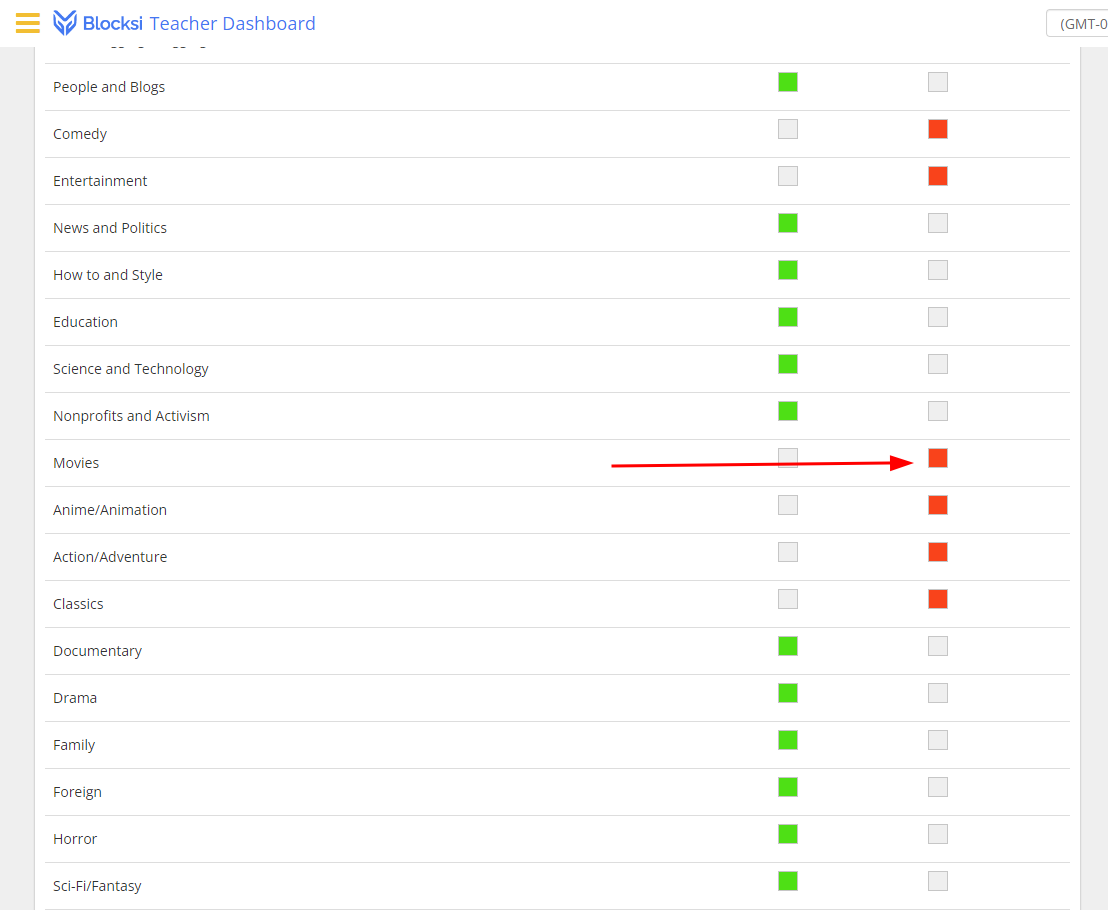
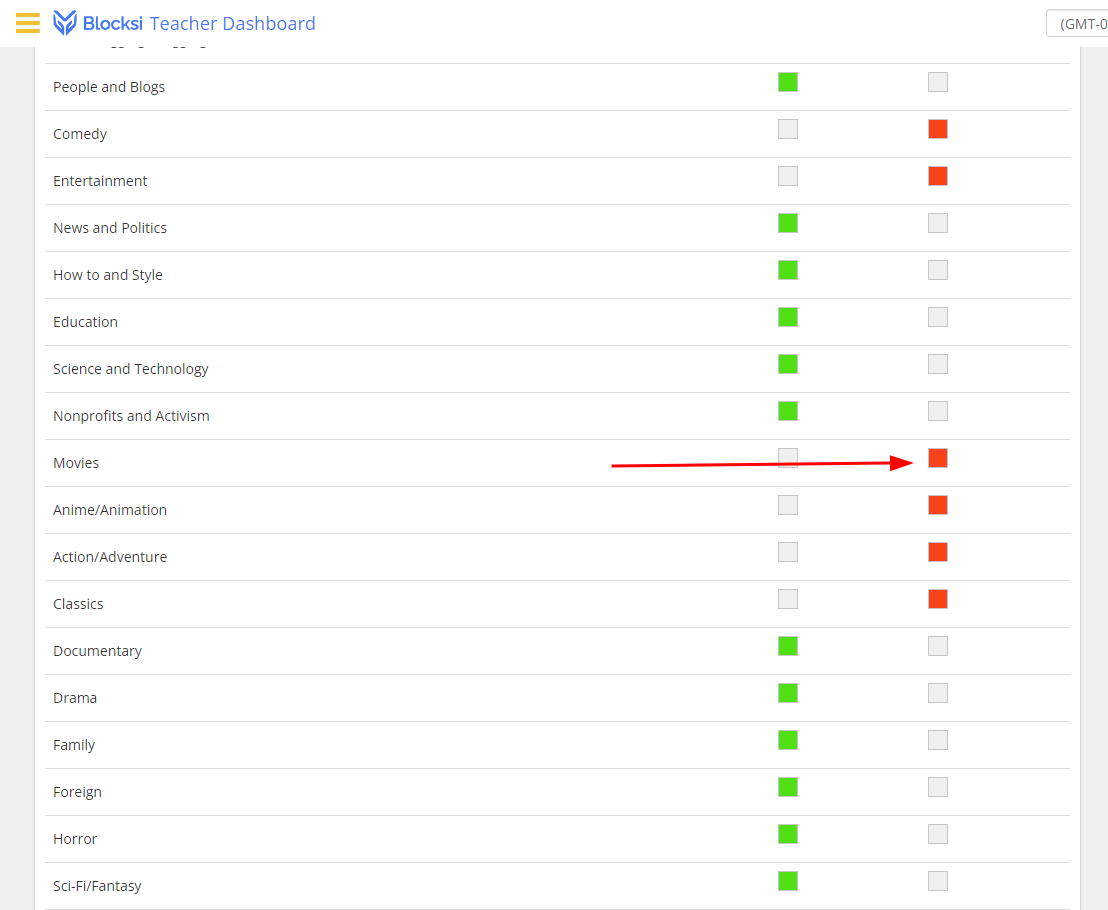
Allow (left box) or block (right box) any categories of videos you want to work when students are within your room. You could effectively block YouTube by clicking every box, then you can use step 36 to allow access to only your videos and those of channels you trust.
-
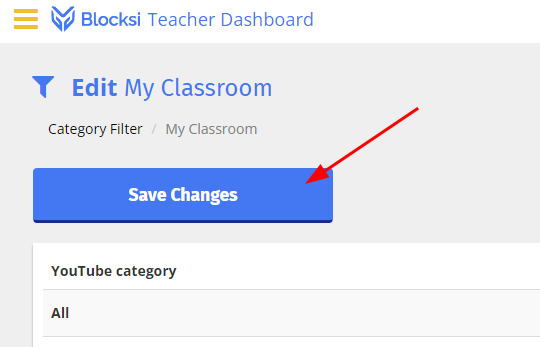
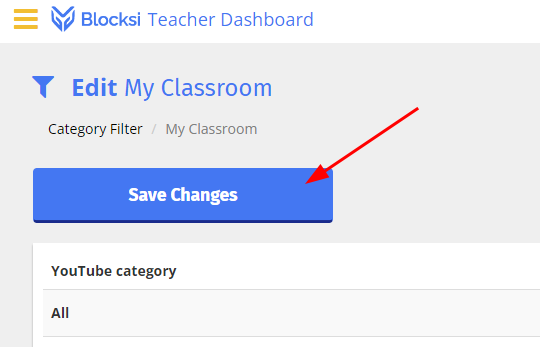
When you are finished, go to the top, and click the “Save Changes” button.
-
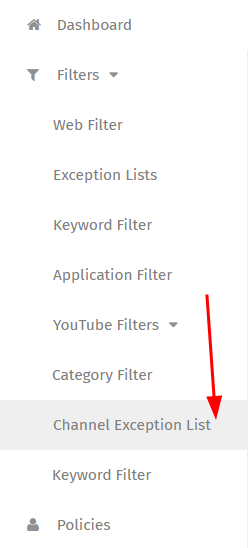
Go to the “Channel Exception List.”
-
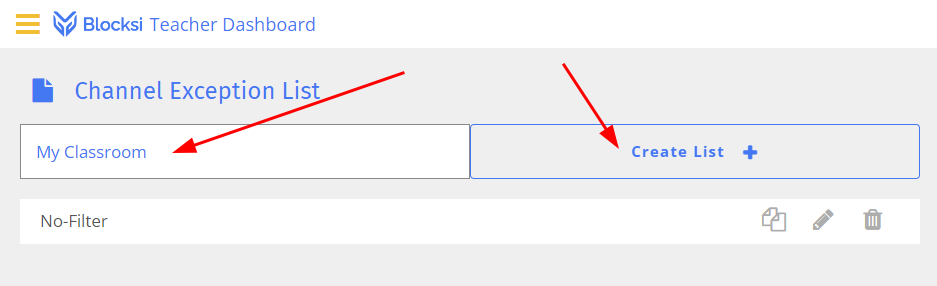
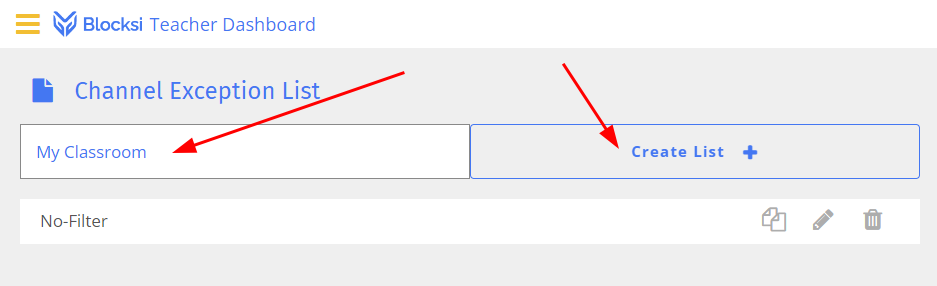
Enter a name and create your list.
-
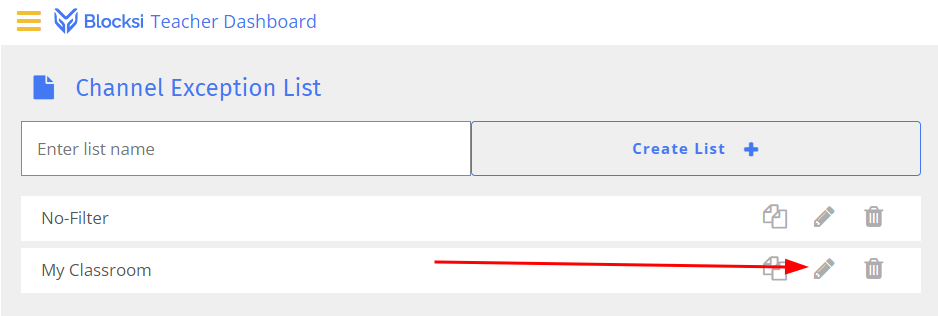
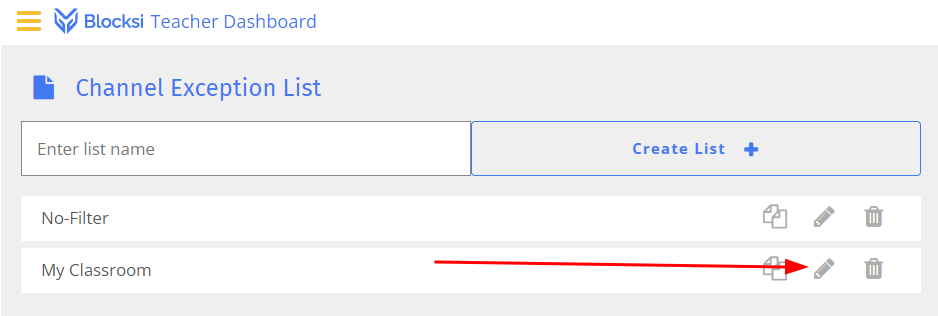
Click the pencil tool for your list.
-
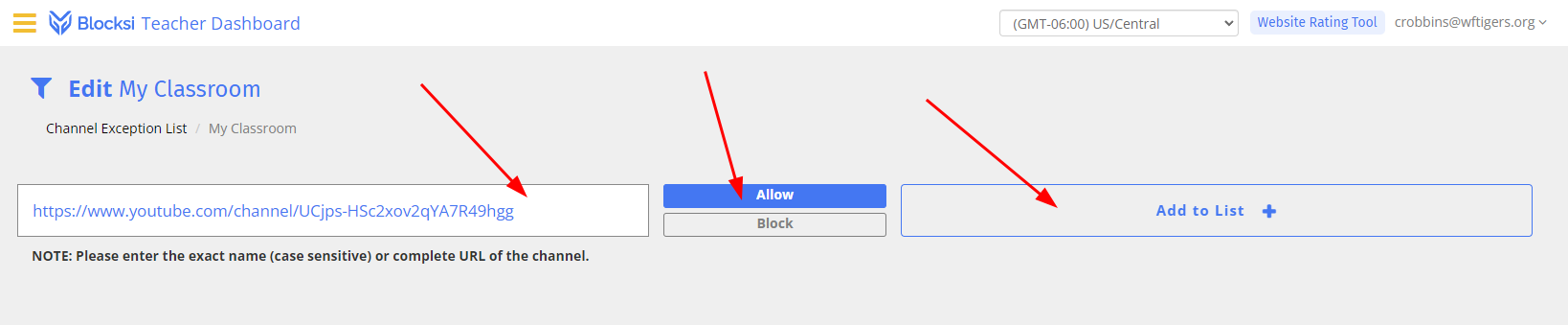
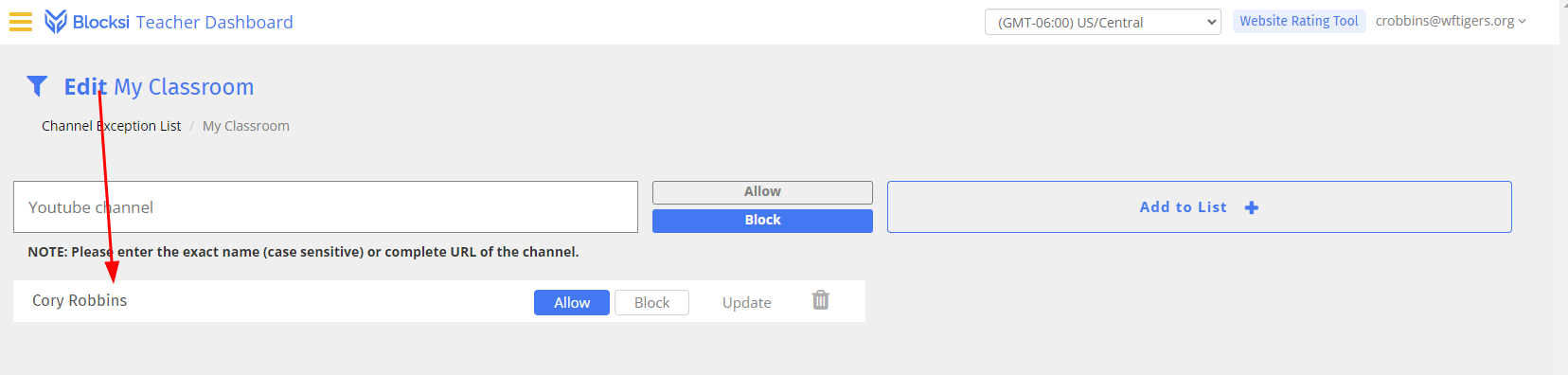
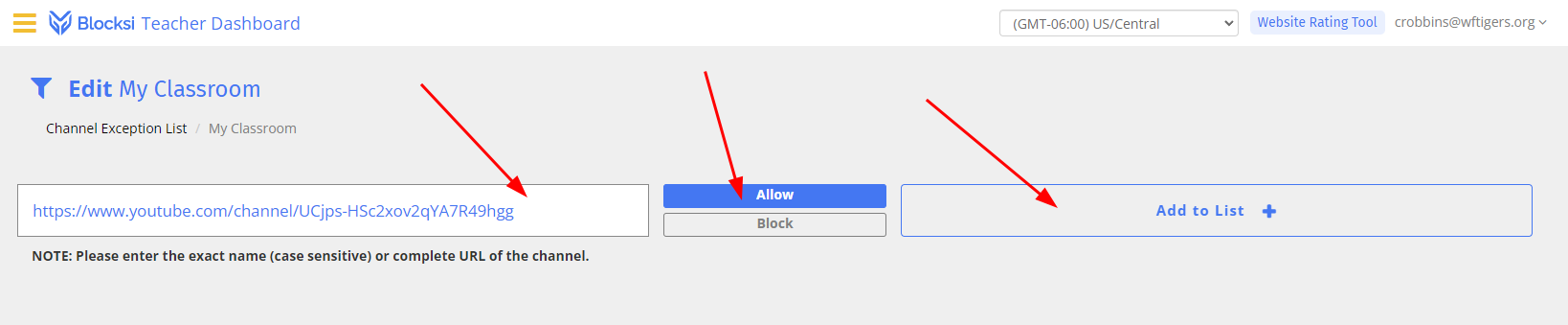
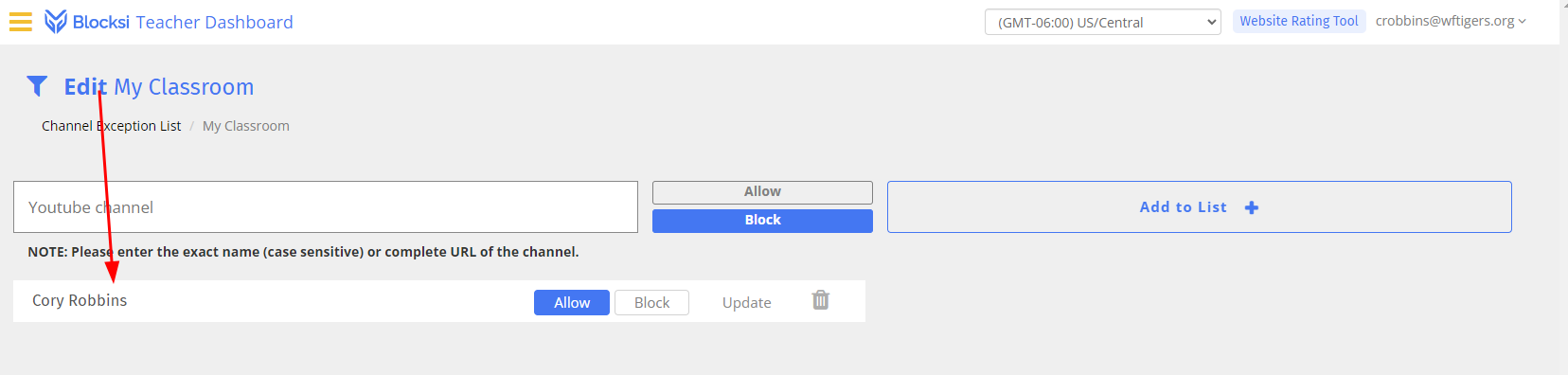
This method allows any video within a chosen channel to be accessible. For this example, I included my channel address. I’ve made sure to choose the “Allow” option, and then I hit "Add to List. I can also use the same method to block an entire channel if I use the “Block” box.
-
Blocksi looks up my Channel name and lists it below.
-
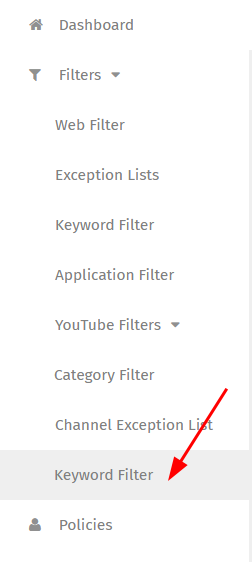
Go to the “Keyword Filter” item under “YouTube Filters.”
-
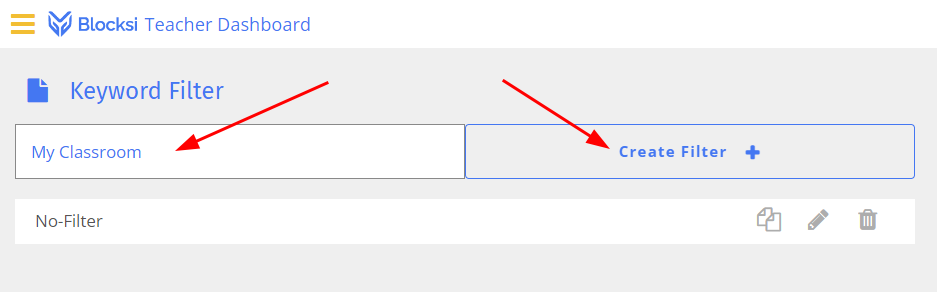
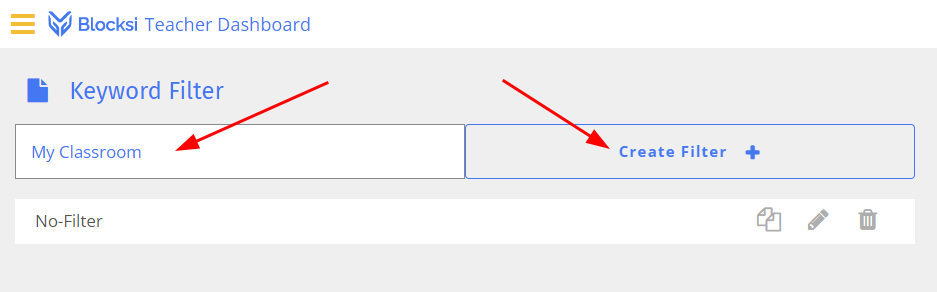
Enter a name, and click “Create Filter.”
-
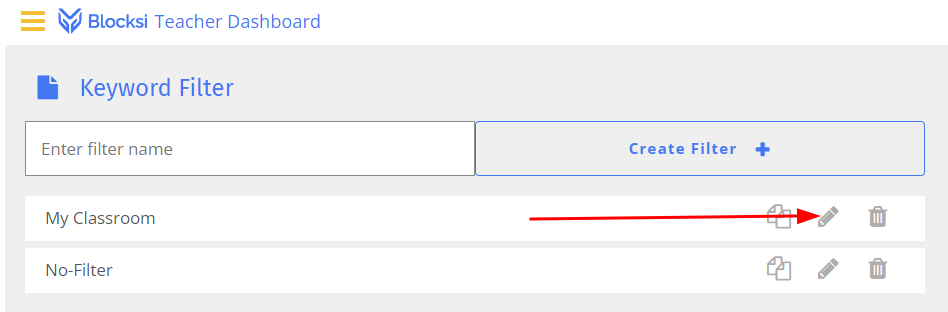
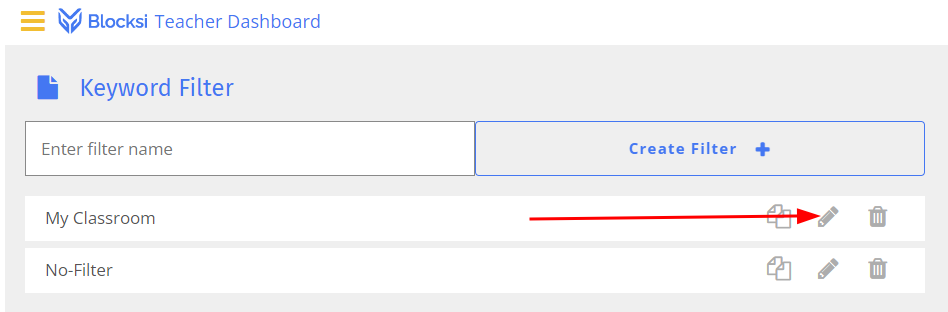
Edit the list with the pencil tool.
-
This filter is similar to the previous “Keyword Filter” option. It will block the ability to search for these words within YouTube. Be cautious, but enter the word of your choice, then “Add Keyword.”
-
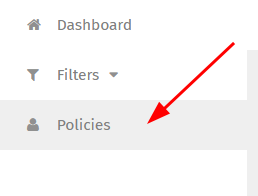
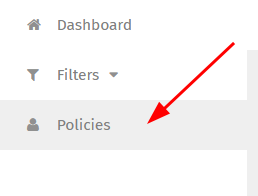
Click on “Policies” in the menu.
-
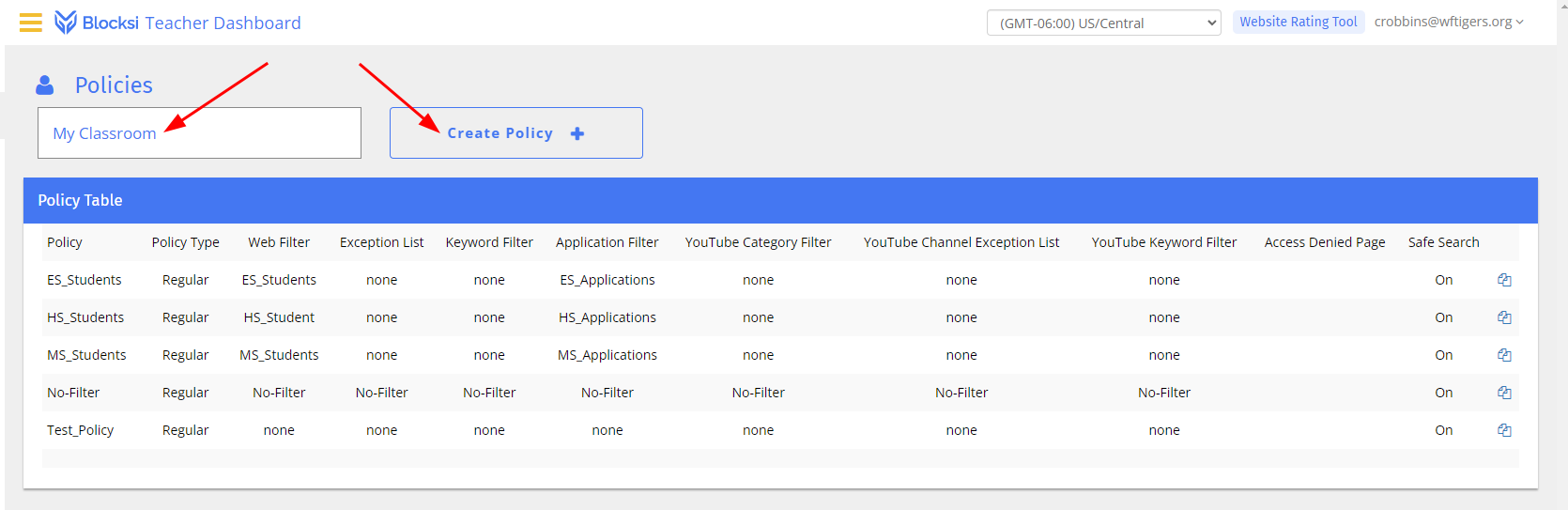
Enter a name in the top left, then click “Create Plicy.”

-
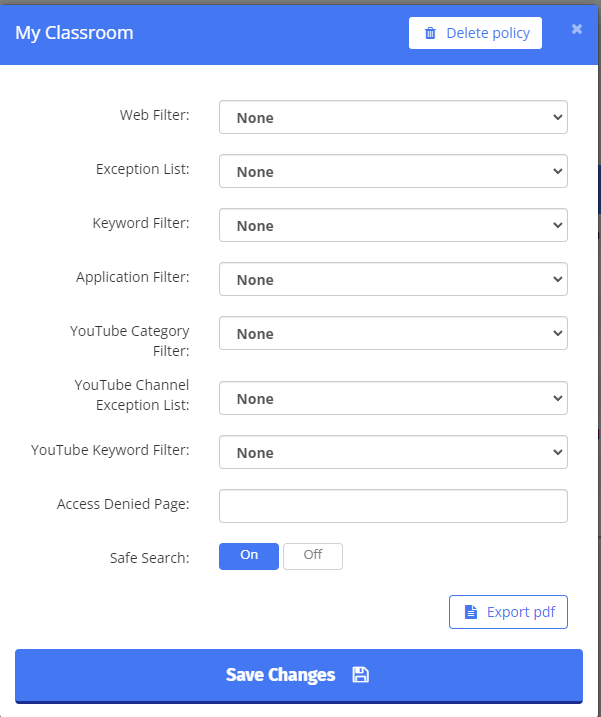
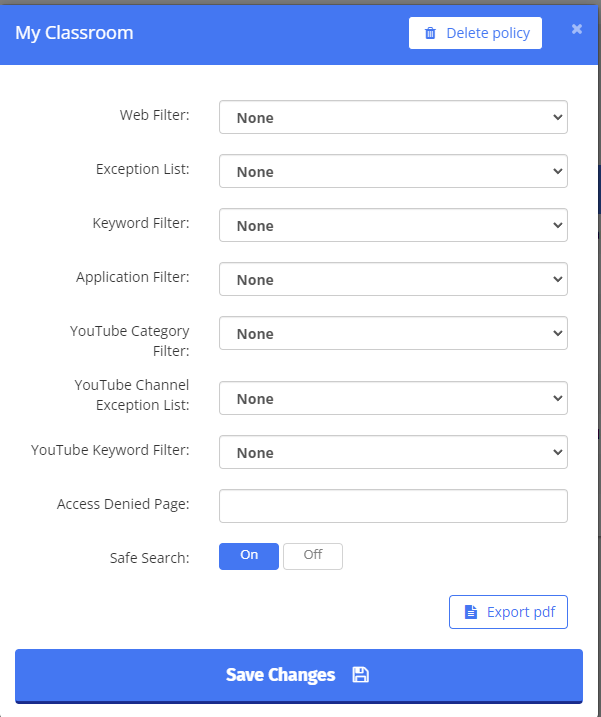
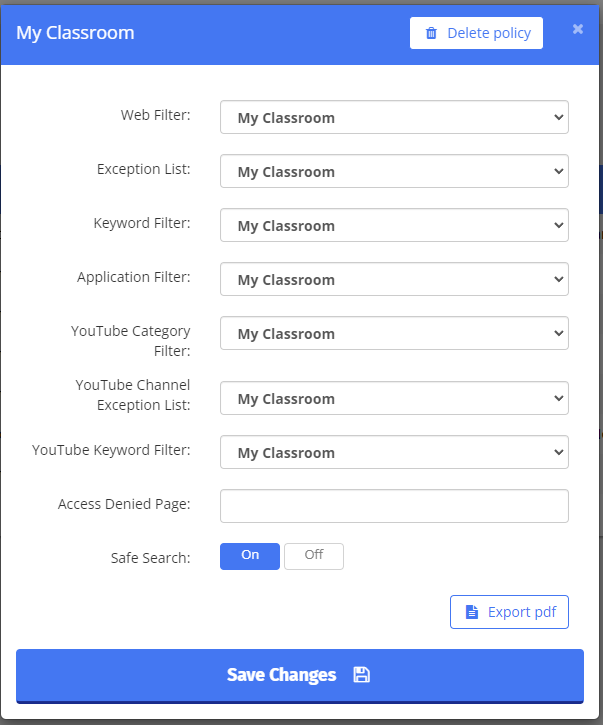
The window that opens will say “None” all the way down.
-
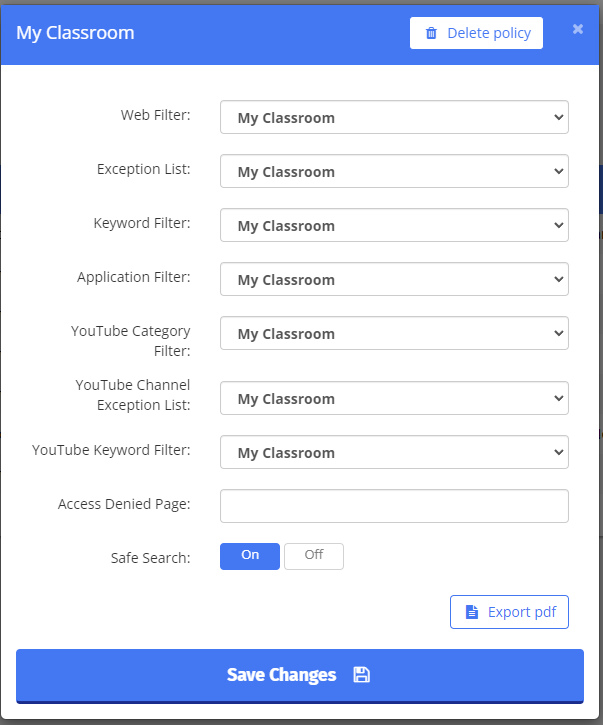
We want to choose “My Classroom” or whatever you named each of the previous things for each of the items available. There are two other settings to look at here… The “Access Denied Page” can be set to a custom block page. If you want to add a “hidden” page in your Google Site, you can enter that address here. I recommend that you leave it blank though. I also recommend that you leave “Safe Search” to “On.” Then click on “Save Changes.”



If, for whatever reason, you don’t wish to do that, you can also do it this way:
-
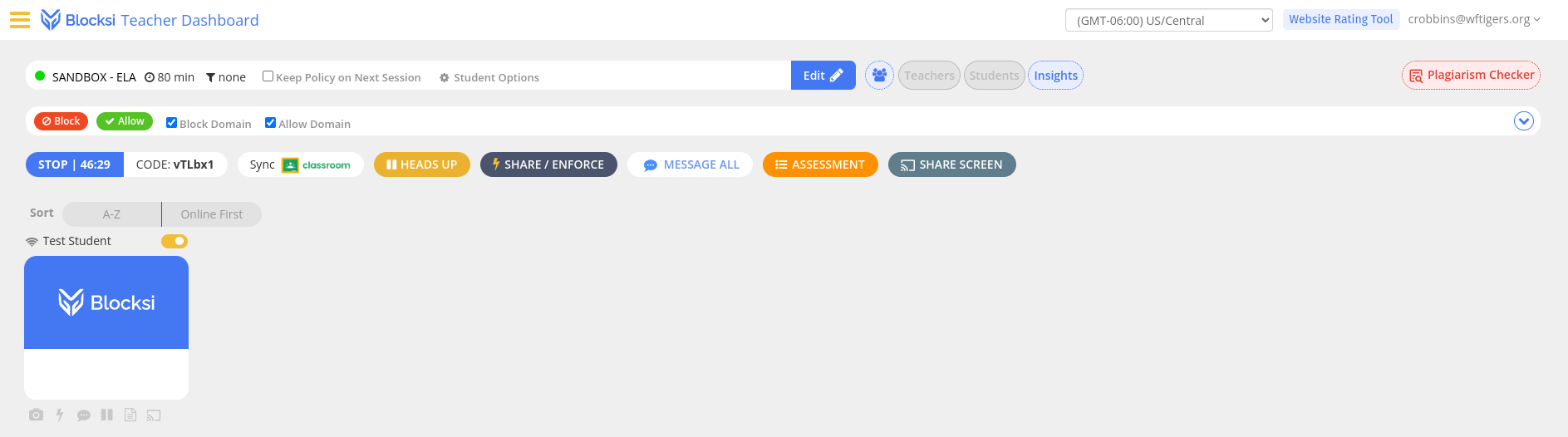
This is the default class setup, meaning that there isn’t a policy assigned:
-
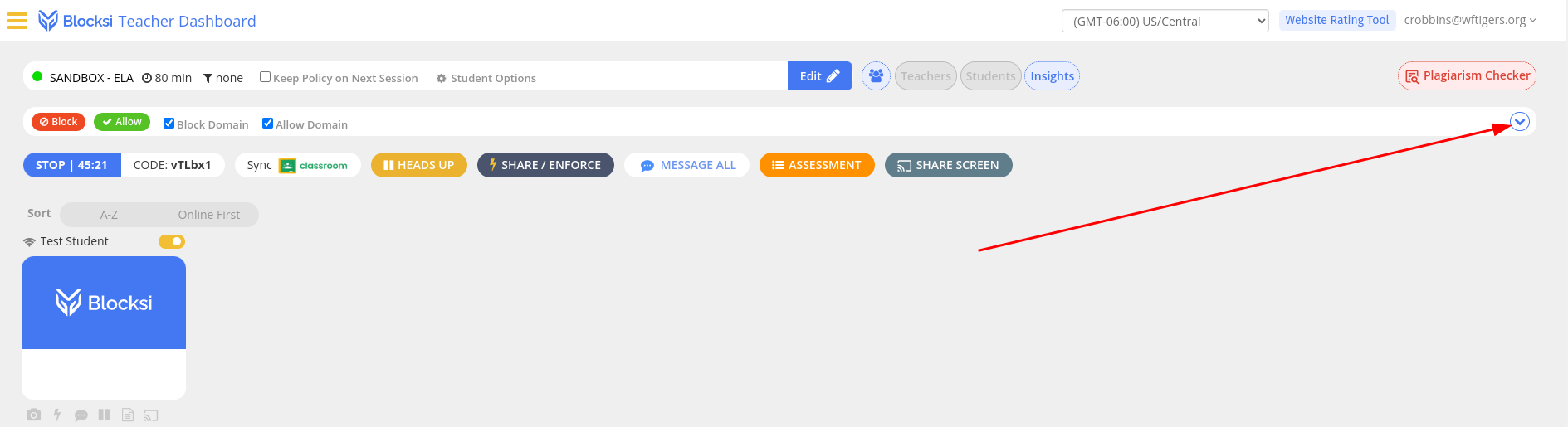
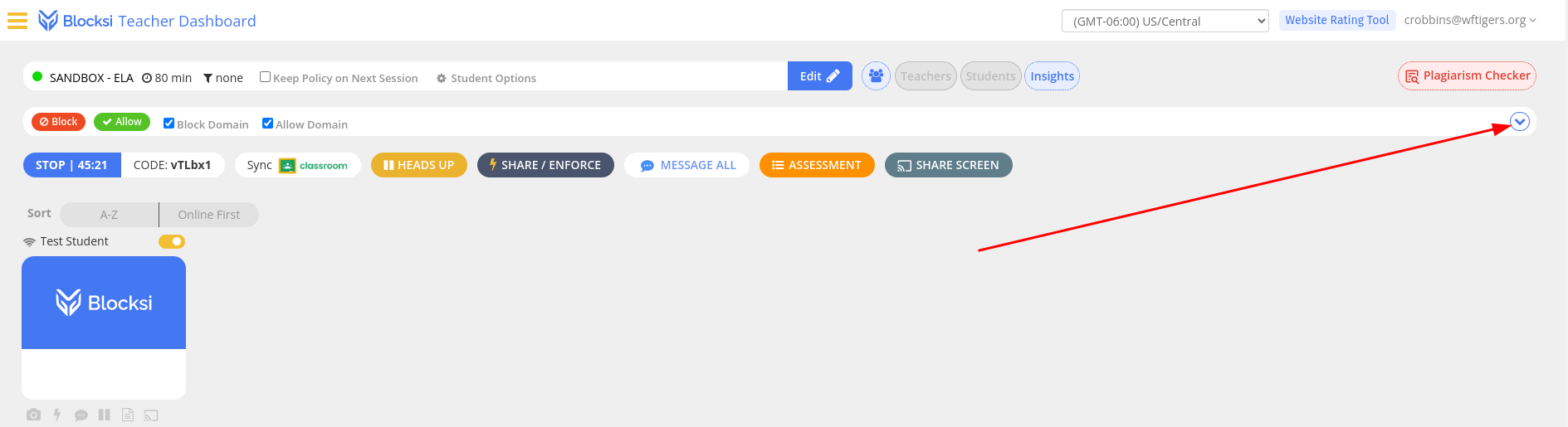
Click on the little disclosure triangle to view the full list of sites being blocked and allowed.
-
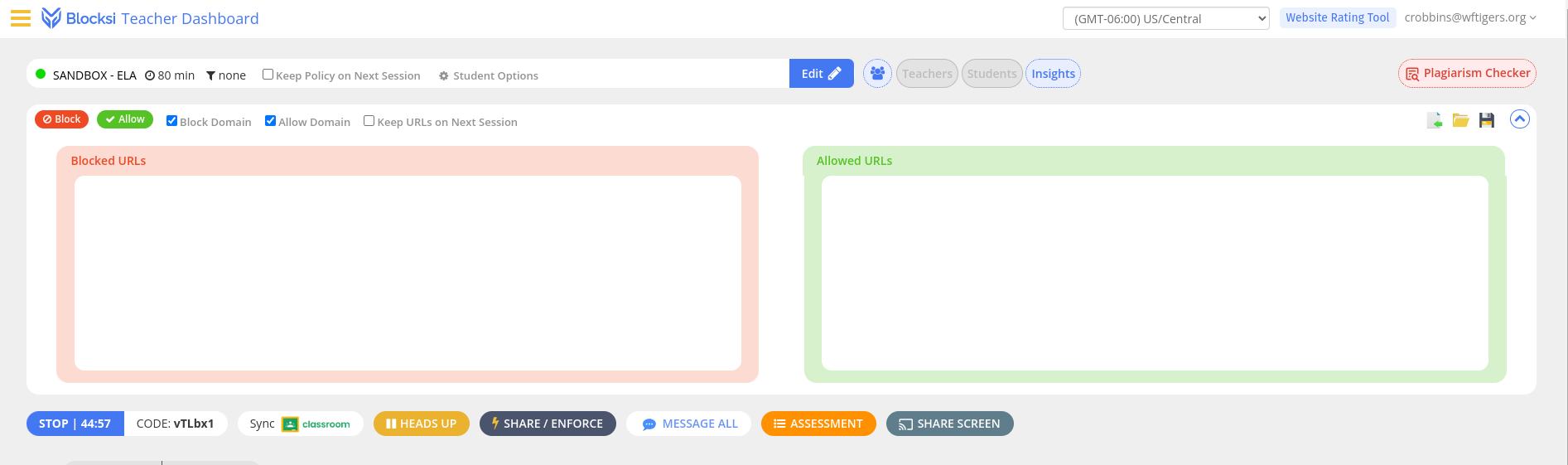
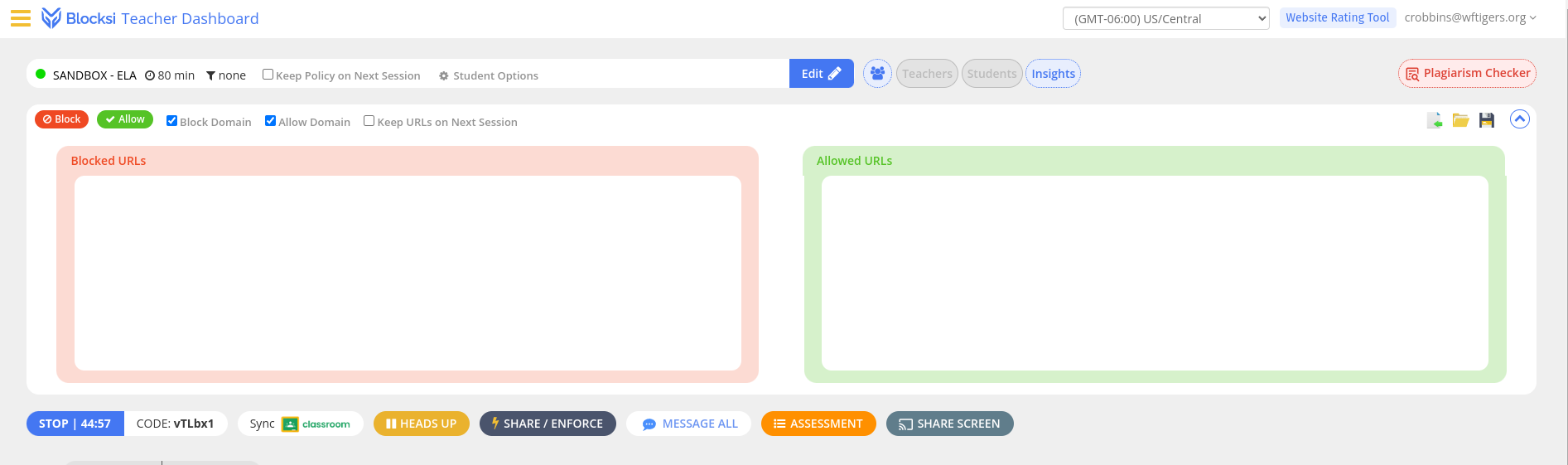
For a default class, the two boxes SHOULD be blank:
-
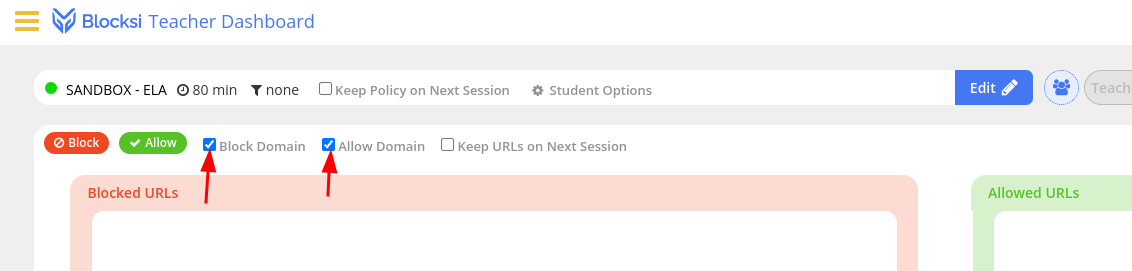
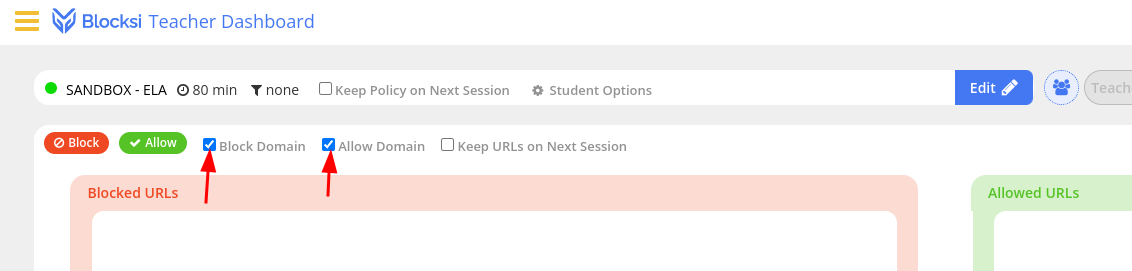
The settings to allow blocking specific addresses instead of full domains (allows specific pages instead of entire areas of the internet) are these two checkboxes. You want them to be INACTIVE.
-
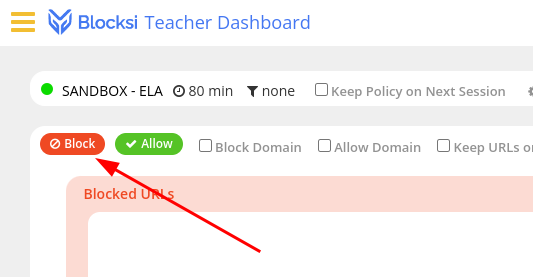
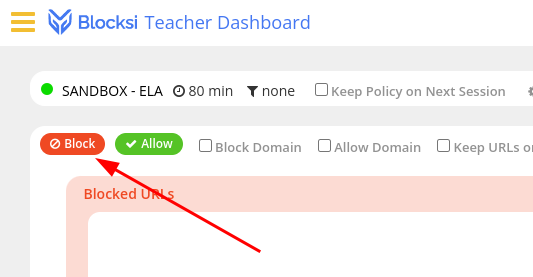
At this point, you should click on the “Block” button.
-
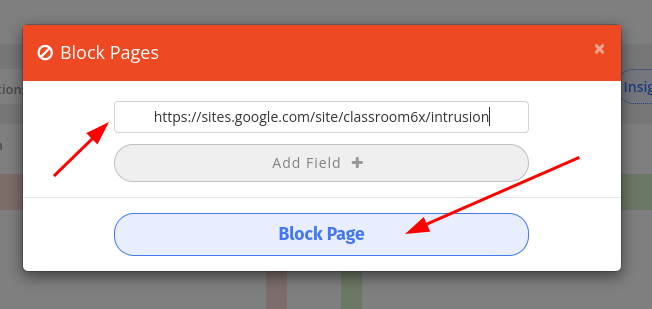
Enter the full address of the page (like the one above) in the box, then click on the “Block Page” button.
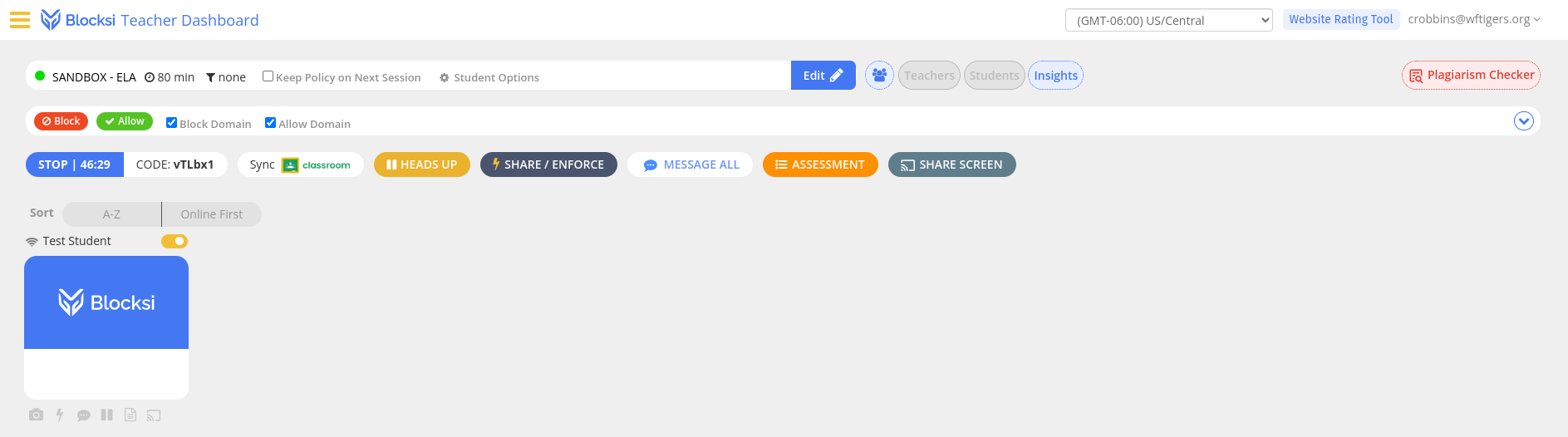
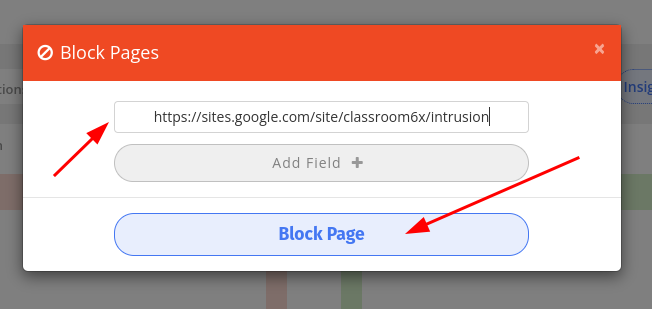
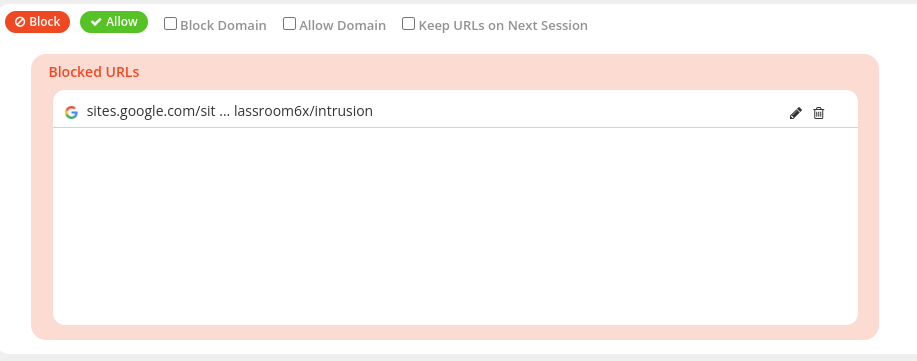
You should now see the full address (or perhaps a truncated version) listed in the “Blocked URLs” section.
Originally posted by Cory Robbins on the West Fork Technology Hub (2023-12-05).
No comments to display
No comments to display