
Blocksi - Assessment Mode
The assessment piece in Blocksi is pretty powerful. It allows you to put your student computers into miniature lockdown browser modes. You get to pick which websites are open, which are closed, and you can even force some websites to stay open, even if the student tries to close the tab.
While a lot of the instructions for Blocksi have had specific parts, you really should go all the way through this one for it to make the most sense.
-
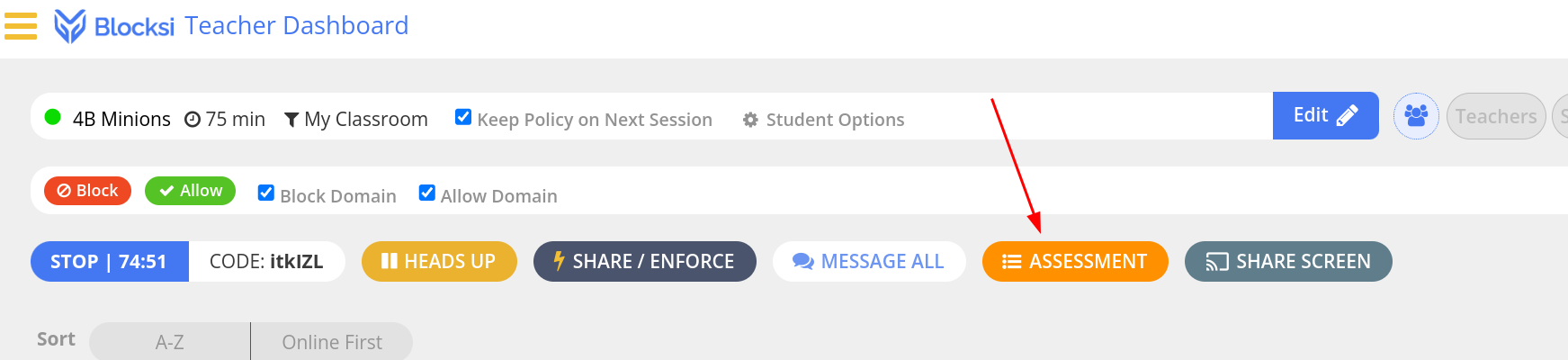
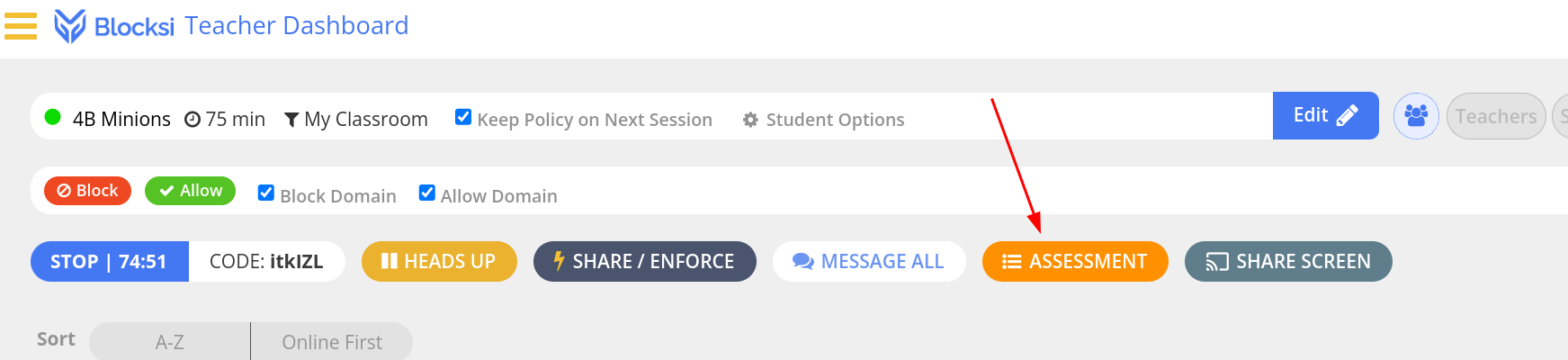
From within a class, click on the “ASSESSMENT” button.
-
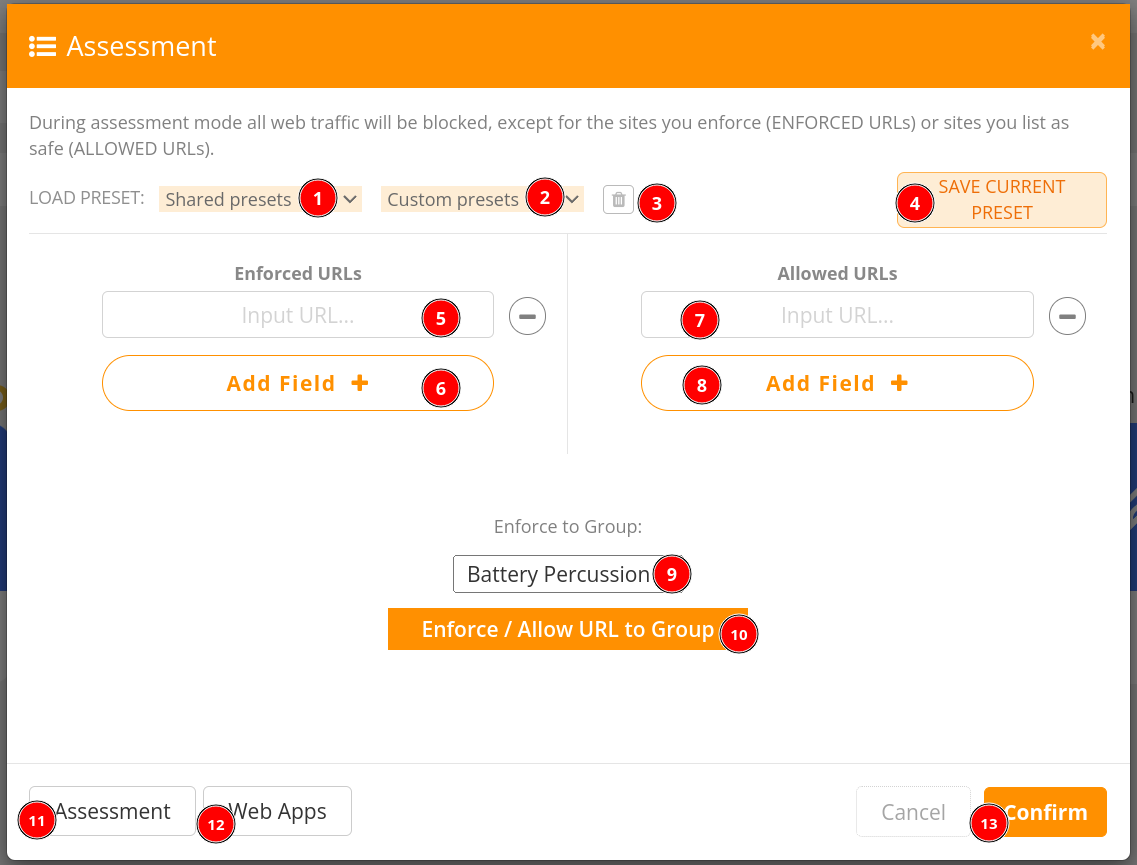
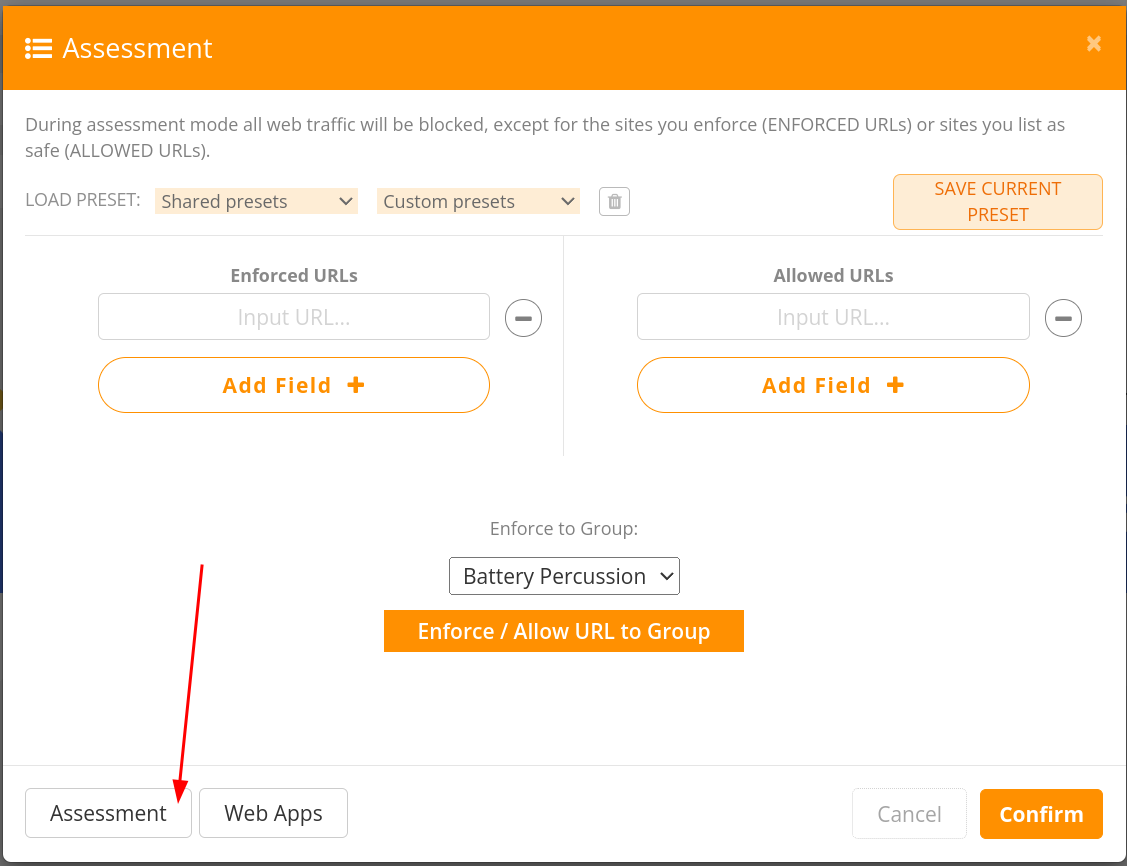
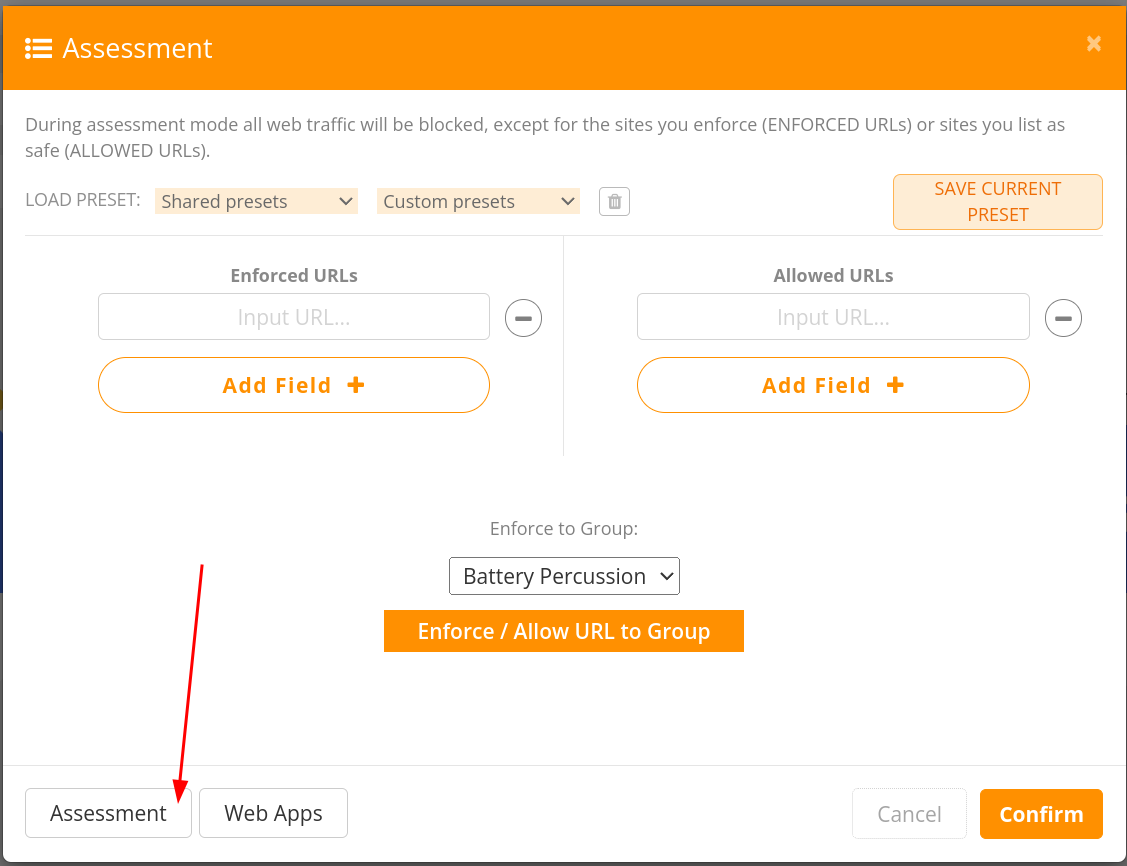
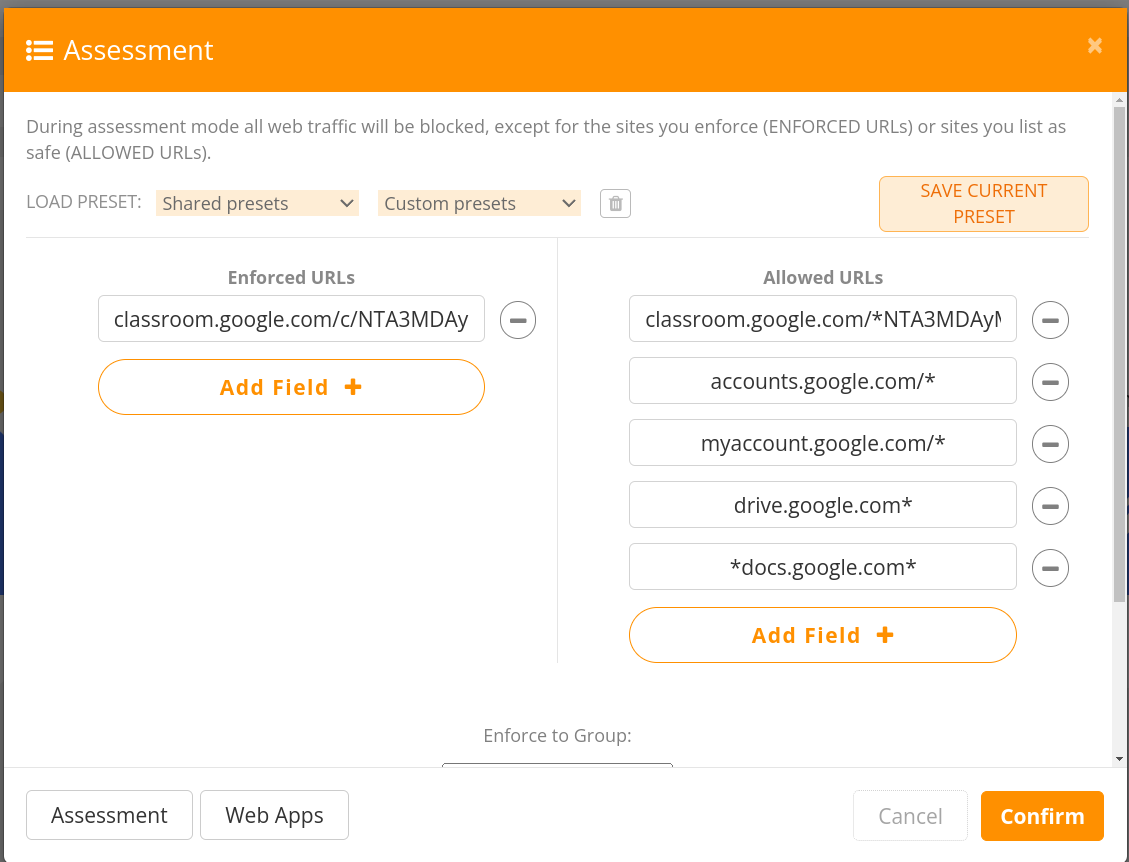
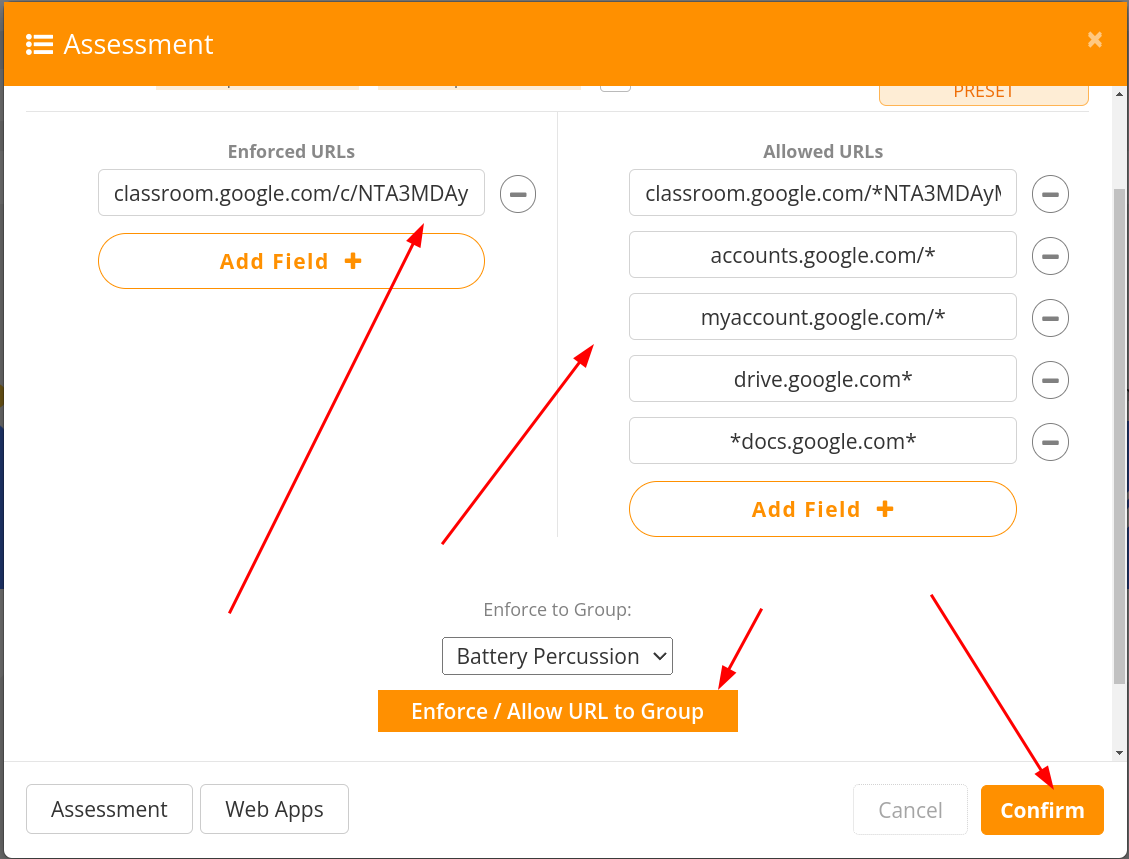
This is an overview of the items
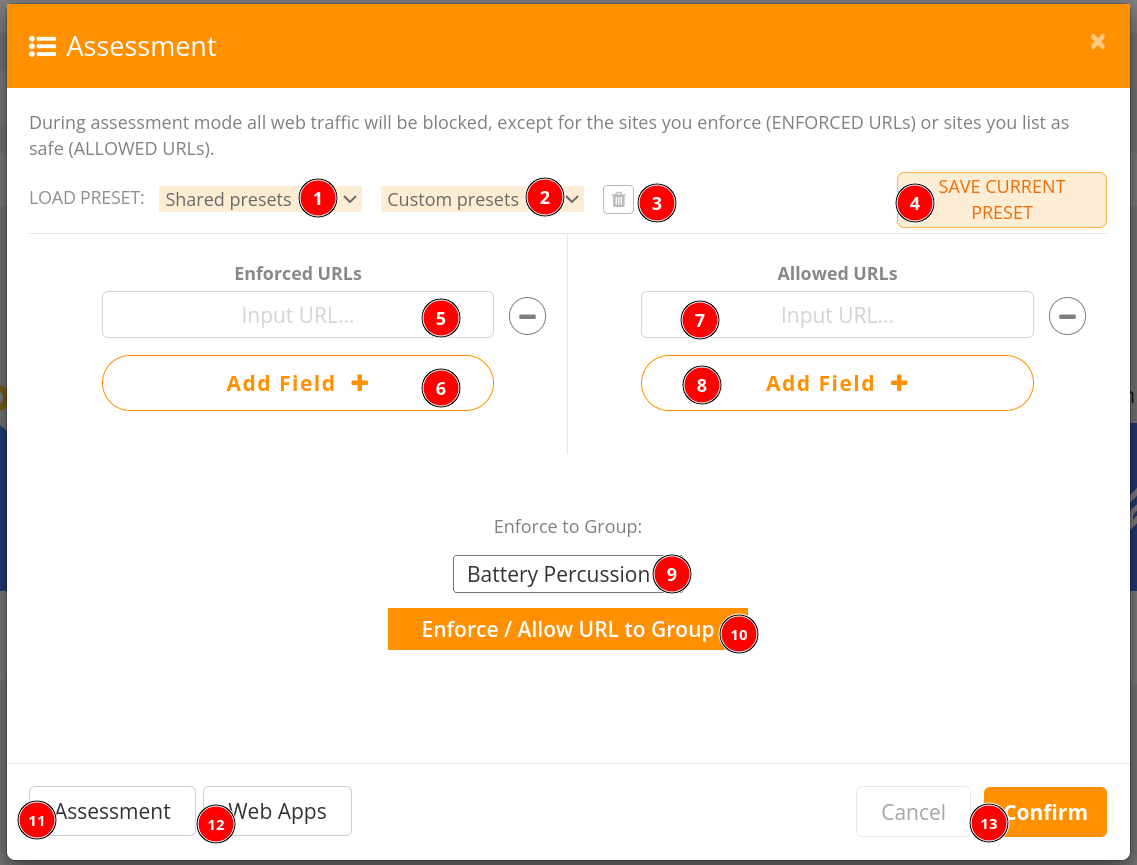
2.1: Allows selecting a preset pushed by Technology (probably empty)
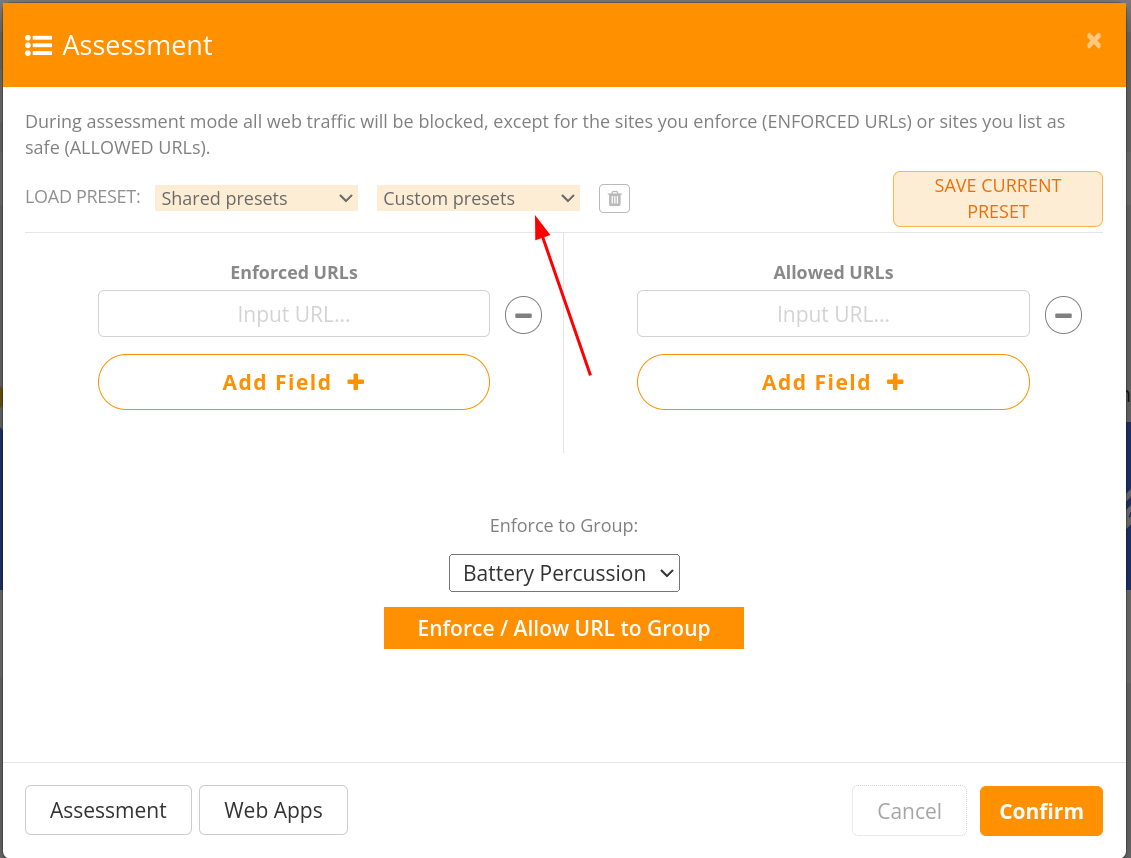
2.2: Allows selecting a preset you have created
2.3: Allows deleting a present you have created
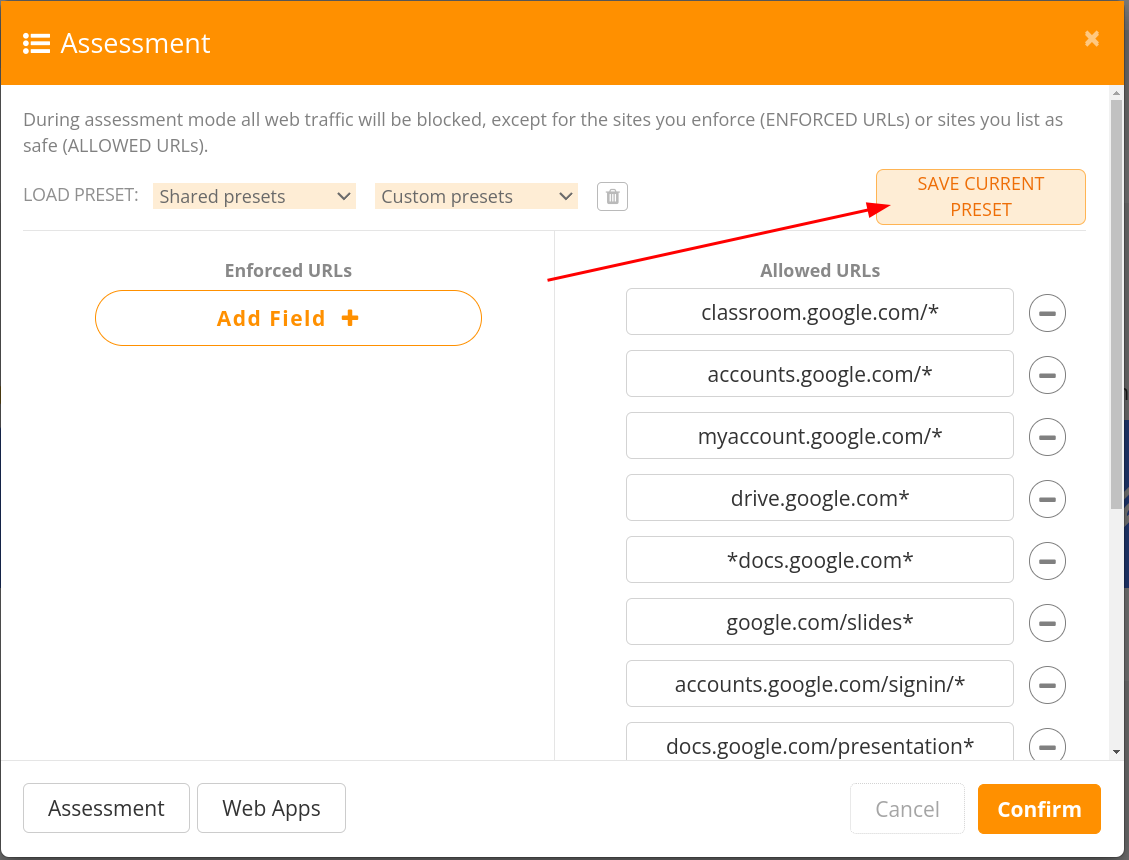
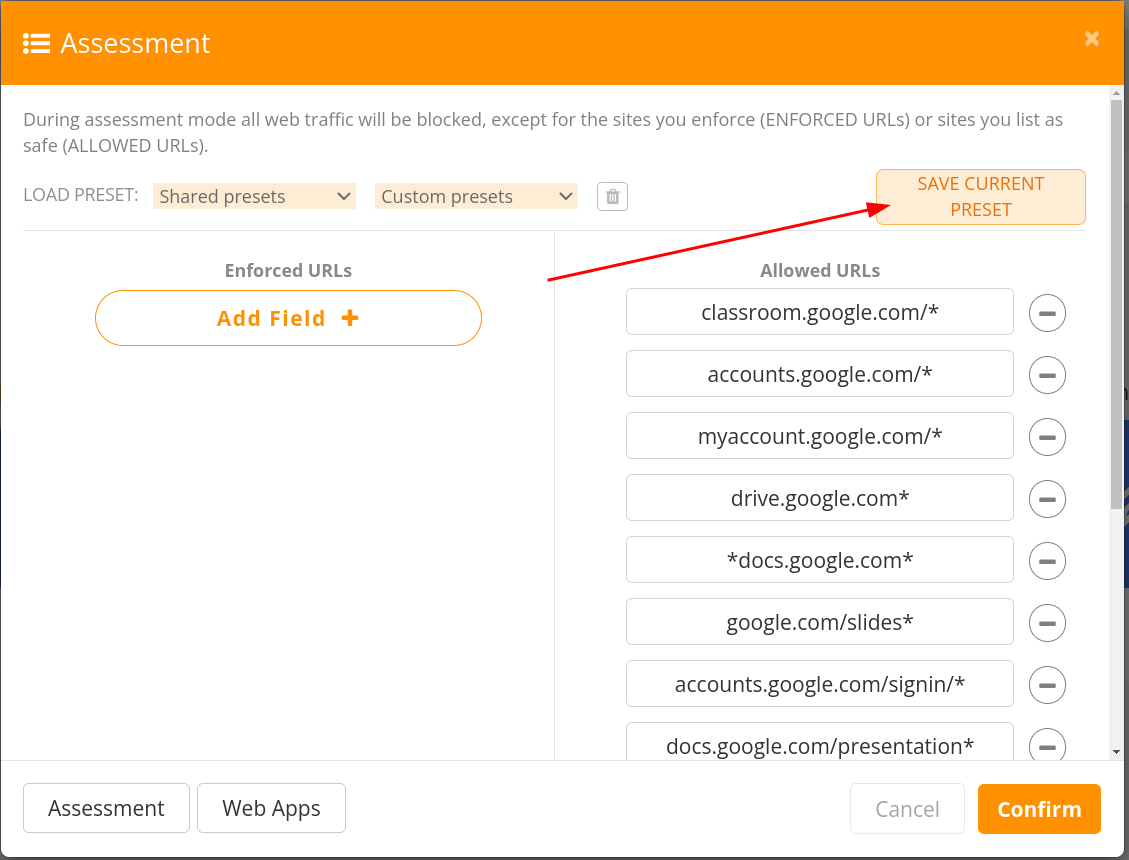
2.4: Allows saving the current settings as a new custom preset
2.5: The box to enter a site you want to always be open
2.6: The button to click to add more enforced pages
2.7: The box to enter a site you want to allow access to
2.8: The button to click to add more allowed pages
2.9: The group you wish to push it to (only matters if using the next button)
2.10: The button to start the assessment for the group in the above menu item
2.11: The assessment pre-filled template library
2.12: The Web app pre-filled template library
Click for usage instructions.
Assessment Library
-
Let’s create an assessment using the library. Click on the “Assessment” button at the bottom.
-
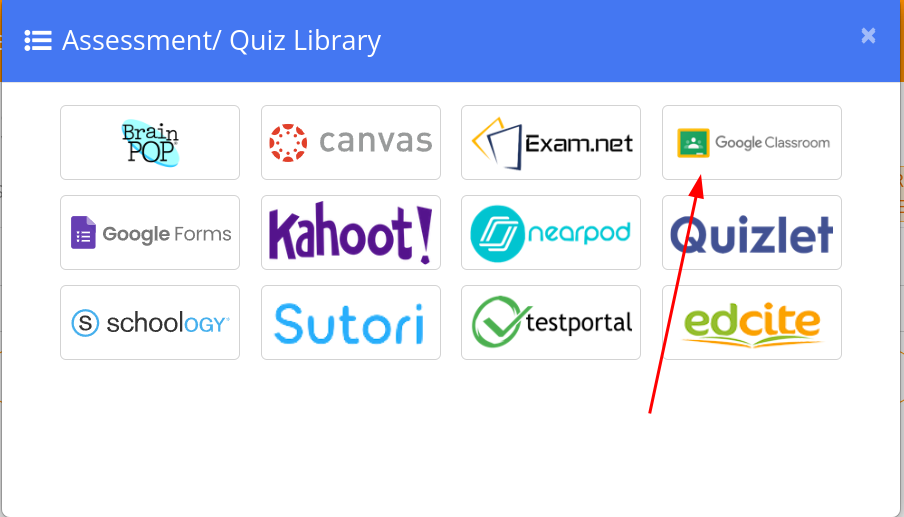
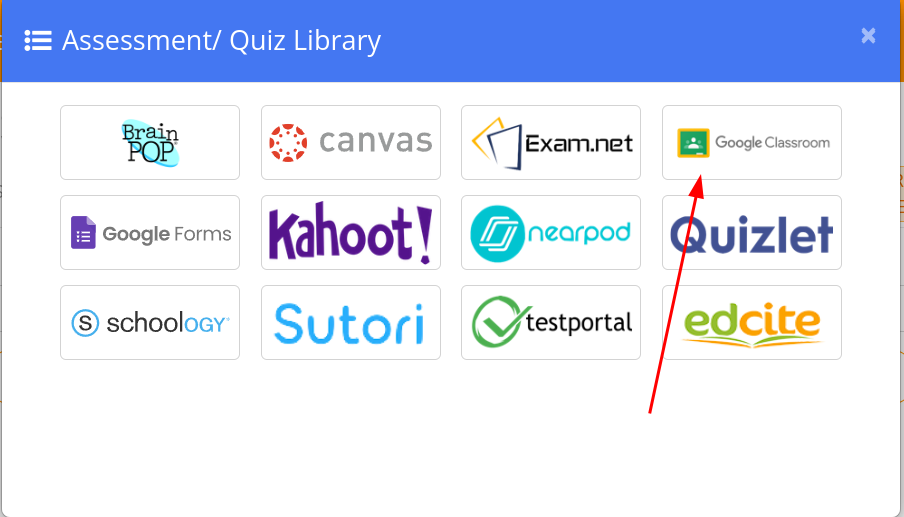
Choose one of the library options. This will probably be classroom or forms.
-
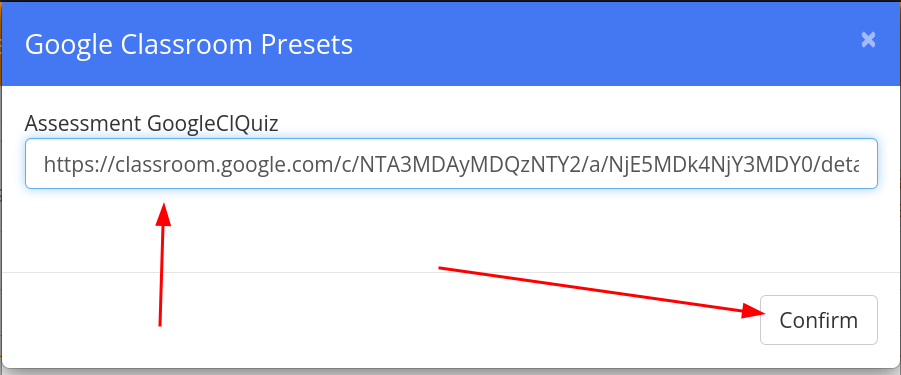
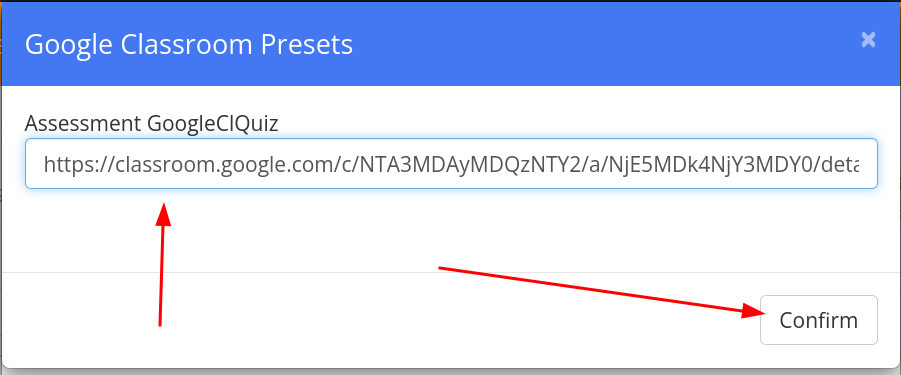
On the box that opens, you will need to put the link to the quiz from either classroom or forms, then click on “Confirm.”
-
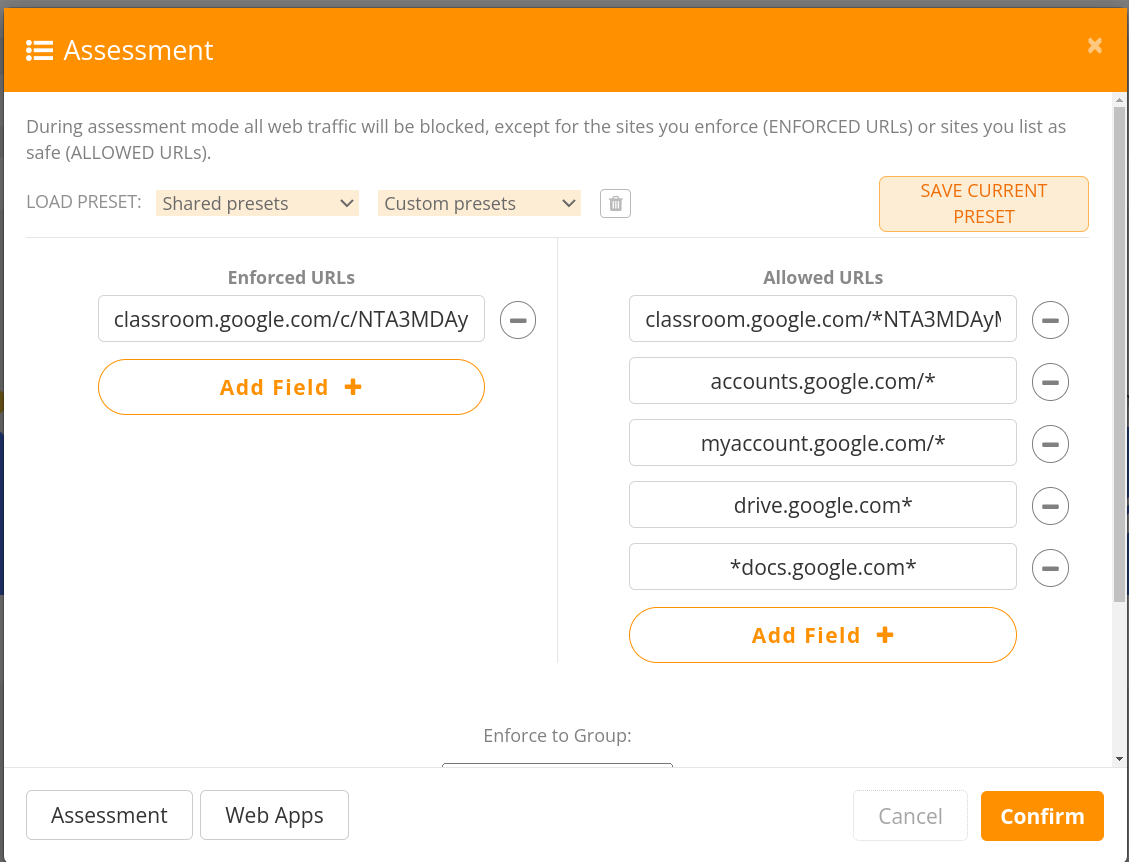
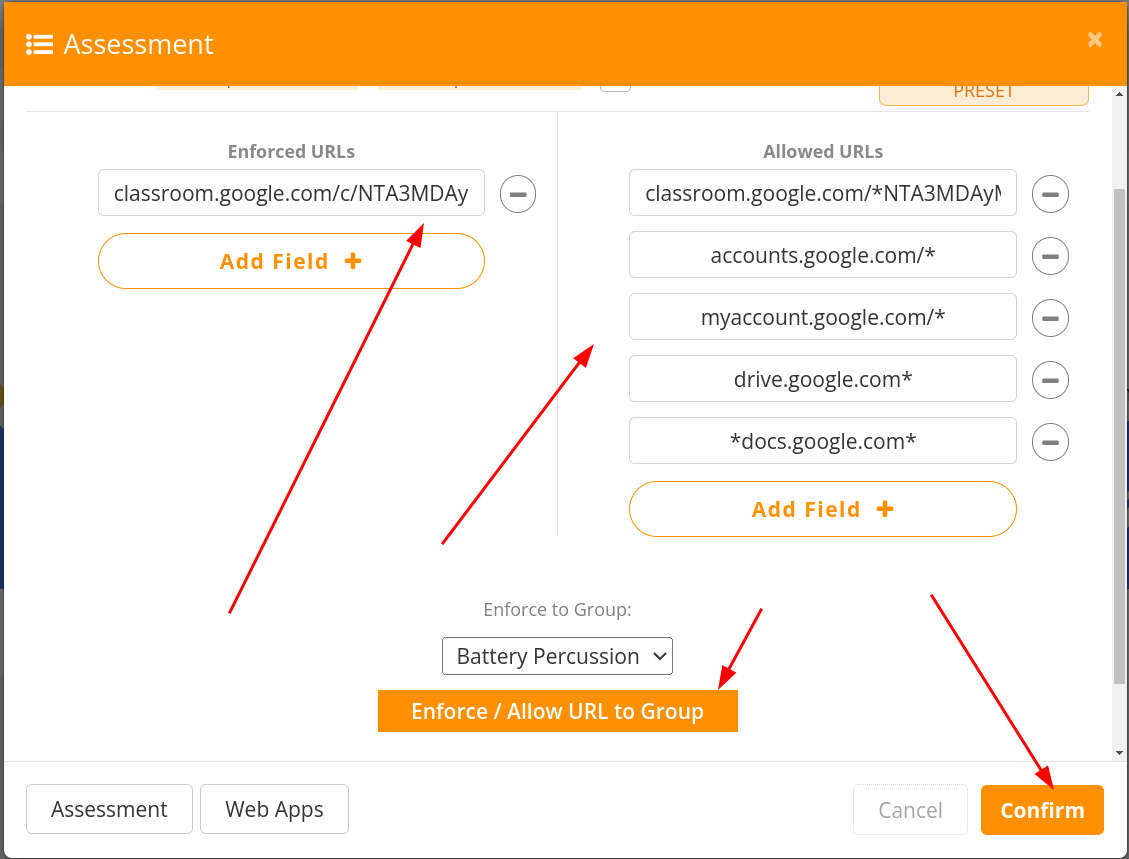
The assessment window now shows several links. On the left, you have the page that will open automatically, and on the right, you have the pages that are allowed to be visited.
-
You should ALWAYS verifity that the items on the left and the right are correct, then choose to confirm it for the whole class, or to enforce it upon the group you have selected.
Web App Library
-
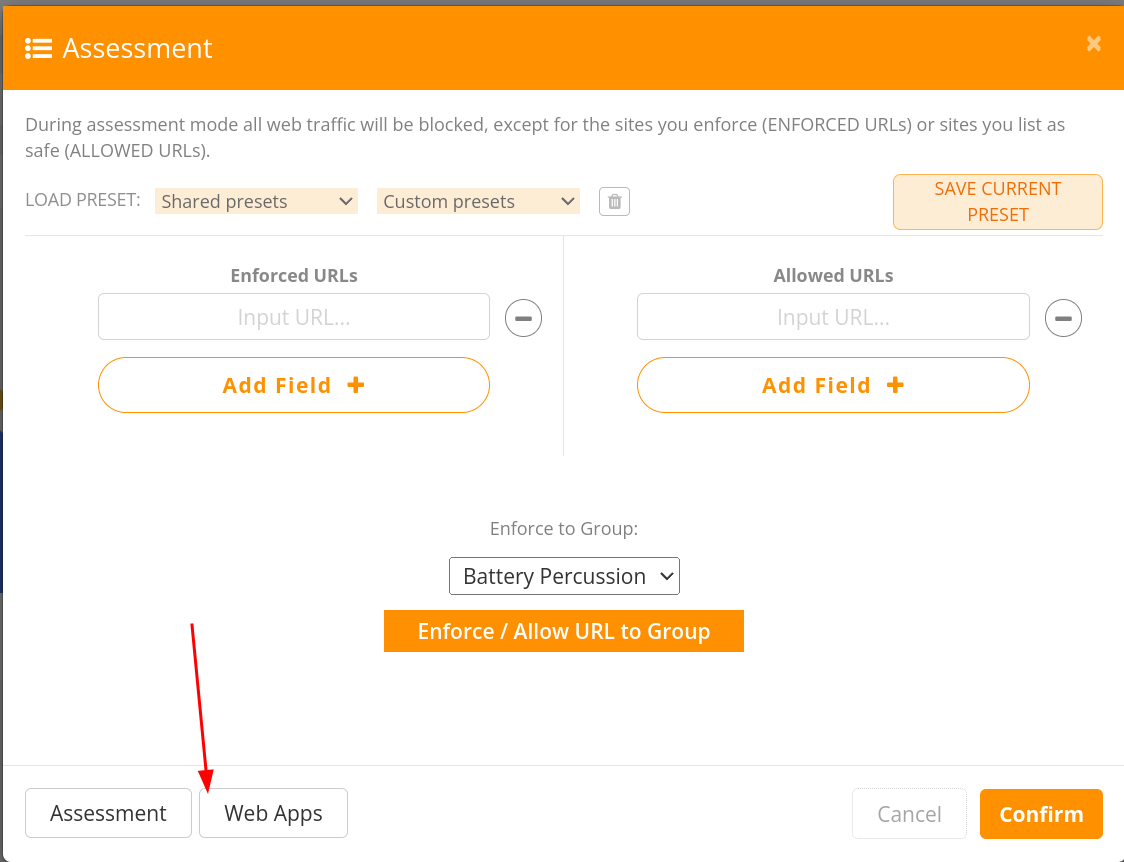
Let’s create an assessment using a web app template. Select “Web Apps” from the bottom.

-
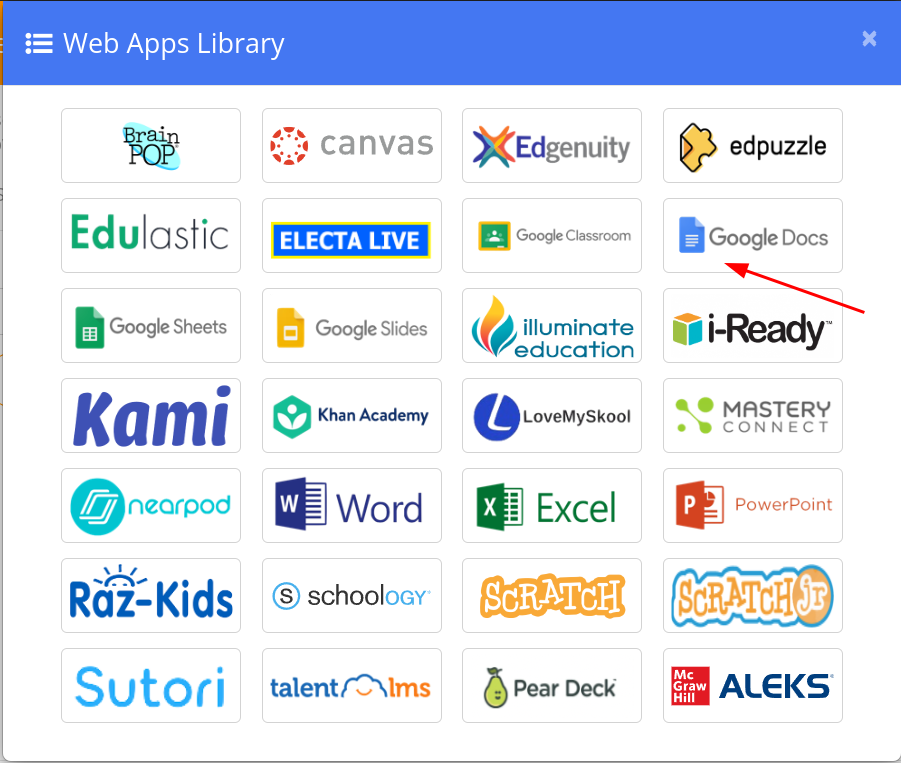
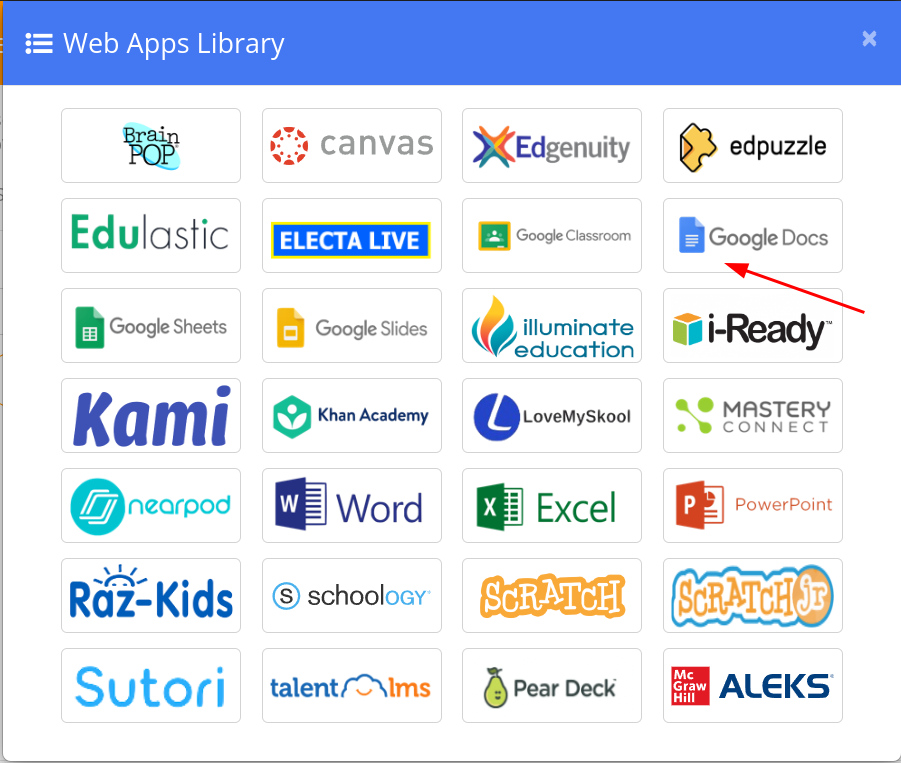
Choose the appropriate app icon. I chose Google Docs.
-
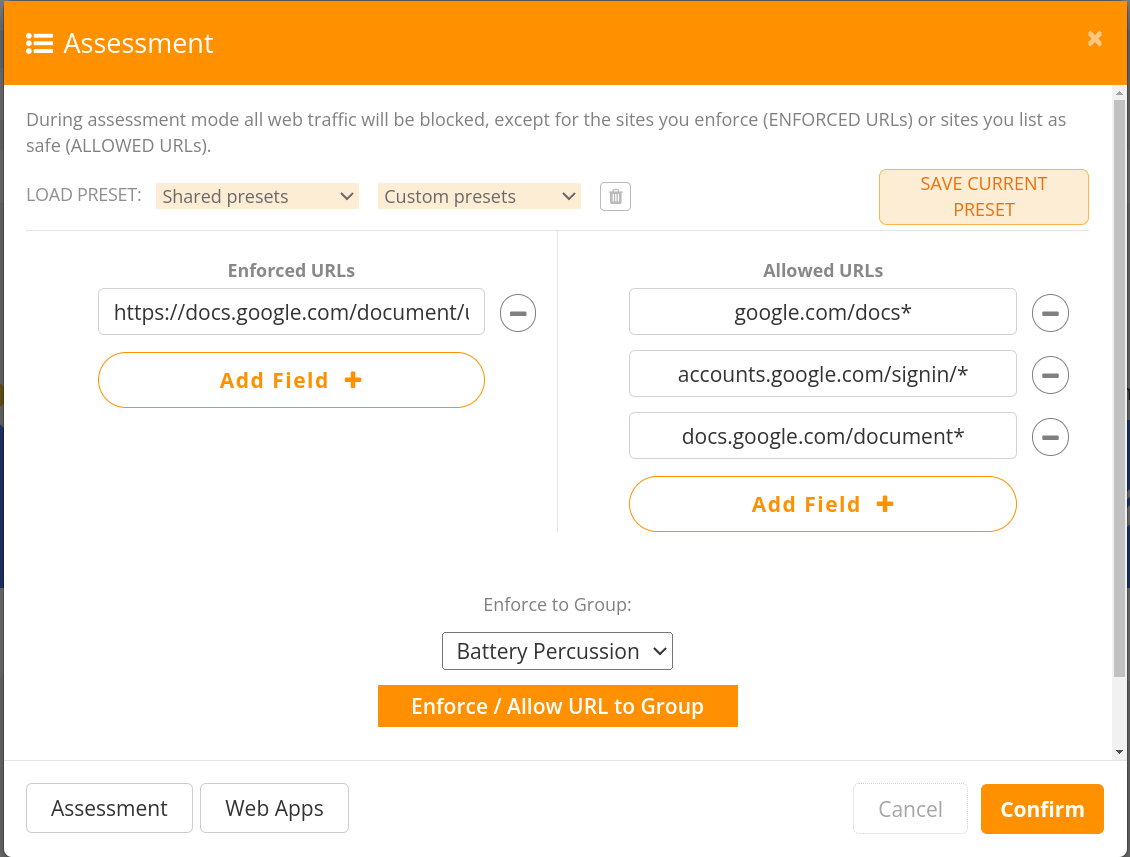
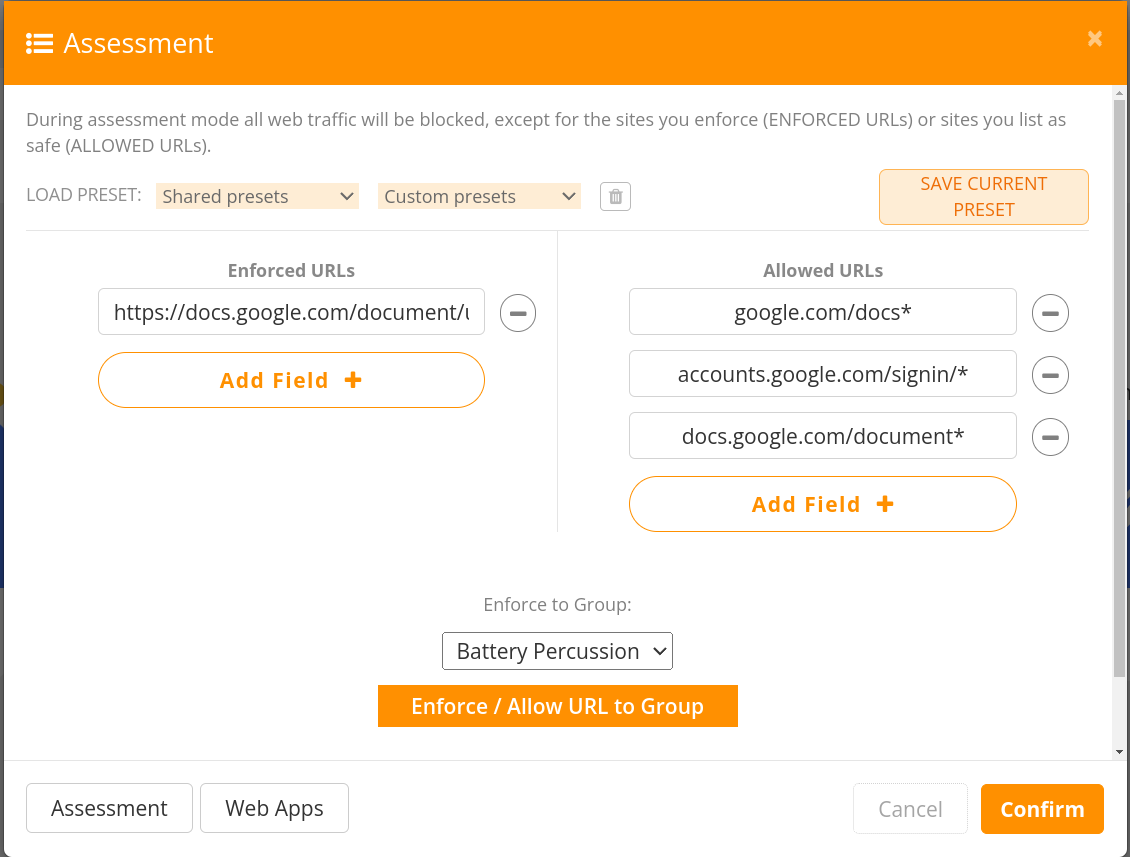
Again, our list is populated with what is needed for this app to function. Our students will be taken to a blank Google doc, and the only other places that can access are the sites specific for Google Docs to function. This would be perfect for a writing prompt day.
Stacking Web Apps and Assessment Templates
-
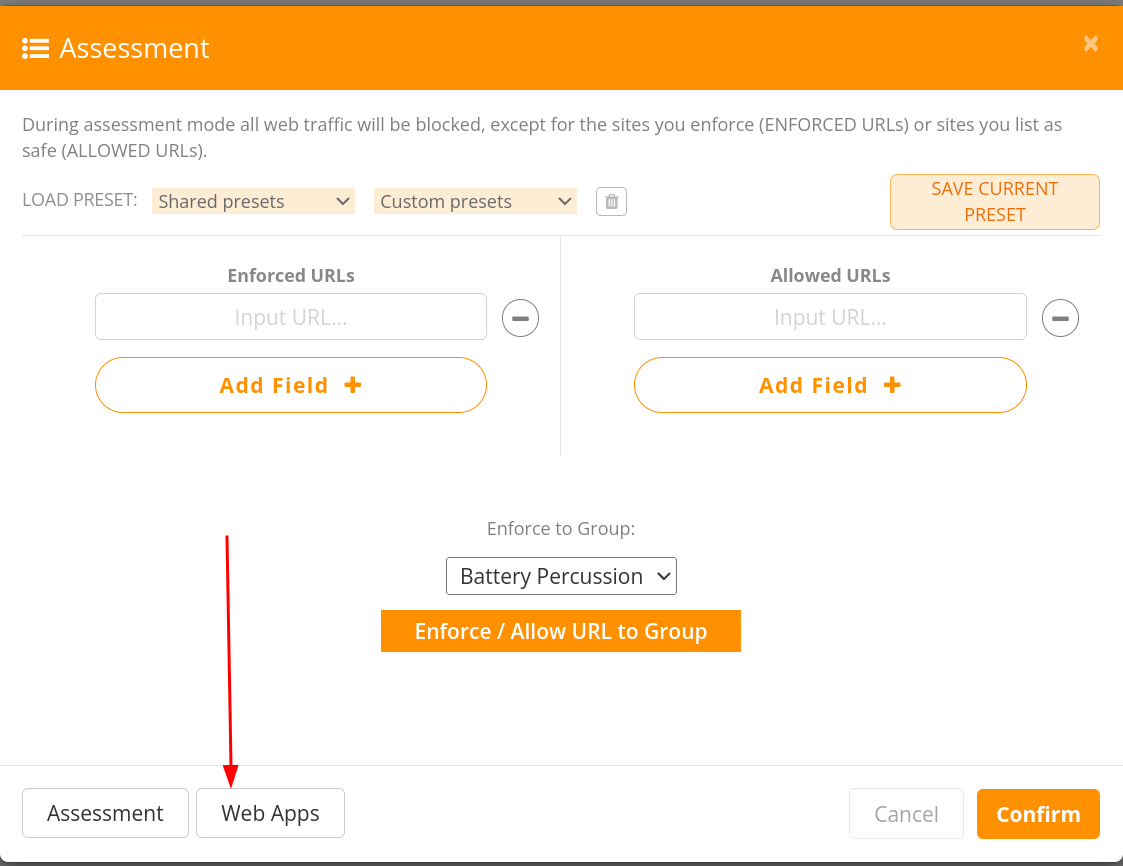
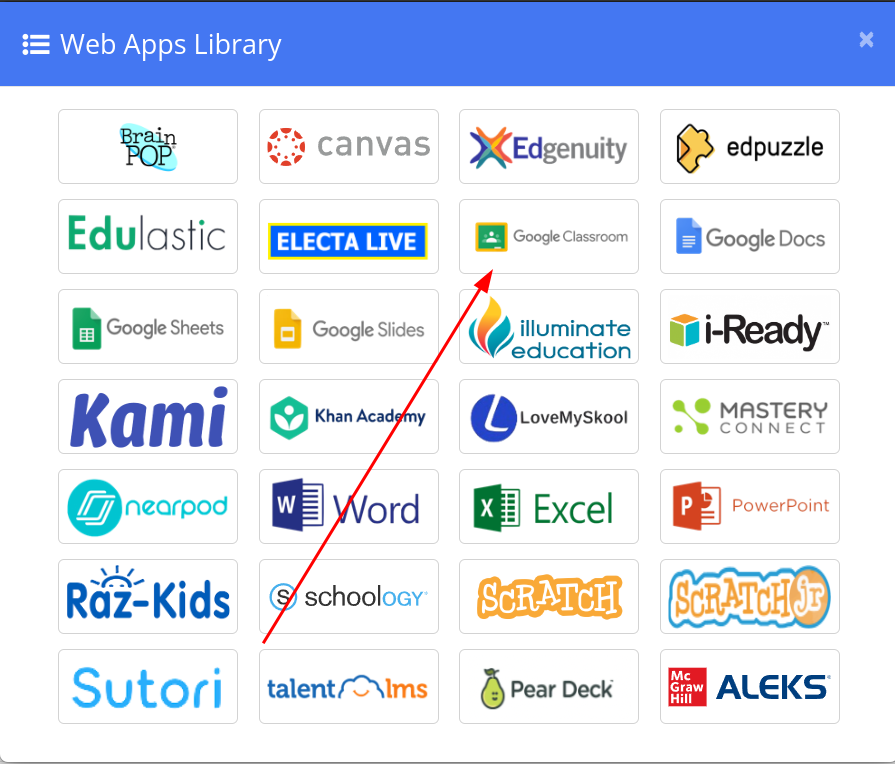
Let’s combine two web apps into our list. Choose the “Web Apps” button.
-
Select the first app you would like to use. I chose Google Classroom.
-
Click the “Web Apps” button again.
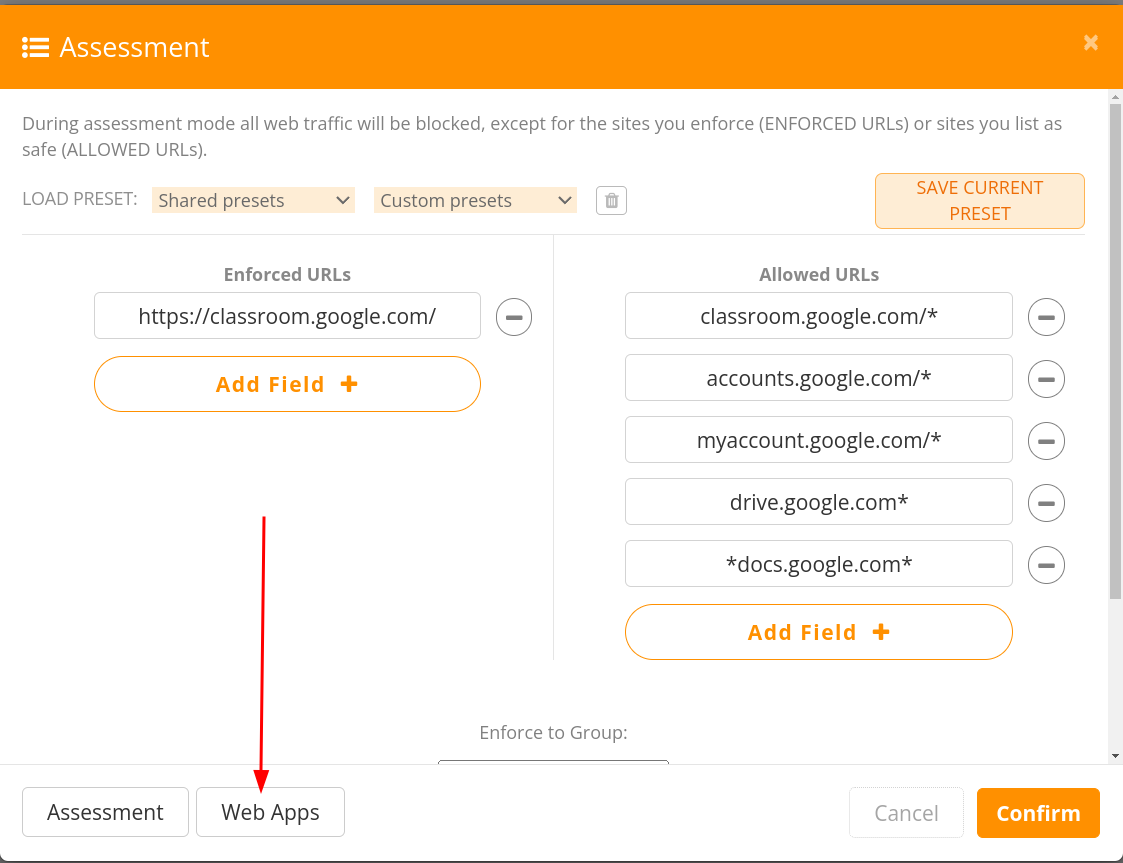
-
Click the second icon. I chose Google Slides.
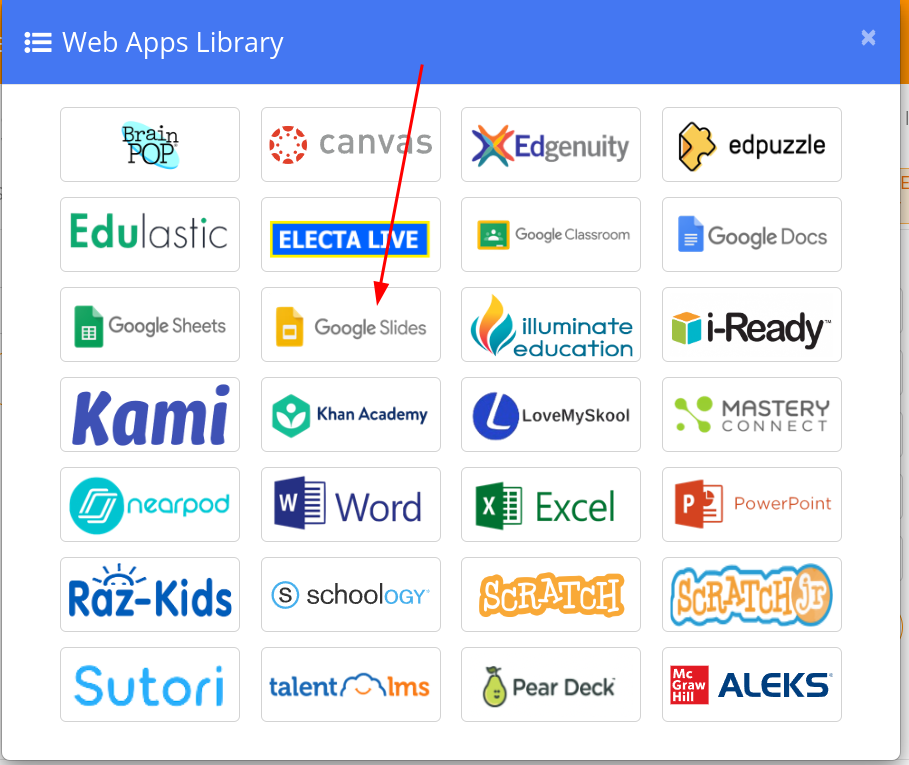
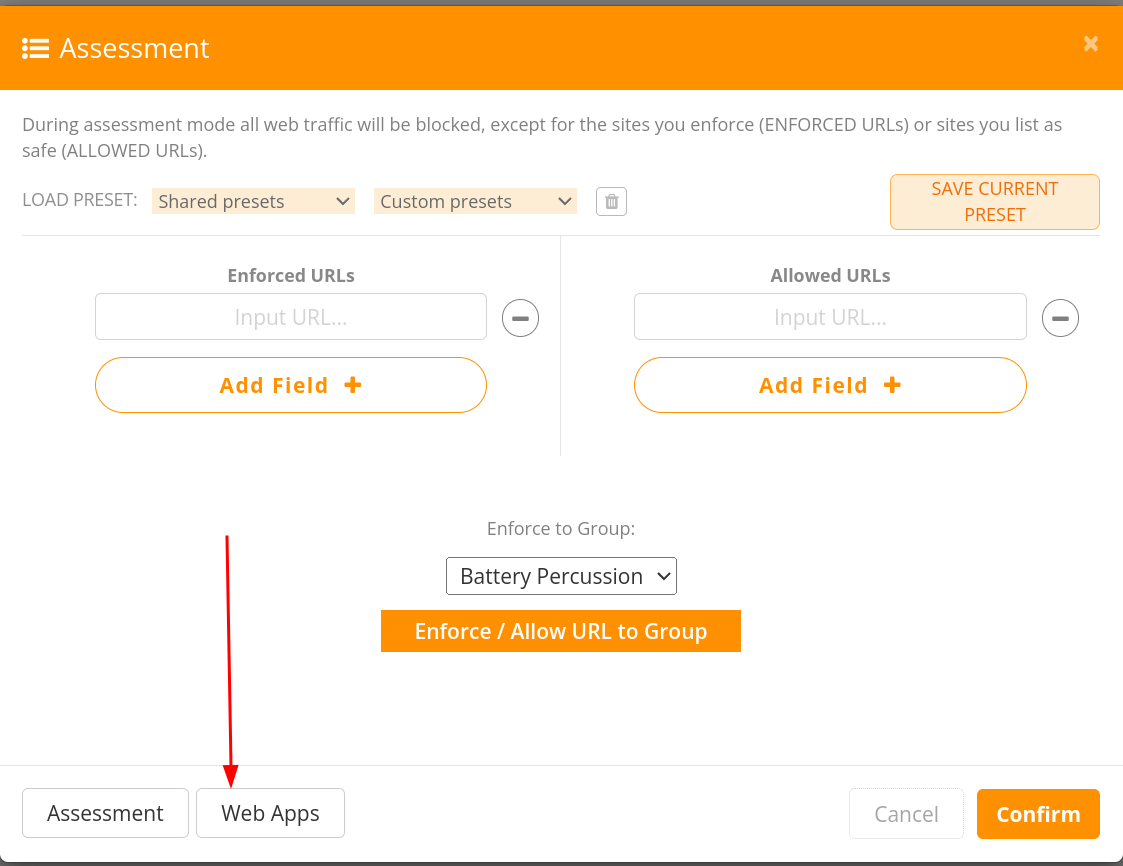
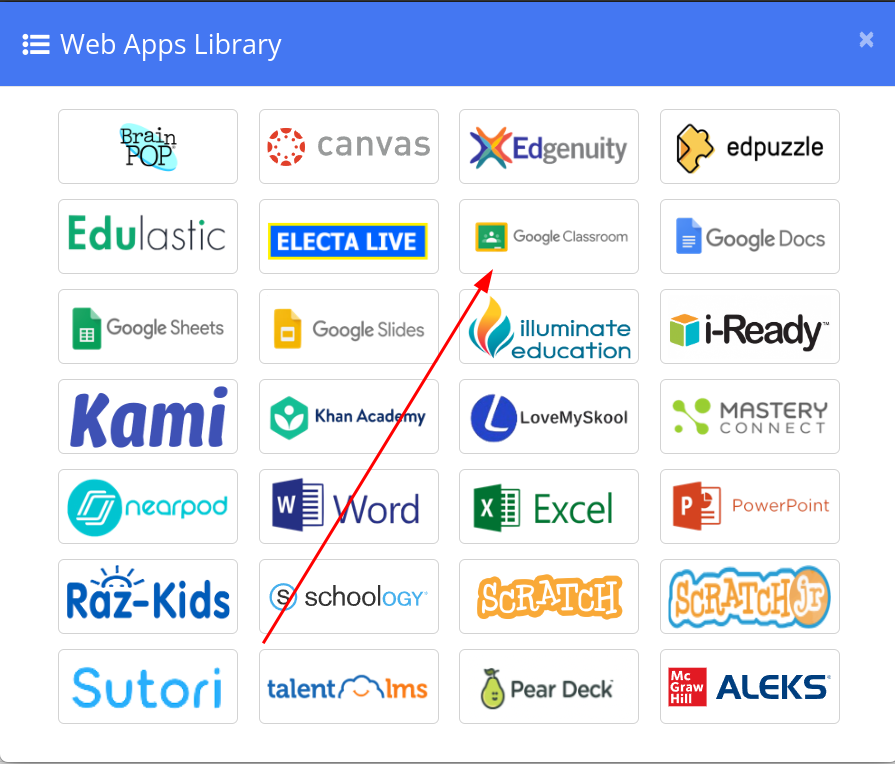
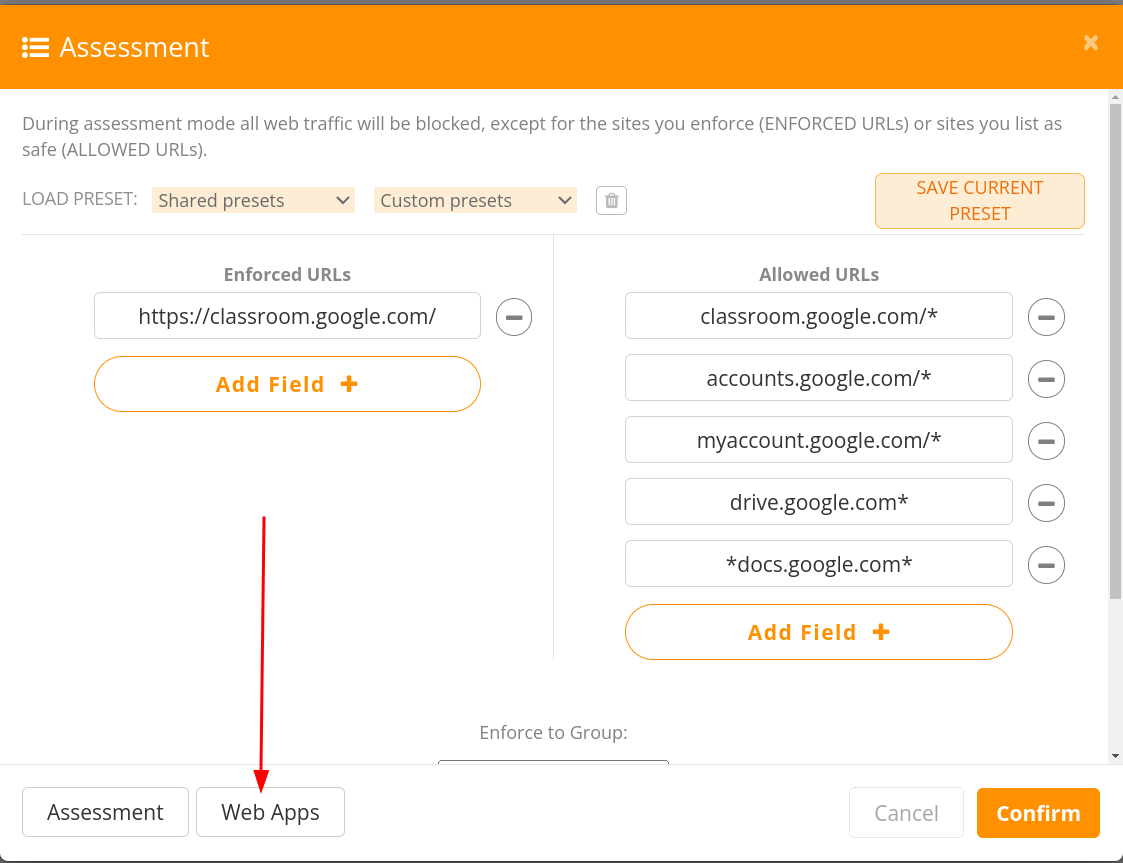

Now, when students are under this rule, they will be able to access anything within classroom and also within Google Slides. They will also automatically be taken to both websites in two unique tabs.
Custom Presets
What if this is something we want to do regularly, use both classroom and slides? While it isn’t too difficult to do those previous 4 steps, we can make it quicker.
-
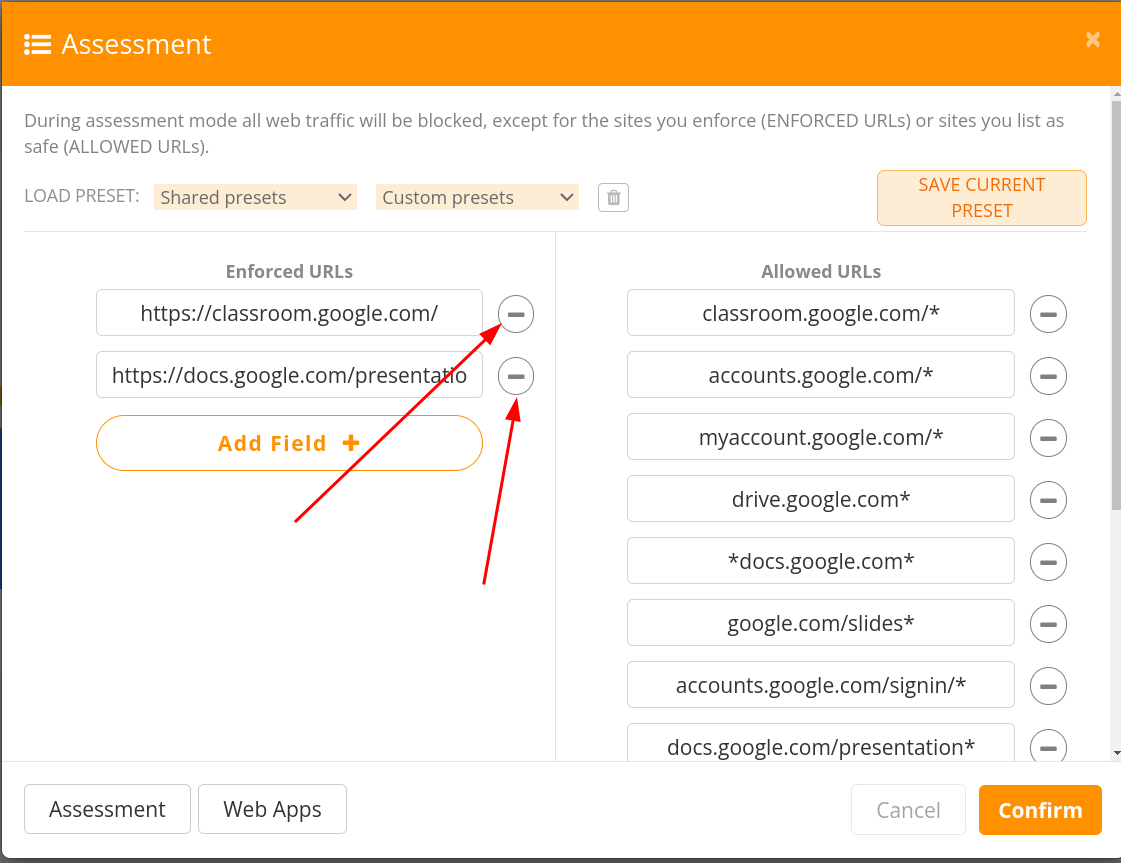
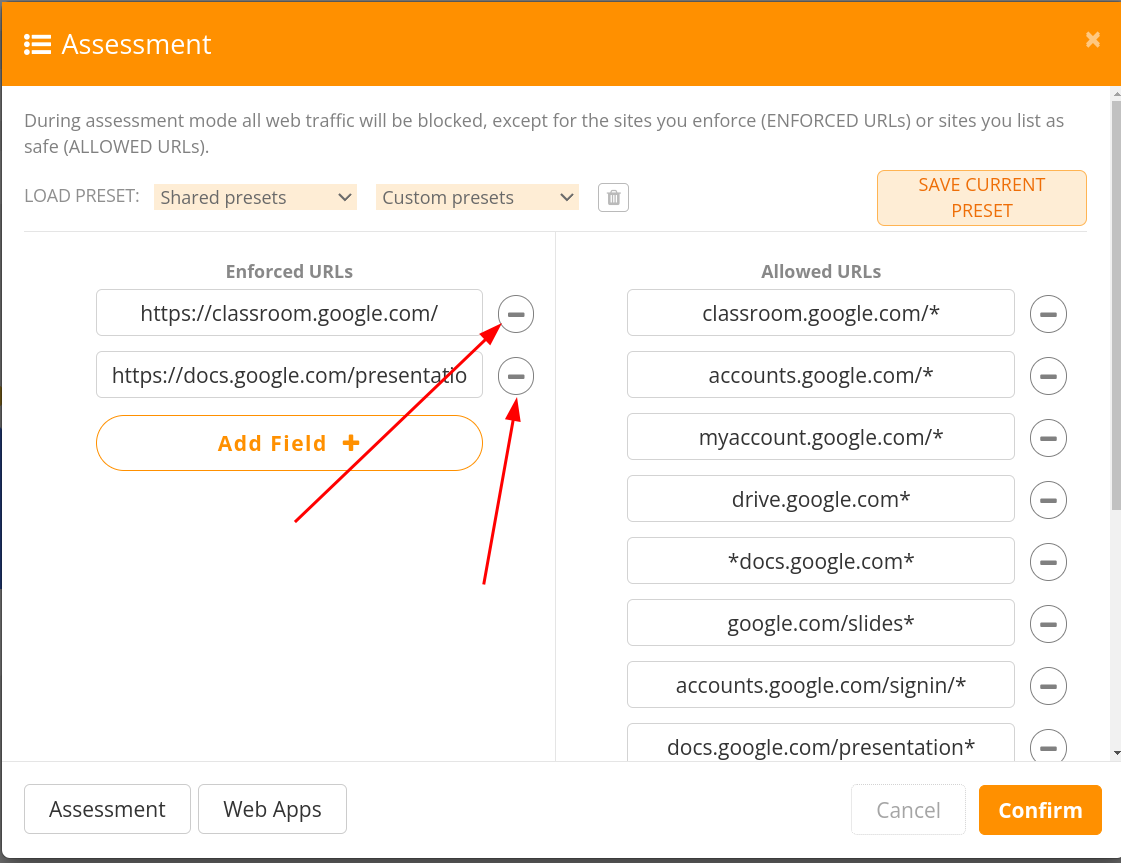
I’m going to click on the “-” buttons to remove the enforce URL options.
-
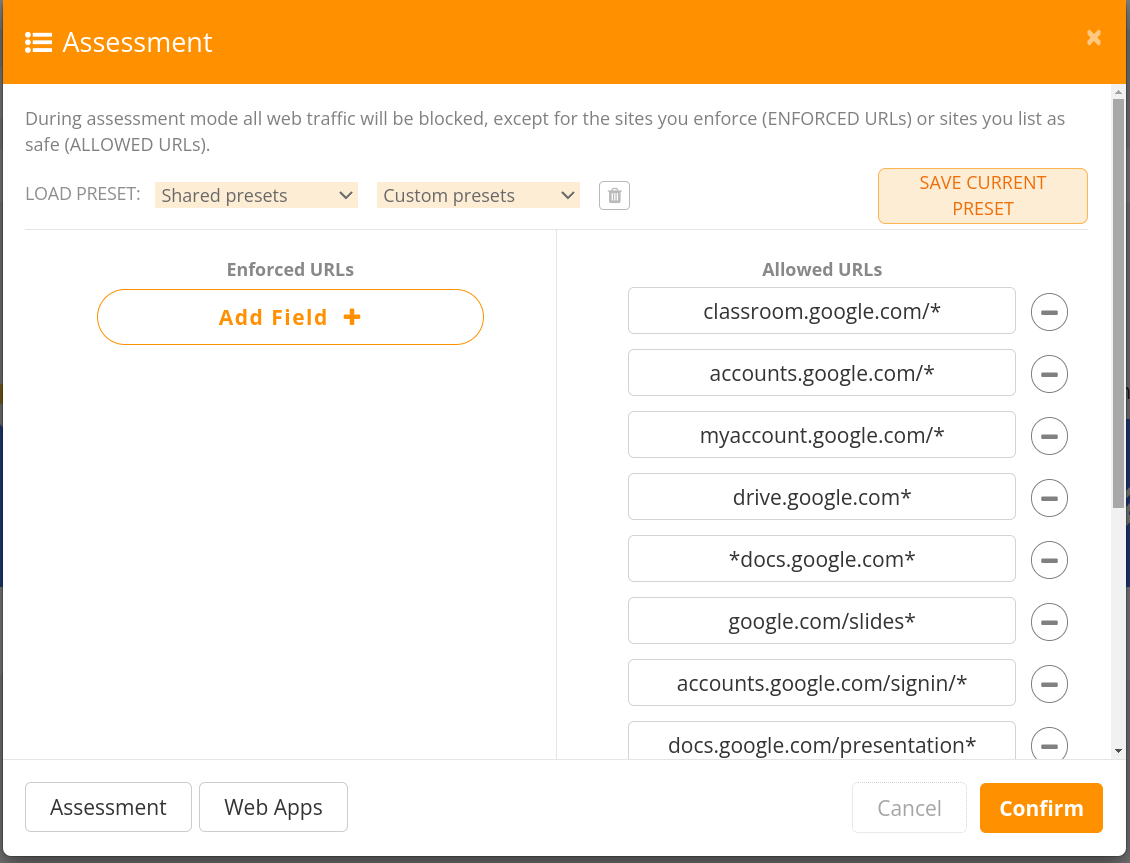
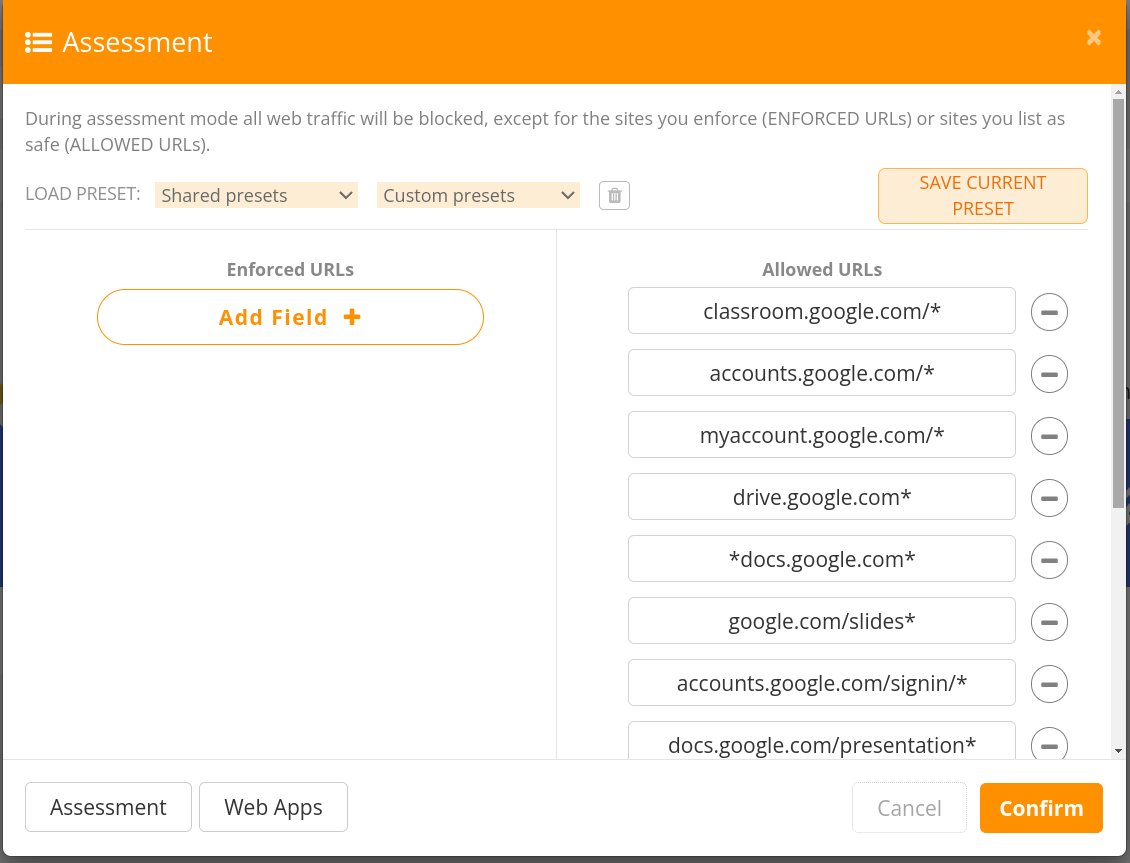
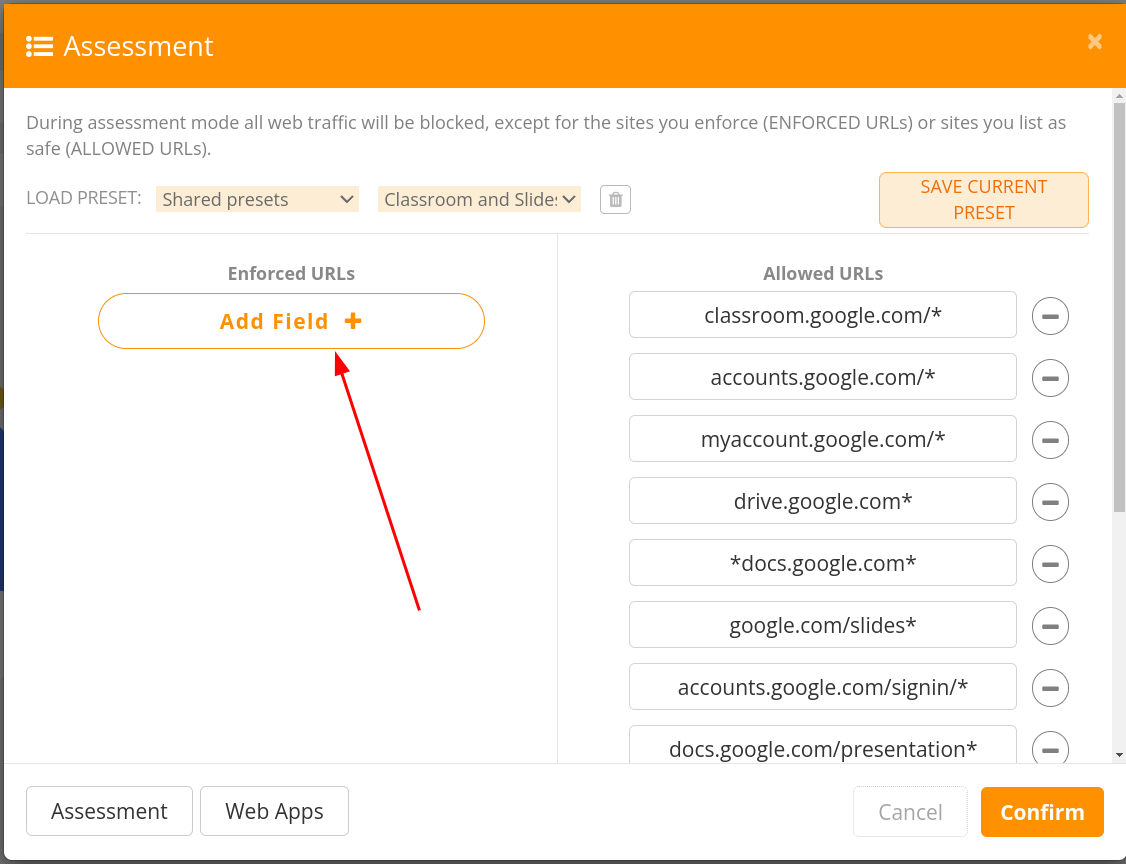
This gives me an empty enforced area and a populated allowed list.
-
Now I’m going to click the “SAVE CURRENT PRESET” button.
-
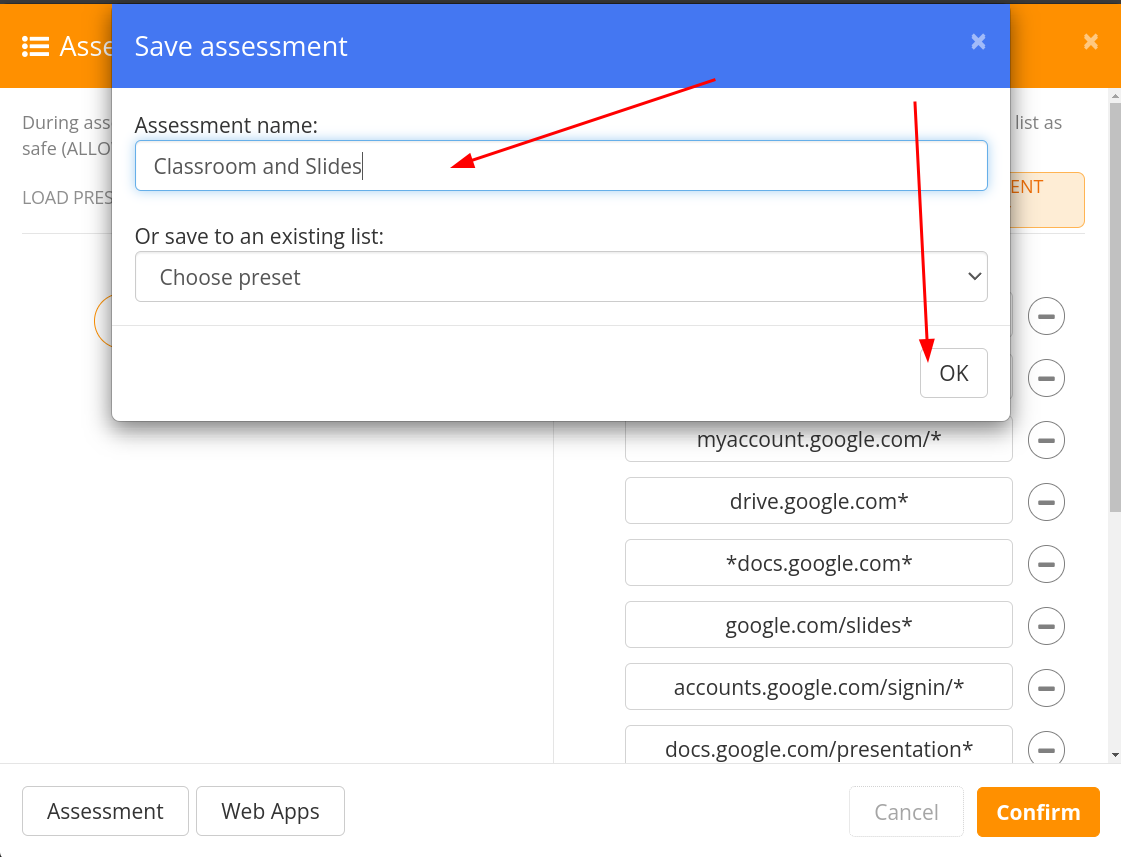
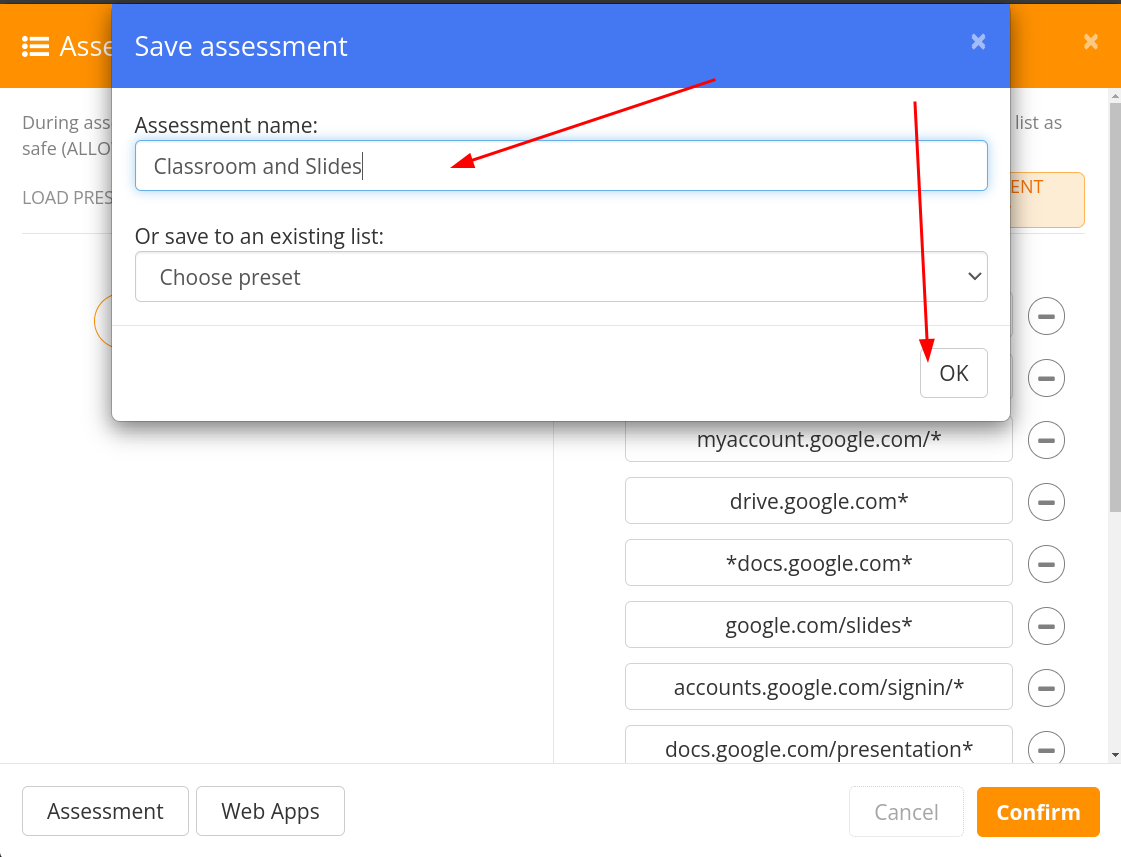
On the box that opens, I’ll give it a name (I went with “Classroom and Slides”), and then I will click on “OK.”
-
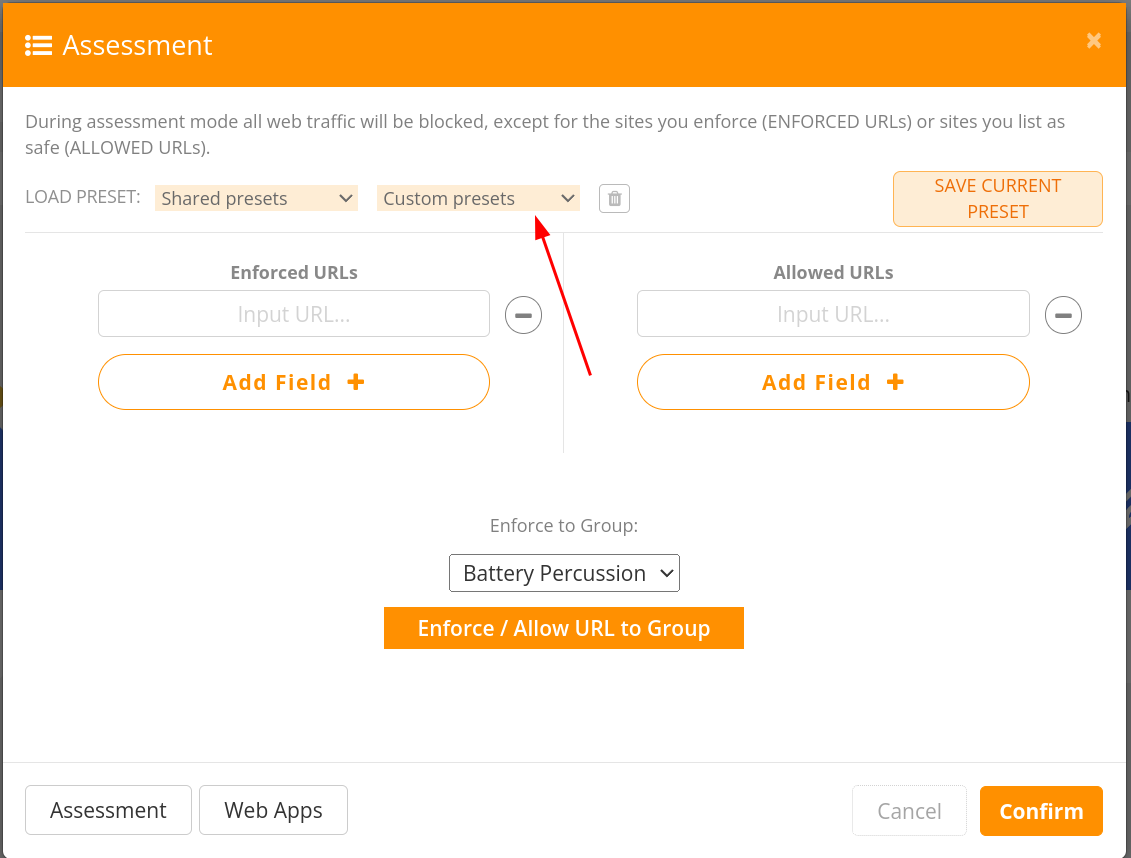
Now, the next time I open up the assessment box, I will click on “Custom presets”
-
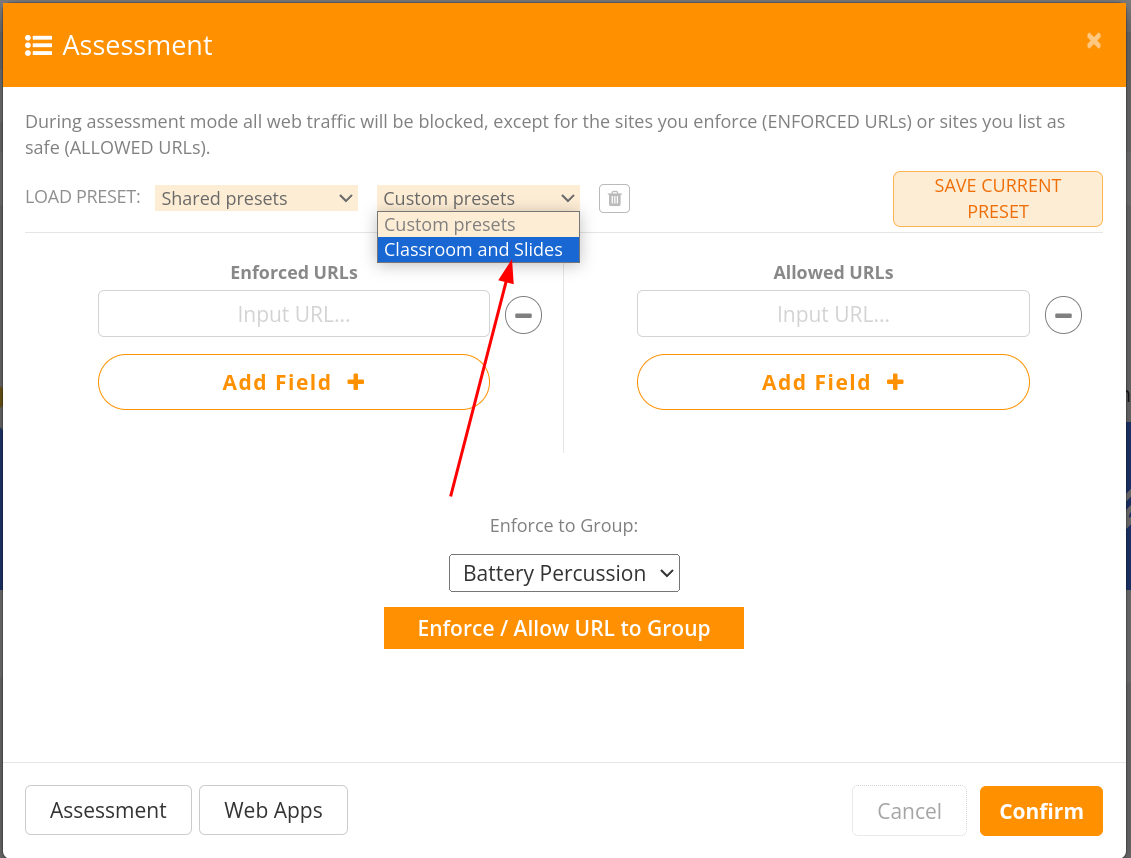
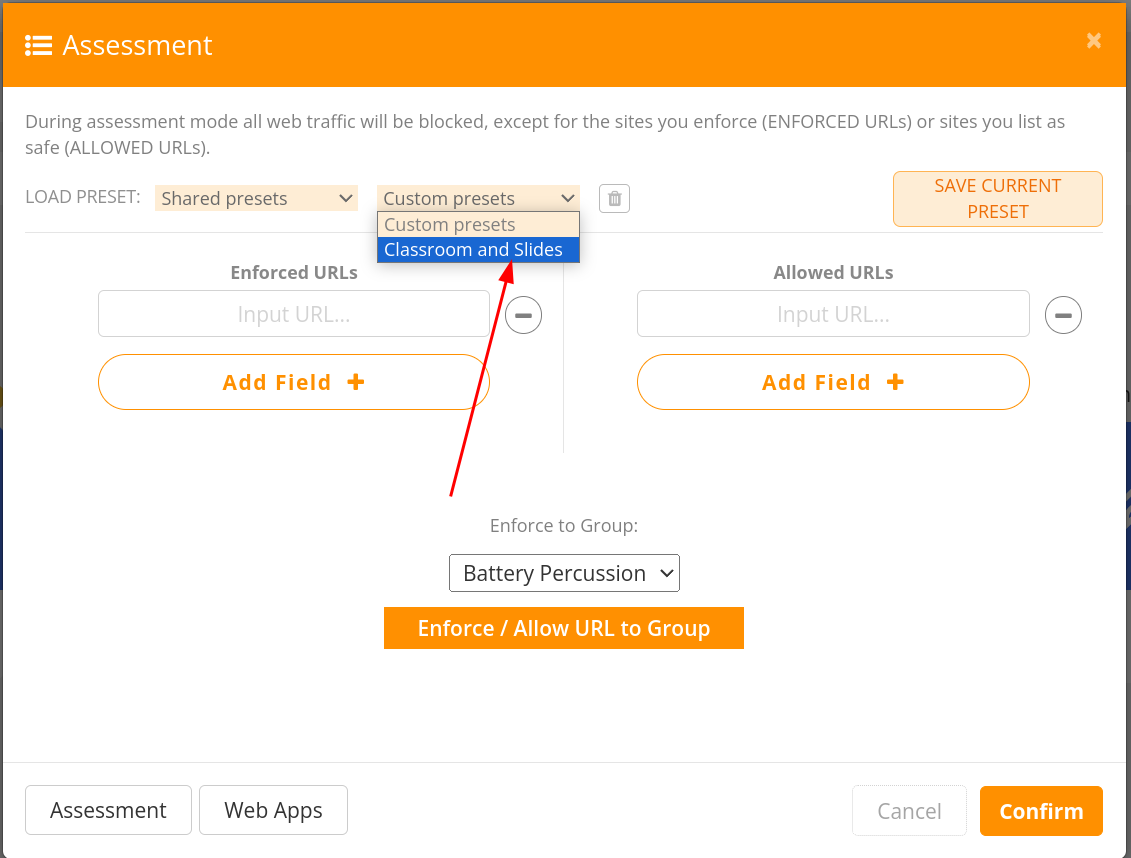
I’ll choose “Classroom and Slides” (or whatever preset I created in the past).
-
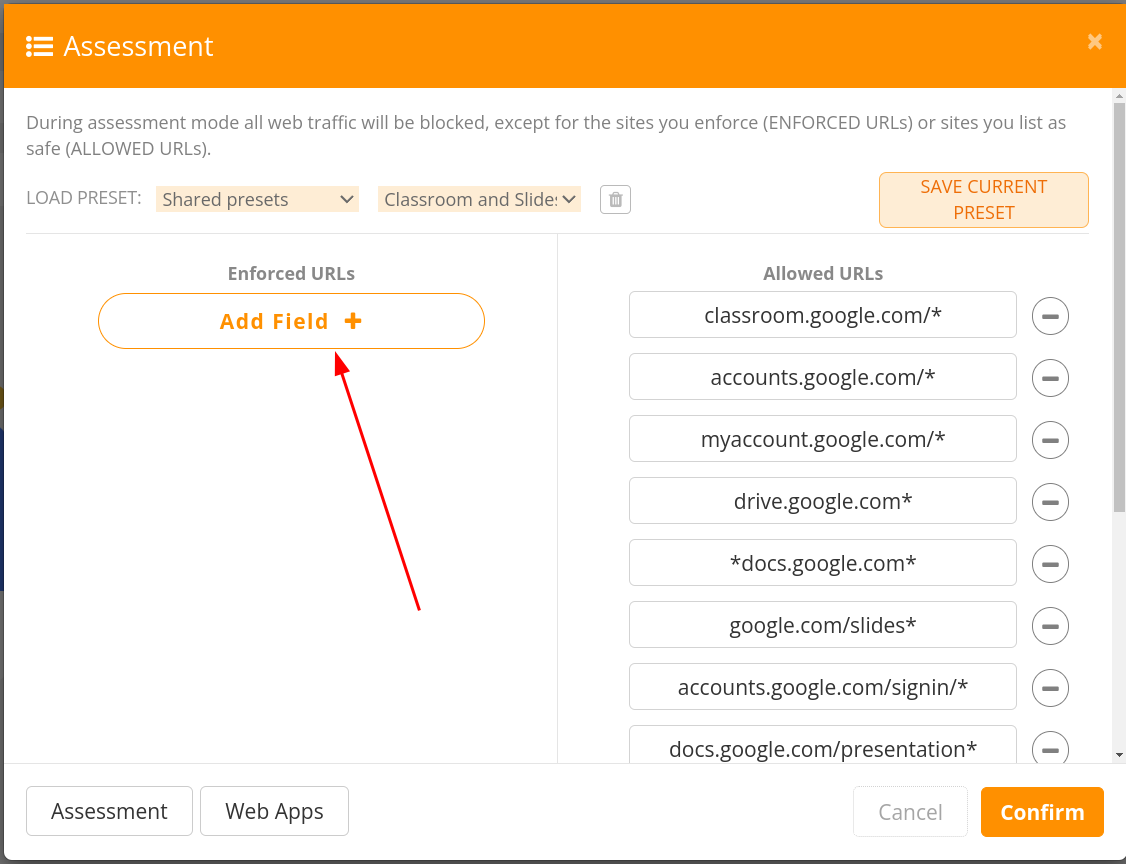
Then I’ll have my starting point. I also want to make this open to the assignment in Classroom, so I’ll click on the “Add Field” button.
-
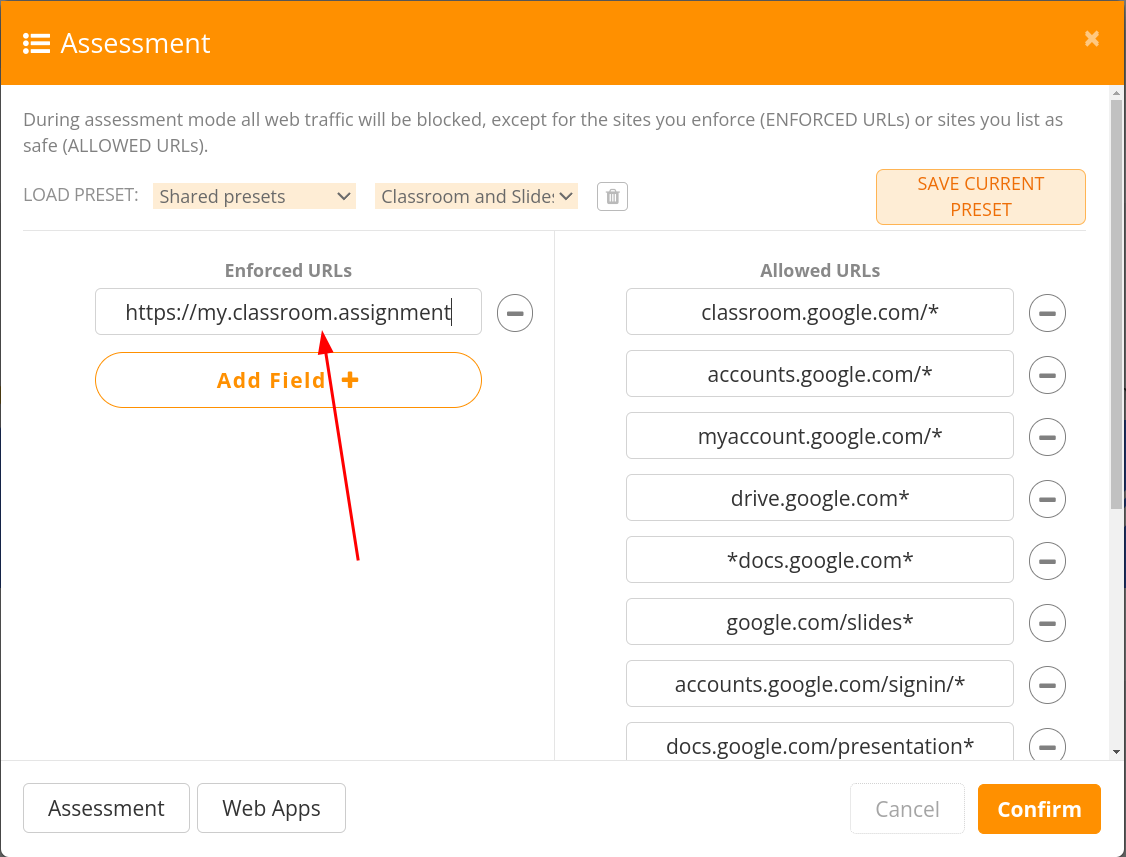
In the box, I’ll paste in the address of the Classroom assignment.
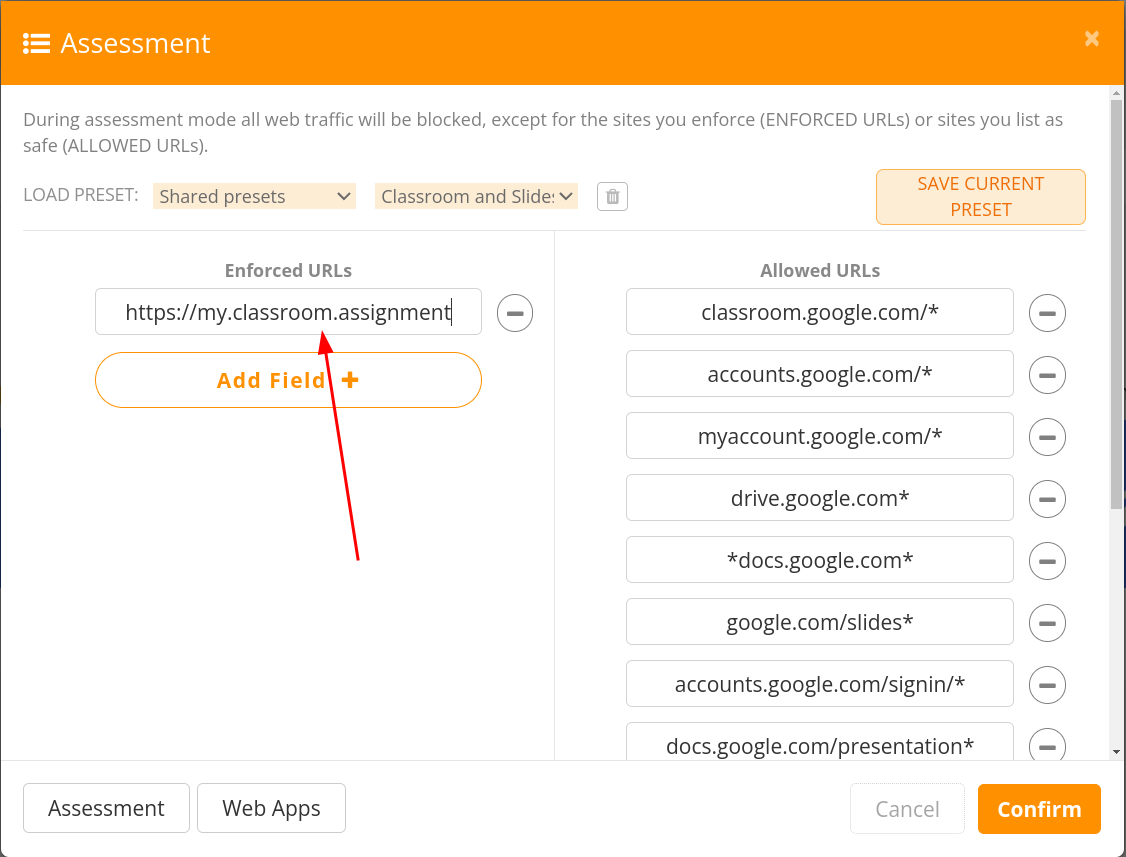
From now on, all I have to do to make this kind of rule is to choose my custom preset, paste in my assignment, and confirm it for the group or the class!
Ending an Assessment
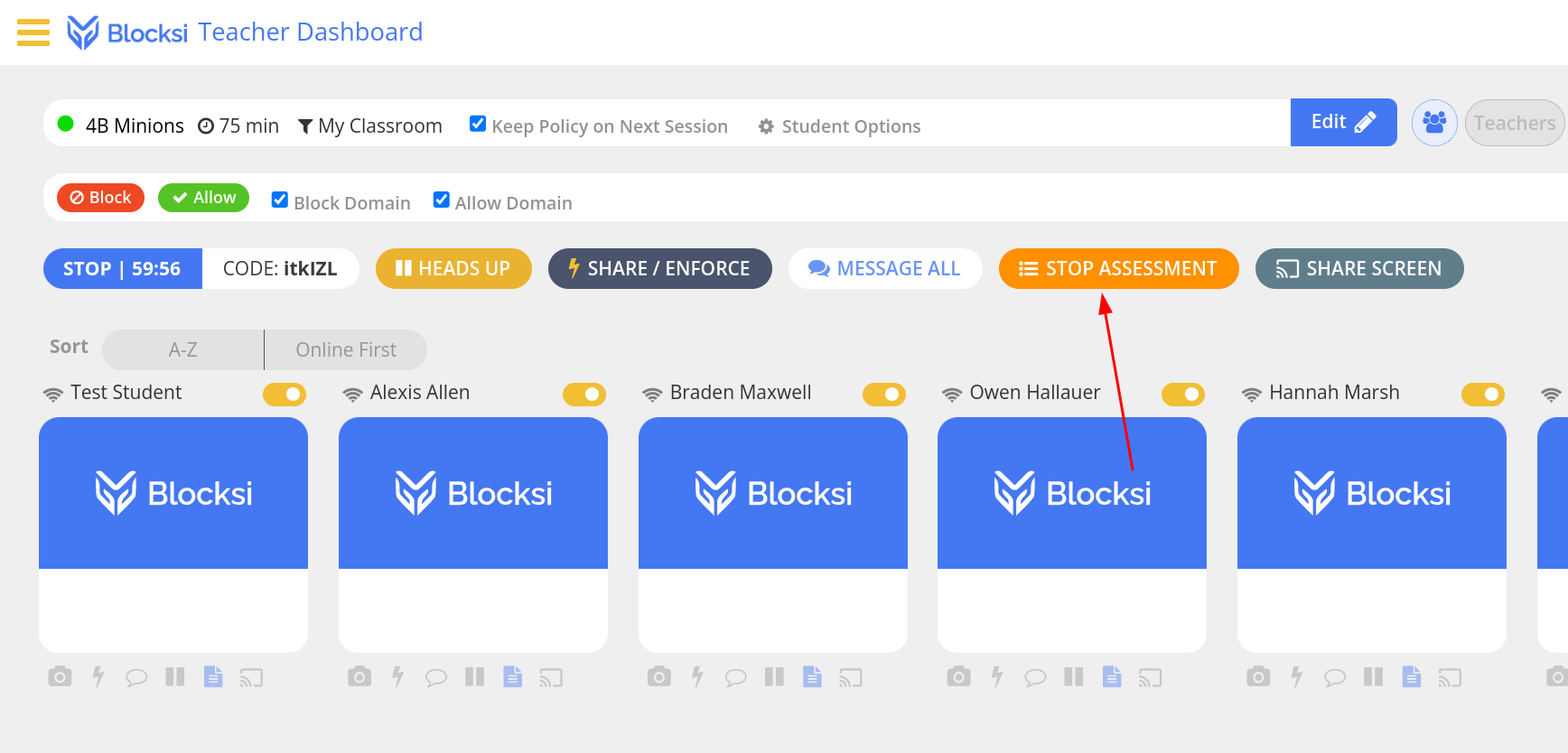
The only other thing to remember is that you have to click on the “Stop Assessment” button if you need to return access to the students before the period ends.
Originally posted by Cory Robbins on the West Fork Technology Hub (2023-10-04).
No comments to display
No comments to display