
Blocksi - Alternative URL Blocking (NOT FULL DOMAINS)
Importing…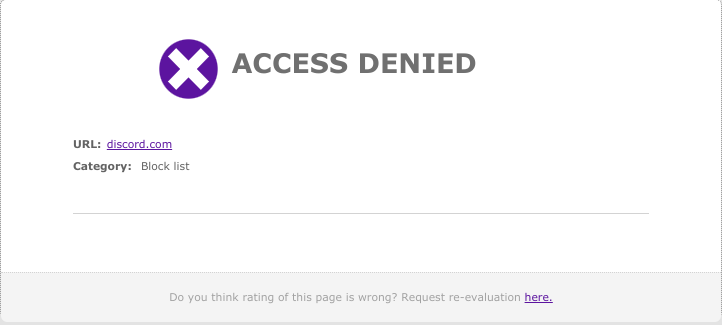
We have had some teachers struggling with blocking access to specific pages, mainly different Google Sites. When they try to block the Google site, it actually blocks all of Google.
The BEST way to do this is to add the full address, for example:
https://sites.google.com/site/classroom6x/intrusion
To an Exception List that is tied to a policy that you connect to your class. Here are the instructions for doing that: Blocksi - Filtering Policies and Assessment Mode
If, for whatever reason, you don’t wish to do that, you can also do it this way:
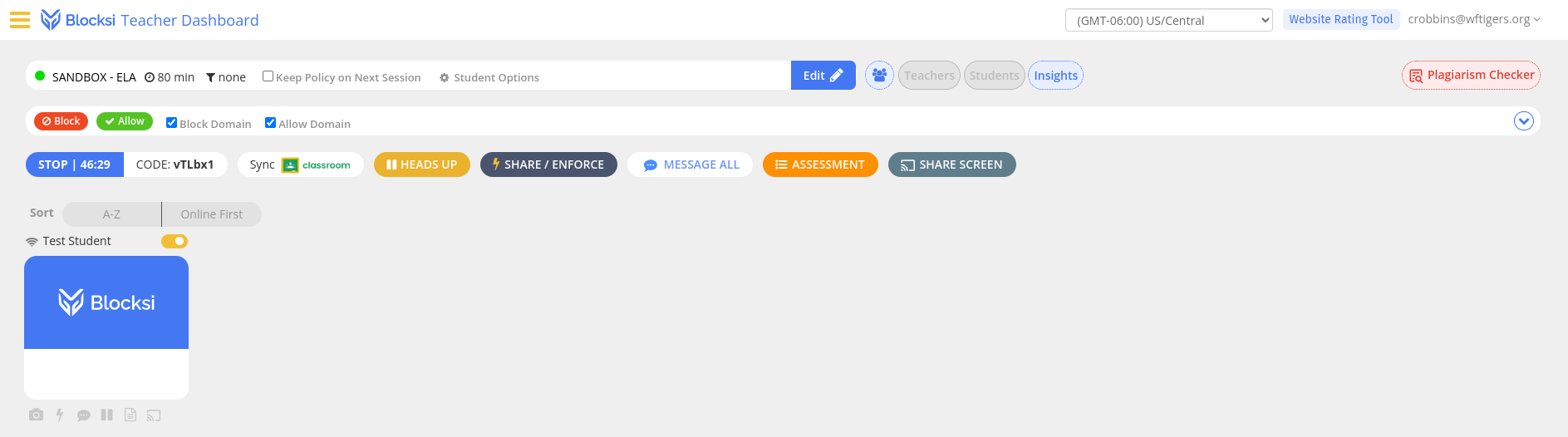
This is the default class setup, meaning that there isn’t a policy assigned:
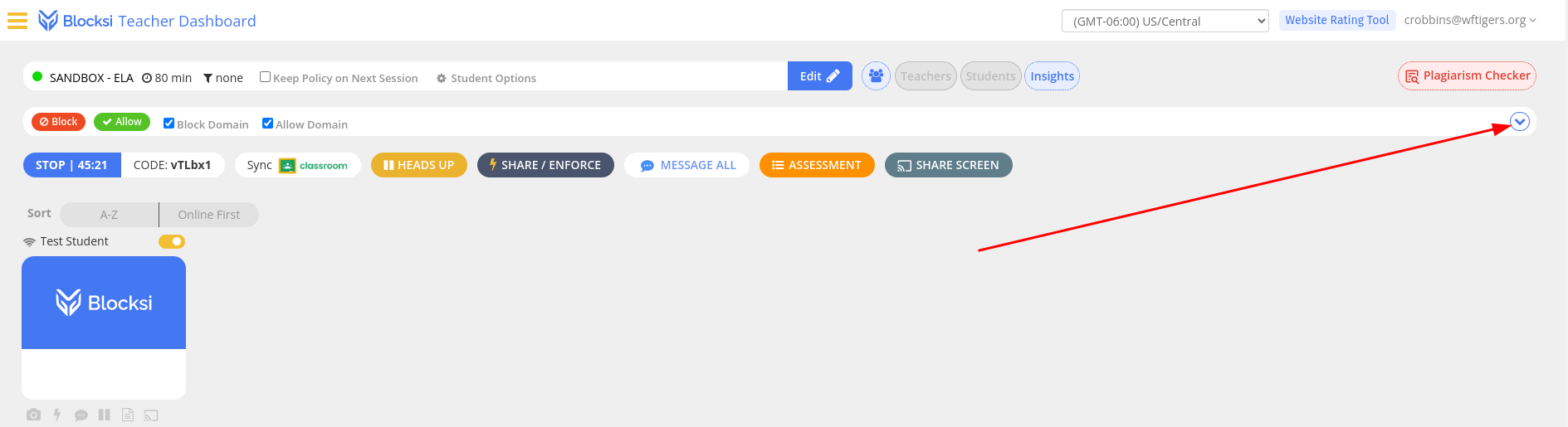
Click on the little disclosure triangle to view the full list of sites being blocked and allowed.
For a default class, the two boxes SHOULD be blank:
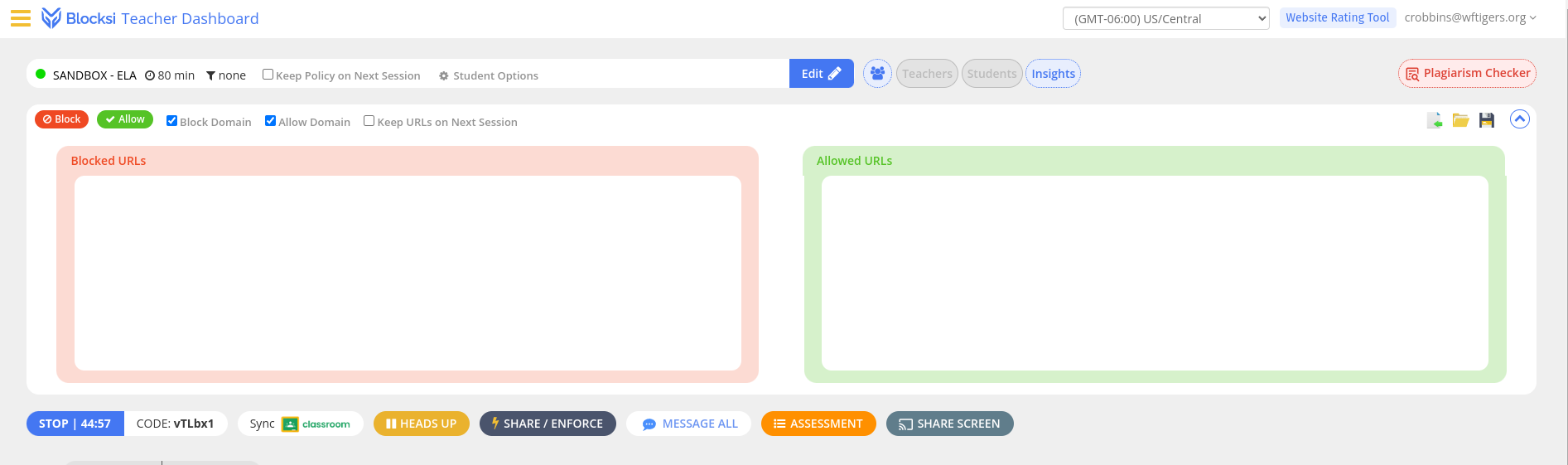
The settings to allow blocking specific addresses instead of full domains (allows specific pages instead of entire areas of the internet) are these two checkboxes. You want them to be INACTIVE.
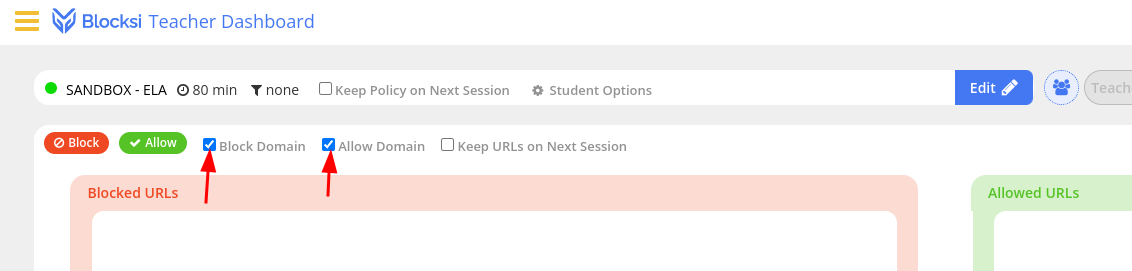
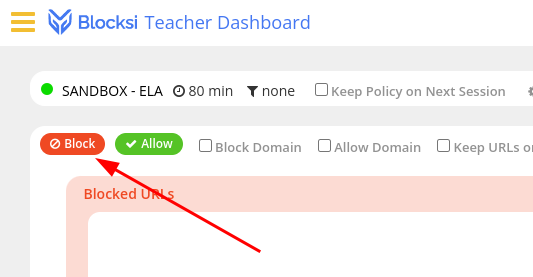
At this point, you should click on the “Block” button.
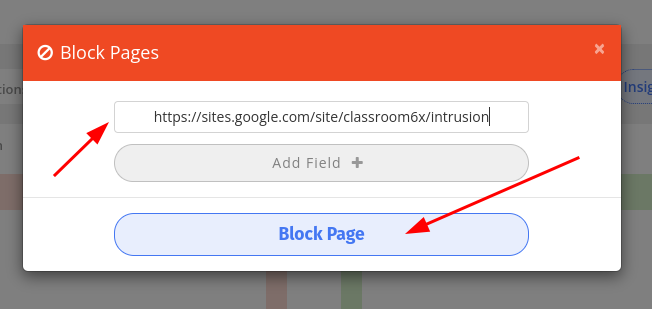
Enter the full address of the page (like the one above) in the box, then click on the “Block Page” button.
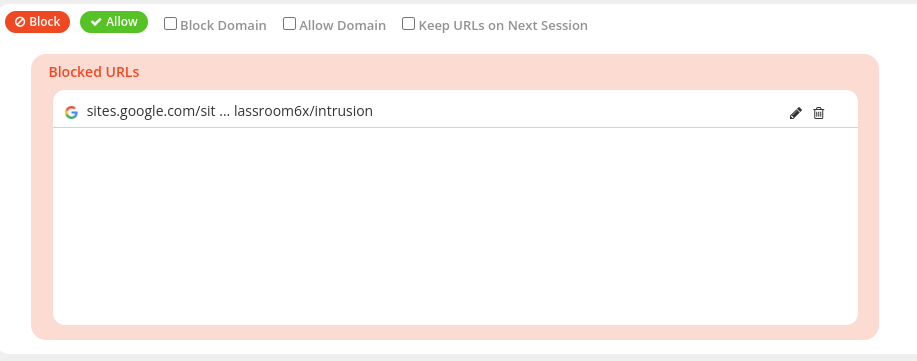
You should now see the full address (or perhaps a truncated version) listed in the “Blocked URLs” section.
Originally posted by Cory Robbins on the West Fork Technology Hub (2023-12-05).