
Blocksi - Scheduling Classes and Manual Rostering
In today’s Tech Tip, we are going to continue our exploration of the Blocksi Classroom Management system.
In last week’s tip, we covered the basics of using Blocksi, and in today’s tip, we will be going over the process of how to create and roster your own classes (in the event you need to pull in students that aren’t rostered in Google Classroom) and how to schedule them so that each class starts and ends automatically.
Creating Classes Manually
Please note that this portion is ONLY intended for people who don’t import from a Google Classroom course such as GT, ISS, Special Pullout Classes, etc. You may also choose to follow this process if you want to have a class for grading that does not include any students.
Click to see how to create classes manually.
-
Log in to https://teacher.blocksi.net using your Google credentials. Check out last week’s tip for more details.
{{@1842#bkmrk-click-for-login-inst}}
-
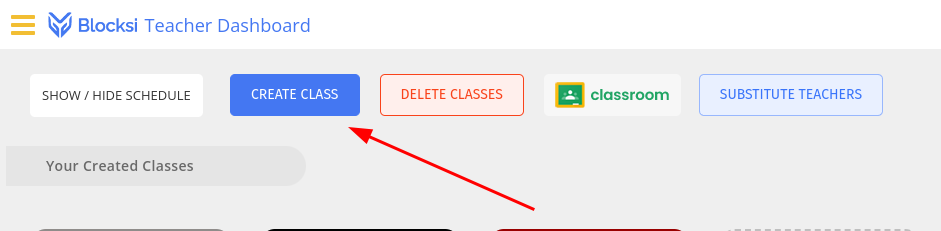
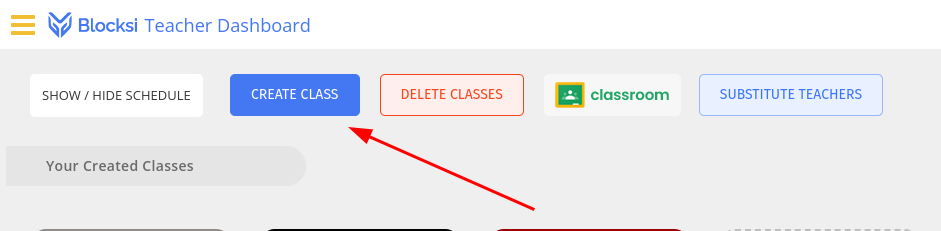
From the Teacher Dashboard, click the “CREATE CLASS” button.
-
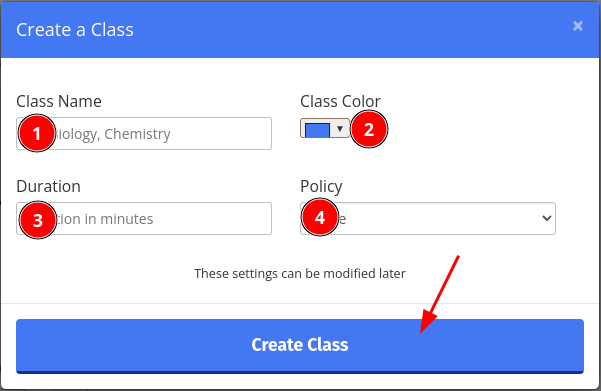
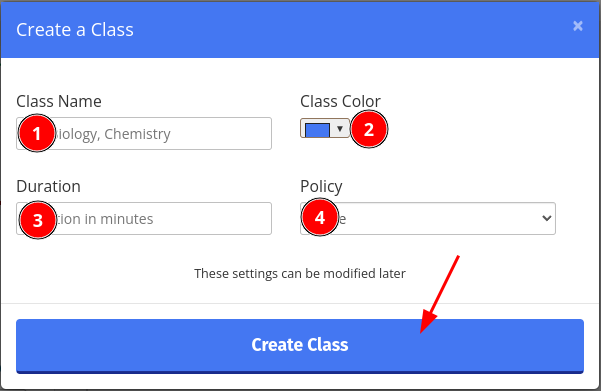
At this point, you should get a screen asking for several pieces of information
1: Name of the class: This can be pretty much whatever you want it to be.
2: Class Color: This allows you to set the color of the ribbon at the top of the tile.
3: Duration: This is where you should enter the number of minutes that your class session will last. You may set this to anything between 1 and 480.
4: Policy: This allows you to choose the filtering policy to start from.
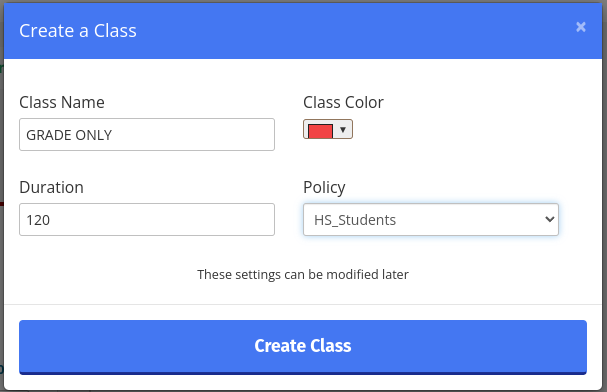
Once you are satisfied with your settings, click on Create Class.
-
That screen should automatically close, and after a couple of seconds, you should see a tile with the name of the class you just added.
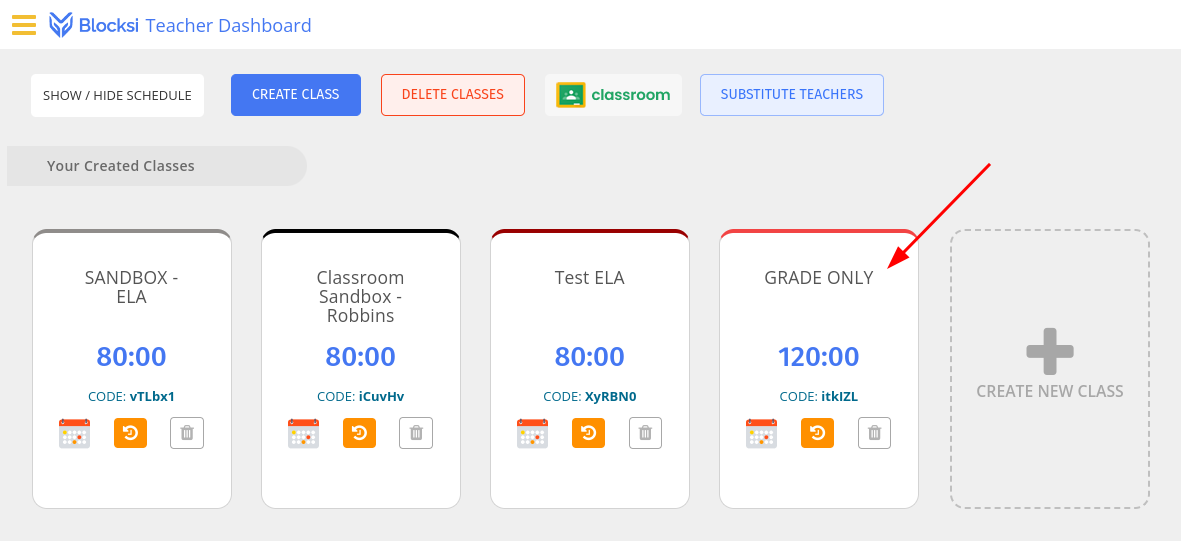
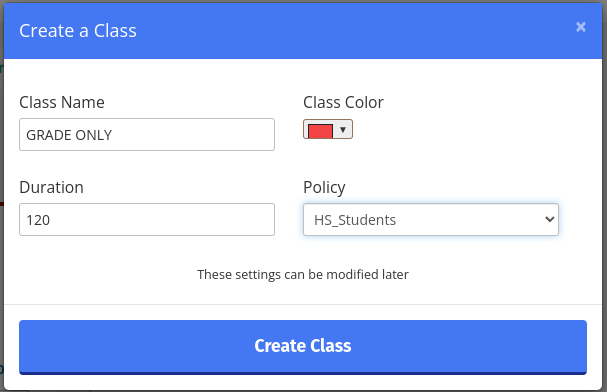
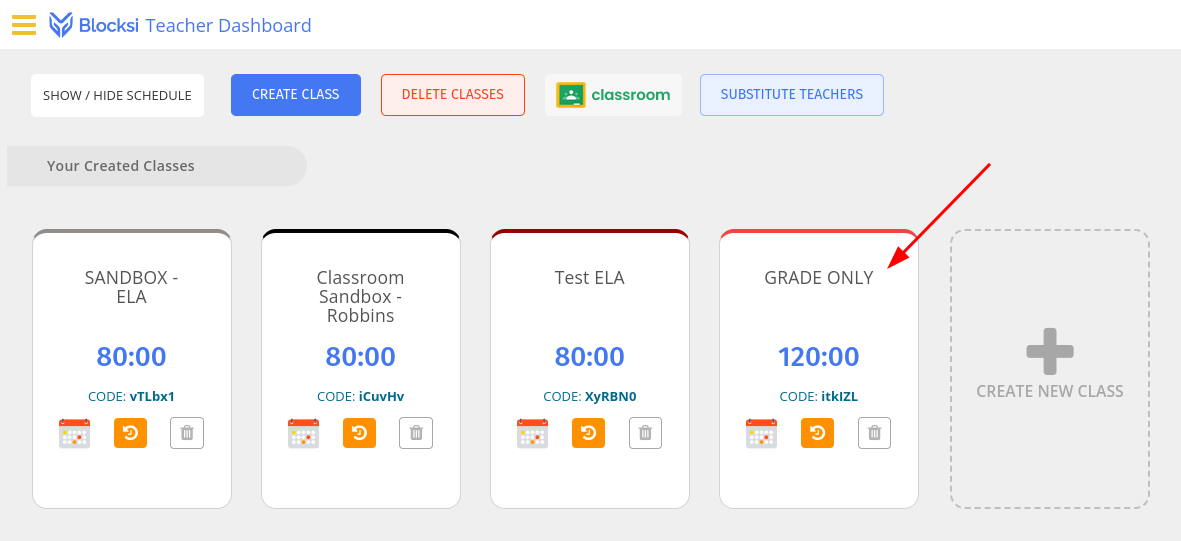
From this point, the class functions exactly the same as one of the classes you imported, except for the fact that you will have to add students manually. Keep reading to find out how!
Manually Rostering Students
Please note that while you CAN technically add students into a class rostered with Google Classroom, it might cause issues. We strongly advise you to handle that rostering within Google Classroom.
Click to see how to manually roster students
-
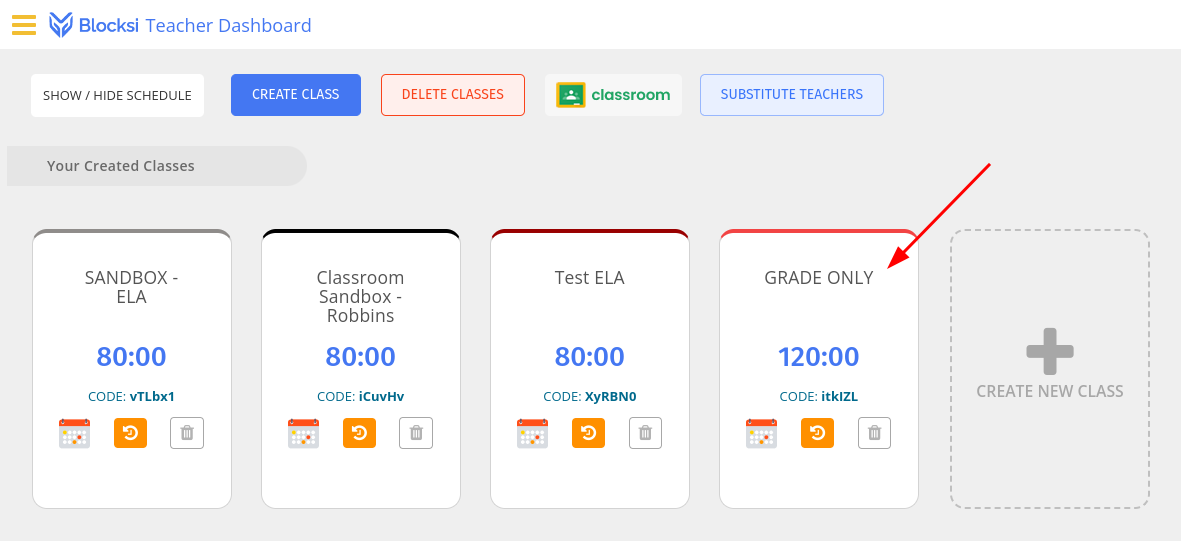
To begin, click on the class tile that you wish to roster.
-
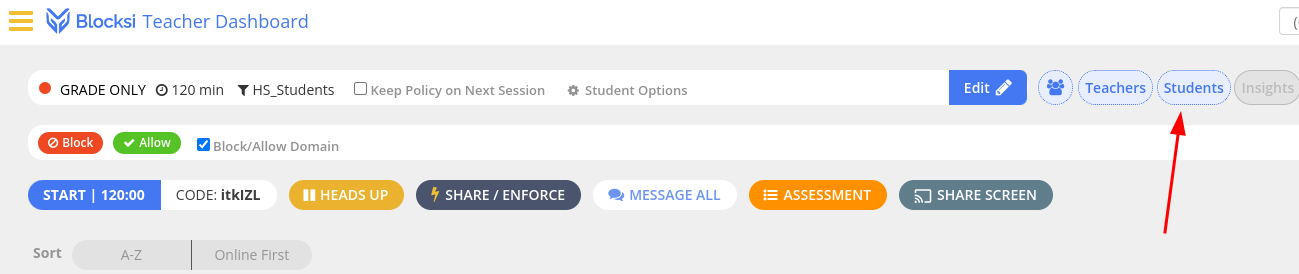
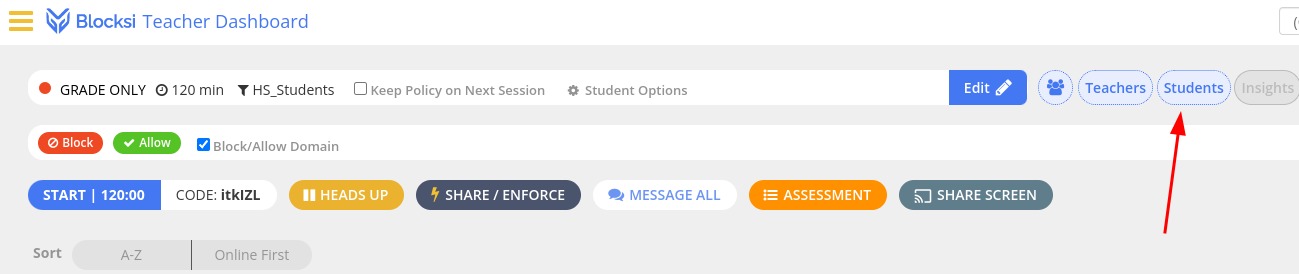
Click on the Students button.
-
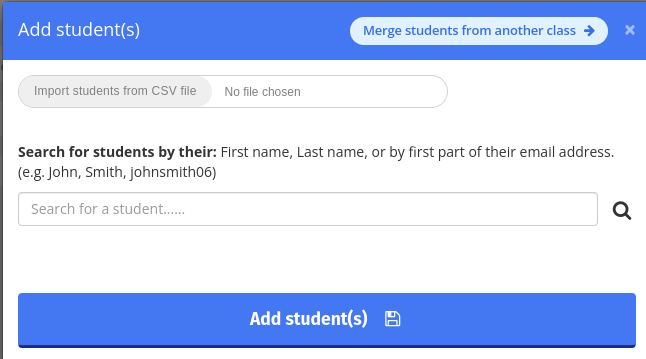
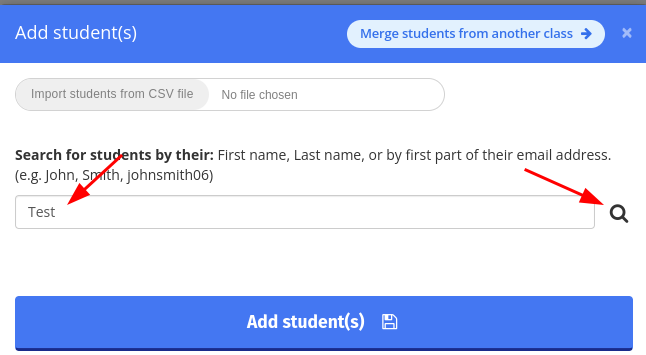
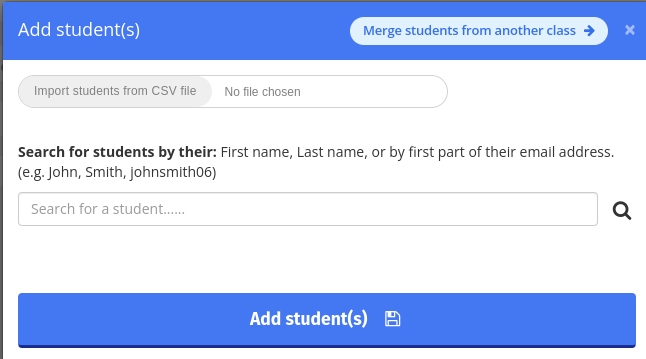
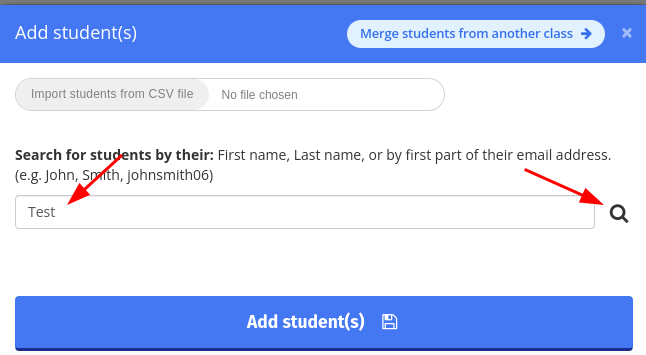
On the resulting screen, there is a search box for adding students. Put in part of the students name or email, then click on the magnifying glass
-
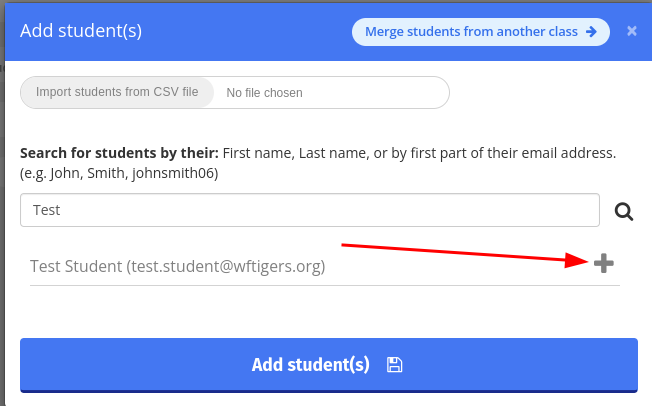
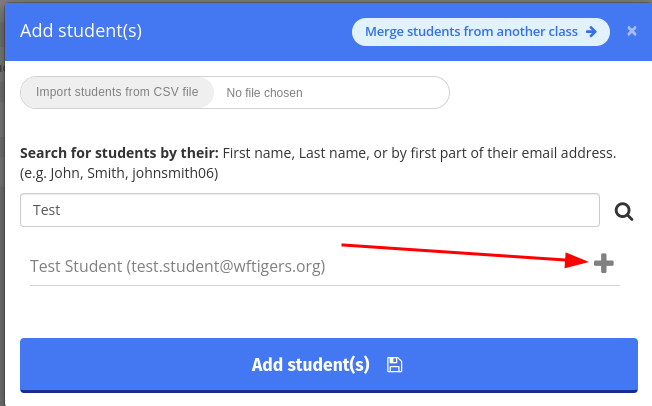
Click on the plus sign to the right of the student you wish to add.
-
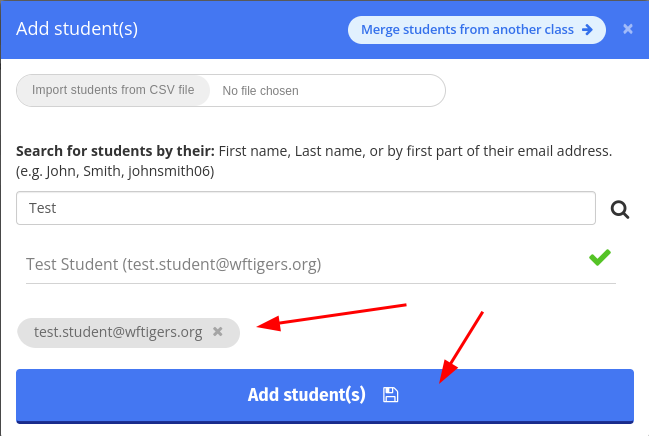
You will then get a green checkmark to the right of the student name, the student email will show in a bubble above the “Add Student(s)” button, and you will be ready to either add more students using the same process, or finalize your roster by clicking on “Add student(s).”
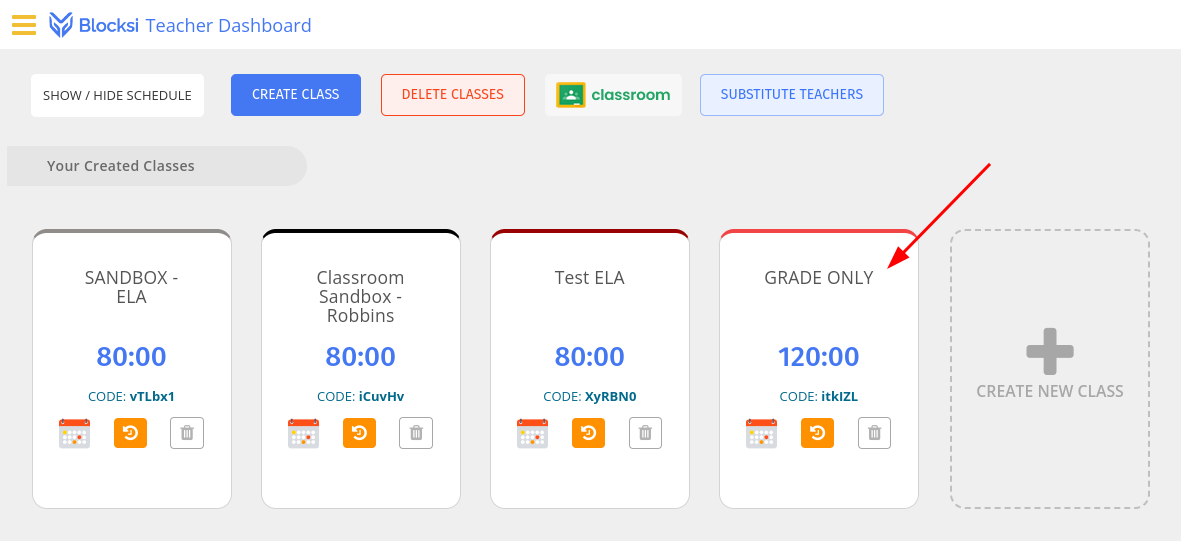
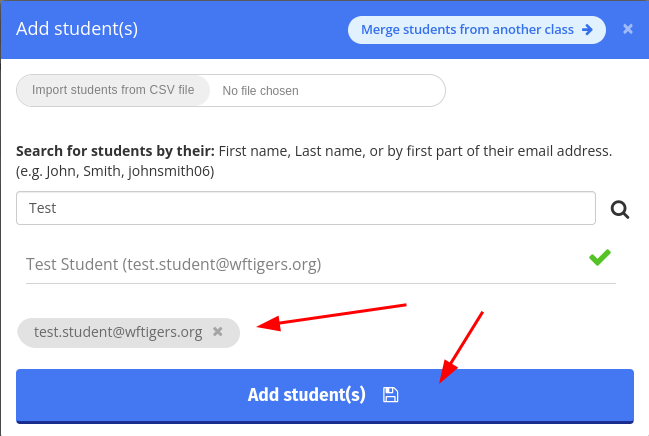
At this point, you should see a tile for the student(s) that you added, and this class will function the same as an automatically rostered class.

Bonus Tip: Manually Rostering Teachers
If you co-teach, you can add another teacher to your Blocksi Classes.
See how to add teachers.
-
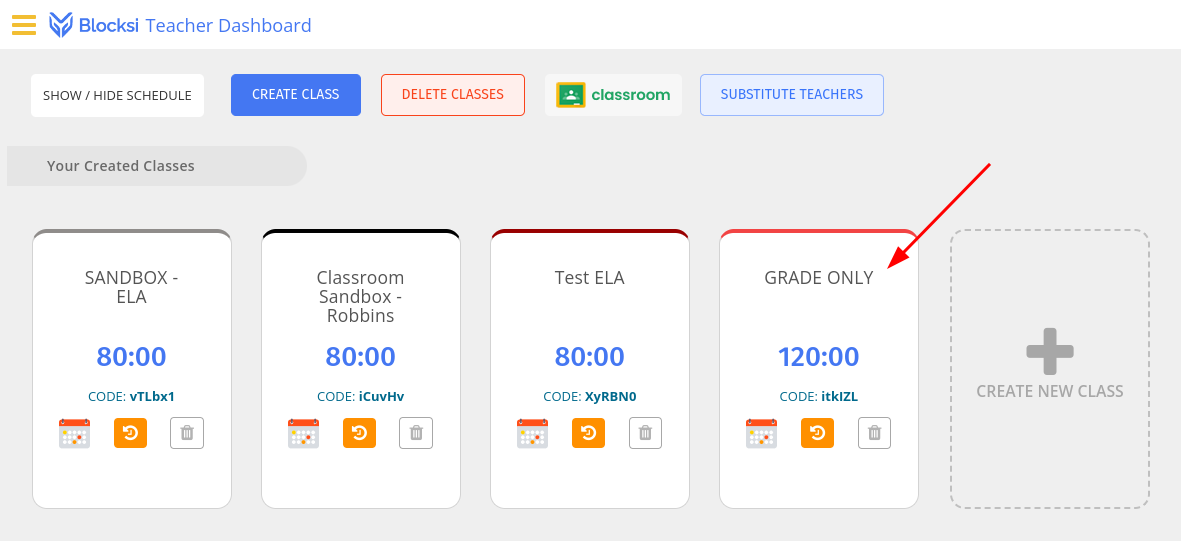
To begin, click on the class tile that you wish to roster.
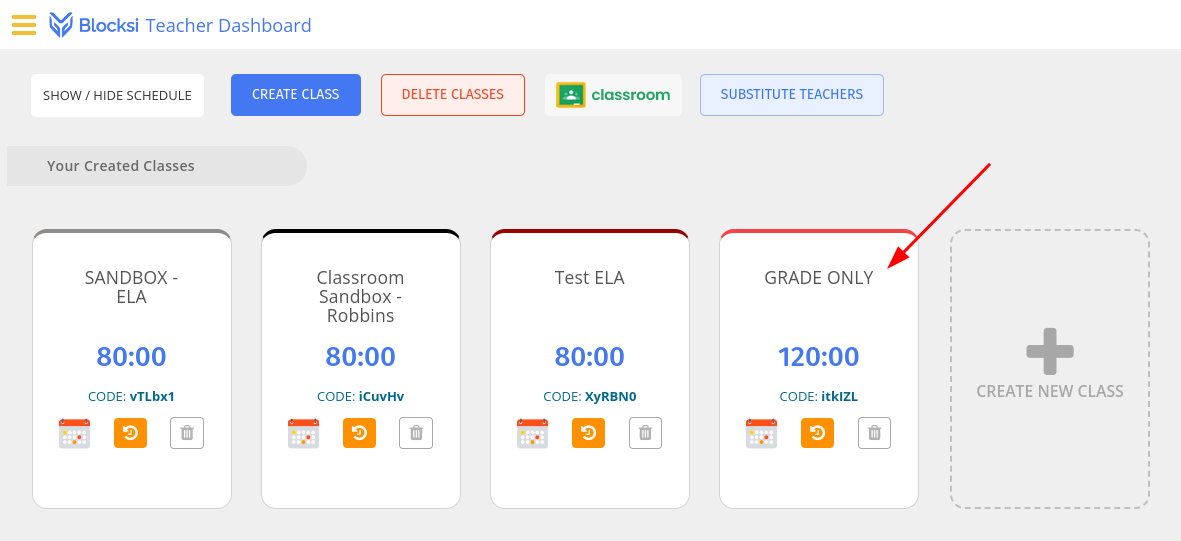
-
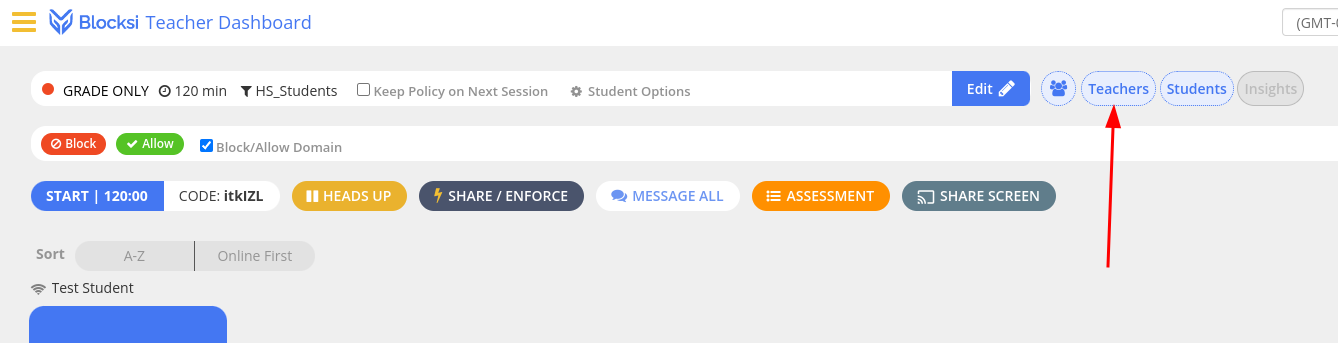
Click on the “Teachers” button.
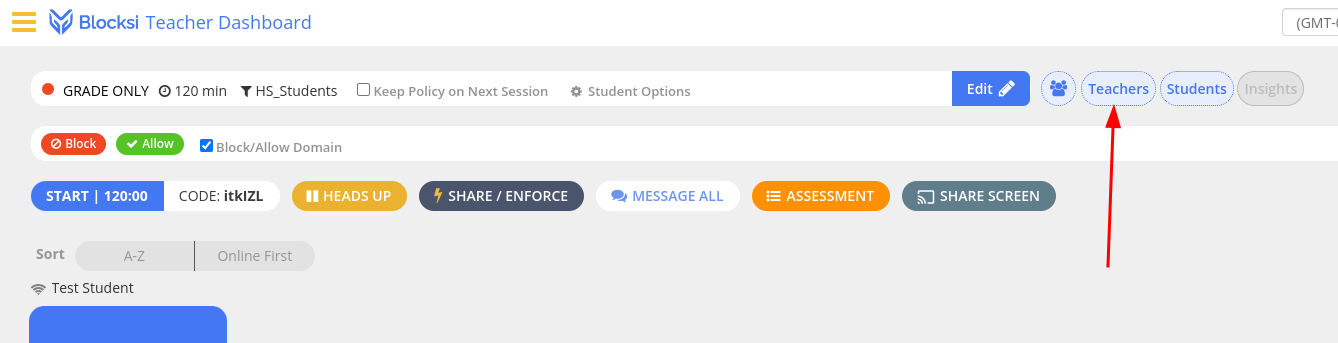
-
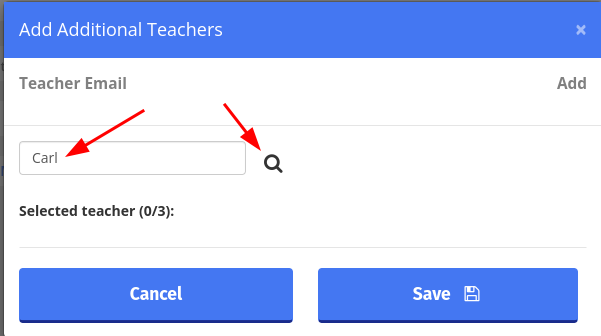
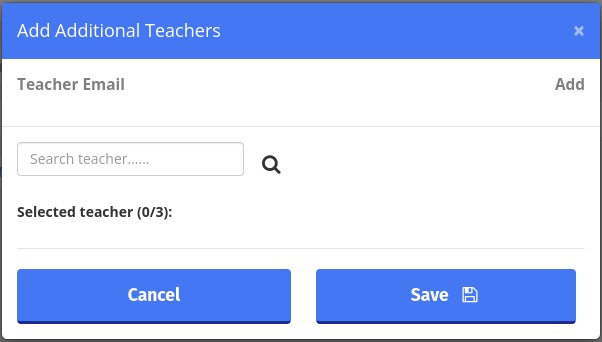
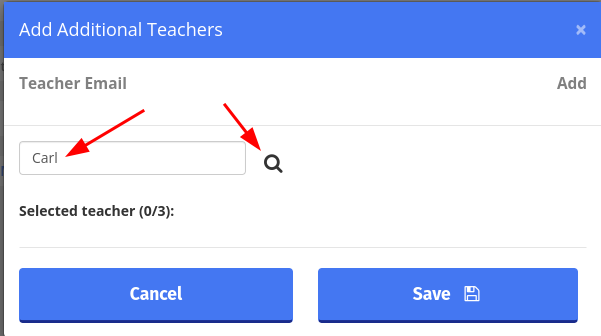
Search for part of the teacher’s name or email, then click the magnifying glass.
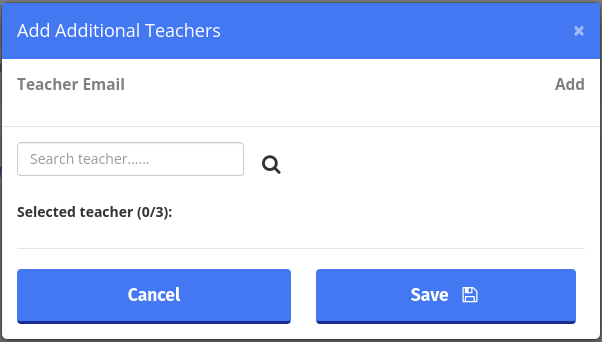
-
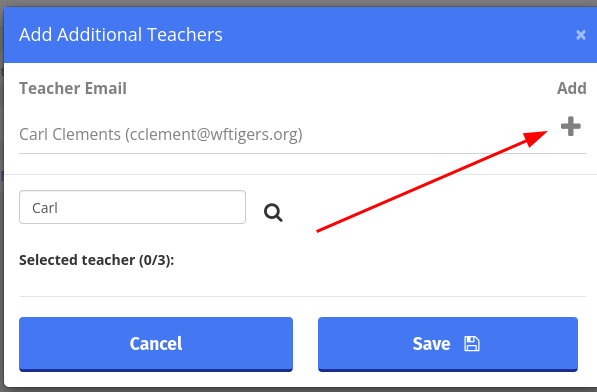
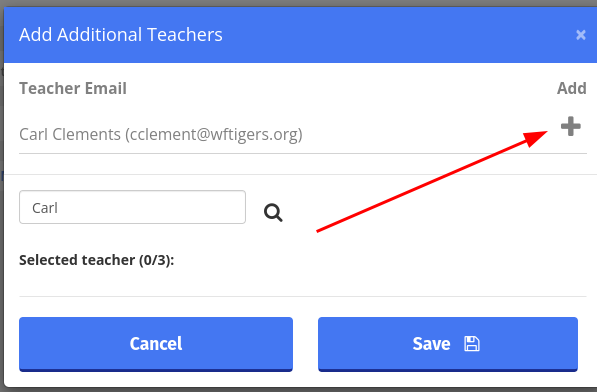
That will add your search results to the top of the page. Click on the Plus sign to the right of the teacher you wish to add.
-
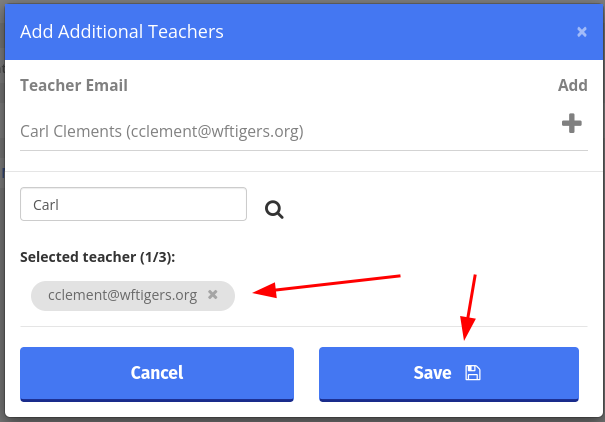
Once a bubble with the teacher’s email shows up, you may choose to add another teacher, or to finish rostering your teachers by clicking the “Save” button.
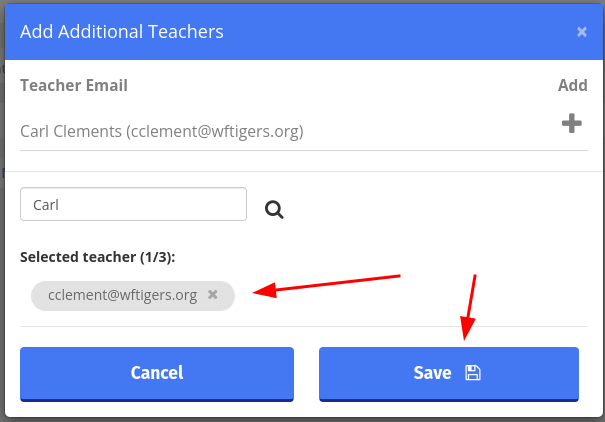
At this point, the teacher you added will also be able to view and manage your class.
Scheduling Classes
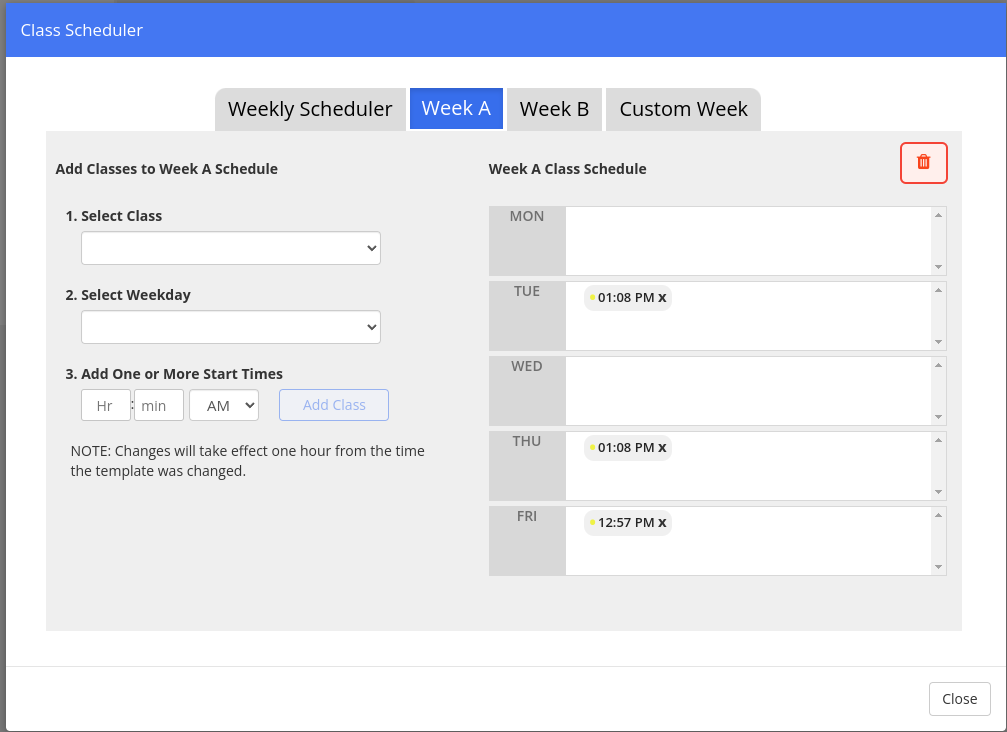
The point of scheduling your classes is to allow them to automatically start on each day the session should be active. This helps avoid holdover of students that go to new teachers, and it removes a stop for you. In this example, I’m going to use the 4B Minions class. These students meet on Tuesdays and Thursdays from 1:08 - 2:21 and Fridays from 12:57 - 1:37.
Click for instructions on scheduling classes
Start from your Blocksi Teacher Dashboard.
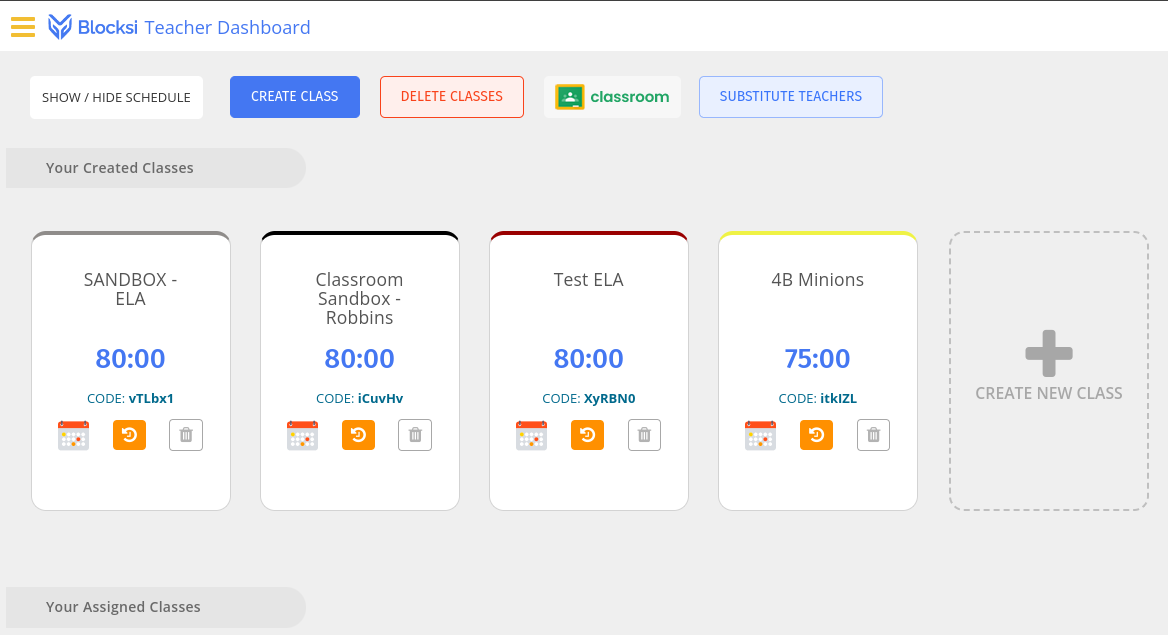
-
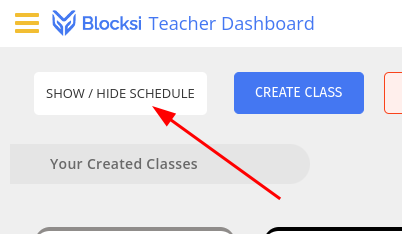
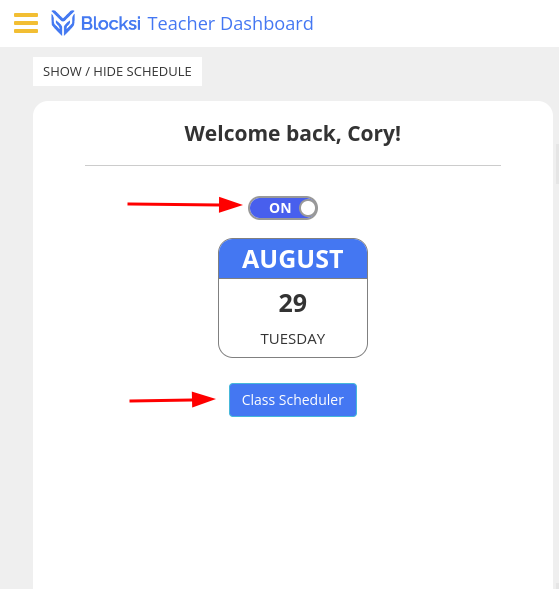
Click on the “SHOW / HIDE SCHEDULE” button.
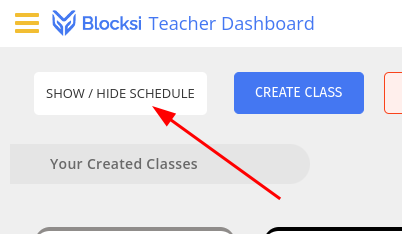
-
This opens the schedule flyout. I’ll make sure that the toggle switch is set to “ON” and then I’ll click “Class Scheduler.”
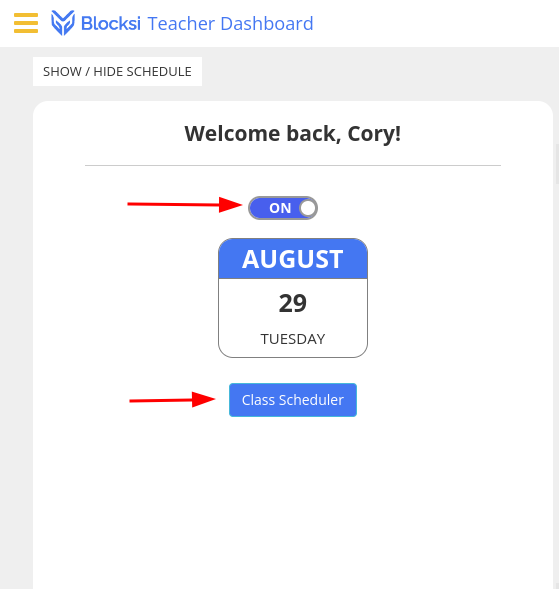
-
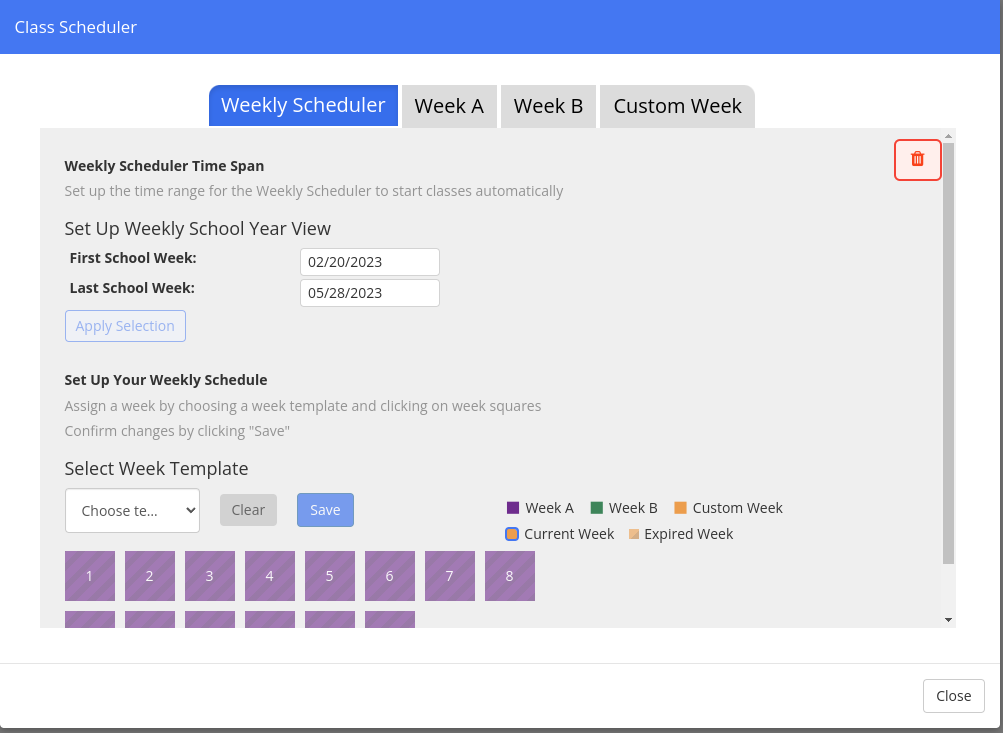
This will open a slightly intimidating screen. Have no fear. It really isn’t that bad!
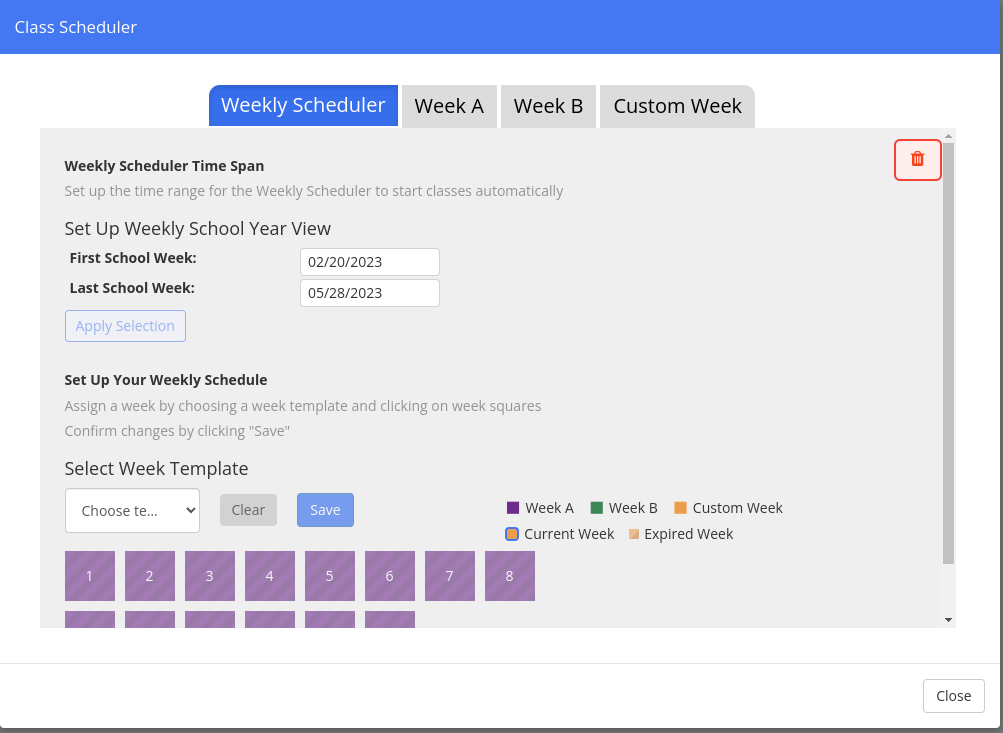
-
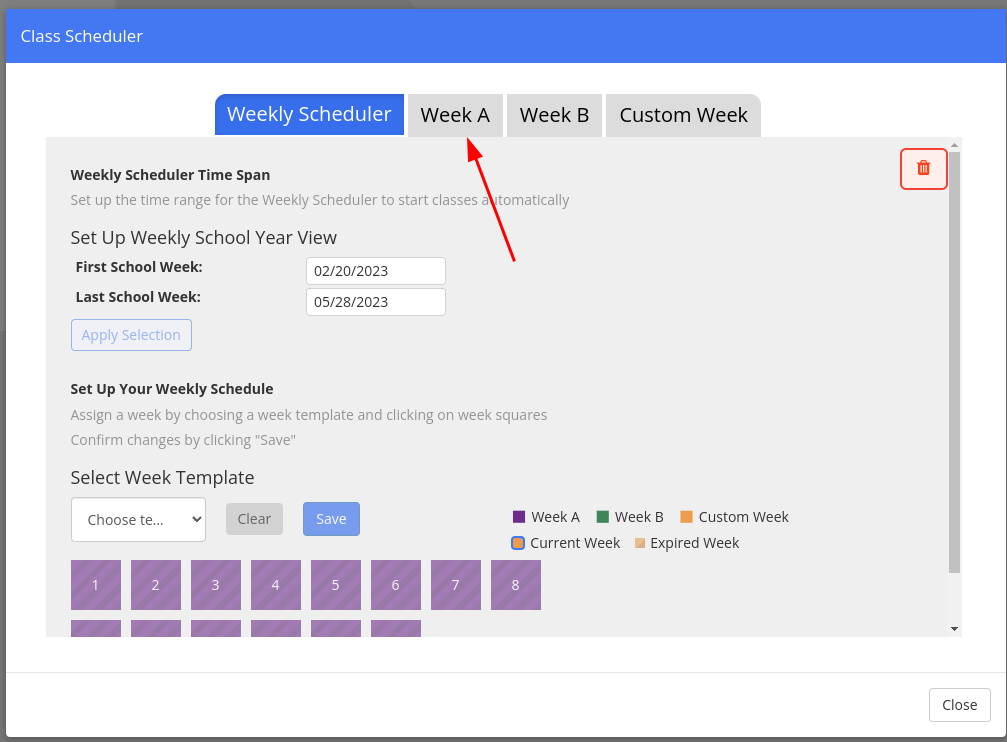
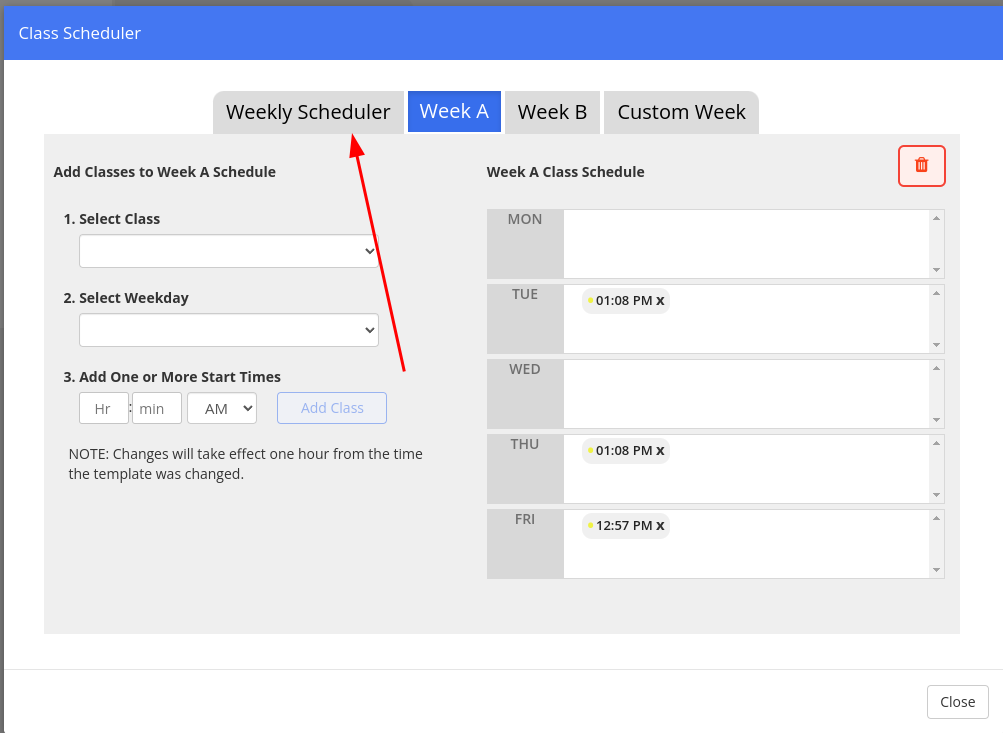
I’m going to start by clicking on the “Week A” tab.
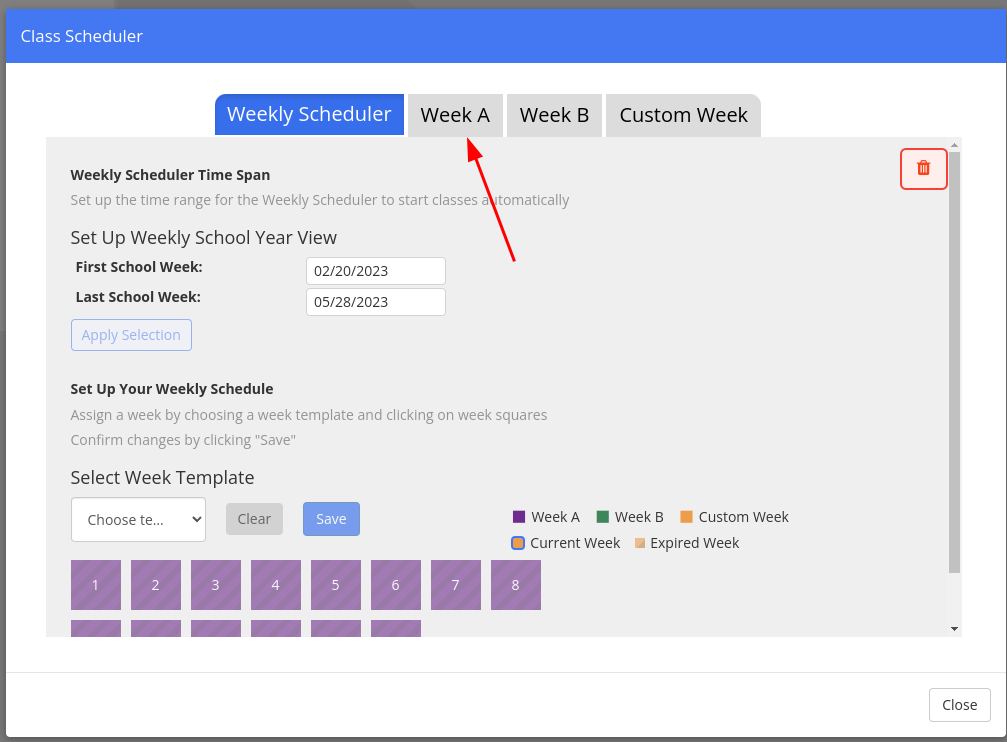
-
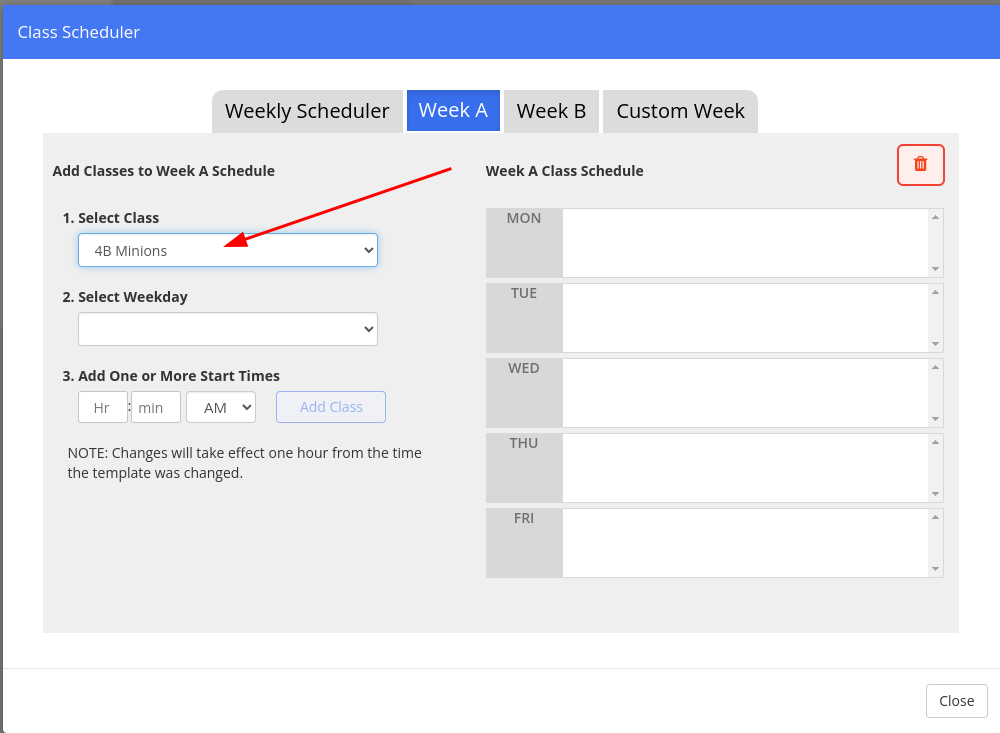
Select the class you wish to schedule (you must do this one at a time).
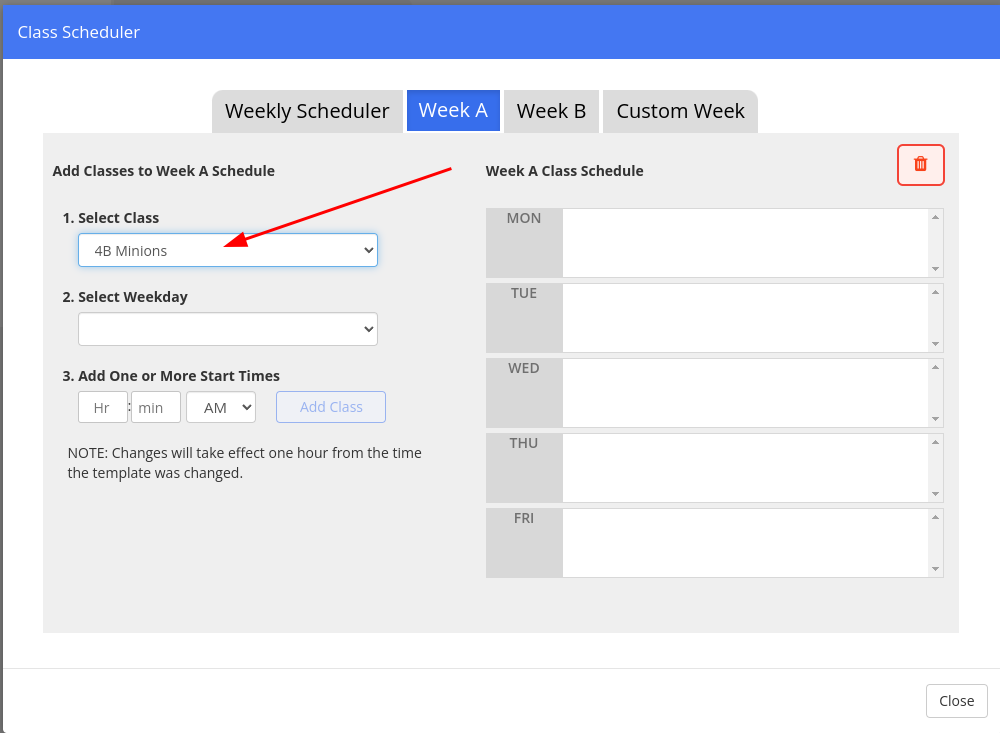
-
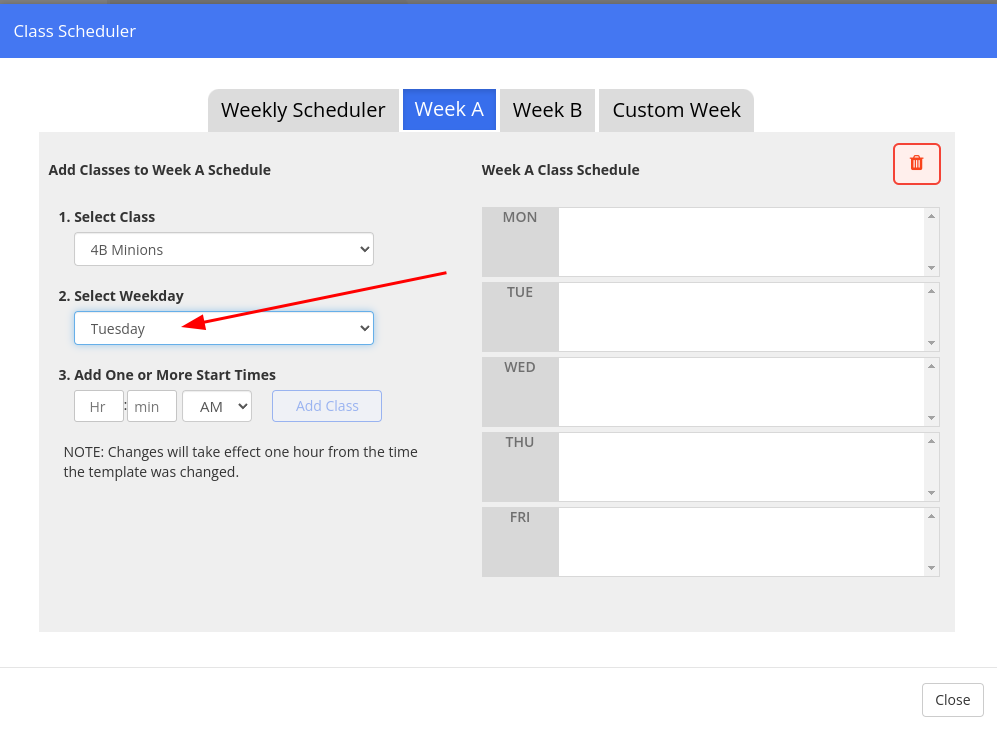
Select the first day that the class meets. I chose Tuesday for this example.
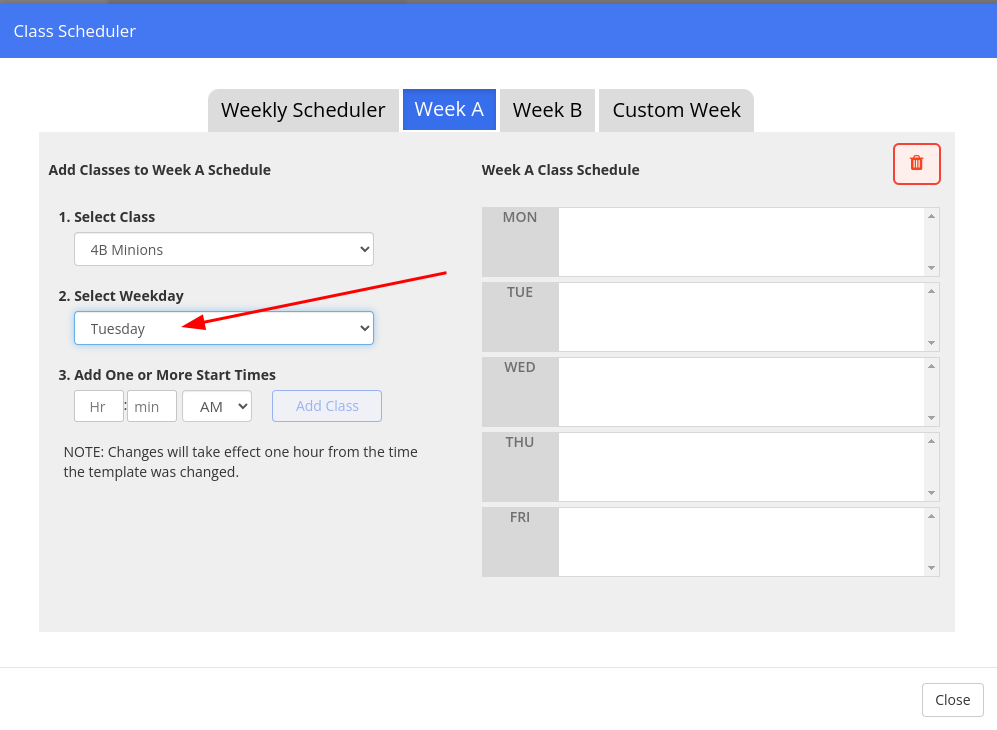
-
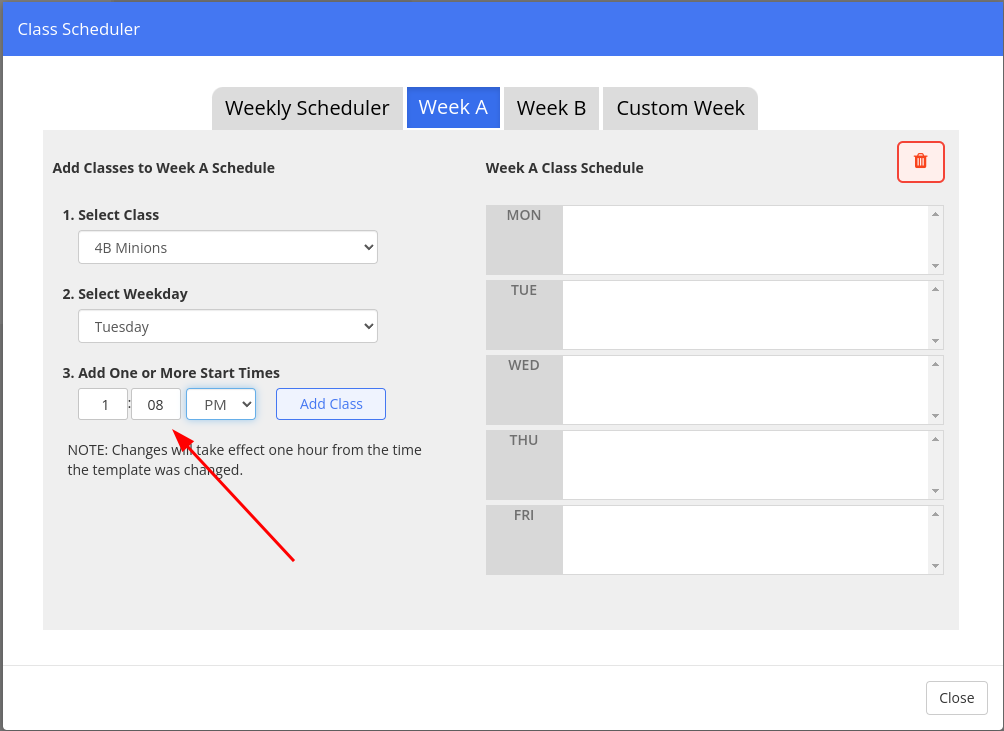
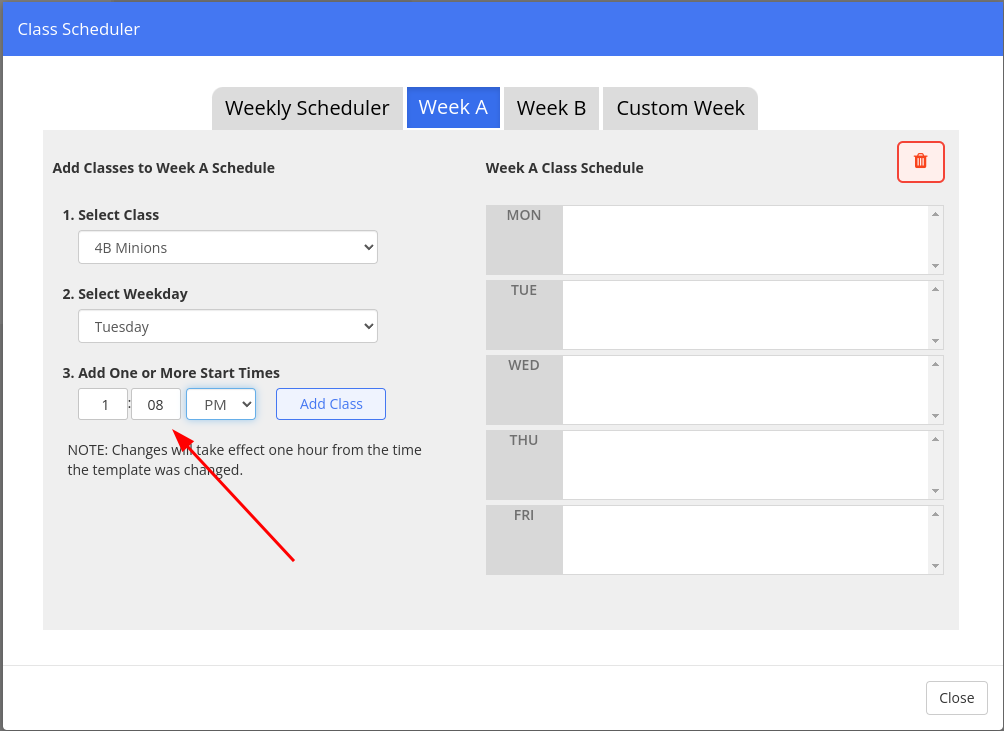
Set the start time of the class.
-
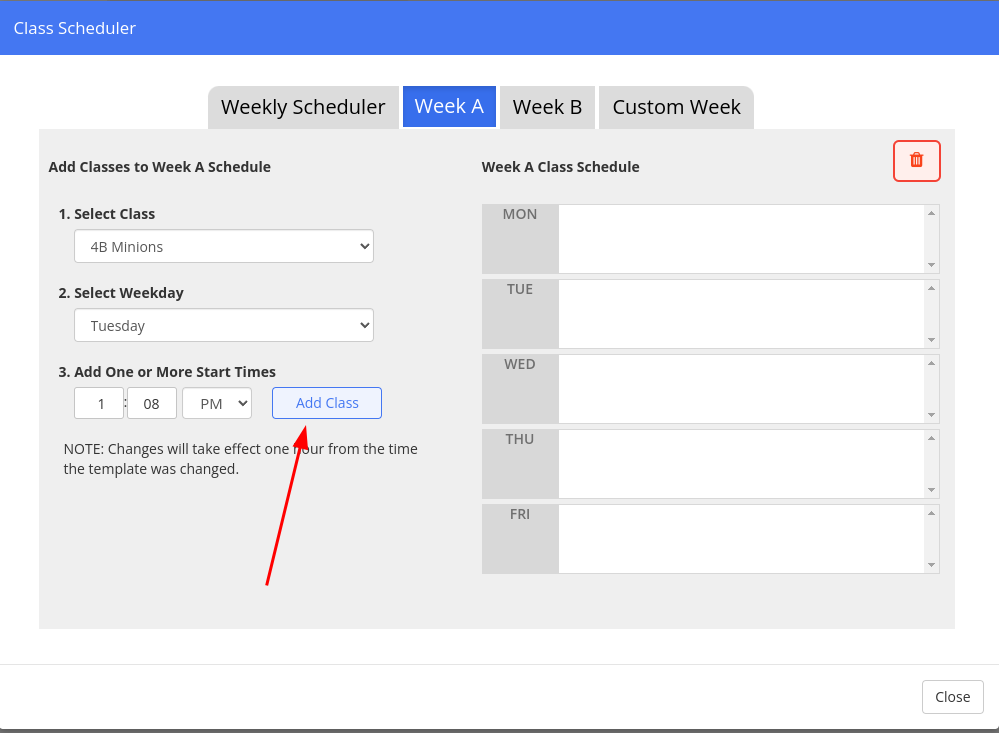
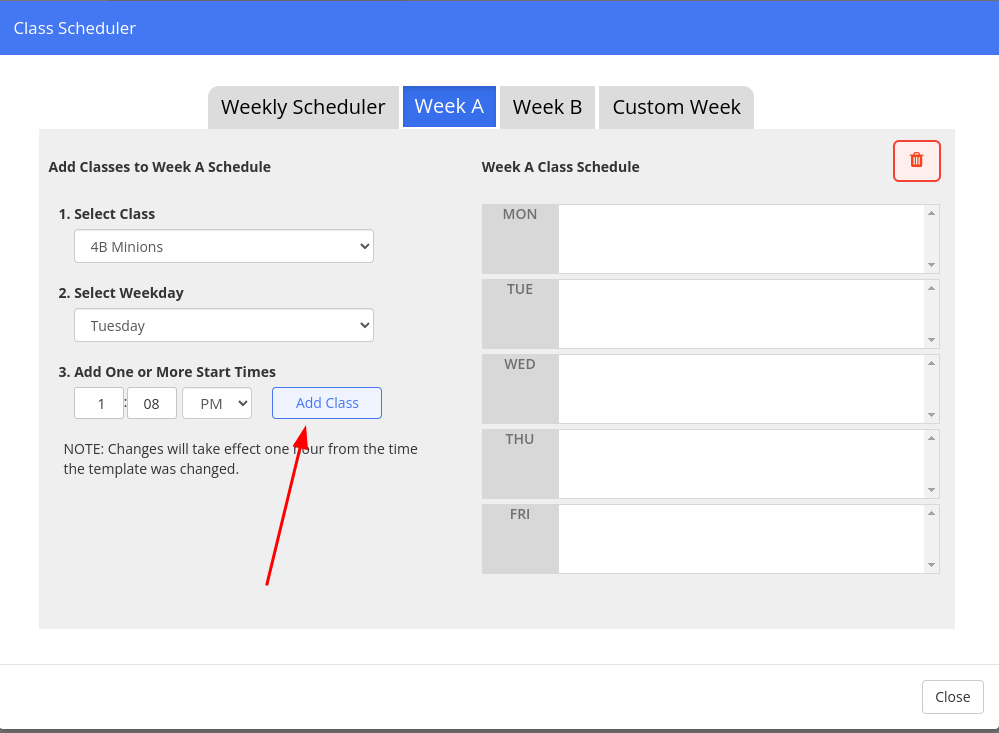
Press the “Add Class” button.
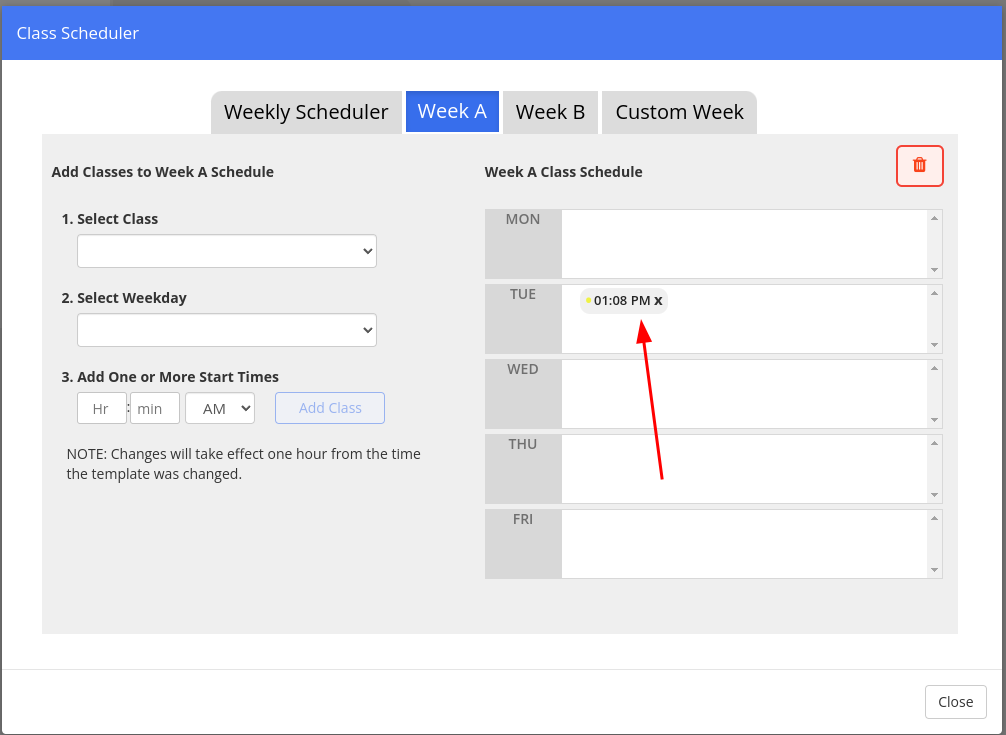
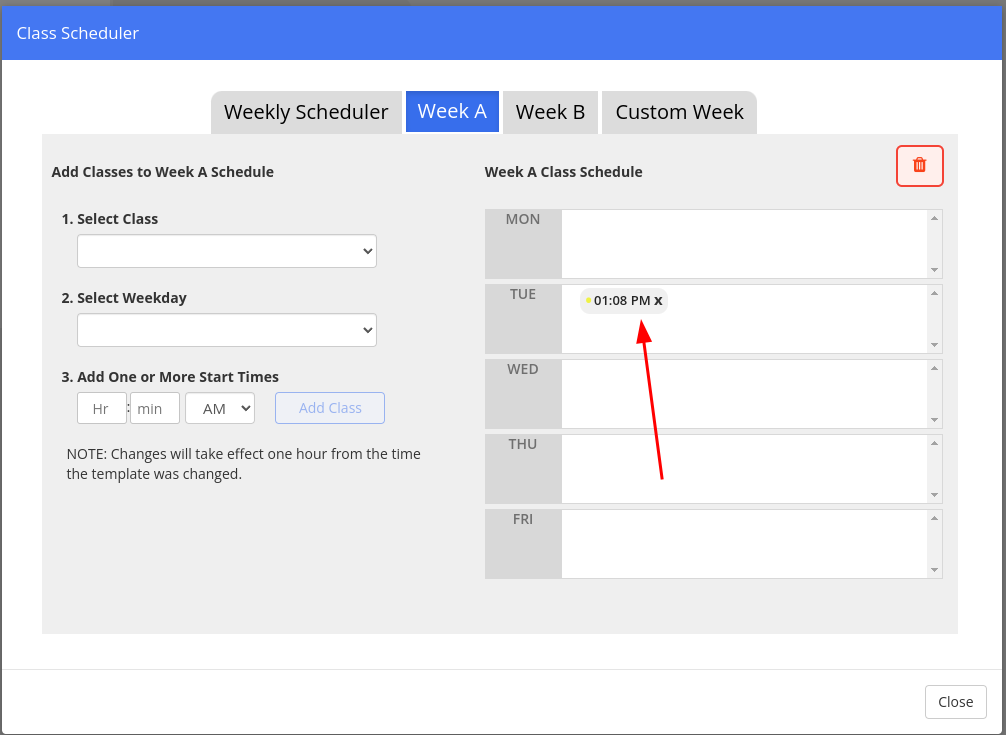
You should now see a bubble with that time and the class color listed in the date boxes on the right.
-
Repeat this process for each day that the class meets.
-
Repeat this process for each class.
-
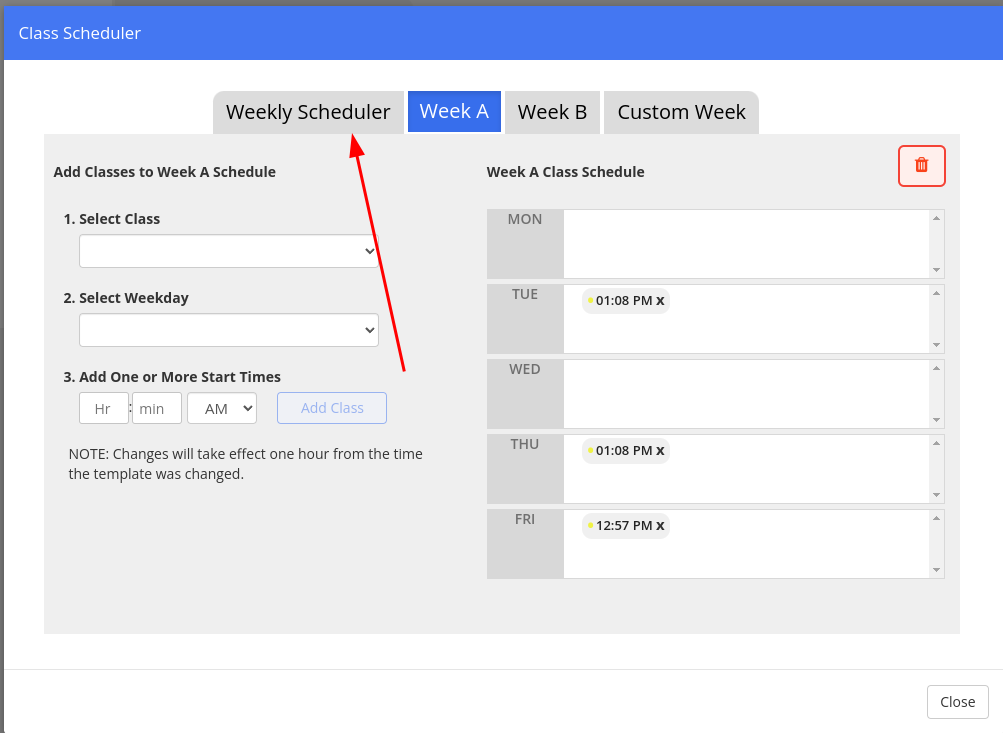
Click on the “Weekly Scheduler” tab again.
-
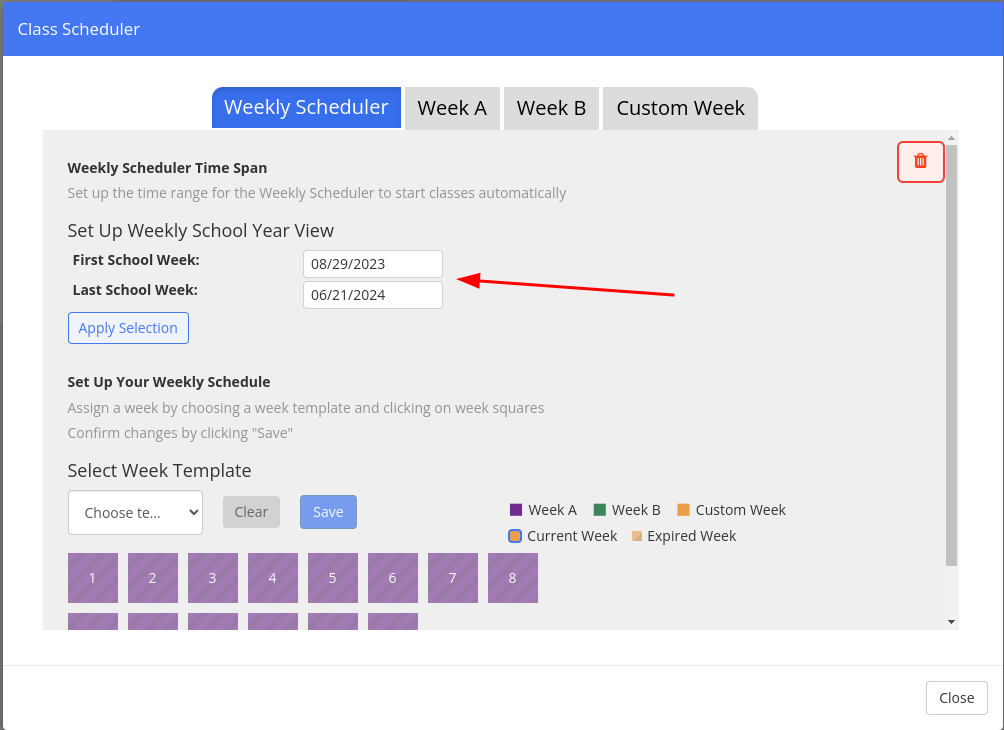
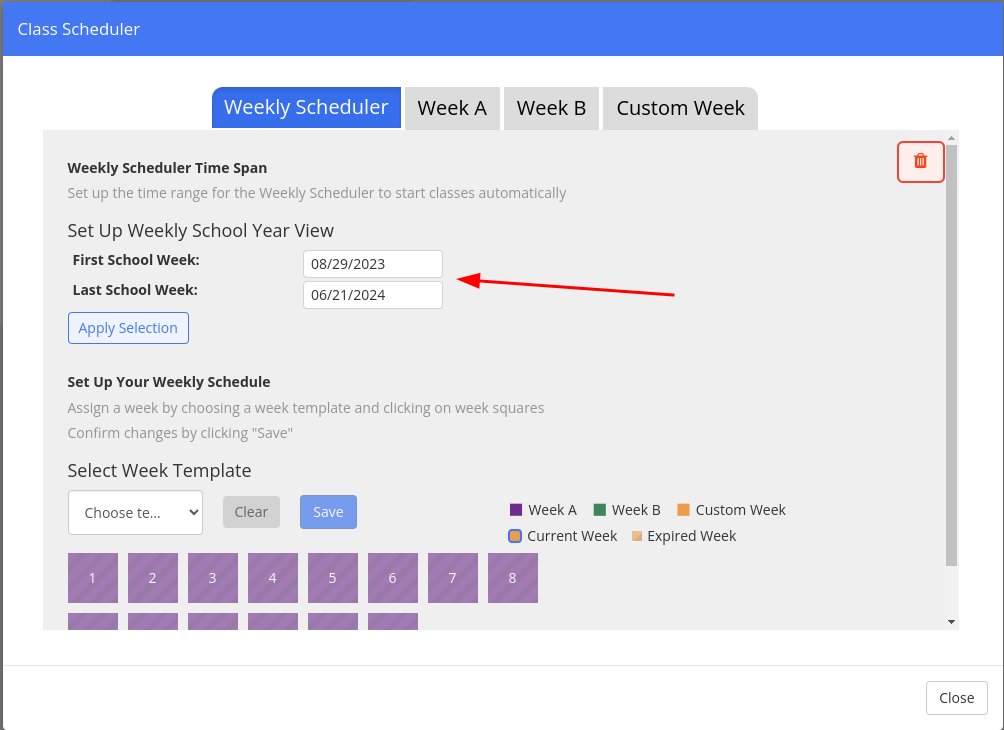
Set the First school week and the last school week. You can’t pick before today, and I picked a day past the last scheduled day to account for any extra days.
-
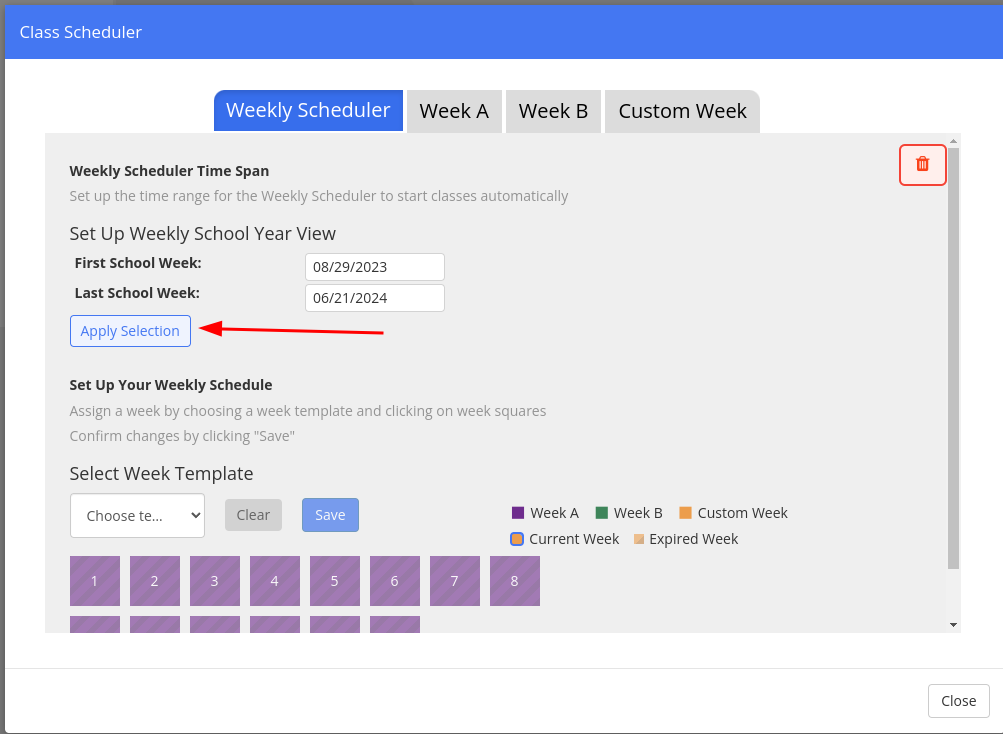
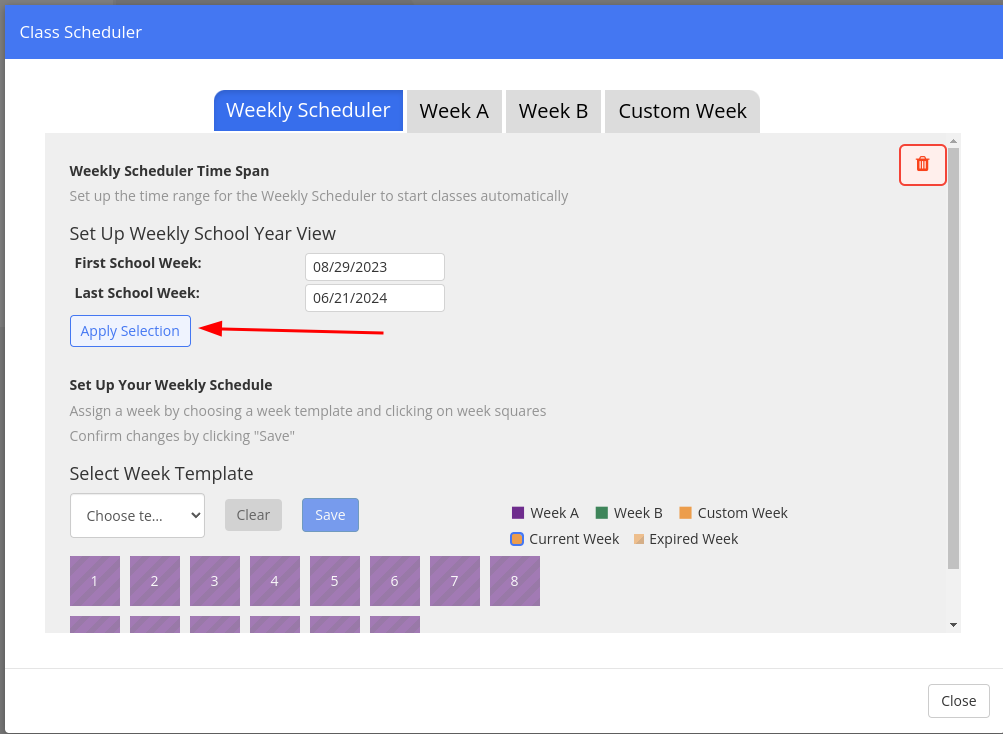
Click on “Apply Selection.”
-
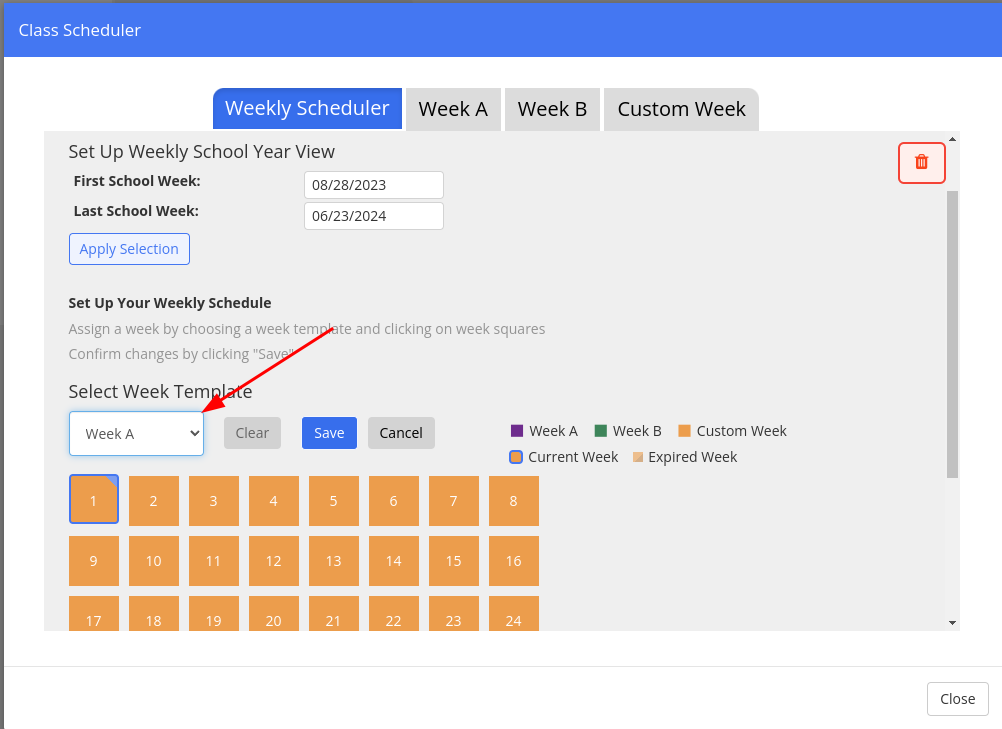
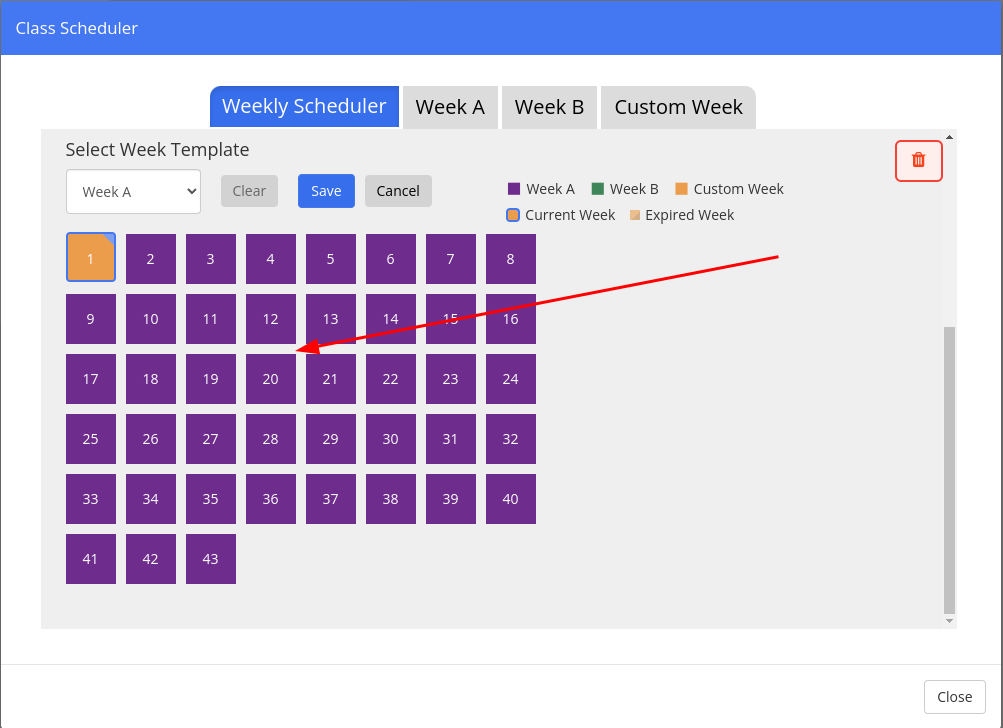
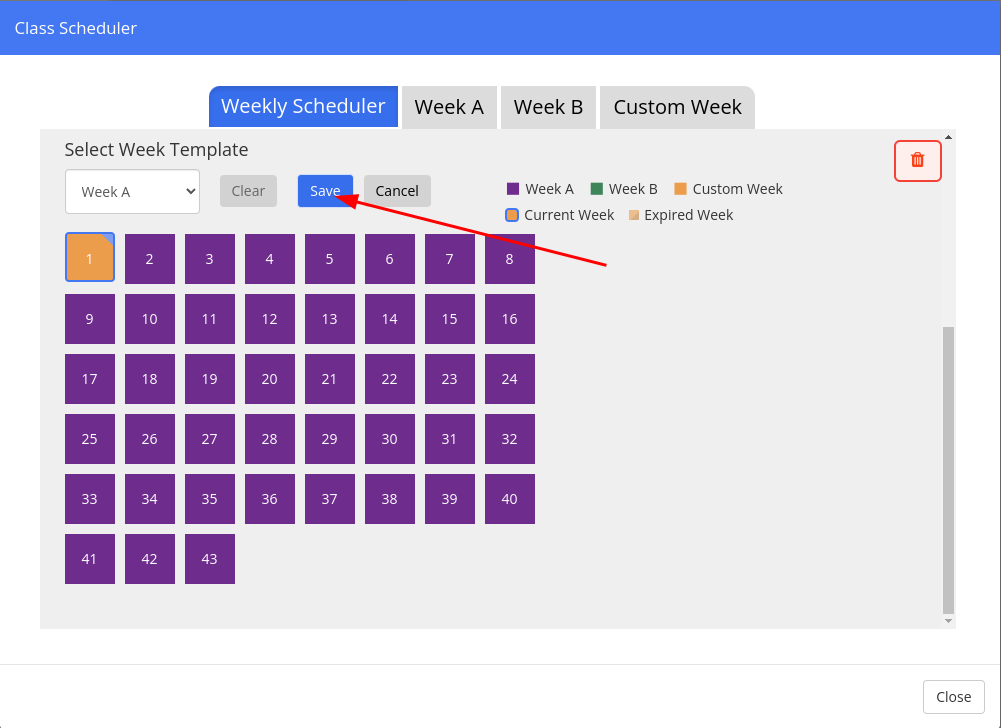
Select “Week A” in the week template box.
-
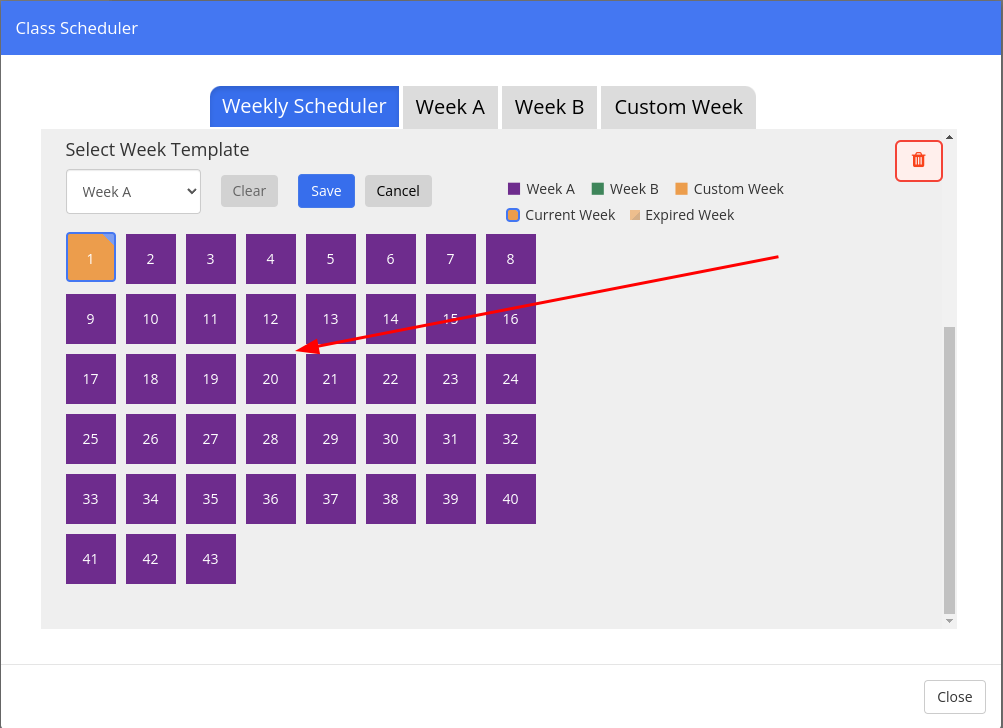
Click on the number of each week in the school year. I have 43 of them. They should all turn to a uniform color. You MAY NOT click on week 1.
-
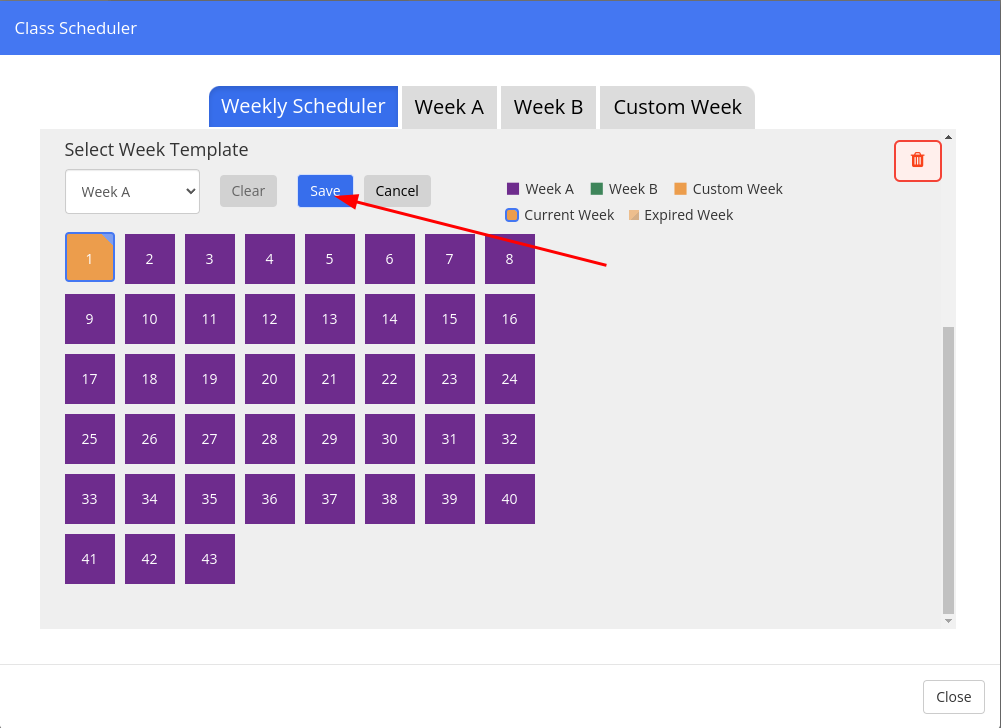
Click on the “Save” button.
-
Click on the “Close” button.
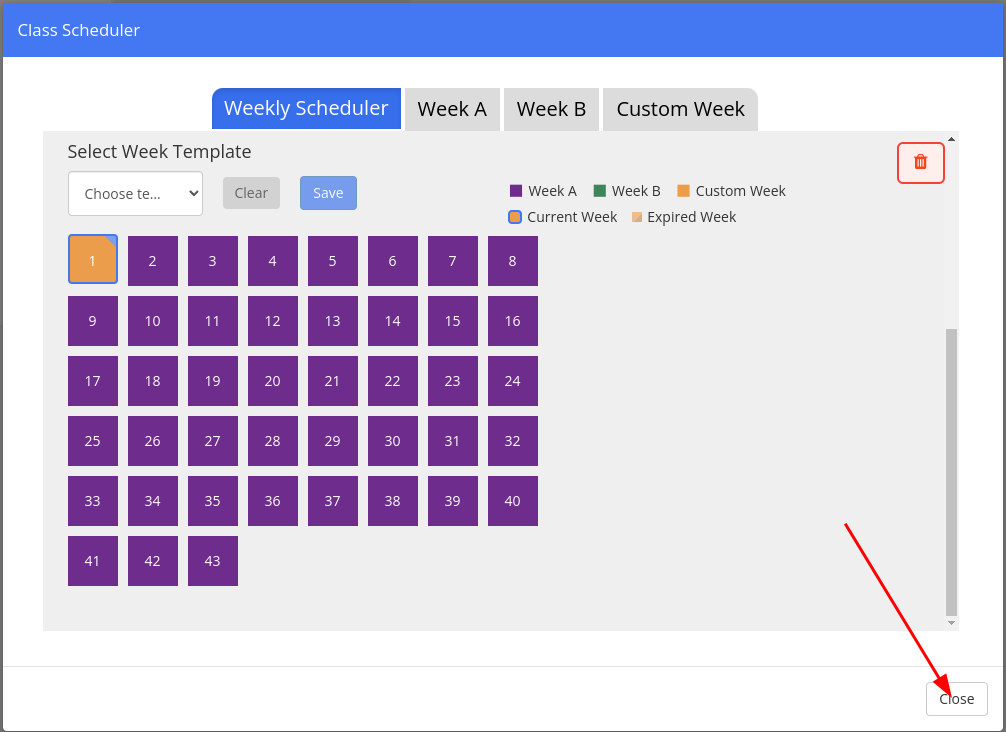


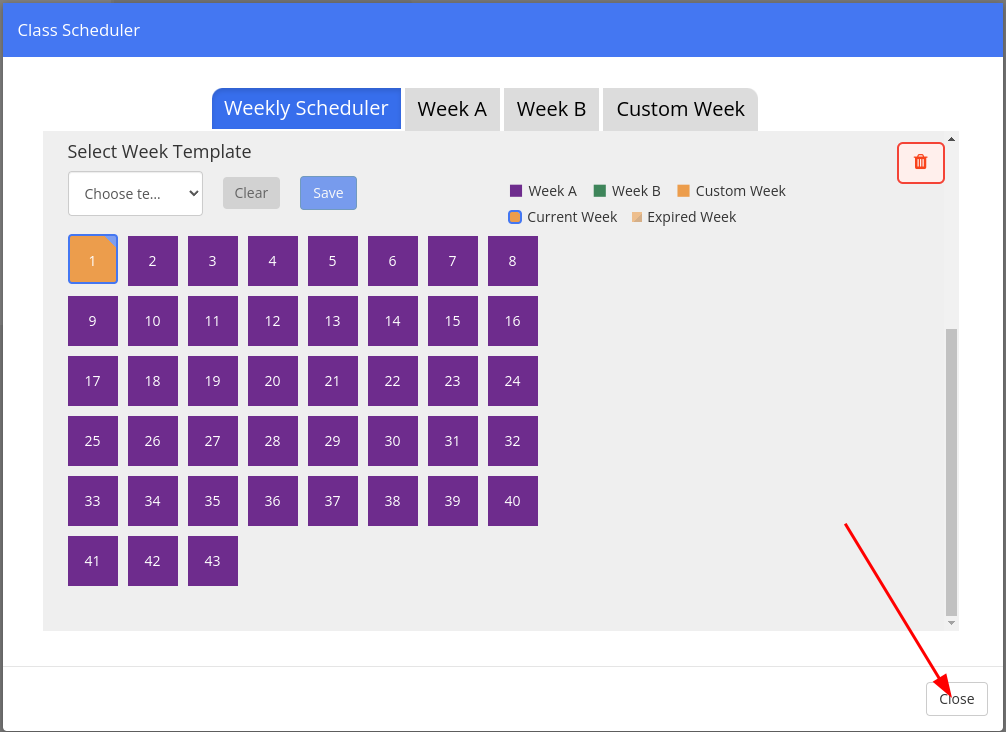
At this point, your classes should automatically start, and, if you have the minutes correct, they should automatically stop at the appropriate times.
Please Note: for “Fast Friday” sessions, you will still need to stop your classes. There isn’t a way I am currently aware of to change the minutes on a per-day basis.
Originally posted by Cory Robbins on the West Fork Technology Hub (2023-08-29).