
Airtame Troubleshooting
Importing…Computer will not connect to Airtame
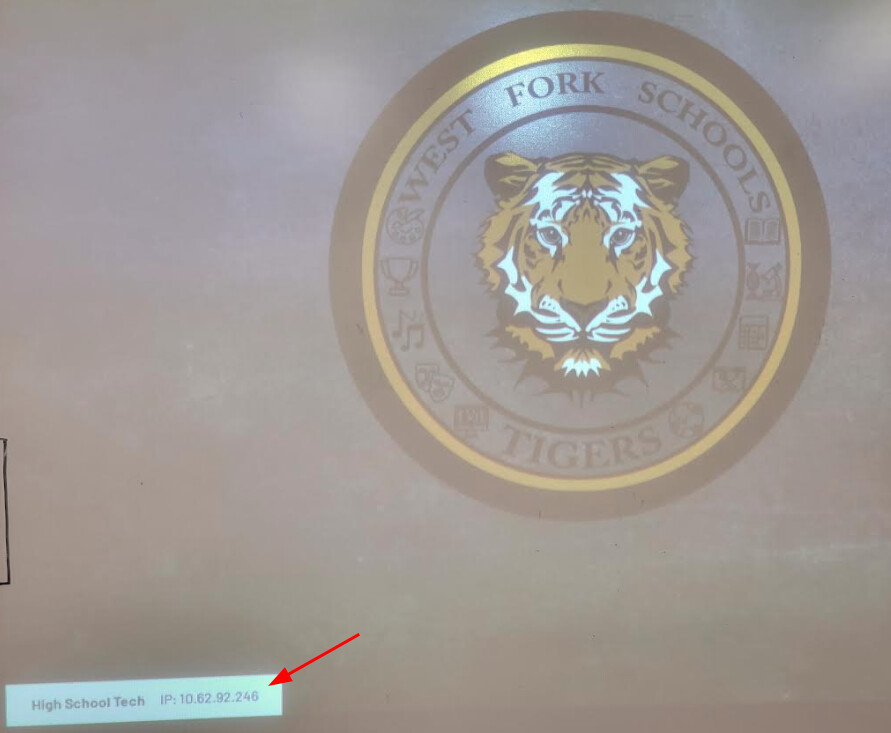
This occasionally happens when the airtame has been saved as a favorite and the IP address of the airtame has changed. If your computer will not connect to a saved favorite, try manually typing in the IP address shown at the bottom left of the projector screen. It will look something like this: 10.62.92.246.
Airtame screen is not displaying on the projector
There are a couple of common possibilities.
Solution One: Make sure the projector input is set to HDMI.
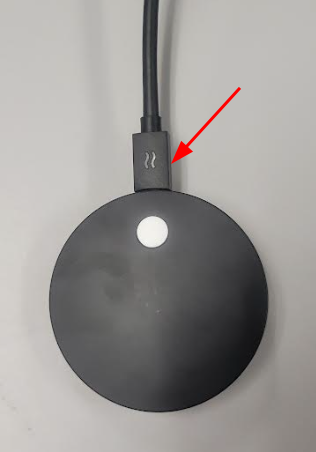
Solution Two: If you can safely reach the airtame device; unplug the power cable, plug it back in, and allow the airtame to reboot.
Airtame/Computer is feeding back or picking up sound from the microphone
This is caused by a setting on the computer.
Be sure the Airtame app is open.
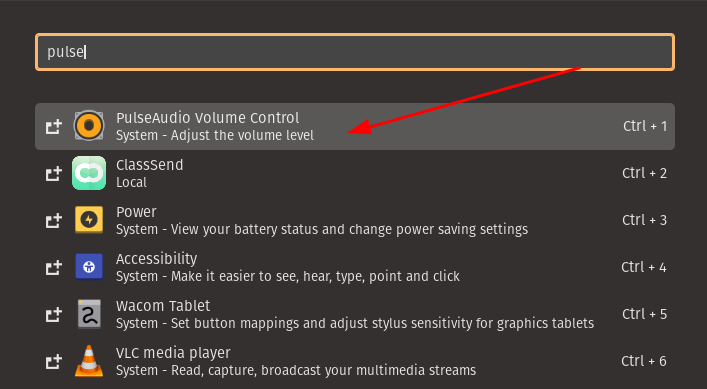
Click on the launcher and type in Pulse.
Click on PulseAudio Volume Control
Click on the Recording Tab
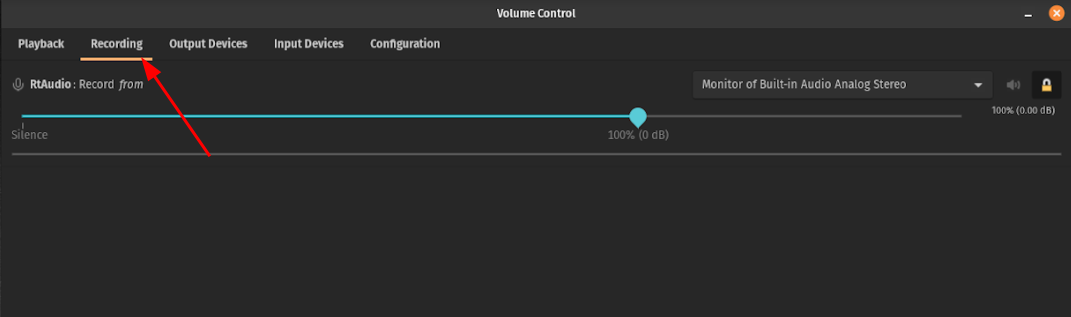
In the upper right corner, make sure “Monitor of Built-in Audio Analog Stereo” is selected.
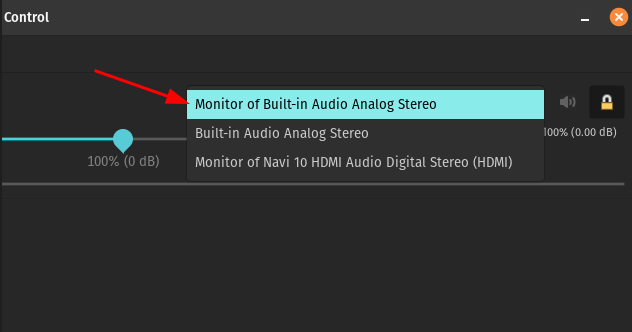
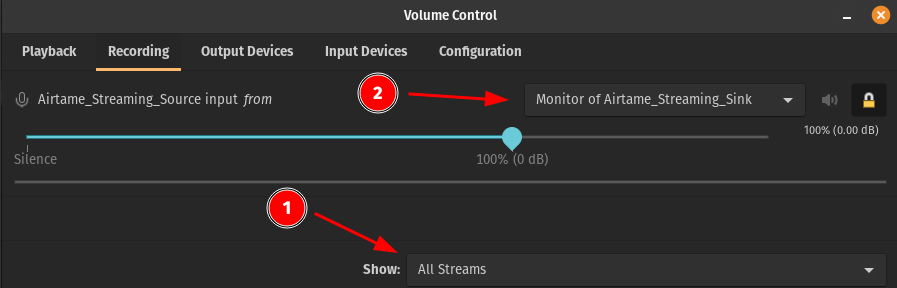
*If you are using a newer version of the Airtame app:
Choose Show: All Streams
Choose Monitor of Airtame_Streaming_Sink
Originally posted by Carl Clements on the West Fork Technology Hub (2022-12-20).