
Saving Your Printer Authentication For Local Printers
The new local print deploy system allows you to use printers outside of Chrome.
The negative, I guess, about this is that you are required to put your password into the print system before your items print. This isn’t a huge deal because you can save it. Here are the steps to take care of that:
First, go ahead and print something to the Print_Release printer. It doesn’t have to be anything special, and you don’t actually have to release it. We just need a job sent.
Now, click in the top right corner to open your menu(the battery icon is convenient to click).
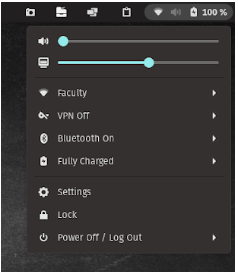
Click on “Settings.”
Click “Printers” on the left to get this window:
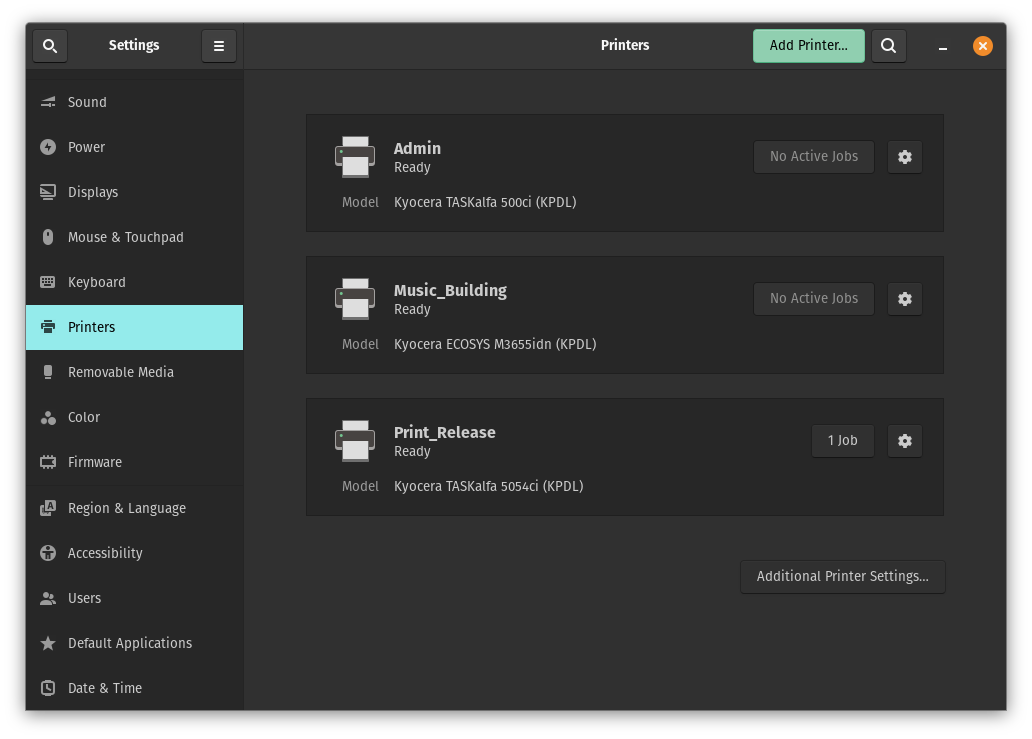
In the bottom right corner, click the button that says “Additional Printer Settings…”
That will give you this window:
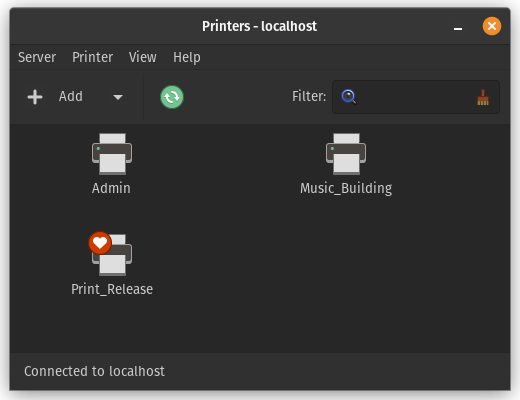
Right click on the “Print_Release” printer, and click on “View Print Queue.”
There should be a print job with the status “Held for authentication.”
Right click that, and choose “Authenticate.”
That should give you this window:
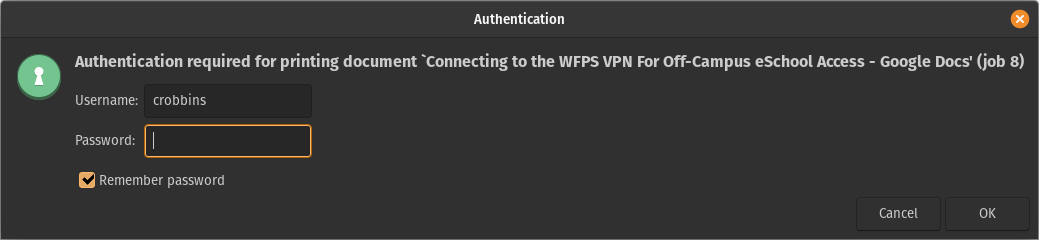
In the username box, type the first part of your email address (the part before @wftigers.org). Type your Google password in the password box. I also strongly suggest checking the Remember password box. That way, you only have to do this once!
Click on OK.
You can close all of the printing windows I just had you open. You should be good to go for future prints!
Originally posted by Cory Robbins on the West Fork Technology Hub (2023-02-16).
No comments to display
No comments to display