
How to Use escWorks
Click the arrow to expand each topic.
Creating an escWorks Account
-
Navigate to escWorks: Shoebox
-
Click on “Click here to create and account”
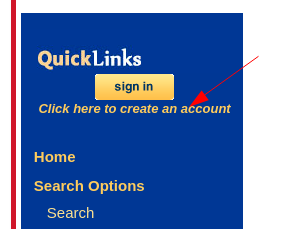
-
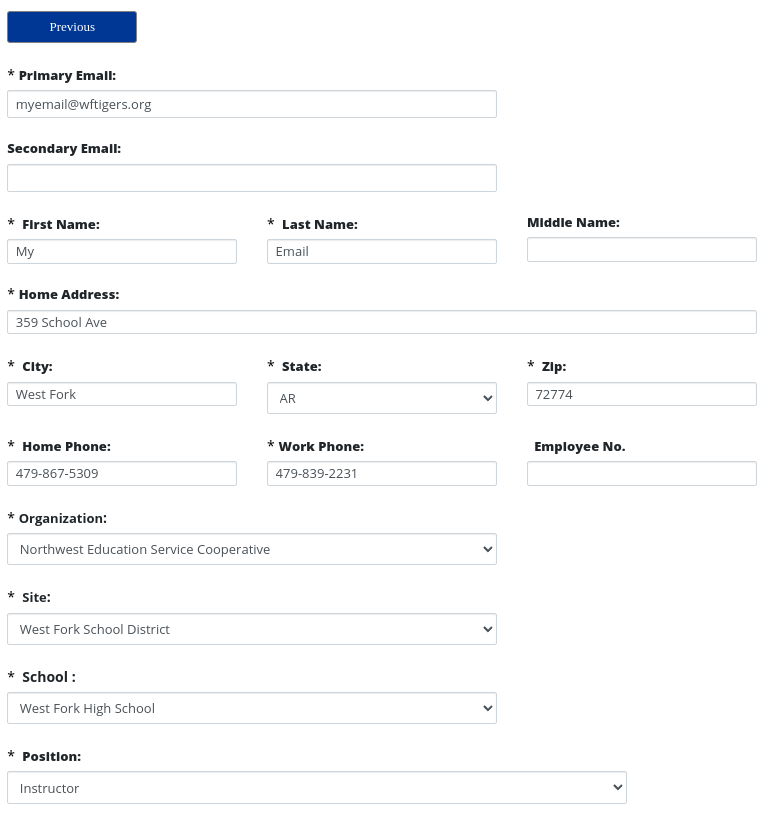
Fields with an * are required
-
Choose Northwest Education Service Cooperative as your organization
-
Choose West Fork School District at your Site

-
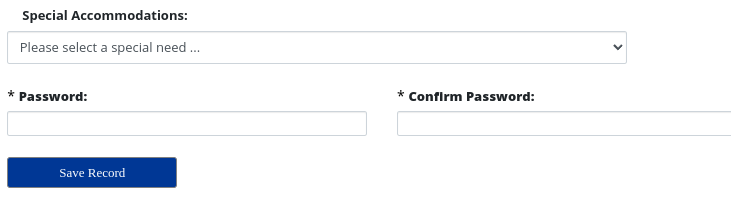
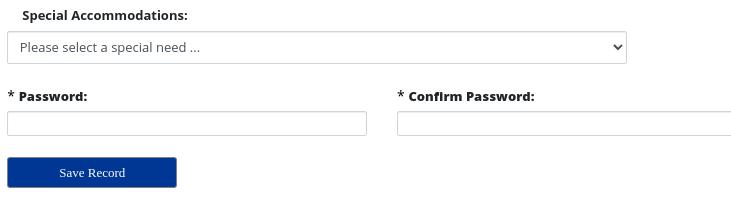
Enter a password
-
Click Save Record

Registering for a Regular Session
- Navigate to escWorks and click sign in.
- Enter your login and password
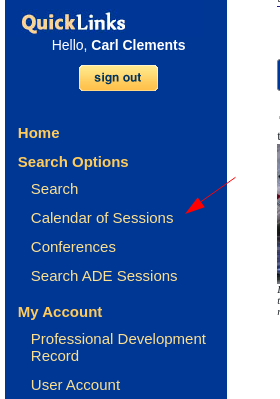
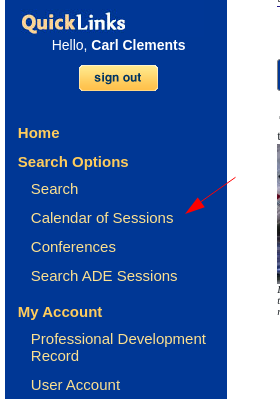
- Select “Calendar of Sessions”
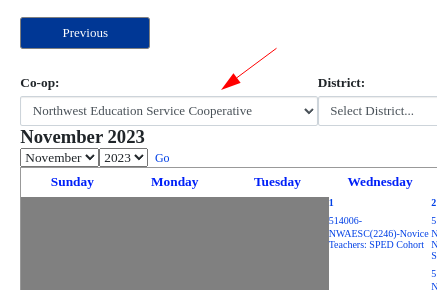
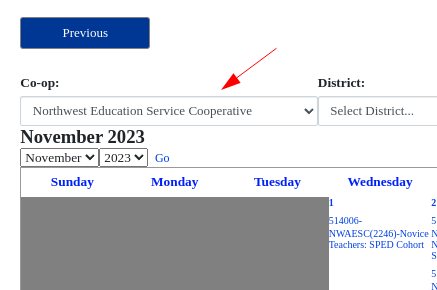
- Make sure Northwest Education Service Cooperative is selected.
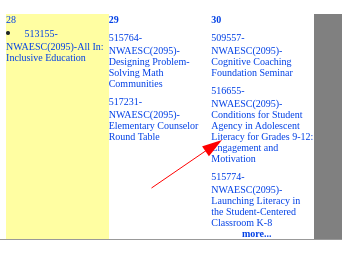
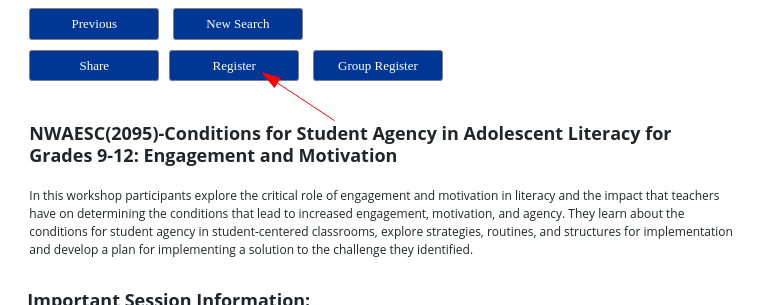
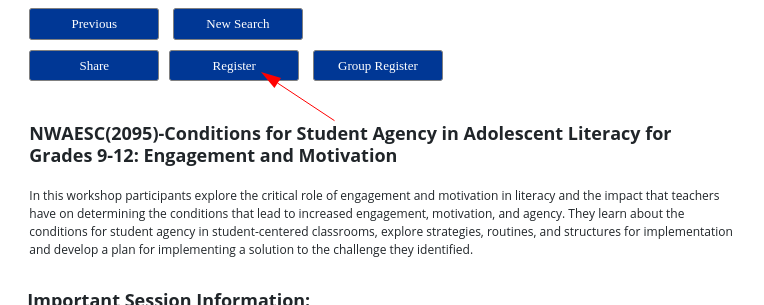
- Click on the desired workshop
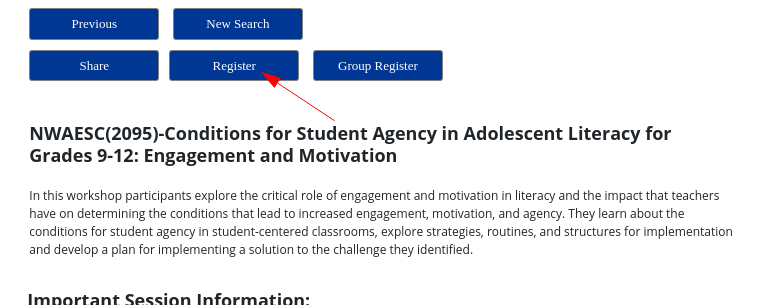
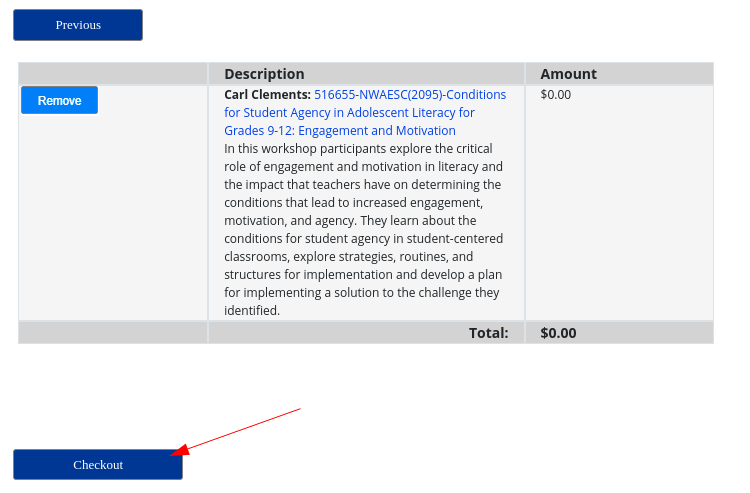
- Click Register
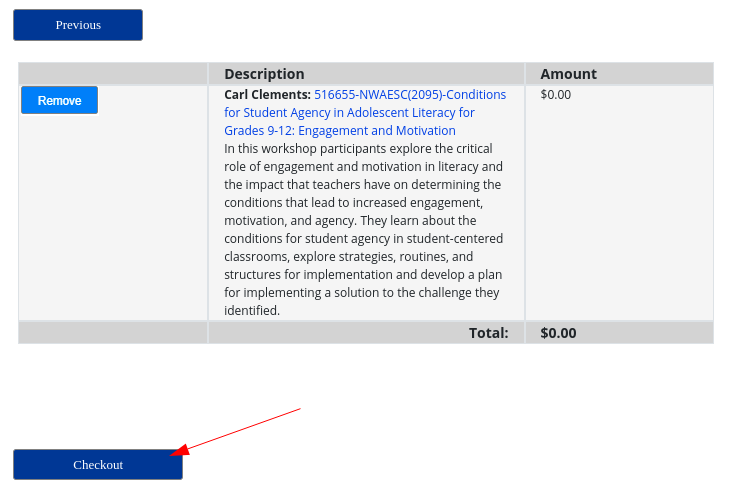
- Click Check Out
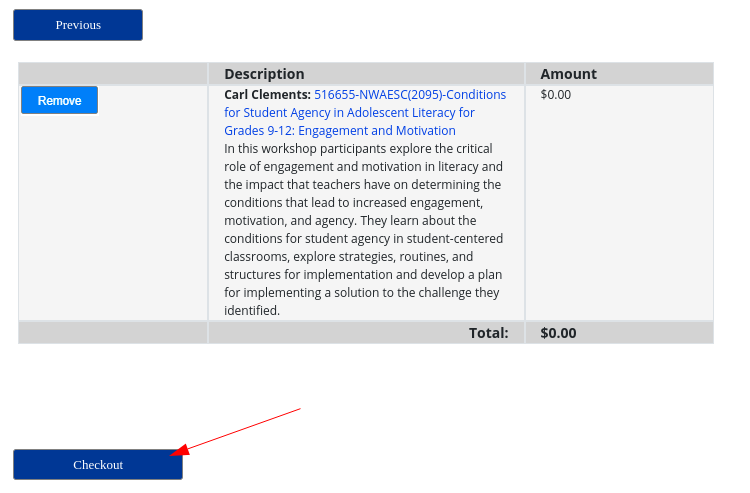
- You will receive an email confirming your registration

Registering for a Private Session
Some workshops are not advertised on the calendar. For these, you will receive an ID from an administrator or a coop employee.
- Navigate to escWorks and click sign in.
- Enter your login and password
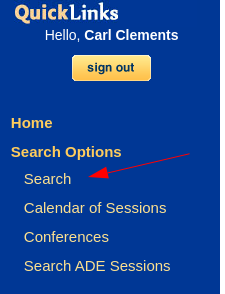
- Select “Search”
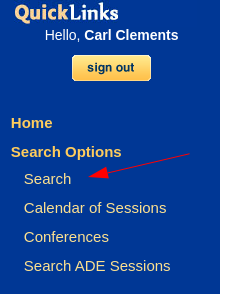
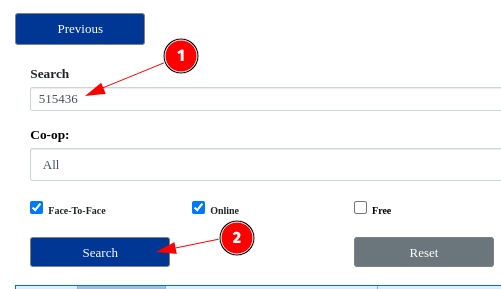
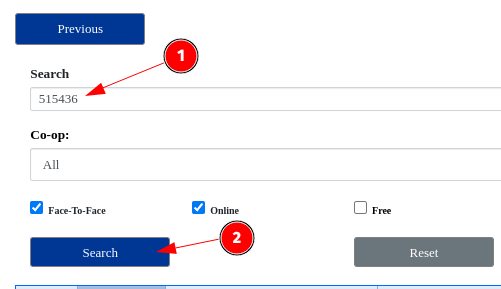
- Enter the provided session ID and click search
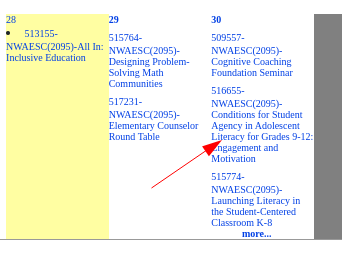
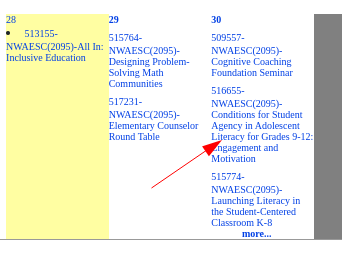
- Click on the desired workshop
- Click Register

- Click Check Out
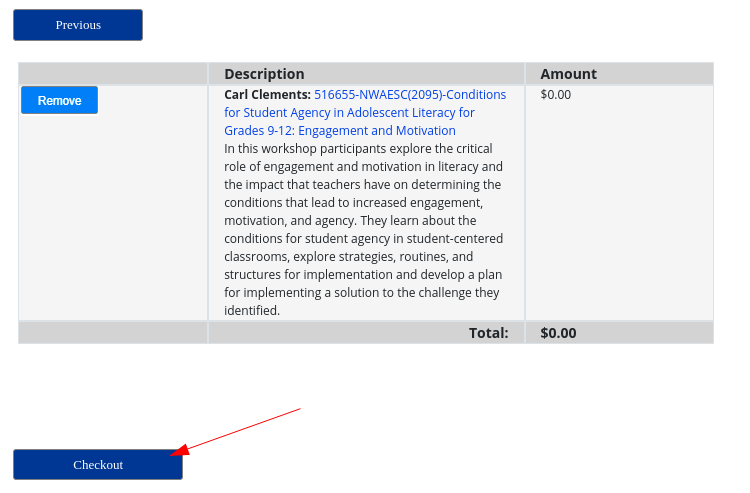
- You will receive an email confirming your registration
Confirming a Session Registration
- Navigate to escWorks and click sign in.
- Enter your login and password
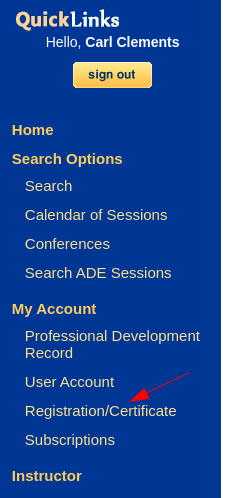
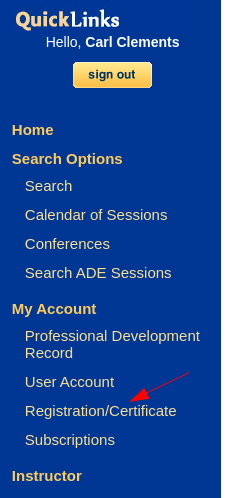
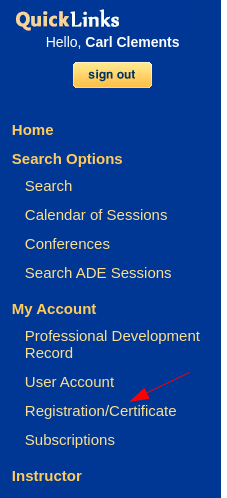
- Click on Registration/Certificate
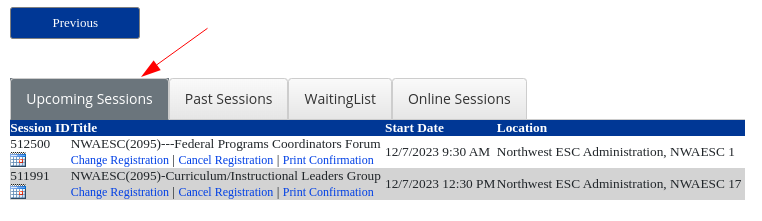
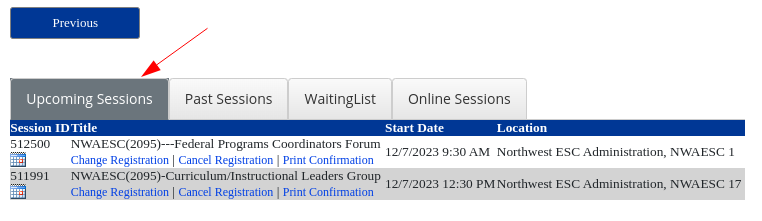
- Upcoming Sessions will be listed
Cancelling a Session Registration
- Navigate to escWorks and click sign in.
- Enter your login and password
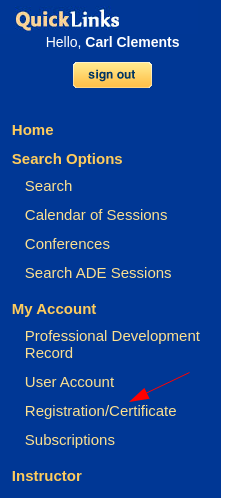
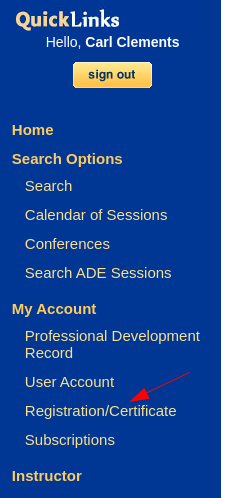
- Click on Registration/Certificate
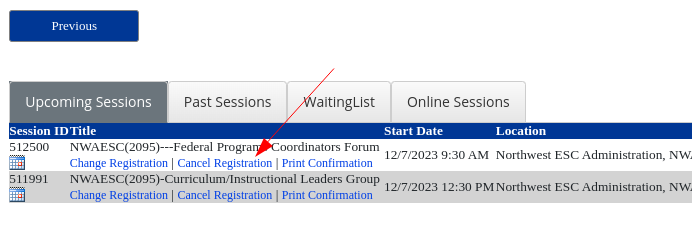
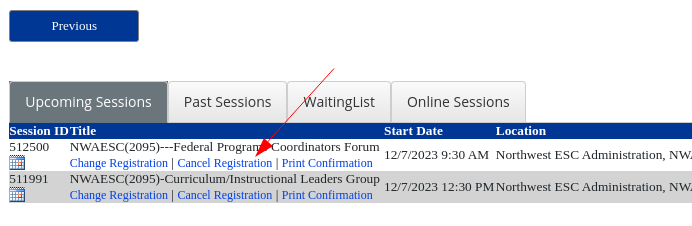
- Find the session to cancel and click Cancel Registration
- Confirm the cancellation
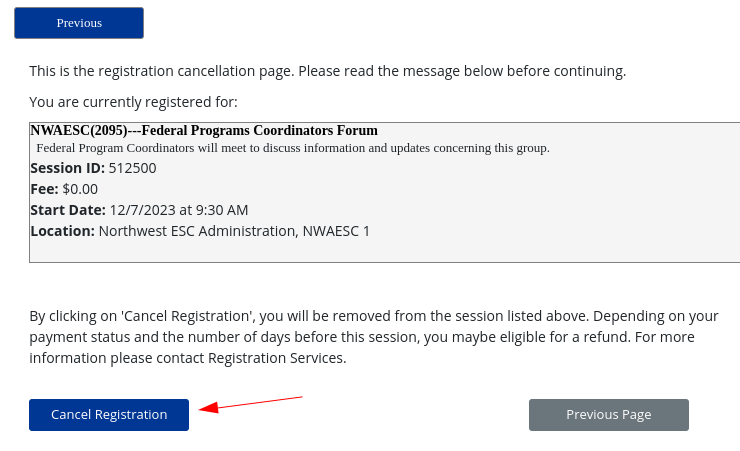
- You will receive an email confirming your cancellation

Downloading a Session Certificate
- Navigate to escWorks and click sign in.
- Enter your login and password
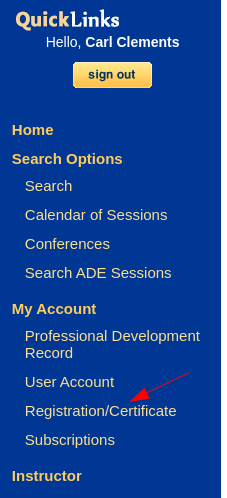
- Click on Registration/Certificate
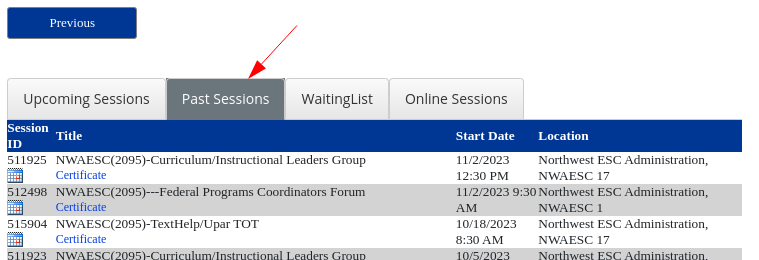
- Click on Past Sessions
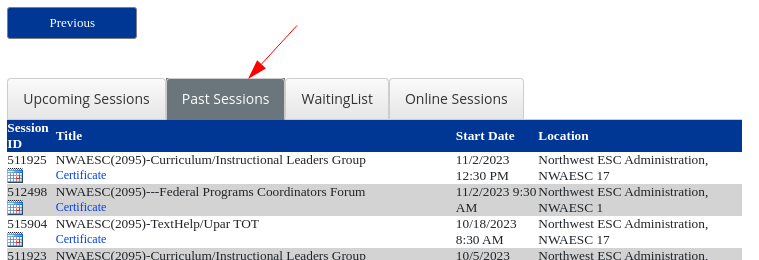
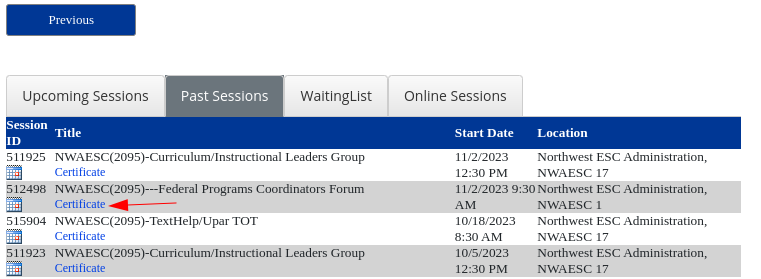
- Locate the desired workshop and click Certificate. The certificate will download as a PDF.

Updating Your Account Information
If your information has changed: New last name, moved to a different district, new email address etc. DO NOT CREATE A NEW ACCOUNT!!
- Navigate to escWorks and click sign in.
- Enter your login and password
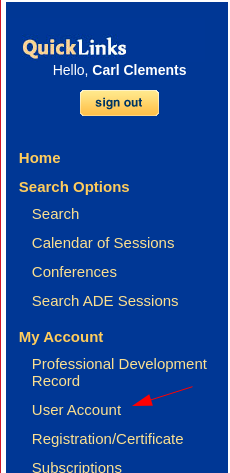
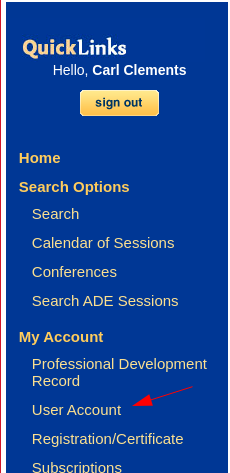
- Click on User Account
- Update any incorrect information
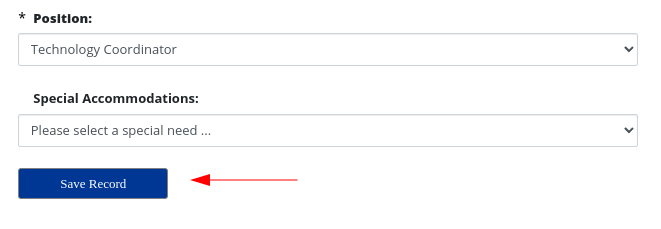
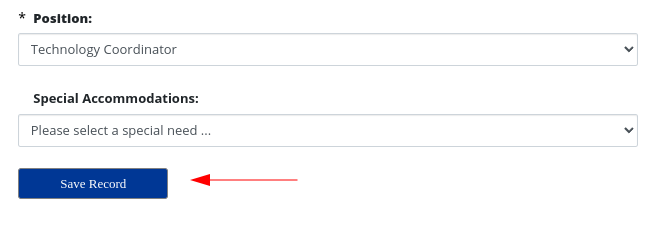
- Click Save Record
Downloading Your Professional Development Record
- Navigate to escWorks and click sign in.
- Enter your login and password
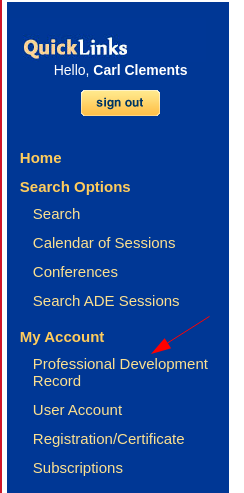
- Click on Professional Development Record

- Select the appropriate Year of Record and click Go
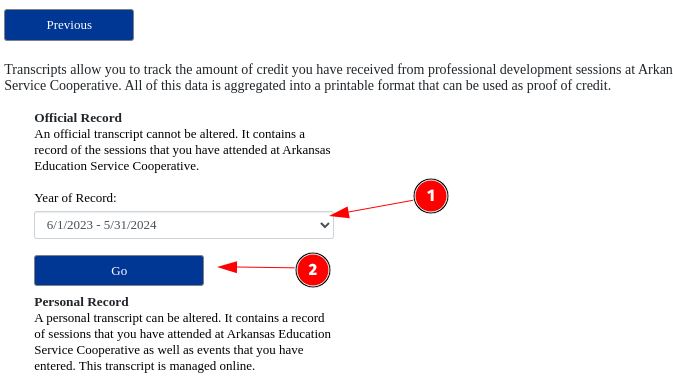
- The transcript will download as a PDF
Originally posted by Carl Clements on the West Fork Technology Hub (2023-11-28).
No comments to display
No comments to display