
Windows 11 Calculator
The Windows 11 Calculator has come a long way since its humble beginnings in Windows 3.1.
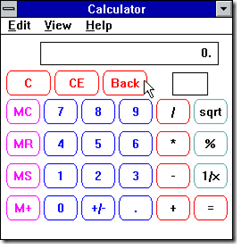
While the standard mode is not too different from the “good old days,” the current version has modes for scientific calculations, Graphing, Programming, Date Calculation, and many Converters.
Standard Mode
When the calculator app is opened it defaults to the standard mode. This works fine for basic arithmetic needs.

Click the hamburger menu to the left of Standard to explore the different modes.
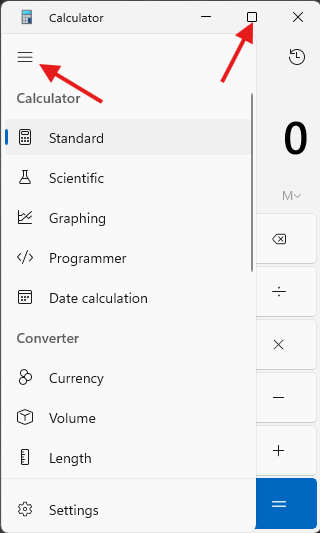
Many of the other modes work best when viewed full screen.
Scientific Mode
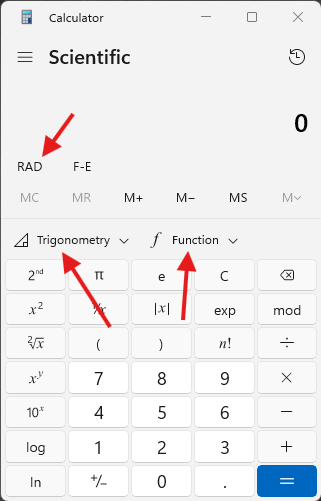
Lots of advanced math features. Don’t miss the trig and function menus as well as the ability to switch between radians, gradians, and degrees.
Graphing Mode
Definitely want to go full-screen for this mode!
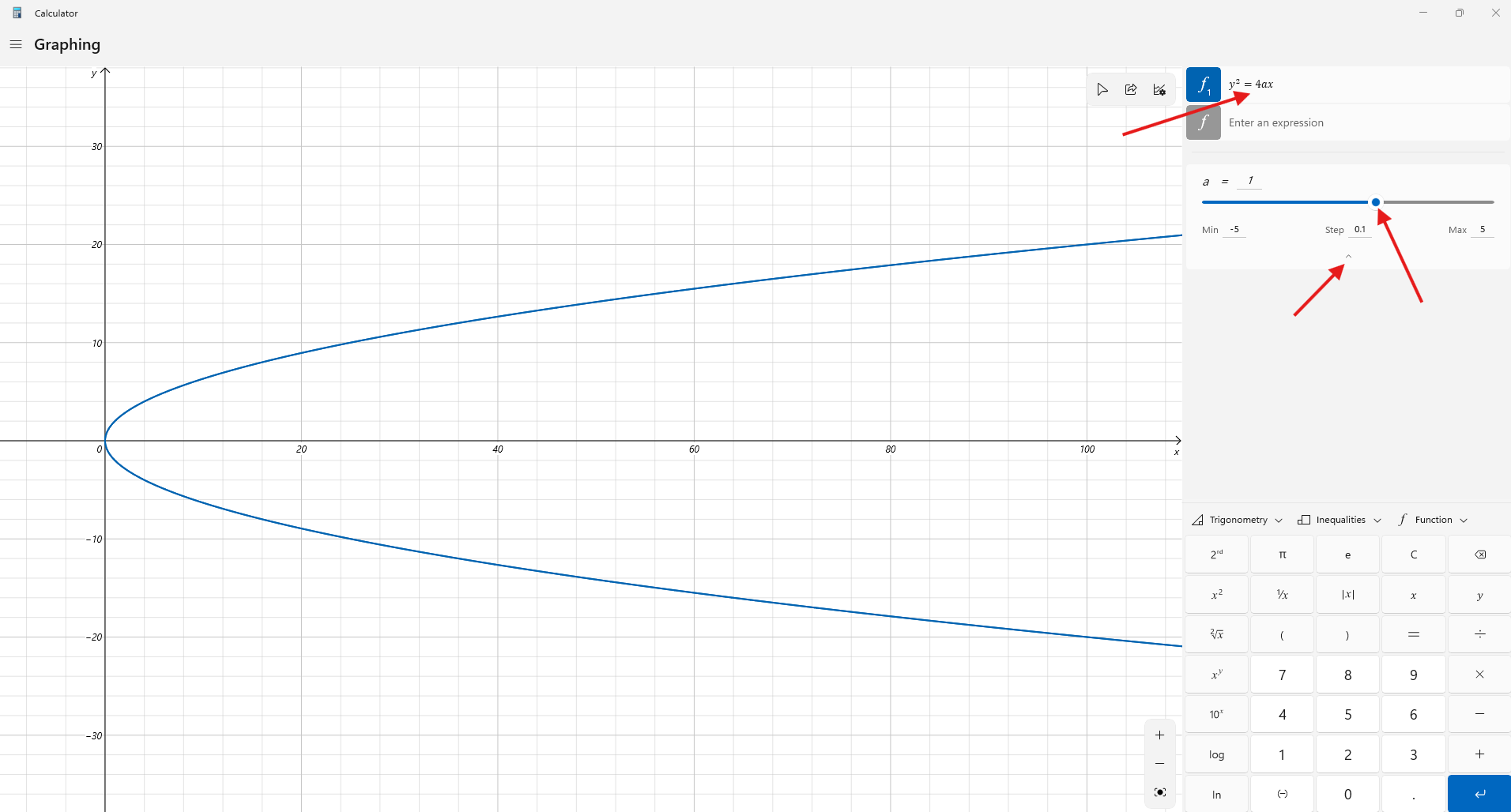
Enter a function(s) to see it placed on the graph.
Depending on the function entered the slider can adjust the variable. Don’t miss the Min, Step, and Max feature.
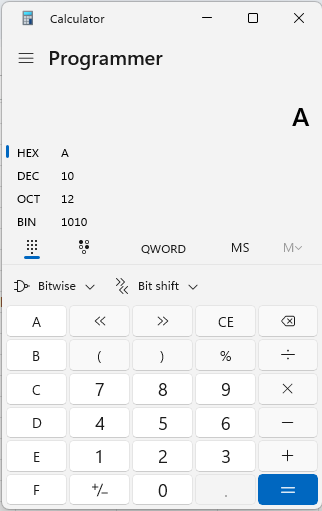
Programmer Mode
This mode is probably not very useful unless you are teaching programming. It is very handy if you need to convert between Hexadecimal, Decimal, Octal, and Binary!
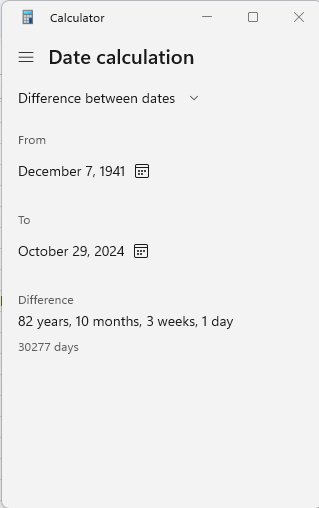
Date Calculation
This mode calculates the number of years, months, weeks, and days between two dates. For example, it can tell you how long it has been since the invasion of Pearl Harbor.
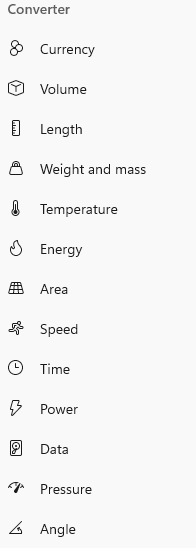
Converter Modes
There are currently 13 different Converter Modes.
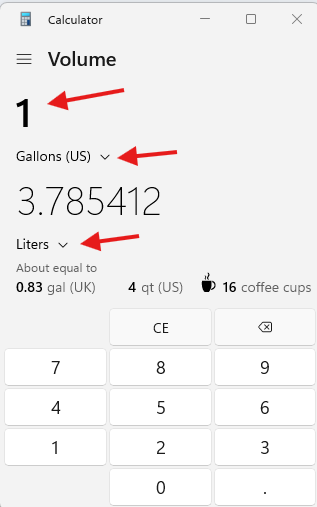
The process for each is pretty similar. Here is a quick example using the volume converter to see how many Liters are in one gallon. Select the desired units for each (Gallons and Liters) and enter the desired amount (1 Gallon)
Originally posted by Carl Clements on the West Fork Technology Hub (2024-10-29).
No comments to display
No comments to display