
Clear Cache in Google Chrome
When you use a browser, like Chrome, it saves some information from websites in its cache and cookies. Clearing them fixes certain problems, like loading or formatting issues on sites.
-
On your computer, open Chrome.
-
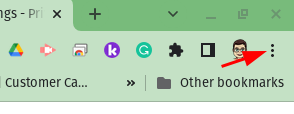
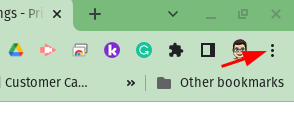
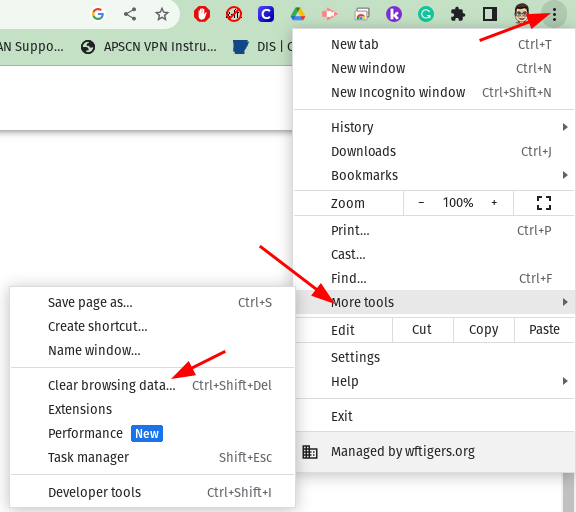
At the top right, click More
-
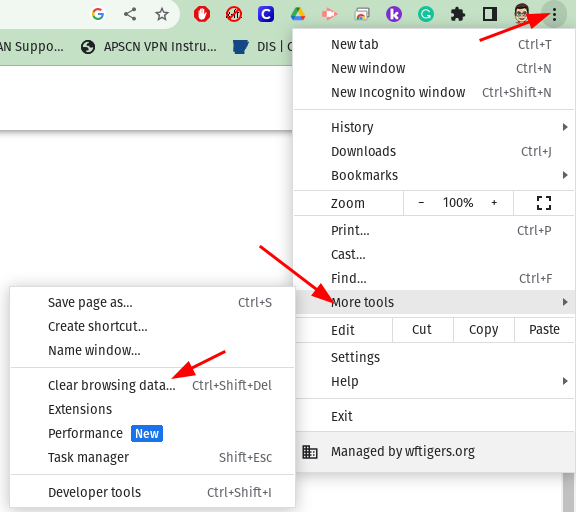
Click More tools
 Clear browsing data.
-
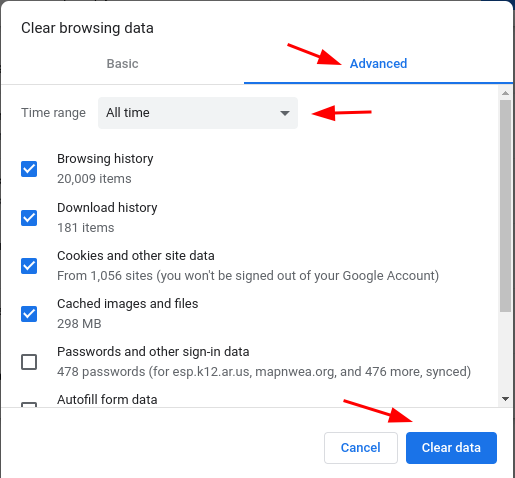
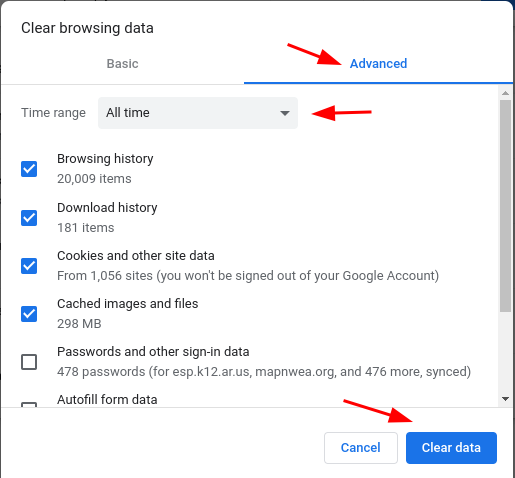
Choose Advanced
-
At the top, choose a time range. To delete everything, select All time.
-
Next to “Cookies and other site data” and “Cached images and files,” check the boxes. We recommend checking everything except “Passwords and other sign-in data” and “Autofill form data.”
-
Click Clear data.

Originally posted by Carl Clements on the West Fork Technology Hub (2023-01-17).
No comments to display
No comments to display