
Gmail - Confidential Mode
Sometimes you need to provide secure information to someone else, and email is the easiest way to do that. While the ease of sending an email is certainly a plus, there is a requirement to be aware of the security risks that come with sending students’ personally identifiable information (PII).
In the event you need to send sensitive information, the Confidential Mode in Gmail is there to help you.
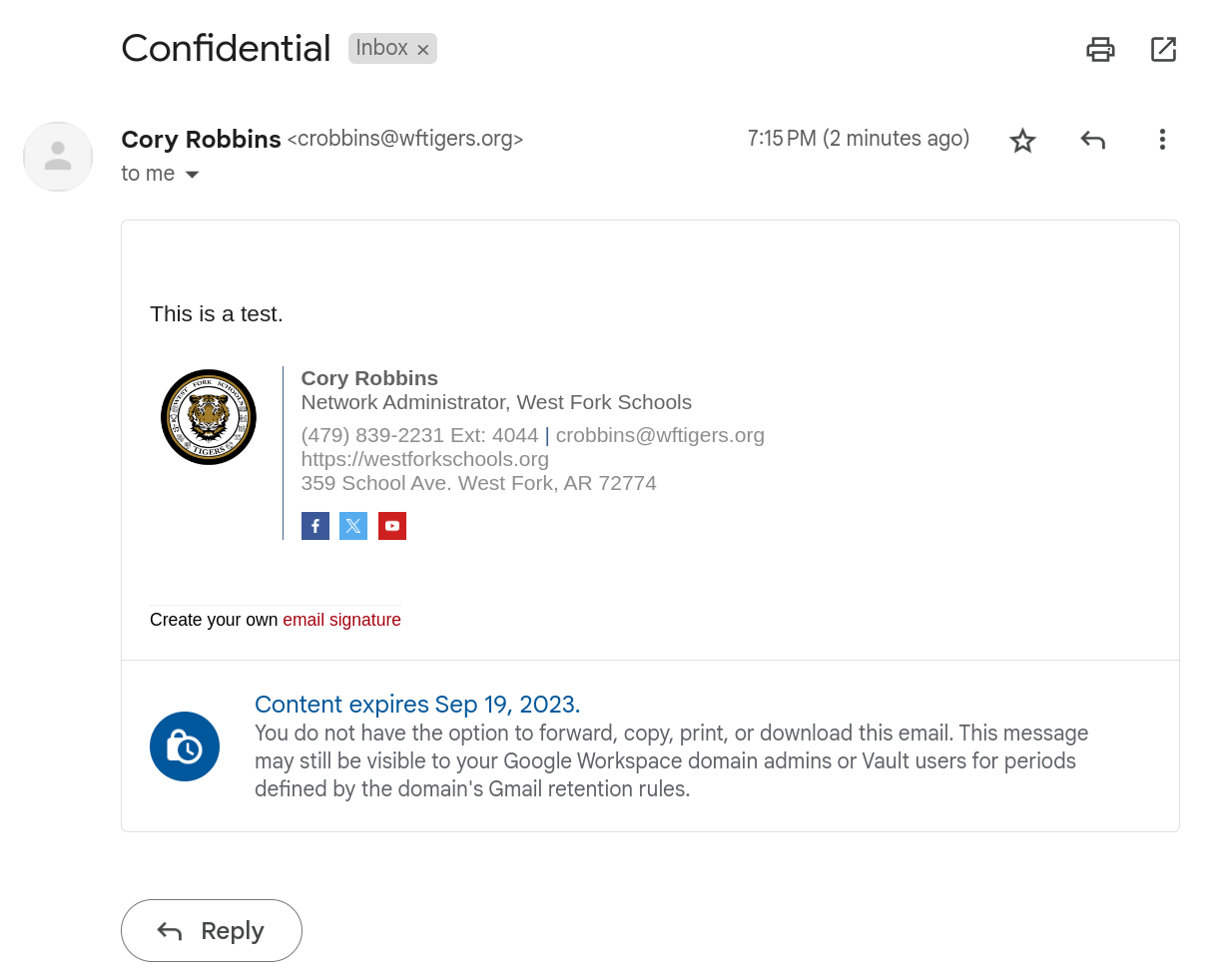
Confidential emails will be passcode protected, and will automatically expire after your determined length of time. In addition, the recipient may not forward, copy, print, or download the email.
To start, visit your Gmail.
-
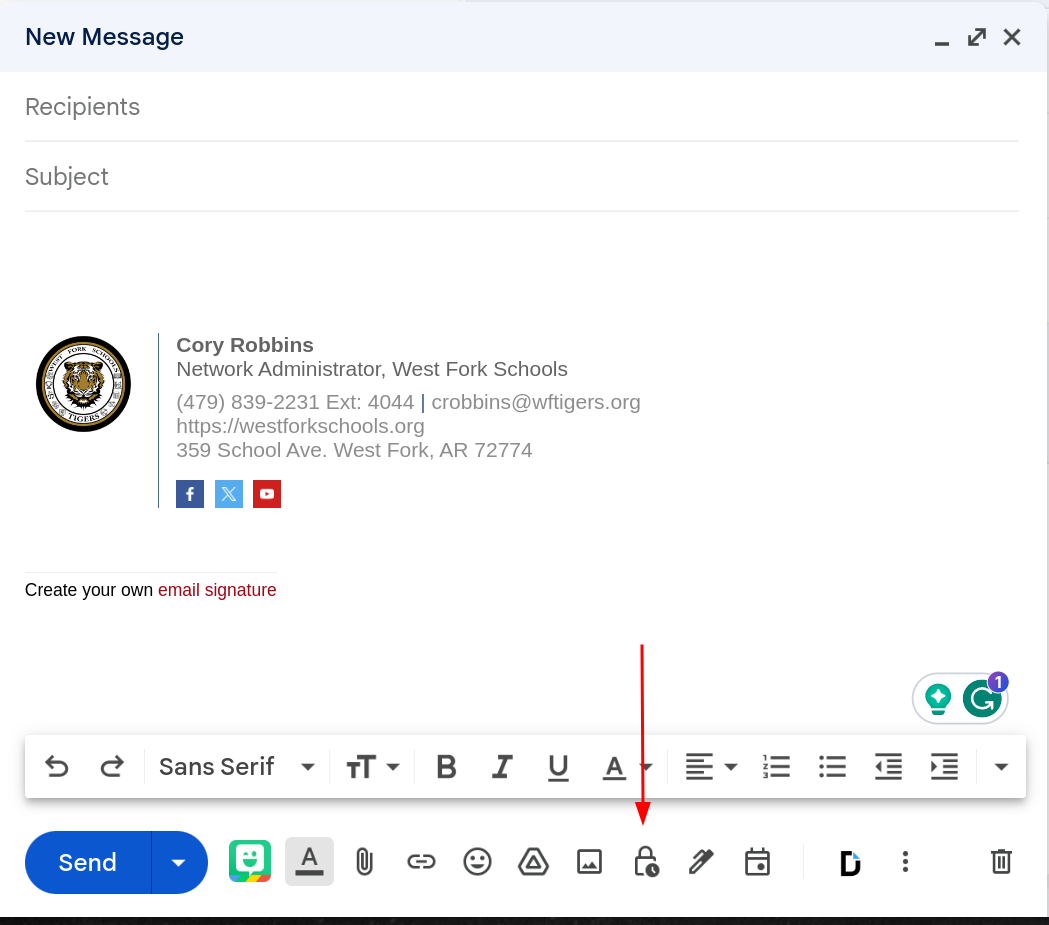
Click on “Compose.”

-
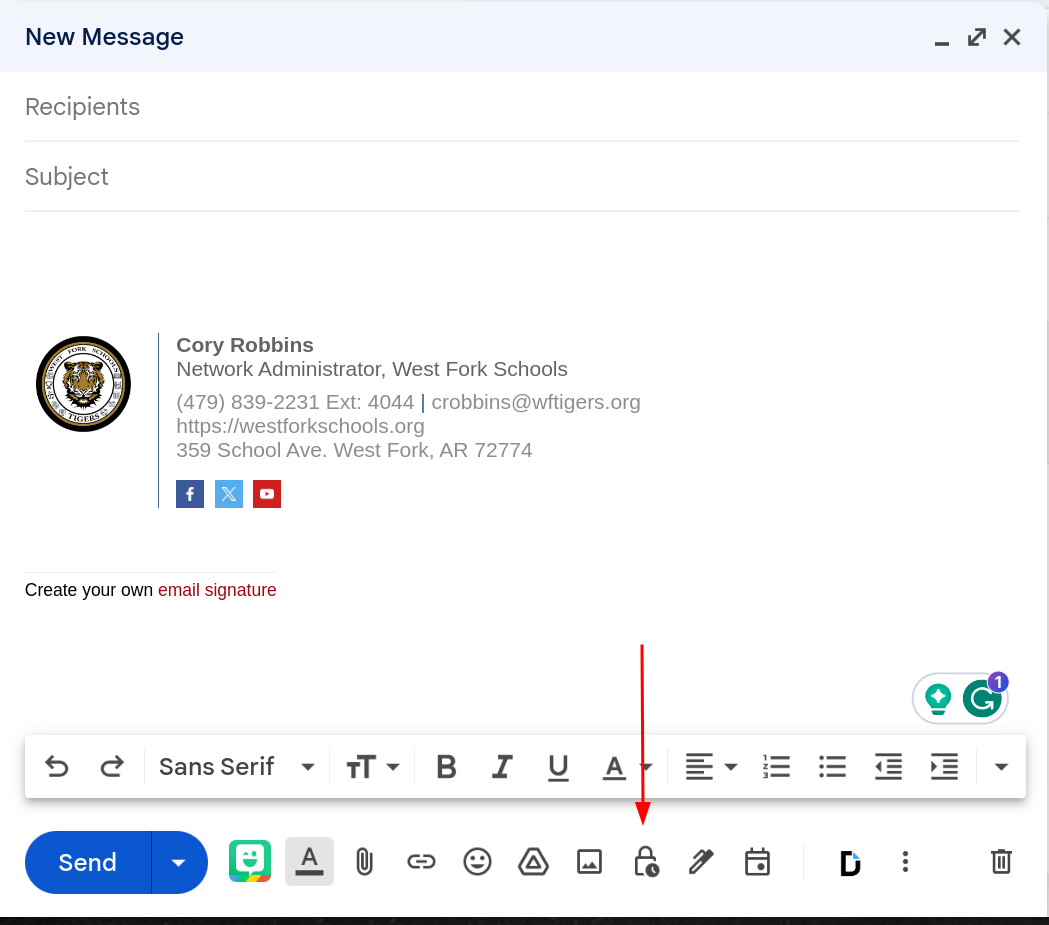
I recommend setting up your confidential settings before you type the email so that you don’t forget to do it. Click on the small lock icon on the bottom toolbar.
-
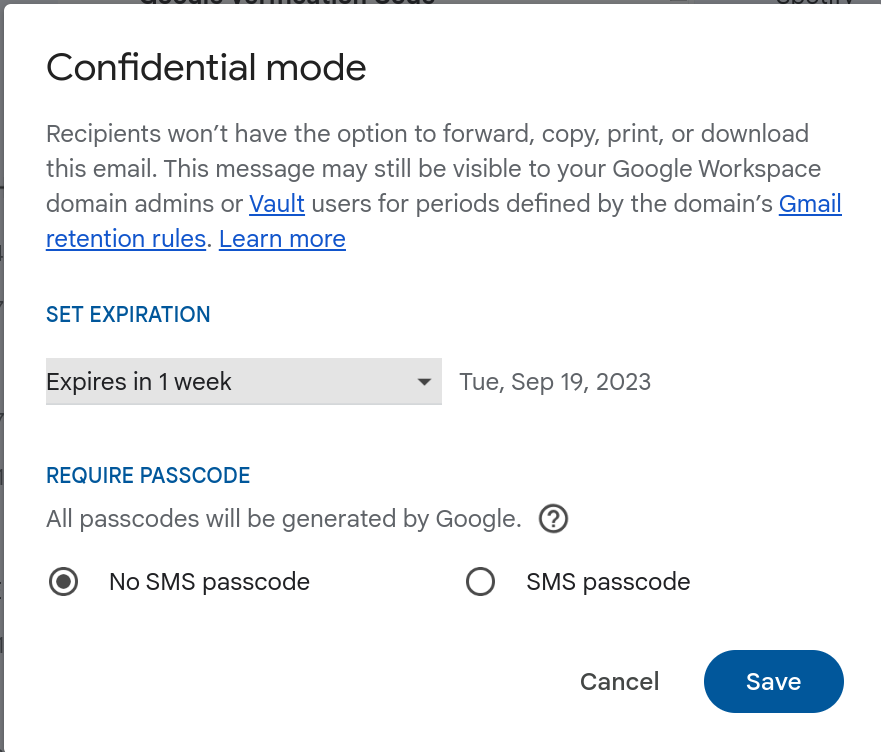
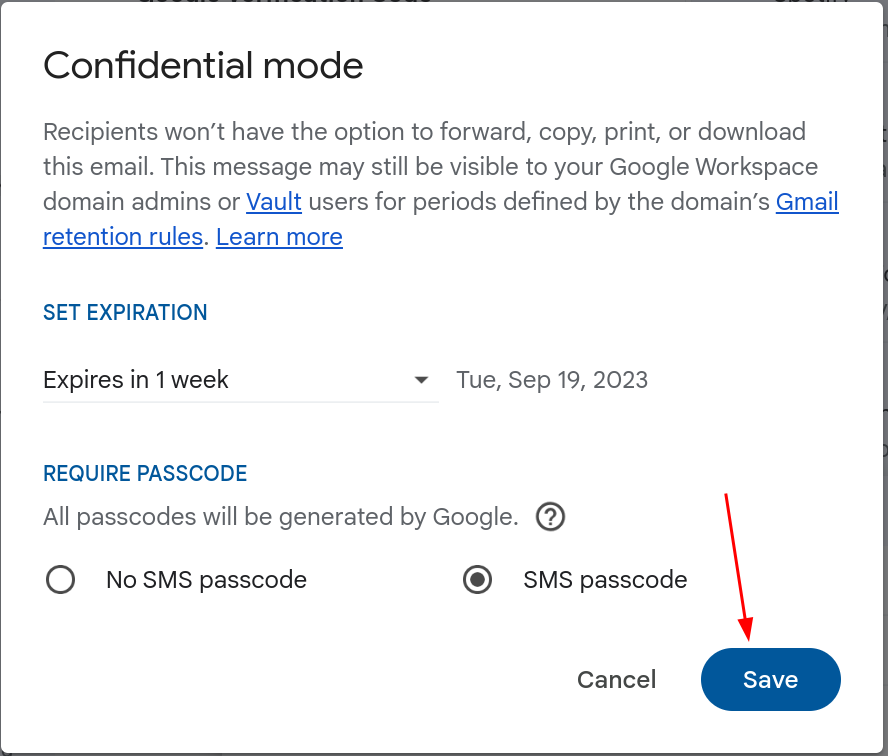
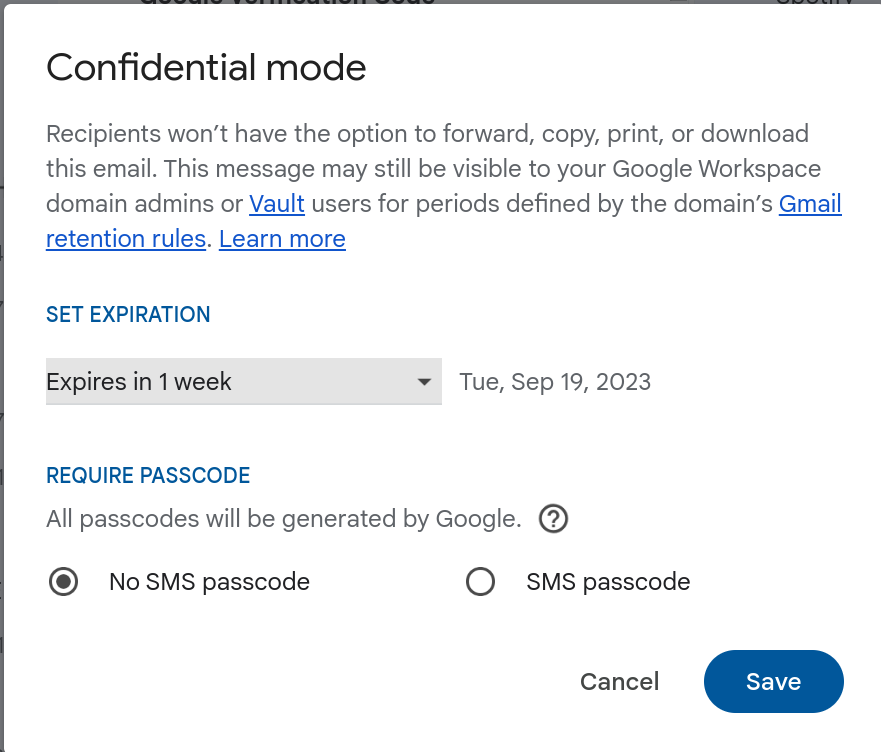
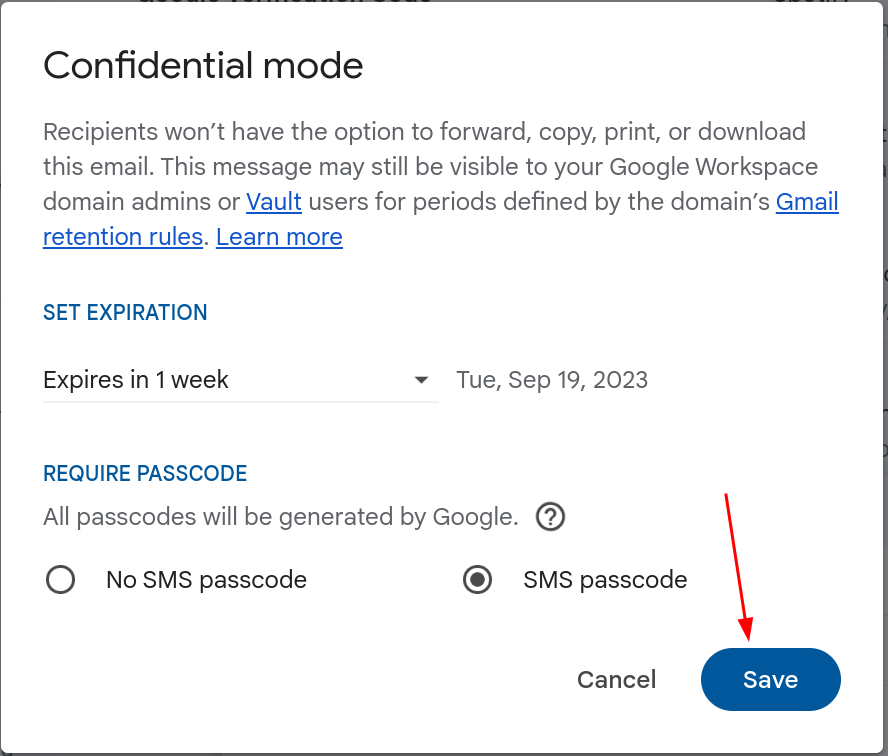
This will bring up the confidential mode settings screen:
-
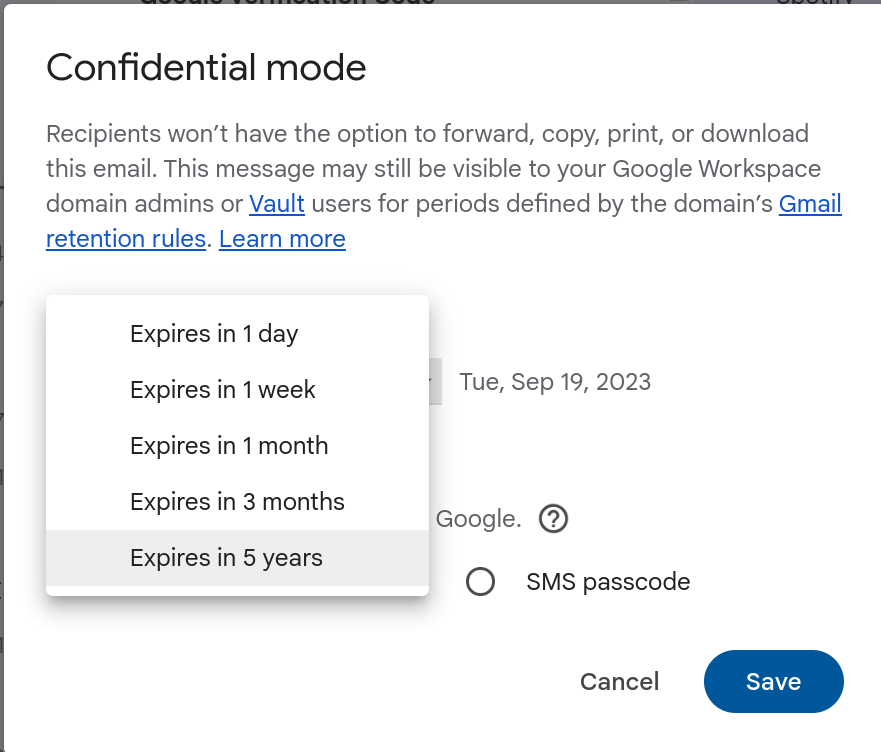
Set an expiration. After this date, the email will automatically be removed from the recipient’s inbox.

-
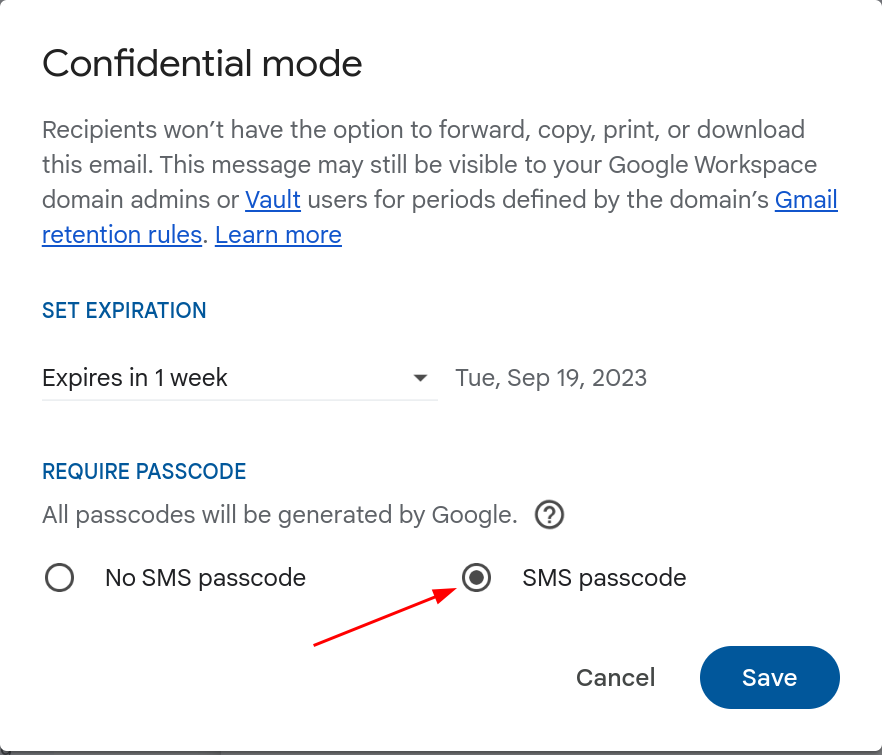
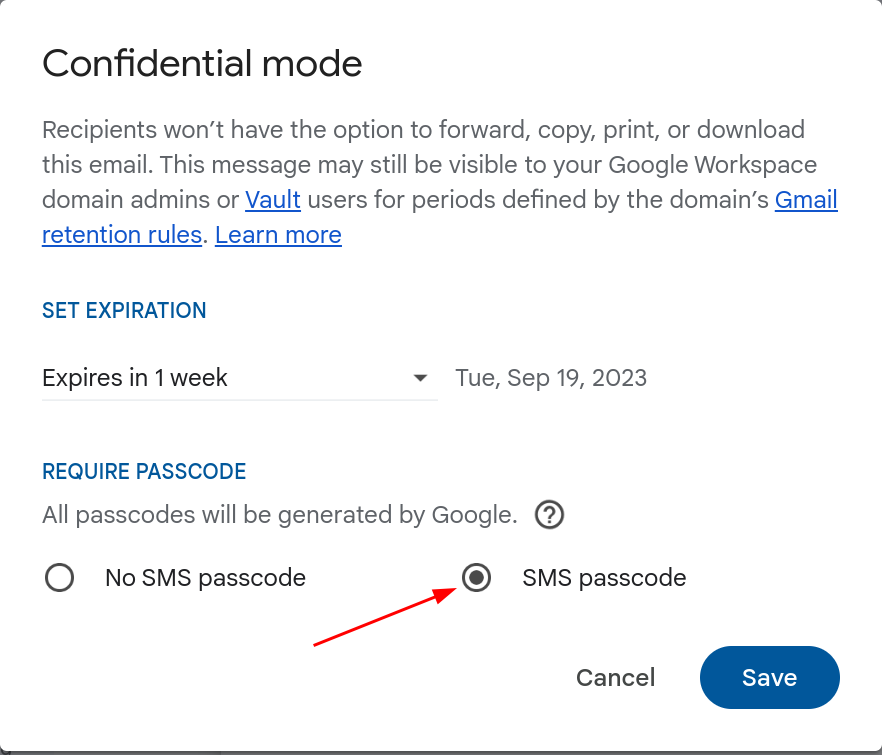
Choose to require a passcode. This passcode will be sent as a text message to the recipient if they use Gmail, if not, they will receive a separate passcode via email.
-
Click the “Save” button.
-
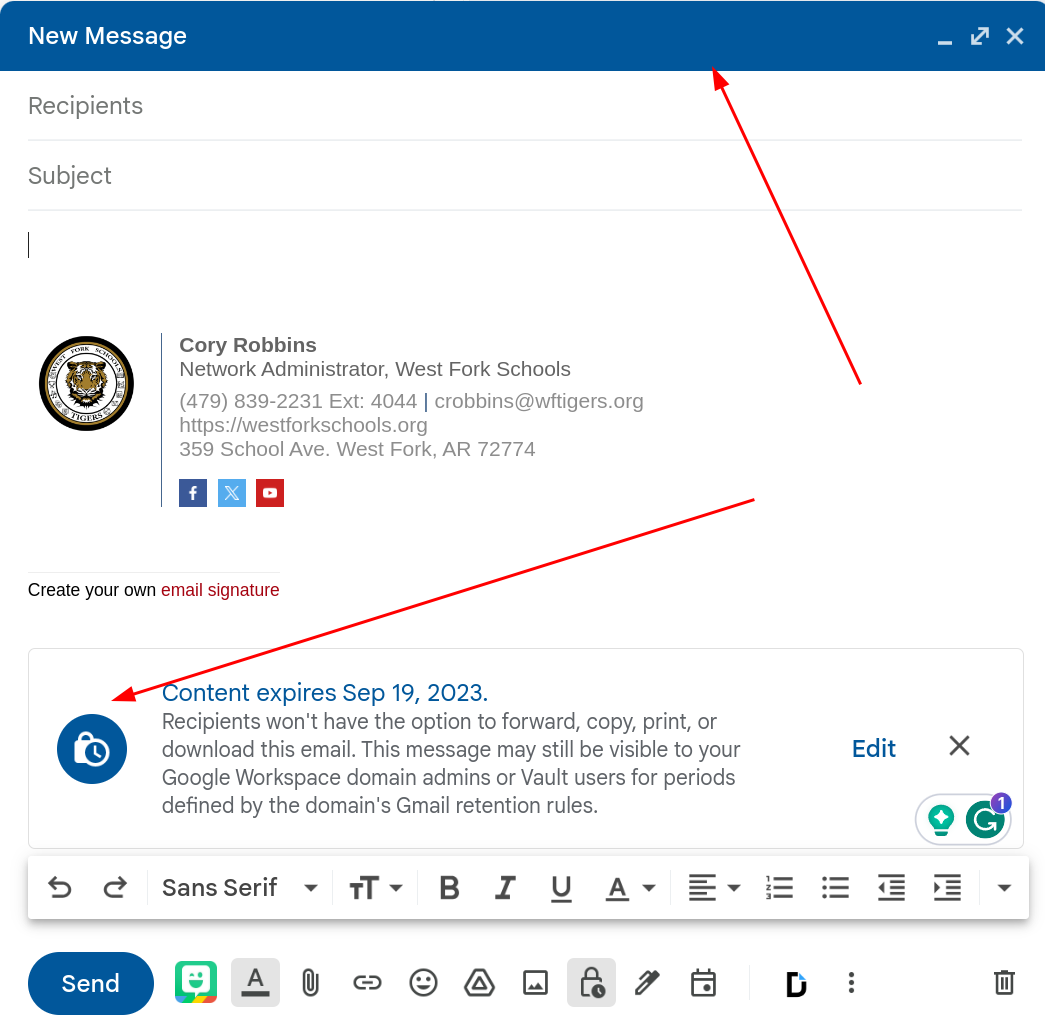
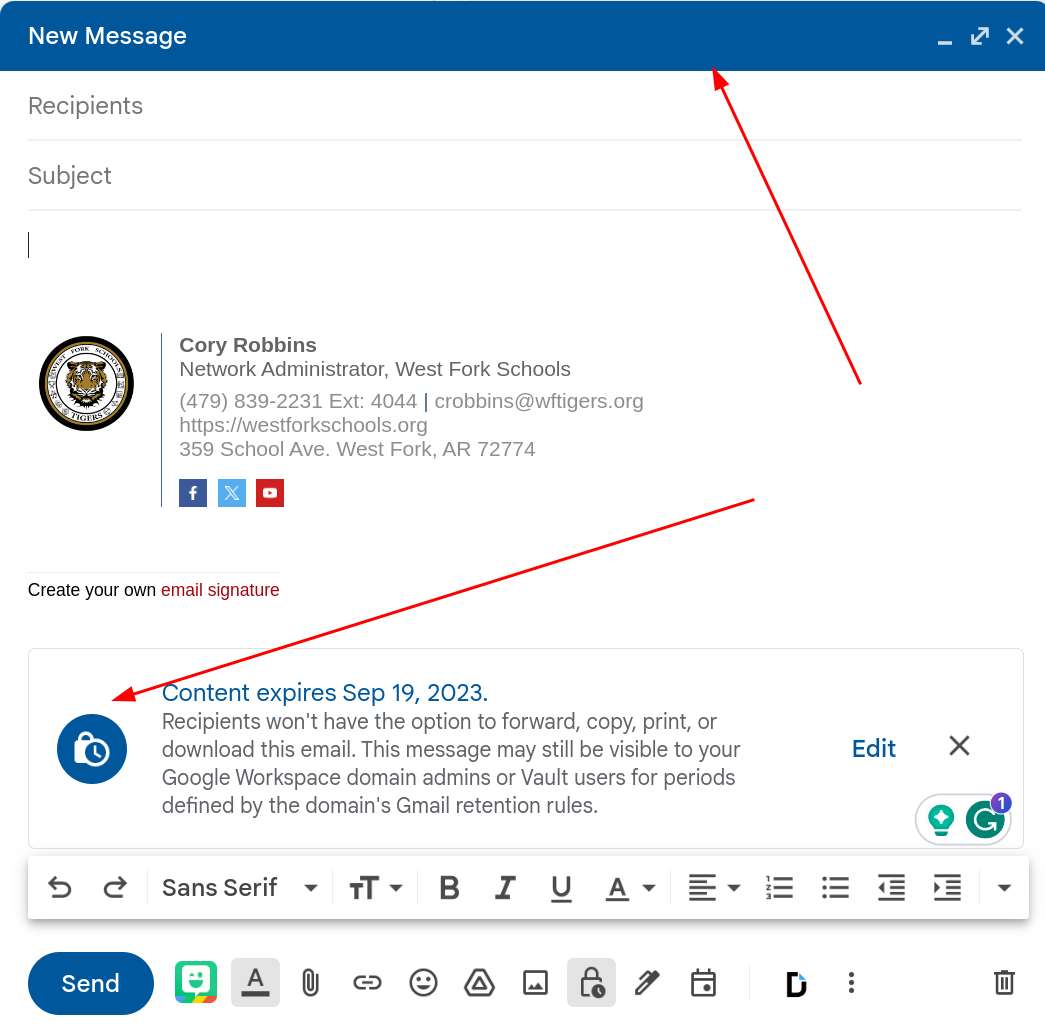
This will turn the message top bar blue, and it will show the confidential mode option below the email body.
-
Go ahead and proceed with your email as normal, then click send.
-
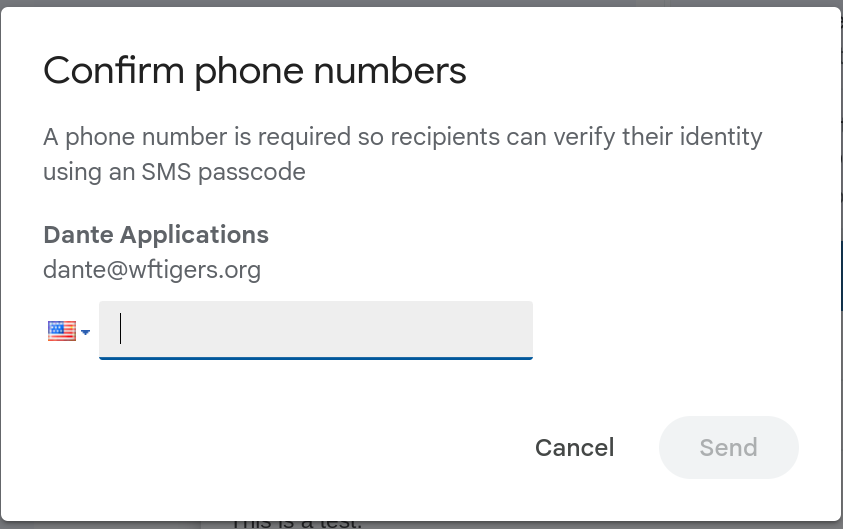
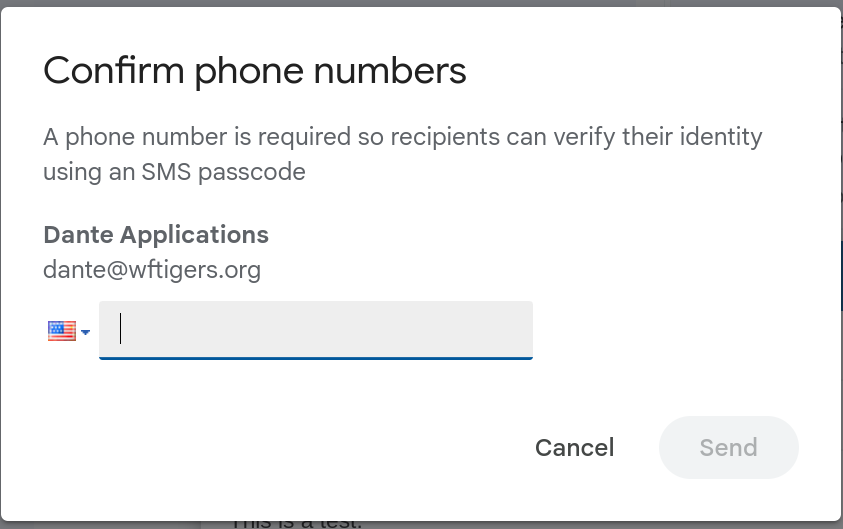
If the user doesn’t have a phone number in their profile, you will be asked to manually type one.
At this point, the recipient(s) should have received a verification email.
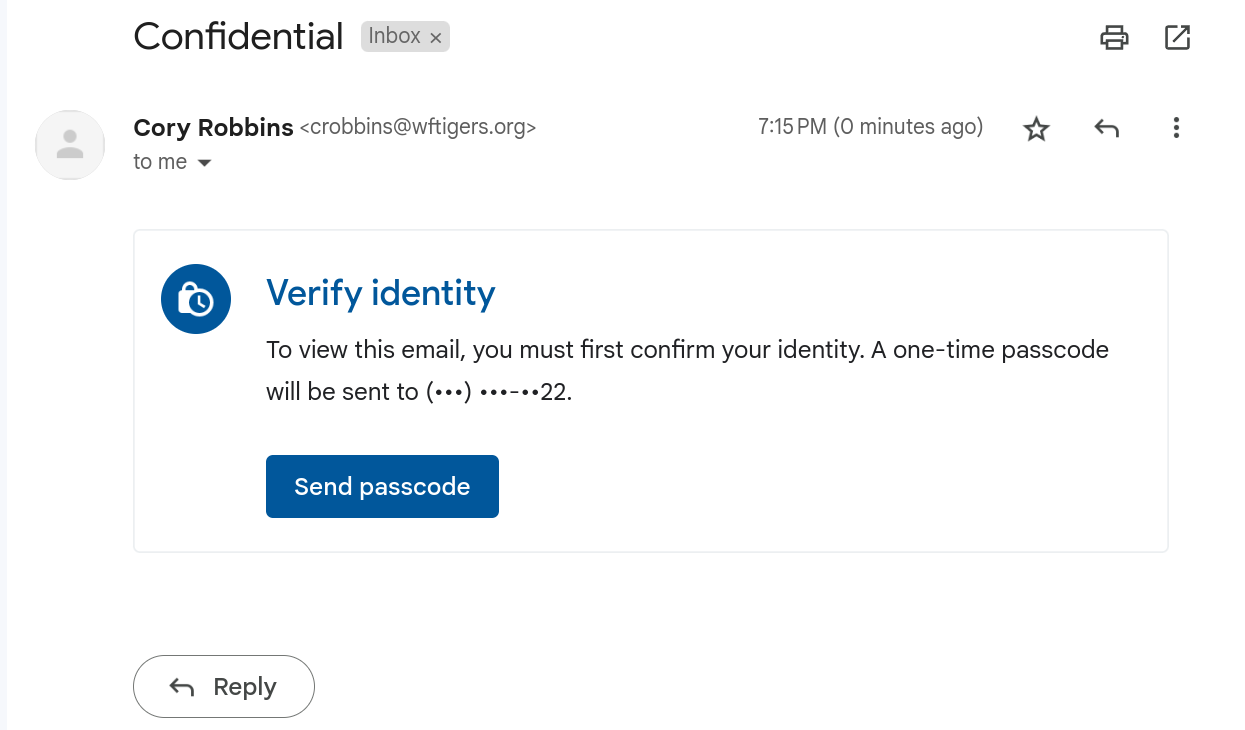
When the recipient(s) click on the send passcode button, they will be prompted to enter the code that was just sent to the number you provided.

At this point, the email will be displayed until the expiration date is met.
Originally posted by Cory Robbins on the West Fork Technology Hub (2023-09-13).
No comments to display
No comments to display