
Gmail Signatures
Email signatures have come a long way since their humble beginnings of allowing an email program to automatically type your name at the bottom of an email message. Today there is a wide variety of information added to email signatures. Here are some of the more common items:
- Bitmoji or headshot
- Your name and title
- Department or campus where you work
- Phone and/or fax number
- Address (and link to online directions)
- Social media icons (each linked to your social media presence)
- School/district mascot
- Inspirational quote or quote related to your field of expertise
- Digital badges showing your areas of expertise
Perhaps you don’t have a Gmail signature or like me haven’t updated it in years. This is a quick refresher on where to access signature settings in Gmail.
With Gmail open click on the settings gear in the upper right.
Then click See all settings
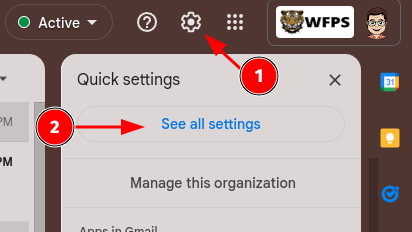
Scroll down to the Signature section and make your edits.
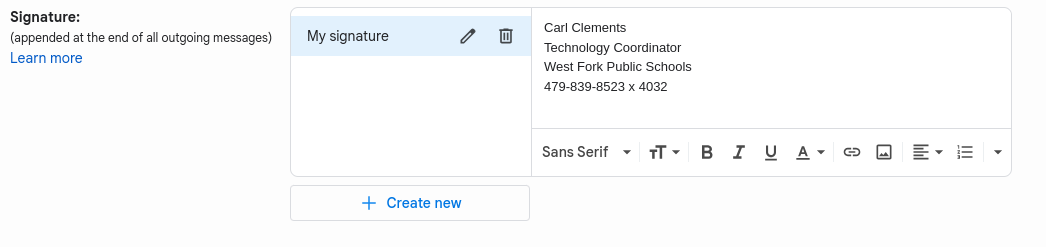
You can customize text, add hyperlinks, pictures, and much more!
Don’t forget to scroll down and click Save Changes.
Consider creating a second, smaller signature file and using it for replies and forwards.
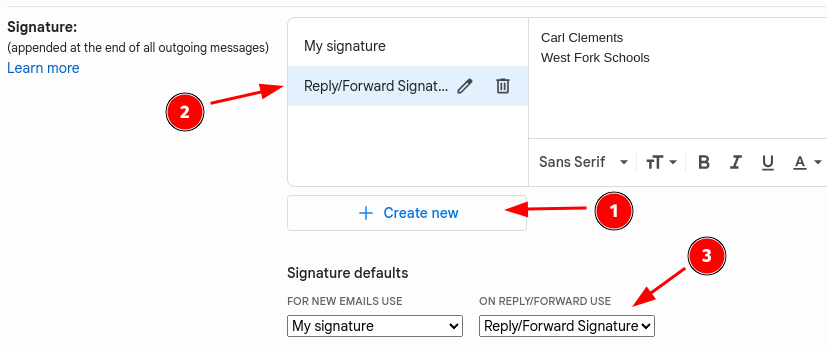
Alternatively, there are a number of websites and templates to generate a “fancier” signature file. Just do a quick Google search and follow the instructions for Gmail.
Originally posted by Carl Clements on the West Fork Technology Hub (2023-02-28).
No comments to display
No comments to display