
Kami - Google Chrome Extension
Kami is another free extension for Google Chrome (with paid advanced features). It is most popular for allowing the editing/annotating of PDF documents, which will be demonstrated in this article. However, it also has many other features including; text recognition, splitting and merging existing files to create new ones, free educational templates, and even Google Classroom Integration.
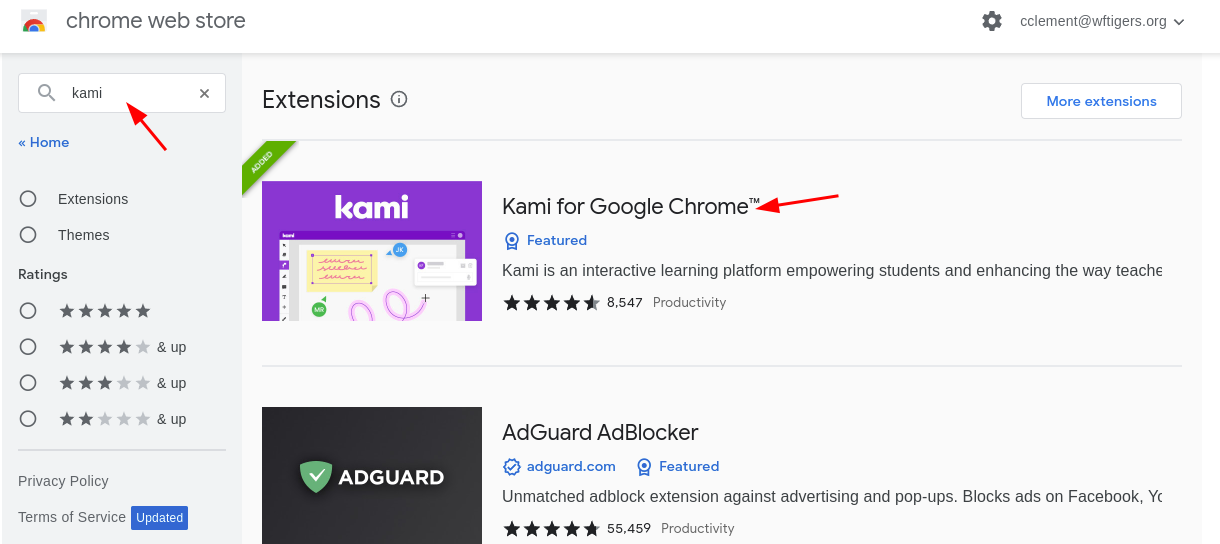
To get started, add the Kami extension. You can install it from a quick Google search or by searching the Chrome Web Store. When prompted, choose the “Login with Google” option and accept the appropriate security notifications.
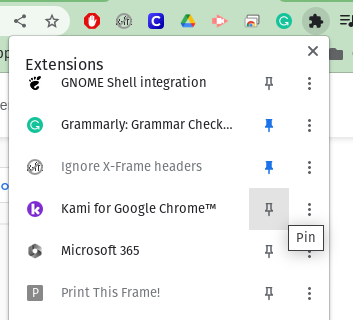
Go ahead and pin the extension to make it viewable to the right of the address bar.
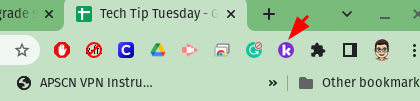
Click on the K in the purple circle to launch Kami.
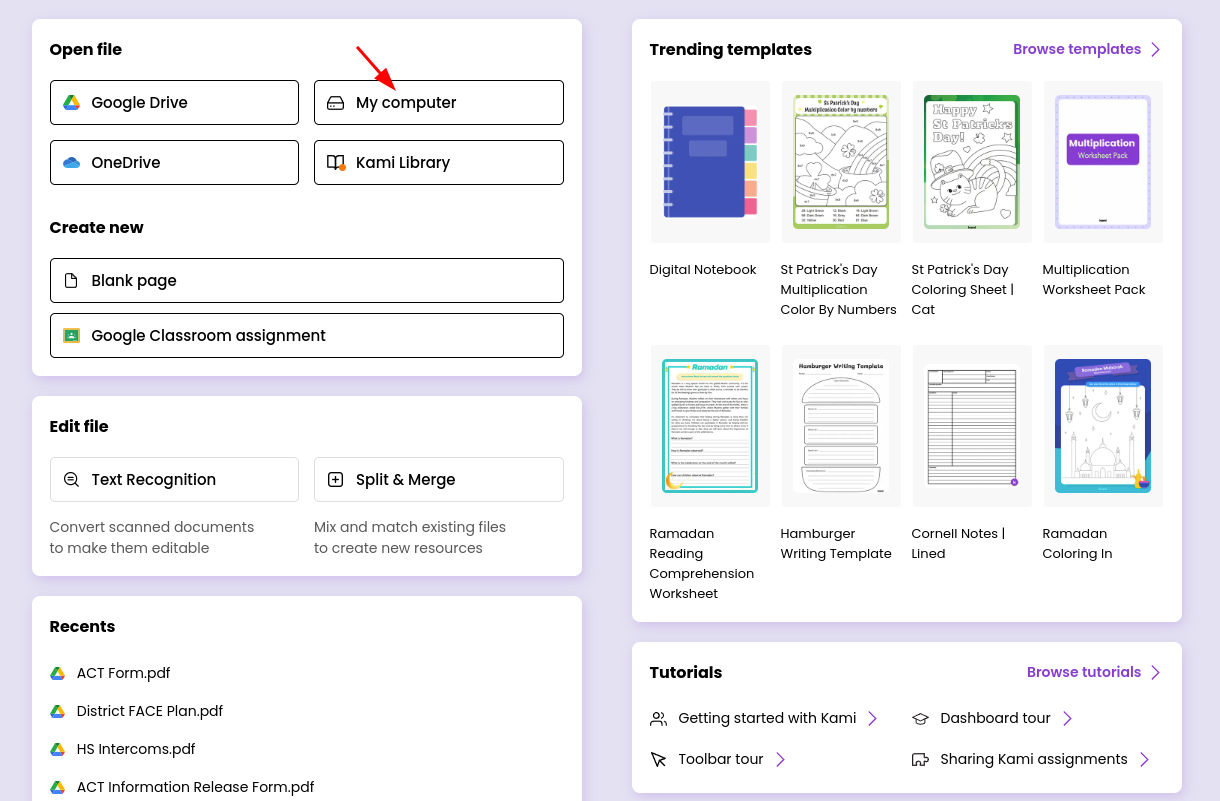
It will open the Kami home screen. For this example, I will open a PDF form from the state about ACT testing. Since it is already downloaded to my computer, I will click My computer and navigate to its location. Keep in mind you can also open files from Google Drive.
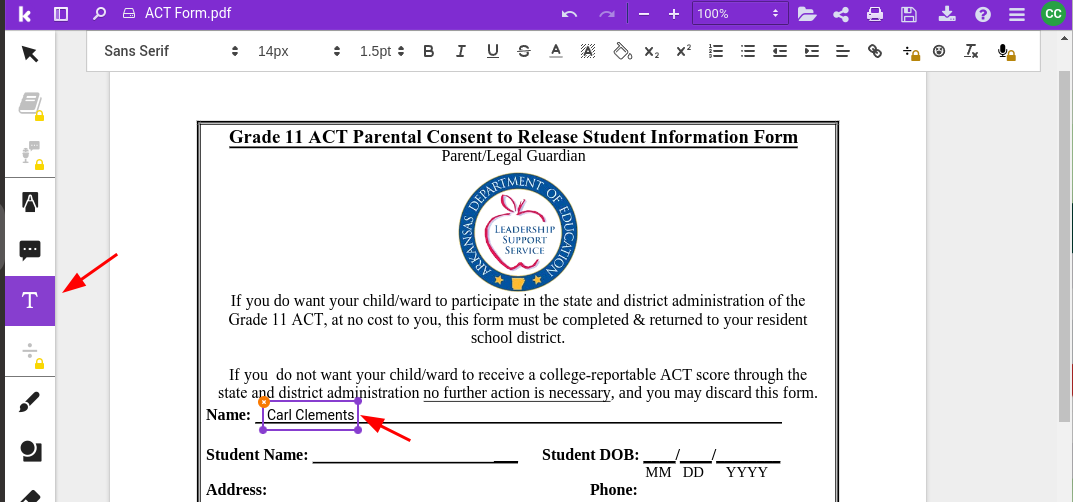
Click the Text Box tool. Then click on the screen where the text should be added and begin typing. Once modifications are made, Kami will prompt saving the document to Google Drive.
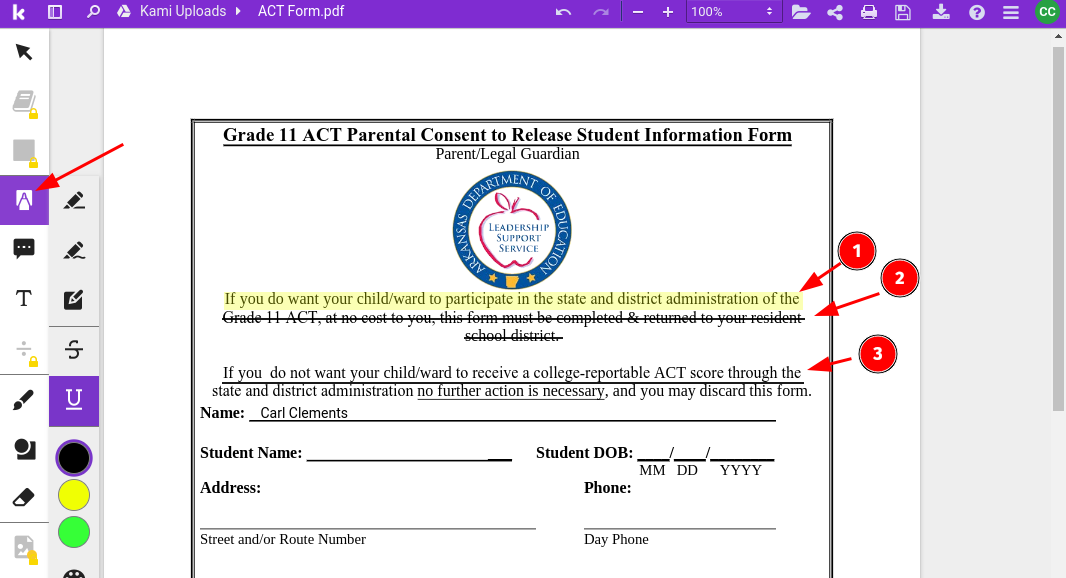
Use the Markup tools to highlight, strikethrough, or underline text. Great for giving student feedback on papers.
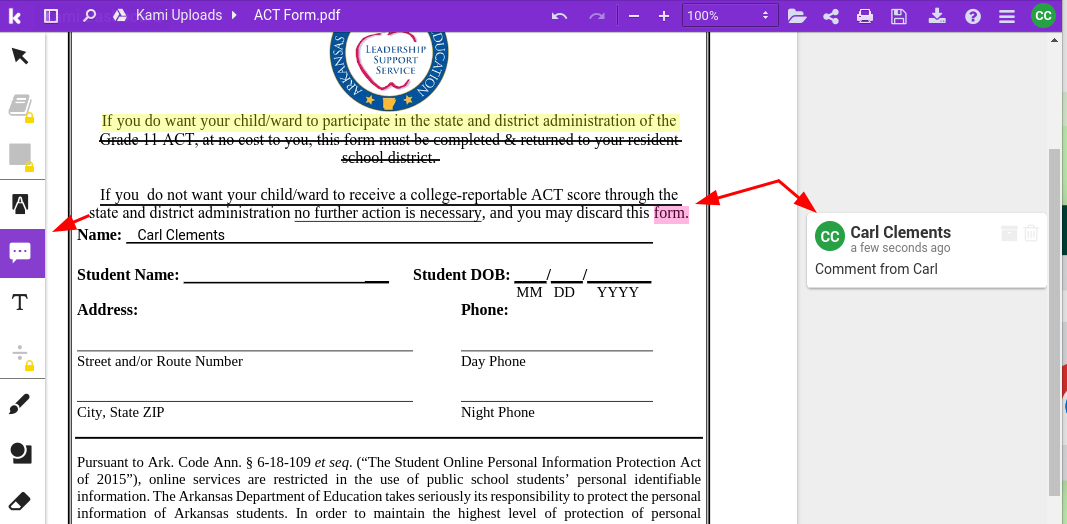
Use the Comment tool to add comments to the document. This is very similar to comments in Google Docs and is another great way to provide feedback.
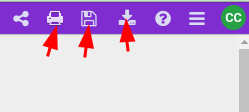
Once the modifications are completed, use the tools in the upper right to print, save, or download the file.
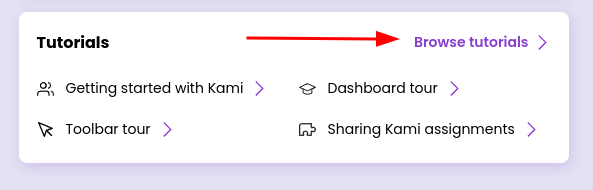
This is just one example of what Kami is capable of. To learn more, check out their Youtube Tutorials on the Kami home screen.
Originally posted by Carl Clements on the West Fork Technology Hub (2023-03-28).
No comments to display
No comments to display