
Google Docs - Add Ons
If you grew up using Microsoft Office you are accustomed to a more robust toolset than Google Docs offers. If you have ever wished that Google Docs allowed for label printing, mail merge, math equations, bibliography, or a hundred other things, this tech tip should be of help.
Google has an expansive toolset called add-ons. Many of these are free while others are a paid service. To get started, open a blank Google Doc (NOTE: there are add-ons for sheets and slides as well. Some add-ons work across all three programs while others are specific to one.)
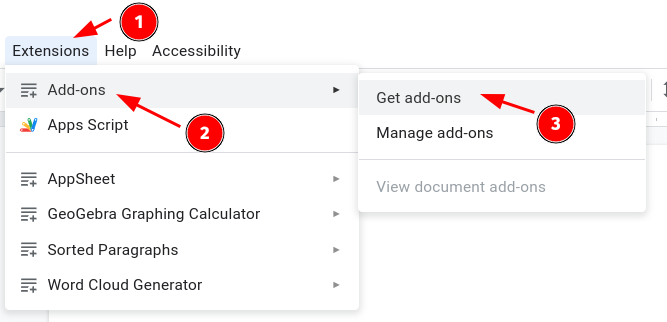
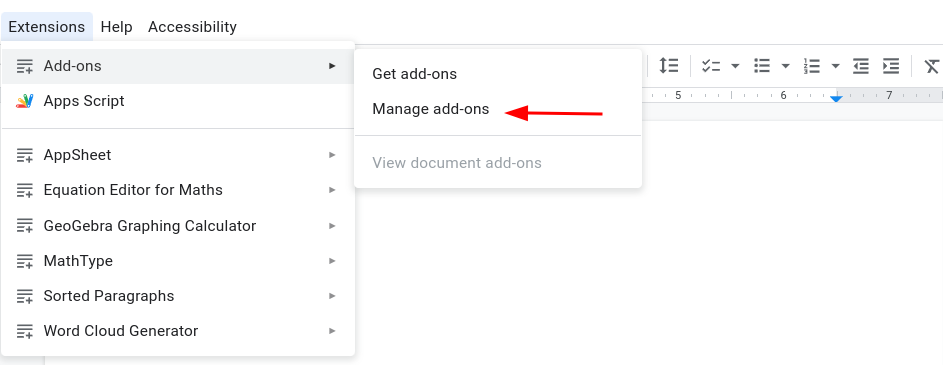
With an open Google Doc, navigate to Extension->Add-Ons->Get add-ons:
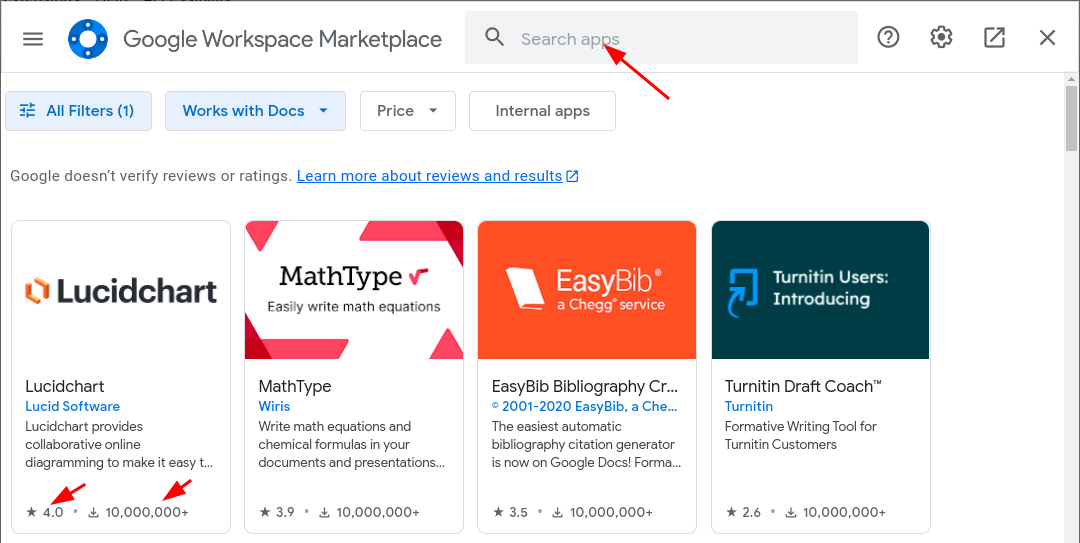
The most popular add-ons will be listed. You can see how many times they have been downloaded and how many stars they have earned. Feel free to browse the popular items or use the search capability.
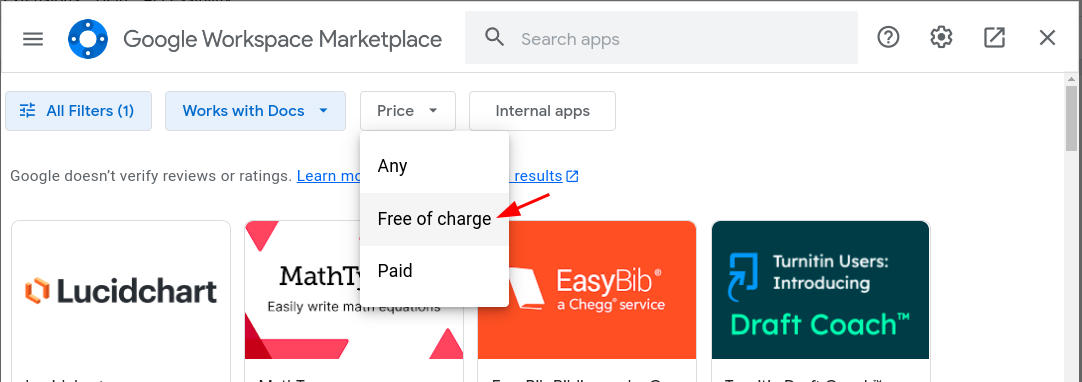
If you want free add-ons only select the Price drop-down and choose Free of Charge.
When you find one to try click on it and then click Install. There may be one or more permission prompts to click after that.
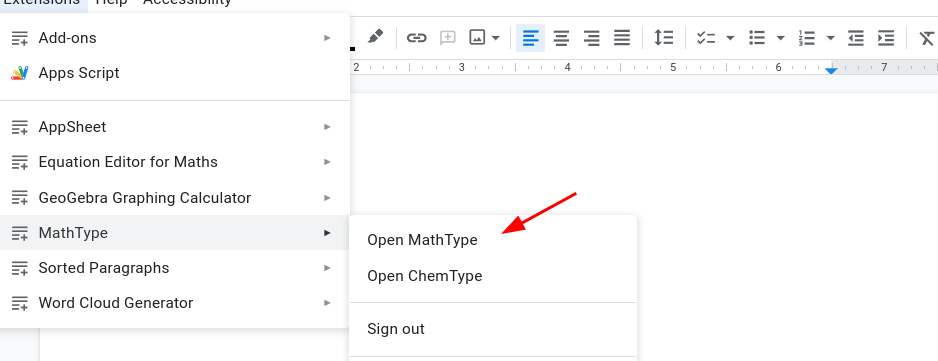
Once it installs, go back to the Extensions Menu. The add-on should now be listed. Each one is worded a bit differently but typically there is an option to open or launch.
Sometimes add-ons don’t work out or are not what you expected. If you need to uninstall an add-on go back to the Extensions Menu ->Add-Ons → Manage Add-Ons. Then select uninstall.
Each add-on works a bit differently, but for the most part, is fairly intuitive. Many have a separate workspace that allows for editing and then addition to a google doc.
Originally posted by Carl Clements on the West Fork Technology Hub (2023-03-07).
No comments to display
No comments to display